Team Selling in Territory Feedback
Team Selling is when a team of users in the same field force work together on a common set of targets.. Target goals in Team Selling field forces are defined using team-based goals. These team-based goals then display to users in the Territory Feedback module, enabling users within the team to decide what their own individual goals should be for each target.
Who can use this feature?
- Browser Users
- Users require an Align License
- Business Admin Users
Considerations
- Team goals do not represent the sum of all team member individual goals
- Users can provide feedback on their own goals, but not team goals. Align admins can adjust team goals based on the individual feedback of team members.
- Users can view the goals of other team members, but can only change their own goals
- If multiple team members are viewing Territory Feedback at once, Edit Goals challenges from other team members are reflected the next time the user views the Territory Feedback module
- Sorting the contents of the Edit Alignment table by goal sorts based on the user’s goals, not the associated team goals
Prerequisites
To display this feature, at least one of the following fields for one or more of the user’s targets must be populated in Align:
- The team_channel_activity_goal__v field on the appropriate mc_cycle_plan_channel__v record
- The team_product_activity_goal__v field on the appropriate mc_cycle_plan_product__v record
These fields may be populated via targeting rules, manually, or dataloading.
Viewing Targets with Team Goals
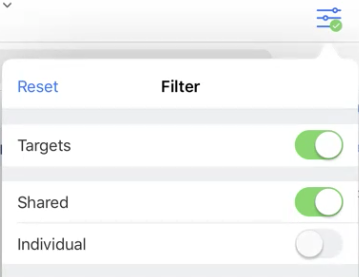
Users can filter the list of accounts in the Edit Alignment table to only display targets that are shared with other team members:
- Select the Filter button.
-
Enable the Shared toggle.
Viewing Team Goals and Team Member Goals
A target’s team goals display as a sub-row beneath the target in the Edit Alignment table.

Selecting a value in the Team Goals sub-row displays the Team Sheet for that target. The Team Sheet displays the team goals for the target, as well as each team member’s individual goals for the target, including the current user.
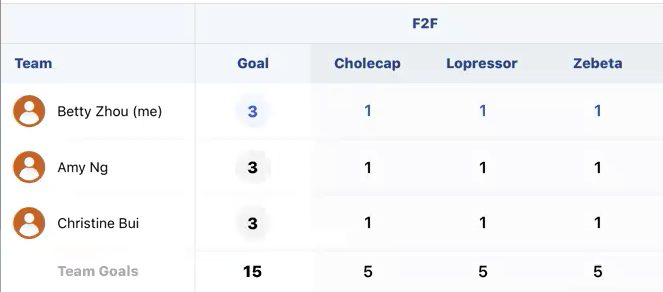
The current user always displays as the first row on the Team Sheet.
Users can create Edit Goals challenges for themselves from the Team Sheet by selecting the appropriate goal. After all goals are edited, the challenge can be submitted by selecting the Save button.

