Using Text Messaging in Vault CRM
Text messaging in Vault CRM provides end users with an interface to communicate with healthcare professionals (HCPs) via native SMS on their mobile devices. It bridges the gap between structured commercial activities and conversational text messaging by enabling reps to author free text, select pre-approved message templates, and share interactive CLM presentations directly within the Vault CRM Chats tab.
Who can use this feature?
- End Users - iPad, iPhone
- Sending and Receiving SMS Messages
- Sharing Phone Numbers and Active Conversations
- Users require an Engage license
Configuring Consent for SMS Messaging for
 End Users
To configure this feature, ensure Configuring Text Messaging in Vault CRM is complete.
The opt-in for Messaging is shared across Messaging services / applications. Opt-outs apply to all Messaging services.
Sending and Receiving SMS Messages as
End Users
Users can access SMS Business Messaging directly from the Chats tab. If the user is configured for both SMS Business Messaging and WhatsApp Business Messaging, and chats have been initiated for both features, the Chats tab displays separate subtabs for the two messaging apps.
The SMS Business Messaging interface displays the following components:
- Chat List Panel (Left Pane) - A scrollable directory of conversations, featuring a search bar and a Compose Chat icon
- Chat Thread Content Area (Right Pane) - Displays message bubbles, contextual banners, action pills, the message input box, and the Send button
- Indicator Label - The header of the active SMS chat thread displays a Messaging via SMS label and a standard SMS icon
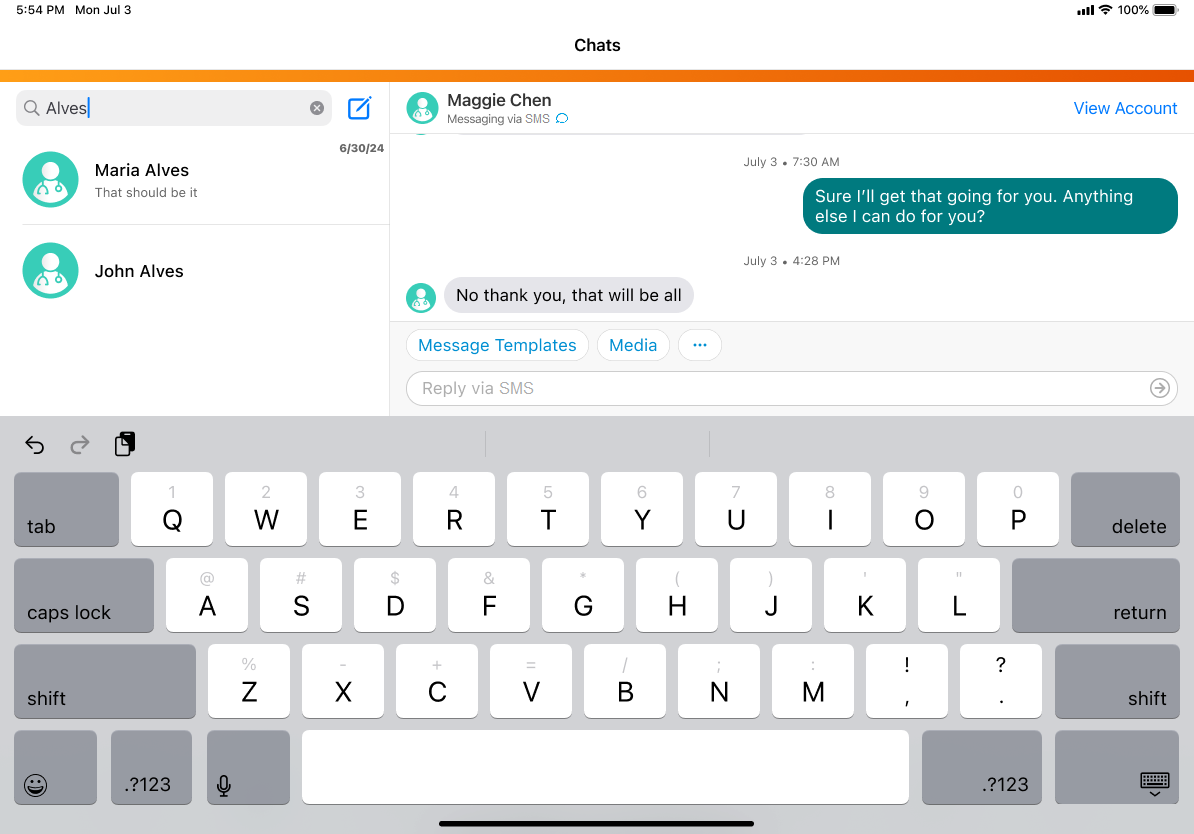
End users can copy any message bubble in the thread (sent or received) to their device's clipboard. To do so, press and hold the target bubble, and select the Copy action from the options menu.
Selecting the account name in the thread header instantly redirects the user to the HCP’s Account Details screen. The View Account action link is excluded from the header row in this mode.
If the account is enabled for both SMS and WhatsApp, users can select a dropdown menu of options, including View Account Details.
To maintain strict compliance and prevent self-view tracking contamination, end users are blocked from opening any links they have sent in the Chat Thread. This restriction covers:
- Shortened CLM Presentation or website web links.
- URL links embedded inside pre-approved message template buttons.
- Any raw URLs typed manually by the user within a free text message.
Sending Messages
End users can only send outbound SMS messages to Account records they have active territory alignment or sharing rules access to. The sms__v field on the Account must be populated with a valid phone number (which enforces the standard Phone format mask, including ‘+’ and a country code).
Free Text Messaging
The text input field remains statically docked at the bottom of the screen. The field accepts any plain text that is not an empty string, blank spaces, or tabs. Users can type a maximum of 1500 characters. Navigating away from the chat thread retains the unsent text in the input box unless the app is killed.
Using Message Templates
Users can select the Message Templates button to open an alphabetical, category-grouped overlay of Text-Only Message Templates (text_only_template__v) associated with the user’s SMS Business Account. Templates with restricted products matching the HCP's restricted list are filtered out.
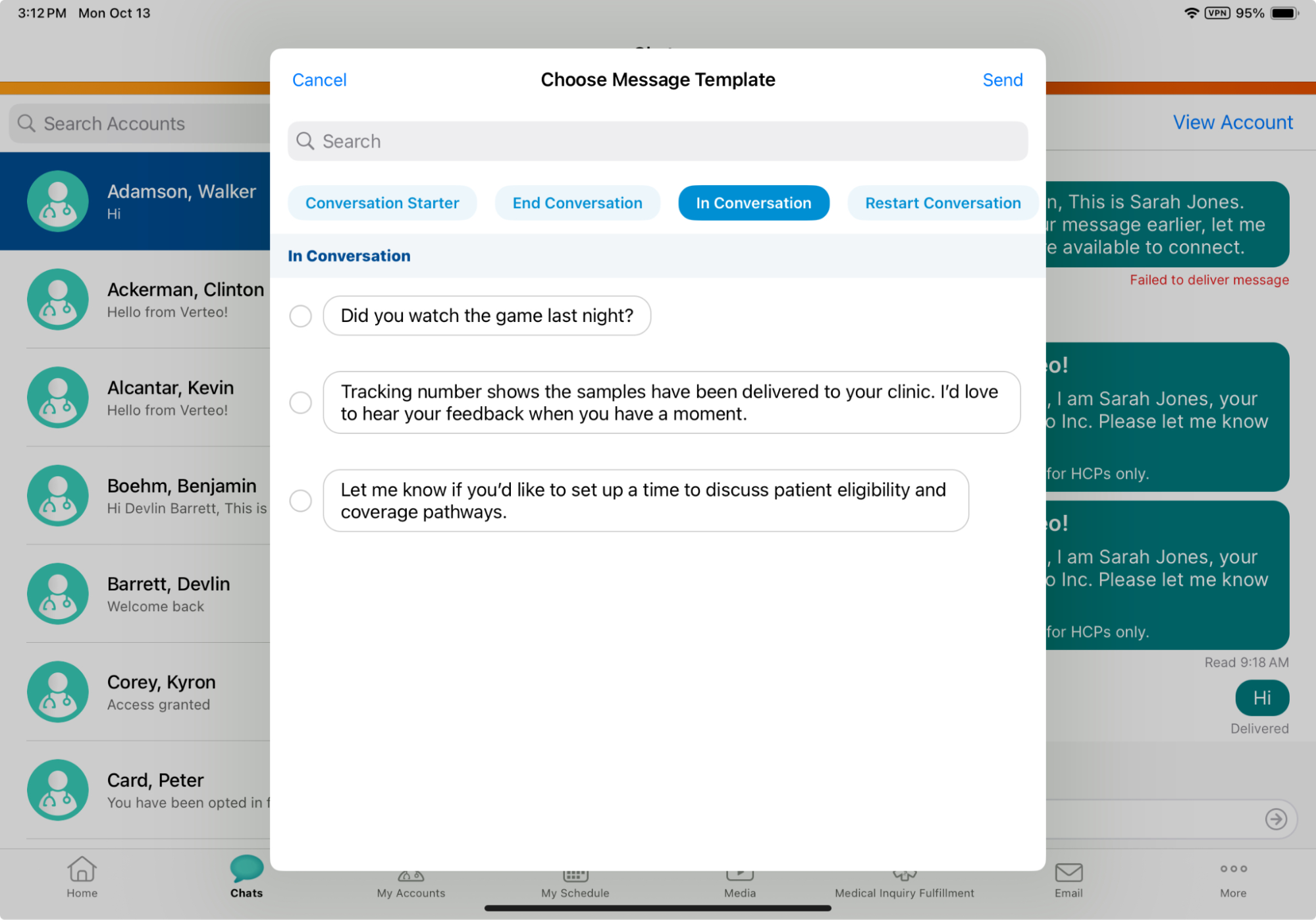
The search field filters the templates against template names and resolved placeholder text.
Placeholders in the template (for example, {{1}}) resolve automatically to display values before the user sends the message. If the user lacks permission to a referenced field or the database field is empty, SMS Business Messaging replaces the placeholder with an empty string ("") and sends the message safely.
Eligible templates are grouped by category and displayed alphabetically. Templates with no category value are placed under the Additional Message Templates category, which always displays last.
Sending CLM Links
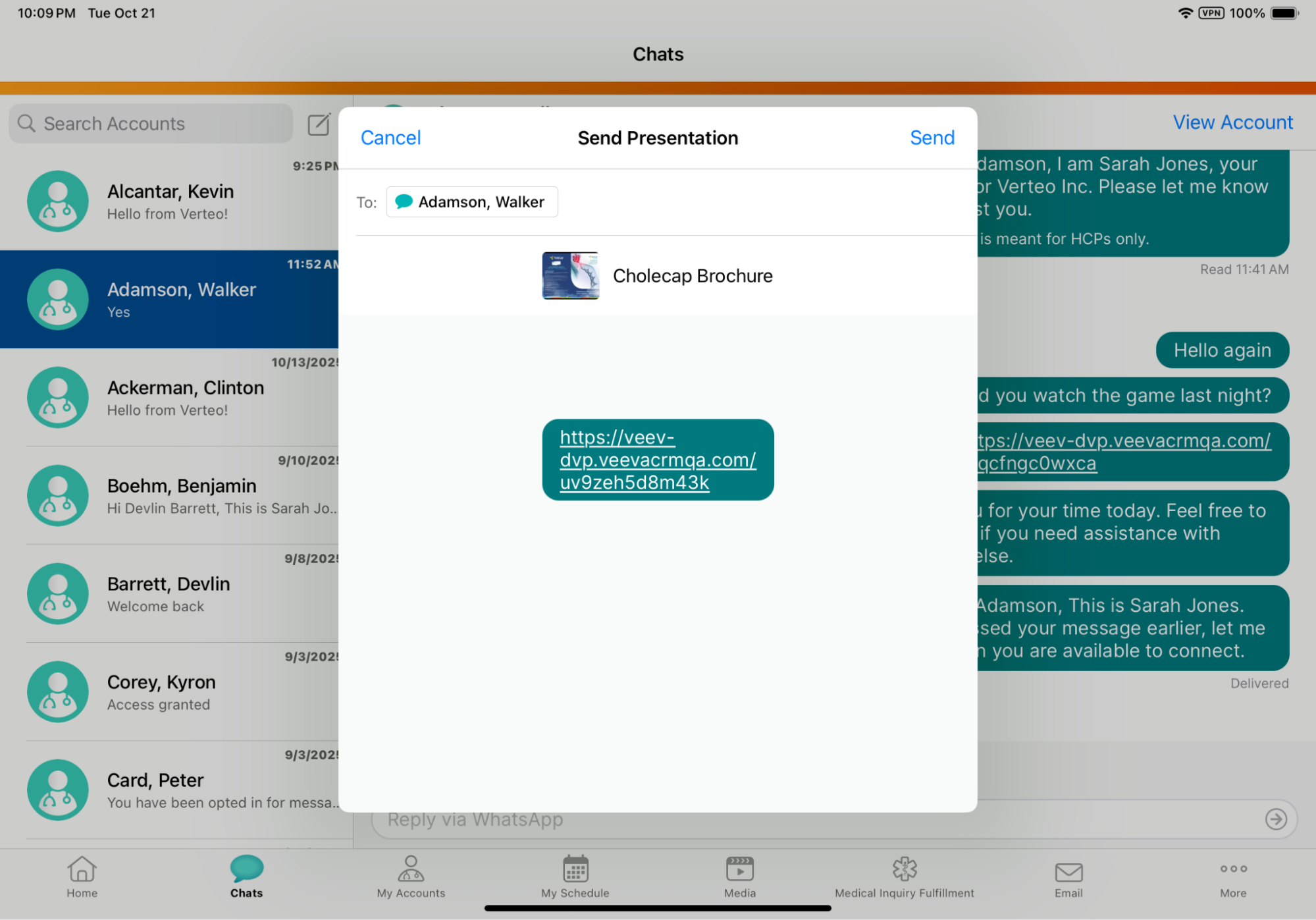
Selecting the Media pill launches the CLM Media Library. Users can select any CLM presentation or website that has share_as_engage_link__v set to True and does not violate restricted product alignment for that HCP. After selecting media, users are guided through a Message Template selector screen where they can select a pre-approved template or "No Message" (default) to accompany the link.
A preview allows users to review the resolved tokens, recipient name, and the shortened URL before selecting Send. The link is sent as a shortened URL using the veev.io domain (for example, veev.io/sbn1pyrrix31) to track click activity. If link shortening fails to complete within 10 seconds, the full URL is sent instead, which disables downstream click-tracking analytics.
Proactive Restricted Phrase Blocking
To maintain industry compliance, typed outbound text is evaluated against active Monitoring Rules. If a violation is detected, a red banner displays an error above the input field. The violating phrase is highlighted in red in the text input field, and the Send button is disabled until the violation is resolved.
Matching is case-insensitive (for example, matching "pediatrics" blocks "Pediatrics"). Emojis are not evaluated.
Outbound Delivery Indicators
All outbound messages display localized delivery status below the message bubble on the right side of the screen (visible for the latest message in the thread only, or all messages upon swiping left). For delivered messages, the delivery time (if within the last 24 hours) or date displays.
Using SMS Business Messaging with WhatsApp
If a user is configured for both SMS and WhatsApp Business Messaging, Vault CRM delivers a unified multi-messaging experience.
Selecting compose launches the Start a Chat overlay showing both SMS and WhatsApp options along with their respective numbers. If numbers are missing, "Add SMS Number" or "Add WhatsApp Number" links are displayed.
Selecting the chevron in the thread header allows users to select "New Chat via SMS" or "New Chat via WhatsApp" to launch conversations on the alternate app.
Once conversations are initiated on both apps, separate tabs for SMS and WhatsApp display at the top of the chat area. Each tab preserves a unique message history, and active conversation states and 24-hour windows are completely independent. If a message arrives on the alternate tab, a red dot displays on that tab to notify the user.
When sharing Remote Signatures (BRCs or Medical Inquiry), Remote CLM presentations, or Remote Meeting links (Engage, Zoom, or Teams), selecting Chats in the Share Modal launches an app picker. This allows users to select whether to route the link via SMS or WhatsApp, prompting standard consent and phone number validation checks.
Bulk Messaging (Accounts Tab)
Users can send messages in bulk from the My Accounts tab. To do so:
- Select up to 25 accounts on the My Accounts screen.
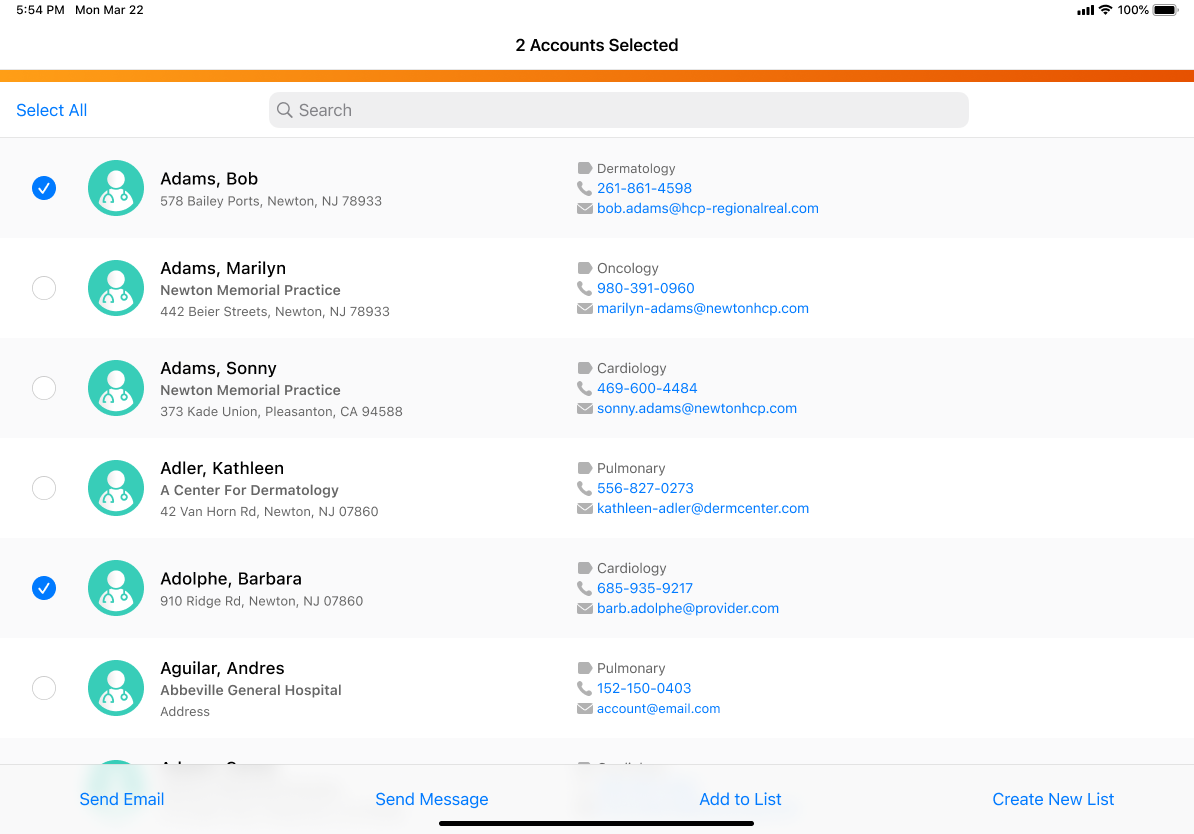
- Select Send Message.
- Select the preferred app (SMS or WhatsApp).
- Select a text-only template (SMS) or a Meta-approved template (WhatsApp).
The system checks consent, populated phone numbers, and active conversation blocks across all 25 recipients, grouping them into Eligible and Ineligible sections. Ineligible accounts are greyed out with warning icons displaying the specific block reasons.
- Select Send to send individual messages to all eligible recipients. The system creates separate sent_message__v records stamped with a matching, unique message_group_id__v for each transaction.
Account Timeline Integration
To maintain a clean and uncluttered timeline, Vault CRM enforces a selective logging policy for SMS sent messages. Outbound SMS messages containing shared CLM presentations are logged directly to the Account Timeline.
Purely conversational, text-only templates and free text messages are excluded from the Account Timeline. These are archived in standard reports instead.
Inbound Message Handling & Alerts
Users are presented with a notification consent modal when navigating to the Chats tab for the first time. Users can select Allow Notifications, or No Thanks. Selecting No Thanks will prompt the user a maximum of one more time when they send or receive their first chat message on that device.
If the user is inside the Vault CRM app but not viewing the specific thread, an inbound message notification displays the sender's Account name (or number) and up to 2 lines of text. Selecting the banner navigates directly to the chat thread.
Deep-linking is suppressed to prevent data loss if the user is in edit states or signature screens (for example, Call Report, Order Entry, Medical Inquiry, Consent Capture, Call Sampling signatures, or active CLM full-screen presentation mode).
Inbound Reactions
HCPs can send emoji reactions to messages. Vault CRM displays these as a text bubble on the left side of the thread. For example: Thumbs Up to "See you tomorrow"
Unknown Senders (Unassociated Numbers)
If a text is received from a phone number not linked to any Account record, the Chat List and thread banner display the phone number prefixed with '+'. The Chat Thread displays as read-only (text field and action pills are hidden), and a warning banner is displayed at the bottom stating "This phone number is not associated to an Account." If configured under Multichannel Routing (message_from_unknown_sender__v event), an automated instruction reply is sent back to the sender.
Non-Text Message Blocking
AWS End User Messaging does not support sending or receiving MMS. If an HCP attempts to send a non-text message (for example, an image, video, document, or location), Vault CRM receives no event notification.
Inbound Email Notifications
An automated email notification is sent from noreply@veevacrm.com to the assigned user’s email address according to the following logic:
- Conversation Start Rule - Emails are sent only when a new inbound message starts a new conversation (meaning no active conversation exists). Sub-messages within an active conversation do not trigger emails.
- Routing Resolution - Sent to the dedicated phone number user, the user of the most recent conversation, or falling back to the primary and secondary inbound routing users on the SMS Business Account
- Unknown Sender Rule - If an inbound message arrives from a phone number that is not associated with an Account record, an email notification containing the message text is sent to the routed user once every 24 hours
Sharing Phone Numbers and Active Conversations as
End Users
Because multiple CRM representatives can share a single leased SMS phone number for territory coverage, Vault CRM enforces strict Active Conversation logic to prevent overlapping message collision:
- Active Conversation - A conversation is active if a message has been received from the HCP in the thread within the last 24 hours, and has not been explicitly ended. Every incoming message from the HCP resets the 24-hour countdown.
- Pending Conversation - A user sent a message, but the HCP has not replied to activate the conversation
- Blocked- If User A is in an active conversation with an HCP, User B (sharing the same number) is blocked from sending messages to that HCP. When User B opens that thread, the input area and action pills are disabled and replaced with an alert banner
Senders can end a thread manually by selecting End Conversation. Upon confirmation, the conversation is marked as ended, releasing the number, and an automated confirmation message is sent (if configured) indicating the conversation has ended.
If no messages are exchanged for 24 hours, the conversation is automatically ended, releasing the phone number. Auto-ending does not send the automated confirmation message to prevent spamming the HCP.
To establish context when opening a thread, the system displays information banners above the input field. This banner displays whether another sharing user had an active conversation with that HCP in the past, or whether another sharing user sent a message to that HCP more than 24 hours ago but the HCP never replied.

