Configuring Account Plans
Components
The account plans module is a structured framework for managing long-term projects related to key accounts. It consists of a hierarchical structure of objects that outline strategies, tactics, and actions necessary to achieve specific account goals. The main objects that comprise the account plans module are:
Account Plan (account_plan__v)
The Account Plan object is the top-level of the account plan hierarchy that defines the overall plan for an account.
Strategy (plan_tactic__v)
Strategies are general activities to be implemented as part of an account plan. They are typically configured as the second level of an account plan hierarchy.
Objective (account_tactic__v)
Objectives are specific activities to be completed for an account plan. They can be used to assign accounts to strategies or break down strategies into smaller, actionable steps. They are typically configured as the third level of an account plan hierarchy.
Action Item (action_item__v)
Action items are the specific tasks in the plan that team members execute to move the plan toward completion. Action Items can be executed from the plan or the Call Report. They are typically configured as the fourth and last layer of the account plan hierarchy in replacement of call objectives.
Call Objective (call_objective__v)
Call objectives are the specific tasks in the plan that team members execute to move the plan toward completion. Call objectives must be executed from the Call Report. They are typically configured as the fourth and last layer of the account plan hierarchy in replacement of action items.
Account Team Member (account_team_member__v)
Account plan team members are colleagues who are responsible for collaborating on the account plan.
Key Stakeholders (key_stakeholder__v)
Key stakeholders are the people or accounts that are important to drive the plan forward.
SWOT (swot__v)
The SWOT object is a SWOT (Strengths, Weaknesses, Opportunities, and Threats) analysis for an account plan. This allows multiple teams to easily contribute to a single account plan for an account and also provides flexibility for each team to have their own SWOT analysis and goals records. These records can also be used to differentiate SWOTs and goals by product, compound, or therapeutic area, based on the products associated with the account. KAMs can create and view SWOT records on the Account Plan page.
Related Modules
In addition to the account plan data model, account plans relate to other modules within CRM including:
- Product Plans (product_plan__v)
- Call (call2__v)
- Opportunities (opportunity__v)
- Patient Journeys (patient_journey__v)
Guidance for Configuring the Account Plan Hierarchy
The Account Plan hierarchy is defined as a comma-separated list in the Account Plan Object Hierarchy Veeva Setting. For example: plan_tactic__v.account_plan__vr,account_tactic__v.plan_tactic__vr,action_item__v.account_tactic__vr
The following restrictions apply when creating an account plan:
- Either action item or call objective can be included at the lowest level of the hierarchy, not both
- Account plan is always the top level
- Custom objects can be configured as part of the hierarchy, with limitations
While custom objects are supported in the hierarchy, it is not recommended to use them when using Account Plan Sharing.
- The hierarchy should only have up to four levels including custom objects
- The hierarchy is defined on the Vault level in the account_plan_object_hierarchy__v Veeva Setting. Profile-specific settings are not supported for the account plan object hierarchy.
Configuring Account Plans for
 KAM Users
To configure this feature:
- Grant the following permissions depending on the objects in the account plan hierarchy:
Object Object Permission Object Types Fields Field Permission account_plan__v
CRED
account_plan__v
- account__v
- Account_plan_status__v (optional)
- active__v
- description__v (optional)
- end_date__v (optional)
- health__v (optional)
- name__v
- object_type__v
- start_date__v (optional)
Edit
ownerid__v
Read plan_tactic__v
CRED
n/a
- account_plan__v
- name__v
- plan_tactic_status__v
- product__v (optional)
Edit
account_tactic__v CRED account_tactic__v - account__v
- account_plan__v
- account_tactic_status__v
- description__v (optional)
- name__v
- plan_tactic__v
Edit action_item__v CRED kam__v - account__v
- account_plan__v
- account_tactic__v
- name__v
- action_item_status__v
- assignee__v
- completed_by__v
- completed_date__v
- description__v
- due_date__v
- plan_tactic__v
- start_date__v
Edit call_objective__v CRED action_plan__c
Custom object types must be created by an admin.
- account__v
- account_plan__v
- account_tactic__v
- plan_tactic__v
Edit Swot__v (optional) CRED n/a All fields (optional) Edit -
Ensure the following VMOCs are active for the appropriate platforms:
Object Sync Type WHERE Clause account_plan__v
Top Level
WHERE account__v IN (SELECT id FROM account__vr)
plan_tactic__v
Top Level
n/a
account_tactic__v Top Level n/a action_item__v Top Level WHERE ownerid__v = @@USER_ID@@ OR assignee__v = @@USER_ID@@ action_item__v Top Level WHERE account__v IN (SELECT id FROM account__vr) action_item__v Top Level WHERE account_plan__v IN (SELECT id FROM account_plan__vr) call_objective__v Top Level WHERE account__v IN (SELECT id FROM account__vr) key_stakeholder__v Full Sync WHERE account_plan__v IN (SELECT id FROM account_plan__vr) account_team_member__v Top Level WHERE account_plan__v IN (SELECT id FROM account_plan__vr) -
Expose the swot__v related lists on the account_plan__v layouts. (Optional.) This allows end users to view and access the records on the Account Plan page.
KAMs are only prompted to populate required fields when creating an account plan. They can select Edit from the newly-created account plan to provide additional information.
If custom related objects are added to Account Plan layouts, ensure Object Types are created and enabled for those custom objects.
Optional Configuration
- Configure Stakeholder Navigator to allow users to view a visual representation of relationships for accounts in a plan
- Configure the following sections to display on the Account Plan Layout:
- Account Plan Hierarchy
- SWOT
- Account Team Members
- Key Stakeholders
Configuring the Account Plan Hierarchy Section
To configure the Account Plan Hierarchy section:
- Navigate to Business Admin > Objects > Veeva Settings > Global Settings.
- Make note of the objects listed in the account_plan_object_hierarchy__v Veeva Setting so you can enable permissions for those objects in the steps below.
- Navigate to Admin > Users & Groups > Permission Sets.
- Select the appropriate permission set.
- Select the Objects tab.
- Grant at least Read access to all objects defined in the account_plan_object_hierarchy__v Veeva Setting.
- Grant View access to the hierarchy_section__v section control.
- Navigate to Admin > Configuration > Objects > account_plan__v.
- Add the hierarchy_section__v section control to the appropriate account_plan__v layouts. This can be re-labeled to align with your company’s terminology (for example, Strategies Overview). The section name and tab name will display in the account plan UI based on the section name defined in the layout.
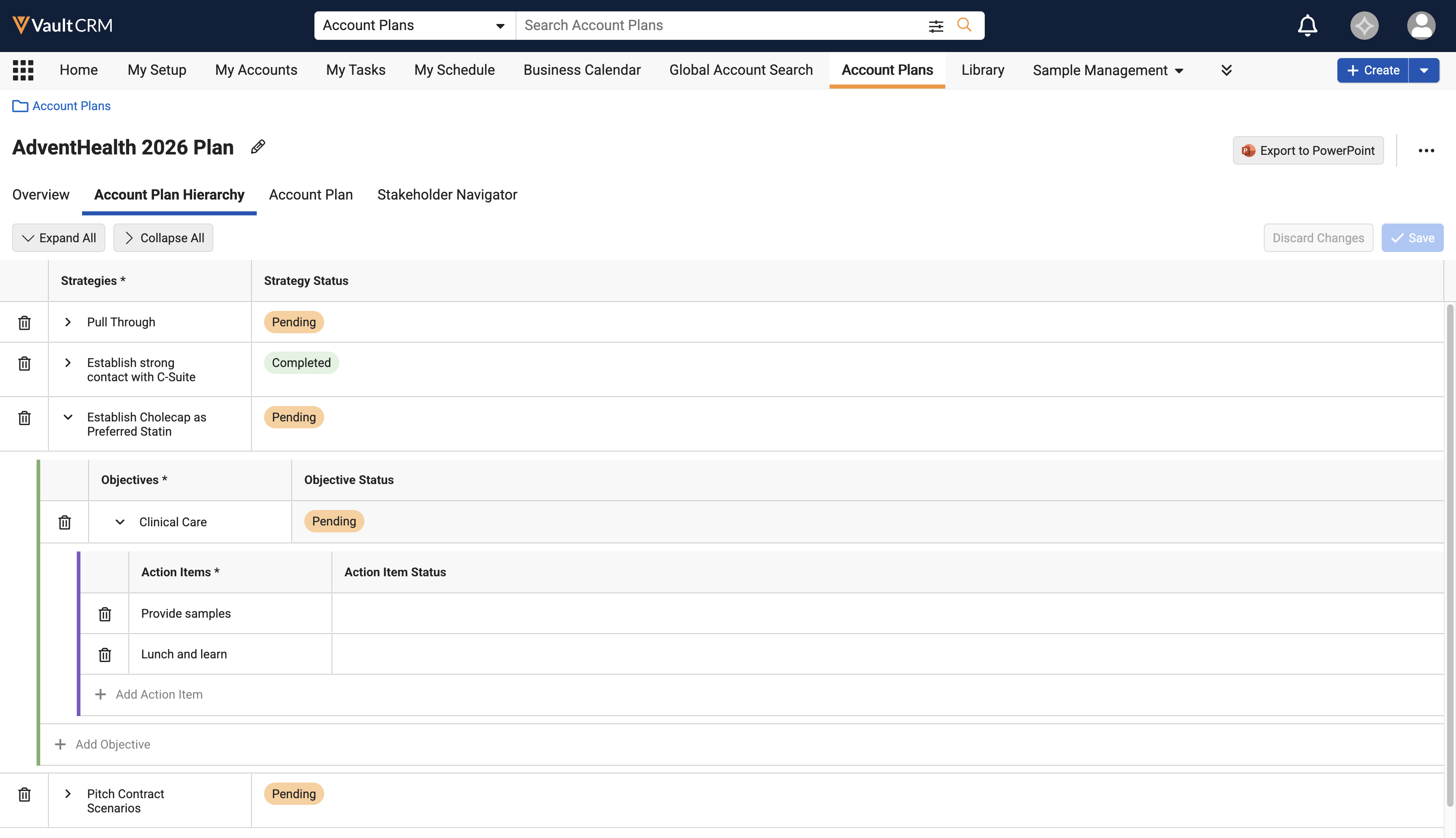
Configuring Columns for the Hierarchy Section
Admins can configure up to 10 columns to display in the Hierarchy section of an account plan.
To configure the columns:
- Navigate to Business Admin > Objects > Veeva Settings > Global Settings.
- Update the following Veeva Settings to specify the columns that should display for that level of the hierarchy. The number of settings you update depends on the number of levels defined in the account_plan_object_hierarchy__v Veeva Setting.
- account_plan_hierarchy_lvl_1_cols__v
- account_plan_hierarchy_lvl_2_cols__v
- account_plan_hierarchy_lvl_3_cols__v
The application uses the Hierarchy columns defined in the profile-specific setting if a profile-specific Veeva Setting exists. If no profile-specific Veeva Settings record exists, the global Veeva Settings are used.
Enter columns as a comma-delimited list of fields using the following format:
object_api_name.field_api_name__v
For example, if the first level of the hierarchy is account_tactic__v, the Product, Type, and Description could be configured to display as columns by entering the following in the account_plan_hierarchy_lvl_1_cols__v setting:
account_tactic__v.product__v,account_tactic__v.type__v,account_tactic__v.description__v
Attachment, long text, and rich text field types are not supported.
- Navigate to Admin > Users & Groups > Permission Sets.
- Select the appropriate permission set.
- Select the Objects tab.
- Grant users at least Read permission to all fields defined in the hierarchy column Veeva Settings above.
- Grant users at least Read permission to the Object Status field on each of the objects included in the hierarchy column Veeva Settings above.
Configuring Section Display Order
To configure the section display order:
- Navigate to Admin > Users & Groups > Permission Sets.
- Select the appropriate permission set.
- Select the Objects tab.
- Grant users one of the following permissions for the section_display_order__v field on the account_plan__v object:
- Read - allows users to view the custom display order
- Edit - allows users to edit the custom display order
If the field is not populated, the display order is based on the configuration of the layout.

