Territory Feedback Constraints
Align operational users can enable specific feedback constraints for Model Field Forces, which are both viewable and enforceable when end users use Territory Feedback. This helps end users comply with guidelines before they submit their feedback, and avoids dependency on managers to identify violations.
The following constraints can be enabled:
- The minimum total number of channel interactions the plan must contain
- The maximum percentage of the original HCP targets the end user can remove as targets
- The maximum number of HCO targets the plan can contain
- The exact number of HCP targets the plan must contain
Who can use this feature?
- Align Operational Users - Browser
- Creating Constraints for Model Field Forces
- End Users - iPad
- Using Territory Feedback Constraints
- Users require an Align License
Configuring Territory Feedback Constraints for
 Align Operations Users
To configure this feature:
-
Ensure the following features are configured:
- Navigate to Admin > Users & Groups > Permission Sets.
- Select the appropriate permission set.
- Select the Objects tab.
-
Grant the following permissions:
Object
Object Permission
Object Types
Fields
Field Permission
aln_feedback_constraint_model__v
CRED
targeting__v
- field_force_model__v
- minimum_channel_interactions__v
- max_percent_hcp_target_removals__v
- max_number_hco_targets__v
- required_number_of_hcp_targets__v
- production_record__v
Edit
aln_feedback_constraint__v
CRED
targeting__v
- field_force_model__v
- minimum_channel_interactions__v
- max_percent_hcp_target_removals__v
- max_number_hco_targets__v
- required_number_of_hcp_targets__v
Edit
aln_territory_model__v
CRE
All
capacity_adjustment_percentage__v
Edit
aln_territory__v
CRE
All
capacity_adjustment_percentage__v
Edit
- Navigate to Admin > Configuration > Objects > aln_field_force_model__v > Layouts.
- Add the Model Feedback Constraints Related Object section to the appropriate layouts.
- Navigate to Admin > Configuration > Objects > aln_field_force__v > Layouts.
- Add the Feedback Constraints Related Object section to the appropriate layouts.
- Navigate to Admin > Configuration > Objects > aln_territory_model__v > Layouts.
- Add the capacity_adjustment_percentage__v field to the appropriate layouts.
- Navigate to Admin > Configuration > Objects > aln_territory__v > Layouts.
- Add the capacity_adjustment_percentage__v field to the appropriate layouts.
Managers
This feature can be optionally configured to enable managers to bypass Constraints on behalf of their reps. To do so, ensure the Model Territory Lifecycle grants managers the ability to move a Model Territory from the Feedback lifecycle state to the Manager Review lifecycle state.
Creating Constraints for a Model Field Force as
Align Operational Users
Align operational users define which constraints apply to each field force, as well as define the parameters that end users' feedback must meet. Constraints are maintained in the model, and persist into future models through Publish and Import.
To define constraints for a Model Field Force:
- Navigate to the appropriate Model Field Force.
- Select Create in the Model Feedback Constraints related list.
-
Populate the appropriate fields:
- minimum_channel_interactions__v – The minimum total number of channel interactions the plan must contain
- max_percent_hcp_target_removals__v – The maximum percentage of the original HCP targets the end user can remove as targets
- max_number_hco_targets__v – The maximum number of HCO targets the plan can contain
- required_number_of_hcp_targets__v – The exact number of HCP targets the plan must contain
Only populated fields are evaluated as constraints. A constraint field left blank does not apply.
- Select Save.
Only one Model Feedback Constraint record is supported for each Model Field Force. If multiple records exist, only the first record returned applies.
Align operational users can adjust constraints for a specific territory by editing the Model Territory’s capacity_adjustment_percentage__v field with a value from 0% to 1000%. This field scales the constraints defined at the Model field Force level for that specific territory.
For example, if the Minimum Channel Interactions constraint is 1,000 and the Capacity Adjustment % for a territory is 50%, the plan for that territory must contain at least 500 interactions. When the field is blank, the Capacity Adjustment % is treated as 100%. The Capacity Adjustment % does not apply to the % of HCP target removals allowed constraint.
Constraints publish from Model Field Forces to production Field Forces, as well as import from production Field Forces to Model Field Forces, meaning Align operational users can define the constraints once and have those constraints carry over across cycles.
Using Territory Feedback Constraints as
End Users
End users can check their feedback against the constraints that apply to their territory before they submit their feedback to managers:
- Navigate to the Edit Alignments screen.
-
Select the All Actions menu.
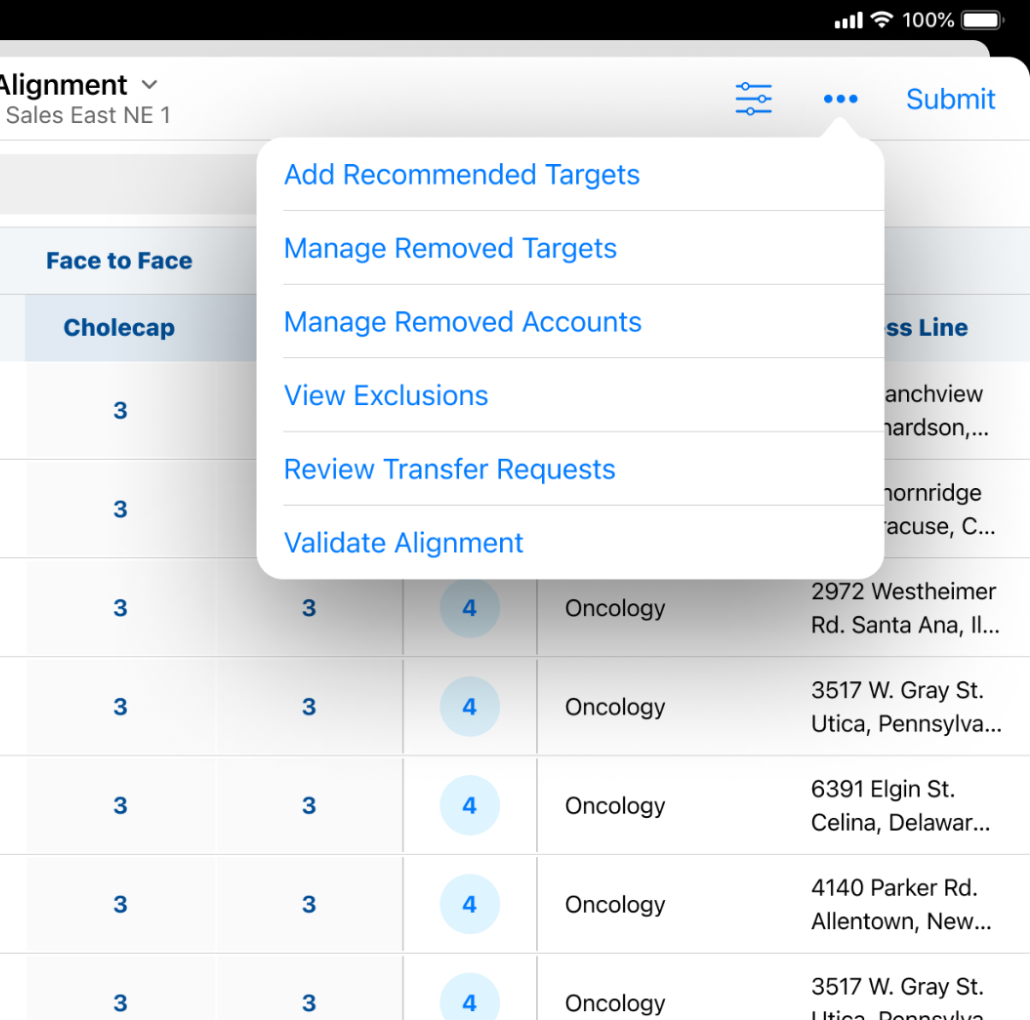
- Select Validate Alignment.
Constraint violations display as a red Error pill. Select this pill to view details about the violations.
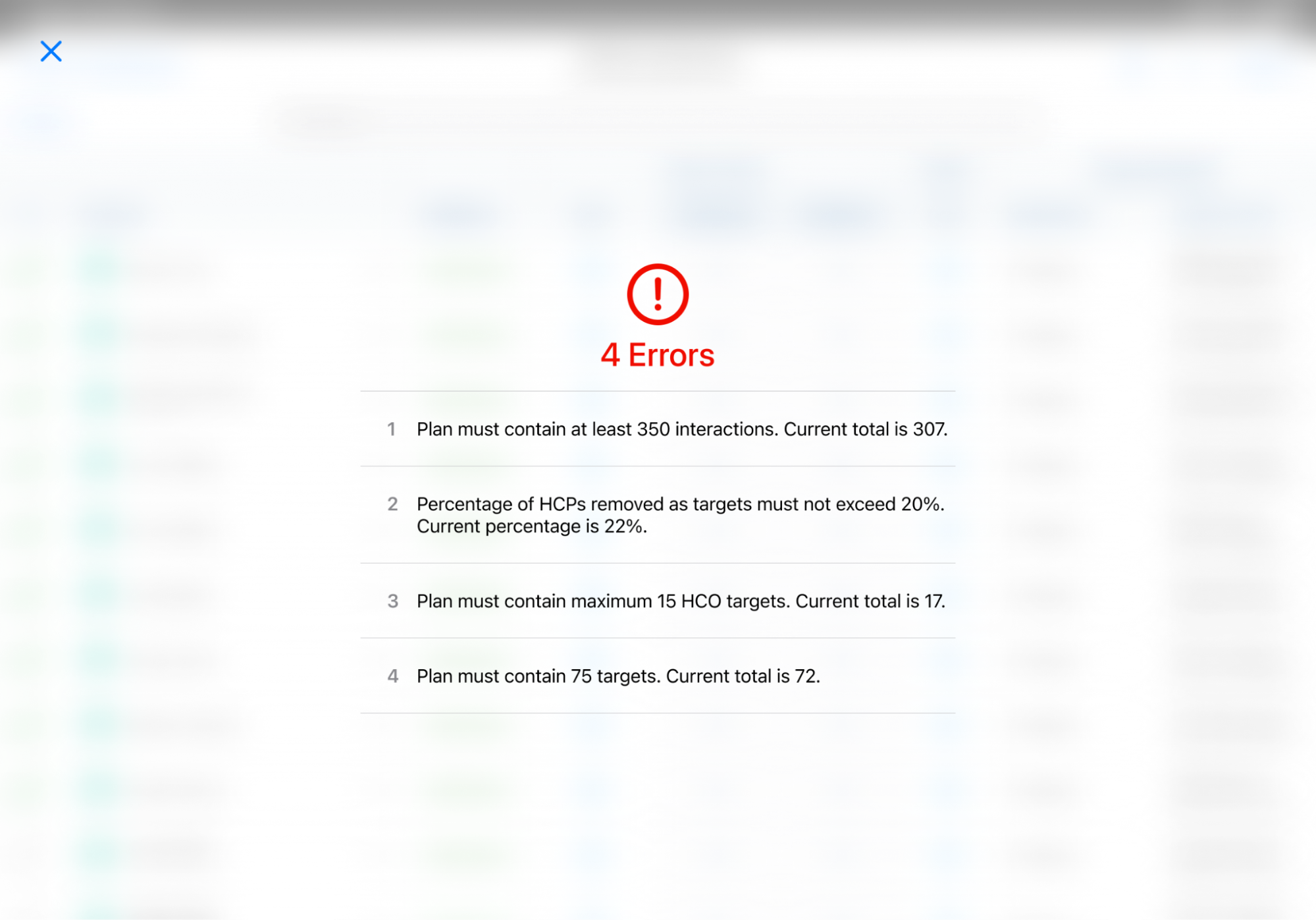
This validation also occurs when end users submit their feedback, and if violations are found, end users are prompted to address them before resubmitting.
Managers
Constraints are not evaluated for any lifecycle state changes managers perform from Manager Feedback. This means that managers can submit an end user’s feedback on their behalf to make an exception to the constraints.
To submit feedback on behalf of an end user:
- Navigate to Manager Feedback.
- Select the appropriate territory.
- Move the Model Territory from the Feedback lifecycle state to the Manager Review lifecycle state. The feedback moves to Manager Review without constraints being evaluated.

