Searching Outside of a Territory in Integrated Territory Feedback
Align enables users of Integrated Territory Feedback to search for all accounts in Align, rather than just the accounts in their current territory. This enables users to create Add Account or Add Target challenges against accounts currently outside of their territory. Administrators can configure specific criteria to ensure users can only search appropriate or relevant accounts.
Who can use this feature?
- End Users - iPad
- Using Global Account Search in Integrated Territory Feedback
- Users require an Align License
Configuring Searching Outside of a Territory in Integrated Territory Feedback for
 End Users
To configure this feature:
- Ensure Configuring Territory Feedback is complete.
- Navigate to Align > Align Admin > Align Settings (Production).
- Edit the Global Settings record.
- Select Yes for the Enable Account Search field.
Configuring Account Search Rules
Account Search Rules enable administrators to define which accounts display when a user searches for an account in Integrated Territory Feedback. This prevents irrelevant or undesired accounts from displaying. For example, the Align Admin can create an Account Search Rule that limits members of the dermatology field force to adding only HCPs whose specialties match a list of approved specialties for their territories.
To configure an Account Search Rule:
- Navigate to the Modeling tab.
- Select the appropriate project.
- Select the Model Field Force.
- Select Create from the Account Search Rules related list.
-
Enter the following information for all criteria for the Search Rule:
- Object
- Field
- Operator
- Value
- Field Logic Filter
- Select Save.
Accounts only display when searched for in Integrated Territory Feedback if the properties of the account match the corresponding Search Rule.
Using Global Account Search in Integrated Territory Feedback as
End Users
To search for an account outside of the user’s territory while using Using Territory Feedback in Vault CRM :
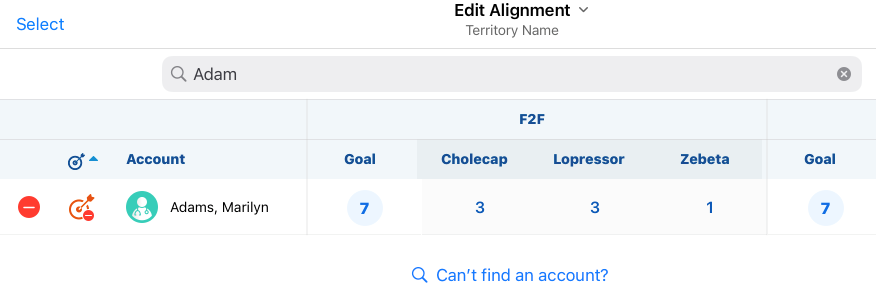
- Navigate to the Edit Alignments table.
- Enter the appropriate search term.
-
Select Can’t find an account?
-
Re-enter the search term in the Global Account Search modal.
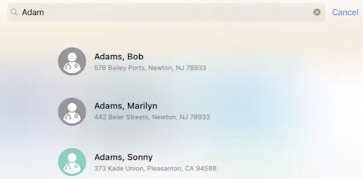
- Select the appropriate account to display the account's profile.
In addition to searching, the Can’t find an account? Link also displays when a filter is applied.

