Managing Target Exclusions
End users can use Territory Feedback to review and re-add removed targets, enabling greater flexibility and end user control during the feedback process. End users can also review accounts that have been explicitly excluded from their territory, enabling them to understand why an account has been excluded and helping them avoid attempting to add the accounts to their territory.
Who can use this feature?
- End Users – iPad
- Managing Removed Targets
- Viewing Exclusions
- Align Operations Users – Browser
- Creating Location-Based Target Exclusions
- Users require an Align License
Configuring Account and Target Exclusions for
 Align Operations Users
To configure this feature:
-
Ensure the following features are configured:
- Navigate to Admin > Users & Groups > Permission Sets.
- Select the appropriate permission set.
- Select the Objects tab.
-
Grant the following permissions:
Object Object Permission Object Types Fields Field Permission aln_account_exclusion__v CRED All location__v Edit aln_model_account_exclusion__v CRED All location__v Edit
End Users
To configure this feature:
-
Ensure the following features are configured:
- Navigate to Admin > Users & Groups > Permission Sets.
- Select the appropriate permission set.
- Select the Objects tab.
-
Grant the following permissions:
Object Object Permission Object Types Fields Field Permission aln_account_exclusion__v R All location__v Read aln_model_account_exclusion__v R All location__v Read
Managing Removed Targets and Accounts as
End Users
End users can use Territory Feedback to view and select previously removed targets and accounts to request them to be re-added to their territory:
To manage removed targets:
- Navigate to the Edit Alignments screen in Territory Feedback.
- Select Manage Removed Targets from the All Actions menu.
-
Select the desired Account rows.
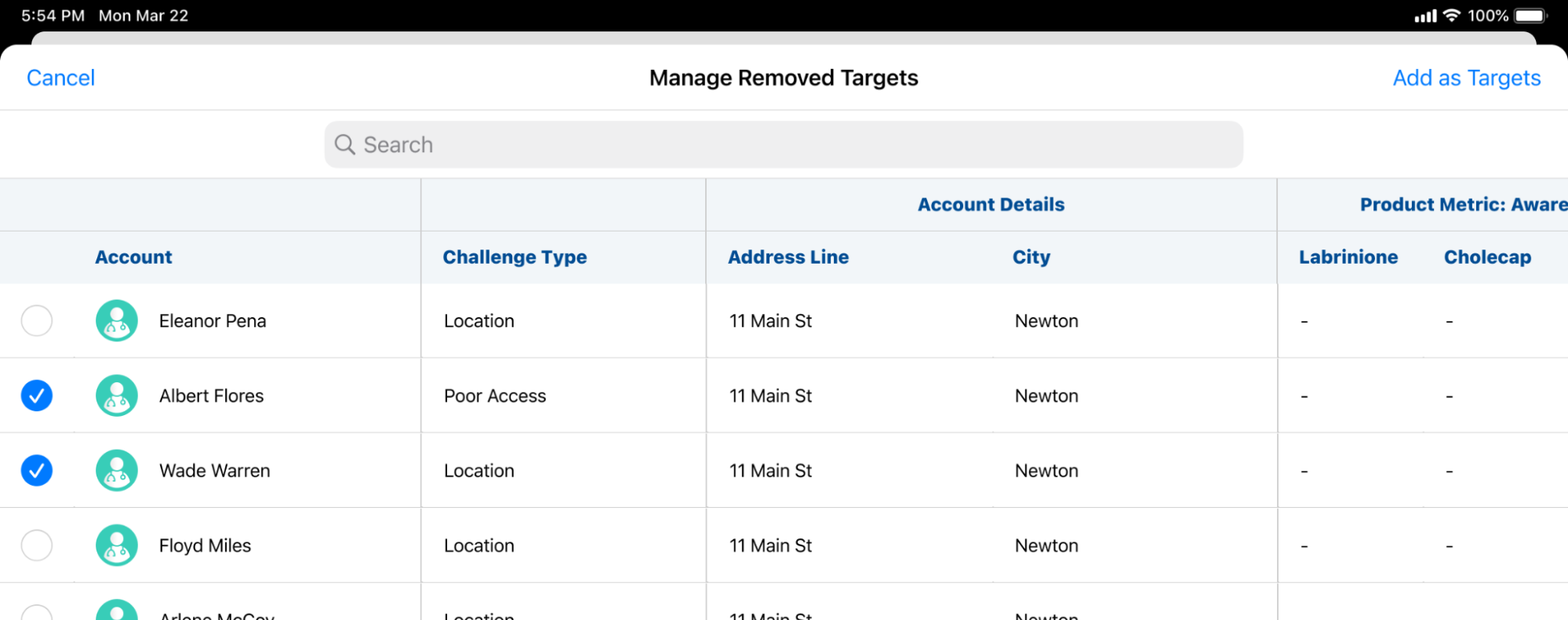
- Select Add as Targets.
-
Adjust the Goals for the selected targets.
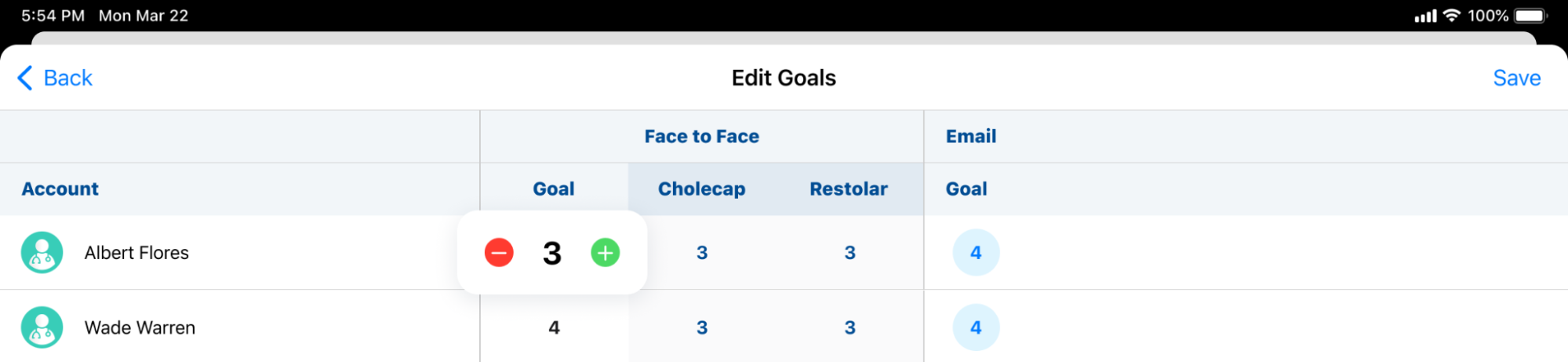
- Select Save.
- Select the applicable Reasons for adding the accounts as targets.
- Select Done.
Viewing Exclusions as
End Users
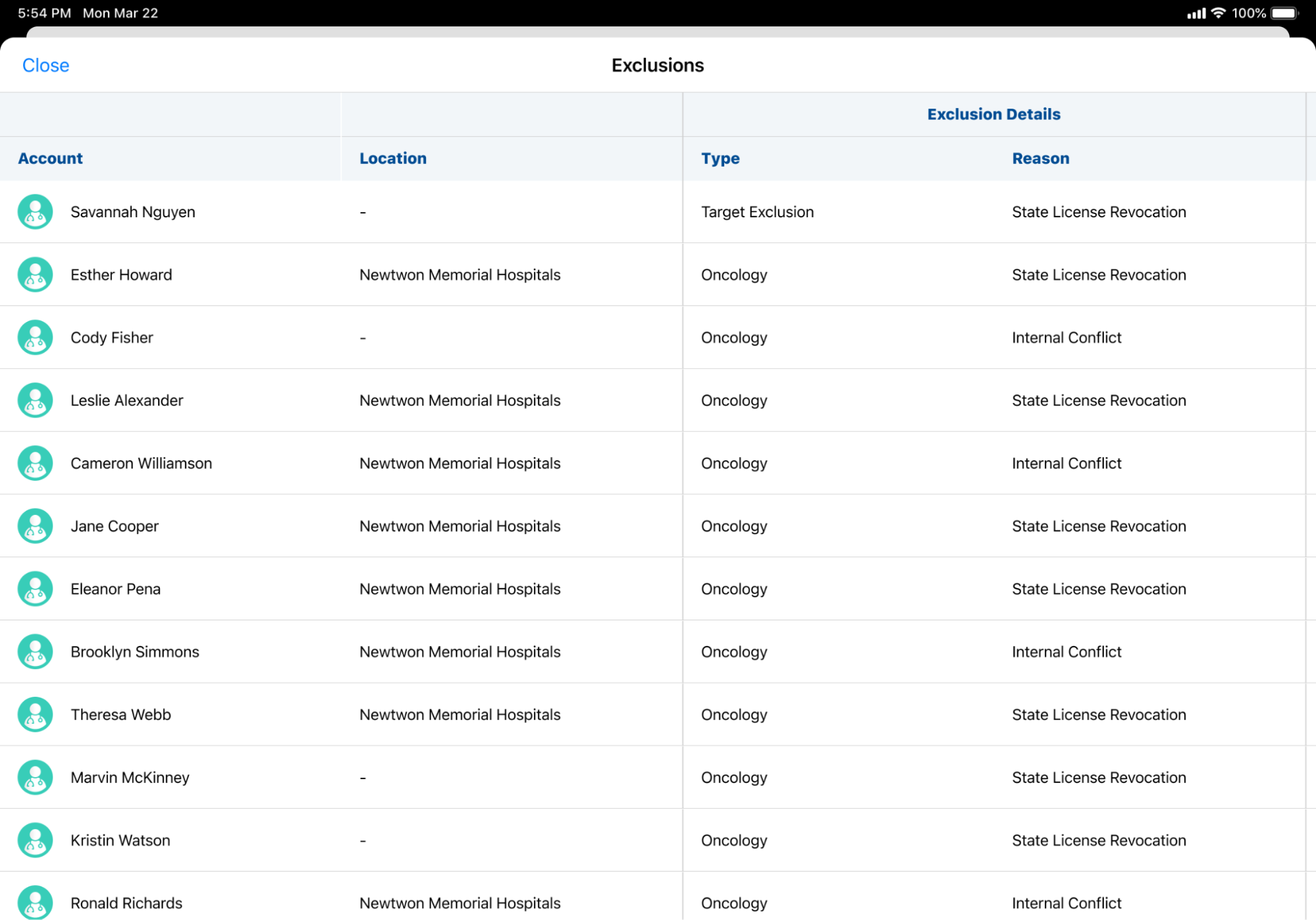
End users can also use Territory Feedback to view the list of accounts explicitly excluded from their territory, enabling them to know which restricted accounts to avoid.
To view exclusions, select View Exclusions from the Edit Alignments screen. The Exclusion Details columns display the type and reason the account was excluded.
Creating Location-Based Target Exclusions as
Align Operations Users
Align operations users can manage location-based target exclusions, enabling greater flexibility when using Location Based Targeting to track account activity at a specific location.
To add a location-based target exclusion:
- Navigate to the Account Exclusions section of the appropriate aln_territory__v or field_force__v record.
- Select + Create.
-
Populate the following fields:
- Account – Select the appropriate account
- Location – Select the appropriate account location
- Start Date – The start date of the exclusion
- End Date – The end date of the exclusion
- Exclusion Reason – Select the appropriate reason for exclusion, if applicable
- Send to CRM – Select Yes to schedule the exclusion to send to Vault CRM. Select No to keep the exclusion local to Align.
An account cannot be manually assigned to the same territory for an overlapping time period unless one assignment has Send to CRM set to Yes and the other to No.
-
Select + Add Row to add another account, or select Save.

