Transferring Targets in Territory Feedback
To ensure the end user best suited for an account is responsible for its engagement, end users can initiate and manage target transfers between themselves and other team members during a feedback cycle. This eliminates the need for communication off-platform and streamlines the process of sharing or shifting responsibility for specific products.
Who can use this feature?
- End Users - iPad
- Transferring Targets
- Managing Target Transfers
- Users require an Align License
Configuring Transferring Targets for
 Align Operations Users
To configure this feature:
- Ensure Configuring Territory Feedback is complete.
- Navigate to Admin > Users & Groups > Permission Sets.
- Select the appropriate permission set.
- Select the Objects tab.
-
Grant the following permissions:
Object
Object Permission
Object Types
Fields
Field Permission
aln_transfer_request__v
CRED
n/a
All Fields
Edit
align_settings__v
CRED
n/a
- enable_target_transfers__v
- transfer_reasons_transfer_to__v
- transfer_reasons_transfer_from__v
Edit
aln_align_settings_model__v
CRED
n/a
- enable_target_transfers__v
- transfer_reasons_transfer_to__v
- transfer_reasons_transfer_from__v
Edit
aln_account_territory_model__v
CRED
n/a
aln_accepted_transfer_request__v
Edit
mc_cycle_plan_target__v
CRED
All applicable object types
aln_accepted_transfer_request__v
Edit
mc_cycle_plan_product__v
CRED
All applicable object types
aln_transfer_request__v
Edit
- Navigate to Admin > Configuration > Objects > aln_align_settings_model__v > Fields.
-
Add or edit the appropriate values to the following fields:
- transfer_reasons_transfer_to__v
- transfer_reasons_transfer_from__v
- Navigate to Align > Align Admin > Align Settings (Modeling).
- Edit the Align Modeling Setting record for the appropriate project.
-
Populate the following fields:
- Enable Target Transfers – Select this check box
- Transfer Reasons (Transfer To) – Add the appropriate values for transferring targets to other users
- Transfer Reasons (Transfer From) – Add the appropriate values for transferring targets from other users
- Select Save.
End Users
To configure this feature:
- Ensure Configuring Territory Feedback is complete.
- Navigate to Admin > Users & Groups > Permission Sets.
- Select the appropriate permission set.
- Select the Objects tab.
-
Grant the following permissions:
Object
Object Permission
Object Types
Fields
Field Permission
aln_transfer_request__v
CRED
n/a
All Fields
Edit
align_settings__v
R
n/a
- enable_target_transfers__v
- transfer_reasons_transfer_to__v
- transfer_reasons_transfer_from__v
Read
aln_align_settings_model__v
R
n/a
- enable_target_transfers__v
- transfer_reasons_transfer_to__v
- transfer_reasons_transfer_from__v
Read
aln_account_territory_model__v
RE
n/a
aln_accepted_transfer_request__v
Edit
mc_cycle_plan_target__v
RE
All applicable object types
aln_accepted_transfer_request__v
Edit
mc_cycle_plan_product__v
RE
All applicable object types
aln_transfer_request__v
Edit
- Navigate to Admin > Configuration > Objects > aln_align_settings_model__v > Fields.
-
Add or edit the appropriate values to the following fields:
- transfer_reasons_transfer_to__v
- transfer_reasons_transfer_from__v
- Navigate to Layouts.
-
Place the following fields on the appropriate layouts:
- transfer_reasons_transfer_to__v
- transfer_reasons_transfer_from__v
- Navigate to Admin > Configuration > Objects > align_settings__v > Layouts.
-
Place the following fields on the appropriate layouts:
- transfer_reasons_transfer_to__v
- transfer_reasons_transfer_from__v
- Navigate to Align > Align Admin > Align Settings (Modeling).
- Edit the Align Modeling Setting record for the appropriate project.
-
Populate the following fields:
- Enable Target Transfers – Select this check box
- Transfer Reasons (Transfer To) – Add the appropriate values for transferring targets to other users
- Transfer Reasons (Transfer From) – Add the appropriate values for transferring targets from other users
- Select Save.
Transferring Targets as
End Users
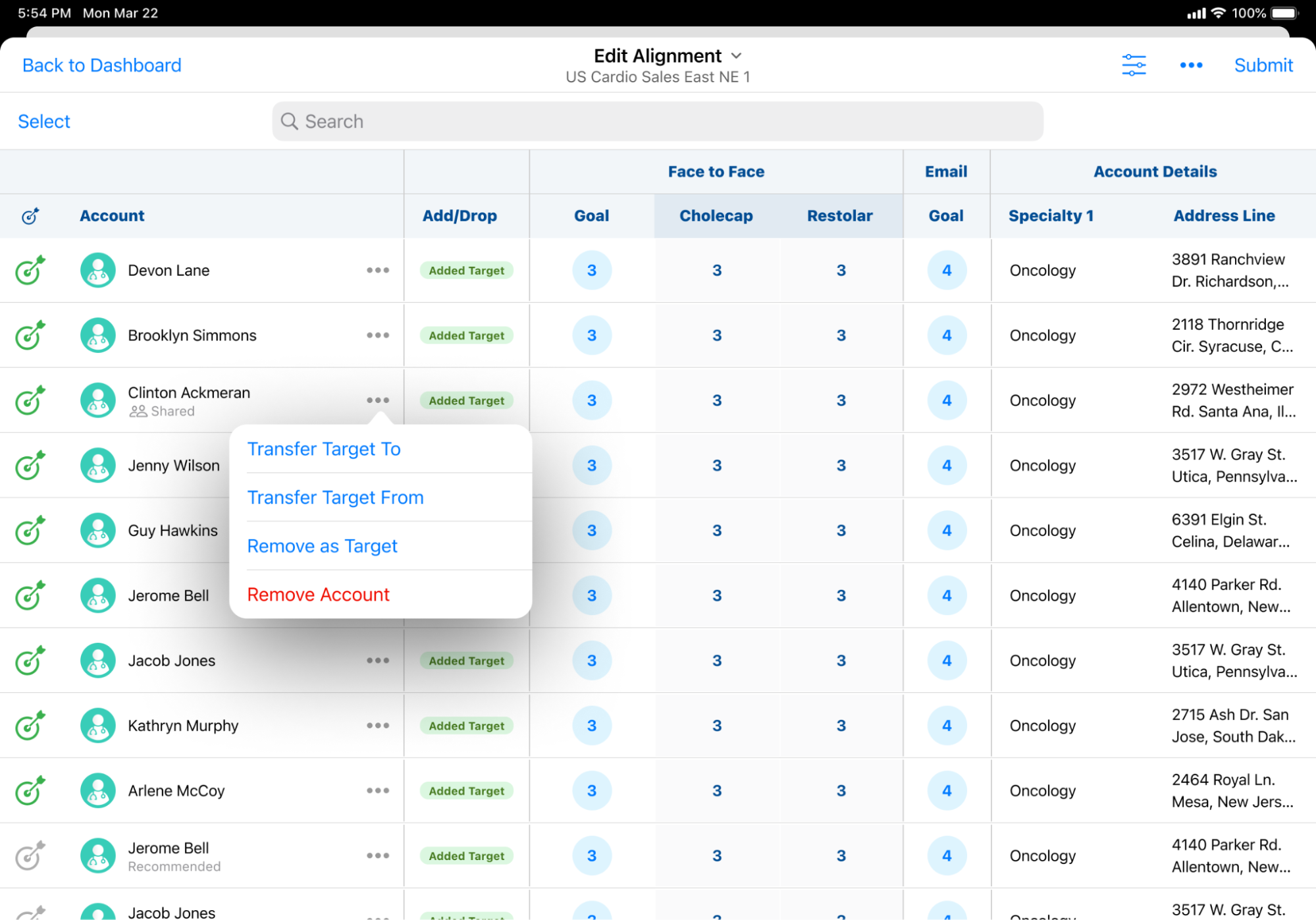
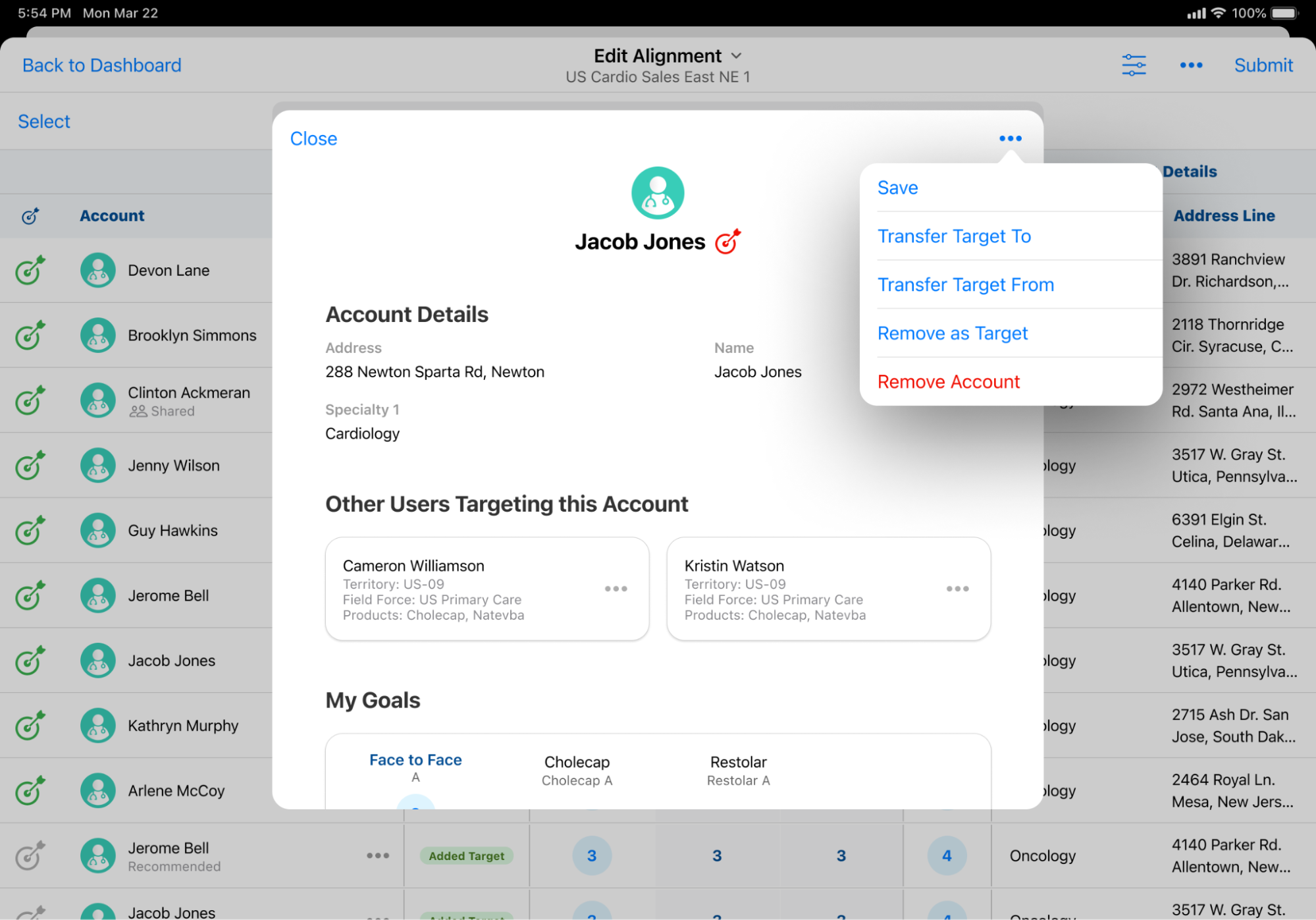
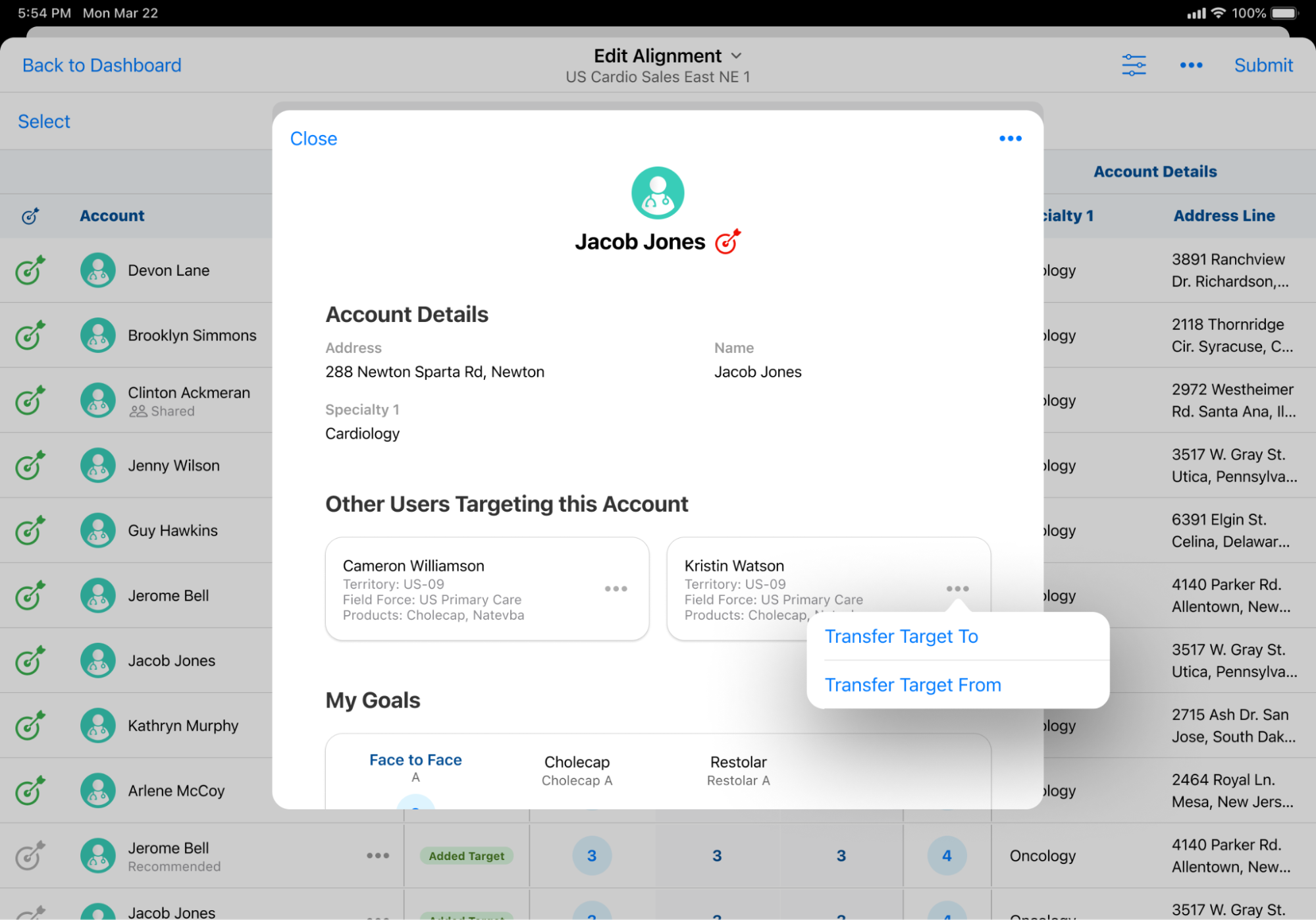
End users can initiate target transfer requests by selecting the All Actions menu for the appropriate shared target from one of the following entry points:
-
The Edit Alignment table
-
The Account Profile modal
-
The appropriate user card in the Other Users Targeting This Account section of the Account Profile
From the All Actions menu, users can perform the following actions:
- Transfer targets to other users – Enables the end user to reassign the goals associated with one or more products to any other user associated with a model territory in the same project who has not yet submitted feedback to their manager
- Transfer targets from other users – Enables the end user to assign themselves the goals associated with one or more products from another user also targeting the account who has not yet submitted feedback to their manager. This option is only available if another user exists within the project with a goal against at least one of the current user’s products.
When a transfer request is submitted, an aln_transfer_request__v record is automatically created with the following properties:
- transfer_to_mc_cycle__v – The Multichannel Cycle of the user being transferred to
- transfer_to_model_territory__v – The Model Territory of the the user being transferred to
- transfer_from_mc_cycle__v – The Multichannel Cycle of the user being transferred from
- transfer_from_model_territory__v – The Model Territory of the the user being transferred from
- request_status__v – The status of the request. Defaults to Pending when requests are initially submitted.
- transfer_target_type__v – Reflects the action of the initiating user. Available values are:
- Transfer Target To – The value when users create Transfer Target To requests
- Transfer Target From – The value when users create Transfer Target From requests
- request_initiator__v – The user who initiated the transfer
- product__v – The product being transferred
Transferring Targets to Other Users
To transfer targets to other users:
-
Select Transfer Target To from the All Actions menu.
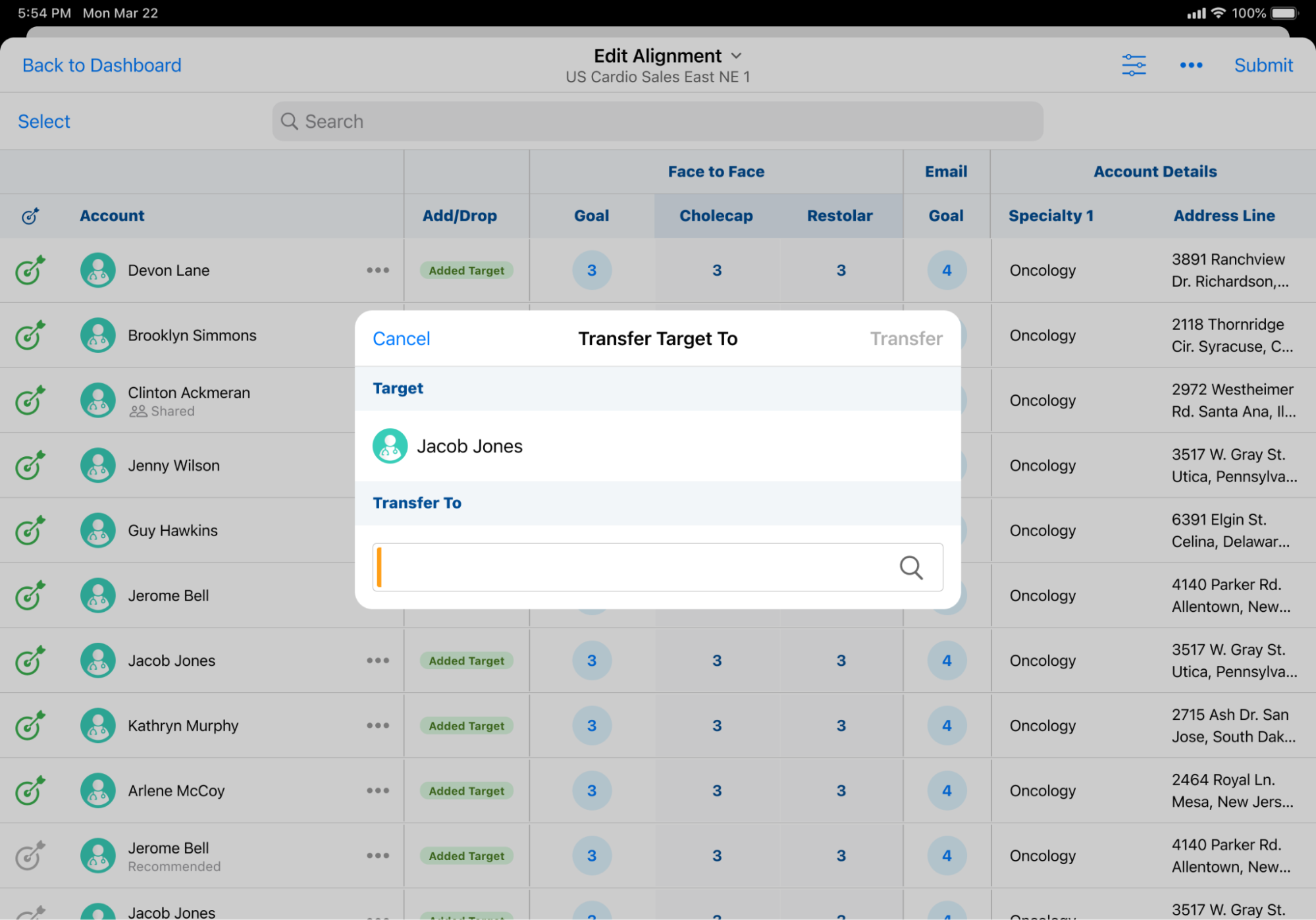
- Select Transfer To to search for and select the appropriate user. This step is not required when initiating the transfer from a specific user card in the Account Profile, as this field automatically populates with the selected user.
-
Select the appropriate products in the Products section.
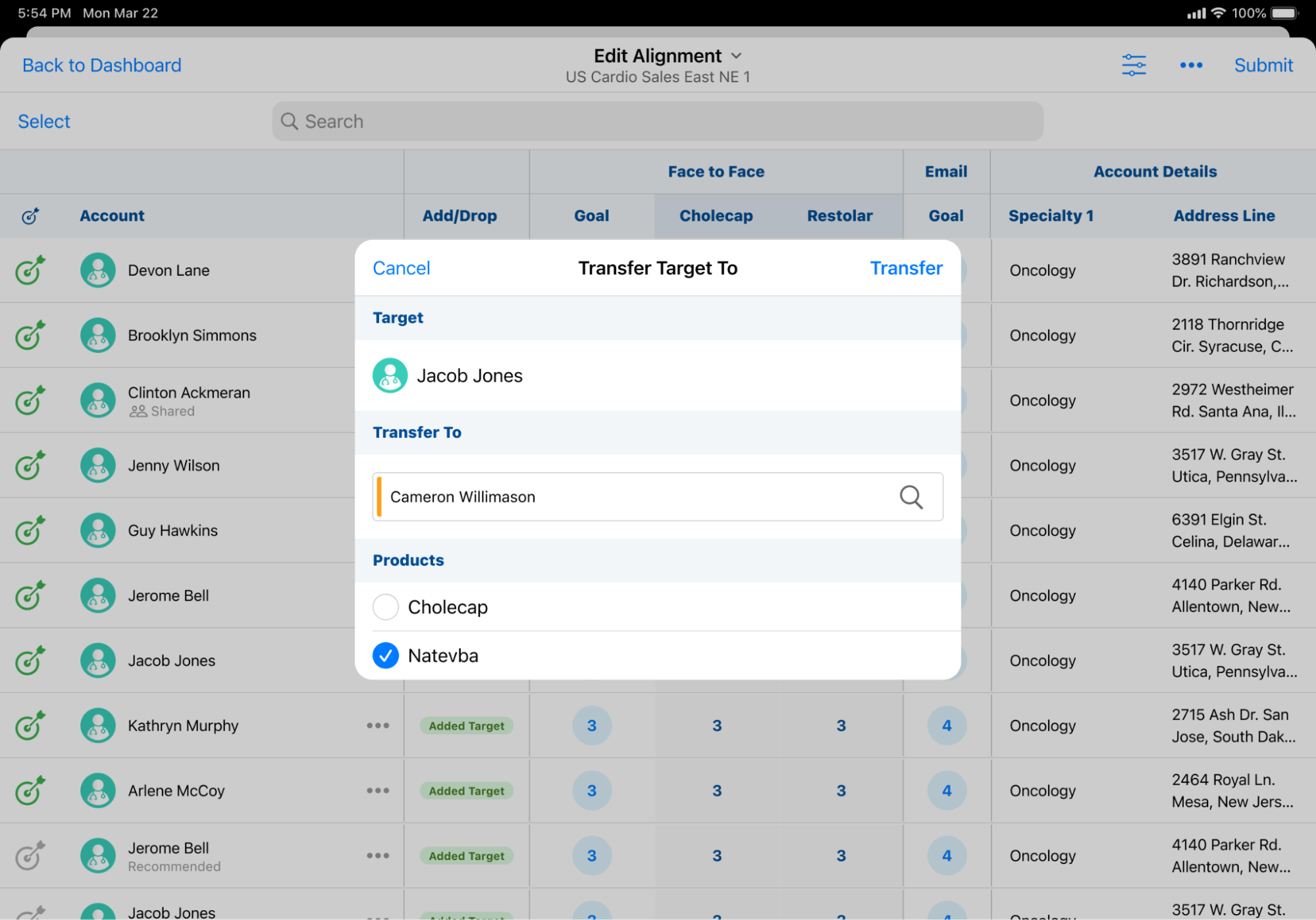
Products only display as available for selection if they exist in the receiving user’s Multichannel Cycle.
- Select Transfer.
- Select the appropriate transfer reason.
- Select Done.
Transferring Targets from Other Users
To initiate a transfer target from request:
- Select Transfer Target From from the All Actions menu.
-
Choose the product goals for the appropriate users to transfer.
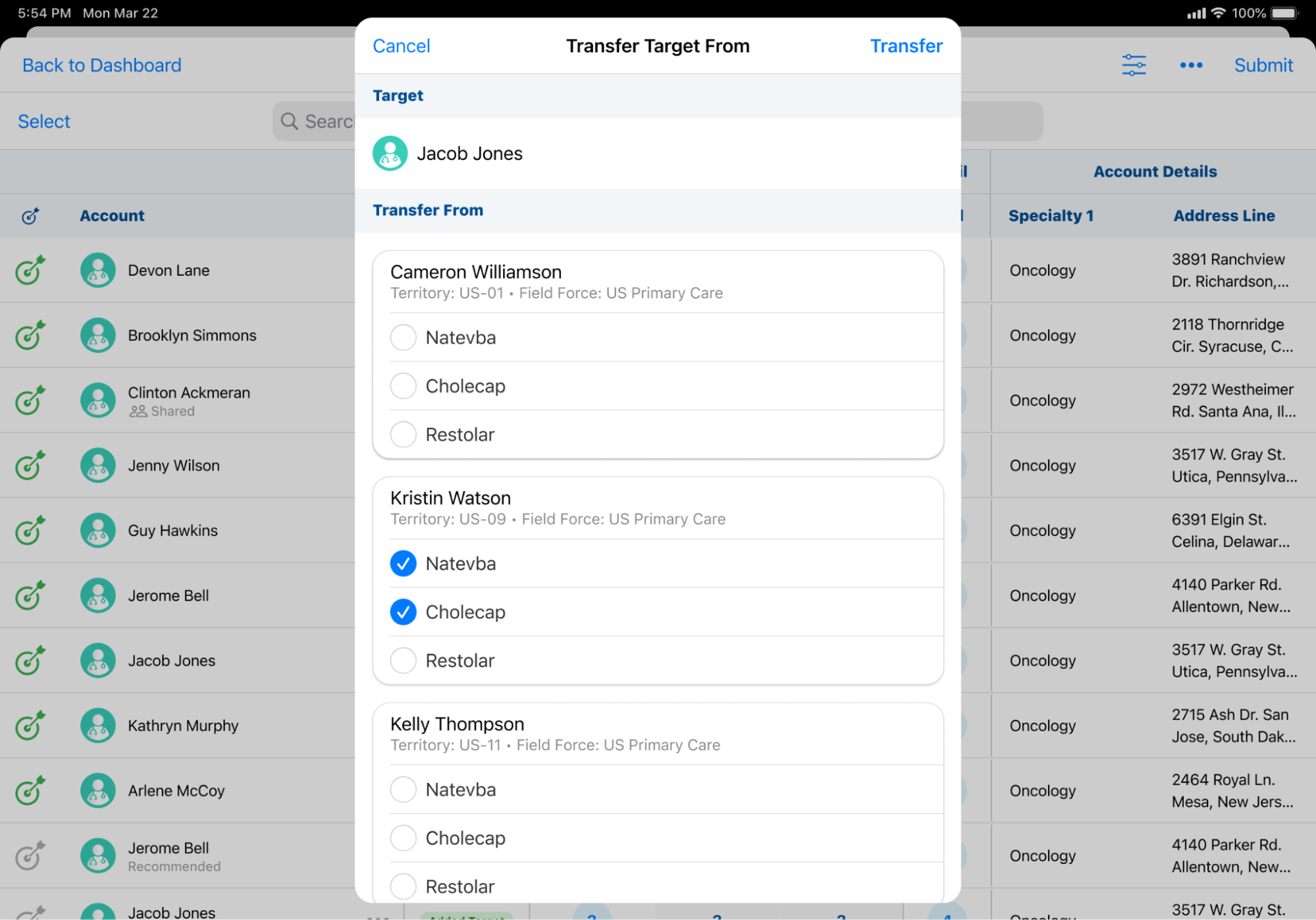
Users can only transfer product goals from one user at a time. Transferring products from multiple users in a single request is not supported.
- Submit the request by selecting Transfer.
- Select the appropriate transfer reason.
- Select Done.
Managing Target Transfers as
End Users
When a target is requested for transfer to or from another user, that user must review and either approve or reject the transfer within the Edit Alignment table.
Pending transfer requests display as red notification badges on the All Actions menu in the Edit Alignment table.
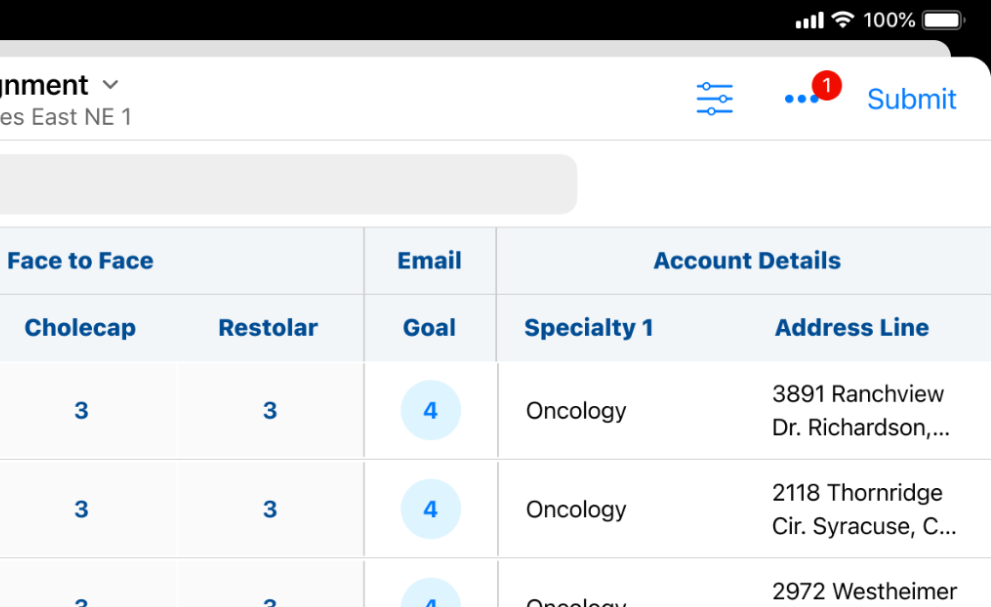
To manage transfer requests:
-
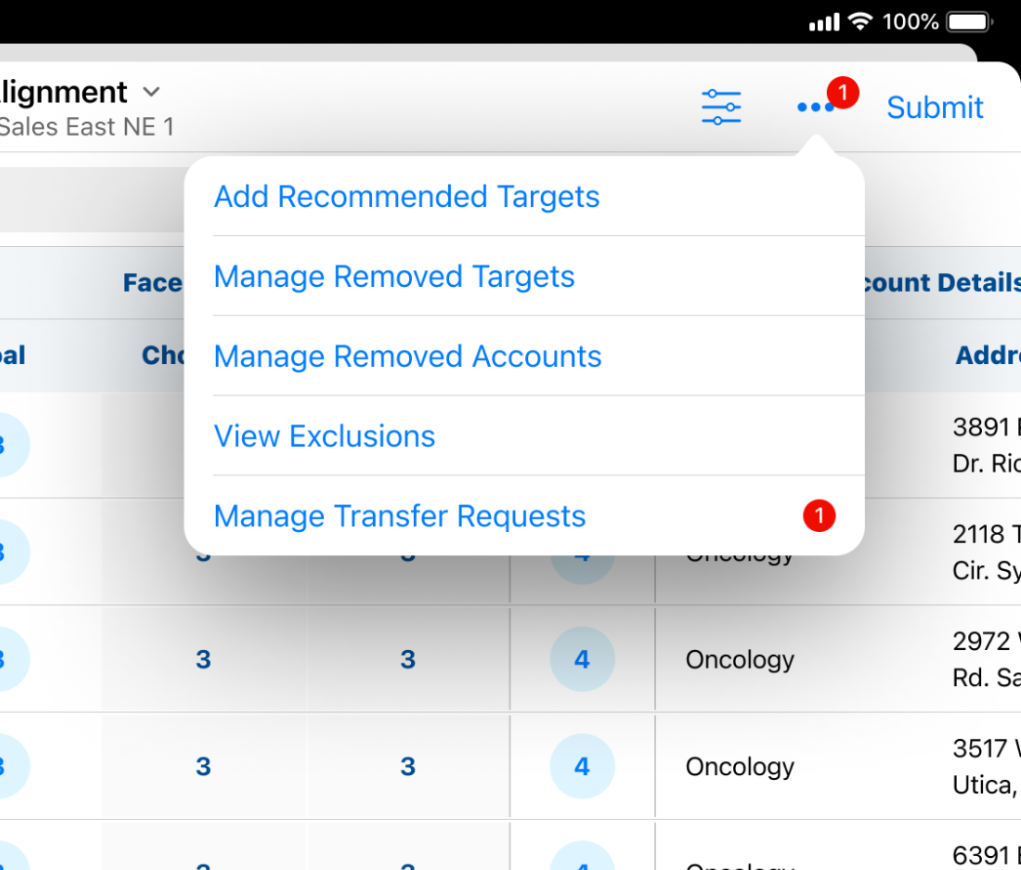
Select the All Actions menu from the Edit Alignment table.
-
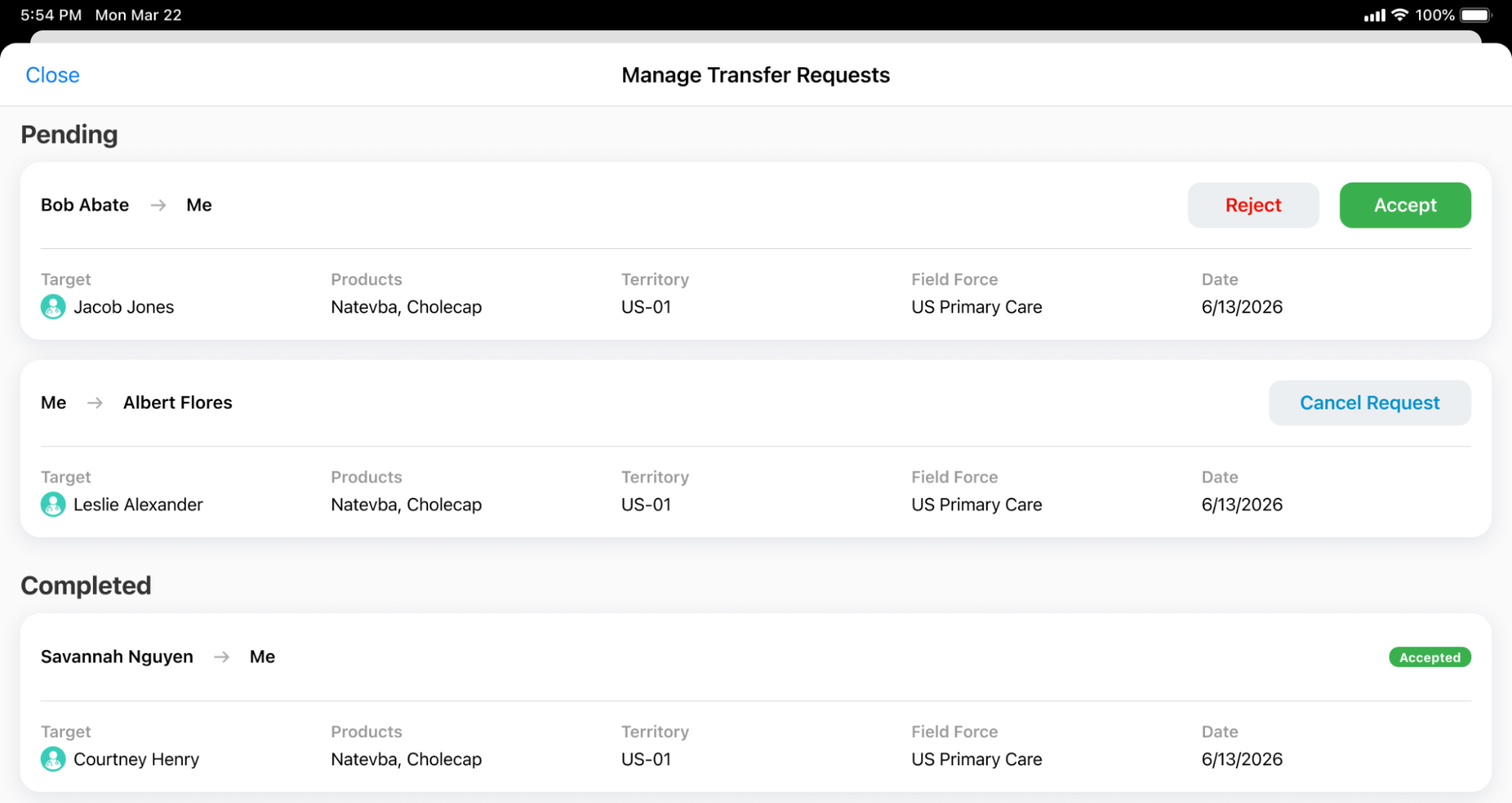
Select Manage Transfer Requests. Each pending or completed request displays as a card in the Manage Transfer Requests modal.
-
Select the appropriate action to resolve a pending request:
- Accept – Accepts the transfer request made by another user
- Reject – Reject the transfer request made by another user
- Cancel Request – Enables end users to cancel transfer requests that they initiated
When a transfer request is accepted, the request_status__v field of the corresponding aln_transfer_request__v record automatically updates to Accepted. The initiating user’s goals get set to zero, and the recipient user’s goals get set to their Default Value.

