Managing Attendee Suggestions for Events
To ensure key accounts attend relevant events, business admin users can generate Suggestions specifically for Events Management attendance, which they can review via a dedicated view in the Select Attendees modal. This enables end users to view Suggestions and add accounts to either a specific event or to events of specific object types based on the Suggestion.
Who can use this feature?
- Business Admin Users - Browser
- Creating Attendee Suggestions
- End Users - Browser, iPad
- Using Attendee Suggestions
- Using the Suggested Attendees View
- Users require an Events Management License
Configuring Attendee Suggestions for
 Business Admin Users
To configure this feature:
-
Ensure the following features are configured:
- Navigate to Admin > Users & Groups > Permission Sets.
- Select the appropriate permission set.
- Select the Objects tab.
-
Grant the following permissions:
Object Object Permission Object Types Fields Field Permission suggestion__v CRED em_attendee__v - em_event__v
- em_event_type__v
Edit suggestion_feedback__v CRED All - em_attendee__v
- em_attendee_id__v
Edit - Navigate to Admin > Configuration > Objects > suggestion__v > Layouts.
- Create a layout for the em_attendee__v object type.
End Users
To configure this feature:
-
Ensure the following features are configured:
- Navigate to Admin > Users & Groups > Permission Sets.
- Select the appropriate permission set.
- Select the Objects tab.
-
Grant the following permissions:
Object Object Permission Object Types Fields Field Permission em_attendee__v CRE All - suggestion__v
- suggestion_title__v
- suggestion_reason__v
Edit suggestion__v CRE em_attendee__v - account__v
- em_event__v
- em_event_type__v
- expiration_date__v
- title__v
- reason__v
Read - action_count__v
- actioned__v
- dismiss_count__v
- dismissed__v
- mark_complete_count__v
- mark_complete__v
Edit suggestion_tag__v CRE product__v - product__v
- suggestion__v
Read suggestion_feedback__v CRE All - account__v
- activity_execution_type__v
- em_attendee__v
- em_attendee_id__v
- object_type__v
- suggestion__v
Edit - Navigate to Admin > Configuration > Objects > suggestion_feedback__v > Object Types.
- Select the activity_execution_type__v field for all appropriate object types.
- Select the activity_execution_type__v field.
- Ensure the em_attendee__v picklist value is active.
Creating Attendee Suggestions as
Business Admin Users
Business admin users can create suggestions to invite specific accounts to events:
- Navigate to the Suggestions tab.
- Select Create.
- Select em_attendee__v for the object type.
- Select Continue.
- Populate the account__v field with the appropriate account.
-
Populate one the following Events Management specific fields:
- em_event__v – Select the appropriate event. Populating this field suggests account attendance for a specific event. For example, suggesting that Dr. Clinton Ackerman attend the September Cholecap Speaker Program.
- em_event_type__v – Enter the appropriate em_event__v object type name. Populating this field suggests account attendance for certain types of events. For example, suggesting that Dr. Clinton Ackerman attend any Congress events.
These two fields are mutually exclusive and should not be populated together.
- Populate all other fields appropriately.
- Select Save.
Creating Product Specific Attendee Suggestions
For general Attendee suggestions, with the em_event_type__v field populated, business admin users can use Suggestion Tags to enforce even greater specificity based on the event product:
- Navigate to the appropriate suggestion__v record.
- Navigate to the Suggestion Tags section.
- Select Create.
- Select Product for the Suggestion Tag Type.
- Select Continue.
- Populate the Product field with the appropriate product.
- Populate all other fields appropriately.
- Select Save.
Adding Product type Suggestion Tags to an Attendee suggestion makes the suggestion specific to events about the selected product. For example, suggesting that Dr. Clinton Ackerman attend all Speaker Programs about Cholecap.
Business admin users can create multiple Product type Suggestion Tags for an Attendee Suggestion.
Using Attendee Suggestions as
End Users
From the Suggestions tab, end users can view and accept suggestions linking a specific account to an event, based on whether the Attendee suggestion is for a specific event or for a general type of event.
Unlike other types of suggestions, end users cannot mark Attendee suggestions as complete. Instead, they are automatically marked as complete when the user adds the corresponding account to the event.
Addressing Suggestions for Specific Events
To address suggestions linking a specific account to a specific scheduled event:
-
Locate the appropriate Attendee suggestion.
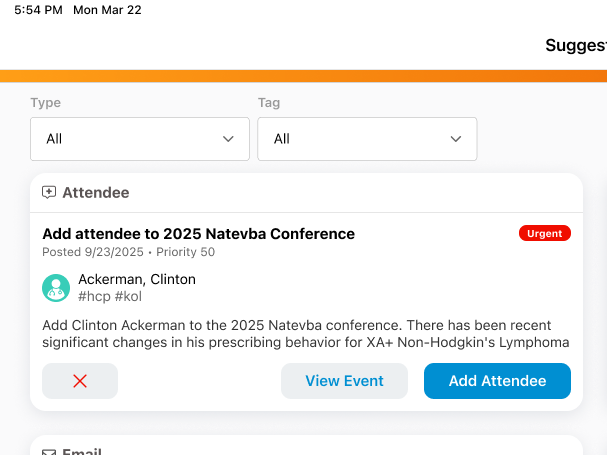
Users must have access to the event to view any attendance suggestions related to that event.
-
Select one of the following actions:
- View Event – Displays the appropriate event, enabling the end user to review further event details
- Add Attendee – Immediately displays the Select Attendee modal for the corresponding event, with the Suggested Attendees view automatically applied and the corresponding account pre-selected
Addressing Suggestions for General Types of Events
To address suggestions linking an account to a general type of event:
-
Locate the appropriate Attendee suggestion.
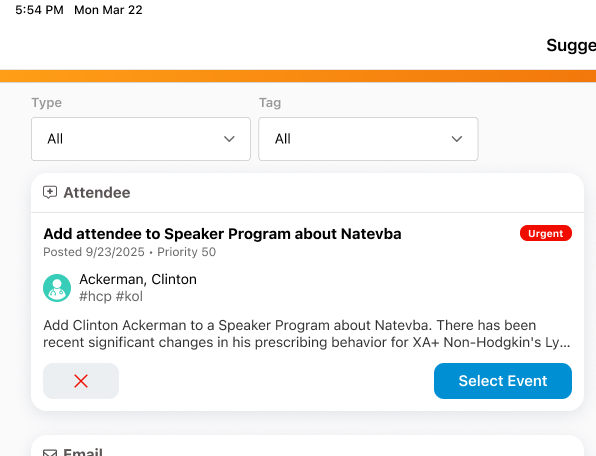
-
Select the Select Event button. The Select Event modal displays a list of potential events to add the attendee to. The list only displays open events that haven't started yet with a matching event type that the user has access to, as well as a matching product, if Suggestion Tags are used on the suggestion.
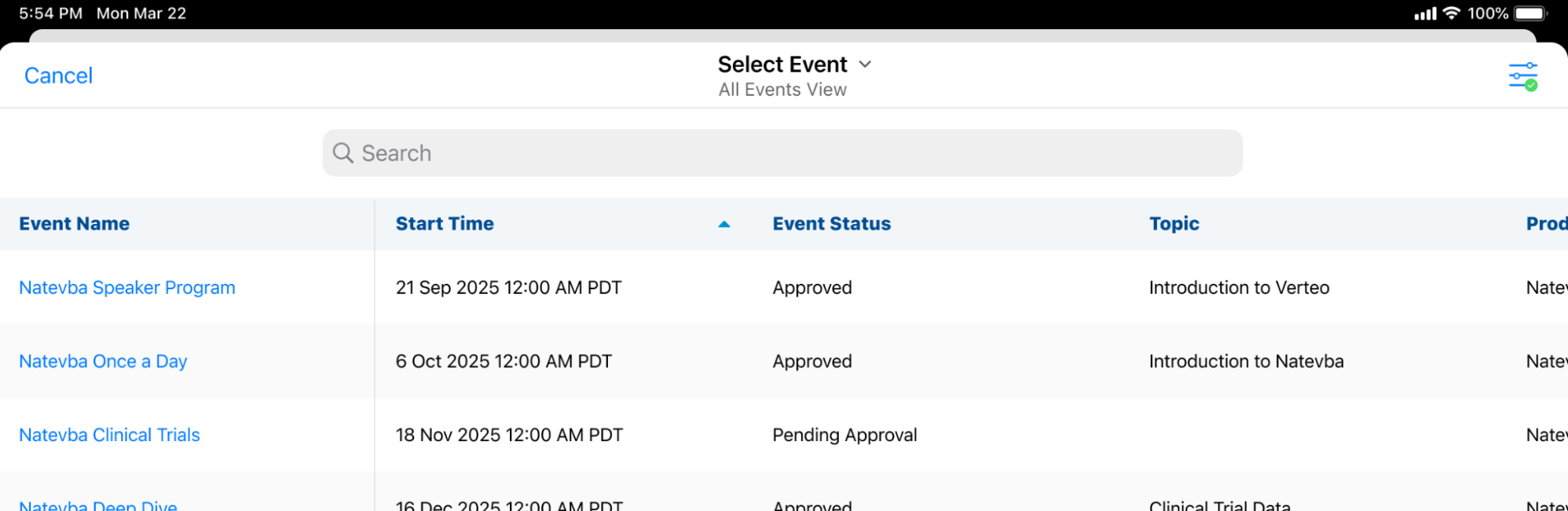
- Select the appropriate event to display the Select Attendee modal for the event. The Suggested Attendees view automatically is automatically applied to the modal and the corresponding account displays as pre-selected.
Using the Suggested Attendees View as
End Users
When viewing the Select Attendee modal, end users can view all open suggestions relevant to a specific event:
- Navigate to the Attendees section of the appropriate event.
- Select + to display the Select Attendee modal. This view displays as the default view when there is at least one suggestion for the event.
-
Select Suggested Attendees from the view selector.
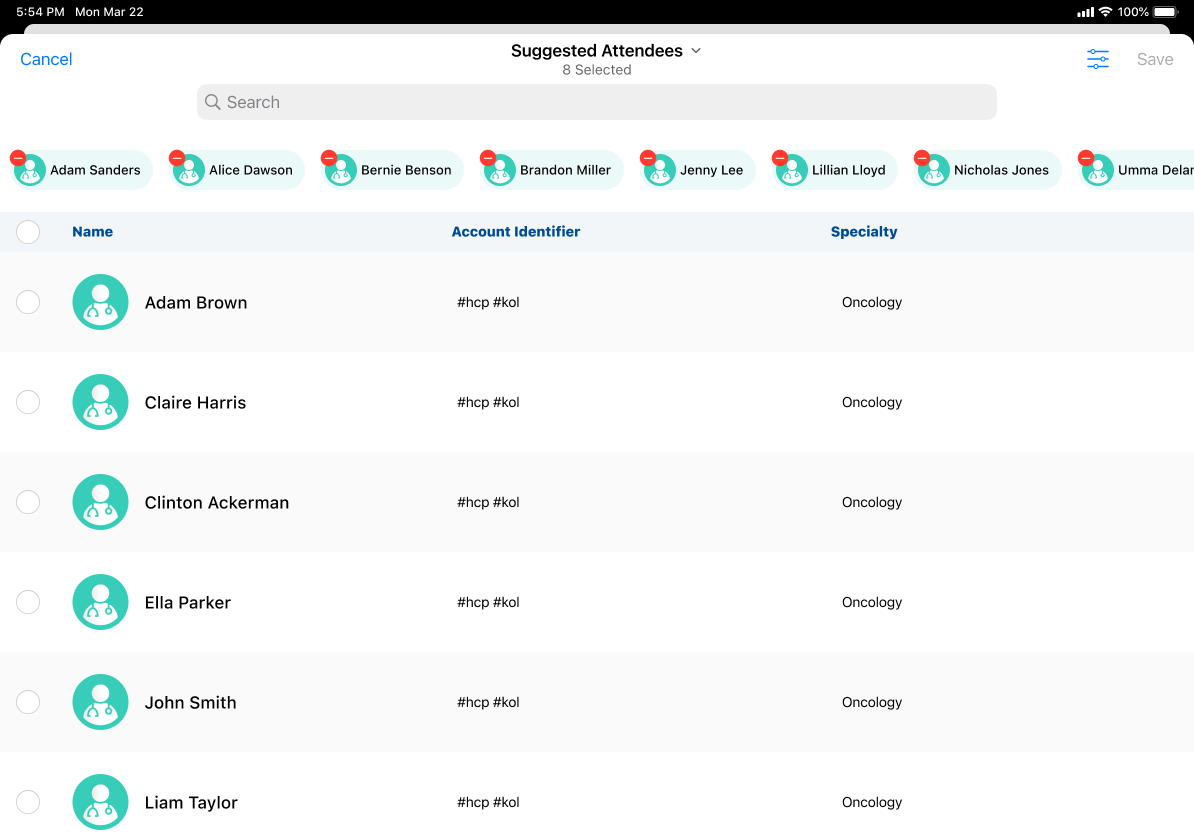
Accounts display in this view based on relevant specific and general event Attendee Suggestions, enabling end users to quickly view and add attendees suggested to them by business admins to their event. When the user adds the attendee, any associated Attendee Suggestions are automatically marked as complete.

