Configuring Approved Email as Document Model
Configuring Approved Email for
 Admins, Content Admins, and Integration Users
To configure Approved Email for admins, content admin users, and integration users:
- Ensure Multi-Language Support is enabled in the Vault CRM instance.
- Navigate to Admin > Users & Groups > Permission Sets.
- Select the permission set for the appropriate user profile.
- Navigate to Objects.
-
Grant the following permissions:
Object
Object Permission
Object Types
Fields
Field Permission
account__v
R
All applicable object types
- approved_email_opt_type__v
- language__v
- restricted_products__v
Read
approved_email_settings__v
R
n/a
All Fields
Read
channel_metrics__v
R
email__v
- account__v
- channel_value__v
- channel_source__v
- external_id__v
- last_email_error_date__v
- email_delivery_error__v
- email_activity__v
Read
email_activity__v
CRE
email_activity__v - activity_datetime__v
- city__v
- click_url__v
- client_name__v
- client_os__v
- client_type__v
- country__v
- device_type__v
- event_msg__v
- event_type__vip_address__v
- link_name__v
- name__v
- object_type__v
- region__v
- sent_email__v
- user_agent__v
Edit
- bot__v
- created_by__v
- created_date__v
- modified_by__v
- modified_date__v
Read
multichannel_consent__v
CRED
- approved_email__v
- clm__v
- engage__v
- sample_consent__v
- account__v
- capture_datetime__v
- channel_source__v
- channel_value__v
- detail_group__v
- last_device__v
- mobile_id__v
- opt_expiration_date__v
- opt_type__v
- optout_event_type__v
- product__v
- signature_datetime__v
- signature_id__v
- signature__v
Edit
- created_by__v
- created_date__v
- modified_by__v
- modified_date__v
Read
product__v
CRED
n/a
vexternal_id__v
Edit
sent_email__v
CRE
- call__v
- clm__v
- email_receipt__v
- events_management__v
- medical_event__v
- medical_inquiry__v
- account_email__v
- account__v
- call2__v
- capture_datetime__v
- content_types_on_email_template__v
- detail_group__v
- email_template_document__v
- email_config_values__v
- email_config_values_file__v
- email_fragments__v
- email_group_id__v
- email_sent_date__v
- email_source__v
- last_device__v
- list_unsubscribe_header_v
- mc_capture_datetime__v
- mobile_id__v
- object_type__v
- ownerid__v
- products_on_email_template__v
- related_transaction_id__v
- sender_email__v
- sent_email_status__v
- status__v
- subject__v
- territory__v
- user_input_text__v
user_products_on_email_template__v
valid_consent_exists__v
Edit
- account_email__v
- account__v
- approved_email_template__v
- capture_datetime__v
- created_by__v
- created_date__v
- detail_group__v
- email_fragments__v
- email_group_id__v
- email_source__v
- mc_capture_datetime__v
- mobile_id__v
- modified_by__v
- modified_date__v
- object_type__v
- ownerid__v
- product__v
- scheduled_send_datetime__v
- sender_email__v
- subject__v
- valid_consent_exists__v
Read
sent_fragment__v
R
All applicable object types
- created_by__v
- created_date__v
- modified_by__v
- modified_date__v
Read
tsf__v
R
n/a
- account__v
- allowed_products__v
Read
user__sys
R
n/a
approved_email_admin__v
Read
user_detail__v
CRED
user_detail__v
user__v
Read
veeva_settings__v
R
n/a
legacy_org_id__v
Read
If Dynamic Access Control is enabled for any of the objects leveraged by Approved Email, for example Sent Email, Email Activity, or Multichannel Consent, the Approved Email integration user should have All Object Record Read and All Object Record Edit permissions enabled.
-
Navigate to Application in the permission set.
-
Grant the administrator and the integration user access to File Staging in the Enable Access column.
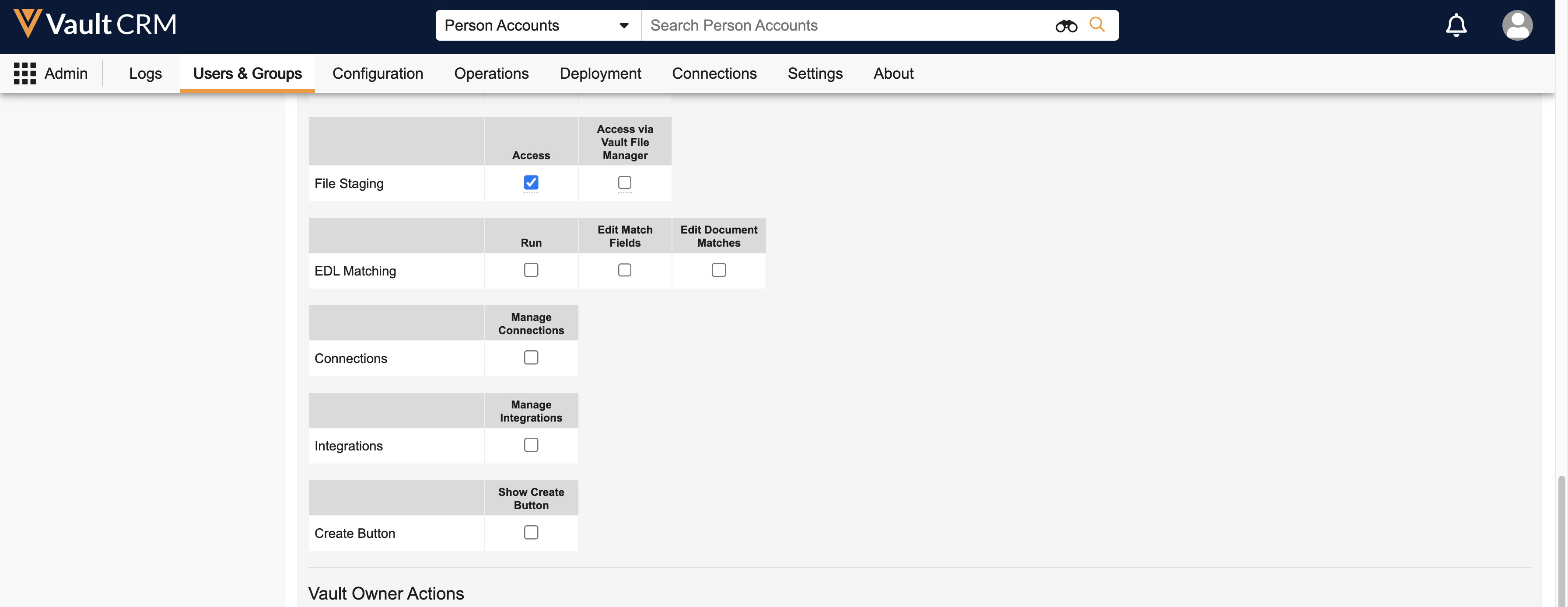
-
Grant the administrator and the integration user Access API permission for the API action.
- Navigate to the Pages tab in the permission set.
-
Grant the administrator and the integration user access to the following pages:
- Approved Email Administration
- CRM PL1 Generic Page
- CRM PL3 Generic Page
PL1 and PL3 are generic layouts used to render various pages across modules in Vault CRM.
- Navigate to the Tabs tab in the permission set.
- Grant the administrator and the integration user access to the CRM Setup Tab Collection.
- Grant the administrator and the integration user access to the Approved Email tab.
- Navigate to Admin > Configuration > Objects > sent_email__v > Object Types > Account.
- Select the last_device__v field.
- Ensure all appropriate picklist values are available, including the iPad and Online values.
- Navigate to Business Admin > Objects > user_territory__v.
- Create a user_territory__v record for the integration user and assign the integration user to the root territory in the vault. For more information, see Viewing Territories in the Hierarchy.
- Update the WHERE clause and verify users have read access to the modified_date__v field if the following VMOCs are enabled:
- sent_email__v - WHERE account__v IN (SELECT id FROM account__vr) AND created_date__v >= LAST_DAYS:90
- sent_fragment__v - WHERE account__v IN (SELECT id FROM account__vr) AND created_date__v >= LAST_DAYS:90
- Ensure users have read access to the modified_date__v field on the channel_metrics__v object.
-
Grant Execute access to the Send Email action on the appropriate account__v object types for testing purposes.
The Send Email action does not control the ability to send emails on mobile devices. The action is displayed based on the user's permissions to the Sent Email and Multichannel Consent objects.
Designating Content Admin Users
An additional process is required to designate users as content admin users:
- Place the approved_email_admin__v field on the appropriate user__sys layouts.
- Navigate to the appropriate user.
- Select the Approved Email Admin checkbox.
- Select Save.
- Log in as the vault owner.
- Navigate to Admin > Users & Groups.
- Select the appropriate user.
- Verify the user is granted Full User license to the Approved Email application in Vault CRM.
- Ensure Content Admin Users are assigned to the Content Administrator role for Approved Email Document Types via Dynamic Access Control. See About Dynamic Access Control for Documents for more information.
End Users
To configure Approved Email for end users:
- Navigate to Admin > Users & Groups > Permission Sets.
- Select the permission set for the appropriate user profile.
- Navigate to Objects.
-
Grant the following permissions:
Object Object Permission Object Types Fields Field Permission account__v R n/a - approved_email_opt_type__v
- language__v
- restricted_products__v
Read approved_email_settings__v R n/a - add_recipients__v
- approved_email_consent_text__v
- approved_email_consent_mode__v
- approved_email_domain__v
- approved_email_field_exclusions__v
- approved_email_filter_fields__v
- approved_email_disclaimer_text__v
- multichannel_explicit_opt_in__v
- approved_email_restricted_words__v
- approved_email_test_address__v
- approved_email_vault_endpoints__v
- approved_email_vault_query__v
- approved_email_count_limit__v
- approved_email_duration_limit__v
- created_by__v
- created_date__v
- disabled_approved_email_entrypoints__v
- enable_approved_email_receipts__v
- enable_drafts_folder__v
- enable_group_email__v
- enable_approved_email_documents__v
- global_id__sys
- id
- modified_by__v
- modified_date__v
- legacy_crm_id__v
- link__sys
- name__v
- recipient_name_in_email_header__v
- recipient_specific_fields__v
- security_profile__v
- setupownerid__v
- status__v
- timeline_view_email_link__v
Read channel_metrics__v R n/a - name
- account__v
- channel_value__v
- channel_source__v
- external_id__v
- last_email_error_date__v
- modified_date__v
- email_delivery_error__v
- email_activity__v
Read email_activity__v R - email_activity__v
- vault_activity__v
- event_type__v
- activity_datetime__v
- event_msg__v
- city__v
- click_url__v
- client_name__v
- client_os__v
- client_type__v
- country__v
- created_by__v
- created_date__v
- device_type__v
- email_fragment_document__v
- vault_doc_id__v
- vault_doc_name__v
- vault_document_number__v
- vault_document_title__v
- ip_address__v
- link_name__v
- modified_by__v
- modified_date__v
- vault_document_major_version__v
- vault_document_minor_version__v
- region__v
- sent_email__v
- user_agent__v
- vault_instance_id__v
Read multichannel_consent__v CRE approved_email__v - account__v
- capture_datetime__v
- channel_source__v
- channel_value__v
- detail_group__v
- last_device__v
- mobile_id__v
- opt_expiration_date__v
- opt_type__v
- product__v
- signature_datetime__v
- signature_id__v
- signature__v
Edit - optout_event_type__v
- created_by__v
- created_date__v
- modified_by__v
- modified_date__v
Read sent_email__v CRE - account__v
- call__v
- clm__v
- email_receipt__v
- events_management__v
- medical_event__v
- medical_inquiry__v
- account_email__v
- account__v
- call2__v
- capture_datetime__v
- content_types_on_email_template__v
- detail_group__v
- email_template_document__v
- email_config_values__v
- email_config_values_file__v
- email_fragments__v
- email_group_id__v
- email_sent_date__v
- email_source__v
- last_device__v
- list_unsubscribe_header_v
- mc_capture_datetime__v
- mobile_id__v
- object_type__v
- ownerid__v
- products_on_email_template__v
- related_transaction_id__v
- sender_email__v
- sent_email_status__v
- status__v
- subject__v
- territory__v
- user_input_text__v
- user_products_on_email_template__v
- valid_consent_exists__v
Edit - click_count__v
- clicked__v
- created_by__v
- created_date__v
- email_content_file__v
- failure_msg__v
- last_activity_date__v
- last_click_date__v
- last_open_date__v
- modified_by__v
- modified_date__v
- open_count__v
- product_display__v
Read tsf__v R n/a - account__v
- allowed_products__v
- territory_name__v
Read user__sys R n/a approved_email_admin__v Read user_detail__v CRE All user__v Edit - created_by__v
- created_date__v
- modified_by__v
- modified_date__v
Read - Grant end users Execute permission to the Send Email object action permission on the Account object.
- Navigate to Application > File Staging in the permission set.
- Select the Access checkbox.
- Navigate to Application > Document in the permission set.
- Select the Download Rendition checkbox.
- Navigate to Admin > Configuration > Objects > Account > Object Types.
- Select the Actions link.
- Select Edit Object Type Actions from the Actions menu.
- Enable the Send Email action for the appropriate account object types.
- Select Save.
- Navigate to Business Admin > Objects > Approved Email Settings.
-
Edit the appropriate record.
While profile specific Approved Email Settings records are supported, a Global record must exist with both Application Profile and Security Profile empty.
-
Populate the following fields:
- enable_approved_email_documents__v – Select True
- approved_email_filter_fields__v – Populate with the list of Document field API names to enable filtering from
Enabling Approved Email Documents for Mobile Devices
To sync Approved Email documents to mobile devices:
- Navigate to Business Admin > Objects > Veeva Settings.
- Edit the appropriate record.
- Populate the Sync Configuration Mode field with 1.
- Navigate to Business Admin > Objects >VMobile Object Configurations.
-
Ensure the following VMOCs exist. If a VMOC does not exist, create it. All VMOCs must be Active with the appropriate device selected. See Using VMobile Object Configurations for more information.
Object
VMOC Configuration
approved_email_settings__v
- Type – Full Sync
- Where Clause – WHERE application_profile__v = @@USER_APP_PROFILE_ID@@ OR (application_profile__v = null AND security_profile__v = null)
channel_metrics__v
- Type – Full Sync
- Where Clause – WHERE account__v IN (SELECT id FROM account__vr)
Ensure users have read access to the modified_date__v field on the channel_metrics__v object.
multichannel_consent__v
- Type – Full Sync
- Account Lookup Field – account__v
- Where Clause – None
sent_email__v
- Type – Top Level
- Where Clause – WHERE account__v IN (SELECT id FROM account__vr) AND created_date__v >= LAST_DAYS:90
user_detail__v
- Type – Full Sync
- Where Clause – WHERE user__v = @@USER_ID@@
documents
- type__v: Full
- object_name__v: "documents"
- where_clause__v: "WHERE TONAME(type__v) CONTAINS ('email_template__v', 'email_fragment__v', 'template_fragment__v') AND TONAME(lifecycle__v) = 'crm_content_lifecycle__v' AND TONAME(status__v) = 'approved__v'"
- enhanced_sync__v: True
- document_query_modifier__v: "latest_matching_version__v"
To allow Approved Email admins to view staged content on mobile devices, manually add staged__v to the WHERE clause of the documents VMOC:
WHERE TONAME(type__v) CONTAINS ('email_template__v', 'email_fragment__v', 'template_fragment__v') AND TONAME(lifecycle__v) = 'crm_content_lifecycle__v' AND TONAME(status__v) CONTAINS ('approved__v', 'staged__v')
relationships
- type__v: Full
- object_name__v: "relationships"
- where_clause__v: "WHERE TONAME(source__vr.type__v) CONTAINS ('email_template__v', 'email_fragment__v') AND TONAME(source__vr.lifecycle__v) = 'crm_content_lifecycle__v' AND TONAME(source__vr.status__v) = 'approved__v' AND relationship_type__v CONTAINS ('related_piece__v', 'related_email_fragments__v', 'related_template_fragments__v', 'related_pi__v', 'related_isi__v', 'other_related_documents__v', 'email_fragment_content__v')"

