Previewing Rendered Approved Email Content
- Document Model
Users can preview rendered Documents or Sent Emails directly within CRM. This enables users to ensure the HTML content displays correctly.
When a user views the record’s detail page, they can see a preview section that renders the HTML content.
Who can use this feature?
- Content Creation Users — Browser
- Using HTML Preview
- End Users — Browser
- Using HTML Preview
- Users require an Approved Email license
Configuration for
 All Users
To configure this feature:
- Ensure Configuring Approved Email as Document Model is complete.
- Navigate to Admin > Users & Groups > Permission Sets.
- Select the appropriate permission set.
- Select Objects.
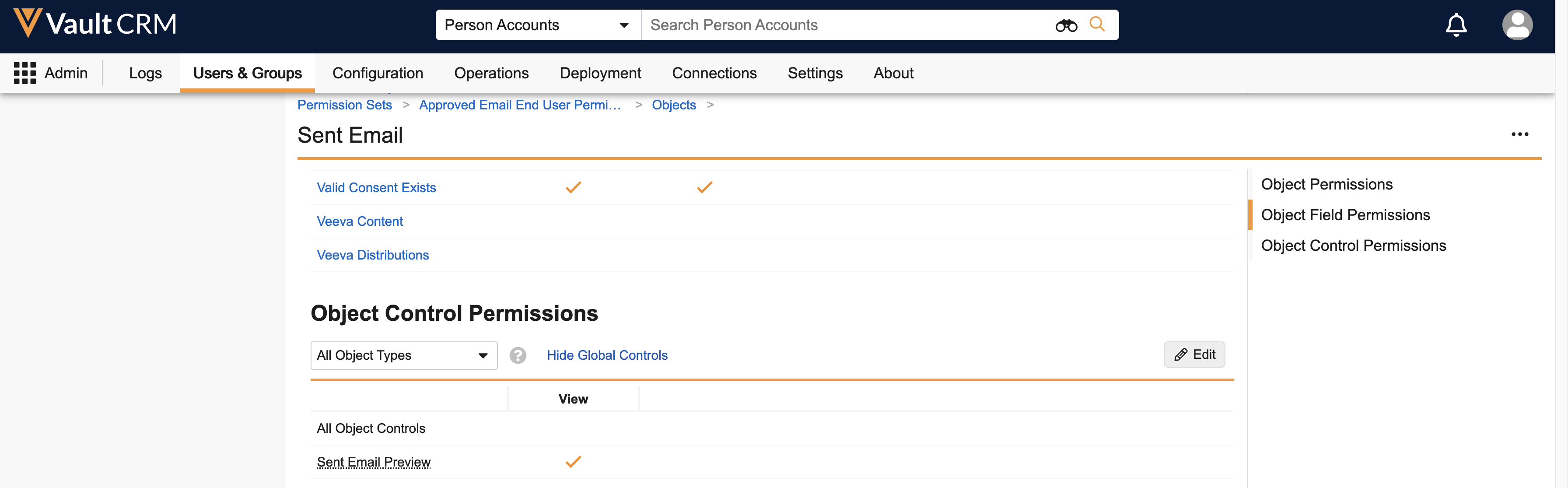
- Grant users access to the following object control permissions:
- Document Preview object control permission on the Document object
- Sent Email Preview object control permission on the Sent Email object
Document HTML Content
To add a section to Document layouts that display a preview of the rendered HTML content:
- Navigate to the appropriate Document layout.
- Hover over the empty space above or below a section until a blue plus icon displays.
- Select the plus icon.
- Select Insert Section in the dropdown menu.
- Select Document Preview in the Select Section Type window.
- Select Continue.
- Update the Section Label (optional). The default value is Document Preview.
- Select Done.
Sent Email HTML Content
To add a section to Sent Email layouts that display a preview of the rendered HTML content:
- Navigate to the appropriate Sent Email layout.
- Hover over the empty space above or below a section until a blue plus icon displays.
- Select the plus icon.
- Select Insert Section in the dropdown menu.
- Select Sent Email Preview in the Select Section Type window.
- Update the Section Label (optional). The default value is Sent Email Preview.
- Select Done.
Using HTML Preview for
All Users
Select a Document or Sent Email record and scroll to the preview section to view the HTML content.

