Multi-Product Approved Email Content
- Document Model
Content creators can simplify content management within Vault CRM by leveraging the ability to assign multiple products to Approved Email Templates and Fragments. This functionality eliminates the need to duplicate content for each product, resulting in a more streamlined and maintainable content library.
This approach streamlines content management while ensuring that end-users have access to the appropriate content for their specific product responsibilities.
Who can use this feature?
- Content Admin Users — Browser
- Assigning Multiple Products to Content
- Content Creation Users — Browser
- Using Multi-Product Content from CLM Presentations
- End Users — Browser, iPad, iPhone
- Using Multi-Product Content from Suggestions
- Users require an Approved Email license
Configuring Multi-Product Approved Email Content for
 Integration Users
Ensure Syncing Metadata Using the CRM Metadata Integration is configured in Vault CRM.
To configure this feature:
- Navigate to Admin > Configuration > Document Fields.
- Select Shared Fields.
-
Edit the following fields to be multi-select picklists by selecting Allow user to select multiple values:
- crm_product__v
- crm_product_group__v
- Select Save.
-
Grant at least Read Only document field permission to the following fields:
- crm_product__v
- crm_product_group__v
- Navigate to Admin > Configuration > Document Fields.
- Select a Document Type, for example Email Template.
- Select Add.
- Select Existing Shared Field.
-
Add the following fields to the Email Template and Email Fragment Document Types:
- crm_product__v
- crm_product_group__v
When integrating with PromoMats or MedComms, repeat this process in the PromoMats or MedComms instance as well.
Assigning Multiple Products to Content as
Content Admins
Vault CRM Products and Vault CRM Product Groups can be added to Approved Email content via the corresponding picklist on the appropriate Document record:
- Navigate to the appropriate document record in Vault.
- Select Edit.
-
Populate the appropriate picklists:
- crm_product__v
- crm_product_group__v – Represents a pairing of a Vault CRM Product and a Vault CRM Detail
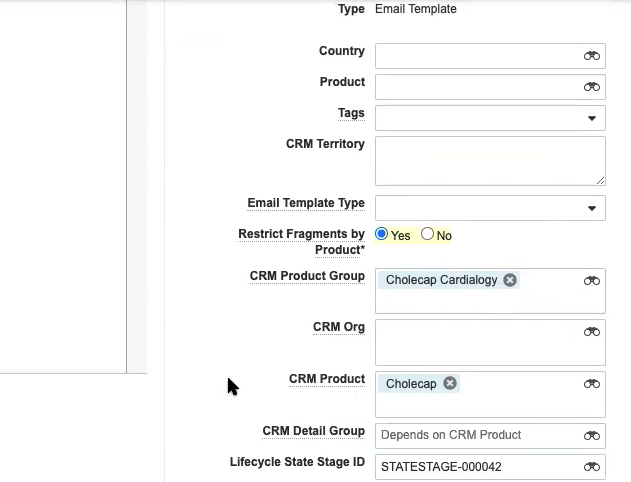
- Select Save.
If a Vault CRM Product or Vault CRM Product Group is deselected from the picklist on the document, the corresponding Document automatically expires.
When migrating content from single-product to multi-product, content creators should be aware of how the picklists interact using the examples in the below section.
Using Multi-Product Content with Suggestions as
End Users
When sending an email from a Suggestion, the email_template_id__v field on the suggestion__v record returns multiple Documents, the following logic is used against the first available suggestion_tag__v record to determine which Document loads:
- If a Document matches the product__v field of the first Suggestion Tag, that record is used
- If the first Suggestion Tag does not have a product__v field that matches any of the returned Documents, the next Suggestion Tag is tried instead for matching
- If no Suggestion Tags have a product__v field that matches any of the returned Documents, the Send Email page displays with no templates or filters preloaded
Considerations
- The sync ignores any Vault products assigned to Approved Email content when Vault CRM Products and/or Vault CRM Product Groups are added. Only content with multiple Vault CRM Products and/or Vault CRM Product Groups are copied in Vault CRM.
- The sync ignores any Vault CRM Detail Groups assigned to Approved Email content when Vault CRM Product Groups are added
- This feature uses the following Vault document fields:
- CRM Products
- CRM Product Groups – Represents a pairing of a Vault CRM Product and a Vault CRM Detail Group
- The crm_detail_group__v field can still be used in single-product content
- Multi-product Approved Email Key Messages are not supported

