Bounced Email Management
- Document Model
To allow users to fix email addresses that previously bounced, an error message displays so users can verify the address and make changes. This prevents additional attempts to send emails to the incorrect address for the HCP.
Bounce Reason is system managed. The values and their order cannot be changed, and the field cannot be edited in Business Admin.
Bounce Reason does not populate for records created before this feature is enabled. Columns corresponding to fields the user does not have Read field permission to are skipped in the campaign performance export.
Who can use this feature?
- Content Admin Users — Browser
- Managing Bounced Email
- End Users — Browser, iPad, iPhone
- Resending Bounced Email
- Users require an Approved Email license
Configuring Viewing Bounced Email Reasons for
 All Users
To configure viewing bounced email reasons:
- Ensure Configuring Approved Email is complete.
- Navigate to Admin > Users & Groups > Permission Sets.
- Select the appropriate Permission Set.
- Select Objects.
-
Grant the following permissions:
Object
Object Permission
Object Types
Fields
Field Permission
email_activity__v
R
email_activity__v
bounce_reason__v
Read
sent_email__v
R
All
bounce_reason__v
Read
channel_metrics__v
R
email__v
bounce_reason__v
Read
- Navigate to Admin > Configuration > Objects.
-
Add the bounce_reason__v field to the appropriate layouts for the following objects:
- email_activity__v
- sent_email__v
- channel_metrics__v
Managing Bounced Email as
Content Admins
To change the error message text, content admins can update the APPROVED_EMAIL_BOUNCED_ERROR Veeva Message.
To resolve temporary bounce issues, admins can follow these steps:
- Verify the email address is valid.
- Work with the HCP or HCO to resolve any issues on their end that may have caused the email to bounce.
- Delete the channel_metrics__v record, or update the email_delivery_error__v field to use a blank or custom picklist value.
Viewing Bounced Email Reasons
End users can review why an email did not reach an HCP using the Bounce Reason field on the following types of Approved Email-related records:
- Sent Email
- Email Activity
- Channel Metrics
This field populates when Email Activity record is created with an event type of Bounced or Dropped. The activity details of the record are evaluated against a set of internally managed patterns to determine which category applies, and the matching value then stamps on the appropriate Email Activity, Sent Email, and Channel Metrics records.
Bounce Reason is only evaluated when an Email Activity record is created with an event type of Bounced or Dropped. Records created with other event types, and updates to existing records, do not change the value.
|
Bounce Reason |
Indicated Cause |
Recommended Resolution |
|---|---|---|
|
Invalid Address |
The email address does not exist, is disabled, inactive, or cancelled, or the domain cannot be found. |
Collect an updated, working email address from the recipient at the next visit or contact. |
|
Already Bounced |
The address is already known not to work, so delivery is not attempted. |
Collect an updated, working email address from the recipient at the next visit or contact. |
|
Mailbox Full |
The recipient's inbox is at capacity and cannot accept new mail. |
Ask the recipient to clear space in their inbox. If the same address repeatedly returns this value over weeks or months, treat it as an invalid address and collect a new one. |
|
Blocked - Content |
The receiving server's spam or content filter flags something specific about the message, for example an attachment, the message size, the wording, or malformed content. |
Refer the message to the content creator to revise the wording, subject line, attachment, or message size. |
|
Blocked - Rejected Sender |
The recipient's organization refuses mail from the sender because of reputation, SPF, DKIM, or DMARC failures, or its own policy rules. |
Refer the message to IT to request allowlisting with the recipient organization and to review domain authentication. |
|
Recipient Server Issue |
A temporary technical problem occurs on the receiving end, for example a timeout, rate limit, mail loop, or expired message. This does not indicate a problem with the address. |
No action is needed, even if the value repeats. |
|
Unknown |
The reason cannot be determined confidently, because the message text is empty or too ambiguous to classify. |
Refer the message to IT to log and review periodically. |
Resending Bounced Email as
End Users
When a user sends an email to an address and that email bounces, a bounce event is associated with the email address. Information about the bounce event is stored in the channel_metrics__v object. Changes are not made to the consent records to prevent an automatic opt-out leading to another attempt to confirm consent. If any user attempts to add that address as a recipient, an error message displays.
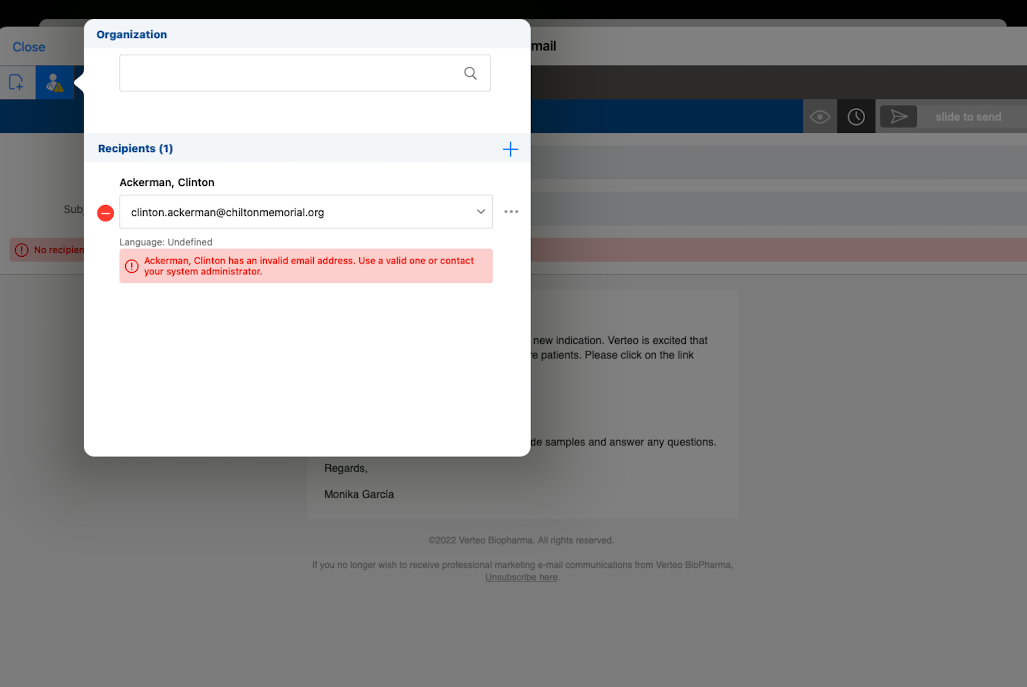
The user cannot send the message until they select a valid email address. To select another email address, select the dropdown, or select the Manage Email Addresses button to enter a correct address. Select away from the popup to continue composing your email. If an email was scheduled using the address, the email is not sent, and the status of the Sent Email record is set to failed.
Bounced email management also applies to consent capture. If a user attempts to resend a consent capture email that previously bounced, an error displays. If your organization requires explicit consent, see Capturing Consent for more information.
Considerations
- Bounced email functionality also applies to emails related to Events
- Bounced email management does not apply to test email addresses or system administrator addresses

