Text Messaging Administration
The SMS Business Messaging administration page enables business administrators to connect enterprise AWS accounts to Vault CRM, configure inbound message routing, discover and connect leased phone numbers, and manage user phone number assignments.
All messaging app integrations, including SMS and WhatsApp, are managed from a centralized Messaging Administration landing page.
Who can use this feature?
- Admin Users - Browser
- Using SMS Business Messaging Administration
- Users require an Engage license
Configuring SMS Business Messaging Administration for
 Admin Users
To configure this feature, ensure Configuring Text Messaging in Vault CRM is complete.
Using SMS Business Messaging Administration as
Admin Users
To access SMS Business Messaging Administration:
-
Navigate to Admin > Configuration > Channels > Messaging.
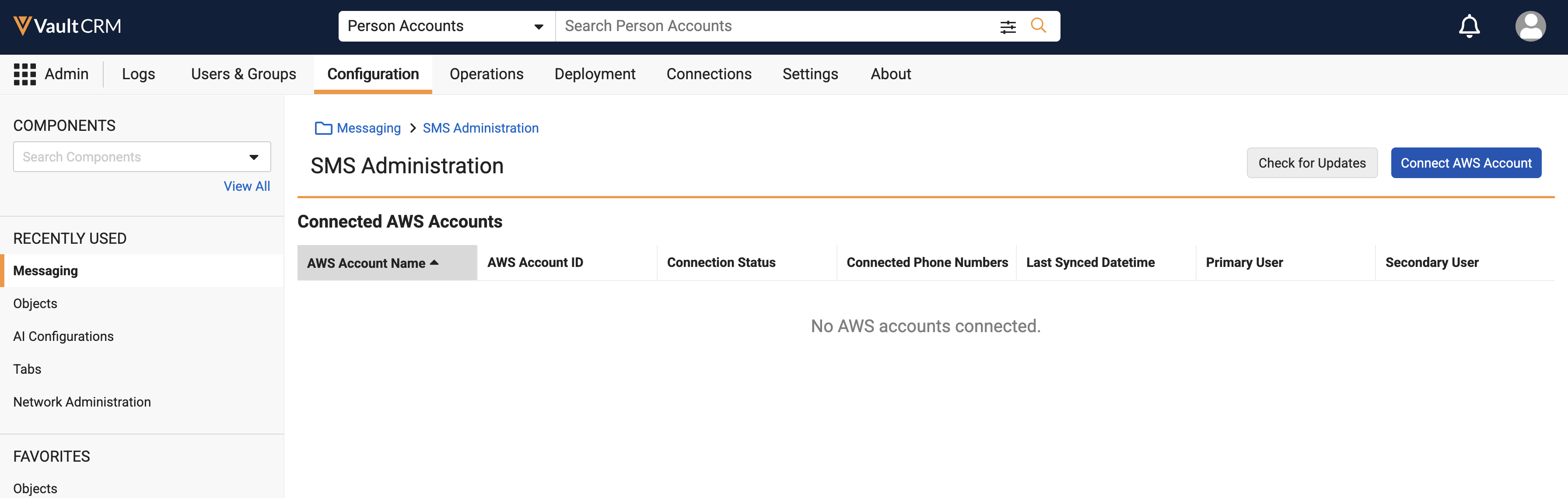
- Select Manage on the SMS card to open the SMS Administration page.
The SMS card dynamically shows the connection status of the SMS integration:
- Not Connected - Displays a grey text badge when no active messaging_business_account__v record exists with connection_status__v = connected__v
- Connected - Displays a green checkmark icon when at least one SMS Business Account is successfully connected (connection_status__v = connected__v)
- Needs Attention - Displays a warning triangle icon and a count of accounts when any SMS Business Account is in an error__v connection state, or has an inactive primary or secondary inbound user
Connecting an AWS Account
The onboarding process uses a secure, multi-step verification protocol to validate and link your enterprise AWS account to Vault CRM. Customers can use the same AWS account with multiple CRM Vaults, or share the same account across multiple countries.
Step 1: Initializing a Connection
To initialize a connection:
- Select Connect AWS Account on the SMS Administration page.
-
Populate the following required fields:
- AWS Account Name - Provide a reference name (max 128 characters) to identify the account within Vault CRM
- AWS Account ID - Enter your 12-digit numeric AWS Account ID
- Select Continue.
Step 2: Brand and Campaign Registrations
US customers must create a brand registration and a campaign registration in AWS prior to setting up phone numbers. To do so:
- Select Registration from the Configuration section in the SMS Administration navigation pane.
- Select Create Registration.
- Complete the form for the brand registration or the campaign registration.
- Select Save.
For more information on creating registrations, see Create a new registration using the AWS End User Messaging SMS console.
Step 3: Phone Number Setup
Customers must set up phone numbers for use with SMS Messaging. To do so:
- Select Phone Numbers from the Configuration section in the SMS Administration navigation pane.
- Select Request Originator.
- Select a Destination Country.
- Select Next.
- Populate the fields in the Define use case form.
- Select Yes in the Two-way sms messaging field.
- Select Next.
- Select Long code or 10DLC (US) as the Originator type.
- Select Request.
A Success message displays the new phone number. For more information on managing phone numbers, see Phone Number Management.
Step 4: AWS Console Configuration and IAM Role Provisioning
Once the AWS Account ID is validated, a messaging_business_account__v record is created in a Pending state.
Vault CRM then generates a unique, External ID that admins must provide to AWS when establishing the connection. Consider the following when using the Veeva-provided External ID:
- The ID is unique and secret
- It provides an extra level of security so that only Veeva can assume these roles
- Customers will not be shown the External ID again, however they can always view it again in AWS
- Veeva may ask for it again if customers onboard another Vault to the same AWS account
This use of an External ID is a standard AWS security practice. For more information, see How to Use External ID When Granting Access to Your AWS Resources.
Admins must log in to AWS Console and use the generated External ID along with the Veeva AWS Account ID to create two Identity and Access Management (IAM) roles with the following exact names:
- Provisioning Role - veeva-vcrm-sms-provisioning-role
- Messaging Role - veeva-vcrm-sms-messaging-role
The same External ID should be used to set up both IAM roles.
Admins must add at least the trust policy and role permissions below when setting up the IAM roles. The following placeholders in the trust policy and role permission code should be replaced when adding this information in AWS:
- CUSTOMER_ACCOUNT_ID - Replace with your AWS Account ID
- VEEVA_PROD_ACCOUNT_ID - Replace with the ID generated by Vault CRM
- UNIQUE_CUSTOMER_ACCOUNT_EXTERNAL_ID - Replace with the ID generated by Vault CRM
Trust Policy (Same for both Provisioning and Messaging IAM Roles)
{
	"Version": "2012-10-17",
	"Statement": [
		{
			"Effect": "Allow",
			"Principal": {
				"AWS": "arn:aws:iam::<VEEVA_PROD_ACCOUNT_ID>:root"
			},
			"Action": "sts:AssumeRole",
			"Condition": {
				"StringEquals": {
					"sts:ExternalId": "<UNIQUE_CUSTOMER_ACCOUNT_EXTERNAL_ID>"
				}
			}
		}
	]
}
Code Comments: Trust Policy
| Cause | Message |
|---|---|
"AWS": "arn:aws:iam::<VEEVA_PROD_ACCOUNT_ID>:root" |
Only a Veeva IAM identity that has been granted assumeRole to this customer account can actually assume this role. |
"sts:ExternalId": "<UNIQUE_CUSTOMER_ACCOUNT_EXTERNAL_ID>" |
The Veeva-generated UUID is specific to the customer. Veeva must send this each time it assumes the role. If this is not included, the AssumeRole action will fail. |
Role Permission - Provisioning
Provisioning Role - veeva-vcrm-sms-provisioning-role
{
	"Version": "2012-10-17",
	"Statement": [
		{
			"Sid": "AccountLevelDiscovery",
			"Effect": "Allow",
			"Action": [
				"sms-voice:DescribePhoneNumbers",
				"sms-voice:DescribeConfigurationSets",
				"account:ListRegions"
			],
			"Resource": "*"
		},
		{
			"Sid": "PhoneNumberWiring",
			"Effect": "Allow",
			"Action": [
				"sms-voice:UpdatePhoneNumber"
			],
			"Resource": [
				"arn:aws:sms-voice:*:<CUSTOMER_ACCOUNT_ID>:phone-number/*"
			]
		},
		{
			"Sid": "VeevaConfigurationSetLifecycle",
			"Effect": "Allow",
			"Action": [
				"sms-voice:CreateConfigurationSet",
				"sms-voice:DescribeConfigurationSets",
				"sms-voice:TagResource",
				"sms-voice:ListTagsForResource",
				"sms-voice:CreateEventDestination",
				"sms-voice:GetConfigurationSetEventDestinations",
				"sms-voice:UpdateEventDestination"
			],
			"Resource": "arn:aws:sms-voice:*:<CUSTOMER_ACCOUNT_ID>:configuration-set/veeva-sms-events"
		},
		{
			"Sid": "VeevaSNSTopicLifecycle",
			"Effect": "Allow",
			"Action": [
				"sns:CreateTopic",
				"sns:TagResource",
				"sns:ListTagsForResource",
				"sns:SetTopicAttributes",
				"sns:GetTopicAttributes",
				"sns:Subscribe",
				"sns:ListSubscriptionsByTopic",
				"sns:SetSubscriptionAttributes"
			],
			"Resource": "arn:aws:sns:*:<CUSTOMER_ACCOUNT_ID>:veeva-sms-events"
		},
		{
			"Sid": "VeevaSQSProvisioning",
			"Effect": "Allow",
			"Action": [
				"sqs:CreateQueue",
				"sqs:SetQueueAttributes",
				"sqs:GetQueueUrl",
				"sqs:GetQueueAttributes",
				"sqs:TagQueue",
				"sqs:ListQueueTags"
			],
			"Resource": "arn:aws:sqs:*:<CUSTOMER_ACCOUNT_ID>:veeva-sms-*"
		}
	]
}
Code Comments: Role Permission - Provisioning
| Cause | Message |
|---|---|
"sms-voice:DescribePhoneNumbers", |
Finds available phone numbers in a given region |
"sms-voice:DescribeConfigurationSets", |
Checks if we have already created the Veeva-managed AWS End User Messaging Configuration Set in a given region |
"account:ListRegions", |
So we can list out every active region for the customer to find phone numbers, and create resources (SQS, SNS, Configuration Set) |
"Resource": "*" |
Allows Veeva to find all phone numbers. There is no restriction on which numbers get pulled in by Veeva. |
"sms-voice:UpdatePhoneNumber", |
Phone numbers come by default only able to send outbound. This lets us allow inbound messages and configure which SNS topics capture inbound events |
"arn:aws:sms-voice:*:<CUSTOMER_ACCOUNT_ID>:phone-number/*", |
Veeva can configure any customer phone number |
"sms-voice:CreateConfigurationSet", |
Allows Veeva to create the necessary Configuration Set |
"sms-voice:DescribeConfigurationSets", |
Allows Veeva to list our all configuration sets attached to EUM |
"sms-voice:TagResource", |
Allows Veeva to tag the resource |
"sms-voice:ListTagsForResource", |
Allows Veeva to list all tags associated to the configuration sets |
"sms-voice:CreateEventDestination", |
Allows Veeva to wire that Configuration Set to the Veeva-Created SNS topic |
"sms-voice:GetConfigurationSetEventDestinations", |
Allows Veeva to see if we need to fix misconfigured event destinations during sync attempts |
"sms-voice:UpdateEventDestination" |
Allows Veeva to idempotently handle any issues during subsequent onboarding attempts or if the customer broke a configuration |
"arn:aws:sms-voice:*:<CUSTOMER_ACCOUNT_ID>:configuration-set/veeva-sms-events" |
Veeva is ONLY allowed to touch the Configuration Sets it creates |
"sns:CreateTopic", |
Allows Veeva to create the SNS topic to capture message events |
"sns:TagResource", |
Allows Veeva to tag the SNS topic created above |
"sns:ListTagsForResource", |
Allows Veeva to list all tags given to the above topic |
"sns:SetTopicAttributes", |
Allows AWS SMS to publish messages here |
"sns:GetTopicAttributes", |
Allows Veeva to idempotently fix this configuration if any errors occur during provisioning or the customer breaks configuration |
"sns:Subscribe", |
Allows Veeva to link the SNS topic to the Veeva-created SQS queue |
"sns:ListSubscriptionsByTopic", |
Allows Veeva to verify SQS is subscribed to this topic |
"sns:SetSubscriptionAttributes" |
Allows Veeva to set the SQS Subscription attributes |
"Resource": "arn:aws:sns:*:<CUSTOMER_ACCOUNT_ID>:veeva-sms-events" |
Veeva is only allowed to modify SNS topics that it creates |
"sqs:CreateQueue", |
Allows Veeva to create the Queue |
"sqs:SetQueueAttributes", |
Allows Veeva to set the access policy |
"sqs:GetQueueUrl", |
Allows Veeva to find Queue to read from |
"sqs:GetQueueAttributes", |
Allows Veeva to idempotently setup Queue again if something gets misconfigured |
"sqs:TagQueue", |
Allows Veeva to tag an SQS Queue |
"sqs:ListQueueTags" |
Allows Veeva to list all tags associated to the SQS Queue |
"Resource": "arn:aws:sqs:*:<CUSTOMER_ACCOUNT_ID>:veeva-sms-*" |
Veeva only interacts with Veeva-created queues |
Role Permission - Messaging
Messaging Role - veeva-vcrm-sms-messaging-role
{
	"Version": "2012-10-17",
	"Statement": [
		{
			"Sid": "OutboundSMSExecution",
			"Effect": "Allow",
			"Action": [
				"sms-voice:SendTextMessage"
			],
			"Resource": [
				"arn:aws:sms-voice:*:<CUSTOMER_ACCOUNT_ID>:phone-number/*",
				"arn:aws:sms-voice:*:<CUSTOMER_ACCOUNT_ID>:configuration-set/*"
			]
		},
		{
			"Sid": "VeevaSQSConsumption",
			"Effect": "Allow",
			"Action": [
				"sqs:ReceiveMessage",
				"sqs:DeleteMessage",
				"sqs:ChangeMessageVisibility"
			],
			"Resource": "arn:aws:sqs:*:<CUSTOMER_ACCOUNT_ID>:veeva-sms-*"
		}
	]
}
Code Comments: Role Permission - Messaging
| Cause | Message |
|---|---|
"sms-voice:SendTextMessage" |
Required for Veeva to send outbound SMS messages |
"arn:aws:sms-voice:*:<CUSTOMER_ACCOUNT_ID>:phone-number/*", |
Veeva can send SMS messages using any phone number in this customer account |
"arn:aws:sms-voice:*:<CUSTOMER_ACCOUNT_ID>:configuration-set/*" |
Veeva can specify the configuration set for message receipts |
"sqs:ReceiveMessage", |
Allows Veeva to read messages off of queue |
"sqs:DeleteMessage", |
Allows Veeva to remove message from queue after processing completes |
"sqs:ChangeMessageVisibility" |
Allows Veeva to extend a message visibility timeout if processing time takes longer than the queue default |
"Resource": "arn:aws:sqs:*:<CUSTOMER_ACCOUNT_ID>:veeva-sms-*" |
Veeva only interacts with Veeva-created queues |
Step 5: Complete Connection Verification
- Select the Pending account row in the SMS Administration table to resume setup.
- Select I've created my IAM Roles.
-
Populate the following:
-
SMS IAM Provisioning Role ARN
Format: arn:aws:iam::<account-id>:role/veeva-vcrm-sms-provisioning-role
-
SMS IAM Messaging Role ARN
Format: arn:aws:iam::<account-id>:role/veeva-vcrm-sms-messaging-role
- External ID
ARN paths may vary depending on how customers organize their AWS resources. However, the path must end in ‘veeva-vcrm-sms-messaging-role’.
-
- Select Connect.
Step 6: Background Provisioning (Async)
If the admin configuration is successful, the connection status changes to Provisioning. In the background, Vault CRM scans and configures messaging in any region with phone numbers.
Configuring Inbound Routing
Before the connected AWS account can be placed in a fully operational state, you must configure inbound chat routing. When provisioning completes, the Admin is automatically presented with the Users for Inbound Chats setup section on the AWS Account Details page.
Inbound Assignment Rules
- Primary User (Required) - The main CRM recipient for inbound SMS messages from HCPs. This should be a user who is comfortable with connecting the phone number to an account and assigning accounts to sales reps.
- Secondary User (Optional) - A fallback recipient who receives inbound chats if the Primary User is marked inactive in the system
After assigning and saving these roles, the AWS Account status transitions to Connected, activating the number management tables.
Phone Number Management
Once an AWS account is connected, admins can manage associated numbers directly from the AWS Account Details page.
Admins can select the Check for Updates button in AWS to pull in any new numbers and re-run the setup process. Selecting the Check for Updates button is also useful as a general troubleshooting step.
Connecting Available Phone Numbers
Phone numbers leased in AWS are synced in the background, and a Syncing indicator displays in the Available Phone Numbers section header.
- Locate the Available Phone Numbers table. Eligible, successfully synced numbers display an Available status.
Phone numbers already linked to another CRM Vault display as disabled, with a tooltip indicating the number is controlled by another vault.
- Select the checkbox next to one or more available numbers.
- Select Connect Selected.
On success, the connected numbers immediately change to a Connected state and display in the Connected Phone Numbers table.
Disconnecting an Individual Phone Number
To decommission a single number without affecting the AWS account integration or other active numbers:
- Select the targeted phone number link in the Connected Phone Numbers table to open the SMS Phone Number Details page.
- Select Disconnect from the top right corner.
- Select Confirm. The system releases the Vault's reservation and updates the phone number status to Disconnected, clearing its sms_business_account__v lookup field.
The disconnected number instantly returns to the Available Phone Numbers table on the AWS Account Details page for future reconnection.
Assigning Phone Numbers to Users
To send and receive compliant SMS messages, end users must be assigned active, connected phone numbers.
The following constraints apply to user phone number assignment:
- 1:1 User Assignment - Each active Vault CRM User (user__sys) can only be assigned to a single connected SMS phone number
- Shared Numbers - An individual phone number can be shared between multiple Vault CRM users to support territory coverage. For more information, see Sharing Phone Numbers and Active Conversations.
- Collision Prevention - Built-in logic blocks users from sending overlapping outbound messages if another user sharing the same number is currently in an active 24-hour conversational window with that specific HCP
To manually assign users via the Admin UI:
- Navigate to the SMS Phone Number Details page for the target number.
- Select Add Users in the Assigned Users section.
- Search for and select the appropriate users.
- Select Add. This populates the sms_phone_number__v field on the user's record with the active phone number ID.
To assign users to a phone number in bulk, use the Vault Loader to data load the SMS Phone Number (sms_phone_number__v) field for User (user__sys) records.
Connection Alerts & Troubleshooting
Administrators can review SMS Administration tables for the following status states and active alerts:
|
Connection Status |
Indicator Behavior |
Troubleshooting / Admin Action |
|---|---|---|
|
Pending |
Row selection navigates to setup. Setup banner displays. |
Setup incomplete. Select Complete Setup to re-enter Provisioning/Messaging IAM Role ARNs and External ID. |
|
Provisioning |
Spinner displays next to status. |
Async sweep in progress. Select Check for Updates to query the latest EUM backend connection state. |
|
Error |
Row highlighted in red, warning icon displays. |
Connection or provisioning failure. Hover over the warning icon to view the backend last_error_message__v tooltip. Select Retry to re-trigger role assumption. |
|
Inactive User Alert |
Error icon displays on row, yellow/red highlight. |
An assigned Primary or Secondary routing user has been deactivated in the system. Update lookup assignments immediately to prevent inbound message routing failure. |
|
Inactive User on Phone Number |
Red exclamation icon displays in Assigned Users table. |
An assigned end-user rep is inactive. Reassign the phone number to an active user to ensure outgoing and incoming delivery integrity. |

