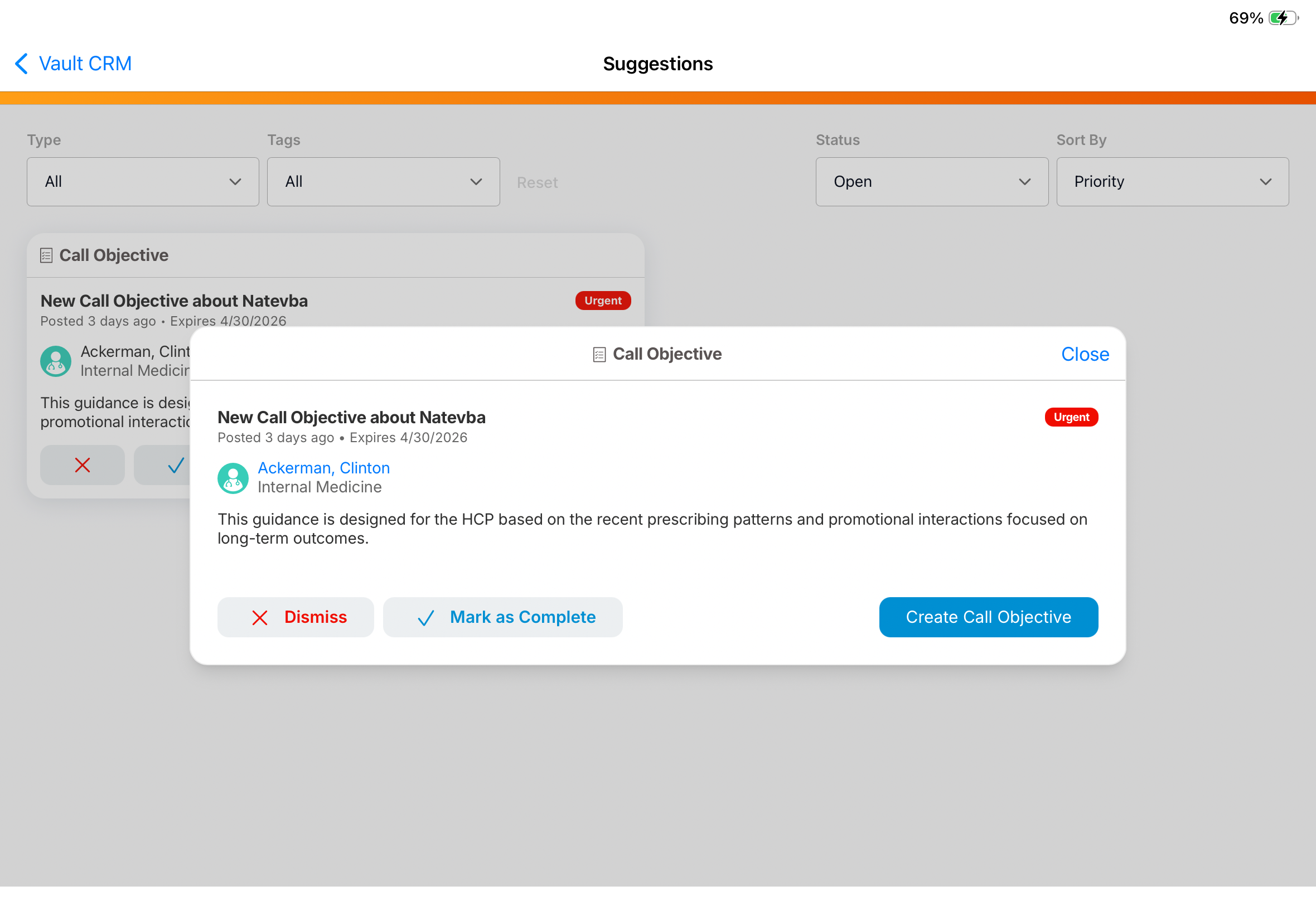
Completing or Dismissing Suggestions
Suggestions prompt users to take recommended actions, for example, scheduling a call or sending an email, based on account activity and data. When a suggestion has been addressed, users can mark it as complete to confirm the action was taken. If a suggestion is not relevant because it references an incorrect product, channel, or driver, users can dismiss it instead.
Both actions remove the suggestion from view and generate a Suggestion Feedback record, giving admins visibility into how suggestions are being handled across their organization.
Who can use this feature?
- End Users — Browser, iPad
- Completed or Dismissing a Suggestion
- Users do not require an additional license
Configuration for
 End Users
To configure this feature:
- Ensure Configuring Accounts and Configuring Suggestions are complete.
- Navigate to Admin > Users and Groups > Permission sets.
- Select the appropriate permission set for the appropriate user profile.
- Select the Objects tab.
- Grant the following permissions:
Object Object Permission Object Type Fields Field Permission suggestion__v RE All applicable object types display_dismiss__v Read suggestion_feedback__v CRE dismiss__v none none
Defining the Dismissal Feedback Questions
When a user dismisses a suggestion, feedback dialog can display up to four questions to capture the reason for the dismissal.
Admins can customize these questions by updating the field labels on the suggestion_feedback__v object. Questions are limited to 40 characters and Yes/No answer types.
Suggestion Feedback Records
When a user acts on a suggestion by executing it, marking it as complete, or dismissing it, a suggestion feedback record is created. This record includes the following information:
- Created Date - When the user acted on the suggestion
- Created By - Who acted on the suggestion
- Suggestion - Relationship with the parent suggestion record
- Record Type - Tracks the User Suggestion action:
- activity_execution__v - The user acted on the suggestion, e.g., scheduling a call and creating a call objective
- dismiss__v - The user dismissed the suggestion, e.g. the user selected the x icon
- mark_as_complete__v - The user marked the suggestion as completed, e.g. the user selected the check mark icon
- Activity Execution Type - The channel associated with the suggestion, e.g. Call, Call Objective, Email, WeChat, or WeChat Content
- Lookups to related objects:
- Call - If a call is executed and created from the suggestion
- Call Objective - If a call objective is executed and created from the suggestion
- Sent Email - If an email is executed and sent from the suggestion
Completing or Dismissing a Suggestion as
End Users
When a user completes or dismisses a suggestion associated at the account level, the suggestion is removed from view for all users who have access to the account's suggestions when the public model is used. If a suggestion is associated at both the account and user level, only the user who owns the suggestion is affected.
Marking a Suggestion as Complete
Select the Mark As Complete button or execute the associated action, for example, schedule call or create call objective, to complete the suggestion. When completed, the suggestion is removed from the Suggestions tab and a Suggestion Feedback record is created. Admins can use this record to confirm whether the user took the suggested action.
Dismissing a Suggestion
Select the Dismiss button to dismiss an irrelevant suggestion. Depending on the user's permissions on the suggestion_feedback__v object, a feedback modal displays before the suggestion is dismissed.
-
If the user has permission to at least one of the following fields on the suggestion_feedback__v object, a feedback modal displays allowing the user to select a reason for dismissing the suggestion
- dismissfeedback1__v
- dismissfeedback2__v
- dismissfeedback3__v
- dismissfeedback4__v
-
If the user does not have permission to at least one of these fields, a dismissal confirmation dialog displays
When a suggestion is dismissed, it is removed from the Suggestions tab and a Suggestion Feedback record is created, allowing admins to view the reason the user dismissed the suggestion.