Viewing Compass Data Using X-Pages
Customers can view Compass data using Vault CRM, rather than using a business intelligence tool, with or without Veeva Nitro. By quickly and easily integrating Compass data with Vault CRM and X-Pages, content developers can create an X-Page that embeds Compass Patient data then aggregates prescription and medical claim data at the HCP and product levels. Additionally, Compass Prescriber data, which is projected prescriptions and procedure data, can be viewed and displayed at the territory and HCP level by product.
Content creators can use one of the three templates available in X-Pages Studio to create pages that display Compass data.
Who can use this feature?
- Studio Admins - Browser
- Configuring Viewing Compass Data with X-Pages
- Content Creators - Browser
- Configuring Viewing Compass Data with X-Pages
- Creating X-Pages that Use Compass Data
- Content Developers - Browser
- Creating X-Pages that Use Compass Data
- Users require a Veeva Compass account
Configuring Viewing Compass Data with X-Pages for
 Studio Admins
To prepare Vault CRM:
- Work with the Compass Product Expert team to configure the query that will feed Vault CRM.
- Create Analytic Markets records for the Analytic Product Groups.
- Navigate to Business Admin > Objects > analytics_product_group__v.
- Create Analytics Product Groups provided by the customer or Compass.
- Based on the cohort definitions, define your market and the associated diagnosis code you plan to visualize in the data for each Analytics Product Group:
- Enter Diagnosis Code (name__v) and Diagnosis Description (display_name__v) for the Analytics Product Group in the Product Group field
Remove decimals from diagnosis codes. For example, C18.0 should be entered as C180.
- Enter the Analytics Market for the Analytic Product Group in the Market field.
- Enter Diagnosis Code (name__v) and Diagnosis Description (display_name__v) for the Analytics Product Group in the Product Group field
- Ensure each account for which you want to see data has a value in the matchid__v or npi__v field on the account__v object. The Match ID or NPI are required to match the Vault CRM account to the Compass Patient data.
-
Ensure Account Territory records are created so Compass can map the HCPs to the appropriate territory to display on the X-Page.
Additional Considerations
Parent Product Groups might be needed to display appropriate behavior:
- To display information regarding a procedure code, and the procedure code Compass record(s) are delivered with the record_type column set to MX, the following items must be included in the Analytics Product Group (APG) configuration:
- An APG record exists with name__v equal to the Procedure code name
- The APG record has a parent product group that maps to the relevant Market
-
Additional APG relationships that are represented in Vault CRM as APG records with name__v values mapped to the product of interest, and market__v mapped to the relevant market:
- Diagnosis codes - Compass column(s): [ diagnosis_code_1, diagnosis_code_2, … diagnosis_code_n ]
- Products to Market - Compass column(s): [ product_name ]
To configure Vault CRM to Integrate Compass Data:
- Log into Vault CRM.
- Create an integration user for Vault CRM.
- Grant the user the following permissions:
Object
Object Permissions
Object Types
Fields
Field Permissions
account__v
R
n/a
- npi__v
- matchid__v
Read
territory__v
R
n/a
name__v Read
account_territory__v
R
n/a
- account__v
- territory__v
Read
analytics_product_group__v
R
n/a
- parent_product_group__v
- company_product_group__v
- market__v
Read
- Navigate to Admin > Configuration
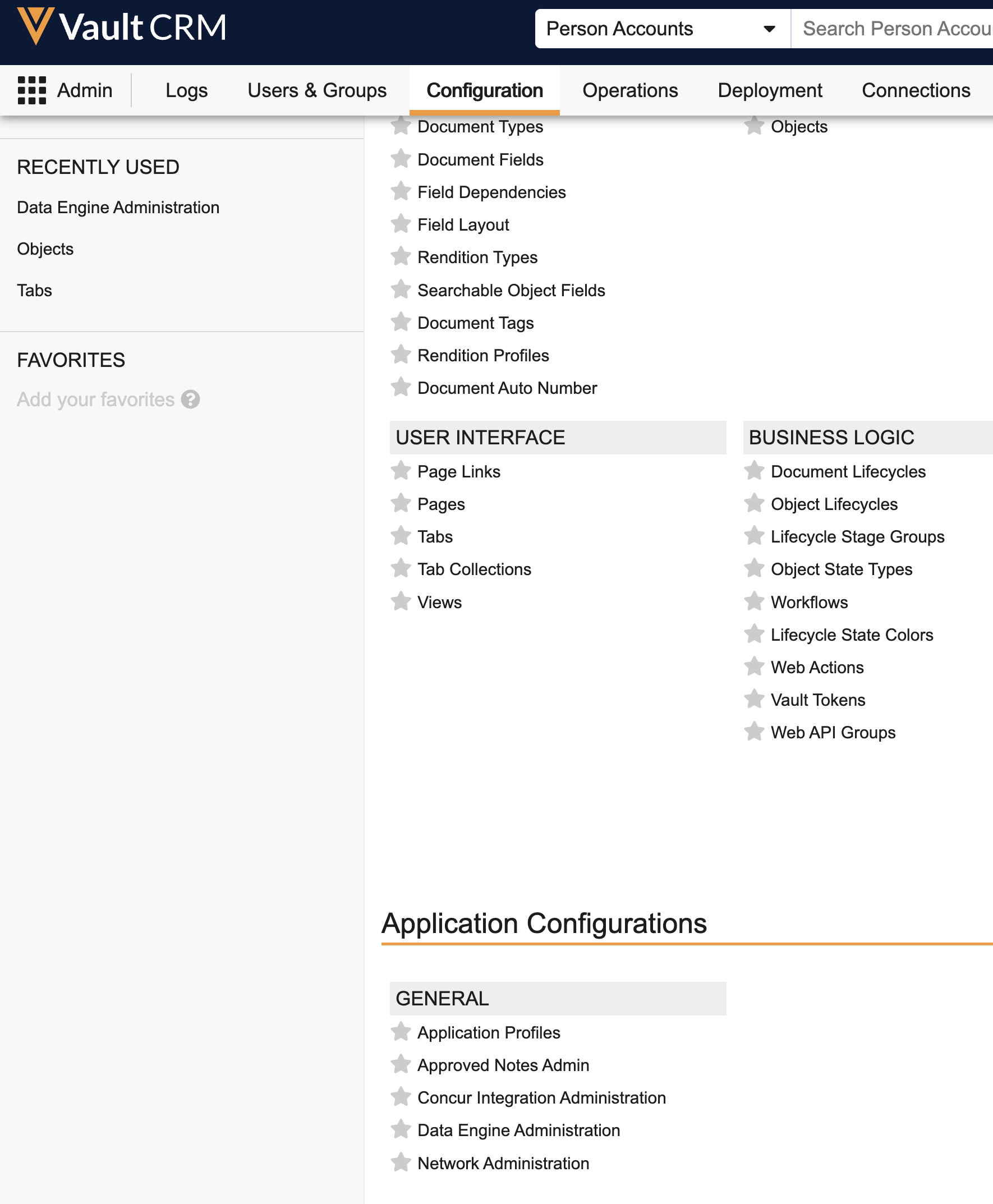
- Select Data Engine Administration in the Application Configurations section.
- Select Edit.
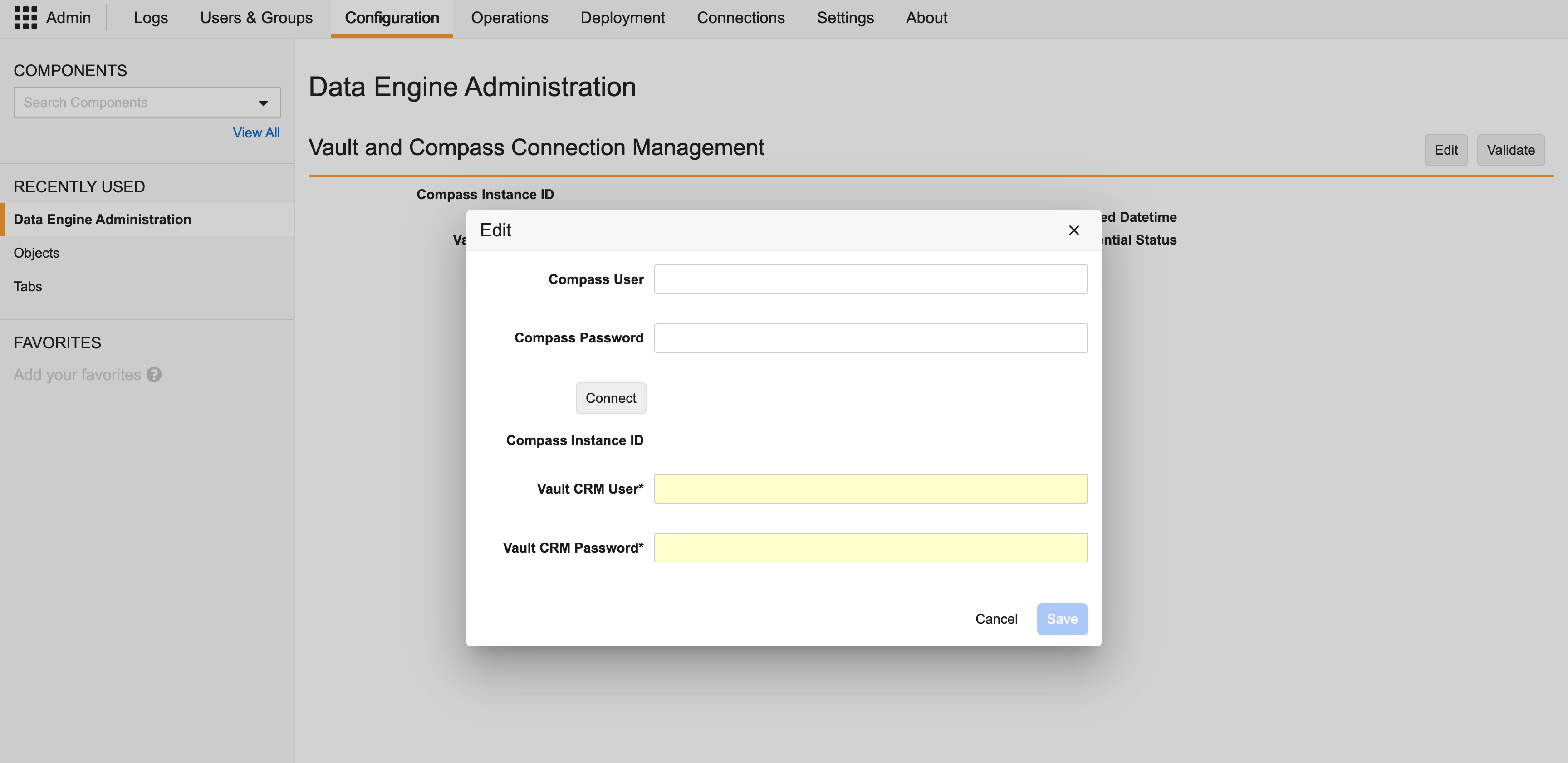
- Enter the Compass Integration user account credentials.
- Select Connect. The Compass Instance ID is populated if the entered credentials are correct.
- Enter the Vault CRM integration user credentials.
- Select Save. The Compass Instance ID is populated when the user information is saved.
- Select Validate Credentials to verify the Vault CRM user account credentials.
To prepare Compass:
- Create a dedicated Integration User (for example, integration@customer.com) in Compass.
Ensure the Profile = Integration User
- Select the API Access checkbox on the Compass User Creation page.
- Ensure Vault CRM is selected as the delivery destination. If a destination is not configured, work with your Veeva Compass Product Expert to activate delivery to Vault CRM.
To configure Compass to integrate data with Vault CRM:
- Log into the Compass Portal as the Compass Integration user.
- Use the Query Builder to define your Compass query. Ensure the following settings:
Queries producing more than 500 million total records across the 25 month Time Frame are not supported.
- Veeva Compass Patient
- Returned Records - select Exact Match
- Delivery Schedule - select Daily
- Time Frame for Qualification Criteria - enter dates from the 25 months prior to the current month, for example, From: 01/01/2021 To: 02/01/2023
- Time Frame for Returned Records - ensure the Return transactions for the same time frame used to identify qualified patients checkbox is selected
- Delivery Location - select Vault CRM
- Time Frame for Deliveries - select Last 3 months
- Schema - customers upgraded to Vault CRM 25R1.0 or later can select a data schema version
New customers on Vault CRM 25R1.0 or later use Patient Schema V3.
- Patient Schema V2 (to be retired April 2026)
- Patient Schema V3
- Veeva Compass Prescriber
- Delivery Location - select Vault CRM
- Frequency of Delivery - select Monthly
- Time Frame for the Data - select Last 12 months
- Schema - customers upgraded to Vault CRM 25R1.0 or later can select a data schema version:
New customers on Vault CRM 25R1.0 or later use Prescriber Schema V2.
- Prescriber Schema V1 (to be retired April 2026)
- Prescriber Schema V2
- Veeva Compass Zip
- Delivery Location - select Vault CRM
- Frequency of Delivery - select Monthly
- Time Frame for the Data - select Last 12 months
- Schema - customers upgraded to Vault CRM 25R1.0 or later can select a data schema version:
New customers on Vault CRM 25R1.0 or later use Zip Schema V2.
- Zip Schema V1 (to be retired April 2026)
- Zip Schema V2
Content Creators
To configure Vault CRM to Integrate Compass Data, ensure Configuring X-Pages Studio is complete.
To access and use X-Pages Studio, you must submit a support ticket requesting a Studio domain for Vault CRM and a Studio admin user. The ticket must include an email address and a unique Studio username for each requested Studio admin user.
Creating X-Pages that Use Compass Data as
Content Creators
Several X-Pages Studio page templates are available for content creators to start with when creating an X-Page that displays Compass patient data and aggregated prescription and medical claim data at the HCP and product level. Specific instructions for using each template is provided on the corresponding template page:
Content Developers
Content developers can create and deploy a custom X-Page that uses the queryDataEngine method and the getAlignedTerritories function. See the Veeva Javascript Library for more information.

