Exporting Account Plans to PowerPoint
Key Account Managers (KAMs) can export Account Plan data from Vault CRM directly into a formatted PowerPoint presentation. This allows KAMs to easily prepare for internal reviews with leadership and cross-functional teams, gather feedback, and present plan progress without having to manually extract data.
The export process uses predefined PowerPoint templates containing tokens, which are replaced with data from the Account Plan and its related records. This ensures consistency while providing the flexibility to tailor presentations for specific audiences. The generated PowerPoint file is automatically associated with the Account Plan record in Vault CRM.
Who can use this feature?
- Business Admin Users — Browser
- Managing Plan Export Templates
- Using Tokens for Account Plan Export Templates
- Uploading an Account Plan Export Template
- End Users — Browser
- Exporting an Account Plan to PowerPoint
- Users do not require an additional license
Configuring Export to PowerPoint for
 Business Admin Users
To configure this feature:
- Ensure the following are complete:
- Configure one of the following options for sharing PowerPoint export templates.
Option 1: To make templates publicly available:
- Navigate to Admin > Configuration > Document Types
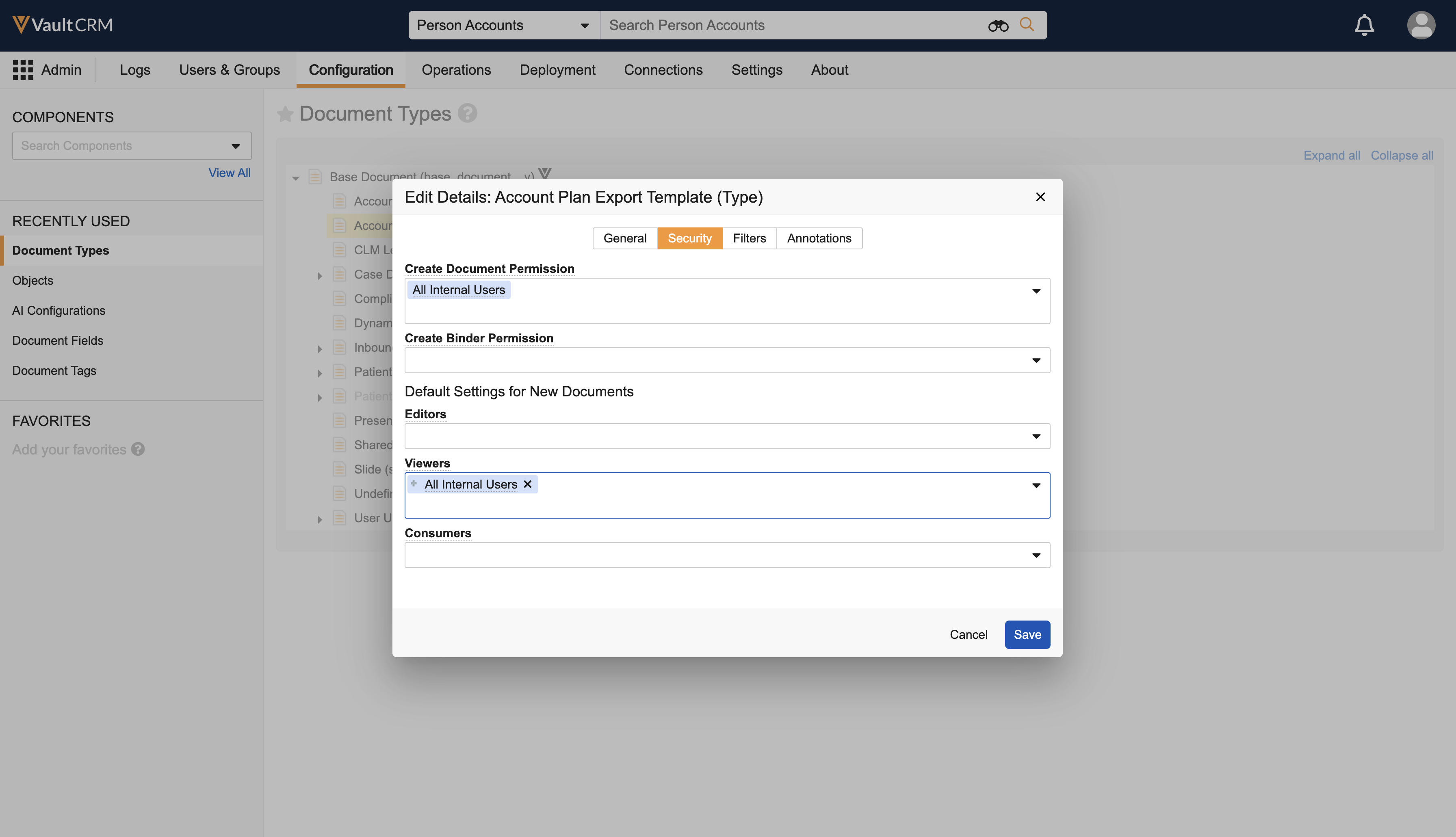
- Edit Details on the Account Plan Export Template document type
- Select the Security tab
Ensure the All Internal Users group, or any specific groups to which templates should be shared, are added in the Viewers and Create Document Permission sections of the Account Plan Export Template document type. These groups are granted Create permission by default.
- Select Save
- Edit Details on the Account Plan document type
- Select the Security tab
Ensure the All Internal Users group, or any specific groups to which templates should be shared, are added in the Create Document Permission and Editors sections of the Account Plan document type
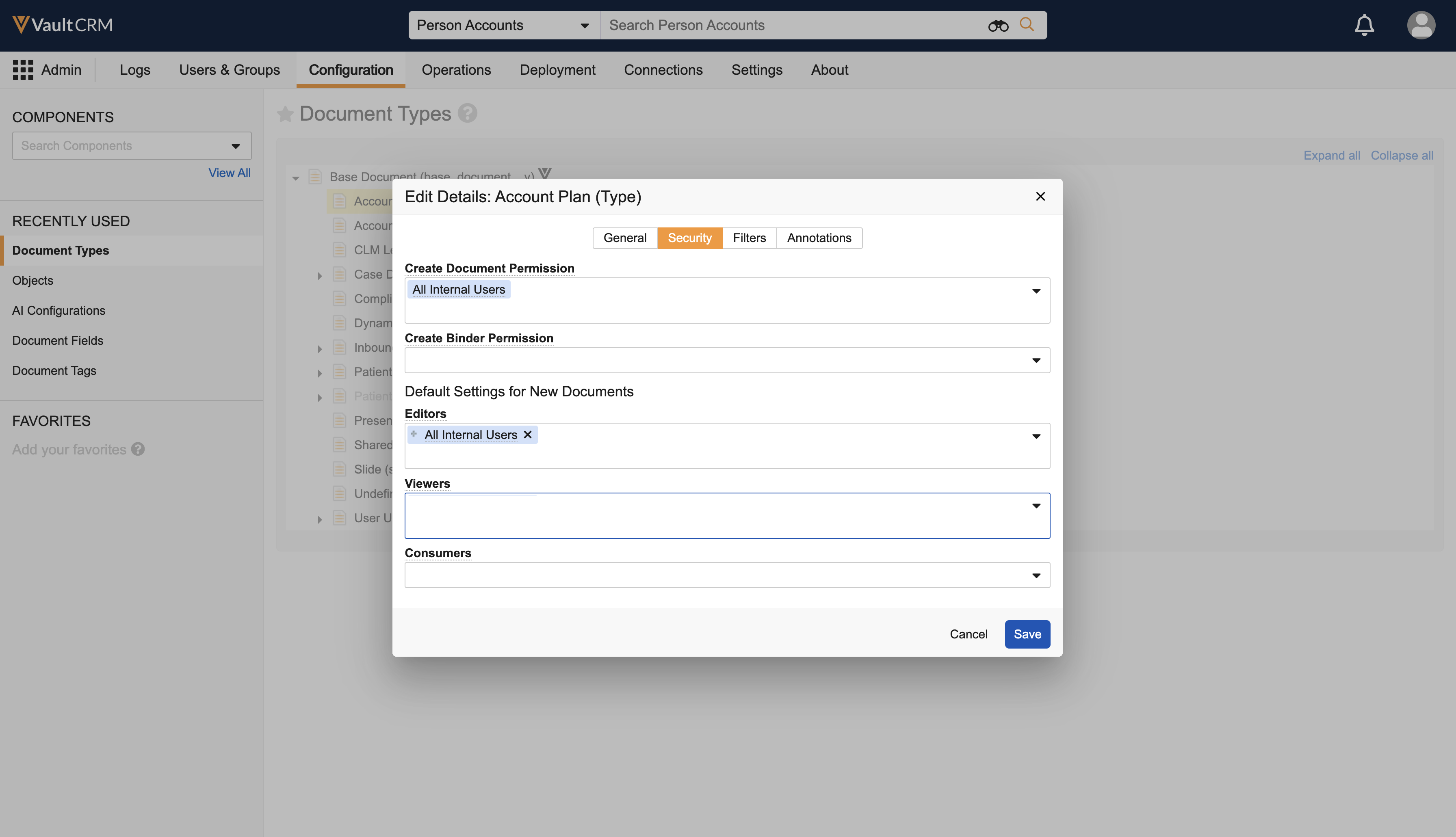
The All Internal Users group may be added as Creators by default due to the inherited permissions from the Base document type. Admins can remove the group from the Base document type to remove them as Creators.
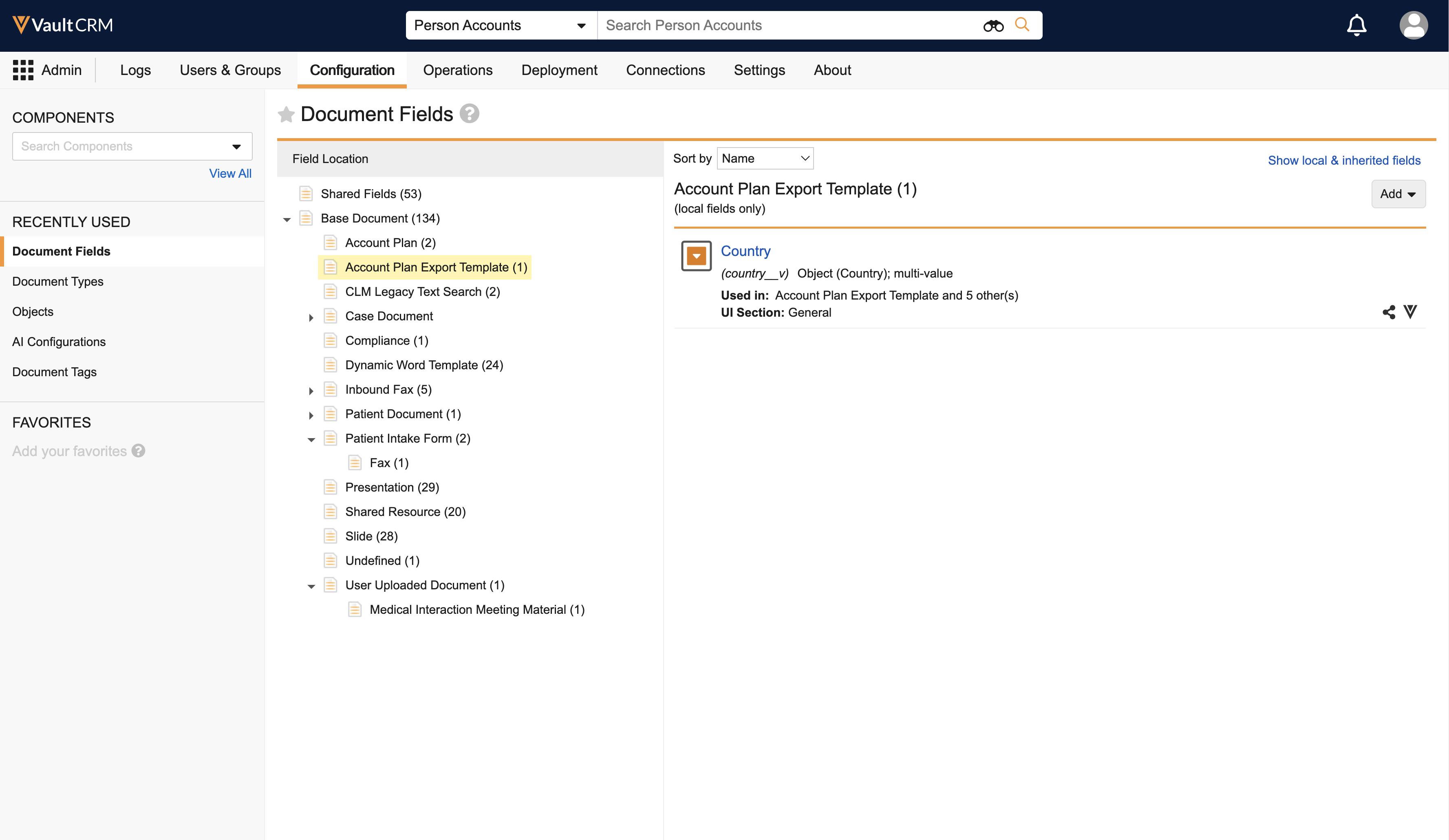
Option 2: To share templates with specific groups of users, for customers who want to control visibility to templates based on template attributes such as county or product, Dynamic Access Control can be enabled on the Account Plan Export Template documents.
Add relevant fields (for example, Country) to the Account Plan Export Template document type
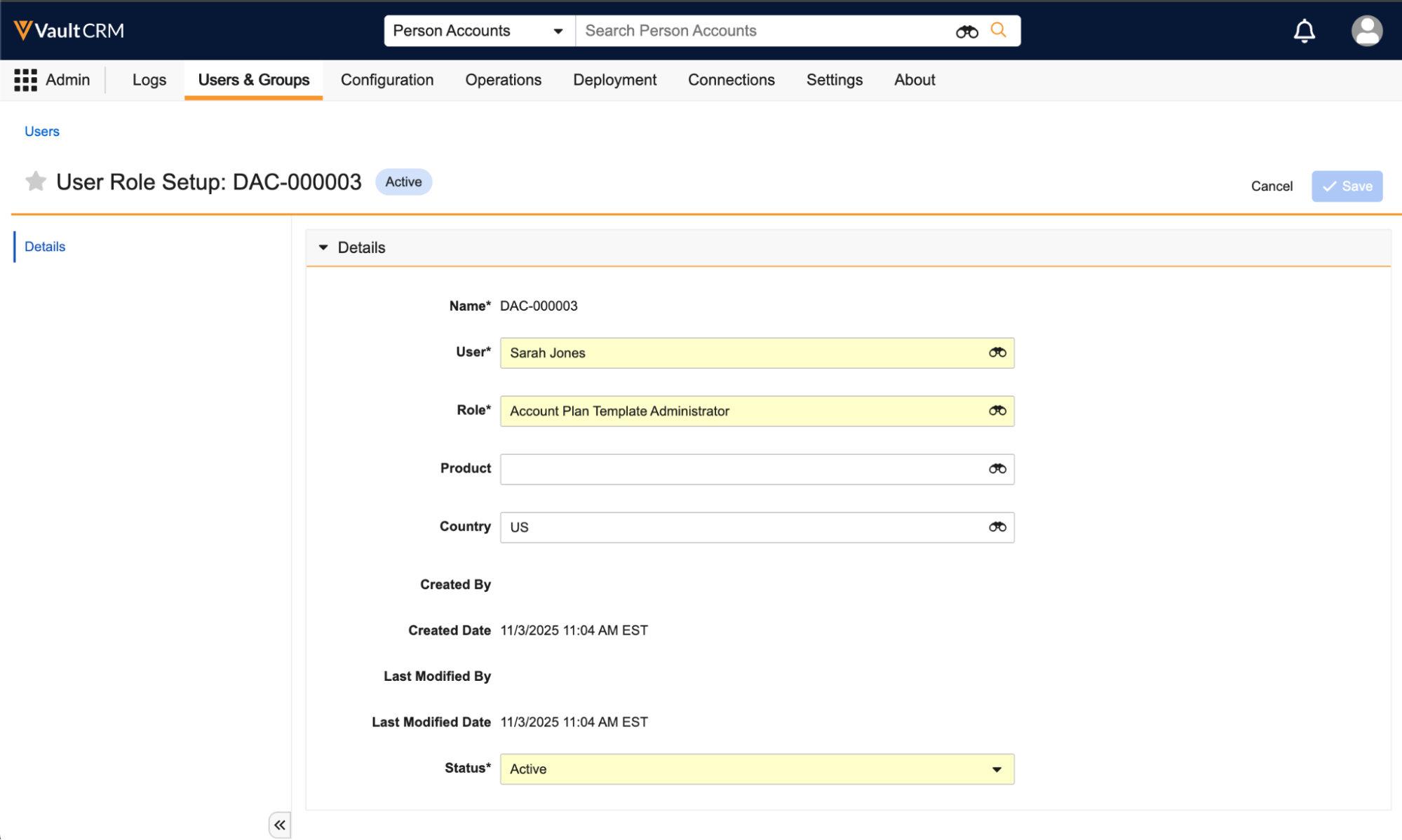
- Add the same fields to the User Role Setup object
Assign users to the Account Plan Template Administrator role. This role provides access to the documents to allow users to create, edit, approve, and expire Account Plan Export Templates in Vault CRM.
- Assign users to the Account Plan Document Creator role. This role provides access to allow users to create new documents of the Account Plan document type.
-
Navigate to Admin > Users & Groups > Permission Sets.
-
Select the appropriate permission set.
-
Select Tabs.
-
Grant users access to the Library tab.
End Users
To configure this feature:
- Ensure the following are complete:
-
Navigate to Admin > Users & Groups > Permission Sets.
-
Select the appropriate permission set.
-
Select the Objects tab.
-
Grant users Execute permission to the Export to PowerPoint (export_to_powerpoint__v) action on the Account Plan (account_plan__v) object.
-
Select the Application tab.
-
Grant users Access API permission for API.
-
Grant users Download Document permission for Documents.
-
Navigate to Admin > Configuration > Objects.
-
Add the Export to PowerPoint action to the appropriate Account Plan object type.
-
Add the Related Documents section to the appropriate Account Plan object page layouts.
Ensure this related document section is using the account_plan__v document field.
Using Exporting Account Plans to PowerPoint as
Business Admin Users
Business Admin Users are responsible for creating and managing the PowerPoint templates used for exports.
Managing Plan Export Templates
Business Admin Users can upload and manage PowerPoint templates that End Users can select when exporting an Account Plan.
Business Admins can download a sample PowerPoint file provided by Veeva Systems.
Using Tokens for Account Plan Export Templates
Business Admins can include the tokens in an Account Plan Export template to pull in data from the plan. The tokens are replaced when an end user exports the Account Plan to PPT. All formatting applied to the token in the template (font, size, color) is retained for the data value in the output file.
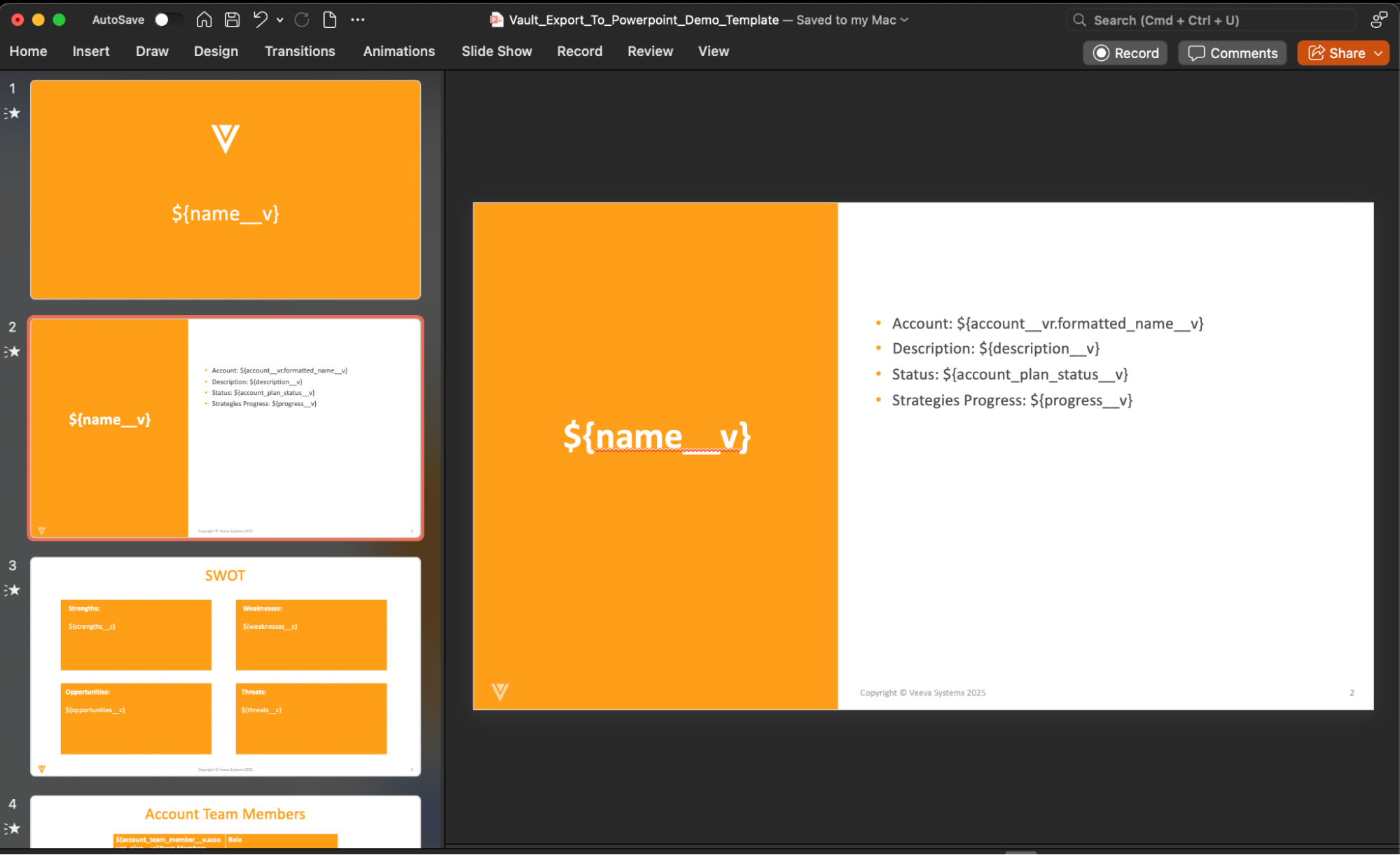
The table below shows how to use tokens to pull each type of data from the plan.
| Data Type | Token | Example | Details |
|---|---|---|---|
|
Account Plan Fields |
${fieldAPIName} |
${name__v} |
Includes data from a field on the account plan |
|
Parent Object Fields |
${RelationshipName.fieldAPIName} |
${account__vr.primary_parent__vr.formatted_name__v} |
Includes data from objects related to the Account Plan (up to five levels deep) |
|
Child Object Tables |
object token field tokens |
${action_item__v} ${name__v} |
Place the object token in the top-left cell of the table (first row, first column). In the second row, use field tokens for each column you want to populate. You can filter and sort the data in child object tables by adding WHERE and ORDER BY clauses to the object token. For example: ${action_item__v WHERE action_item_status__v = ‘pending__v’ ORDER BY due_date__v ASC} |
|
Hierarchy Data Table |
${hierarchy} ${objectAPIName.fieldAPIName} |
${hierarchy} ${plan_tactic__v.name__v} |
To populate a table with data from across the Account Plan object hierarchy (for example, Plan Tactics, Account Tactics, and Action Items), place the ${hierarchy} token in the top-left cell of the table. In the second row, use tokens in the format ${objectAPIName.fieldAPIName} to specify the columns. |
The table below lists the supported field types, and provides an example of how the output is formatted in the exported PowerPoint file.
| Field Type | Format in Output | Vault Database Example | PowerPoint example |
|---|---|---|---|
|
|
Email link |
first.last@mycompany.com |
first.last@mycompany.com |
|
Link |
Hyperlink |
www.mycompany.com |
www.mycompany.com |
|
Long Text |
Text |
Some text |
Some text |
|
Phone |
Phone number in the current user's locale |
8005551212 |
(800) 555-1212 |
|
Text |
Text |
Some text |
Some text |
|
Currency |
Currency based on user's locale |
10,000 |
USD 10,000.00 |
|
Number |
Number; respects format mask for percent |
1 |
1 |
|
Percent |
Percent |
0.01 |
1% |
|
Date |
Date in current user's locale |
2024-12-17 |
12/17/2024 |
|
DateTime |
Date and time in current user's locale |
2024-11-20T18:30:00.000Z |
11/20/2024 6:30 PM |
|
Time |
Time in current user's locale |
T18:30:00.000Z |
6:30 PM |
|
Object Reference |
Text with the name of the related record |
V63000000002002 |
Record Name |
|
Picklist |
Translated label. Multi-select picklist values will display as a comma-delimited list of the translated values. |
green__v |
Green |
|
Yes/No |
Yes/No |
true |
Yes |
|
Rich Text |
Returns data in plain text, retaining line breaks only |
<ul><li><span style="font-size: 72px; font-family: verdana;">Test</span></li><li><span style="font-size: 72px; font-family: garamond;">Test</span></li><li><span style="font-family: serif;">Times new</span><strong style="font-family: serif; color: rgb(0, 0, 0);"> roman</strong></li></ul> |
Test Test Times new roman |
|
Lookup |
Returns the value based on the field type |
|
Returns the value based on the field type |
|
Roll-Up |
Returns the value based on the field type |
|
Returns the value based on the field type |
|
Formula |
Returns the value based on the field type |
|
Returns the value based on the field type |
|
Attachment |
N/A - not supported |
N/A - not supported |
N/A - not supported |
Uploading an Account Plan Export Template
To make a template available for selection:
- Select the global Create button.
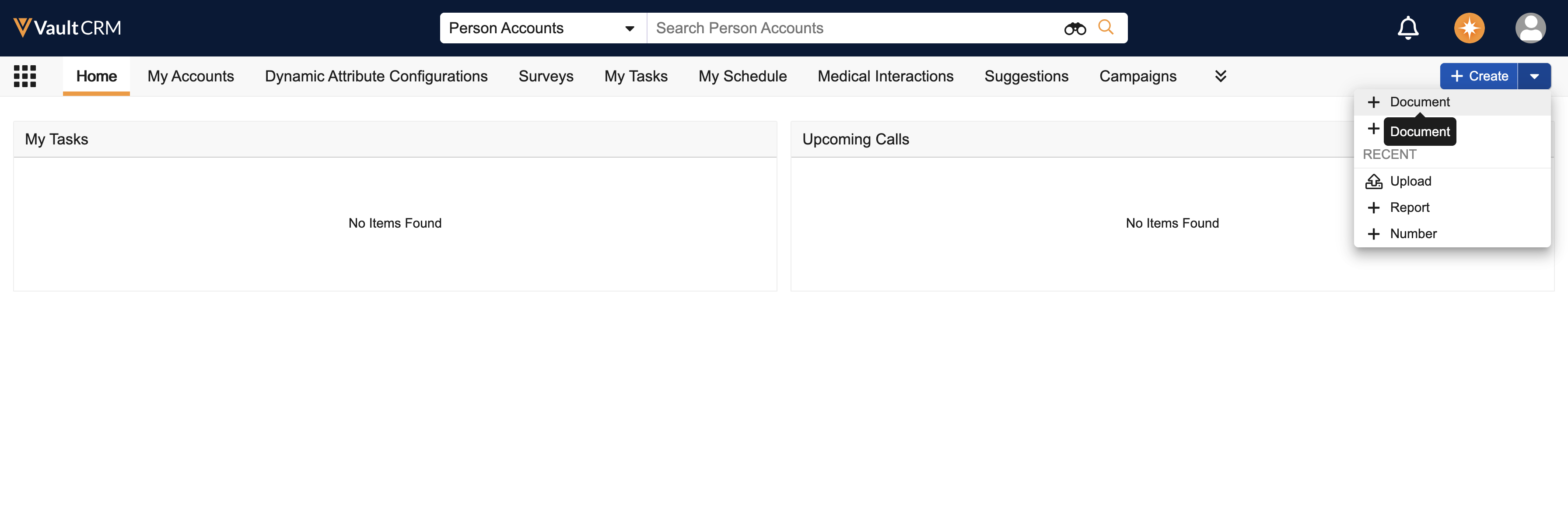
- Select Document > Upload.
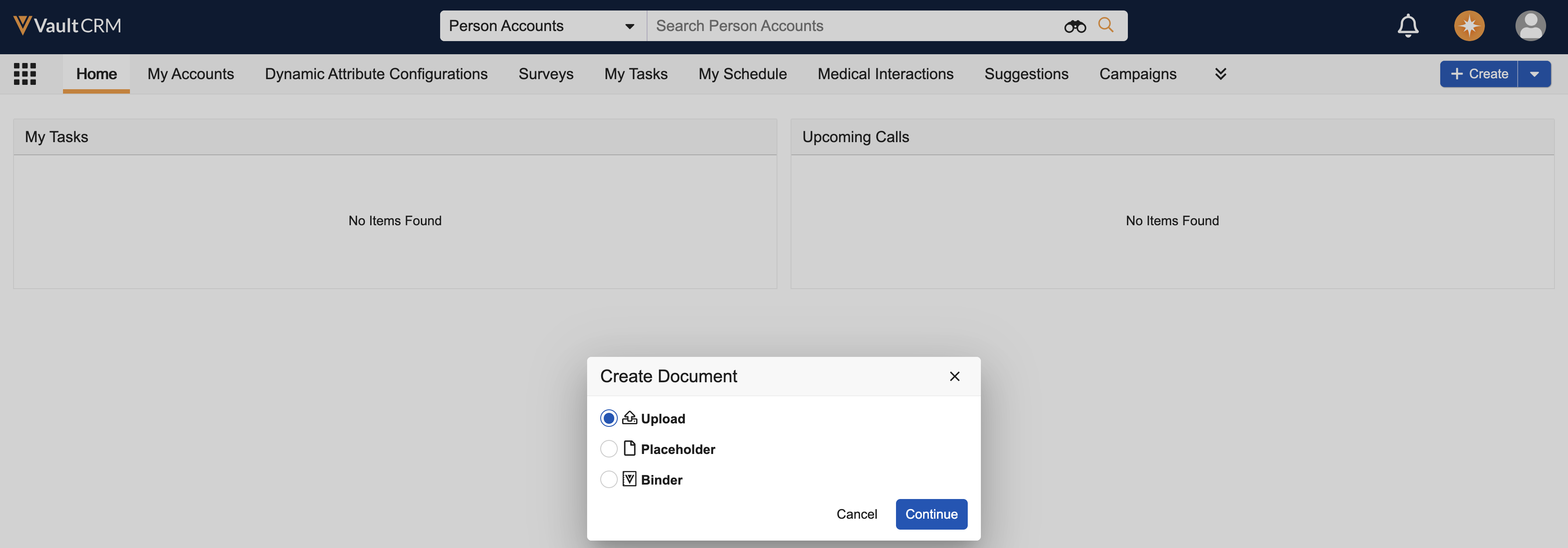
- Upload a .pptx file containing the desired layout and tokens.
- Select Account Plan Export Template as the document type.
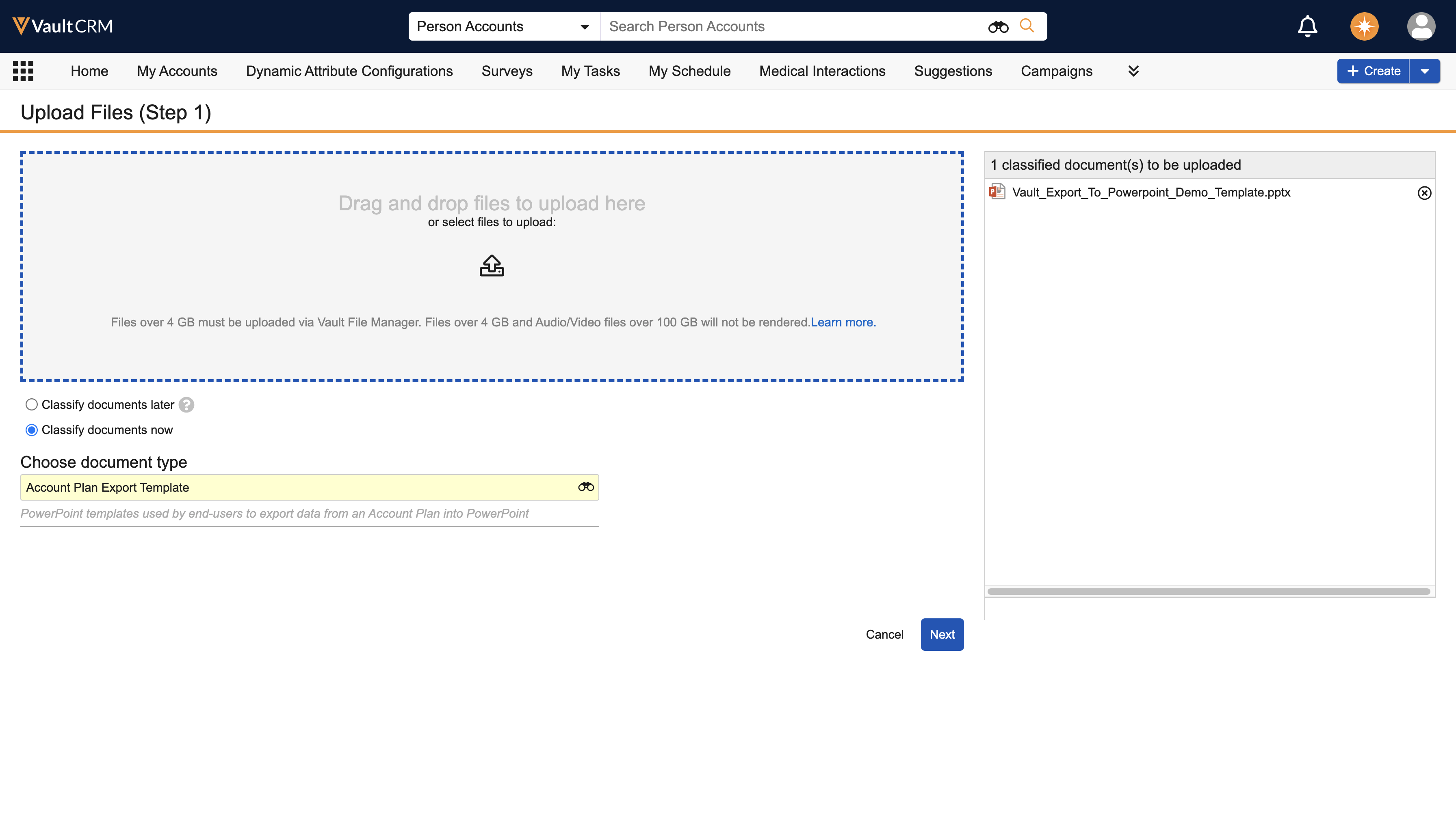
- Populate the document metadata.
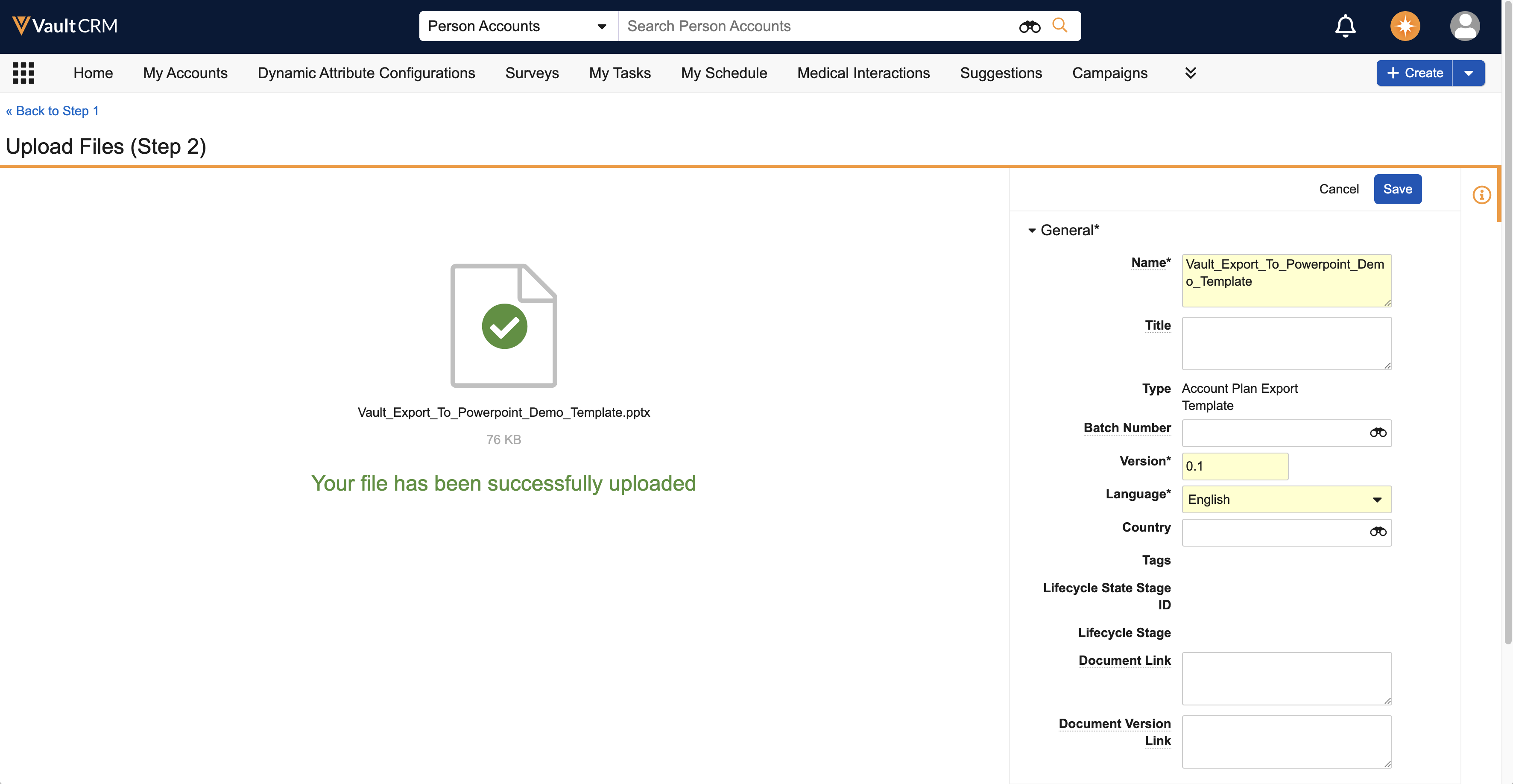
- Select Save.
- Change the document's state to Approved in its lifecycle.
Only templates in a steady state are available for selection by end users.
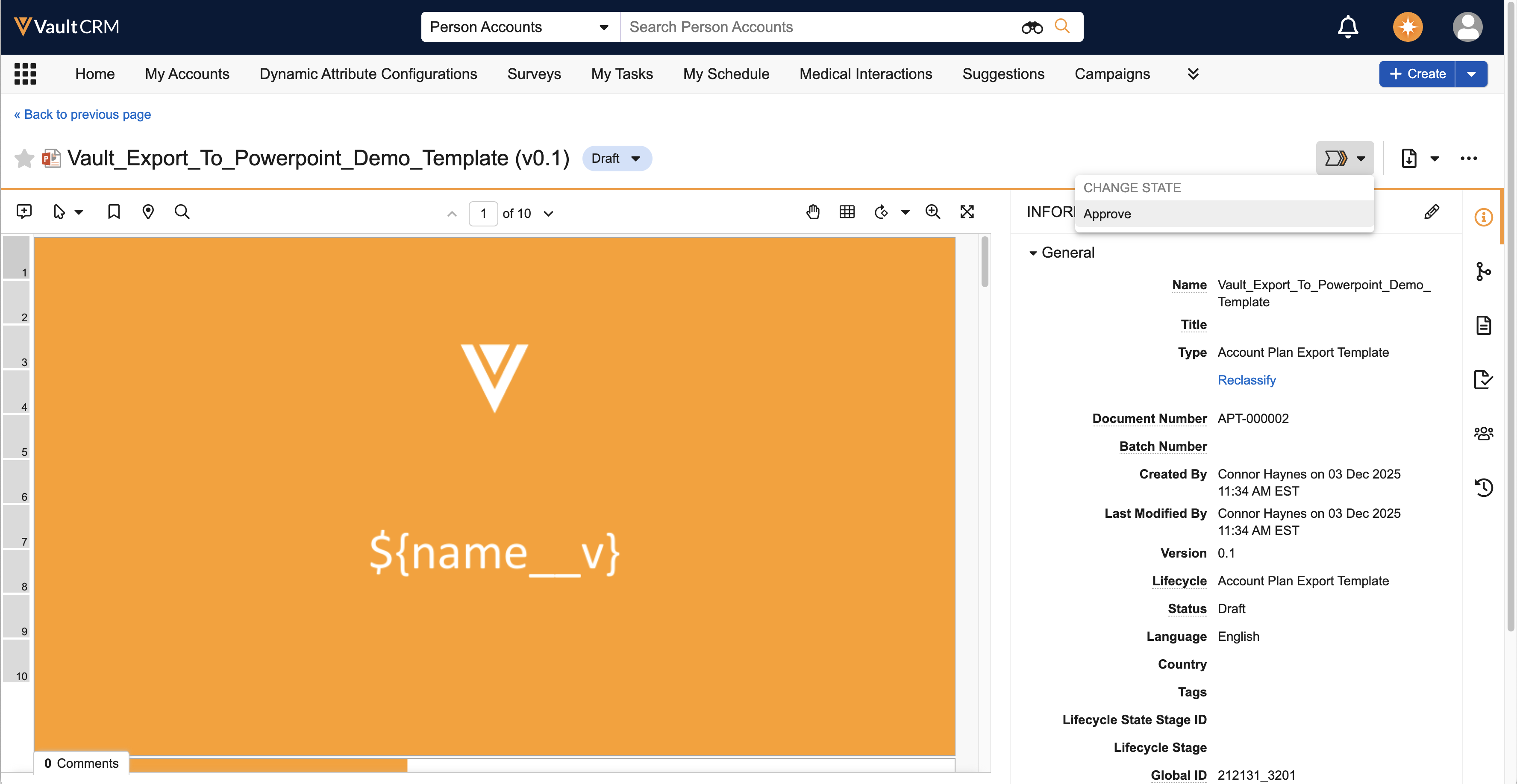
The lifecycle states available for an Account Plan Export Template are as follows:
- Draft
- Approved
- Obsolete
- Superseded
End Users
Exporting an Account Plan to PowerPoint
End Users can generate a PowerPoint presentation directly from an Account Plan record.
To export an Account Plan to PowerPoint:
- Navigate to the appropriate Account Plan record.
- Select Export to PowerPoint.
-
In the Export to PowerPoint dialog, a list of available templates displays. Users can search for a specific template by name, title, or document number.
-
Select the appropriate template.
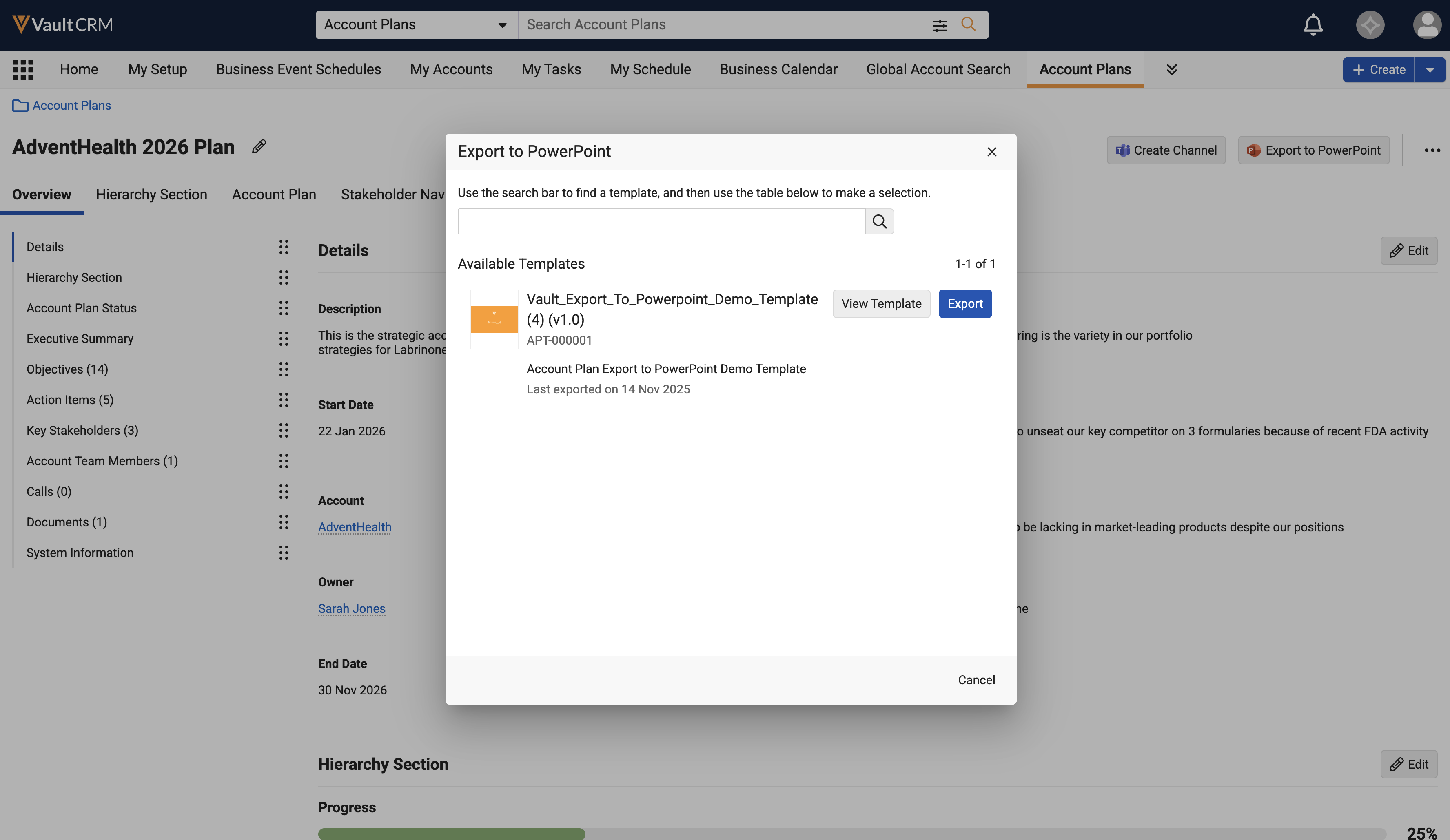
-
Select Export. A notification confirms that the export process has started.
The PowerPoint file is generated asynchronously. Users can continue working in Vault CRM while the process runs. When complete, a notification displays with a link to view the generated document.
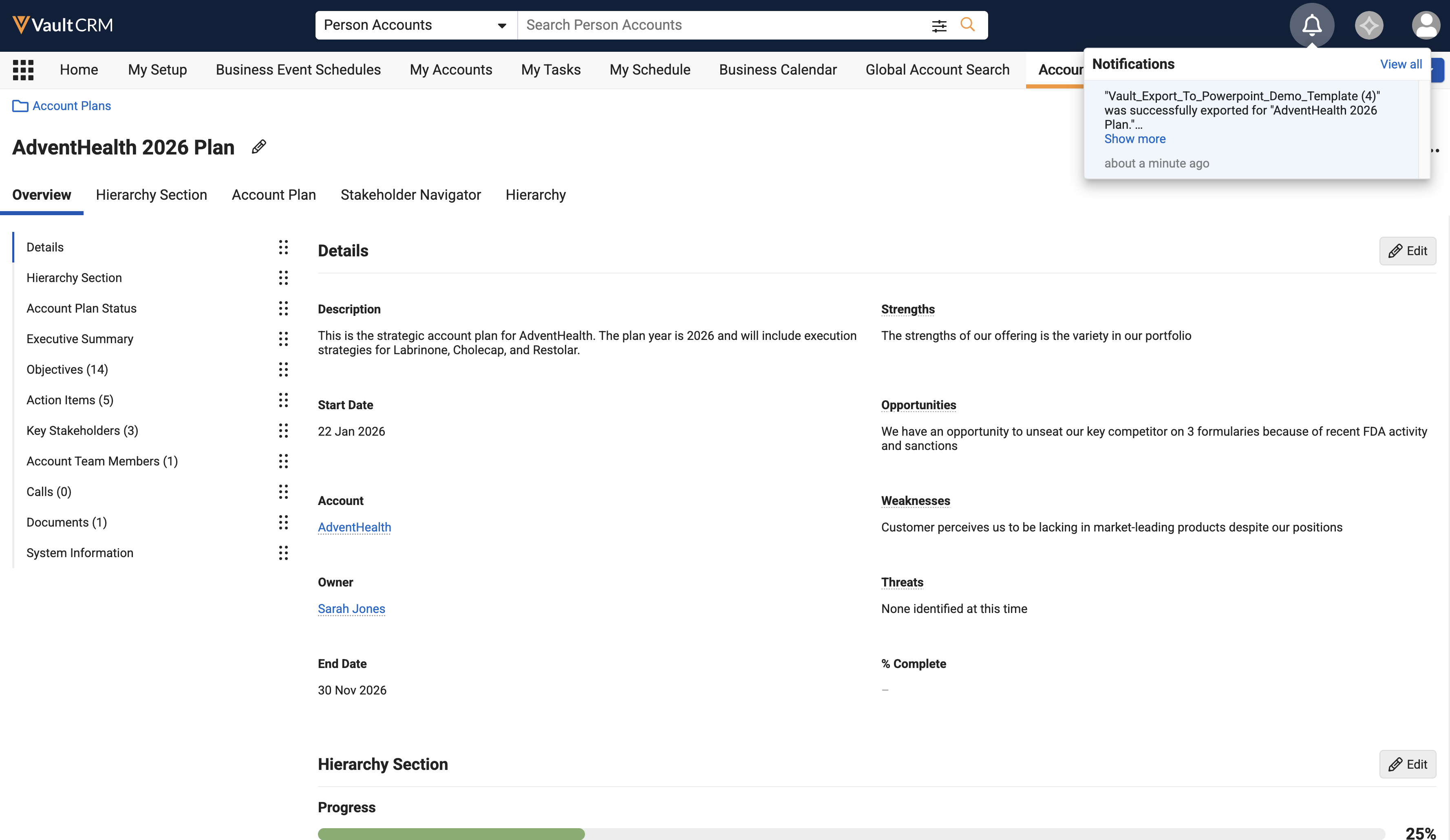
The document is stored as a related document on the Account Plan record. If a user exports the same Account Plan using the same template, a new version of the existing document is created.
Once a document has been exported, users can edit the document using collaborative authoring, if configured.

