Adding Accounts to Vault CRM from Link Key Accounts
Key Account Managers (KAMs) can research and add new accounts to their Vault CRM territory seamlessly, using a direct link from Link Key Accounts to a Global Account View page in Vault CRM. This eliminates manual ID copying and leverages Global Account Search (GAS) or Network Account Search (NAS) when adding the account.
Who can use this feature?
- Key Account Managers — Browser, iPad, iPhone
- Adding Accounts to Vault CRM from Link Key Accounts
- Users do not require an additional license
Configuring Adding Accounts from Link Key Accounts for
 Key Account Managers (KAMs)
To configure this feature:
- Ensure Configuring Accounts is complete.
- Ensure Global Account Search (GAS) or Network Account Search (NAS) is configured to allow users to add accounts to their territory from the Global Account View page.
Adding Accounts to Vault CRM from Link Key Accounts as
Key Account Managers (KAMs)
Key Account Managers (KAMs) can interact with accounts outside of their assigned territory directly from Link Key Accounts.
To view an account in Vault CRM from Link, select the CRM button or select More > Open in CRM.
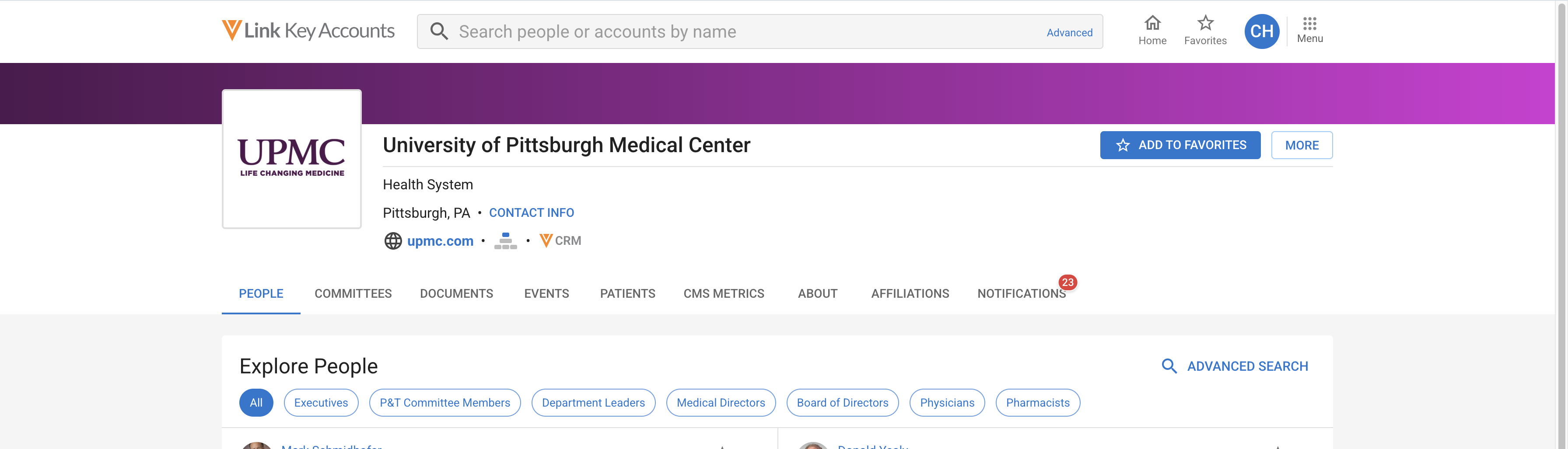
The user is prompted to log in if there is no active Vault CRM session.
On the Browser and iPhone platforms, Vault CRM opens in a new browser window.
On the iPad platform, the system checks to see if the Vault CRM application is installed. If not, Vault CRM opens in a new browser window.
If the account is already in the user’s territory, the Account Detail screen displays the account information. If the account is not in the user’s territory, the Global Account View page displays, including an Add to Territory button.
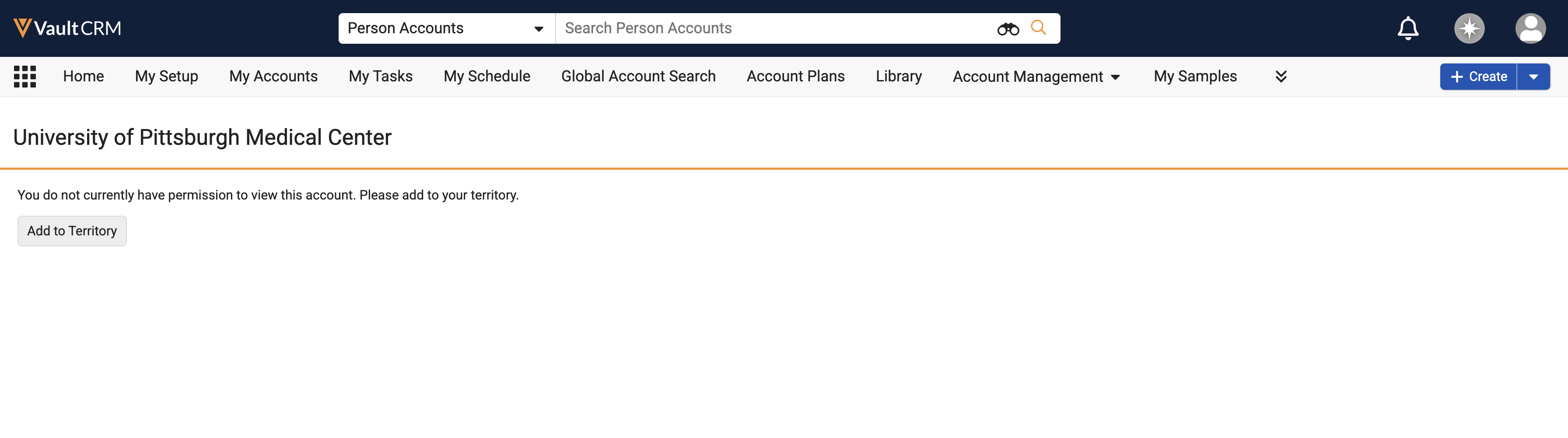
To add an account to your Vault CRM territory:
- Select the Add to Territory button on the Global Account View page.
The Network Account Search interface displays. If Network Account Search is not configured, Global Account Search displays.
- Select the Parent Account.
- Select the Territory.
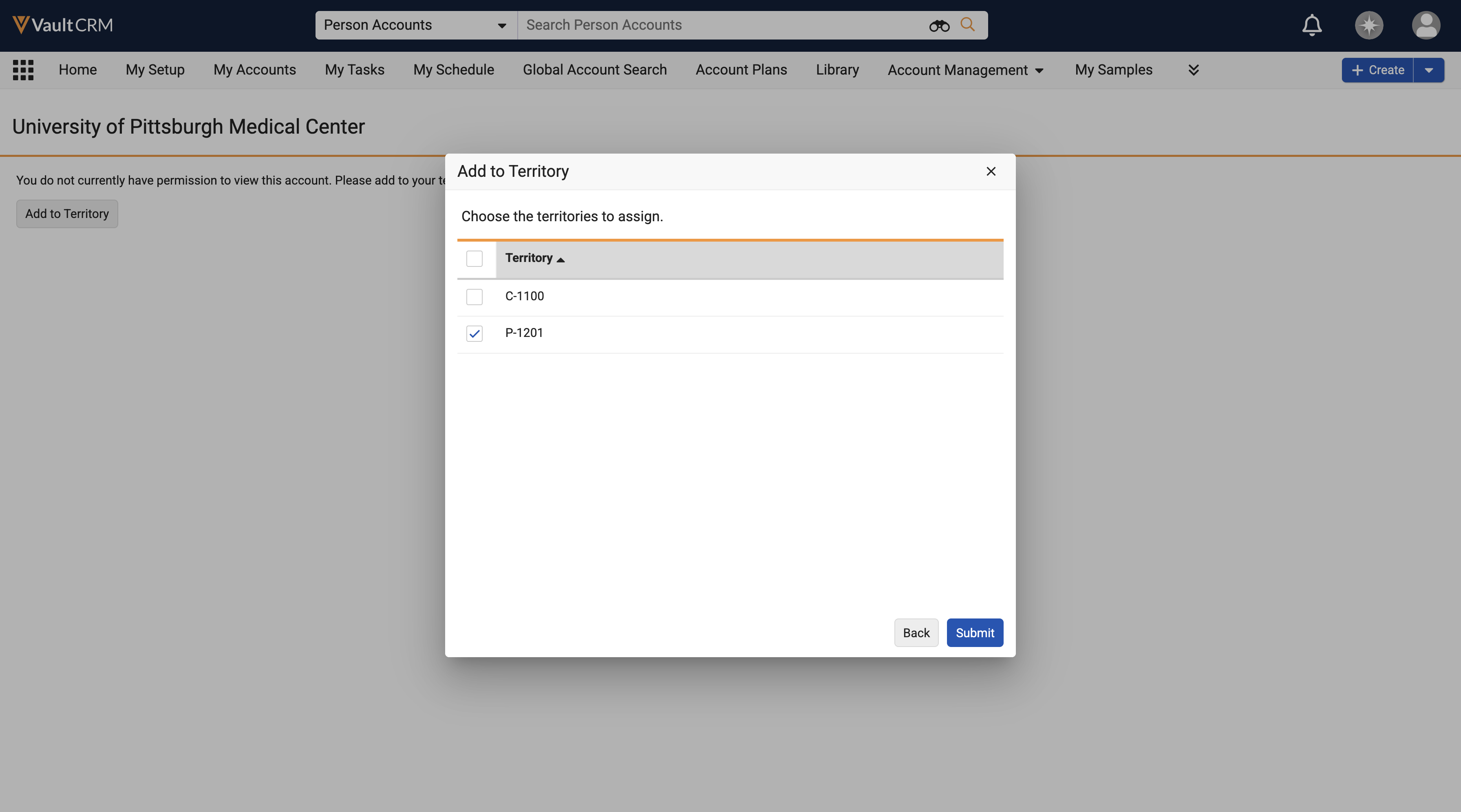
The system assigns the single aligned territory to the account automatically if the account does not have a parent account.
- Select Done.
The Account Detail screen displays the newly added account once the territory alignment completes successfully. A success message displays confirming the account addition.
If the link does not point to a valid Vault CRM account, an Account Not Found message displays on the Global Account View page. Selecting the Search for Account button on the Global Account View page displays Network Account Search or Global Account Search, and searches for the account using the account name provided in the URL.

