Share Target Requests
End users can request to share target responsibility for specific products with other end users when they do not have capacity to fully own the target themselves, allowing sales teams to share workload without transferring accounts away entirely.
Who can use this feature?
- End Users - Browser, iPad
- Creating Share Target Requests
- Viewing Share Target Requests
- Users require an Align License
Configuring Share Target Requests for
 Align Operational Users
To configure this feature:
-
Ensure the following features are configured:
- Navigate to Admin > Users & Groups > Permission Sets.
- Select the appropriate Permission Set.
- Select Objects.
-
Grant the following permissions:
Object Object Permission Object Types Fields Field Permission aln_transfer_request__v CRED Base Transfer Request share_target__v Edit - Navigate to Align > Align Admin > Align Settings (Modeling).
- Edit the Align Settings (Modeling) record for the appropriate project.
-
Populate the following fields:
- enable_share_target_requests__v – Select Yes
- share_target_reasons__v – Populate with the appropriate list of reasons. At least one reason is required.
-
Select Save.
End Users
To configure this feature, ensure the following features are configured:
Creating Share Target Requests as
End Users
End users can initiate, view, accept, reject, and cancel share target requests during Territory Feedback.
To initiate a Share Target request:
-
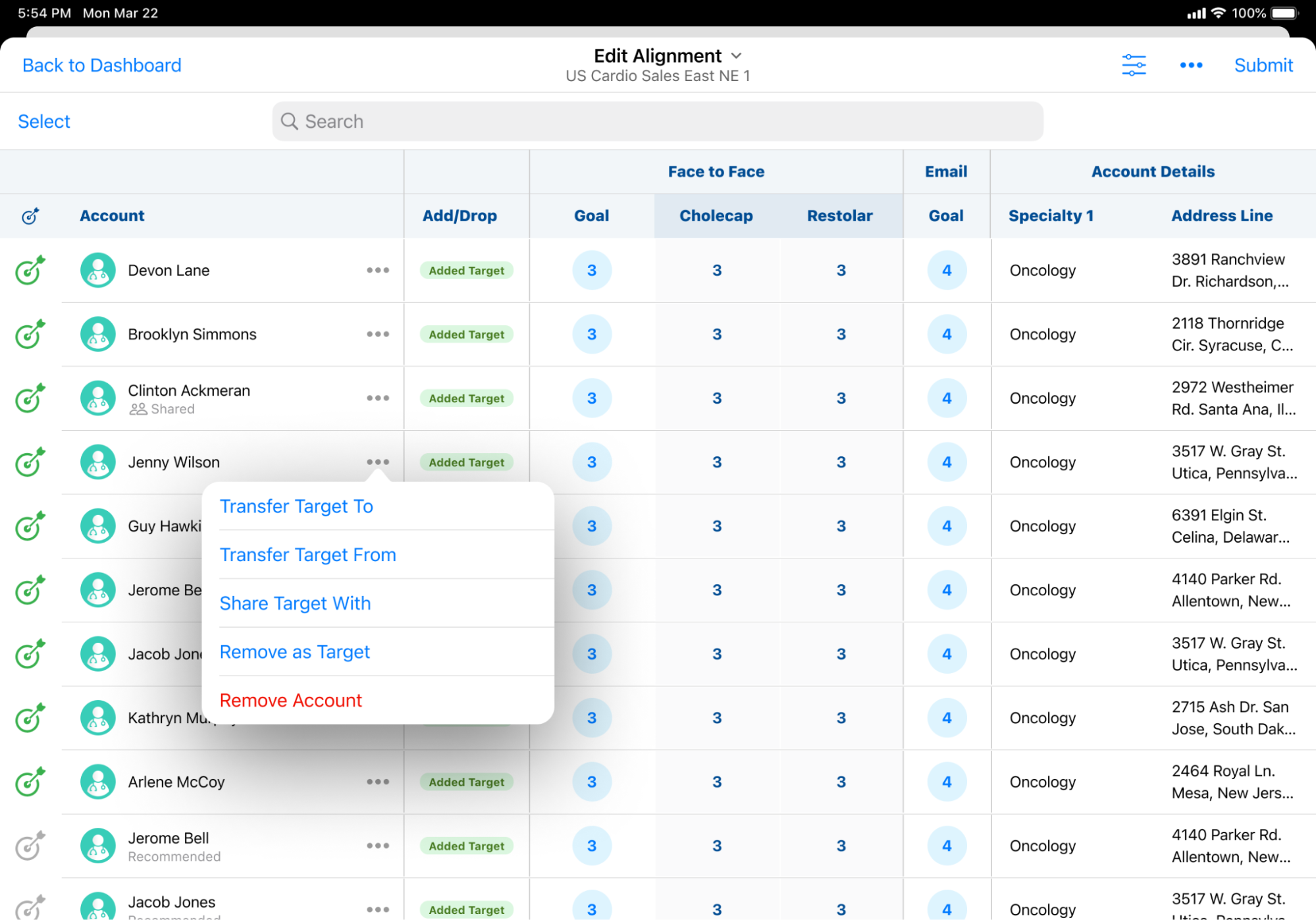
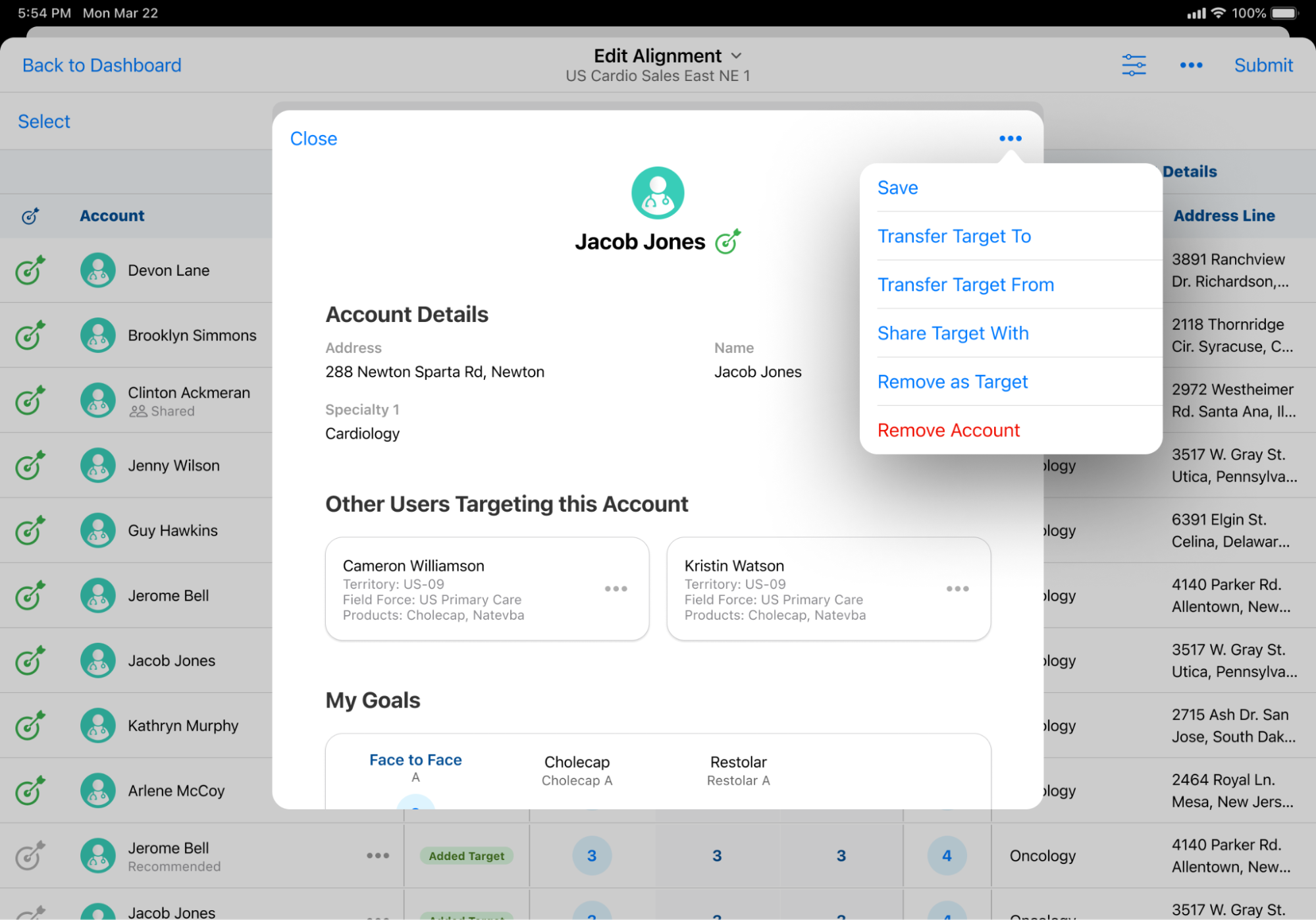
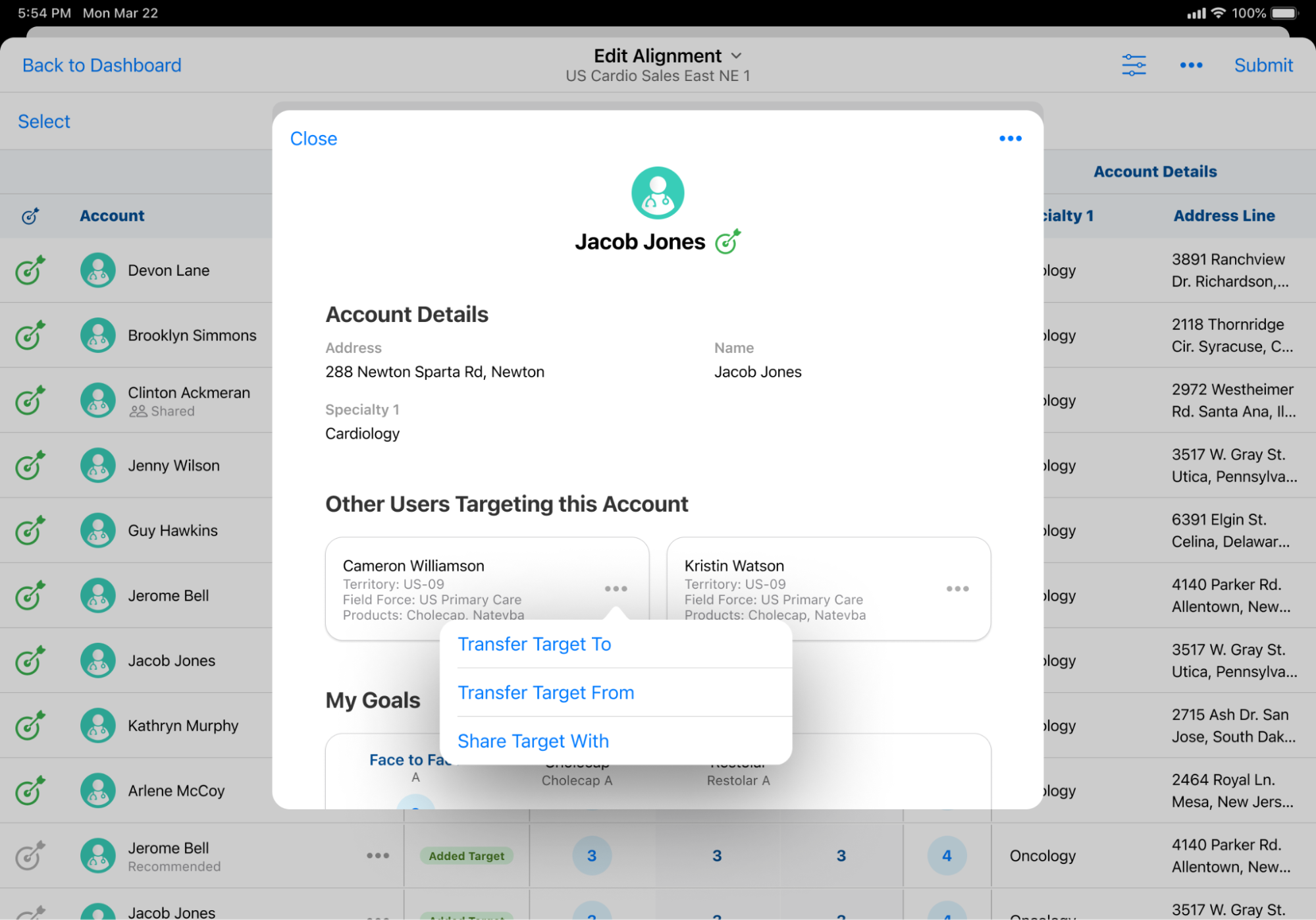
Select Share Target in the All Actions menu of the appropriate target from one of the following entry points:
-
The row-level menu on the Edit Alignments table
-
The top-level menu on the Account Profile
-
The account card menu in the Other Users Targeting this Account section of the Account Profile (Available if the account is a target for the other user)
-
-
Populate the Share With field with the appropriate user to share the target with.
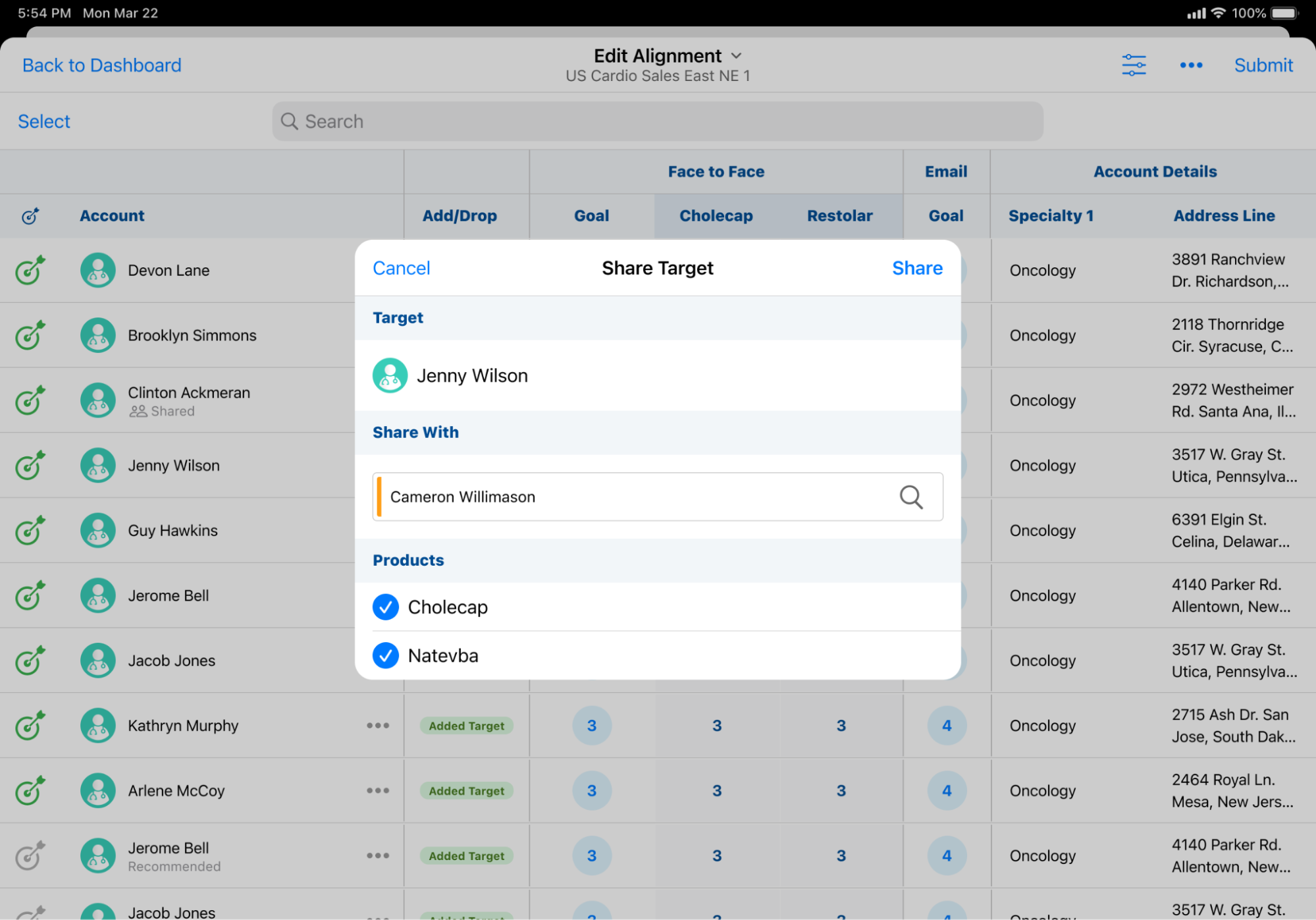
- Select the appropriate products, to share goals for that product alongside the target.
-
Select Share.
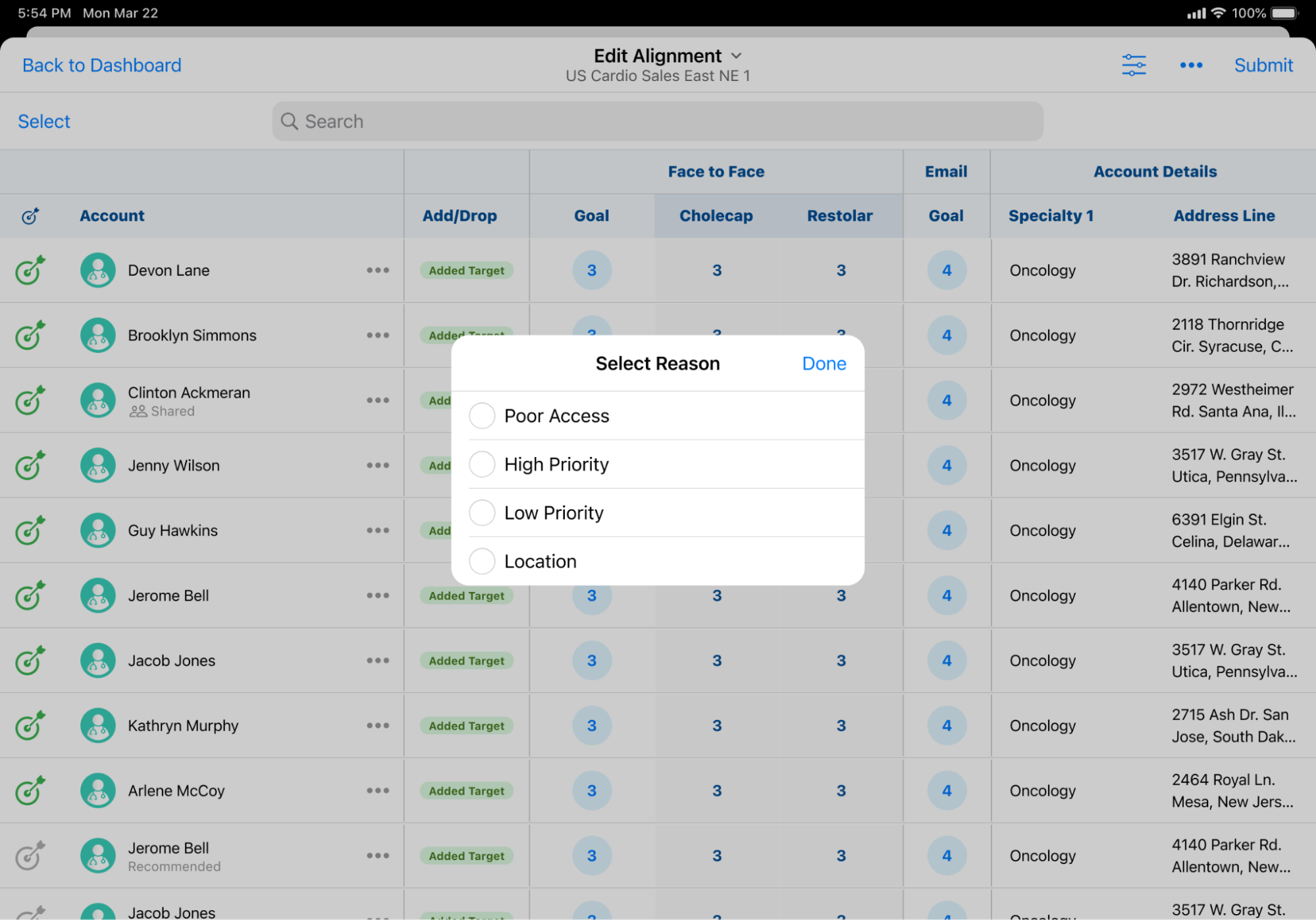
- Select the applicable reason.
- Select Done to submit the Share Target request to Align.
Managing Share Target Requests
End users can view, accept, reject, or cancel Share Target requests using the same process as viewing, accepting, rejecting, or canceling Target Transfer requests. See Managing Target Transfers for more information.
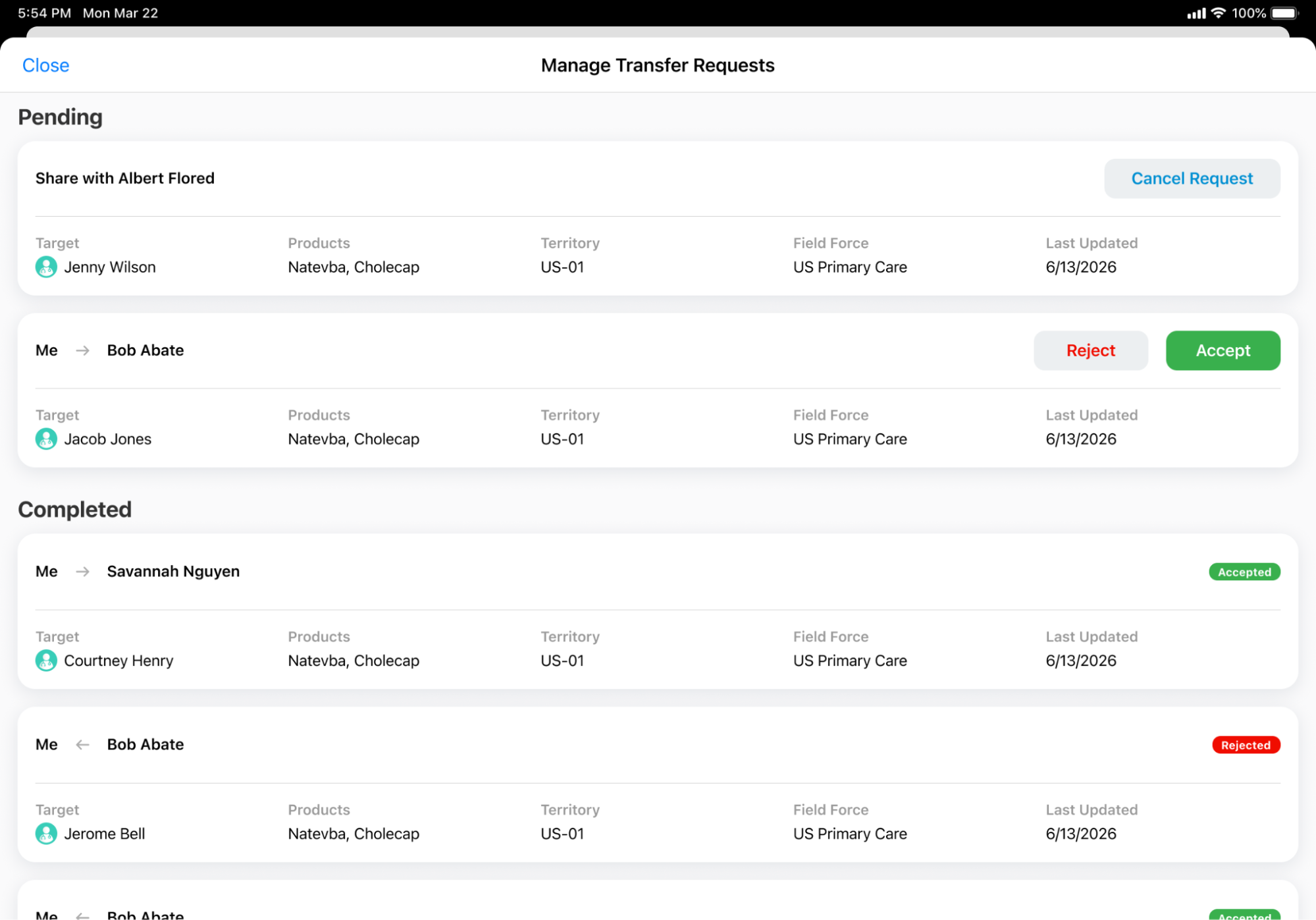
Pending Share Target requests must be fully resolved before the model can move from a Feedback to Manager Review state.
Viewing Share Target Requests as
Managers
In Manager Feedback, product goals associated with a shared target display a Product Goal Shared tooltip, enabling managers to quickly identify goals that are shared between multiple users.
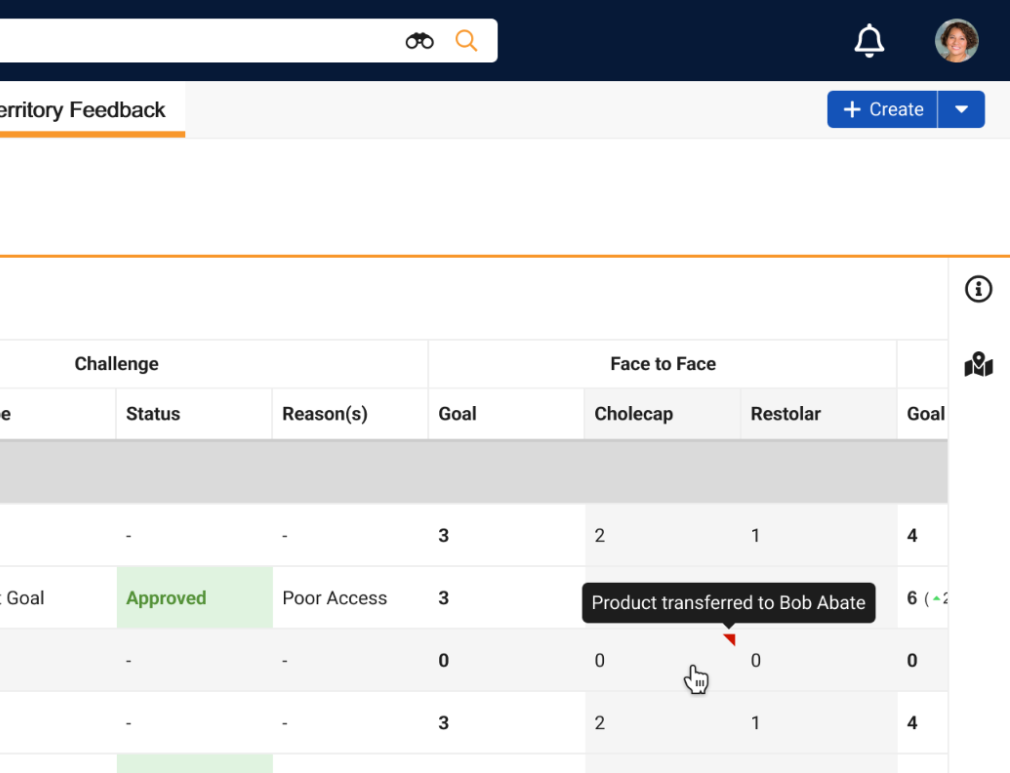
Managers can still create challenges against targets and goals associated with Shared Targets.

