Modeling in Align
Align operational users can refine and optimize the alignment hierarchy without impacting production data. Using dedicated modeling records representing territories, field forces, and assignments, users can try out a variety of scenarios, assignment rules and criteria, or product and geography assignments to determine which ones best suit their business’s goals. This could be as simple as renaming territories or as extensive as rewriting an entire hierarchy’s Account Assignment Rule logic.
For example, an organization launching a new product in the next quarter can build out a model of their territories, assignment rules, and field forces in preparation for launch. Users can do this without affecting current production data or introducing an unapproved product to the sales team.
Who can use this feature?
- Align Operational Users – Browser
- Managing Modeling Projects
- Managing Model Territories and Field Forces
- Creating and Managing Model Assignments
- Managing and Running Model Assignment Rules
- Publishing a Model
- Users require an Align License
Configuring Modeling in Align for
 Align Operational Users
To configure this feature:
- Ensure Configuring Align is complete.
- Navigate to Admin > Users & Groups > Permission Sets.
- Select the appropriate permission set.
- Select the Objects tab.
-
Grant the following permissions:
Object
Object Permission
Object Types
Fields
Field Permission
aln_account_exclusion_model__v
CRE
n/a
All Fields
Edit
aln_account_rule_model__v
CRE
n/a
All Fields
Edit
aln_account_rule_criteria_model__v
CRED
n/a
All Fields
Edit
aln_account_search_rule__v
CRED
n/a
All Fields
Edit
aln_account_search_rule_criteria__v
CRED
n/a
All Fields
Edit
aln_account_search_rule_model__v
CRED
n/a
All Fields
Edit
aln_account_search_rule_criteria_model__v
CRED
n/a
All Fields
Edit
aln_account_territory_model__v
CRE
n/a
All Fields
Edit
aln_align_settings_model__v
CRED
n/a
All Fields
Edit
aln_approval_mapping__v
CRED
n/a
All Fields
Edit
aln_approval_mapping_model__v
CRED
n/a
All Fields
Edit
aln_approval_rule__v
CRED
n/a
All Fields
Edit
aln_approval_rule_criteria__v
CRED
n/a
All Fields
Edit
aln_approval_rule_model__v
CRED
n/a
All Fields
Edit
aln_approval_rule_criteria_model__v
CRED
n/a
All Fields
Edit
aln_field_force_group__v
CRED
n/a
All Fields
Edit
aln_field_force_model__v
CRE
n/a
All Fields
Edit
aln_field_force_product_model__v
CRE
n/a
All Fields
Edit
aln_footprint_model__v
CRE
n/a
All Fields
Edit
aln_footprint_geography_model__v
CRE
n/a
All Fields
Edit
aln_geography_territory_model__v
CRE
n/a
All Fields
Edit
aln_roster_member_territory_model__v
CRE
n/a
All Fields
Edit
aln_territory_model__v
CRE
n/a
All Fields
Edit
aln_territory_footprint_model__v
CRE
n/a
All Fields
Edit
aln_territory_product_model__v
CRE
n/a
All Fields
Edit
aln_project__v
CRE
n/a
All Fields
Edit
product_group__v
R
n/a
All Fields
Read
- Navigate to the Tabs section.
-
Grant access to the following tabs:
- aln_modeling__v
- aln_settings_modeling__v
Managing Modeling Projects as
Align Operational Users
All modeling related actions and processes are accessed via the Modeling tab.

Any page within this tab displays the text Modeling in a banner at the top of the page, ensuring users are always aware when they are viewing a modeling record.
From the Projects homepage in the Modeling tab, Align operational users can view, search, and sort all modeling projects.
From a specific project's All Actions menu, users can perform the following processes:
- Clone – Creates a copy of the project and its associated modeling records, including territories, field forces, rules, and manual assignments
- Delete – Deletes the project and all associated modeling records
- Change Lifecycle State – Manages the project’s state. Available values are:
- Draft – The default state
- Feedback Review – Indicates the project is in review
- Approved – Locks the project and all associated modeling records
- Published – Indicates the project is published to production. See Publishing a Model for more information.
Managing Model Territories and Field Forces as
Align Operational Users
Within a project, users can create and manage model territories and field forces from their respective related lists.
Creating New Model Territories or Field Forces
To create a new model territory or field force:
- Navigate to the Model Territories or Model Field Forces related list on the appropriate project.
- Select Create.
-
Select either Add a new territory to this model or Add a new field force to this model.
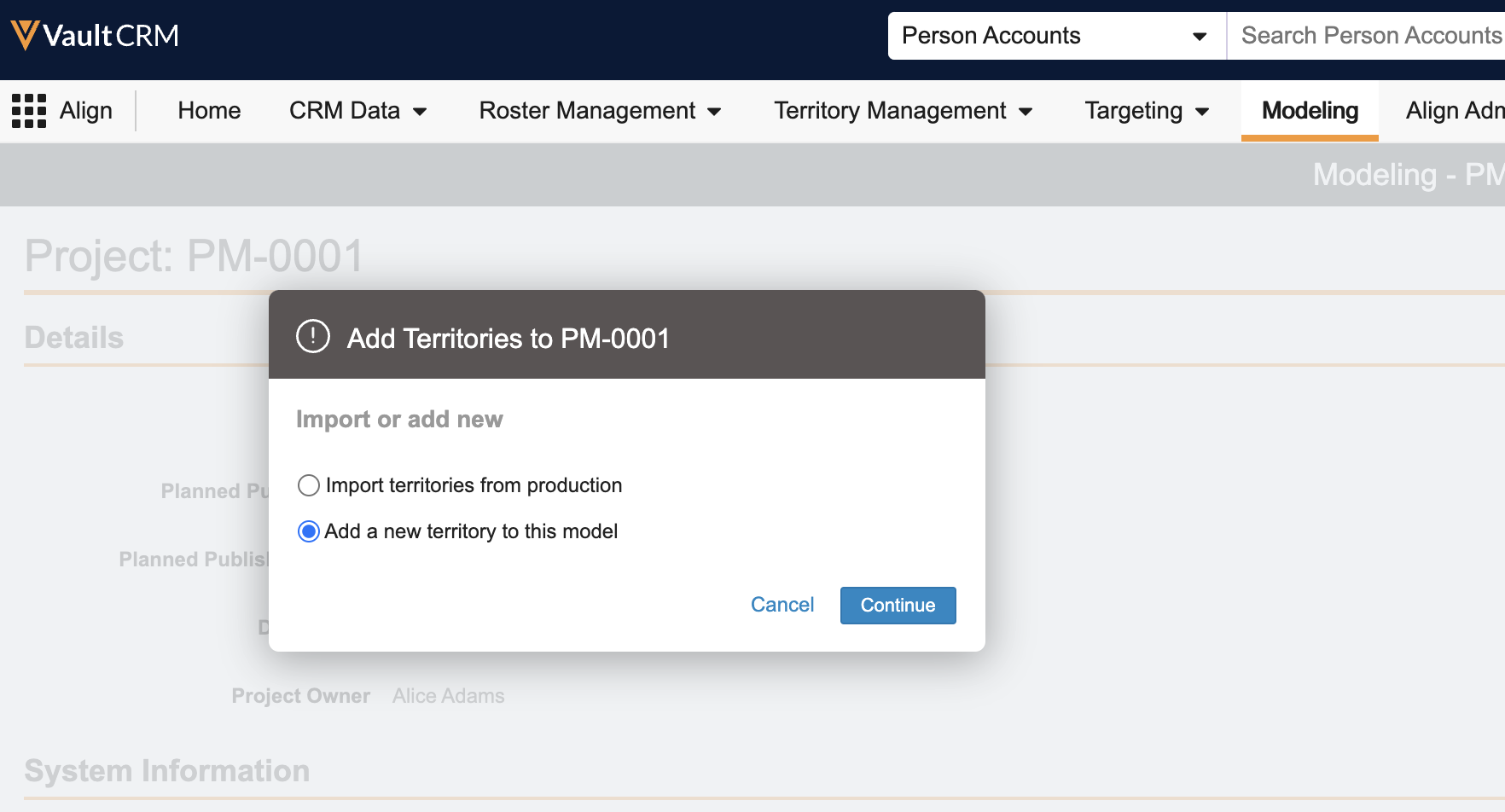
- Select Continue.
- Populate all appropriate fields.
- Select Save.
Importing Model Territories and Field Forces from Production
Alternatively, users can also create modeling records by importing existing production records:
- Navigate to the appropriate related list on the aln_project__v record.
- Select Create.
-
Select Import territories from production.
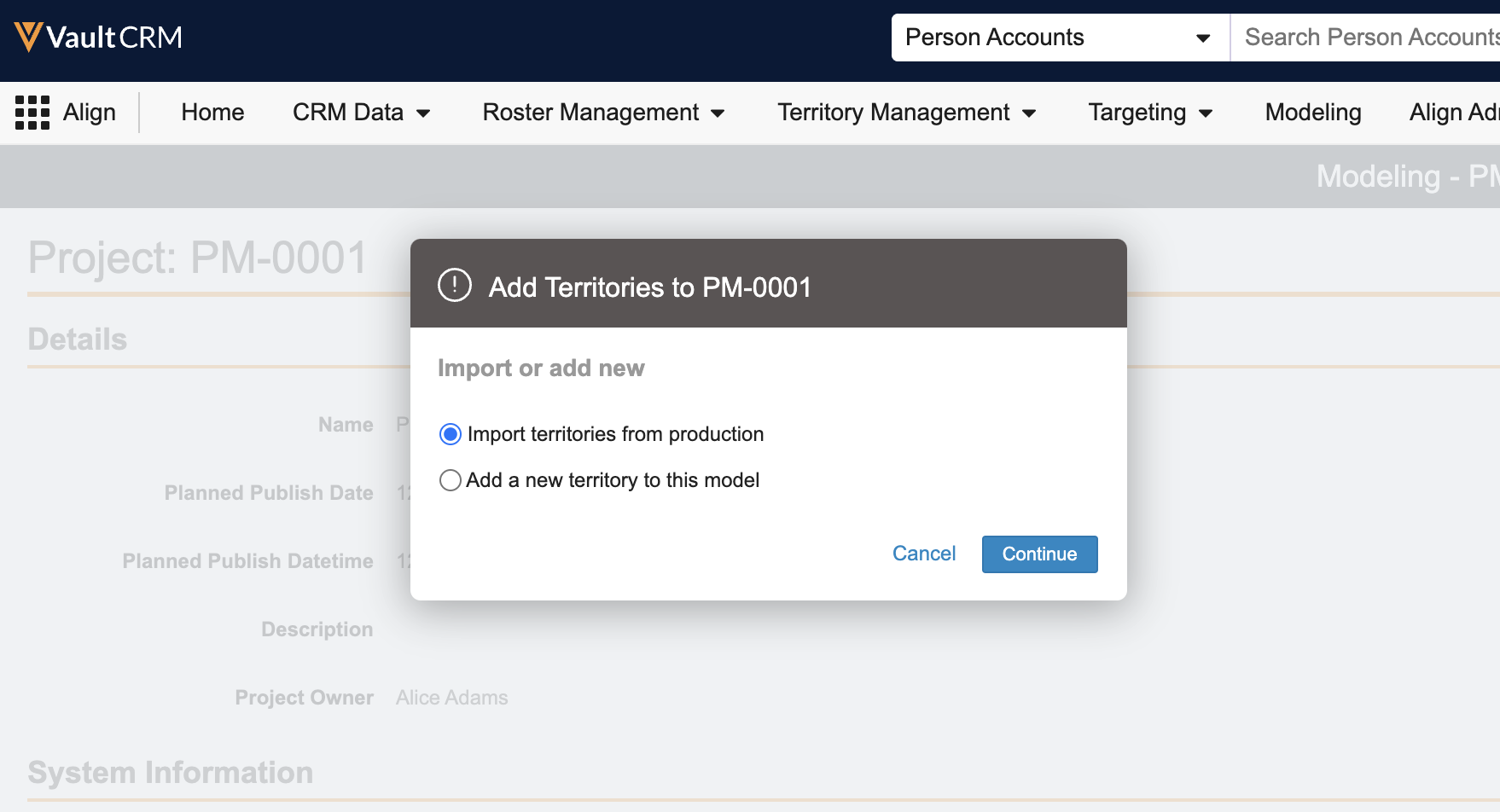
- Select Continue.
-
Select the appropriate production territory or field force. The number of records to be imported displays.
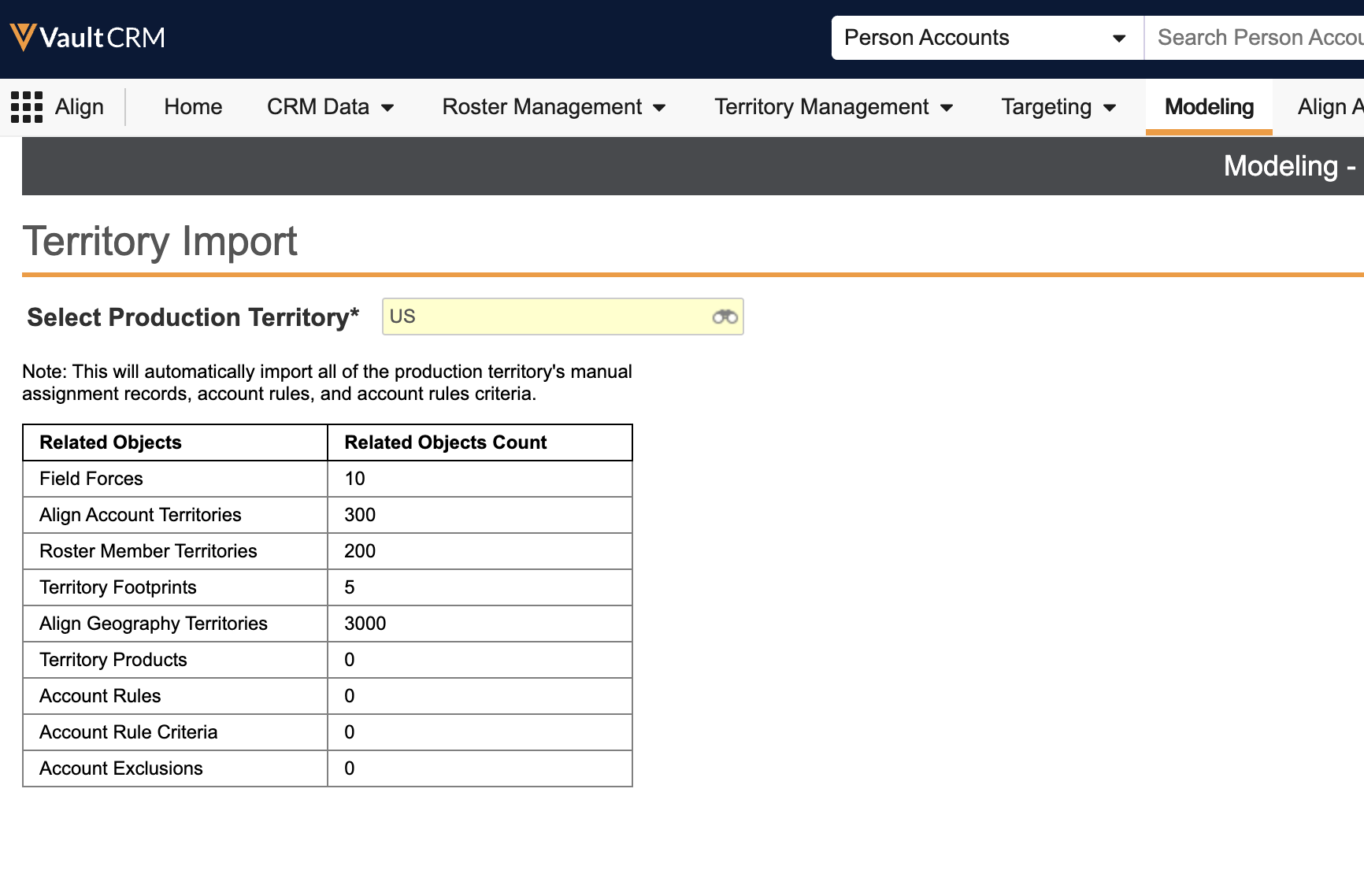
- Select either Yes or No for the Import entire Division? option. This option only displays if the selected territory or field force has descendants and enables importing the entire corresponding hierarchy as opposed to the individual territory or field force.
- Select Continue.
Deleting a Model Territory or Field Force
To delete a model territory or field force:
- Navigate to the appropriate modeling record.
-
Select the All Actions menu.
- Select Delete.
- Select Continue in the confirmation modal. The modeling record, along with all other associated modeling records, are deleted.
Creating and Managing Model Assignments as
Align Operational Users
Users can create and manage the following types of assignments for their model territories and field forces using the same process as creating these assignments on production territories and field forces:
- Model Geography Assignments – Users can assign one or more model geographies directly to a model territory. See Managing Geographies in Align for more information.
- Model Footprint Assignments – Users can create model footprints from the corresponding aln_project__v record, then assign model territories or model geographies to the model footprint. See Assigning Geographies to Footprints and Assigning Footprints to Territories for more information.
- Product Assignments – Users can assign products to model field forces or territories. See Assigning Products to a Field Force and Assigning Products to a Territory for more information.
- Roster Member Assignments – Users can create aln_roster_member_territory_model__v records to manually assign roster members to a model territory, including defining a primary model territory. See Managing Roster Member Assignments for more information.
- Model Explicit Account Assignments – Users can directly assign accounts to model territories by creating explicit account assignments. See Creating Explicit Account Assignments for more information.
- Model Account Exclusions – Users can explicitly prevent a certain account from ever being assigned to a particular model territory or field force. See Creating Account Exclusions for more information.
Managing and Running Model Assignment Rules as
Align Operational Users
Similar to using Account Assignment Rules on production Align records, users can create model account rules that automatically assign accounts to model territories or field forces:
- Navigate to the Model Account Rules of the appropriate model territory or field force.
- Select Create.
- Populate all rule details and criteria using the same process as defining rule details and criteria on production Account Assignment Rules. See Creating Account Assignment Rules for more information.
Previewing Model Assignment Rule Results
To run model assignment rules and preview results:
- Navigate to the appropriate model territory or field force.
- Select the All Actions menu.
- Select Preview Account Assignments.
-
Enter the following information:
- Select the scope of territories – The scope of the preview. Available values are:
- Territory + Subordinates – The preview runs against the selected model territory as well as all subordinate model territories
- Territory Only – The preview runs exclusively against the selected model territory
- Select the types of rules to process – Determines whether rules with a send_to_crm__v field of yes__v or no__v are run by the preview
- Select a date for which the assignment preview will be calculated – Determines the date used when generating assignments. Available values are:
- Planned Publish Date – Assignments generate based on the associated aln_project__v record’s publish date
- Current Date – Assignments generate based on the current date
- Select Continue.
-
Select View Results from the resulting process task when the task completes. The Model Account Alignment Results page displays a preview of the assignments.
Committing Model Assignment Rule Results
To commit assignment results from the Model Account Alignment Results page, select Commit to Align. This process updates the aln_account_territory_model__v records to reflect the new alignment based on the preview.
Publishing a Model as
Align Operational Users
Once modeled changes are approved, including all model records and assignments, user can then publish the model to the production alignment structure:
- Navigate to the aln_project__v record.
-
Select the All Actions menu.
-
Select Change Lifecycle State.
- Select Approved.
- Select Continue.
- Select Confirm on the confirmation modal. This locks the project and all its related model records from being edited.
- Select the All Actions menu.
- Select Publish. A confirmation modal displays with counts of each type of record affected by the publication.
- Select Continue.
A Publish Project process task begins, which upserts the modeling records associated with the project into corresponding production records. These records can then be pushed to Vault CRM. Once pushed to Vault CRM, account, territory, and geography assignments as defined in the modeling project are applied to the main territory hierarchy in Vault CRM.

