EPPV and PI Business Event Tracking
Business Event Tracking provides a structured method for tracking Early Postmarketing Phase Vigilance (EPPV) and Package Insert (PI) visits. Field users can easily plan and document required visits, while business leaders gain visibility into coverage status across target lists.
Business Event Tracking supports configurable schedules, automatic task generation, target cancellation, and target reopening — making it easy for field users to understand and complete their upcoming tasks, and reducing administrative burden for the organization.
Who can use this feature?
- End Users - Browser, iPad, iPhone
- Scheduling Calls for Business Events
- Completing Open Business Event Tasks
- Canceling Tasks for Business Event Targets
- Skipping Tasks for Business Event Targets
- Understanding Calculation Updates for Completed, Skipped, or Canceled Tasks
- Business Admin Users - Browser
- Reopening Targets for Canceled Tasks
- Reassigning Business Event Ownership
- Users do not require an additional license
Configuring Business Event Tracking for
 All Users
To configure this feature, ensure Configuring Business Event Tracking is complete and Business Event Schedules are defined.
Scheduling Calls for Business Events as
End Users
To help users plan their visits to HCPs based on EPPV/PI deadlines, a Business Events section displays in My Schedule between the Cycle Plan and List View sections. It lists the names of active Business Events where the current user is assigned to at least one target. Users can simply drag and drop relevant accounts from this menu to My Schedule to schedule calls.
Account Lists and Views are not available on the iPhone platform.
To schedule calls for Business Event Targets:
- Navigate to My Schedule.
-
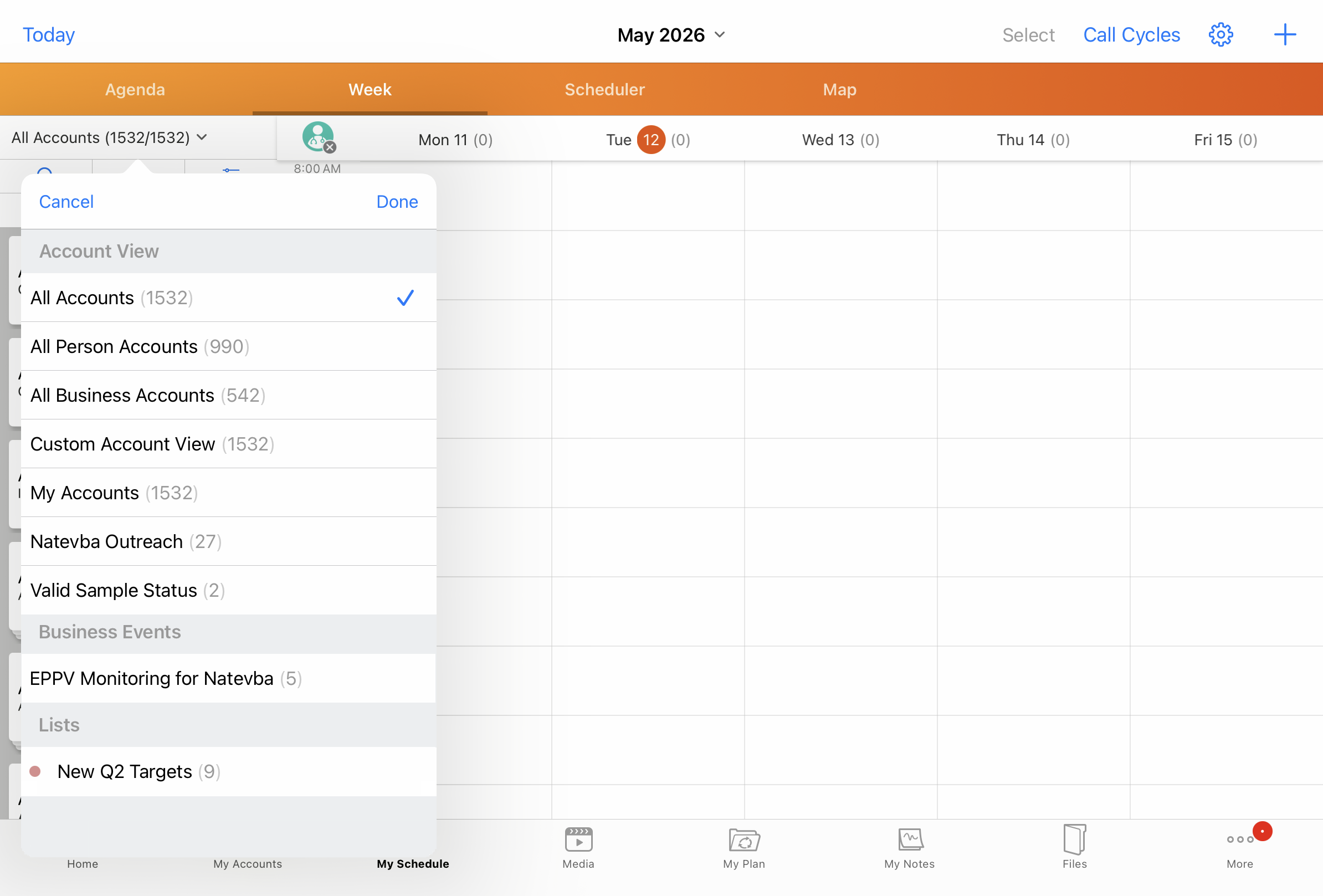
Select the Account Views and Lists dropdown.
-
Select a specific Business Event to filter the account list.
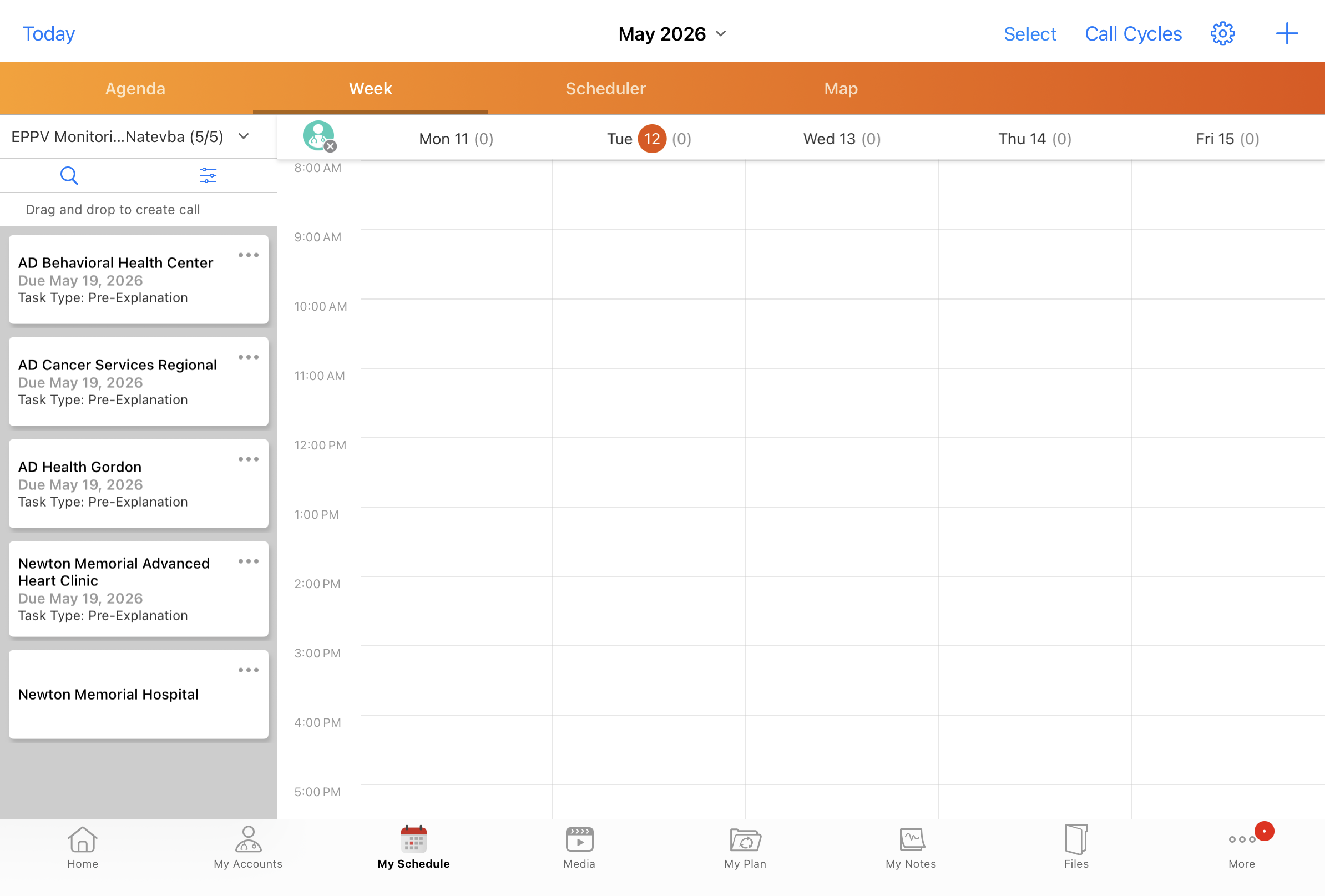
Account cards display for each active Business Event target assigned to the current user, where the target status is not complete, reopened, or canceled. Each card displays:
- Account name (or child account name, if child accounts are enabled)
- Due Date — the end date of the earliest open task
- Task Type — the type of the upcoming task
-
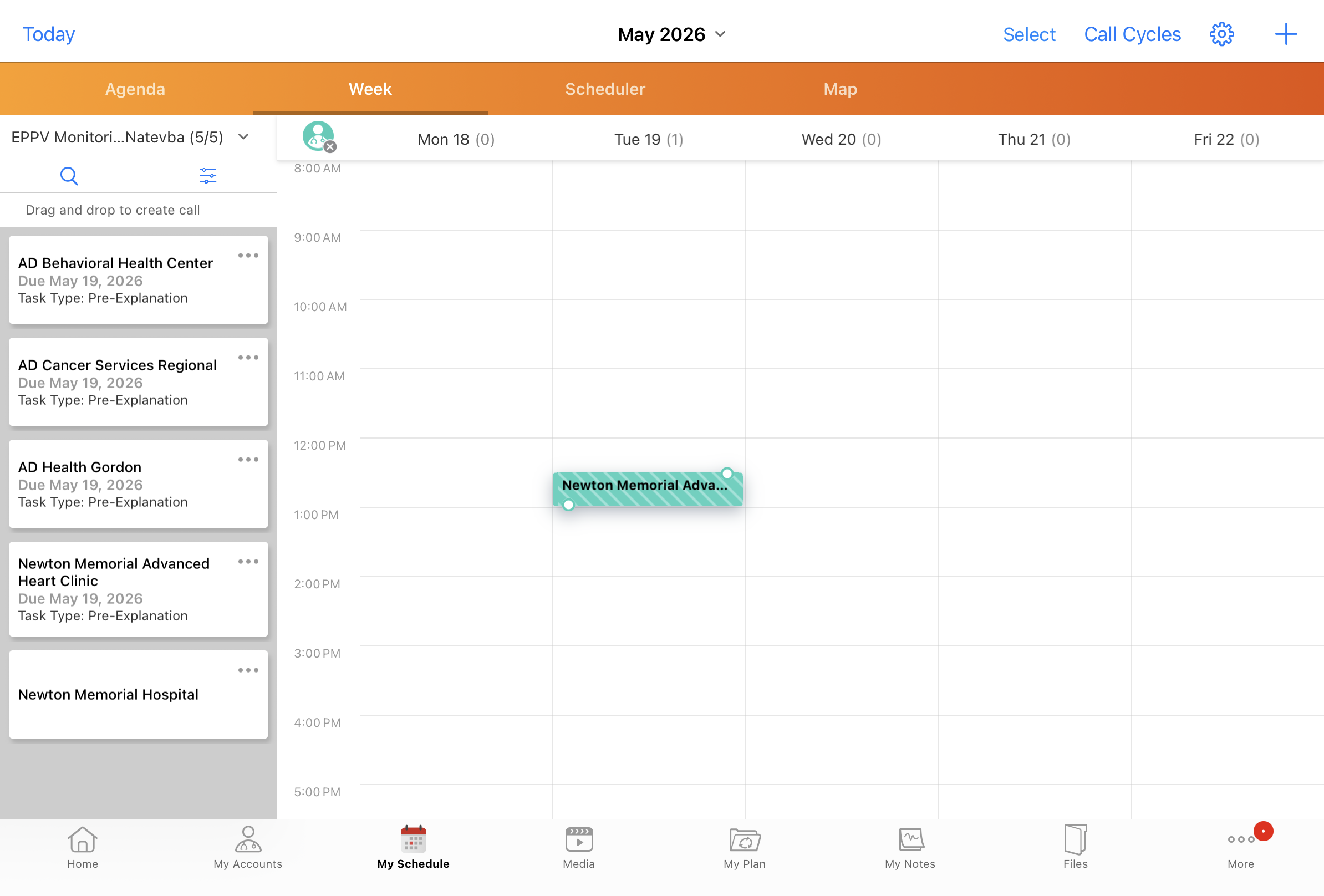
Drag the account onto the calendar to schedule a call.
Completing Open Business Event Tasks as
End Users
End users can complete open business event tasks from two entry points: the call report, and the individual Business Event Task record.
Completing Open Business Event Tasks from the Call Report
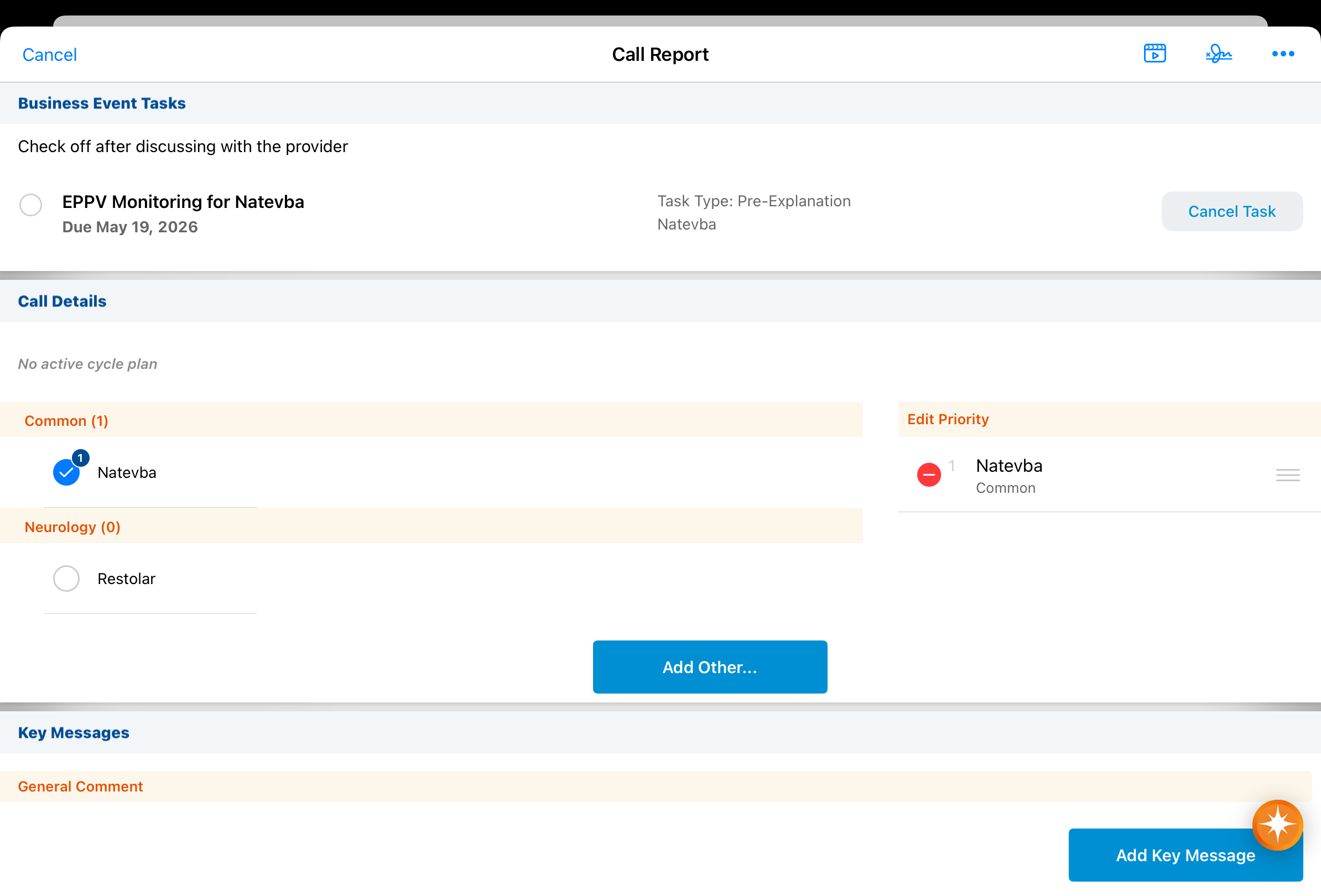
The Business Event Tasks section displays on the call report when there are open tasks for the call's account and date. Tasks display when their start date is on or before the call date, their end date is on or after the call date, and the current user is the task owner.
To complete a Business Event Task from the call report:
- Open or create a call report for the relevant account. On Unique Activity group calls, users can also complete event tasks by business account or by individual attendee.
- Locate the task card in the Business Event Tasks section. Each card displays the business event name, product, task type, and end date.
- Select the checkbox on the task card to mark the task for completion.
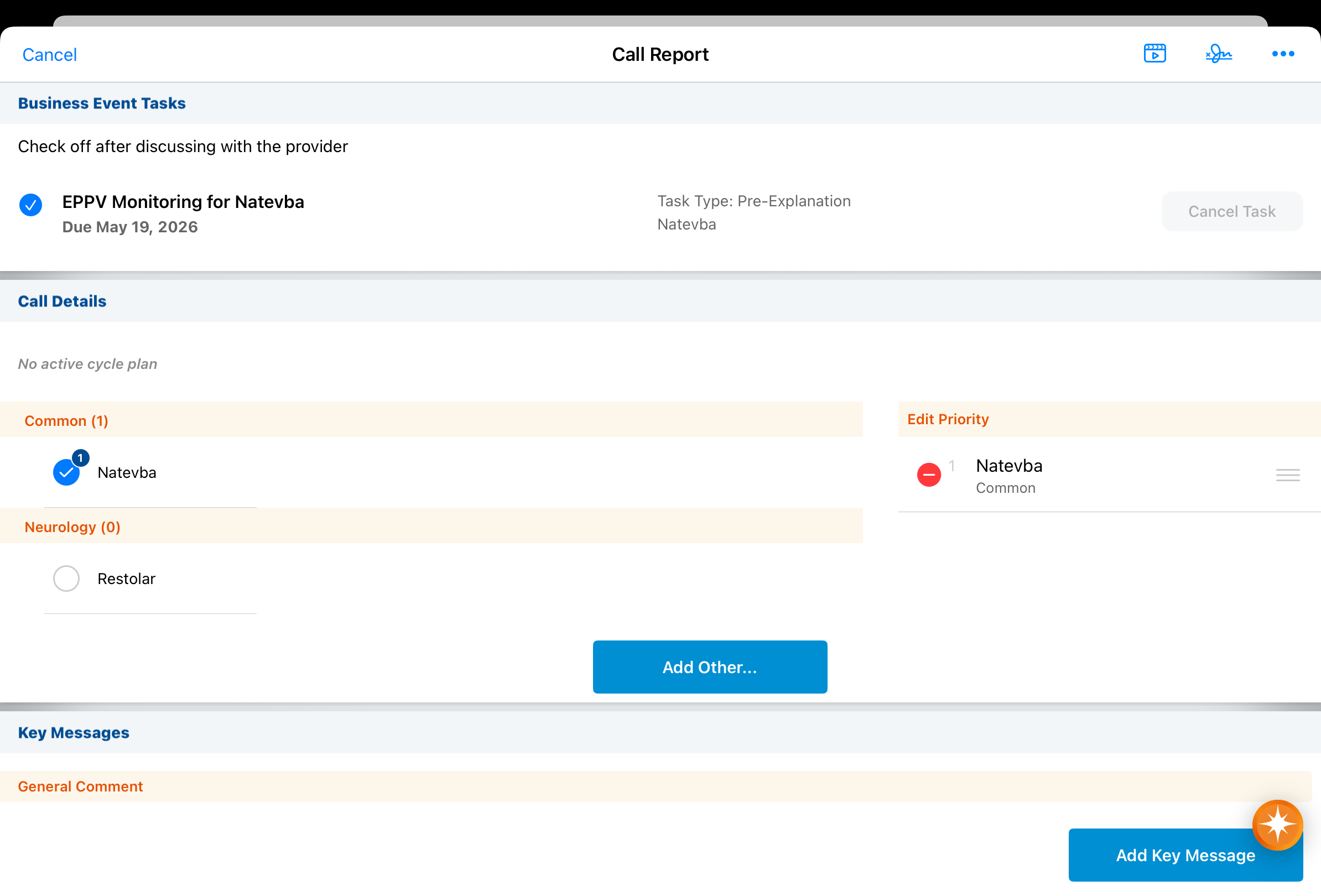
- Optional - Enter a Comment in the prompt directly under the task card. This comment is saved back to the task record upon saving or submitting the call.
- Save or Submit the call report.
Validations are performed only upon Submit (not Save).
On save, the task is linked to the call. On submit, the task status is updated to Completed and the target status is updated accordingly. If a pre-explanation task is completed, the target status updates to Pre-Explanation Complete. If an ongoing monitoring task is completed, the target status updates to In Progress.
On submit, the task’s completed channel is automatically stamped based on the call’s channel. (Admins can override this with a custom call field mapped via the business event schedule.)
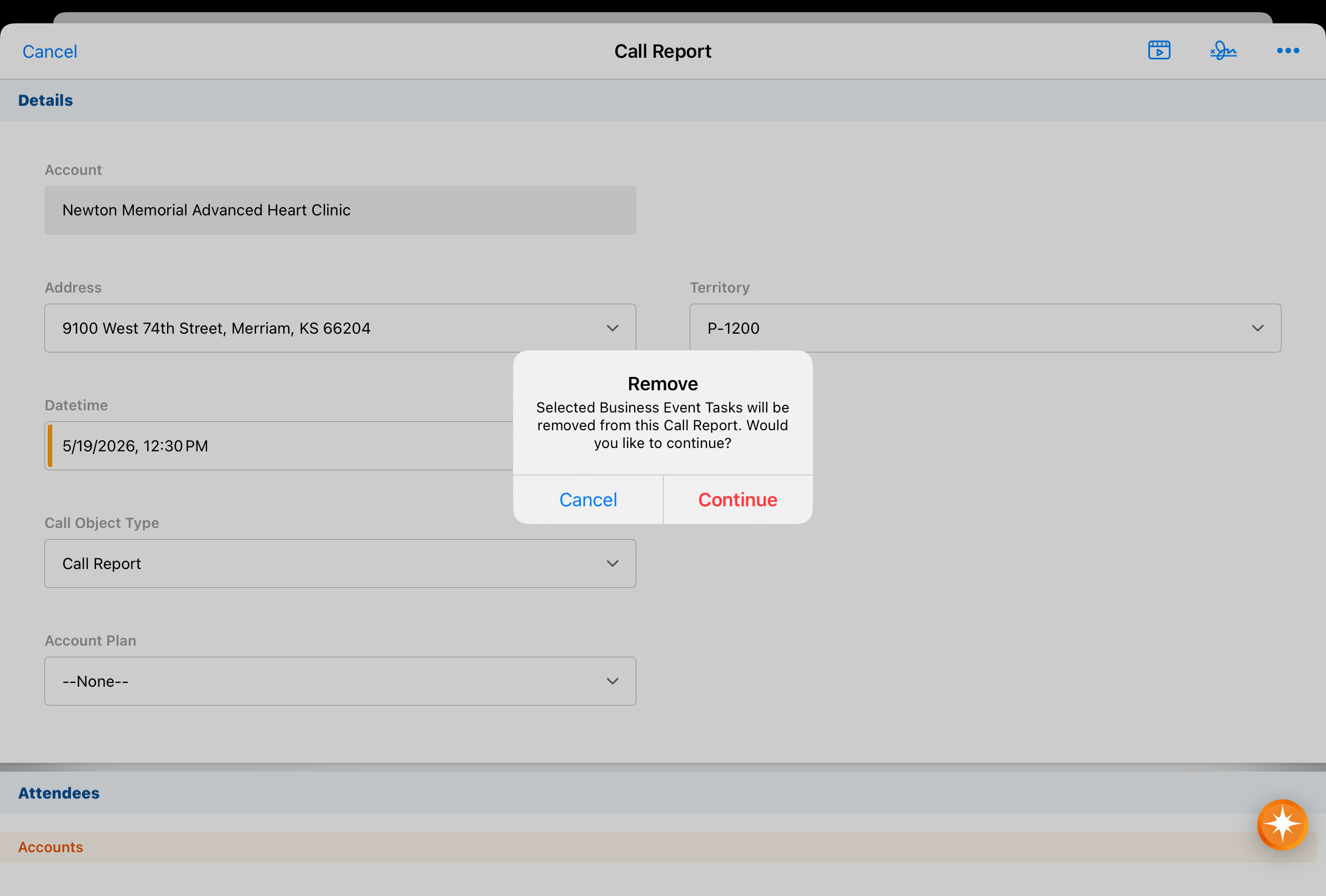
If the call date, location, or primary attendee changes and a selected task no longer meets the display criteria, a dialog prompts you to confirm before proceeding. Selecting Continue removes the affected task from the call report. Selecting Cancel keeps the call report unchanged.
Completing Open Business Events from the Record
To complete a Business Event Task from the task record:
-
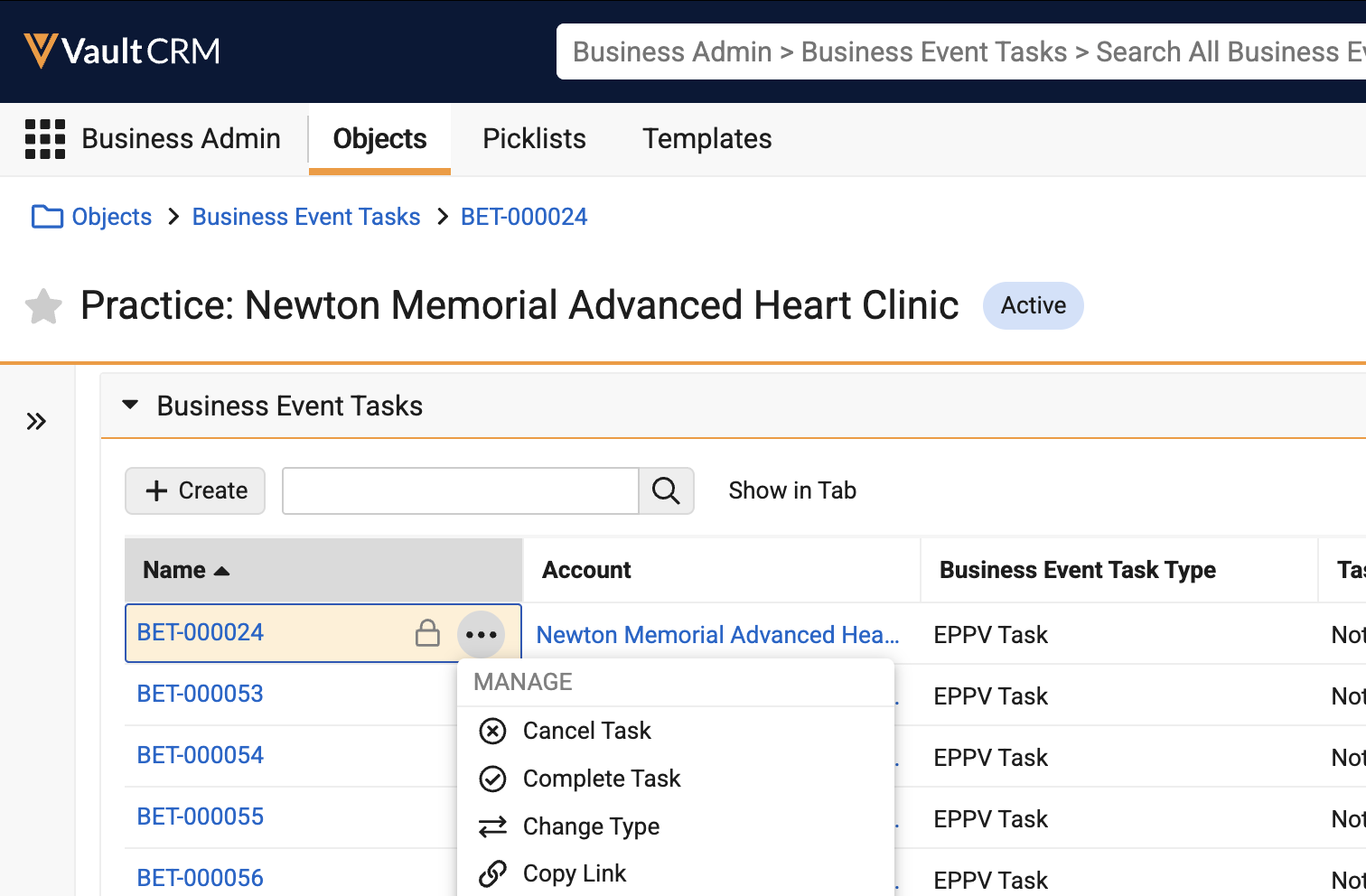
Select the All Actions menu for a Business Event Task record (Browser only).
On the iPad and iPhone platforms, cancel and complete options display in the record header.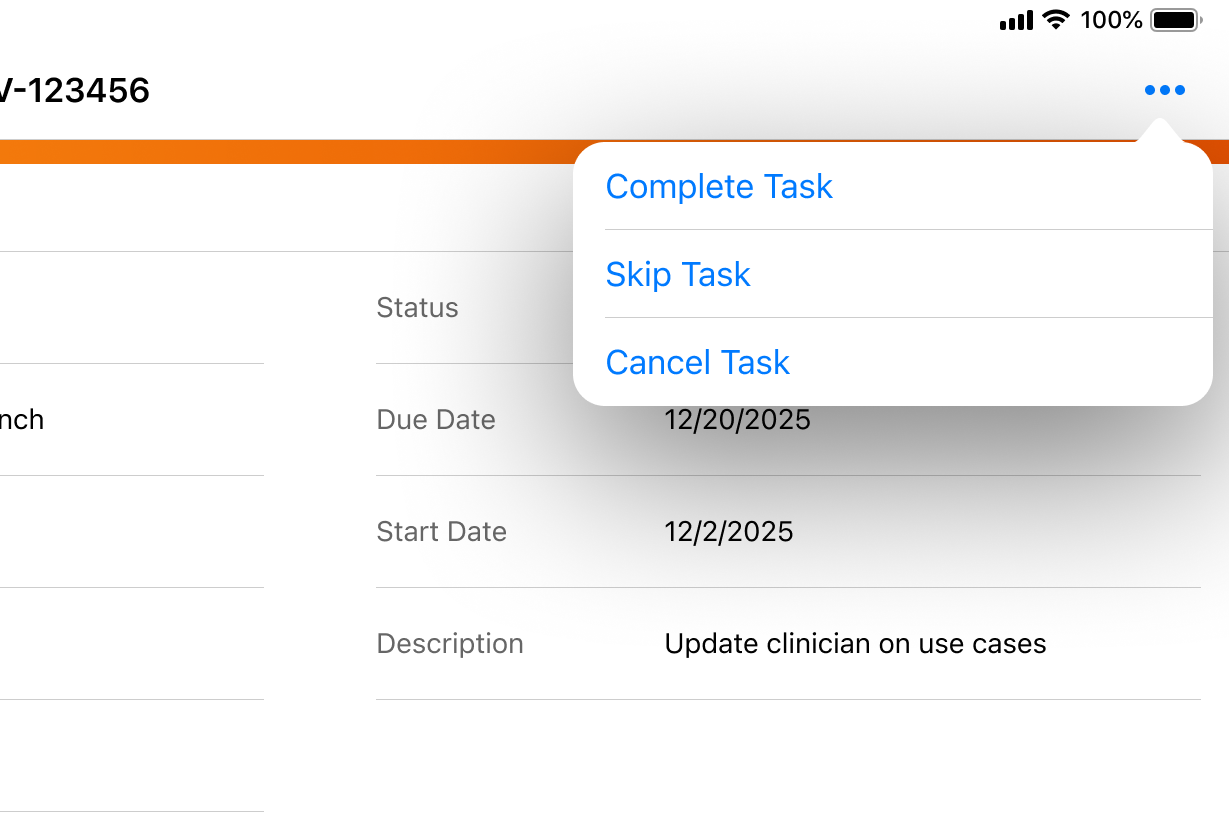
-
Select Complete Task.
On Browser, this action is hidden if the task is in any status besides Not Started. On iPad and iPhone platforms, the action displays but is not selectable.
-
Select a Channel from the dropdown.
-
Enter a Comment. The Complete Task confirmation prompt displays.
-
Select Continue to complete the task.
The task status updates to Completed, and the parent target status updates to reflect the completed task type.
Canceling Tasks for Business Event Targets as
End Users
End users can cancel Business Event Tasks for targets which are no longer eligible for EPPV/PI visits. For example, when a hospital no longer has any patients receiving a particular product or treatment, future EPPV/PI visits for the product should be canceled.
Canceling a task will cancel the target. This leaves the target intact but eligible for future repurchasing. Once a task status is changed to canceled__v, it can never be manually skipped or completed. It can only be reverted back to not_started__v if an admin reopens the parent target.
This action cancels the current Business Event task and all future Business Event tasks for that target.
To protect the integrity of the compliance audit trail, the system enforces a strict validation rule blocking users from manually altering canceled tasks. If a task's status is Canceled (canceled__v), its status cannot be modified via the UI, API, or dataloading.
The only system-approved method for changing a task status from Canceled to another state is when a Business Admin executes the Reopen Target action on the parent target. This action systematically reverts eligible canceled tasks back to Not Started (not_started__v).
Canceling Tasks from the Call Report
To cancel Business Event Tasks from the call report:
-
Locate the task card in the Business Event Tasks section of the call report.
-
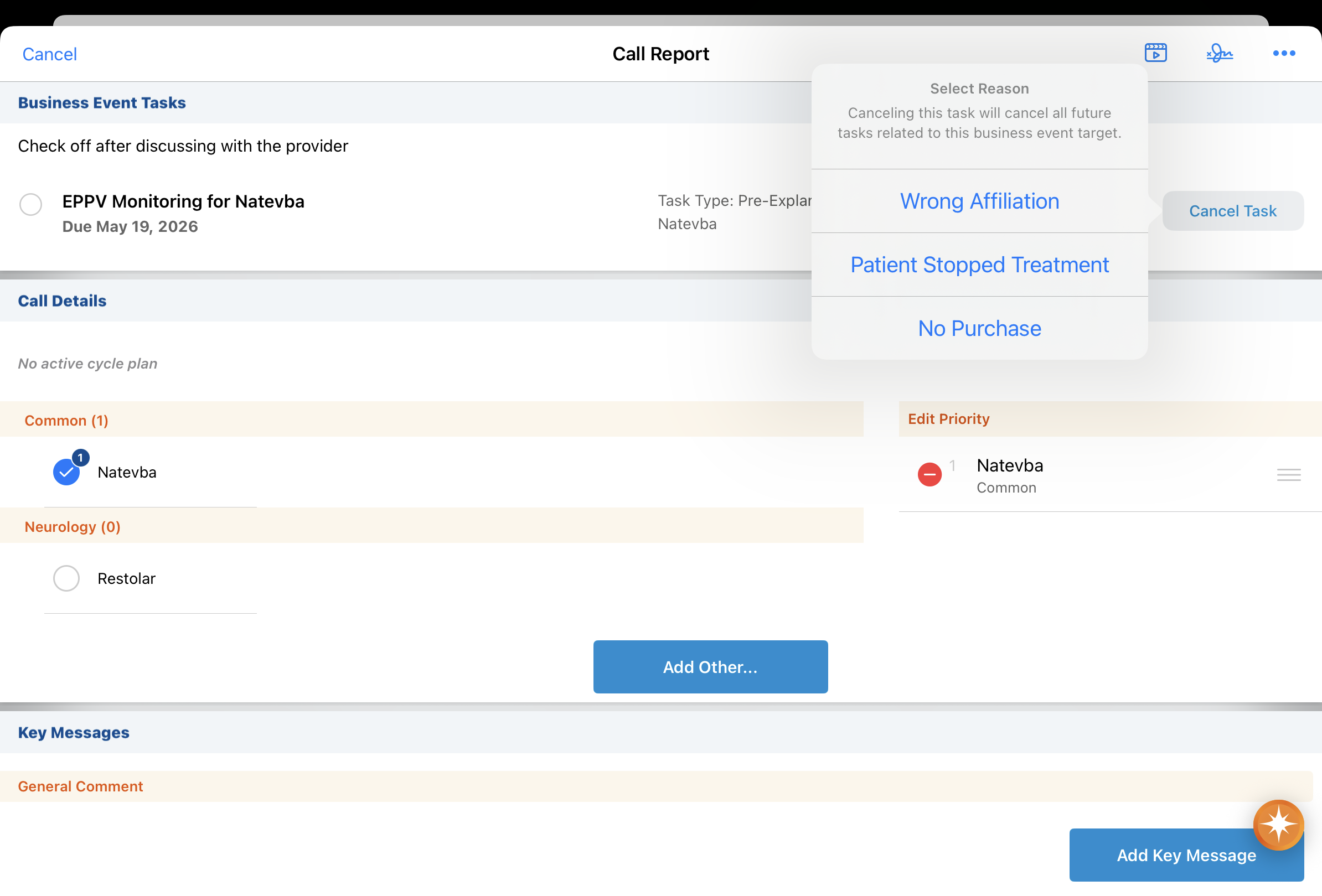
Select Cancel Task.
-
Select a Cancellation Reason. For example, Patient Stopped Treatment or No Purchase.
- Save or Submit the call report.
The selected task and all future Business Event Tasks for that target are canceled when the call report is saved or submitted. The records remain in Vault CRM but do not display as open tasks for end users.
Canceling Tasks from the Target Record
To cancel Business Event Tasks from the target record:
-
Select the All Actions menu for a Business Event Target record (Browser only).
-
Select Cancel Task.
-
Select a Cancellation Reason. For example, Patient Stopped Treatment or No Purchase.
-
Select Cancel Task (Browser only; on the iPad and iPhone platforms, tasks are canceled after selecting the Cancellation Reason).
The selected task and all future Business Event Tasks for that target are canceled. The records remain in Vault CRM but do not display as tasks for end users.
Skipping Tasks for Business Event Targets as
End Users
To satisfy regulatory and audit requirements, users can formally skip individual tasks.
Understanding the difference between skipping and canceling is essential for maintaining proper data compliance:
- Skip Task (Single Task Level) - Bypasses a single, specific task (for example, due to temporary HCP unavailability, scheduling conflicts, or office closures). The parent target remains active, and subsequent scheduled tasks in the EPPV/PI series are generated and progress as planned.
- Cancel Task (Target/Series Level) - Halts the entire remaining series of EPPV/PI tasks for that target (for example, because a hospital has permanently stopped administering the treatment or a patient has discontinued therapy). Once canceled, no further tasks are available for completion for that account unless a reopen or repurchase event occurs.
To skip an EPPV or PI task:
-
Navigate to the specific Business Event Task.
-
Select the Skip Task action from the All Actions menu.
-
Select a Reason.
-
Enter a Comment (up to 500 characters) providing a detailed rationale for skipping the task.
-
Select Submit.
Any task marked as Skipped is automatically unlinked and hidden from Call Reports, preventing field representatives from accidentally selecting or completing them during future HCP visits.
Understanding Calculation Updates for Completed, Skipped, or Canceled Tasks as
End Users
Marking a task as completed, skipped, or canceled triggers a real-time recalculation of progress metrics on the parent Business Event Target (business_event_target__v) record. The system automatically maintains the following counts:
- Completed Tasks (completed_tasks__v) - Tracks tasks with status completed__v
- Skipped Tasks (skipped_tasks__v) - Increments by 1 when a task status moves to skipped__v
- Canceled Tasks (canceled_tasks__v) - Tracks tasks with status canceled__v
- Remaining Calls (remaining_calls__v) - Decrements by 1 (recalculating the count of remaining active tasks in not_started__v status)
Reopening Targets for Canceled Tasks as
Business Admin Users
After a user cancels a target’s Business Event Tasks, business admin users can reopen the target and its associated tasks if needed. Reopening a target updates all future Business Event Tasks through the end of the business event, on the next run of the Business Events job.
To reopen a canceled target:
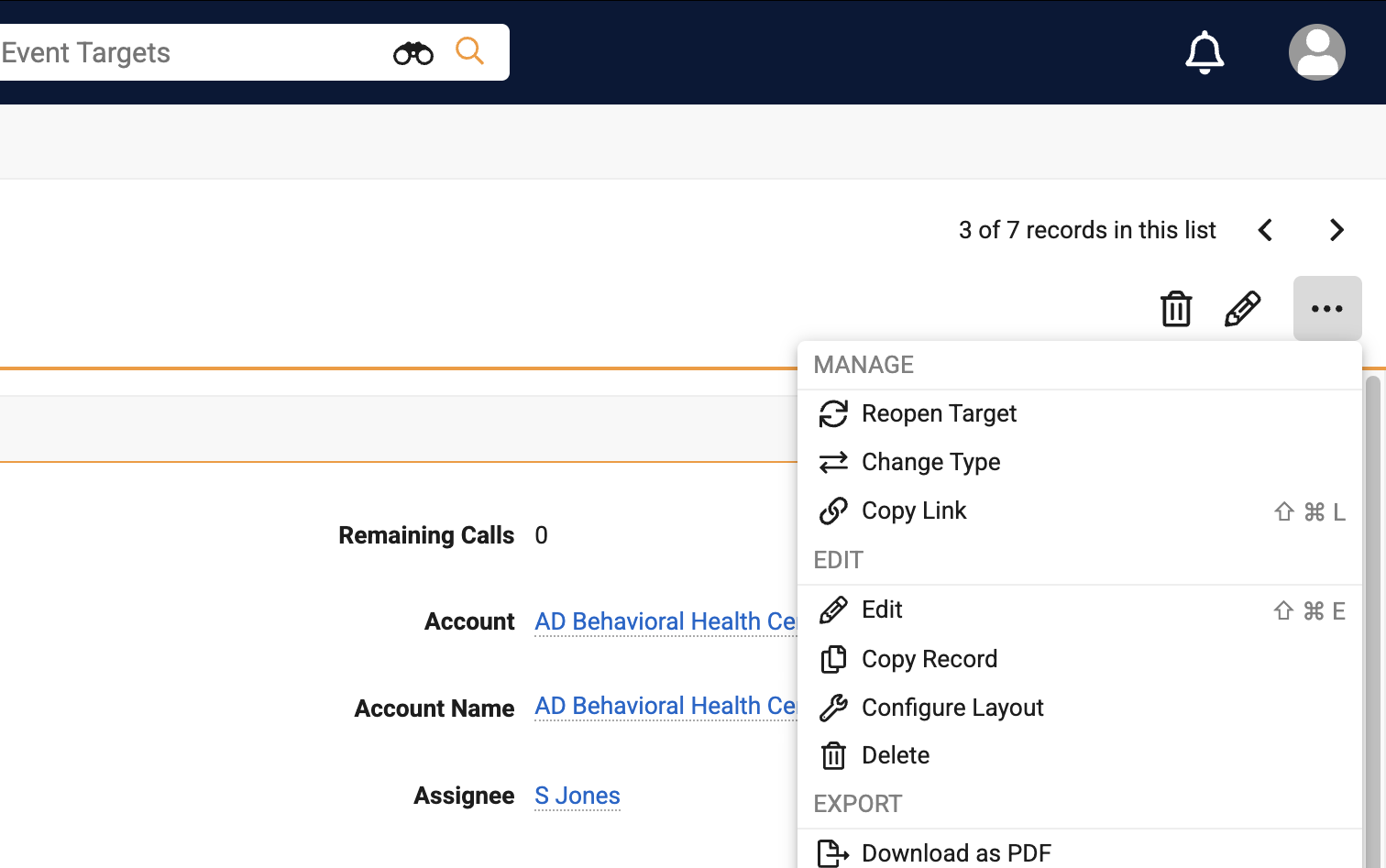
- Select the All Actions menu for a Business Event Target record.
-
Select Reopen Target. This option only displays when the target is canceled.
Canceled targets that have already been repurchased are permanently locked. The Reopen Target and Repurchase Target actions are disabled on these records, and any updates to the original canceled target will be rejected.
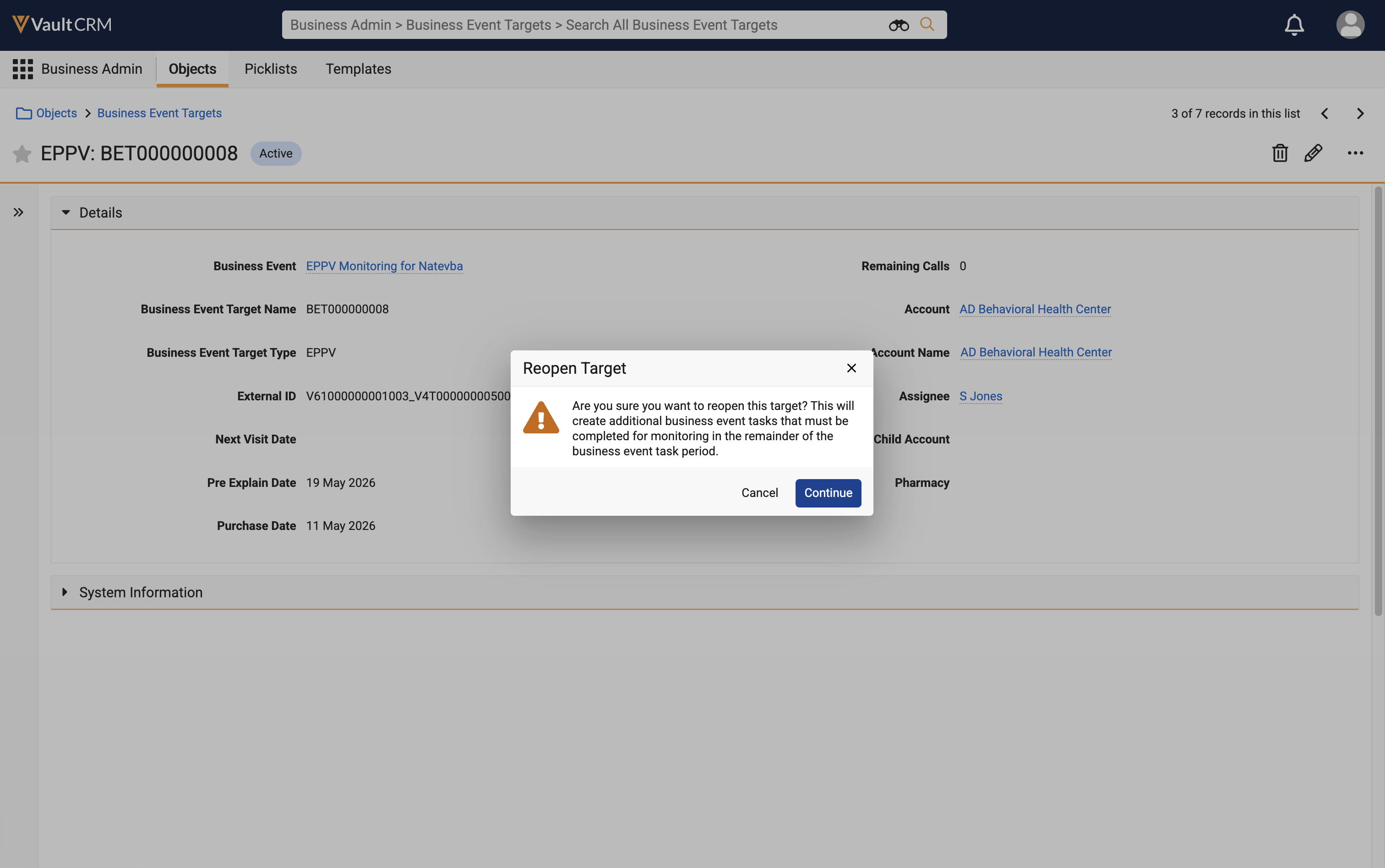
- Select Continue to reopen the target.
The target status updates to Reopened, and the cancellation reason and canceled date are cleared. All associated Business Event Tasks are updated from Canceled to Not Started. When these tasks are updated, the Target Status changes from Reopened to In Progress.
Tasks where both Start Date and End Date are in the past remain canceled.
Reassigning Business Event Owners as
Business Admin Users
Business admins can use the Reassign action on a Business Event record to recalculate and reassign ownership of all related Business Event Targets and Tasks. This is useful when territory assignments change.
To reassign ownership for Business Events:
-
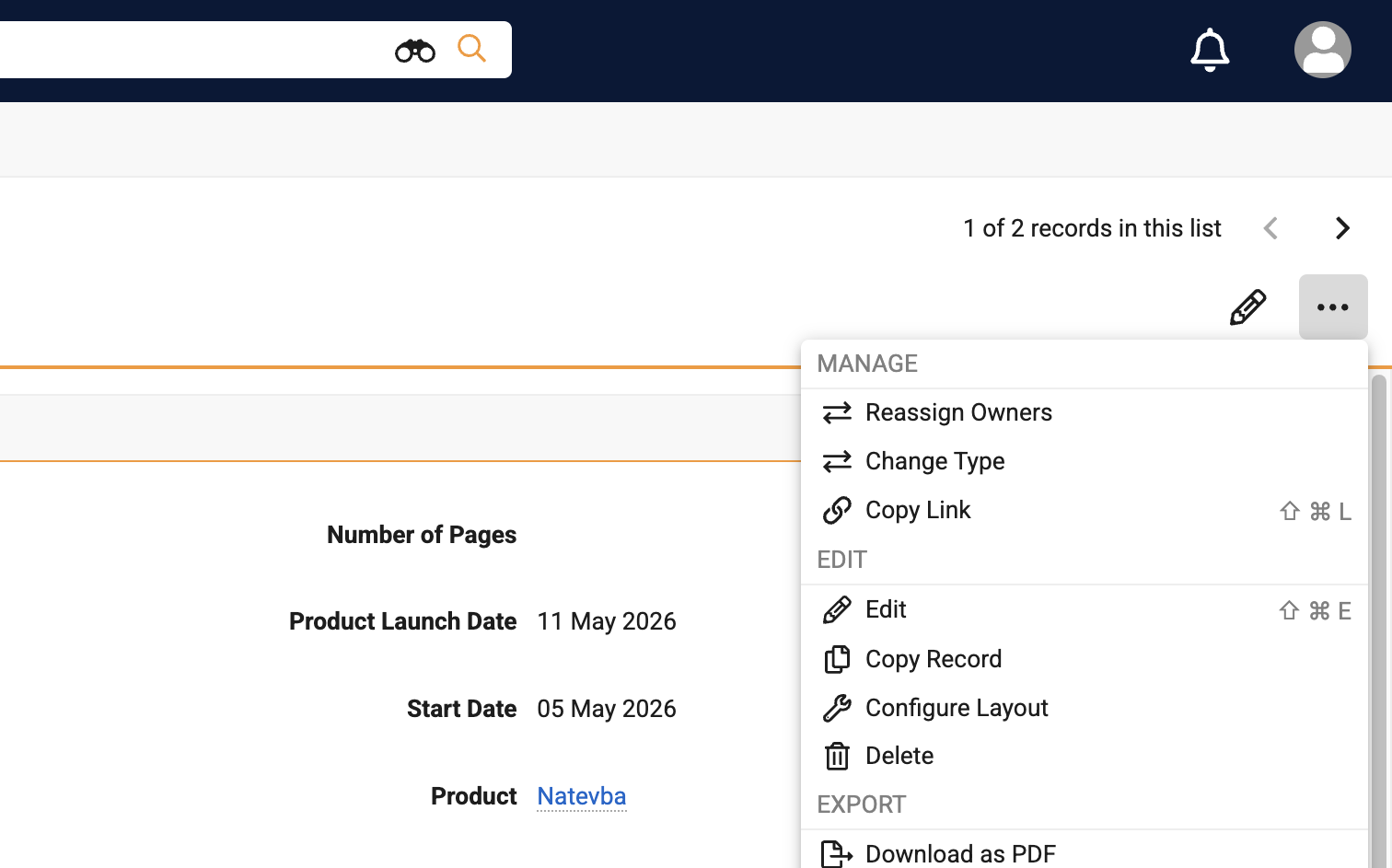
Select the All Actions menu on a Business Event record.
-
Select Reassign Owners from the record actions.
-
Confirm the reassignment action, or select Cancel to close without making changes.
Owners are reassigned based on the following logic:
- Active users who have territory alignment to the account and access to the product via My Setup Products are considered as potential owners
- If more than one user meets this criteria, the user highest in the territory hierarchy is selected as the new owner
- If no user meets these criteria, the account owner is selected as the new owner
This logic is also used to determine ownership when the assignee is not populated for a Business Event Target.

