Capturing Remote Signatures for Acknowledgement of Content
To quickly resolve overdue Acknowledgements of Contents (AOCs), users can send HCPs remote signature requests for AOC. HCPs review and sign the AOC to indicate they received BRCs. In some organizations, HCPs cannot continue to receive more samples until they acknowledge they received samples they previously requested. When users send a remote AOC signature request, HCPs review the AOC details and sign remotely, resolving the overdue record. This enables users to continue sampling to the HCP without making an in-person visit in organizations where fulfillment for new sample requests is held while there are overdue AOCs.
For example, an HCP requests a BRC during a remote meeting, but he has an overdue AOC which you must resolve before disbursing new samples. When you send the HCP a remote signature request for the overdue AOC, the HCP reviews the details and provides his signature.
Who can use this feature?
- End Users — iPad
- Using Remote Signatures for Acknowledgement of Content
- Providing a Remote Signature for Acknowledgement of Content
- Users require an Engage license
Configuring Remote Signatures for Acknowledgement of Content for
 Admin Users
To configure this feature:
- Ensure Capturing Acknowledgement of Content is configured and the aoc_due_date__v formula field is populated on the content_acknowledgment__v records.
- Navigate to Admin > Users & Groups > Permission Sets.
- Select the appropriate Permission Set.
- Select the Objects tab.
-
Grant the following permissions:
Object
Object Permission
Object Types
Fields
Field Permission
account__v CRE All appropriate object types name__v Edit content_acknowledgement__v CRE n/a - remote_signature_attendee_name__v
- signature_captured_remotely__v
- signature_captured_share_link__v
- signature_request_uuid__v
Edit sent_message__v CRE content_acknowledgement__v - account__v
- aoc_id__v
- call__v
- capture_datetime__v
- engage_link__v
- mobile_id__v
- sent_from_platform__v
- sent_via__v
- shortened_engage_link__v
- to__v
- transaction_type__v
- user__v
- vexternalid__v
Edit signature_request__v R content_acknowledgement__v - account__v
- aoc_id__v
- call2__v
- call_date__v
- engage_last_modified_datetime__v
- name__v
- request_canceled_datetime__v
- request_expired_date__v
- requested_datetime__v
- status__v
- signature_accepted_datetime__v
- signature_captured_datetime__v
- signature_declined_datetime__v
Read
Engage System User
System Users are created in Vault CRM instances and managed by Veeva for integration purposes. By default, these users are assigned the appropriate permission set. Customers cannot update the permission set, but the following additional permissions can be added to configure capturing remote signatures for acknowledgement of content.
To configure this feature:
-
Create a custom permission set with the following permissions:
Object
Object Permission
Object Types
Fields
Field Permission
account__v R All applicable object types n/a n/a content_acknowledgement__v RE All applicable object types All custom fields
Edit content_acknowledgement_item__v RE All applicable object types All custom fields
Edit - Assign the custom permission set to the Engage System User via an Application Role. See Adding Permission Sets to Application Roles for more information.
End Users
To configure this feature:
- Ensure Capturing Acknowledgement of Content is configured and the aoc_due_date__v formula field is populated on content_acknowledgment__v records.
- Navigate to Admin > Users & Groups > Permission Sets.
- Select the appropriate permission set.
- Select the Objects tab.
-
Grant the following permissions:
Object
Object Permission
Object Types
Fields
Field Permission
account__v R All appropriate object types name__v Read content_acknowledgement__v CRE n/a - remote_signature_attendee_name__v
- signature_captured_remotely__v
- signature_captured_share_link__v
- signature_request_uuid__v
Edit content_acknowledgement_item__v RE n/a - account__v
- content_acknowledgement__v
- distributor__v
- external_id__v
- lot__v
- manufacturer__v
- mobile_id__v
- product__v
- product_name__v
- ship_quantity__v
- tracking__v
- u_m__v
Edit sent_message__v CRE content_acknowledgement__v - account__v
- aoc_id__v
- call__v
- capture_datetime__v
- engage_link__v
- mobile_id__v
- sent_from_platform__v
- sent_via__v
- shortened_engage_link__v
- to__v
- transaction_type__v
- user__v
- vexternalid__v
Edit signature_request__v R content_acknowledgement__v - account__v
- aoc_id__v
- call2__v
- call_date__v
- engage_last_modified_datetime__v
- name__v
- request_canceled_datetime__v
- request_expired_date__v
- requested_datetime__v
- status__v
- signature_accepted_datetime__v
- signature_captured_datetime__v
- signature_declined_datetime__v
Read - Navigate to Business Admin > Objects > VMobile Object Configurations.
- Ensure the following VMOCs are active for the appropriate platforms:
- engage_link_settings__v
- sent_message__v
- signature_request__v
Optional Configuration
To modify the number of days a signature request link remains valid:
- Grant end users Read permission to the aoc_sign_request_expiry_period__v field on the engage_link_settings__v object.
- Edit the value in the aoc_sign_request_expiry_period__v Engage Link setting. The default setting value is 30, so signature request links automatically expire 30 days after the user requests a signature. Admins may change the value to any integer between one and 90.
Signature request links are valid until they are signed or until they expire.
To display additional information about the signing account on the signature page, grant end users Read permission to the signature_page_display_name__v field on the content_acknowledgement__v object.
Using Remote Signatures for Acknowledgement of Content as
End Users
To capture a remote signature for AOC:
-
Select the Acknowledgment of Content option from the More Actions menu on the call report or from the More Actions menu on the account detail page.
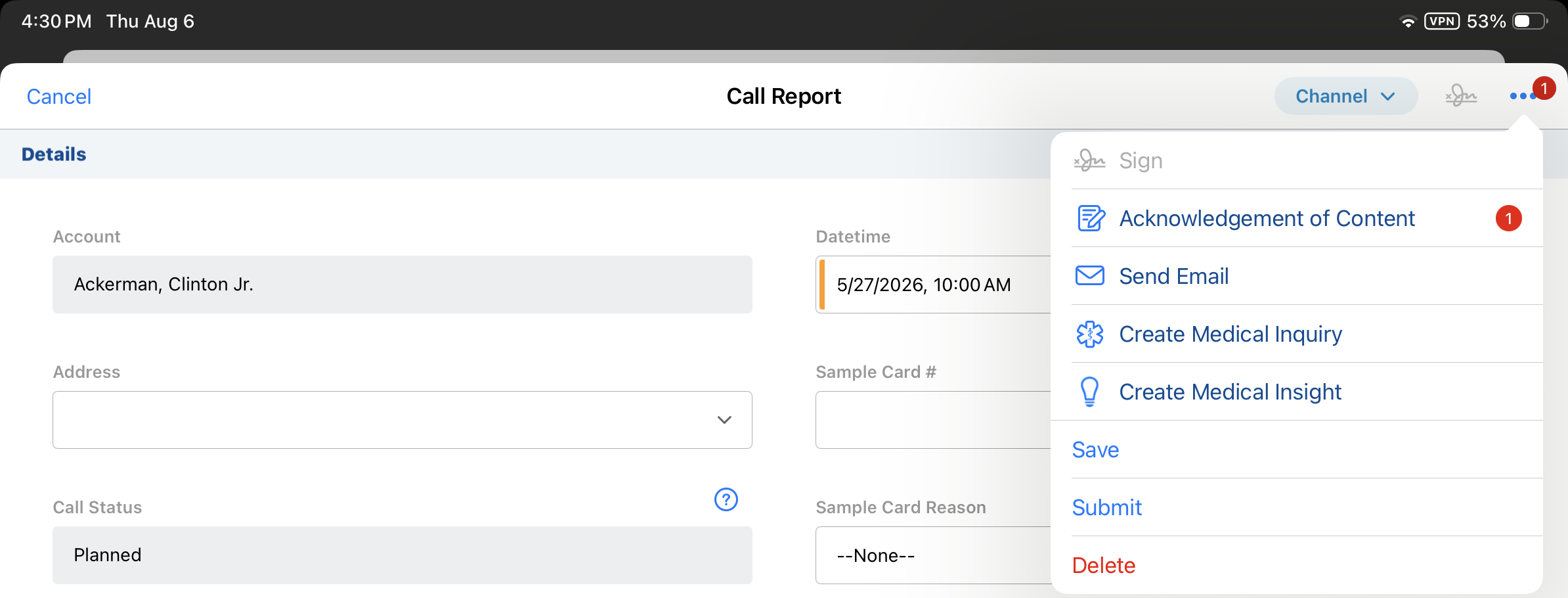
An alert badge displays next to the Acknowledgment of Content option from the Call Report indicating the number of overdue AOCs.
The Acknowledgment of Content option only displays when there is at least one open AOC record for the current user and account. For unique activities group calls, the alert displays on child calls only.
AOC signature capture from the call report is only supported on individual calls or unique activities group calls. It is not supported for standard group calls.
Alternatively, select the Sign icon from the header on a Content Acknowledgment detail page. From this entry point, the user can only sign the AOC from which the signature option is launched.
- Select the appropriate signature method from the Signature Method picklist on the Signature Setup page.
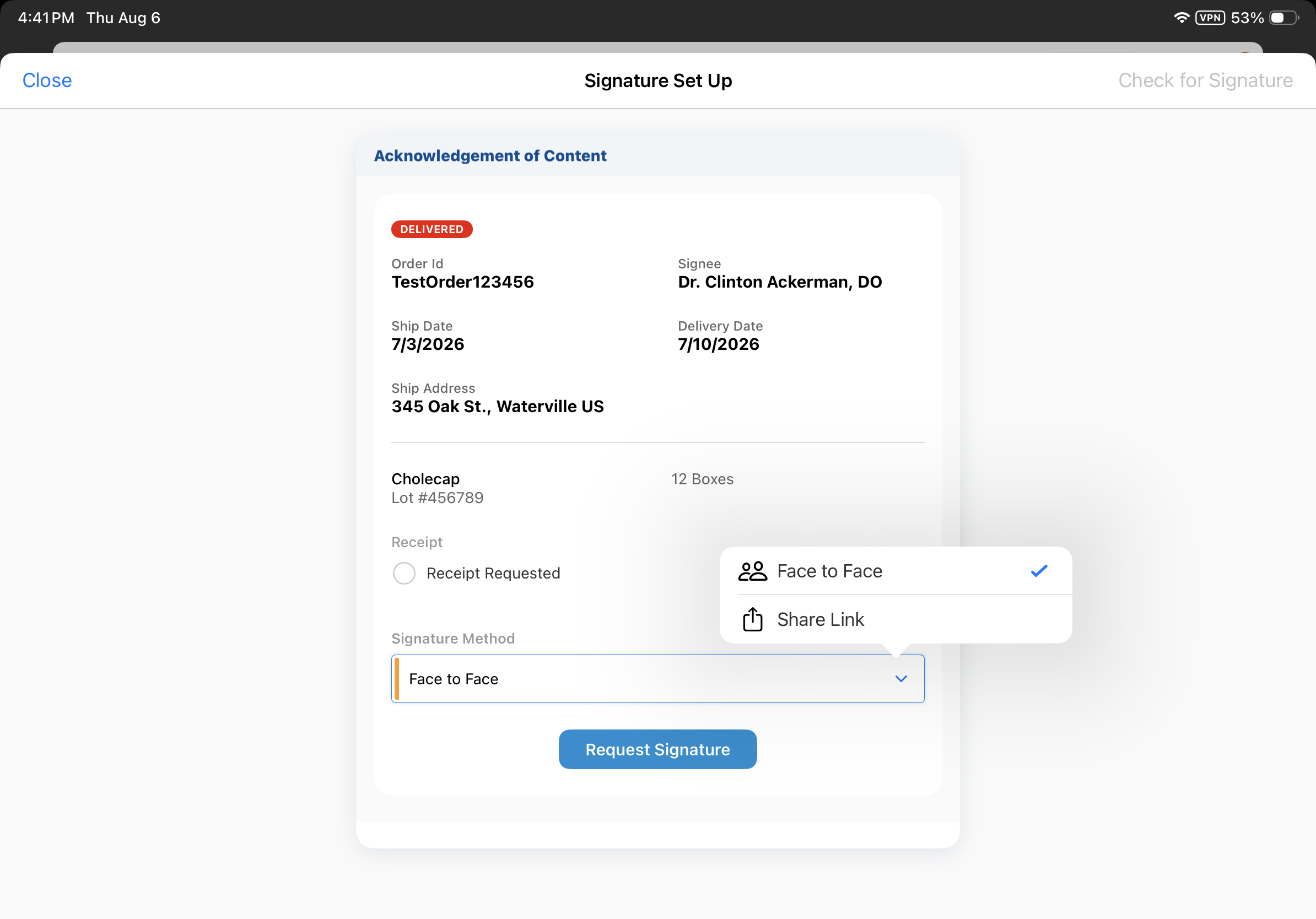
- Complete the selected signature request process:
Once the HCP submits their signature, the end user receives an email notification from Vault CRM. Remote AOC signatures are automatically accepted. Users do not need to review and accept the HCP signature.
Approved Email receipts are not available for AOC signatures using Engage meeting and Sharelink signature method.
While there is a pending signature request, the content_acknowledgment__v record for the AOC is locked. Users and admins cannot edit or delete content_acknowledgement__v records with pending signature requests until the HCP provides a signature or the user cancels the signature request or the signature request is expired.
Face to Face Signature Capture
To request a signature using Face to Face signature capture:
- Select Face to Face from the Request Signature Method picklist for the appropriate AOC record.
- Select the Request Signature button.
- Provide the device to the HCP for signature capture.
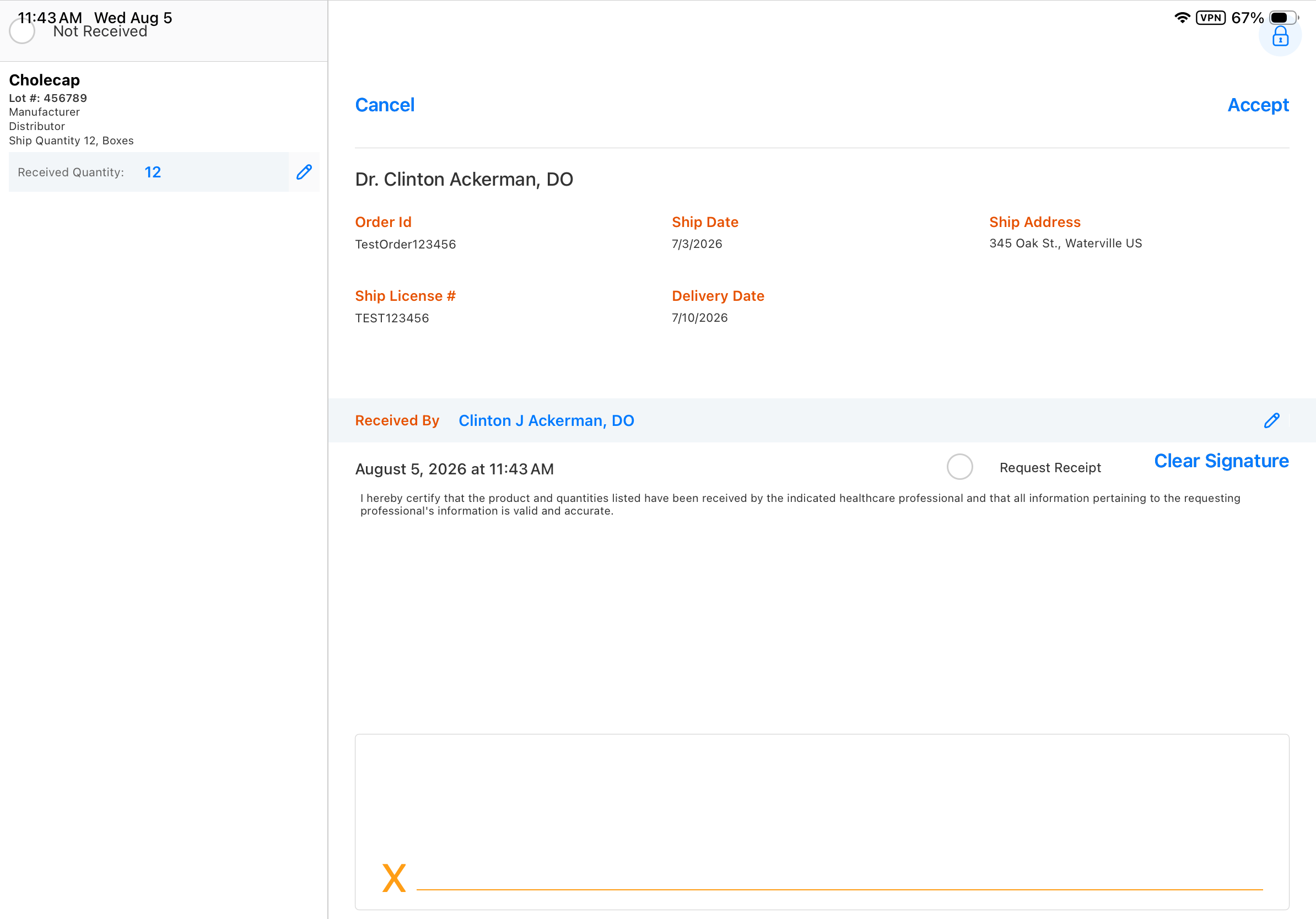
- Select Accept to accept the HCP signature and complete the AOC process.
Share Link Signature Capture
To request a signature using Share Link signature capture:
- Select Share Link from the Request Signature Method picklist for the appropriate AOC record.
- Select Request Signature.
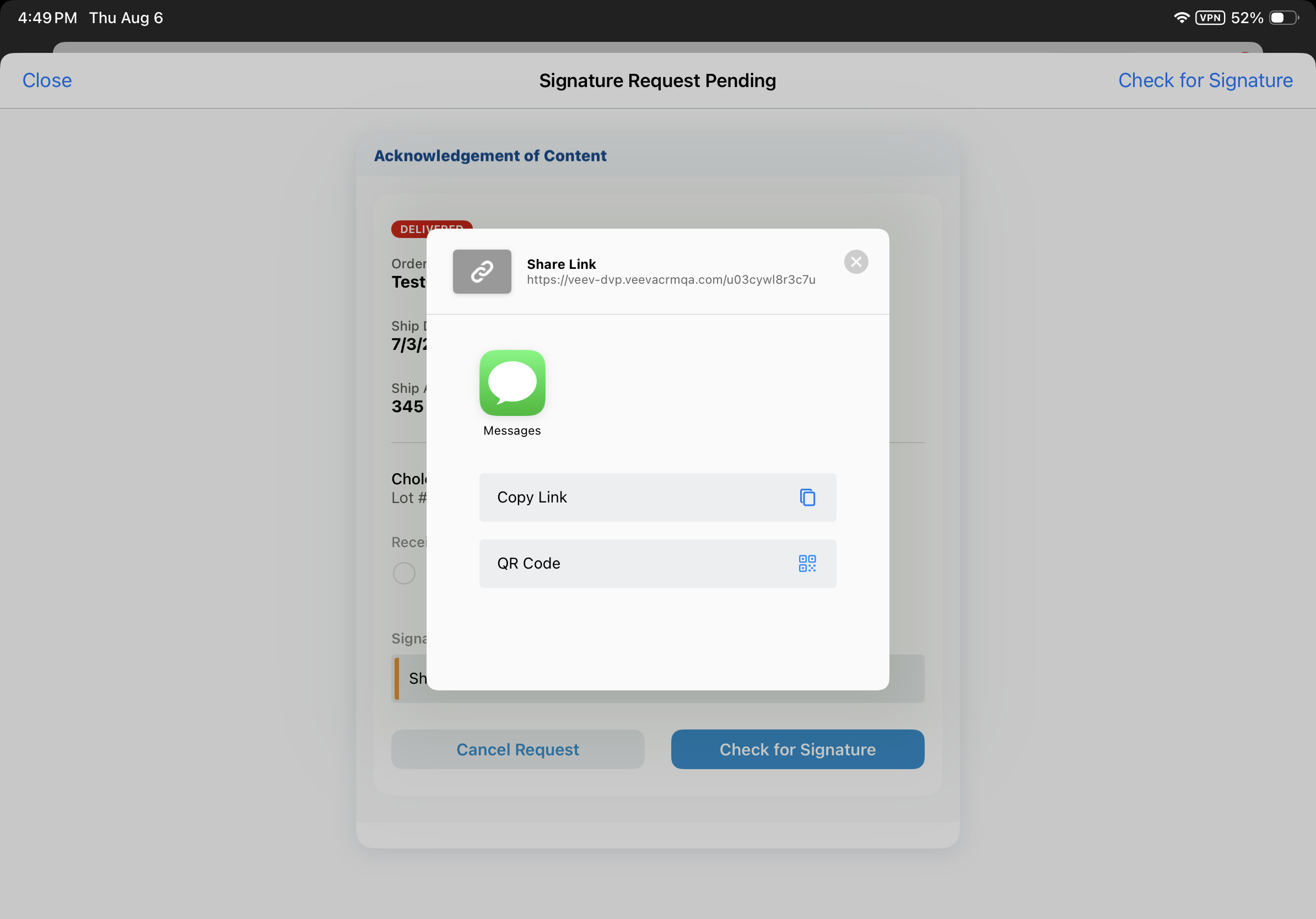
- Select the appropriate application from the custom sharing modal to share the generated link with the HCP. Sharing options are defined by the ENGAGE_LINK_APPS;;EngageLink Veeva Message. If an acceptable application is not available, select Copy Link to copy the link to the device’s clipboard, then send it to the HCP through the preferred application.
Users do not need to remain in the Vault CRM application while waiting to capture the signature.
Checking for Pending Signatures
To check for submitted signatures after sending a Share Link signature request, select the Check for Signature or Check for All Signatures button from the upper right corner of the signature page, or from the signature request card. Users access the signature page from the same entry points as they did when requesting a signature--the call report, the Content Acknowledgement detail page, or the account detail page. If there are multiple signature requests pending for the account, the Check for All Signatures button is available in the signature page header.
If the HCP has submitted a signature for one or more outstanding AOC signature requests, a Signature Received message displays.
Select OK to return to the Signature Setup page. If all open AOCs are resolved, including AOCs with pending signature requests, the Signature Setup page closes and users are returned to their entry point. If the HCP has not submitted a signature for any pending request, a No Signature Received message displays.
Canceling Pending Signature Requests
To cancel a pending signature request, select the Cancel Request button for the appropriate AOC on the Signature Setup page. If the HCP has not yet submitted a signature and the request is not expired, a confirmation message displays.
Select Cancel Request to confirm the cancellation.
Canceling a pending signature request is not available for Face to Face signatures.
Engage Meeting Signature Capture
To request a signature using Engage Meeting signature capture:
- Select Engage Meeting from the Request Signature Method picklist for the appropriate AOC process.
- Select Request Signature.
- Select the appropriate attendee. This step only displays if multiple attendees are using the same Engage meeting ID as the selected account.
A Requesting modal displays to the meeting host until the HCP sends their signature back to the host. The Engage Meeting method is only available while users are hosting an Engage meeting.
Providing a Remote Signature for Acknowledgment of Content as
End Users
AOC recipients review the signature request, sign, and submit their signatures from the signature capture screen on the end user's device (Face to Face method only) or from the internet browser on their own device. Recipients may edit the received quantity, mark an order as not received, and edit the AOC recipient before submitting their signature.
Editing the Received Quantity
If the actual received quantity differs from the expected quantity, select the edit icon next to the received_quantity__v field and enter the appropriate information.
Select Done to save the edited quantity and return to the signature capture screen.
Marking an Order as Not Received
If the entire order was not received, select the Did not receive order toggle. The receipt_quantity__v field for all line items on the AOC record is set to 0 and the not_received__v field is marked on the AOC record.
Editing the AOC Recipient
If the HCP who ordered the shipment did not personally receive the package, the signer must edit the signature capture screen to reflect the actual shipment recipient—for example, an office manager or front desk staff member.
To edit the AOC recipient, select the edit icon next to the name or role and enter the appropriate information.
Select Done to save the edited information and return to the signature capture screen.
Submitting Signatures
When the AOC information is correct, sign for the shipment, then select the Accept button to submit the signature and complete the AOC process.

