Viewing Performance Details in Campaign Manager
Marketing users can monitor key metrics associated with each campaign and journey action to gauge effectiveness, including visual representations of delivery and engagement rates.
Who can use this feature?
- Marketing Users - Browser
- Viewing Email Performance Details
- Viewing Field Action Performance
- Viewing Performance Details for Multi-Action Campaigns and Journeys
- Exporting Performance Details
- Users require a Campaign Manager license
Configuring Performance Details as
 Marketing Users
To configure this feature:
- Ensure Configuring Campaign Manager is complete.
- Navigate to Admin > Users & Groups > Permission Sets.
- Select the appropriate permission set.
- Select the Objects tab.
-
Grant the following permissions:
Object
Object Permission
Object Types
Fields
Field Permission
email_activity__v
R
email_activity__v
- sent_email__v
- event_type__v
- activity_datetime__v
- event_msg__v
- click_url__v
- approved_document__v
- vault_doc_name__v
- client_name__v
- client_os__v
- client_type__v
- device_type__v
Read
account__v
R
All applicable object types
- account_identifier__v
- external_id__v
Read
campaign_target__v
R
account__v
- target_account__v
Read
sent_email__v
R
campaign__v
- campaign_target__v
- account__v
Read
user__sys
R
n/a
locale_code__v
Read
Viewing Email Performance Details as
Marketing Users
To view details about a campaign or journey’s email-based performance, for example, campaign or journeys with Email or Field Email actions, select the Performance tab from the appropriate campaign or journey, which displays after activation.
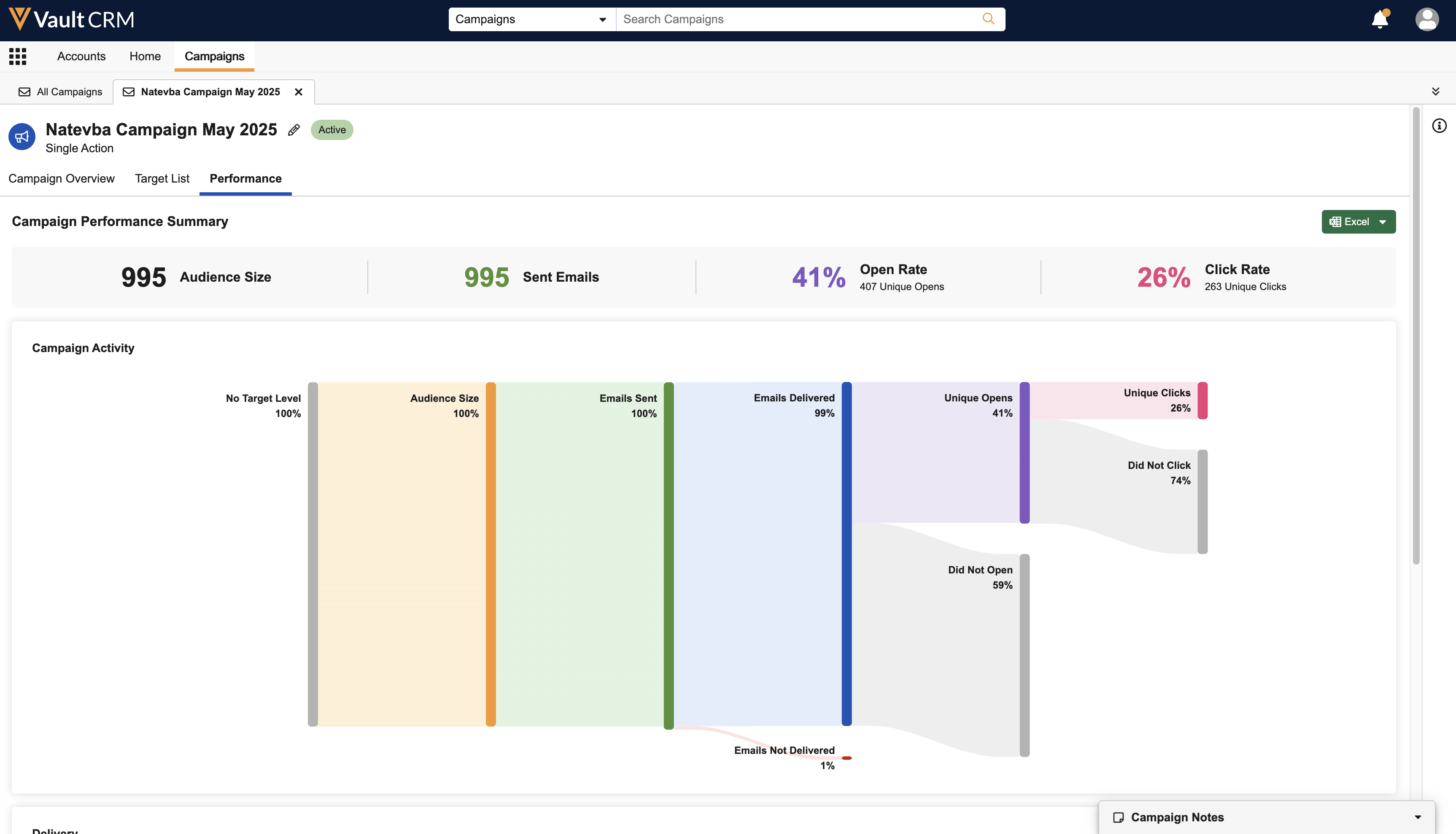
The following sections display, enabling marketing users to visually monitor certain key metrics about a campaign or journey’s performance.
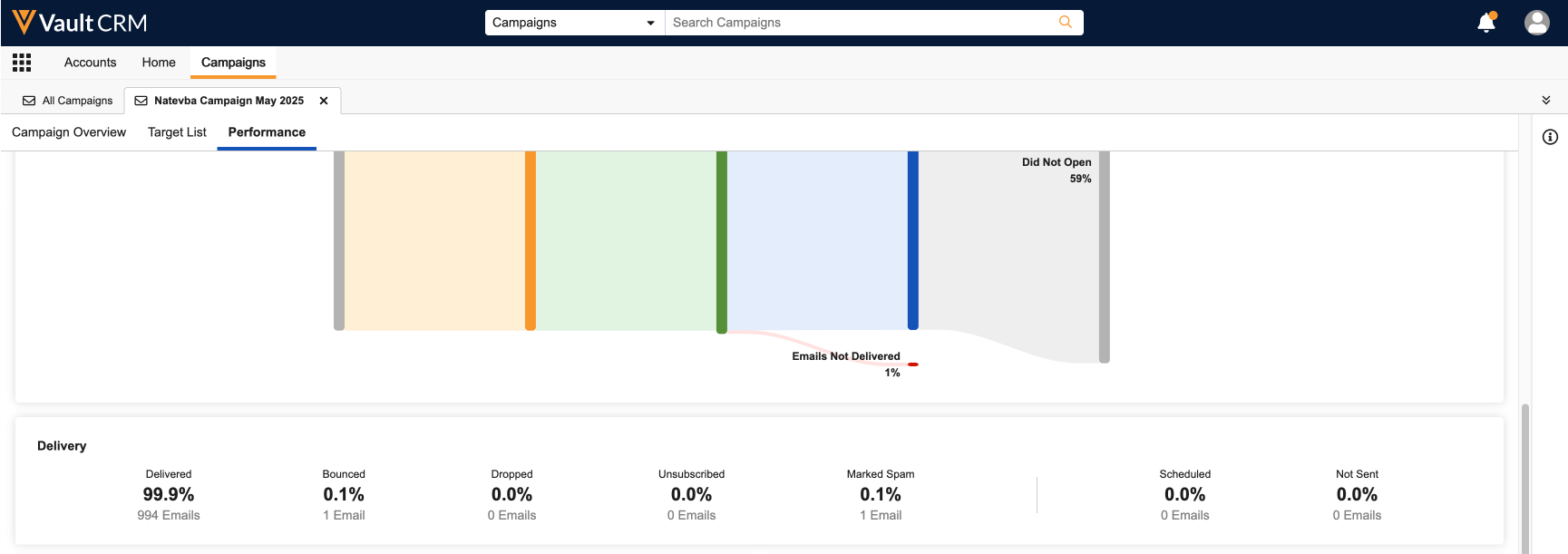
Emails Not Delivered are typically the result of a failed sent_email__v record with a populated failure_reason__v. If all or large amounts of a campaign or journey's emails result in an Email Not Delivered status, the most likely cause is that the associated Email Template is no longer in the Approved state.
The Performance Summary Section
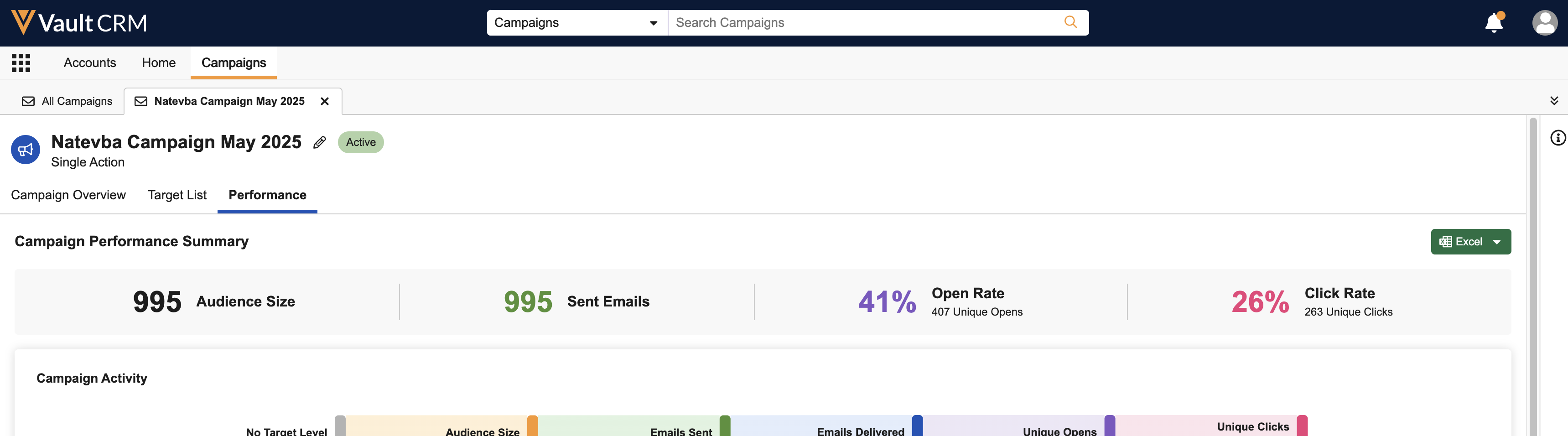
The Performance Summary section displays the following high-level metrics:
- Audience Size – The number of targets in the Target List
- Sent Emails – The total number of emails sent
- Open Rate – The percentage of emails sent that have been opened. Calculated by dividing the total number of opened sent_email__v records associated with the campaign or journey by the number of those sent_email__v records without a status of failed__v.
- Unique Opens – The number of unique recipients who opened the email. For example, one recipient opening the email three times counts as one unique open.
- Click Rate – The click rate of links within the email. Calculated by dividing the total number of sent_email__v records associated with the campaign or journey that have a click_count__v field greater than zero by the number of those sent_email__v records without a status of failed__v.
- Unique Clicks – The number of unique recipients who selected a link in the email. For example, one recipient selecting a link in the email three times counts as one unique click.
Activity
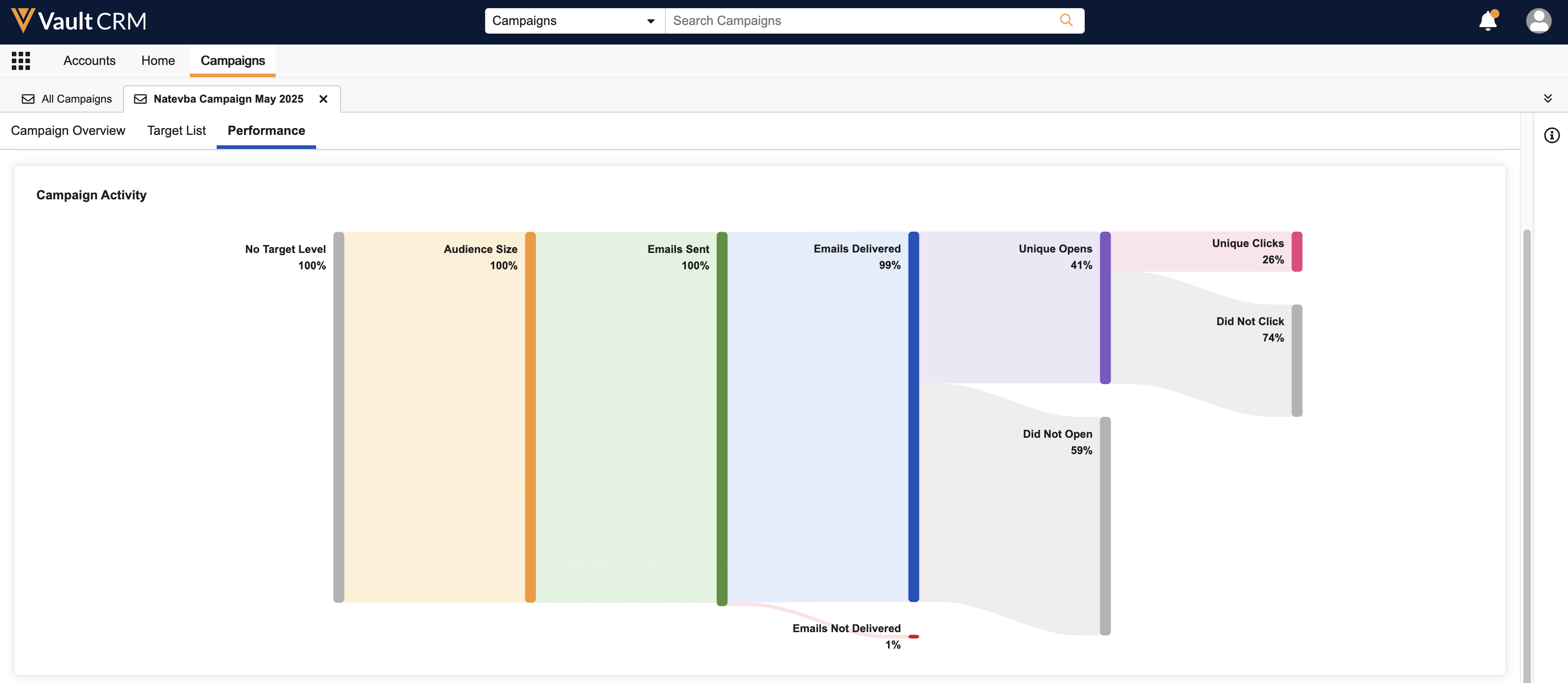
The Activity section displays a Sankey chart illustrating the activity flow of the targets. The chart displays the following levels of activity:
- Target Level
- Audience Size
- Emails Sent versus Emails Scheduled versus Emails Not Sent
- Emails Delivered versus Emails Not Delivered
- Unique Opens vs Did Not Open
- Unique Clicks vs Did Not Click
Metrics at each level display both the percentage of the layer as well as the raw number.
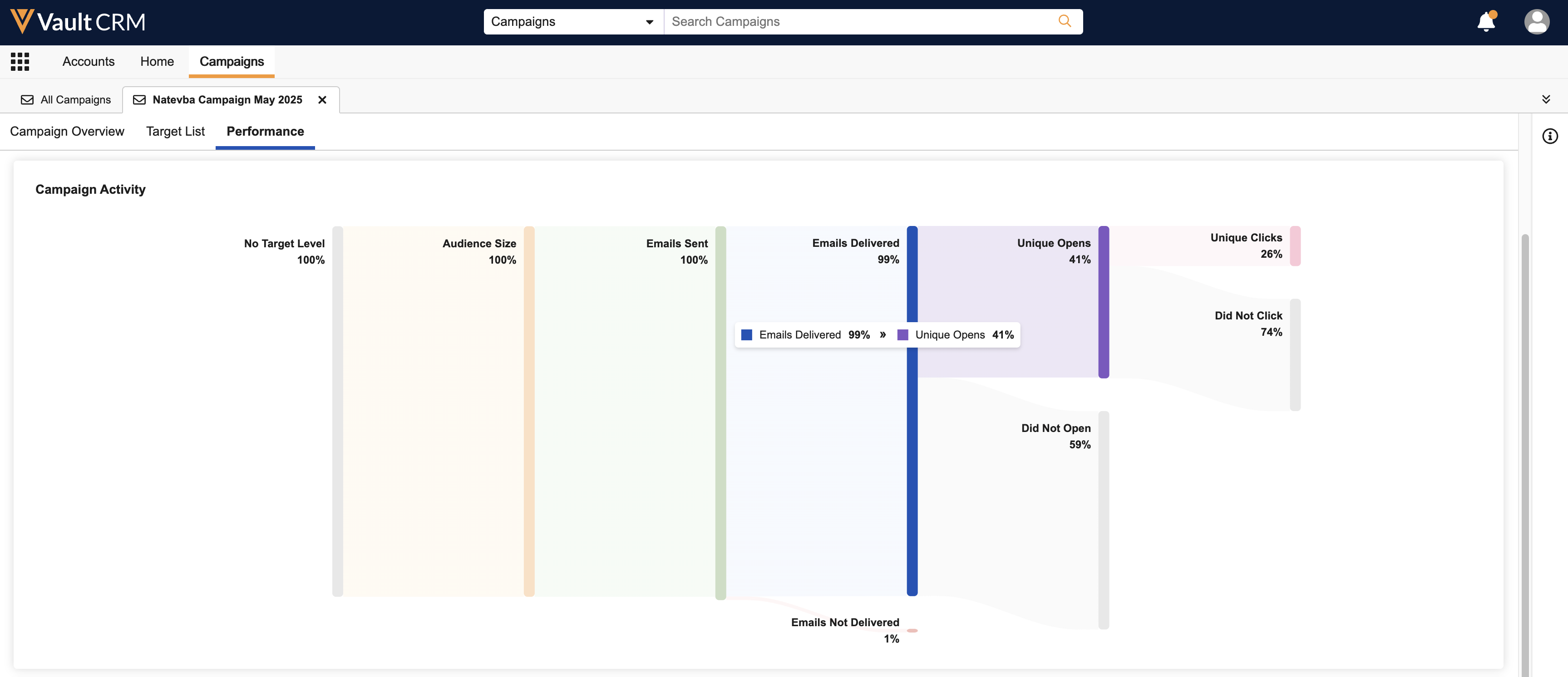
Hover over a segment of the chart to display the conversion rate of the highlighted segment compared to the previous layer.
If the Bot field is populated on an Email Activity record, the activity does not count toward the Open Rate, Unique Opens, Click Rate, or Unique Click metrics or in the Sankey chart on the Performance tab. Activity from suspected bots can still be reviewed by exporting performance details.
Delivery
The Delivery section displays the delivery status of all sent emails, including the following:
- Delivered
- Bounced
- Dropped
- Unsubscribed
- Marked Spam
- Scheduled
- Failed
Each metric displays as both a percentage of the total number of sent emails and as a count of each category.
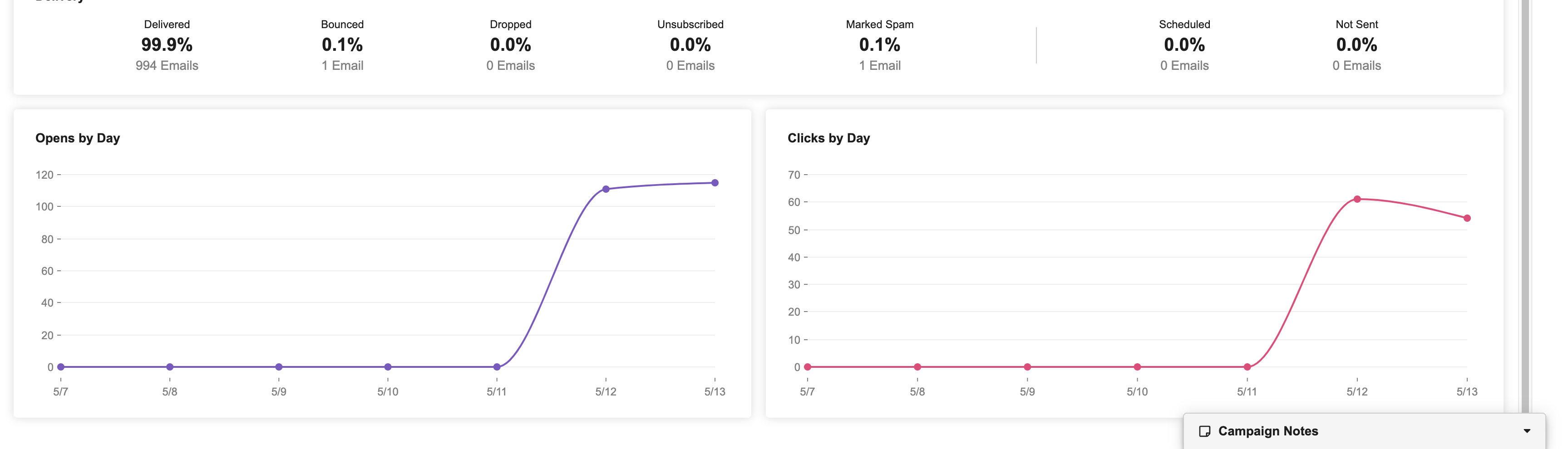
Opens and Clicks by Day
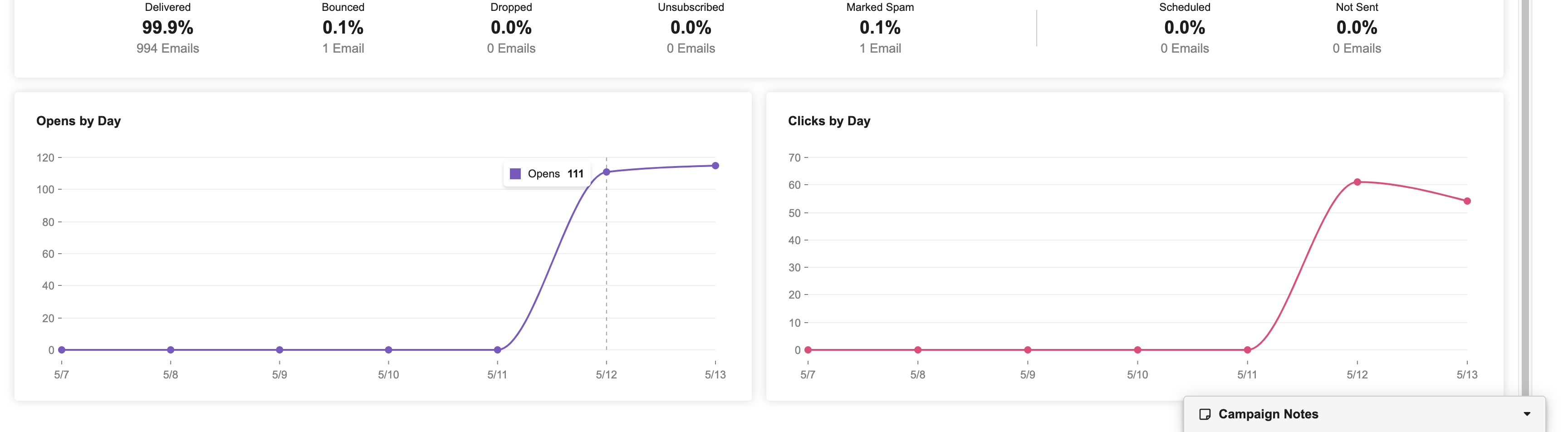
The Opens by Day and Clicks by Day charts display the number of opens and clicks per day since activation.
Hover over a point on the chart to display the exact metric for that day.
Viewing Campaign Field Action Performance as
Marketing Users
To view details about a campaign’s Field Action-based performance, select the Performance tab. This tab displays after activation.
The following metrics display:
- Audience Size - Number of targets
- Completed – Suggestions marked complete or actioned by the end user
- Pending – Suggestions not yet completed or dismissed
- Dismissed – Suggestions removed by the end user
Additionally, the following metrics display in the Field Actions section of the tab:
- Created – Total suggestions generated
- Executed – Suggestions where the end user performed the suggested action
- Marked Complete – Suggestions manually marked complete without execution
- Pending – Suggestions not yet actioned or dismissed
- Dismissed – Suggestions removed by the end user
- Expired – Suggestions that passed their expiration date without action

Viewing Performance Details for Multi-Action Campaign and Journeys as
Marketing Users
Since multi-action campaigns and journeys may have multiple different action types, the Performance tab displays each activity type as a distinct line of metrics.
The Sankey chart representing Activity, as well as graphs for Opens and Clicks by Day are not currently available for multi-action campaigns or journeys.
Exporting Performance Details as
Marketing Users
Marketing users can also download information displayed in the Performance tab as an .xlsx or .csv file:
-
Navigate to the Performance tab of the appropriate campaign or journey.
- Select the Excel button.
- Select the appropriate format.
The number of files downloaded depends on the number of distinct activity types. For example, all Email and Field Email activities are grouped together into one .csv file, while all Field Action activities are grouped into a separate .csv file. When downloading performance metrics as a .xlsx file, these groupings are represented as tabs within the spreadsheet, not different files.
Columns corresponding to fields the user does not have Read field permission to are skipped in the campaign performance export.
The downloaded file contains the following tabs representing different channel types, with each row in each tab representing an email_activity__v record or suggestion__v record associated with the campaign or journey:
- Sent Email ID
- Capture Datetime
- Subject
- From Address
- Email Source
- To Address
- Email Template
- Sent Email Status
- Sent Date
- Total Opens
- Total Clicks
- Status Details
- Bounce Reason - See Bounced Email Management for more information
- Account ID
- State
- Name
- Account Identifier
- HCP Type
- Primary Specialty
- External ID
- Email Activity Details
- Email
- Email Activity ID
- Activity Datetime
- Header
- Activity
- Activity Details
- Clicked URL
- Approved Document
- Document Name
- Client Name
- Client OS
- Client Type
- Device
- Account ID
- State
- Name
- Account Identifier
- Level
- HCP Type
- Primary Specialty
- External ID
- Bot - See Detecting Automated Email Interactions from Bots for more information
- Bounce Reason - See Bounced Email Management for more information
- Field Action
- Suggestion Feedback ID
- Created Date
- Channel
- Suggestion Feedback Type
- Suggestion ID
- Suggestion Type
- Title
- Reason
- Priority
- Posted Date
- Expiration Date
- Created By
- Planned Call Channel
- Planned Call Date
- Call
- Email Template ID
- Email Template Vault ID
- Sent Email
- Account ID
- State
- Name
- Account Identifier
- Level
- HCP Type
- Primary Specialty
- External ID

