Product-Dependent Picklists for Commercial Insights
End users can dynamically filter picklist options on Commercial Insights based on the selected product or product-detail group, ensuring they only select picklist options relevant to the designated product line. This streamlines data entry, increases reporting accuracy during customer interactions, and ensures cleaner data for downstream analytics.
Who can use this feature?
- End Users - Browser, iPad,
- Using Product-Dependent Picklists
- Business Admin Users - Browser
- Defining Product-Dependent Picklists
- Users do not require an additional license
Configuring Product-Dependent Picklists for
 Business Admin Users
To configure this feature:
- Ensure Commercial Insights is configured.
- Navigate to Admin > Users & Groups > Permission Sets.
- Select the appropriate permission set.
- Select Objects.
- Grant the following permissions:
Object
Object Permission
Object Types
Fields
Field Permission
product_map__v CRED n/a - status__v
- object__v
- dependent_field__v
- available_picklist_values__v
- controlling_detail_product__v
- controlling_detail_group__v
- created_date__v
Edit
End Users
To configure this feature:
- Ensure Commercial Insights is configured.
- Navigate to Admin > Users & Groups > Permission Sets.
- Select the appropriate permission set.
- Select Objects.
- Grant the following permissions:
Object
Object Permission
Object Types
Fields
Field Permission
product_map__v
R
n/a
- available_picklist_values__v
- controlling_detail_product__v
- created_date__v
- dependent_field__v
- modified_date__v
- object__v
- status__v
Optional
- controlling_detail_group__v
Read
- Navigate to Business Admin > Objects > vmobile_object_configuration__v.
- Ensure a product_map__v object VMOC is active for the appropriate platforms.
Defining Product-Dependent Picklists as
Business Admin Users
Business Admin Users define the specific picklist values available for each product or product group combination by creating product map records.
To define product-dependent picklists and their filtered options:
- Navigate to Business Admin > Objects > product_map__v.
- Select Create.
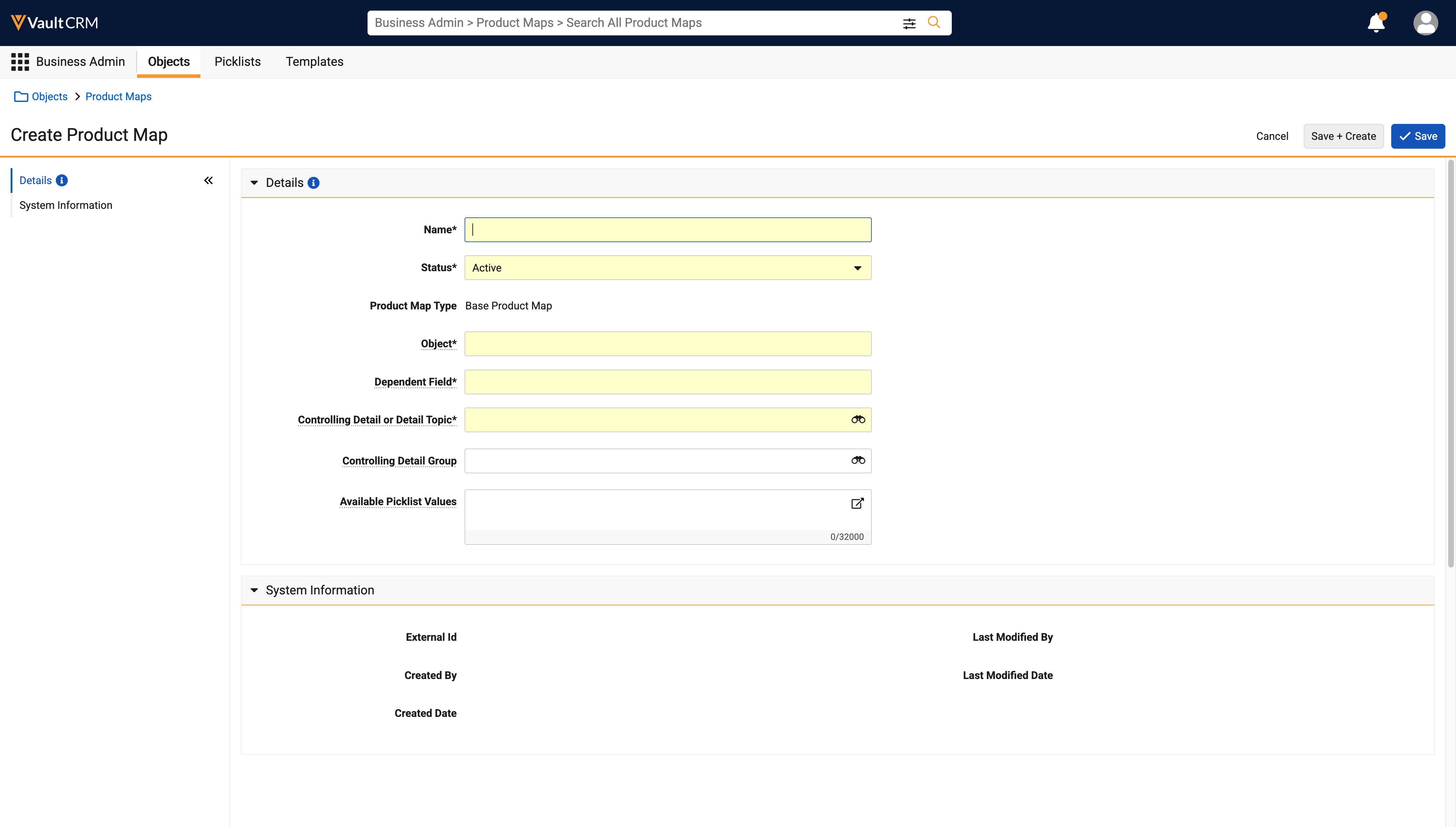
- Populate the following fields:
- object__v - commercial_insight__v
- controlling_detail_product__v - Select the detail product determining which picklist values are available
- controlling_detail_group__v - If Detail Groups are enabled, enter the appropriate detail group for the controlling detail product. Together, the controlling detail product and controlling detail group determine which picklist values are available.
- dependent_field__v - Enter the API name of the picklist to be filtered based on the selected product. Both single-select and multi-select picklists are supported.
Using a dependent_field__v value that is also a controlled field for a Vault Platform Picklist Dependency is not supported.
- available_picklist_values__v - Enter a semicolon-separated list of picklist value API names available for the selected product or product-detail group combination. For example, systemic_barrier__v;brand_difference__v;evidence_need__v.
- If this field is left blank, no picklist options display when the product is selected
- If no Product Map record exists for a product, all picklist values are available
- For any dependent picklists marked as required on the layout or through layout rules, ensure there is at least one available picklist value for each value in the controlling picklist. If a dependent picklist is required but does not have any available picklist values for the product or product-detail group combination, users are prevented from saving or submitting the commercial insight.
- Select Save.
Users must have Edit permission for all objects, controlling fields, and dependent fields referenced in the product_map__v records available to them.
Using Product-Dependent Picklists as
End Users
If a product_map__v record is defined for a product, end users can only select the picklist options specified.
To select product-dependent picklist values on a Commercial Insight record:
- Navigate to a Commercial Insight.
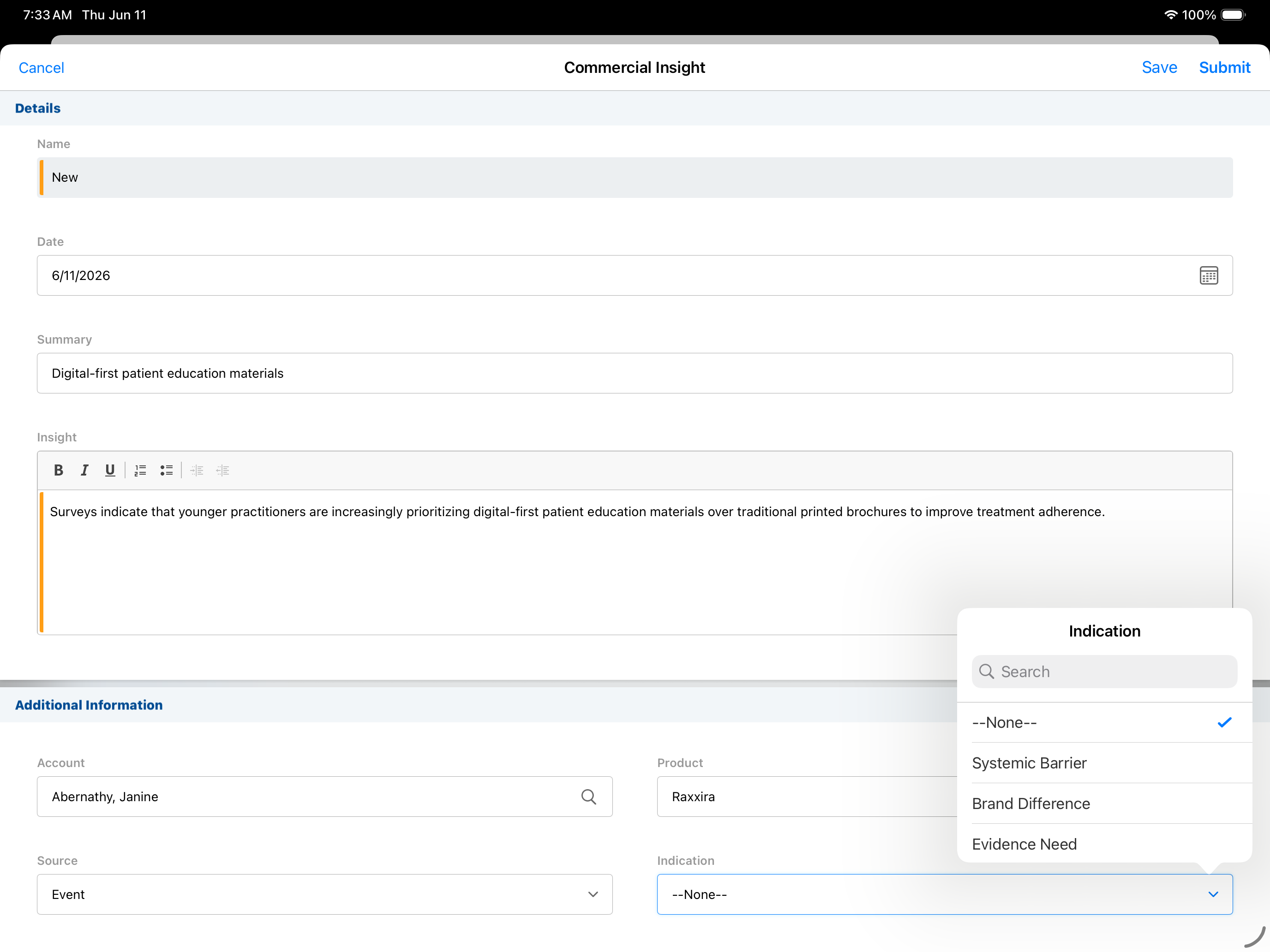
- Select a value in the Product field.
- Select a value from the dependent picklist.
The dependent picklist displays values as defined in the product_map__v record. Available values are restricted based on the selected product (and Detail Group combined, if applicable).
- Select Save.

