Commercial Insights
Commercial Insights allows end users to gather and record valuable information on industry trends and HCP sentiments and behaviors. End users often discover Commercial Insights during HCP interactions, social listening, research, or while attending industry events. When these observations are documented, commercial teams can use this information to analyze market outlook and adapt their strategies based on real-world data.
Who can use this feature?
- End Users - Browser, iPad,
- Creating Commercial Insights from the Commercial Insights Tab
- Creating Commercial Insights from an Account
- Creating Commercial Insights from the Call Report
- Business Admin Users - Browser
- Unlocking Commercial Insights
- Users do not require an additional license
Configuring Commercial Insights for
 Business Admin Users
To configure this feature:
- Ensure the following is complete:
- Navigate to Admin > Users & Groups > Permission Sets.
- Select the appropriate permission set.
- Select the Objects tab.
- Grant the following permissions:
Object
Object Permission
Object Types
Fields
Field Permission
commercial_insight__v
CRED
commercial_insight__v
All Fields
Edit
- Grant Execute permission to the Create Commercial Insight action on the account__v object.
- Navigate to Admin > Configuration > Objects
- Select account__v
- Select the Object Types tab.
- Select Actions
- Select Edit Object Type Actions from the All Actions menu
- Grant access to the create_commercial_insight__v action for the appropriate object types
- Select the commercial_insight__v object.
- Grant Execute permission to the Unlock action
- Grant Execute permission to the Submit action
- Navigate to Admin > Configuration > Tabs.
- Select Create
- Add a new tab for the commercial_insight__v object
- Select Save
- Navigate to Admin > Users & Groups > Permission Sets.
- Select the appropriate permission set
- Select the Tabs tab
- Grant access to the Commercial Insights tab
- Select Save
End Users
To configure this feature:
- Ensure the following is complete:
- Navigate to Admin > Users & Groups > Permission Sets.
- Select the appropriate permission set.
- Select the Objects tab.
- Grant the following permissions:
Object
Object Permission
Object Types
Fields
Field Permission
commercial_insight__v
CRED
commercial_insight__v
All Fields
Edit
- Select the commercial_insight__v object.
- Grant Execute permission to the Submit action
- Navigate to Business Admin > Objects > Veeva Messages.
- Select TAB_NAV_DISPLAY
- Add CommercialInsights to the Text field in the desired order to display the tab on a mobile platform
- Navigate to Business Admin > Objects > Veeva Settings.
- Define the columns displayed on the Commercial Insights tab on mobile platforms by entering a comma-delimited list of field API names in the Commercial Insights Columns Veeva Setting. The recommended/default value is: date__v,summary__v,insight__v,account__v,product__v,commercial_insight_status__v
- Navigate to Admin > Configuration > Tabs.
- Select Create
- Add a new tab for the commercial_insight__v object
- Select Save
- Navigate to Admin > Users & Groups > Permission Sets.
- Select the appropriate permission set
- Select the Tabs tab
- Grant access to the Commercial Insights tab
- Select Save
- Navigate to Business Admin > Objects > VMobile Object Configurations.
- Ensure a VMOC is active for commercial_insight__v for the appropriate mobile device.
Optional Configuration
If creating Commercial Insights from the Call Report:
- Ensure Configuring Call Reporting is complete.
- Navigate to Admin > Users & Groups > Permission Sets.
- Select the appropriate permission set.
- Select the Objects tab.
- Select call2__v.
- Grant View permission to the commercial_insights_section__v section control.
- Add the commercial_insights_section__v section control to the appropriate Call Report (call2__v) layouts.
To allow users to create a Commercial Insight from the account detail:
- Navigate to Admin > Users & Groups > Permission Sets.
- Select the appropriate permission set
- Select the Objects tab
- Select account__v
- Grant Execute permission to the Create Commercial Insight action
- Navigate to Admin > Configuration > Objects
- Select account__v
- Select the Object Types tab.
- Select Actions
- Select Edit Object Type Actions from the All Actions menu
- Grant access to the create_commercial_insight__v object type action for the appropriate object types
To add the Commercial Insight section to the account layout:
- Navigate to Admin > Configuration > Objects.
- Select account__v.
- Select the Layouts tab.
- Add the commercial_insights__v related object section to the appropriate layout.
Using Commercial Insights as
End Users
Users can record insights directly from the Commercial Insights tab or from an account.
Once a Commercial Insight is submitted, it is locked and cannot be edited or deleted by end users. Business admin users can unlock a Commercial Insight for editing.
Creating Commercial Insights from the Commercial Insights Tab
To create a Commercial Insight:
- Navigate to the Commercial Insights tab.
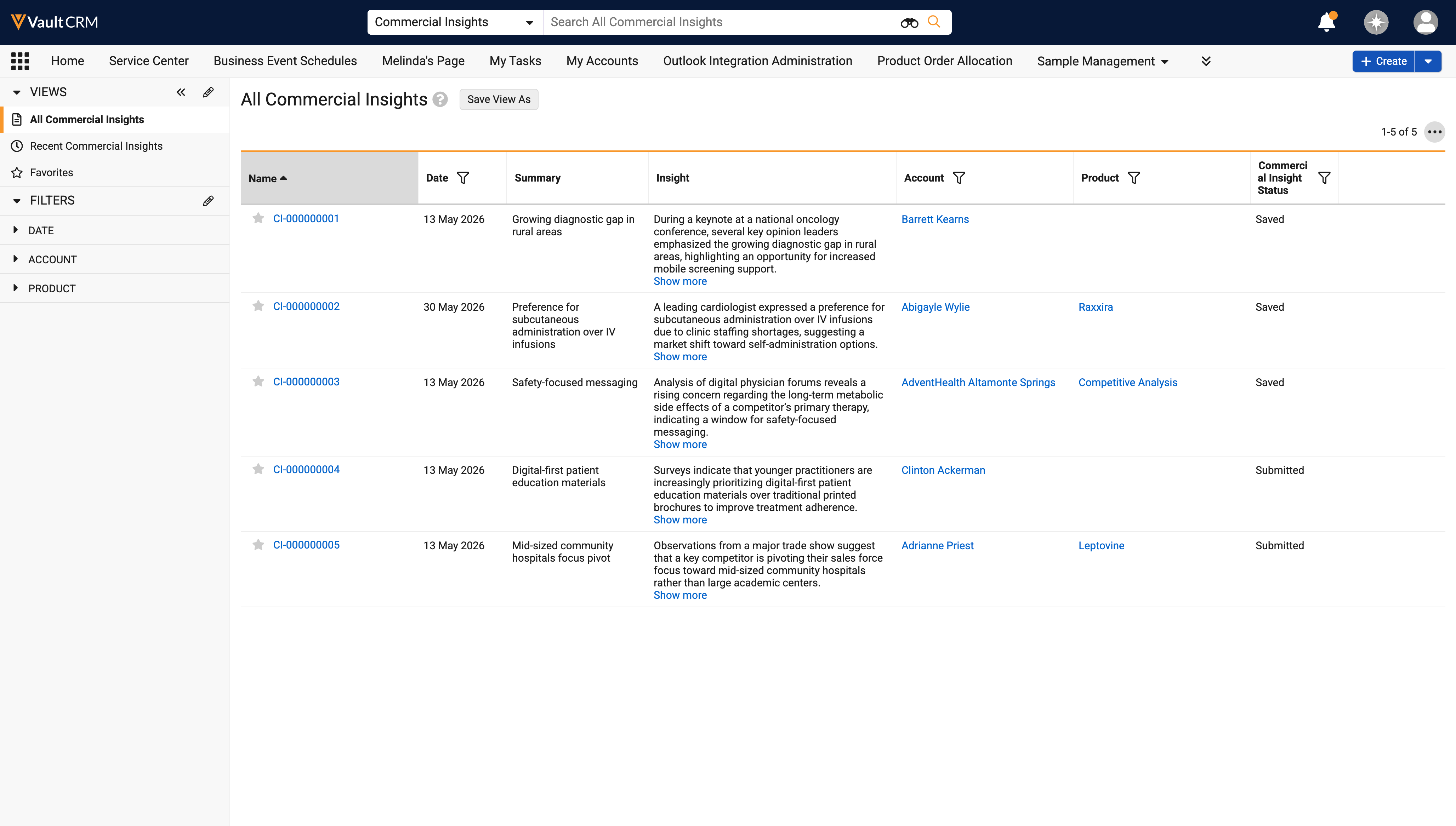
- Select the Plus icon (iPad
- Enter the details of the Commercial Insight in the Insight field. All other fields are optional. When selecting a Product, the list is filtered to products assigned to the user in My Setup.
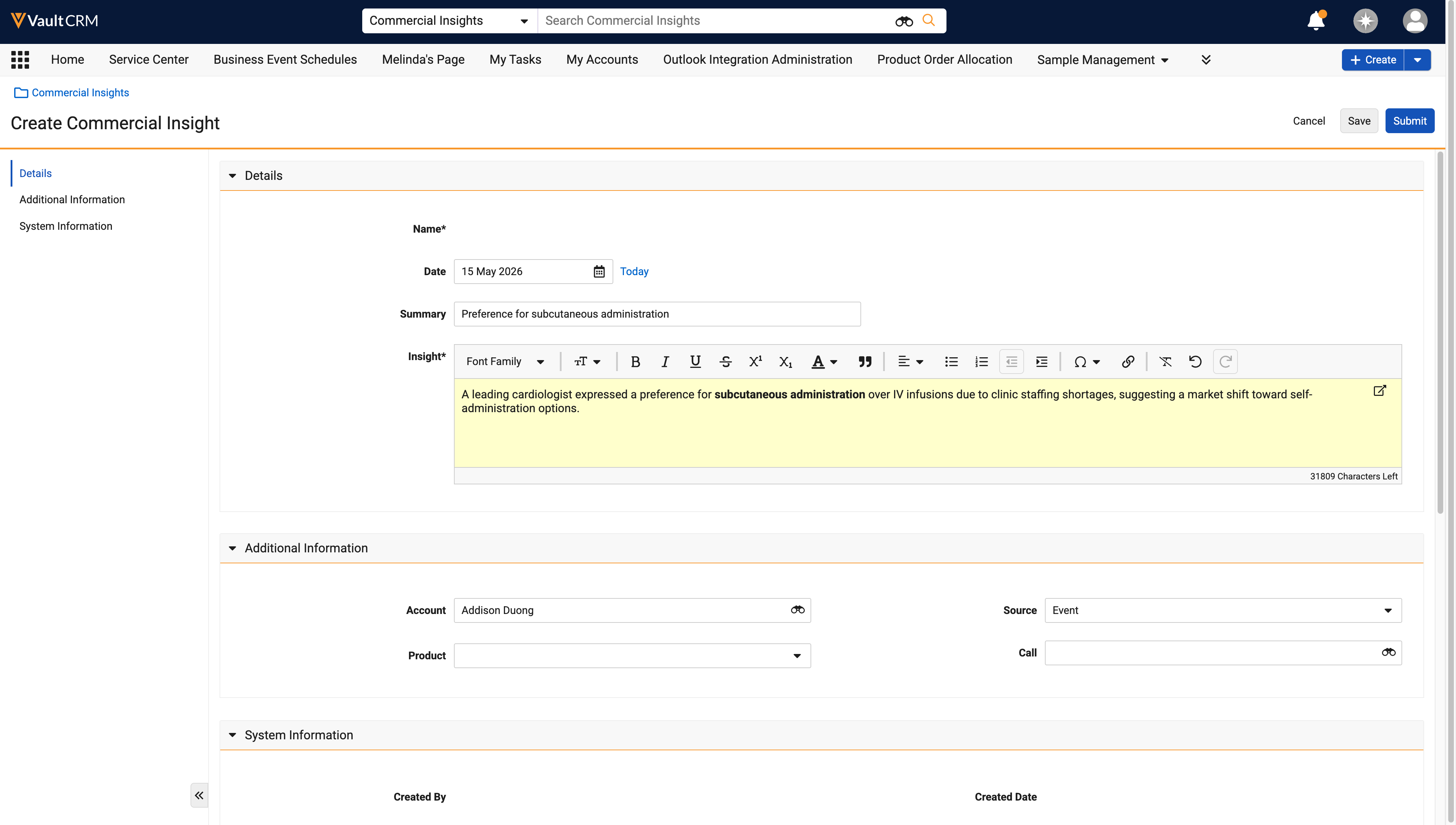
- Select Save or Submit.
Creating Commercial Insights from an Account
To create an insight for a specific account:
- Navigate to the appropriate account.
- Select Create from the Commercial Insights section. A Commercial Insight record displays with the Account field automatically populated.
- Enter the details of the Commercial Insight in the Insight field. All other fields are optional.
- Select Save or Submit.
Creating Commercial Insights from the Call Report
To create a Commercial Insight from the call report:
- Navigate to the Commercial Insights section on the Call Report.
- Select Add Commercial Insight.
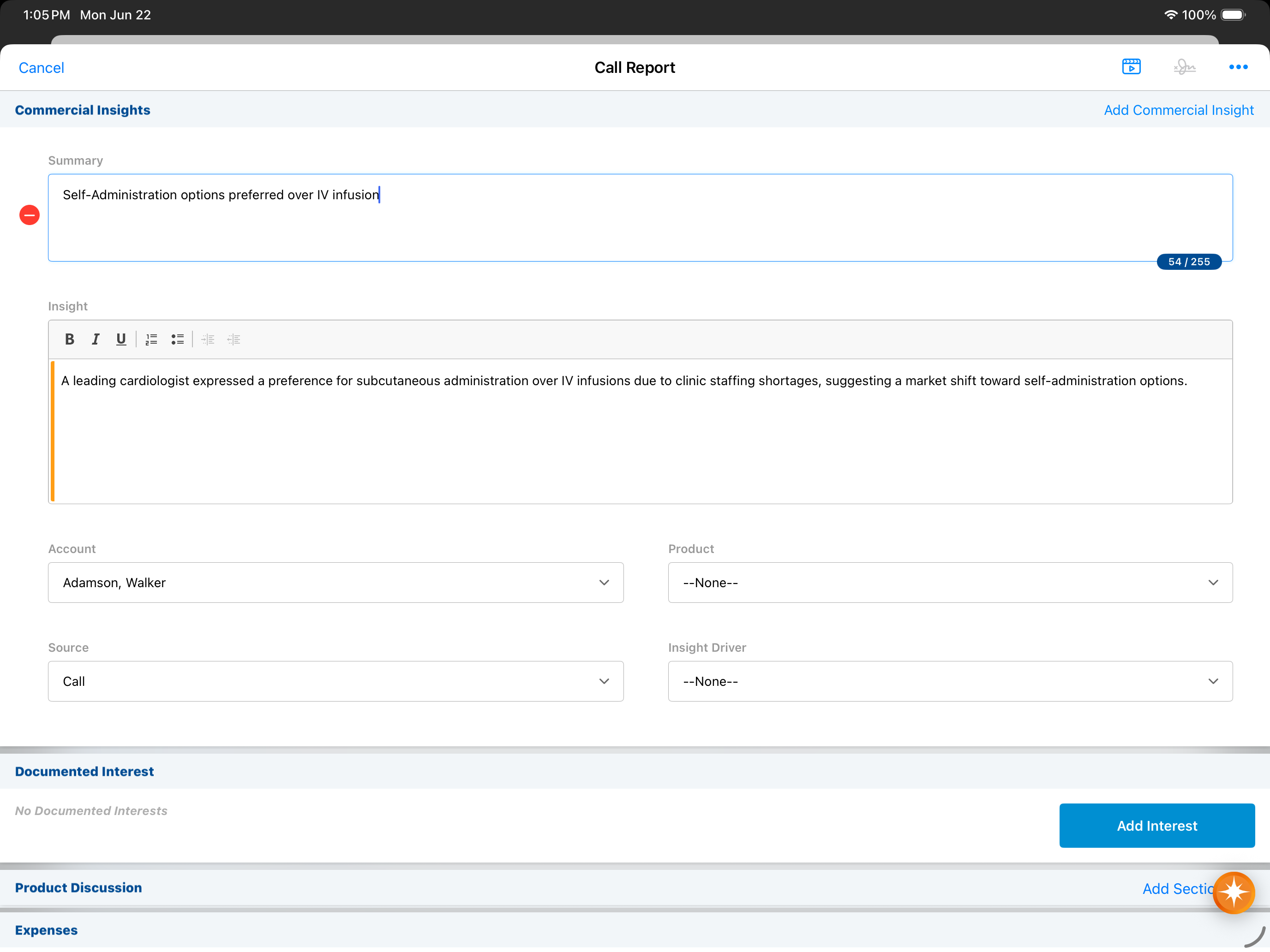
- Complete the detail fields. New entries are automatically placed at the bottom of the section. Users can delete a Commercial Insight by selecting the delete icon.
- Select Save or Submit. The Commercial Insight is saved when the call report is saved or implicitly saved, and submitted when the call report is submitted.
Considerations
- A maximum of 25 Commercial Insights can be associated with a single call report. Once this limit is reached, the Add Commercial Insight action becomes inactive.
- Commercial Insights display on the parent call only, for Unique Activities group calls or calls with person account attendees
- Unlocking a call does not unlock a Commercial Insight. Business admin users need to unlock the Commercial Insight separately.
Unlocking Commercial Insights as
Business Admin Users
If a Commercial Insight requires correction after it is submitted, business admin users can unlock the record. This functionality is only available from the Browser platform.
To unlock a record:
- Select the Commercial Insight to unlock.
- Select the Unlock action from the All Actions menu. The record status reverts from Submitted to Saved, allowing for further edits.

