Sending Local Events Management Content via Approved Email
To enable improved content sharing, end users can add attachments associated with their event to Approved Emails. This enables users to send event documents to event attendees and speakers without the need to first add the content to a PromoMats or MedComms instance. Email recipients can download attached files to their device, which is tracked in Vault CRM.
Who can use this feature?
- Content Creators – Browser
- Adding the {{insertEventFiles}} Token to Email Templates
- End Users – Browser, iPad
- Adding Files to Event Material Records
- Adding Files to Events Management Approved Emails
- Users require Approved Email and Events Management Licenses
Configuring Sending Local Events Management Content via Approved Email for
 Integration Users
To configure this feature:
-
Ensure the following features are enabled:
- Navigate to Admin > Users & Groups > Permission Sets.
- Select the appropriate permission set.
- Select the Objects tab.
-
Grant the following permissions:
Object Object Permission Object Types Fields Field Permission veeva_distribution__v CRE crm_content__v - allow_source_download__v
- cdn_status__v
- cdn_path__v
- cdn_path_contains_vault_id__v
- content_status__v
- distribution_channel__v
- file_extension__v
- file_name__v
- file_size__v
- file_type__v
- last_processed_date__v
- last_published_file__v
- last_published_version__v
- processing_status__v
- related_object_name__v
- related_object_record_id__v
- related_attachment_id__v
- status_details__v
- veeva_content__v
Edit sent_email__v CRE events_management__v email_files__v Read veeva_distributions__v Edit sent_fragment__v CRE sent_veeva_distribution__v Edit
End Users
To configure this feature:
-
Ensure the following features are enabled:
- Navigate to Admin > Users & Groups > Permission Sets.
- Select the appropriate permission set.
- Select the Objects tab.
-
Grant the following permissions:
Object Object Permission Object Types Fields Field Permission veeva_distribution__v CRE crm_content__v - processing_status__v
- related_object_name__v
- related_object_record_id__v
- related_attachment_id__v
Edit - cdn_status__v
- cdn_path__v
- cdn_path_contains_vault_id__v
- file_extension__v
- file_name__v
- file_size__v
- file_type__v
- last_processed_date__v
- last_published_file__v
- last_published_version__v
- status_details__v
Read em_event_material__v R All approved__v Read sent_email__v CRE events_management__v email_files__v Edit veeva_distributions__v Read sent_fragment__v R sent_veeva_distribution__v sent_veeva_distribution__v Read - Navigate to Admin > Configuration > Objects > em_event_material__v > Layouts.
- Place the Attachments related object section on the appropriate layouts.
- Navigate to Admin > Configuration > Objects > em_event_material__v > Fields > approved__v.
- Select yes__v as the default picklist value. This step is optional and immediately enables sharing attachments from the Event Material records.
Adding the {{insertEventFiles}} Token to Email Templates as
Content Creators
Content creators can control the availability and positioning of attached files in Approved Email templates by inserting the {{insertEventFiles}} token. Content creators should consider the following when using the {{insertEventFiles}} token:
- The token can only be used in Events Management email templates
-
The token should be enclosed in an empty <table> HTML tag
Adding the token via the BEE Editor automatically encloses the token in the appropriate tag.
- The token cannot be used in conjunction with the {{insertEmailFragments}} token. If both tokens are present in the Email Template, the {{insertEmailFragments}} token is ignored and does not render.
Styling the {{insertEventFiles}} Token
Files can be styled via the enclosing <table> tag or via the following CSS classes:
- .ae-dynamic-email-fragment – Controls the style of the table
- .ae-dynamic-email-fragment td – Controls the style of the table cells
- .ae-dynamic-email-fragment td.file-type-icon – Controls the style of table cells containing file icons
- .ae-dynamic-email-fragment td.file-name – Controls the style of the table cells containing file names
- .ae-dynamic-email-fragment a:link – Controls the style of an unvisited file link
- .ae-dynamic-email-fragment a:visited – Controls the style of a visited file link
Adding Files to Event Material Records as
End Users
Files can be made available in Approved Emails by adding attachments to an em_event_material__v record with an approved__v field value of yes__v.
The following formats are supported:
| File Category | Supported File Extensions |
|---|---|
| Microsoft Office Files | .docx, .xlsx, .pptx |
| Audio Files | .mp3, .wav |
| Video Files | .mp4, .mov, .avi |
| Image Files | .jpg, .jpeg, .png, .gif |
Adding Files to Events Management Approved Emails as
End Users
To add local files related to an event to an Approved Email:
- Initiate sending an Approved Email for the appropriate event.
- Select the appropriate template. Templates with the {{insertEventFiles}} token display a red placeholder prompting users to add files to the email.
- Select the Add Files button to display the Add Files modal, which displays all attachments associated with the event via em_event_material__v records with an approved__v field of yes__v.
-
Select the checkbox next to the appropriate files to add to the email. Users can locate files to add via the following methods:
- Searching for a file’s name, description, or type
- Filtering the list of files by the appropriate document type
-
Select Add.
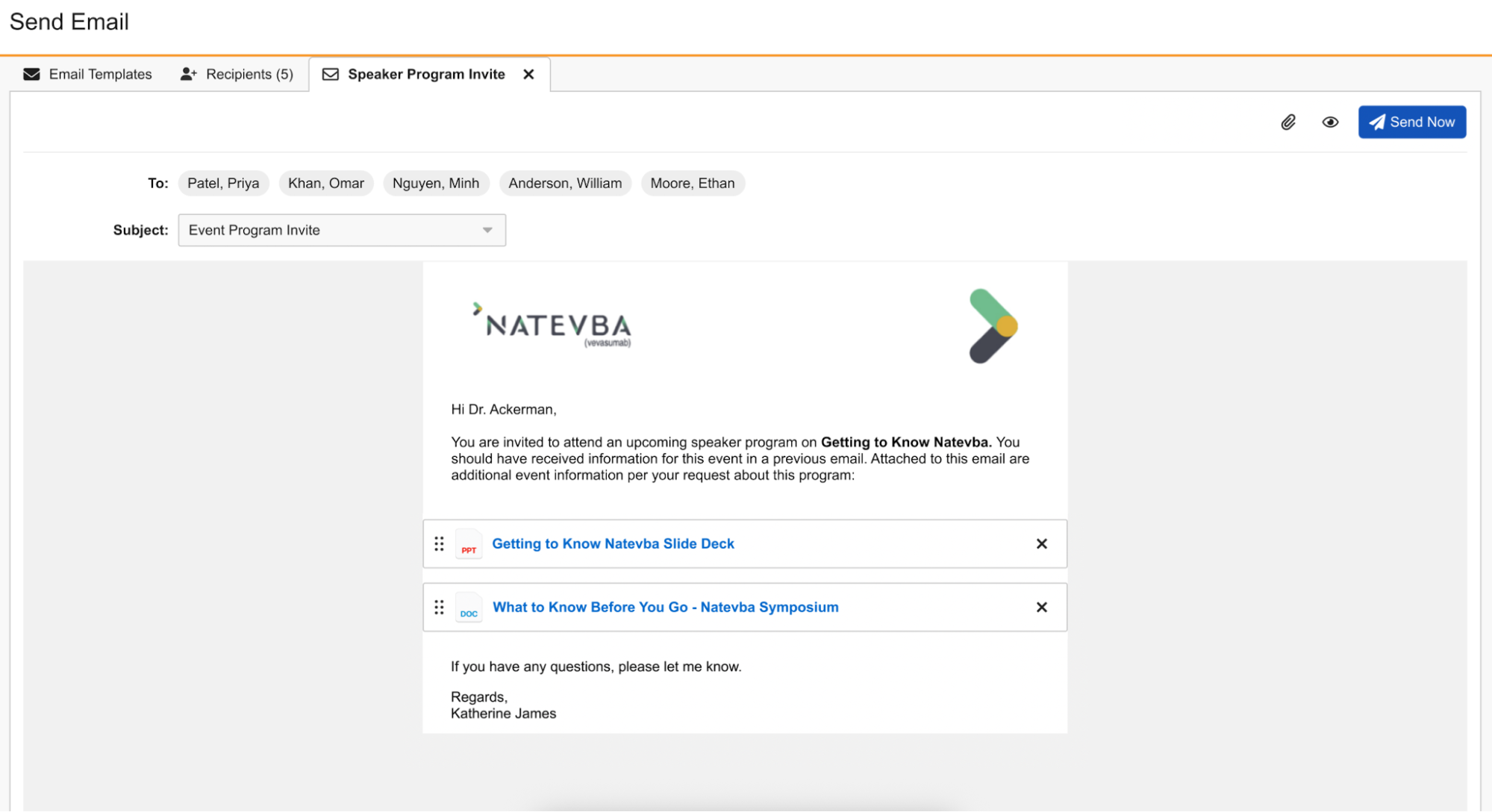
- Drag and drop the files to arrange them in the appropriate order.
- Select the Preview button to preview how the inserted files will display in the final email sent to recipients. Files display as hyperlinks, with the name serving as the link text.
- Continue with sending the Approved Email.
Viewing and Downloading Files From Sent Emails
Selecting the File Name hyperlink in the sent email displays the attachment file via the HCP Content Player in the device’s browser. Recipients can select the Download button to download the attachment from the HCP Content Player.
Withdrawing Content Sent via Approved Email
If content sent via Approved Email becomes outdated, end users can remove recipient access by deleting the associated attachment. When the attachment file is deleted, existing links to the content no longer function.
Tracking File Views and Downloads
When a file in an Approved Email is selected and downloaded by the recipient, an email_activity__v record is created and associated with the sent_email__v record representing the email. This email_activity__v record has the following properties:
- Object Type – veeva_content_player_activity__v
- event_type__v – downloaded__v
- activity_datetime__v – The time the recipient clicked on download button
- sent_email__v – The sent_email__v record which contained the link
- veeva_distribution__v – References the Veeva Distribution record used to access the downloaded file
- transaction_type__v – events_management__v
- client_name__v – The name of the email client used to open the email
- client_os__v– The operating system of the device used to open the email
- client_type__v– The client type used to open the email
- device_type__v – The device type used to open the email

