Legacy Microsoft Outlook Integrations
Starting with the 26R2.2 release, Vault CRM will transition all Microsoft Outlook integrations, including the My Schedule calendar and Service Center Shared Mailbox to use the Core System User. While Vault CRM instances created after 26R1.0 will automatically use the Core System User, customers currently using a dedicated integration user must manually switch to the Core System User before 26R2.2 to maintain functionality.
Legacy Microsoft Outlook Integration Permissions for
 My Schedule Integration User
Legacy integration users require the following configuration for the My Schedule integration with Microsoft Outlook:
-
Navigate to Admin > Users & Groups > Permission Sets.
-
Select the appropriate integration user permission set, or create a permission set and security profile for the integration user, if one does not already exist. The integration user requires a dedicated permission set and security profile, but the same integration user can be used for multiple integrations in Vault CRM.
-
Select the Objects tab.
-
Grant the following permissions:
|
Object |
Object Permission |
Object Types |
Fields |
Field Permission |
|---|---|---|---|---|
| account__v | at least R | All |
|
at least Read |
| call2_v | R | All |
Required:
*Optional:
|
Read |
| child_account__v | R | All | parent_child_name__v | Read |
|
external_calendar__v |
CRED |
microsoft_outlook__v |
*Optional:
|
Edit |
|
external_calendar_event__v |
CRED |
microsoft_outlook__v |
Required:
*Optional:
|
Edit |
| language__sys | R | n/a | name__v | Read |
|
language_locale__sys |
R |
n/a |
name__v |
Read |
|
locale__sys |
R |
n/a |
name__v |
Read |
| medical_event__v | R | All |
|
Read |
| medx__v | R | All |
|
Read |
|
message__v |
R |
n/a |
|
Read |
| remote_meeting__v | R | base__v |
Required:
*Optional:
|
Read |
|
time_off_territory__v |
R |
All |
|
Read |
|
user__sys |
RE |
n/a |
|
Edit |
|
Read | |||
|
veeva_settings__v |
R |
n/a |
|
Read |
If any of the objects in Vault CRM have Dynamic Access Control enabled, the integration user must be given View permission to the records though Matching Sharing Rules or Custom Sharing Rules if the events are to be synced with Outlook Integration.
- Select the Admin tab for the permission set.
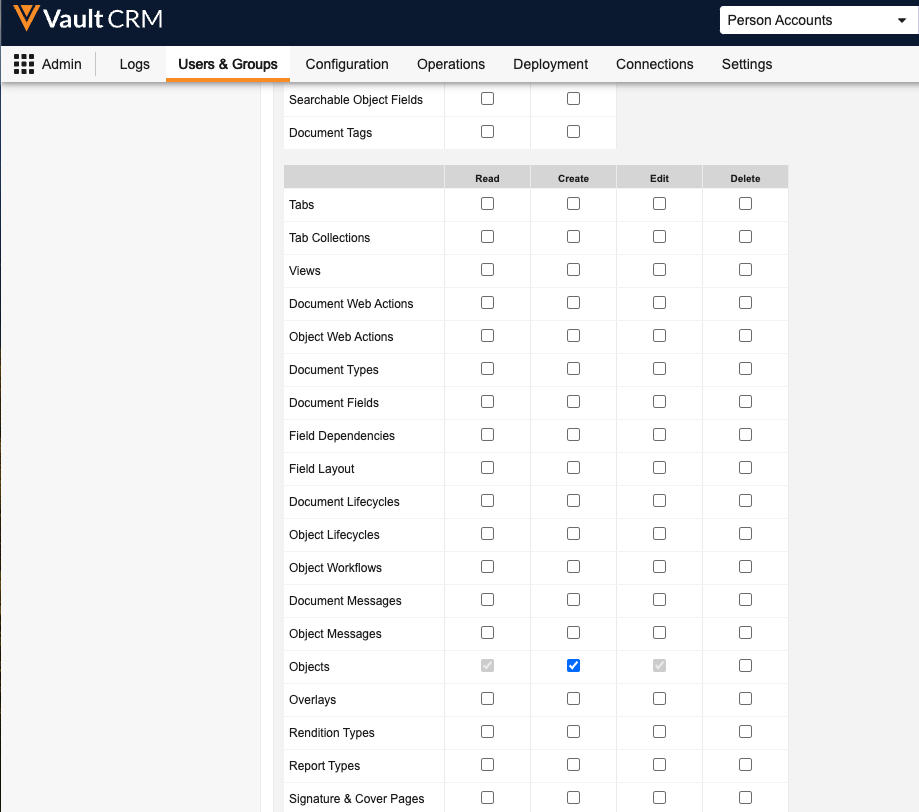
Grant Read, Create, and Edit permission for Objects, found under the Configuration section of the Admin tab.
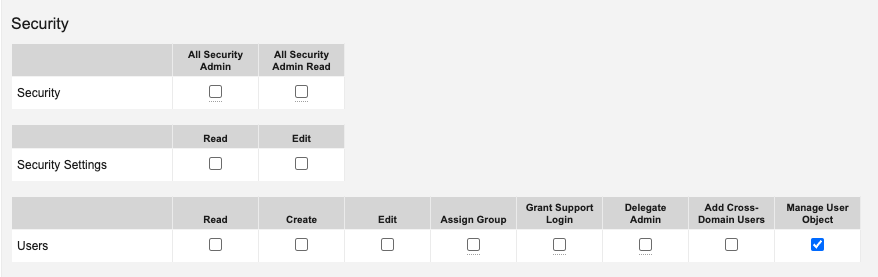
- Select the checkbox for the Manage User Object setting, found under the Security section of the Admin tab.
- Select the Application tab for the permission set.
Select the checkbox for the Access API setting, listed in the API row.
Navigate to Business Admin > Objects > user_territory__v.
- Create a user_territory__v record for the integration user and assign the integration user to the root territory in the Vault.
- Select the Outlook Integration Administration tab.
- Enter the integration user's Vault CRM credentials on the Outlook Integration Administration page, and select Save.
Service Center Integration Users
Legacy Service Center integration users require the following permissions:
- Received Email (received_email__v) object:
- Object Permission: Create, Read, Edit
- Object Types: service_center__v,
- All Object Fields: Create, Read, Edit
- Application Permissions:
- Access API
- File Staging: Access
Switching to the Core System User as
Admin Users
Admin users must manually switch Microsoft Outlook integrations to use the Core System User to eliminate the need to manage a dedicated integration user.
System Users are created in Vault CRM instances and managed by Veeva for integration purposes. By default, these users are assigned the appropriate permission set. Customers cannot update the permission set.
By default, only a subset of external_calendar__v and external_calendar_event__v fields are synced from Microsoft Outlook to My Schedule. In order to sync additional data from Microsoft Outlook, admins must define additional fields before manually switching to the Core System User. See Integrating My Schedule and Microsoft Outlook Calendars for more information.
Preparation and Testing
To ensure a smooth transition, admins should configure and test the following items before switching to the Core System User:
- Configure custom field syncing - By default, only a subset of external_calendar__v and external_calendar_event__v fields are synced from Microsoft Outlook to My Schedule. In order to sync additional data from Microsoft Outlook, admins must define these additional fields before switching to the Core System User. See Integrating My Schedule and Microsoft Outlook Calendars for more information.
- Create and assign custom permission sets - In order to grant the Core System User permissions for custom object types, create a custom permission set and assign it to the Core System User via an Application Role. See Adding Permission Sets to Application Roles for more information.
- Configure and verify Dynamic Access Control sharing rules - If any objects that are part of the Outlook Integration have Dynamic Access Control enabled, the Core System User must be given View permission to the records through Matching Sharing Rules or Custom Sharing Rules for the events to be synced with Outlook Integration. See System Owned Users in Vault CRM for more information.
Using Dynamic Access Control
When Dynamic Access Control is enabled for any object required for the integration (listed below), the Core System User must be given permission to the records through Matching Sharing Rules or Custom Sharing Rules. All objects require View permission, except user__sys, which requires Edit permission.
- account__v
- call2__v
- child_account__v
- language__sys
- locale__sys
- medical_event__v
- medx__v
- message__v
- remote_meeting__v
- time_off_territory__v
- user__sys*
- veeva_settings__v
*Requires Edit permission
Switching to the Core System User
To switch to the Core System User:
-
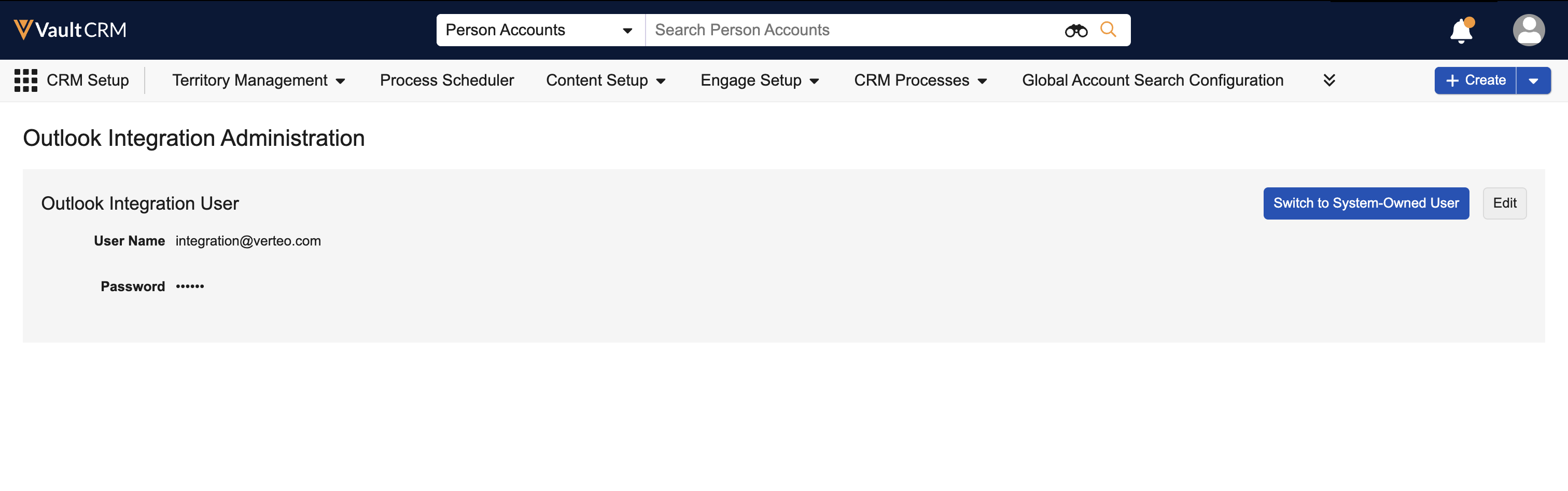
Navigate to CRM Setup > Outlook Integration Administration.
-
Select Switch to System-Owned User.
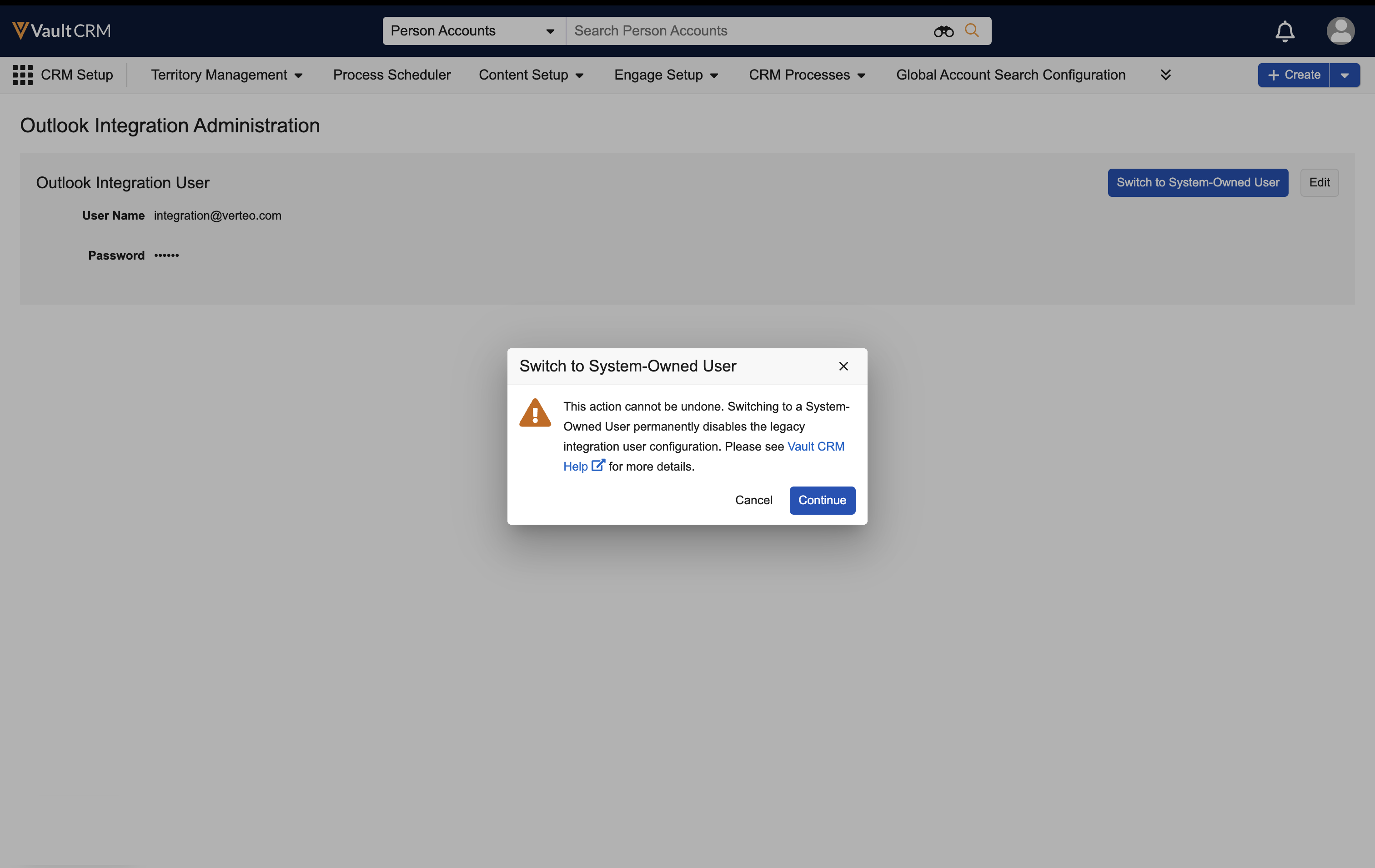
Switching to the Core System User is permanent. Once an admin selects this button and confirms the switch, they cannot return to using the integration user to manage permissions.
-
Select Continue to confirm the switch.

