Network Hierarchy Explorer
End users can access Veeva Network Hierarchy Explorer seamlessly within Vault CRM to view and explore complex hierarchies from a top-down approach. This also eliminates the need for users to leave Vault CRM and sign-on separately to Veeva Network.
This page includes information on embedding the Network Hierarchy Explorer widget in Vault CRM, and the resulting impact on DCRs and the countries that display. For information on using Network Hierarchy Explorer, see Hierarchy Explorer widget.
Who can use this feature?
- End Users - Browser
- Viewing Network Hierarchy Explorer
- Users require a Veeva Network MDM license
Configuring the Network Hierarchy Explorer for
 End Users
To configure this feature:
-
Create a Veeva Network user with a User type of Portal User. For information on creating a Portal User, see Managing Users. This is a different user than the integration user specified in the Network Administration page.
-
Navigate to Admin > Connections > Connection Authorization.
-
Select the veeva_network_apps__v record.
-
Select Edit.
-
Enter the Username of the Network Portal User.
-
Select Save.
-
Select More Actions > Set Password.
-
Enter the password of the Network Portal User.
-
Navigate to Admin > Users & Groups > Permission Sets.
-
Select the appropriate permission set.
-
Select the Objects tab.
-
Grant the following permissions:
Object Object Permission Object Types Fields Field Permission account__v R All applicable object types -
Vault CRM field mapped to Network MDM vid__v field (for example, veeva_network_id__v)
Read user__sys R None -
country_code__v
-
id
-
language_code__v
-
network_additional_countries__v
-
username__sys
Read -
-
Grant Execute access to the Network Hierarchy Explorer object action permission on the account__v object.
-
Select the Tabs tab on the permission set.
-
Grant View access to the Network Apps tab collection.
-
Grant View access to the Hierarchy Explorer tab.
-
Navigate to Admin > Configuration > Objects > account__v > Object Types > Actions.
-
Enable the Network Hierarchy Explorer action for the appropriate HCO object types.
-
Navigate to Admin > Configuration > Tabs.
-
Change the status of the Hierarchy Explorer tab to Active.
-
Navigate to the Tab Collections tab.
-
Change the status of the Network Apps tab collection to Active.
-
Navigate to Admin > Configuration > Application Configurations > Network Administration.
-
Select the Validate button in the Network Credentials section to populate the Network URL in the Connection Record.
The vid__v and primary_country__v Network fields on the Network HCO object must be mapped in the bridge. For more information, see Network Field Mapping.
Defining a Network Hierarchy Explorer Widget
Admins must create a Hierarchy Explorer widget in Veeva Network before defining the widget in Vault CRM.
Admins must populate values in Vault CRM to define which of the organization’s Network Hierarchy Explorer widgets display in Vault CRM.
To define the Network Hierarchy Explorer widget:
-
Navigate to Business Admin > Objects > Network Settings > Global Network Settings.
-
Edit the following Network Settings to define which of the organization’s defined Network Hierarchy Explorer widgets should display:
-
Hierarchy Explorer Widget ID - The unique ID in Veeva Network for the Hierarchy Explorer widget
-
Hierarchy Explorer Widget Name - The name of the Hierarchy Explorer widget in Veeva Network
-
Widget URL - The base URL for the Hierarchy Explorer widget in Veeva Network
-
This information can be generated in Veeva Network by selecting Generate Code for the applicable widget, and using the generated values to populate the Network Settings in Vault CRM.
Vault CRM supports the definition and display of multiple Hierarchy Explorer widgets. Admins can define a hierarchy explorer widget per Application Profile. To do this, create a separate Network Settings record for each Application Profile. This allows for the display of appropriate information based on the Application Profile, for example:
-
Oncology team (using Oncology Application Profile) - Display the Oncology Hierarchy Explorer widget
-
Cardiology team (using Cardiology Application Profile) - Display the Cardiology Hierarchy Explorer widget
-
Global Network Settings (all other users) - Display another Network Hierarchy Explorer widget
For information on customizing Network Hierarchy Explorer widgets, see Configuring the Hierarchy Explorer.
Viewing the Network Hierarchy Explorer as
End Users
End users can view the Network Hierarchy Explorer to explore large HCO hierarchies for Integrated Delivery Networks and Health Systems without the need for a separate sign-on to Veeva Network.
The Network Hierarchy Explorer displays the following data from the customer’s Network instance.
-
HCO and HCPs
-
Addresses, licenses, parent HCOs, and custom keys
Network Hierarchy Explorer displays accounts from Veeva Network. It may display HCOs and HCPs that are not included in the user's territory or in Vault CRM.
All levels of the HCO display so users can visualize the hierarchy and search through it to find new targets. For example, users can understand which HCOs are part of the hierarchy and the HCPs who are relevant for a specific therapeutic area.
Users can access the Network Hierarchy Explorer in the following ways:
-
From the Hierarchy Explorer tab in the Network Apps tab collection
-
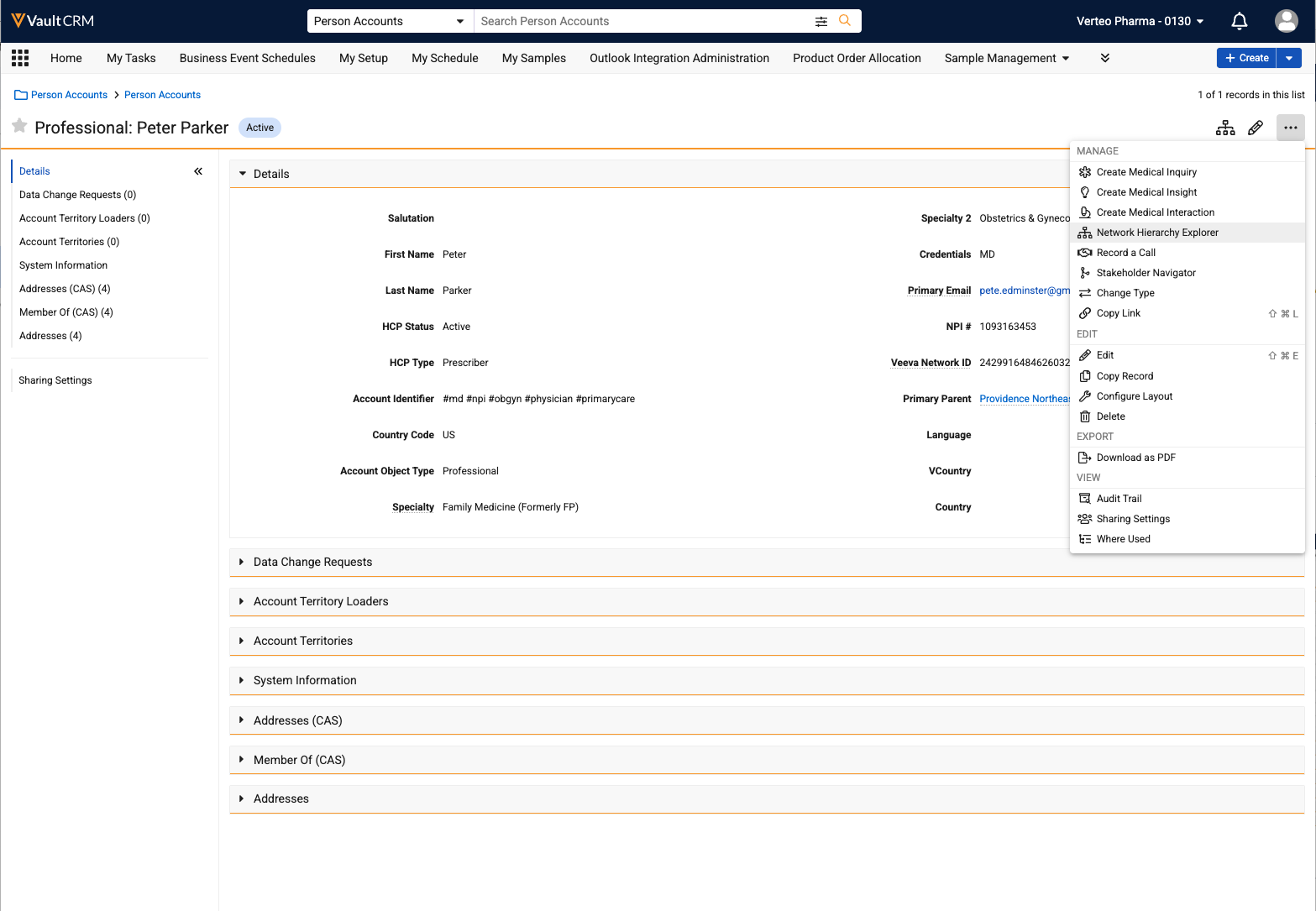
Selecting Network Hierarchy Explorer from the More Actions menu on the Account Details screen
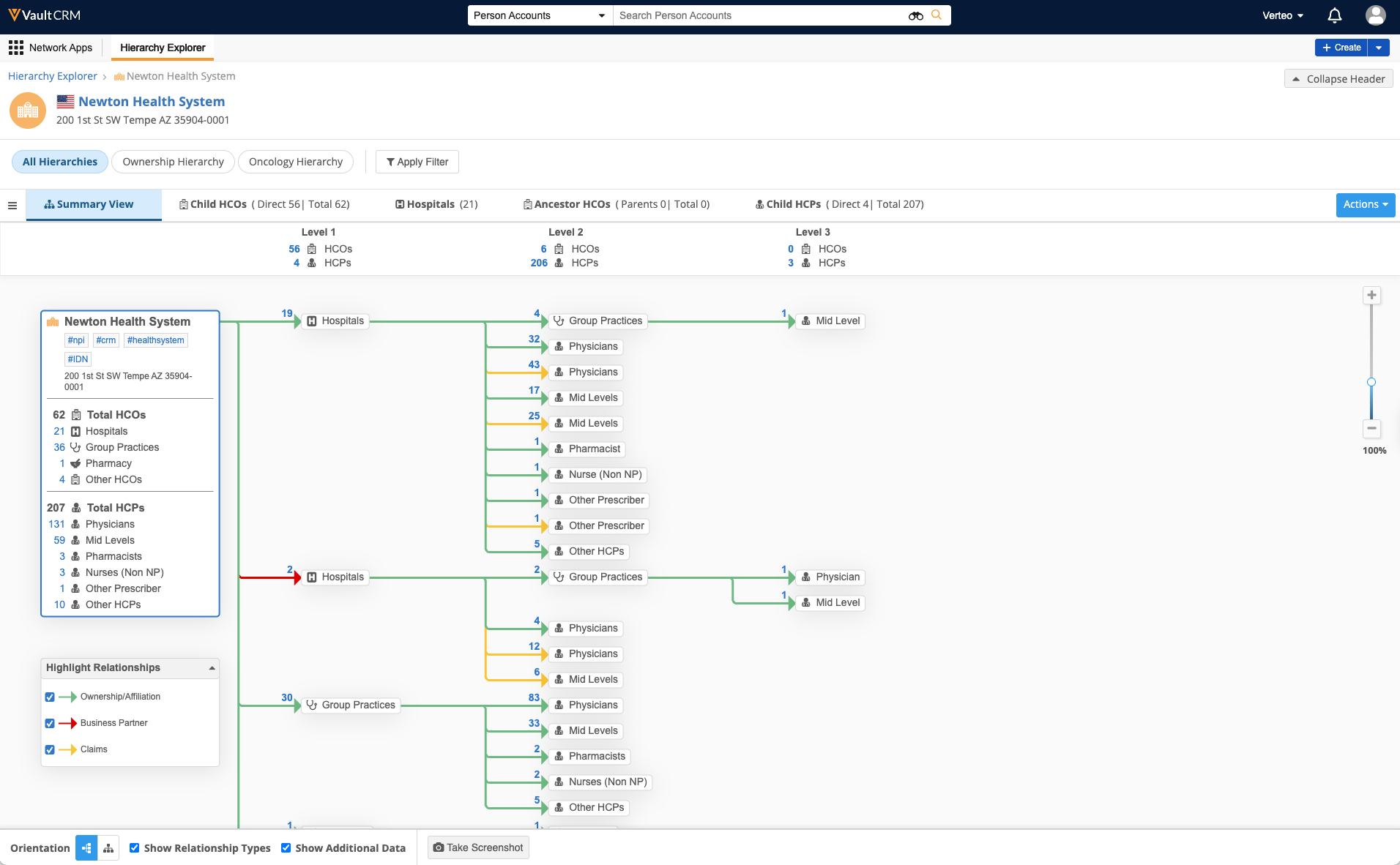
The Recent Items and tabs are specific to the Vault CRM user. Account icons in the hierarchy display in different colors, if configured, to help users distinguish between record ownership, for example Third Party, Locally Managed, or Veeva OpenData records.
Vault CRM users can view all HCO and HCP accounts for a health system regardless of territory. If a user finds an account they need to add to their territory, they can copy the VID and add it to their territory using Network Account Search.
Users can access Network Hierarchy Explorer from both HCO and HCP accounts. This eliminates the need to manually locate and drill down through Health Care Organizations (HCOs) to view the HCP information.
DCR Submission and Activity Tracking
Data Change Requests (DCRs) submitted through Hierarchy Explorer are sent directly to Veeva Network. Users do not need to submit the DCR on the Vault CRM Account Details screen.
Searches and DCRs are tracked in the Network logs for each user to help administrators troubleshoot and support hierarchy activities.
Country Access and Localization
The countries Vault CRM users can view are determined by the user’s country and any Network additional countries assigned to the user.
Translation of languages in Hierarchy Explorer depends on Network availability rather than Vault CRM settings. If a language (for example, German) is supported in Veeva Network, it is translated in Hierarchy Explorer in Vault CRM.
| Vault Language | Network Language |
|---|---|
| Bulgarian | English |
| Chinese (Simplified) | Chinese (Simplified) |
| Chinese (Traditional) | Chinese (Traditional) |
| Czech | English |
| Danish | English |
| Dutch | English |
| English | English |
| Finnish | English |
| French | French |
| German | German |
| Greek | English |
| Hungarian | English |
| Indonesian | English |
| Italian | Italian |
| Japanese | Japanese |
| Korean | English |
| Latvian | English |
| Norwegian | English |
| Polish | English |
| Portuguese (Brazil) | Portuguese (Brazil) |
| Portuguese (Portugal) | Portuguese (Portugal) |
| Romanian | English |
| Russian | English |
| Slovak | English |
| Spanish | Spanish |
| Spanish (Mexico) | Spanish (Mexico) |
| Swedish | English |
| Thai | English |
| Turkish | Turkish |
| Ukrainian | English |
| Vietnamese | English |

