Syncing CLM Content from PromoMats/MedComms to Vault CRM
- Document Model
The CLM Integration automatically syncs content from PromoMats/MedComms to Vault CRM in near real-time, so users always have the latest approved materials and can share cross-Vault metrics. To provide more granular control, the Country Integration filters the content by country before syncing, improving performance for high-volume content integrations and ensuring only the most relevant content approved for a user’s specific market displays.
Who can use this feature?
- Content Admin Users — Browser
- Managing the CLM Integration and the Country Integration
- Syncing and Filtering CLM Content from PromoMats/MedComms
- Users do not require an additional license
Configuring the CLM Integration for
 Content Admin Users
To configure this feature:
- Navigate to Admin > Users & Groups > Permission Sets.
- Select the appropriate permission set.
- Select the Application tab.
- Grant access to Manage Connections and Manage Integrations in the Vault Actions section.
- Select the Objects tab.
- Grant the following permissions:
Object
Object Permission
Object Types
Fields
Field Permission
keyword__v
CRED n/a
All fields
Edit
website__v
CRED n/a
All fields
Edit
user_exception_item__v
R
n/a
All fields
Read
user_exception_message__v
R
n/a
All fields
Read
- Establish a Vault to Vault Connection to PromoMats or MedComms for the appropriate integration. See How to Establish a Vault to Vault Connection in the Vault Platform Help for more information.
- Create keyword__v and website__v records to match the corresponding records in the connected PromoMats/MedComms Vault instance.
Configuring the Country Integration for
Content Admin Users
Customers with country-specific or region-specific Vault CRM instances connected to Global PromoMats or MedComms instances should always enable the Country Integration to reduce sync times and storage consumption.
To configure this feature:
- Navigate to Admin > Users & Groups > Permission Sets.
- Select the appropriate permission set.
- Select the Objects tab.
- Grant the following permissions:
Object
Object Permission
Object Types
Fields
Field Permission
connection_settings__v
CRED
clm_integration_settings__v
- country_filter__v
- vault_crm_id__v
Edit
- Navigate to Admin > Configuration > CLM Integration Settings.
- Select Edit for the Global CLM Integration Settings.
- Populate the Country Filter field with all countries applicable to this Vault CRM instance. Only CLM presentations for these countries are synced from PromoMats/MedComms.
- Select Save.
Managing the CLM Integration and the Country Integration as
Content Admin Users
The CLM Integration and the Country Integration are standard connections between Vault CRM and a PromoMats or MedComms Vault instance. The following integration points are available for each integration:
- CLM Integration (inbound)
- PromoMats-CRM: CLM Integration
- PromoMats-CRM: CLM Presentation Integration Point
- Medical-CRM: CLM Integration
- Medical-CRM: CLM Presentation Integration Point
- Country Integration (outbound)
- PromoMats-CRM: Country Integration
- PromoMats-CRM: CLM Country
- Medical-CRM: Country Integration
- Medical-CRM: CLM Country
The integrations and their integration points are inactive by default. Content admin users must activate each integration and the appropriate integration points to sync CLM presentations and filter synced content by country from the connected PromoMats or MedComms Vault instance.
To activate an integration and an integration point:
- Navigate to Admin > Connections.
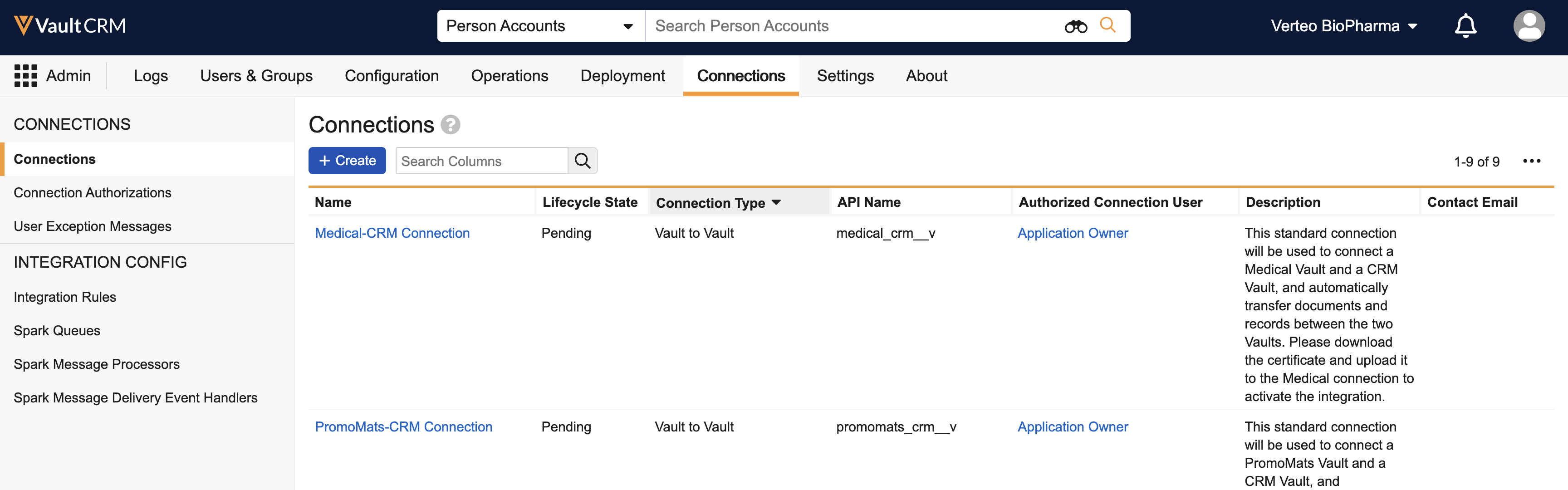
- Select PromoMats-CRM Connection or Medical-CRM Connection, according to the connected Vault type.
- Select the CLM Integration or the Country Integration in the Integrations section.
- Set the Status in the System Information section to Active.
- Select the appropriate integration point in the Integration Points - Inbound (CLM Integration) or Integration Points - Outbound (Country Integration) section.
- Set the Status in the System Information section to Active.
To sync previously auto-published presentations through the CLM integration, enable CLM Publishing.
Managing Integration Rules
Standard Fields on Presentations, Slides, and Shared Resources have standard field rules to define how they are mapped from PromoMats/MedComms to Vault CRM. For Vault instances with multilingual document handling enabled, activate the field rule for the language__v field.
Content admin users can create field rules for the CLM Integration to map custom fields between PromoMats/MedComms and Vault CRM.
To create a field rule:
- Navigate to Admin > Connections > Integration Rules.
- Select the appropriate integration rule, according to the connected Vault type:
- medical_crm_clm_presentation_iir__v
- promomats_crm_clm_presentation_iir__v
- Select Create in the Field Rules section.
- Populate the Rule Configuration fields appropriately to map a custom field from PromoMats/MedComms to Vault CRM. See How to Create Field Rules in the Vault Platform Help for more information.
- Custom object reference fields are only supported by mapping records based on the external_id__v field. These field rules must be populated as follows:
- Target Object = documents
- Target Document Field = <field API name>
- Query Object = documents_<field API name>
- Query Field = external_id__v
- Query Field Type = vobject_text__sys
- Query Field Select = (SELECT external_id__v FROM documents_<field API name>)
Some standard fields have dedicated mapping logic and do not use field rules. These fields are auto-populated according to the following logic:
|
Vault CRM Field |
How the Field is Populated |
|---|---|
|
name__v |
Always mapped to the name__v field in PromoMats/MedComms and cannot be edited |
|
detail_product__v |
|
|
detail_group__v |
|
|
product_group__v |
Populated based on the matching pair of product__v and detail_group__v fields on product_group__v records when the CRM Product Group field is used in PromoMats/MedComms. The Detail Product and Detail Group values joined by the Product Group records are also added to the detail_product__v and detail_group__v document fields in Vault CRM, in addition to any values mapped from the independent field mappings for the detail_product__v and detail_group__v fields, described above. The Product Group field is used for CLM documents assigned multiple Detail Products and Product Groups. Though this mapping is supported, multi-product CLM presentations using CLM as Document Model are not yet supported on iPad. |
Filtering Documents Synced via the CLM Integration
In addition to the country filters defined in the Country Integration, the CLM Integration has a standard query object rule to only sync Approved (Steady State) CLM content from PromoMats/MedComms. This rule is active by default. Customers can deactivate the standard query object rule and create a custom query object rule to define custom filter criteria. If the standard query object rule is deactivated and there is no custom filter criteria including status__v = STEADYSTATE() as part of the filter clause, the latest non-expired, non-Steady State versions of the documents and binders are synced as Staged documents in Vault CRM. These can be used by content admins to test pre-approval presentations. See How to Create Query Object Rules in the Vault Platform Help for more information.
Custom Filtering
Custom filter clauses can be defined for the CLM Integration's query object rule, allowing organizations to filter entire presentations (binders) and their associated slides based on criteria defined at either level.
When constructing custom filter clauses, keep the following behaviors in mind:
- Clause Scope - Unless a specific document type is designated within the clause, the filter criteria automatically applies to both presentations and slides/shared resources. This means the criteria must be tagged on both levels for the documents to sync.
- Targeted Filtering - Filter clauses can be explicitly written to evaluate criteria exclusive to only the presentation level or only the slide level.
- Presentation-Level Impact on Slides - Slides will only sync if the parent presentation they belong to is not filtered out by criteria defined at the presentation type level.
- Slide-Level Impact on Presentations - Presentations will only sync if all standard slides and shared resources contained within them are not filtered out by criteria defined at the slide type level.
The following clause demonstrates how to restrict syncs based on presentation-level directory criteria. This example syncs all slides and shared resources within presentations that are assigned to directories with the record IDs '0DI00000000H001' or '0DI000000002001':
TONAME(type__v) = 'multichannel_slide__v' OR (TONAME(type__v) = 'engage_presentation__v' AND crm_directory__v contains ('0DI00000000H001', '0DI000000002001'))
Syncing CLM Content from PromoMats/MedComms as
Content Admin Users
Full syncs retrieve all valid non-expired CLM content from the source PromoMats/MedComms Vault instance based on the Country Integration and query object rules. Incremental syncs only sync CLM content that has been created, updated, or deleted since the Last Successful Runtime.
The following fields are used to determine which type of sync to run and when:
- Last Run Time - Captures the date and time the integration last ran. This date is used with the Last Successful Run Time field to determine which integration points to retry during the next run.
- Last Successful Run Time - Captures the date and time the integration last ran with no errors. This date is used to query changes since the integration’s last successful run for incremental syncs. Clear this field for a specific integration point to sync only this integration point during the next run.
A full sync of the CLM Integration runs in the following scenarios:
- After activating the integration point
- When the Last Successful Runtime is null
- When the Last Successful Runtime is greater than or equal to 15 days ago
An incremental sync of the CLM integration runs when Vault CRM receives a Spark Message from the connected PromoMats/MedComms Vault instance to notify a change and the Last Successful Runtime is less than 15 days ago.
The document types for CLM content are mapped as follows and cannot be edited:
|
PromoMats/MedComms Document Type |
Vault CRM Document Type |
|---|---|
|
multichannel_presentation__v |
presentation__v |
|
multichannel_slide__v where is_shared_resource__v is false |
slide__v |
|
multichannel_slide__v where is_shared_resource__v is true |
shared_resource__v |
If the Country Integration is enabled, only presentations assigned to countries defined in the Country Filter setting sync to Vault CRM. Editing the Country Filter setting after activating the CLM Country Integration Point triggers a CLM full sync after a 5-minute delay.
Managing Sync and Connection Errors
Admins can view User Exception Messages and User Exception Items to track and resolve any sync and connection errors.
User Exception Messages are general errors created when the target Vault instance cannot process incoming data and requires configuration updates. After updating the configuration, attempts to resolve the errors are automatically processed during the next run. Alternatively, admins can select Reprocess Request to manually deactivate a specific User Exception Message without running a full sync.
Users Exception Items are specific errors created for each document failure. During the next run, failed items from previous runs are automatically retried.
If there are sync errors for CLM binders or documents previously created from the CLM Integration, each error is moved to the Sync Error Lifecycle State until it is resolved. The following scenarios can result in sync errors for CLM binders and slides:
- The binder or document has a mapped field referencing an object record that does not exist in Vault CRM
- The binder or document has a required field in Vault CRM that is not populated in or mapped from PromoMats/MedComms
- The binder or document has a mapped field referencing a picklist record that does not exist in Vault CRM
- The slide document has a relationship to a Shared Resource or Sub Presentation that fails to sync
- The binder contains a slide document that fails to sync

