Managing Remote Meetings
The Remote Meeting page provides a centralized, unified workspace for managing all remote meeting integrations within Vault CRM, including Engage, Zoom® and Microsoft Teams meetings. This ensures compliance and data accuracy by offering transparent, easily accessible audit logs for meeting attendance and process histories.
Who can use this feature?
- Business Admin Users — Browser
- Managing Remote Meetings
- Users require an Engage license
Configuring Attendance Processing for Remote Meetings for
 Business Admin Users
To configure this feature:
- Ensure the Engage app is enabled for the Vault CRM instance.
- Ensure the appropriate meeting type is configured:
- Navigate to Admin > Users & Groups > Permission Sets.
- Select the appropriate permission set.
- Select the Pages tab.
- Grant access to the Remote Meeting page.
Engage System User
System Users are created in Vault CRM instances and managed by Veeva for integration purposes. By default, these users are assigned the appropriate permission set. Customers cannot update the permission set.
To grant the Engage System User permissions for custom objects, fields, or object types, create a custom permission set and assign it to the Engage System User via an Application Role. See Adding Permission Sets to Application Roles for more information.
Managing Remote Meetings as
Business Admin Users
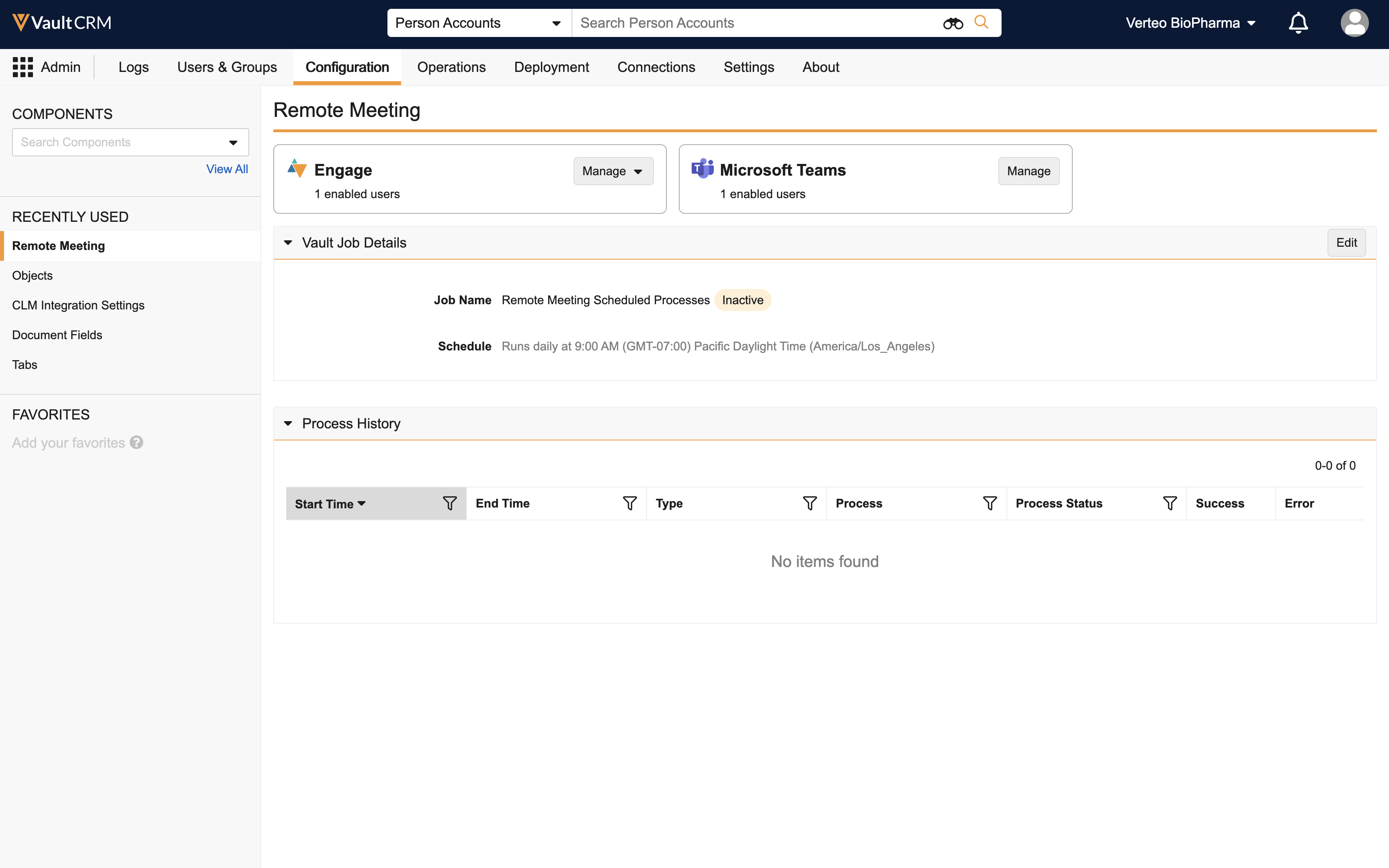
Navigate to Admin > Configuration > Remote Meeting to view the Remote Meeting page. The Remote Meeting page displays the following sections:
- Tiles for the remote meeting types – Displays the number of active users for each meeting type and a Manage button
- The Vault Job Details section – Displays information about the Remote Meeting Scheduled Processes job
- The Process History section – Displays information about all Remote Meeting Scheduled Processes jobs run in the last 30 days, including links to download success and error logs
Business admin users can manage settings for each remote meeting type, including Engage and Microsoft Teams meetings, manage the Remote Meeting Scheduled Processes job, and view process histories.
Managing Attendance Reporting by Remote Meeting Type
To manage attendance reporting, select Manage for the appropriate remote meeting type:
- Engage – Navigate to the Engage Group Management and Engage Platform Process Administration tabs from the Manage drop-down menu. See Engage Attendance Tracking for more information.
- Microsoft Teams – Enable Attendance Reporting and select optional fields to include. See Attendance Reporting for Microsoft Teams Meetings for more information.
- Zoom – Enable Attendance Reporting and select optional fields to include. See Attendance Reporting for Zoom® Meetings for more information.
Managing the Remote Meeting Scheduled Processes Job
The Remote Meeting Scheduled Processes job is a daily job to run remote meeting processes and is inactive by default. To activate the Remote Meeting Scheduled Processes job:
- Select Edit for the Vault Job Details section.
- Set the Status to Active.
- Edit the Vault Time (default is 12 AM) to the preferred daily execution time. The schedule frequency is set to Daily and cannot be edited.
- Select Save.
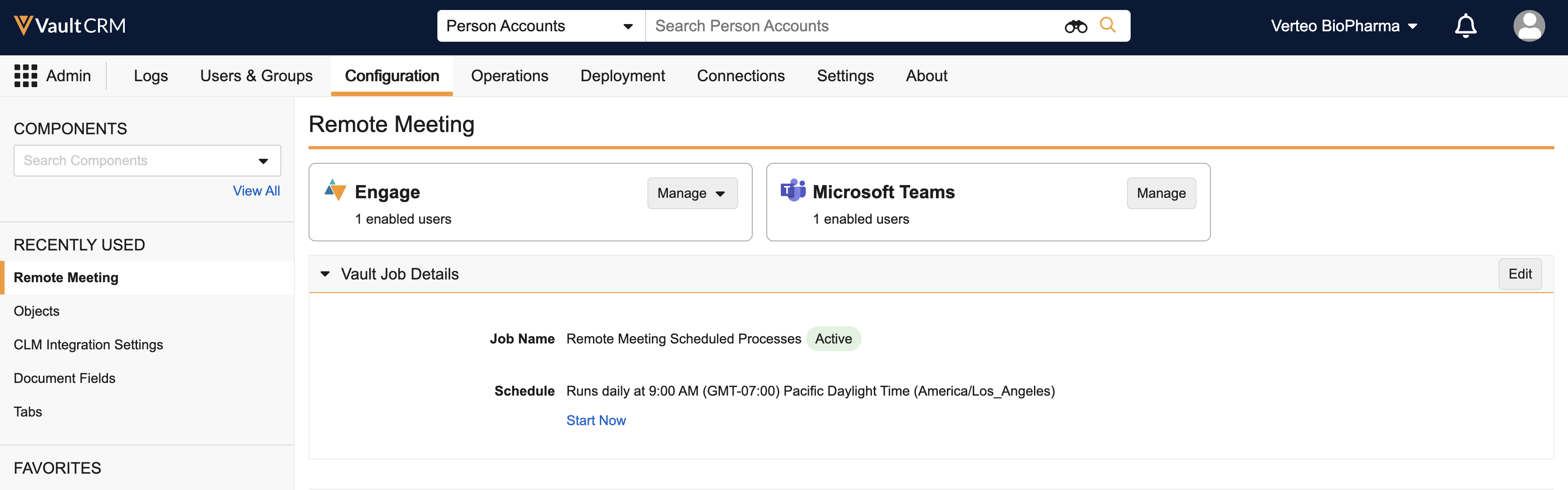
Business admin users can also manually run the Remote Meeting Scheduled Processes job by selecting Start Now in the Vault Job Details section to troubleshoot errors or immediately sync data for compliance reporting. However, starting a manual run skips the scheduled run for that day.

