Using Opportunity Management
Vault CRM Opportunity Management helps users organize and track potential deals with their accounts. Users can quickly see where a deal is in the sales lifecycle, add pricing and discounts for automatic cost information, and add competitor details to stay ahead of the competition.
Who can use this feature?
- End Users - Browser
- Using Opportunity Management
- Users do not require an additional license
Configuring Opportunity Management for
 End Users
To configure this feature, ensure Configuring Opportunity Management is complete.
Using Opportunity Management as
End Users
Creating an Opportunity
To create an Opportunity record:
- Navigate to the Opportunity tab or Account Detail page.
- Select Create.
- Populate the Opportunity Name field.
-
Select Product Selector in the Opportunity Lines section to view products assigned to the user in My Setup.
Only products of the Order Product Type display in the Product Selector.
- Use the search and filter functions to select the product(s).
- Select Add Selected.
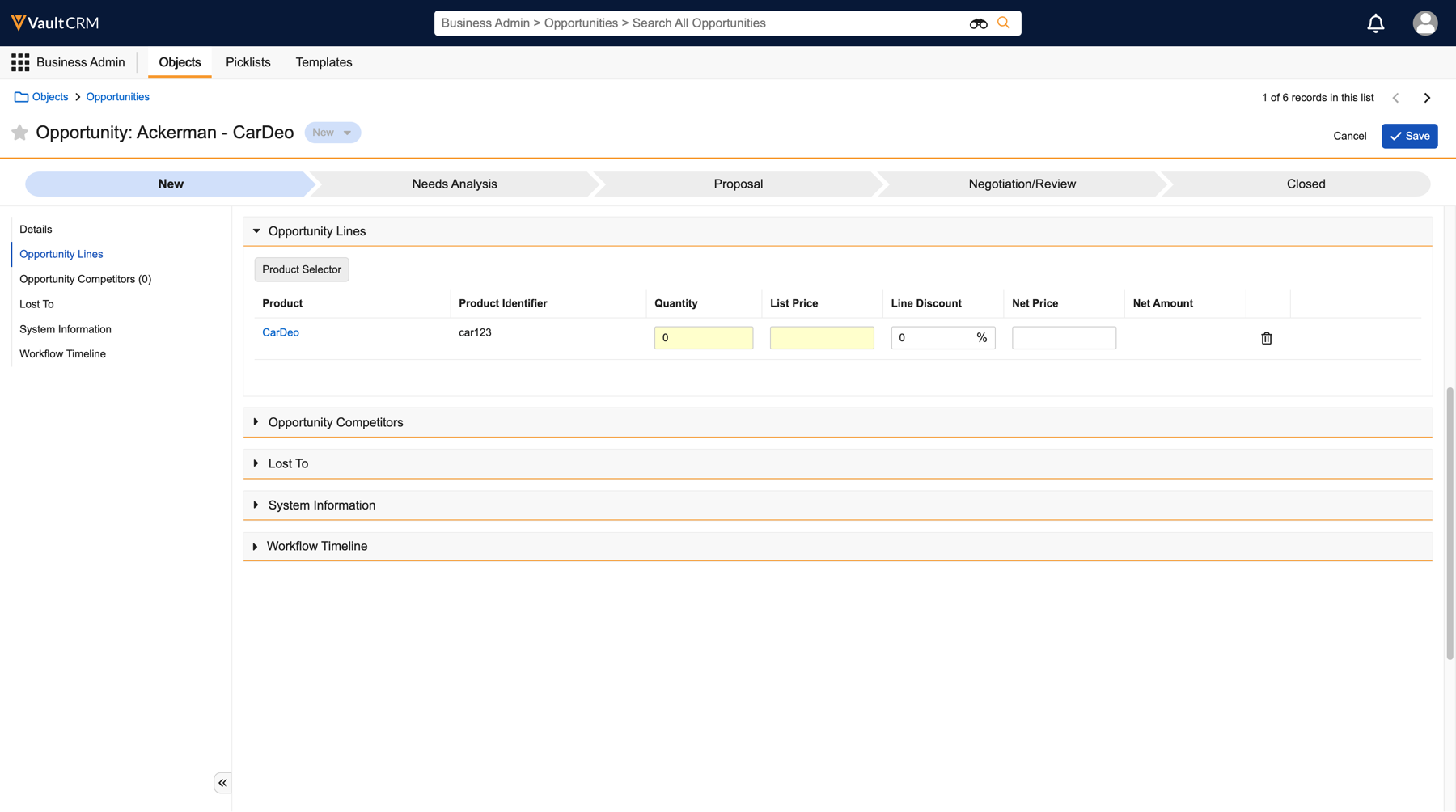
- Enter the Quantity and List Price for each Opportunity Line.
- Enter a Discount, optionally:
- The Net Price is calculated automatically from the List Price and Line Discount fields. The Net Amount is calculated automatically via the Quantity and Net Price fields.
- Select Save.
Adding Opportunity Competitors
Users can add competitor information relevant to the Opportunity:
- Select an Opportunity from the Opportunity tab or the Account Detail page.
- Select Edit.
- Navigate to the Opportunity Competitors section.
- Select Create.
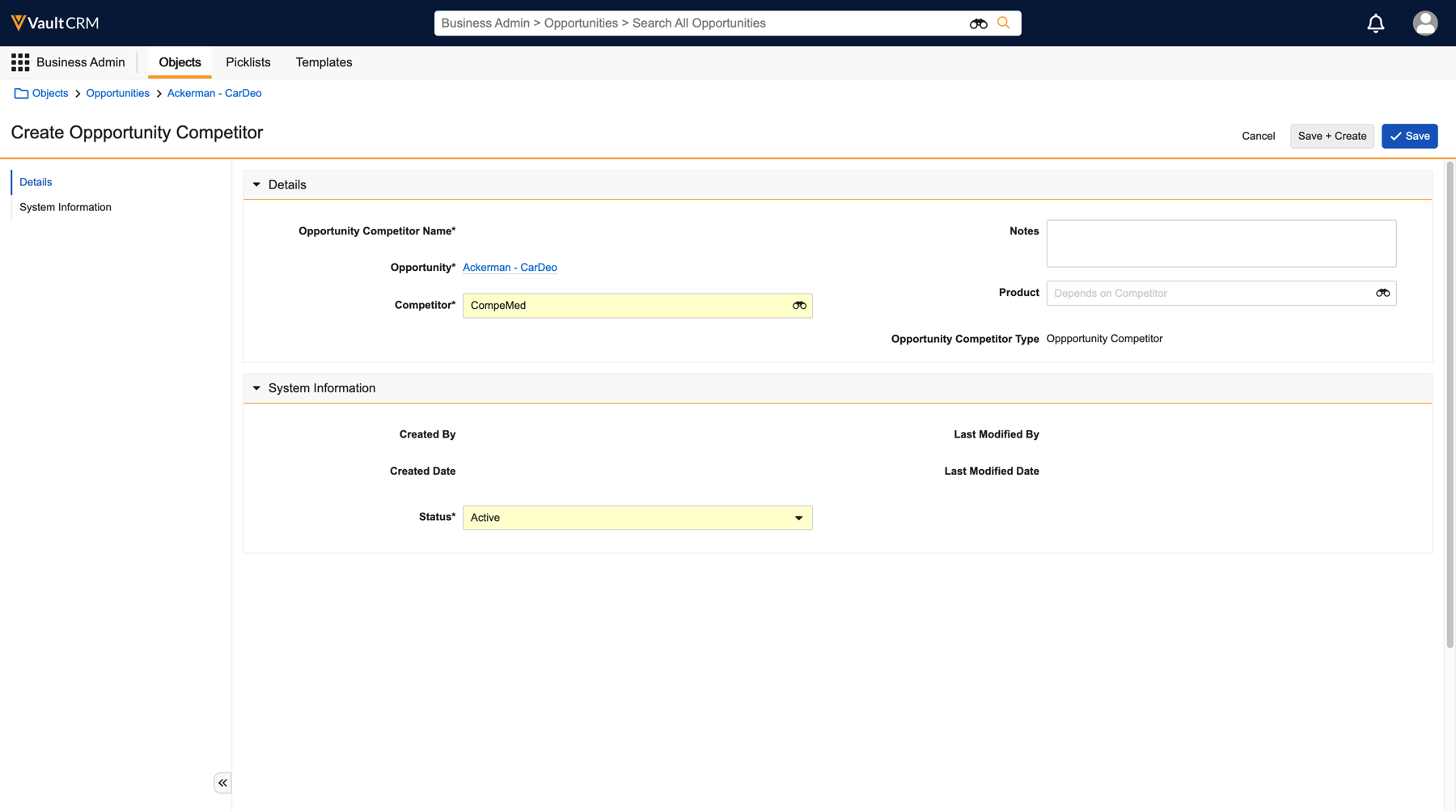
- Enter the competitor name.
- Select the appropriate product and relevant notes, optionally.
- Select Save.
Adding Opportunity Feedback
Users can add feedback to closed Opportunities to capture the reason for a won or lost Opportunity, and any additional details to help refine future strategies:
- Select an Opportunity from the Opportunity tab or the Account Detail page.
- Select Edit.
- Navigate to the Lost To section.
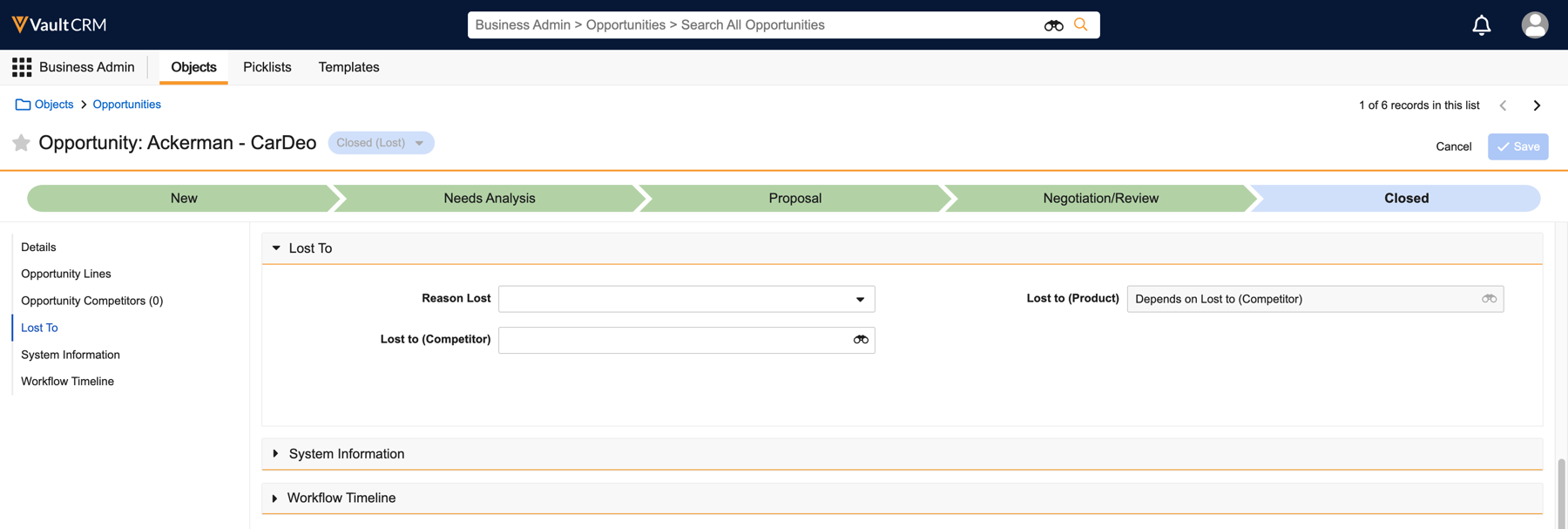
- Populate the relevant fields.
- Select Save.
Updating Opportunity States
As users progress their deals, they can update the Opportunity state to indicate where they are in the sale’s lifecycle:
- Select an Opportunity from the Opportunity tab or the Account Detail page.
- Select the icon.
- Select from a predefined list of states. Default states include:
- New
- Needs Analysis
- Proposal
- Negotiation/Review
- Closed (Won)
- Closed (Lost)
Business admins can manage and remove Opportunity stages. For more information, see Defining Custom Events and States.

