Post-Negotiation Delivery Splitting
Post-Negotiation Delivery Splitting enables users to split large orders into several deliveries. This makes stock management easier for the pharmacy and allows them to secure high-volume discounts and rebates, while retaining control over when the products are delivered and in which quantities.
If the physical destination, timing, or commercial terms of individual items directly impact the pricing, taxes, or legal structure of the final deal, see Mid-Negotiation Delivery Splitting.
Who can use this feature?
- End Users - Browser
- Using Post-Negotiation Order Delivery Splitting
- Users do not require an additional license
Configuring Post-Negotiation Order Delivery Splitting for
 All Users
To configure this feature:
- Ensure Configuring Order Management is complete.
- Navigate to Admin > Users & Groups > Permission Sets.
- Select the appropriate permission set.
- Select the Objects tab.
- Grant the following permissions:
Object
Object Permission
Object Types
Fields
Field Permission
order__v
CRE
All applicable object types
- delivery_date__v
- delivery_order__v
- delivery_order_warning__v
- delivery_rank__v
- master_order__v
- parent_order__v
Edit
order_line__v
CRE
All applicable object types
delivery_quantity__v
Read
- Grant Execute permission to the manage_deliveries__v action on the order__v object.
- Grant View permission to the following object controls on the order__v object:
- delivery_date__v
- delivery_free_goods__v
- delivery_list_amount__v
- delivery_net_amount__v
- delivery_total_quantity__v
- Navigate to Admin > Configuration > Object Lifecycles > Order Lifecycle.
- Add the manage_deliveries__v action to the saved__v lifecycle state for order__v
- Navigate to Admin > Configuration > Objects > order__v.
- Select the Object Types tab
- Enable the manage_deliveries__v action for the appropriate object type(s)
- Select the Layouts tab for the order__v object.
- Add the delivery_date__v field control to the appropriate layout in its own detail form section
- Add the follow field controls to the same detail form section as delivery_date__v (optional):
- delivery_address__v (allows user to enter different delivery address for each delivery)
- delivery_free_goods__v
- delivery_total_quantity__v
- delivery_list_amount__v
- delivery_net_amount__v
- Navigate to Business Admin > Objects > Veeva Settings.
- Set OM Delivery Split Mode to 0
- Set Number Delivery Dates to a value between 2 and 12. This value defines how many delivery dates the user can add to the order. The maximum number is 12.
Enabling Different Delivery Addresses Per Date
To allow users to enter a different delivery address for each date, grant View permission to the delivery_address__v object control on the order__v object and add the field control to the appropriate order__v layout.
Enabling Delivery Limit Pricing Rules
Limit Pricing rules can define the minimum and maximum allowed quantity for products that can be ordered. See Limit Pricing Rules for more information.
Delivery Limit Pricing rules are only supported on the Order level (cannot set Delivery Limit rules for Order Products, Brands, or Product Groups) and are not supported as Cross Product Rules or Chain Rules.
To enable Limit Pricing rules:
- Navigate to Admin > Configuration > Objects > pricing_rule__v.
- Select the Layouts tab.
- Select the pricing_rule_limit_rule_layout__c layout.
- Add the Delivery Order field.
- Select Save.
Enabling Delivery Period Rules
Delivery Period pricing rules define available delivery dates for products or minimum allowed times between deliveries. See Delivery Period Pricing Rules for more information.
Delivery Period rules are not supported for Kits, Kit Items, Cross Product Rules, or Chain Rules.
Using Post-Negotiation Order Delivery Splitting as
End Users
To create an order and split it into multiple deliveries:
- Create an order.
- Add the desired product(s), quantity(ies), discounts, and free goods.
- Select Save.
- Select Manage Deliveries from the All Actions menu. The first delivery date is automatically added as the delivery date from the order or the order date plus one day. All delivery quantities are allocated to the first delivery.
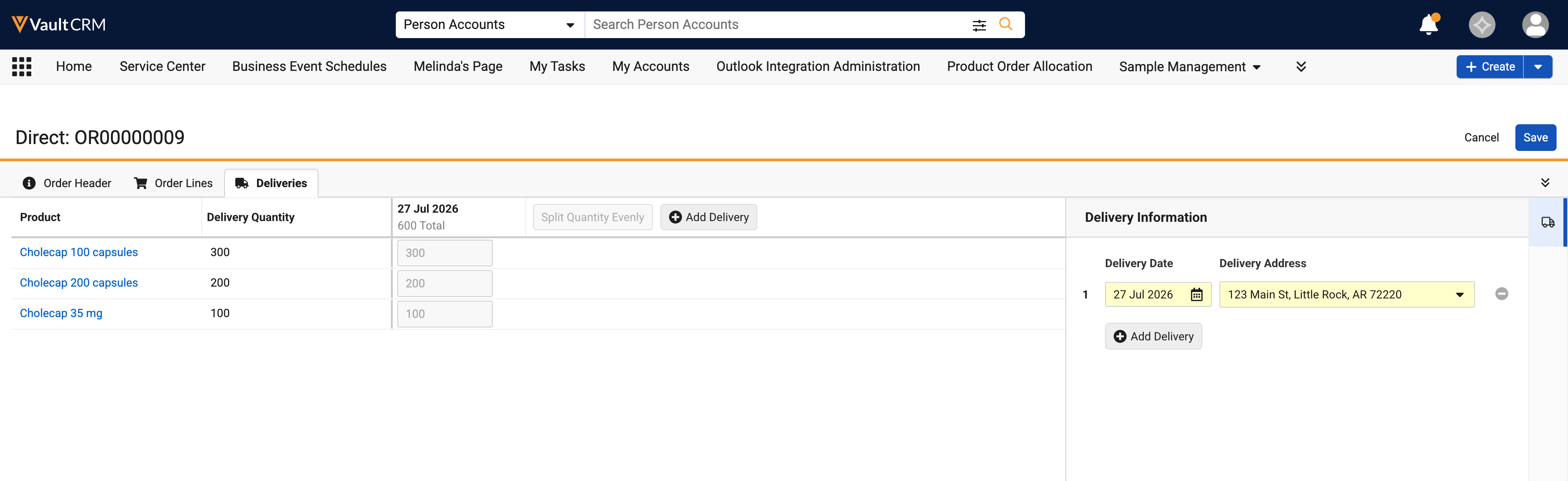
- Add deliveries with optional addresses, if configured.
- Enter the desired delivery quantities for each delivery or select Split Quantity Evenly to split the order evenly across all deliveries. All quantities added to subsequent deliveries are automatically subtracted from the first delivery.
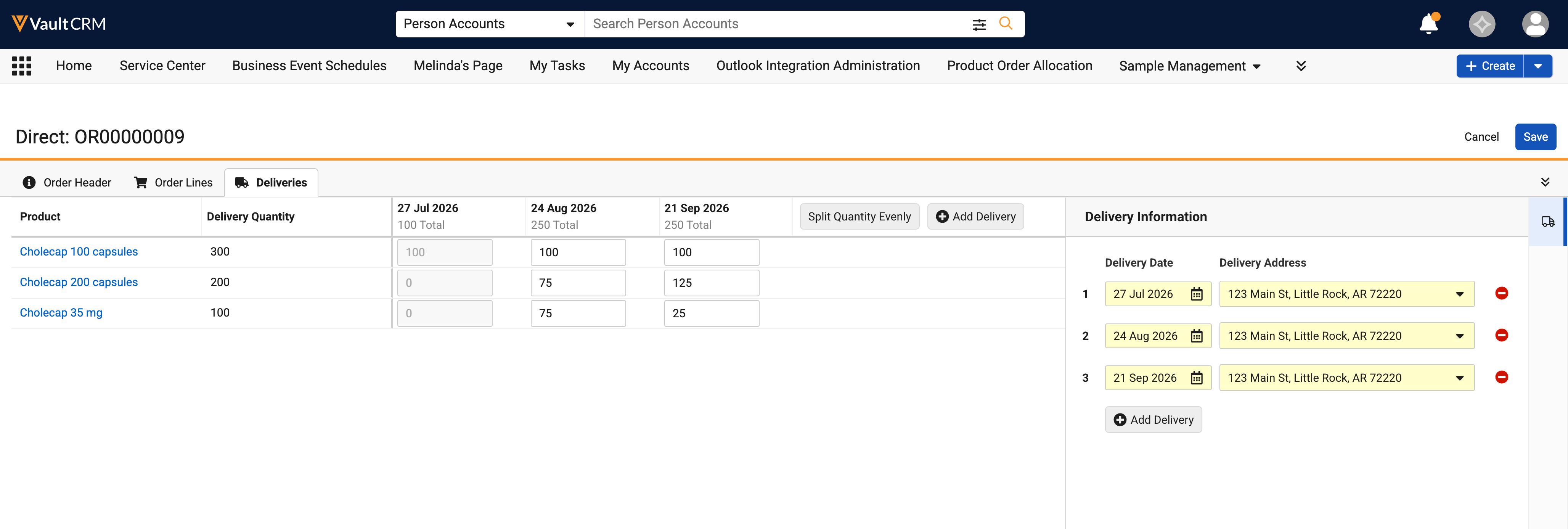
- Select Save.
- Create an order.
- Add the desired product(s), quantity(ies), discounts, and free goods.
- Select Save.
- Select Manage Deliveries from the All Actions menu. The first delivery date is automatically added as the delivery date from the order or the order date plus one day. All delivery quantities are allocated to the first delivery.
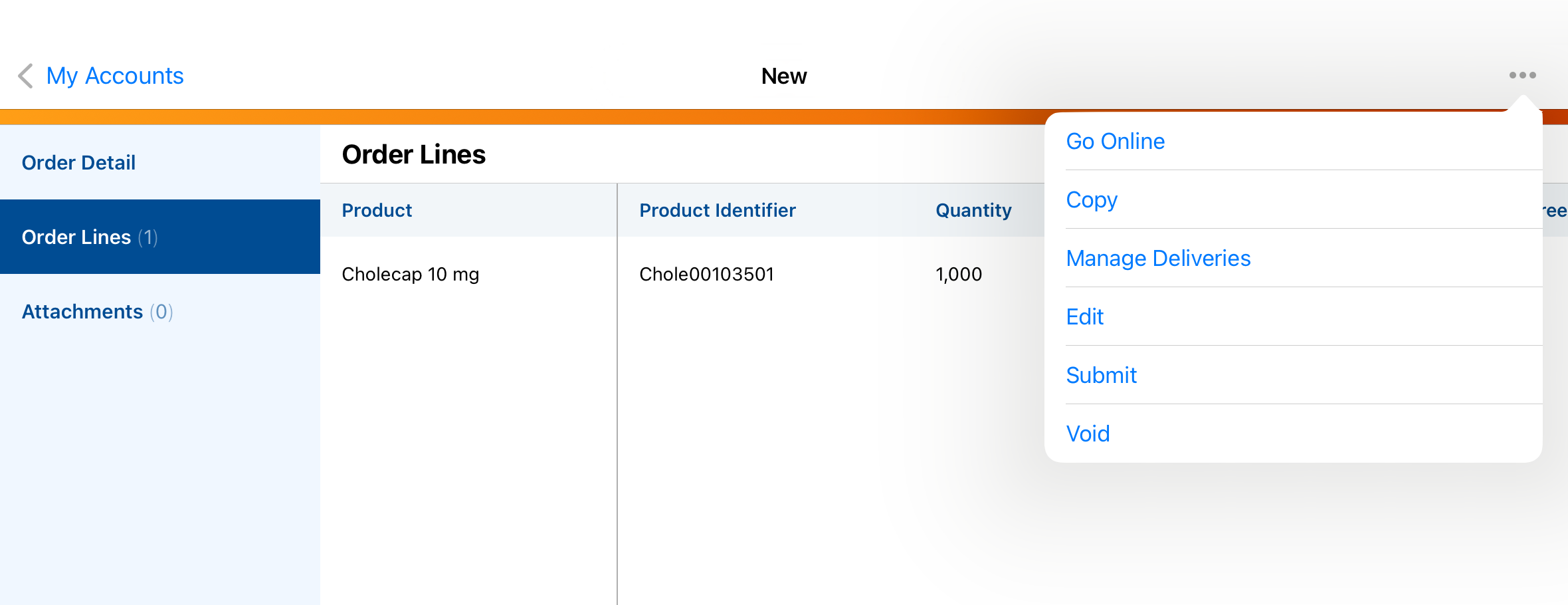
- Add deliveries with optional addresses, if configured.
- Enter the desired delivery quantities for each delivery or select Split Quantity Evenly to split the order evenly across all deliveries. All quantities added to subsequent deliveries are automatically subtracted from the first delivery.
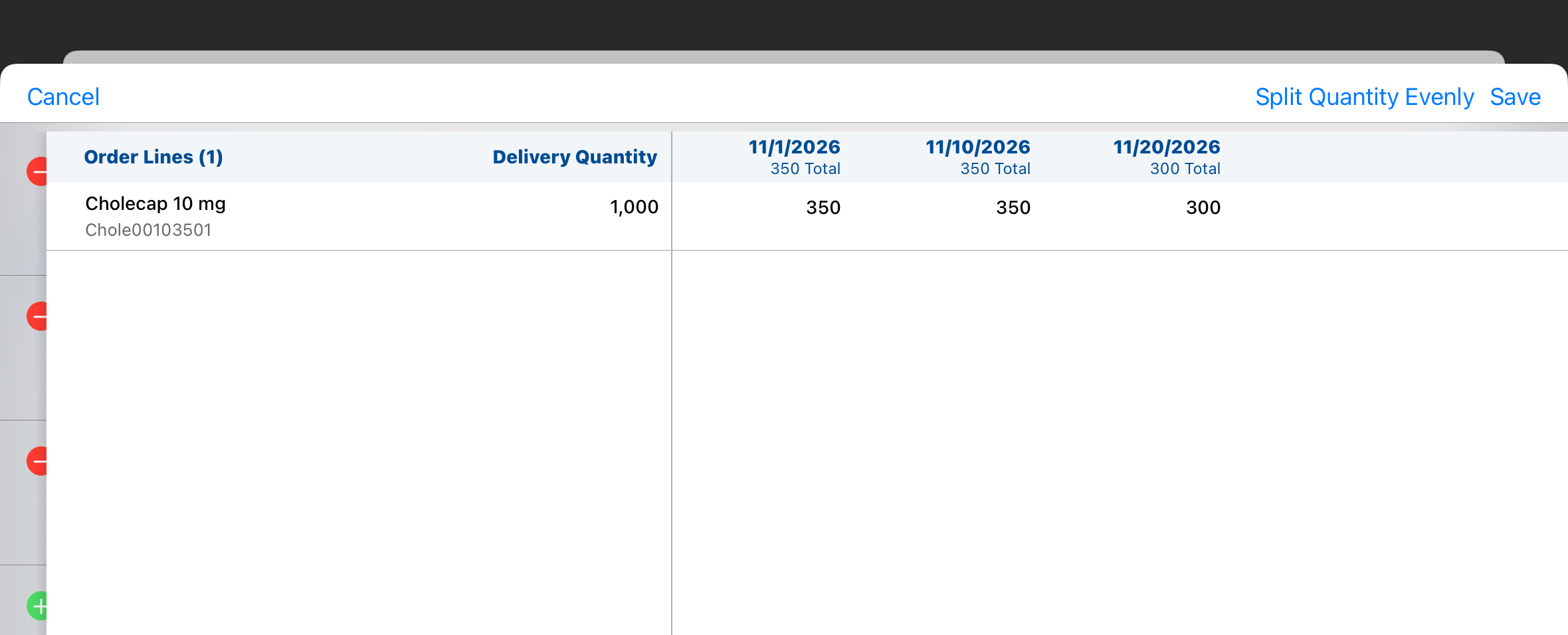
- Select Save.
Managing Submitted Deliveries
After a delivery is submitted, the quantity becomes read-only in the delivery grid.
- If the first delivery is submitted, the next delivery in chronological order becomes the first delivery
- Submitted deliveries are excluded from the Split Quantity Evenly function. The submitted quantity is subtracted from the order quantity, and the remainder is split evenly.

