Managing All Active Cases in Patient CRM
The All Active Cases view in Patient Center allows users to easily monitor workloads, triage incoming cases, redistribute ownership, and ensure operational coverage across a team. Users can view, sort, and filter active cases across multiple owners directly in the All Active Cases view, rather than navigating away to individual queues or personal dashboards.
Who can use this feature?
- End Users - Browser
- Navigating the All Active Cases View
- Managing Case Owners in the All Active Cases View
- Users require a Patient CRM License
Configuring All Active Cases in Patient CRM for
 End Users
To configure this feature:
- Ensure Configuring Patient CRM is complete.
- Optionally, configure the column headers for the All Active Cases grid view:
- Navigate to Business Admin > Objects > Console Application Settings
- Select the appropriate Patient Center record
- Enter case__v field API names in the All Active Cases Columns field in the order they should display, separated by double semicolons. For example, case__v.fieldname1__v;;case__v.fieldname2__v;;case__v.fieldname3__v
- Select Save
Configuring Columns (Optional)
The displayed columns and their order for the All Active Cases grid view can be customized with up to 50 columns supported. The Case Number (name__v) and Case Owner (case_owner__v) columns are displayed by default as the first two columns.
To configure the columns displayed in the All Active Cases grid view:
- Navigate to Business Admin > Objects > Console Application Settings.
- Select the appropriate Patient CRM record.
- Enter the case__v field API names in the All Active Cases Columns field in the order they should display, separated by double semicolons. For example, case__v.fieldname1;;case__v.fieldname2__v;;case__v.fieldname3
- Select Save.
If the columns are not configured and the All Active Cases Columns field is left blank, the All Active Cases grid view displays the following columns by default:
- Case Number
- Case Owner
- Subject
- State
- Severity
- Queue
- Patient
- Patient Journey
- Product
- Category
- Sub Category
- Account
- Type
- Created Date
- Last Modified Date
Navigating the All Active Cases View as
End Users
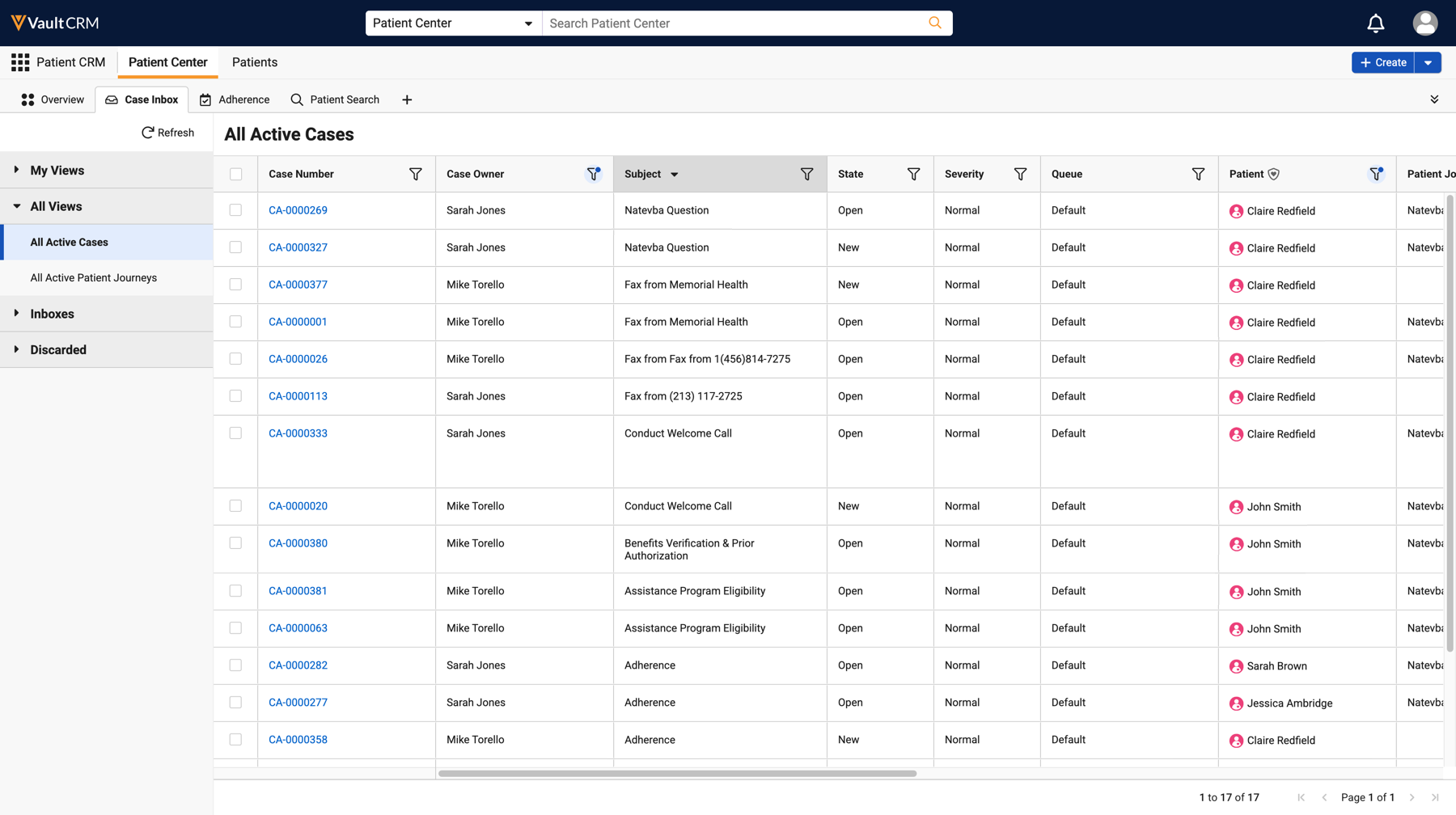
The All Active Cases view displays cases in the New, Open, Pending, On Hold, Escalated, and Solved states. Closed and Canceled state cases are not displayed in this view.
To access the All Active Cases view:
- Navigate to the Case Inbox tab in Patient Center.
- Expand All Views in the left-hand pane.
- Select All Active Cases.
Viewing and Filtering Cases
Cases are sorted in descending order by Case Number by default, ensuring newest cases are displayed first.
- Select the Case Number link to open the case in a new tab.
- Select the Filter icon corresponding to each column to apply a filter to the displayed cases. Multiple columns can have an active filter. Only cases that match all applied filters display.
Previewing a Case
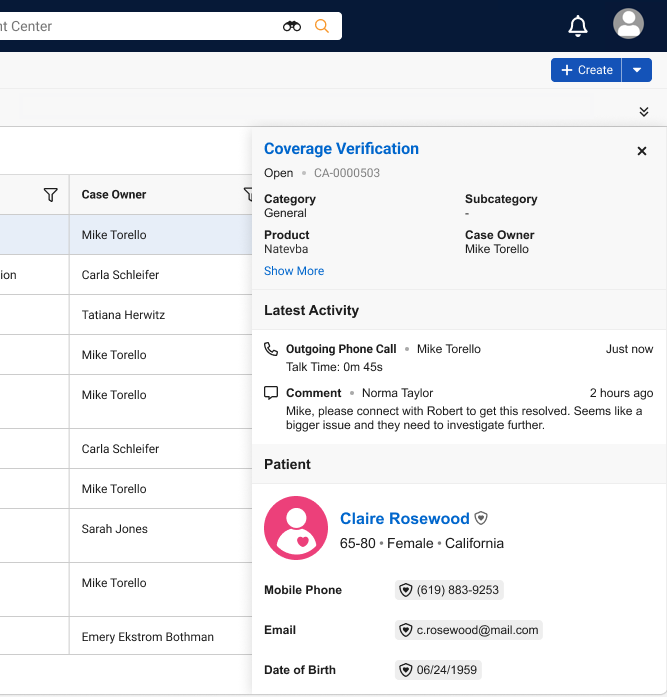
Select a case row, other than the Case Number link, to open the Case Summary panel and display the corresponding Case Detail fields. The displayed fields can be customized via the Preferred Case Details field, see Displaying Preferred Case Details for more information.
The Case Summary also displays the following sections for a quick summary:
- Latest Activity - The three most recent timeline entries associated with the case
- Patient Summary - Information via the associated Patient record
- Caregiver Summary - Information via the associated Caregiver record, if applicable
Managing Case Owners in All Active Cases as
End Users
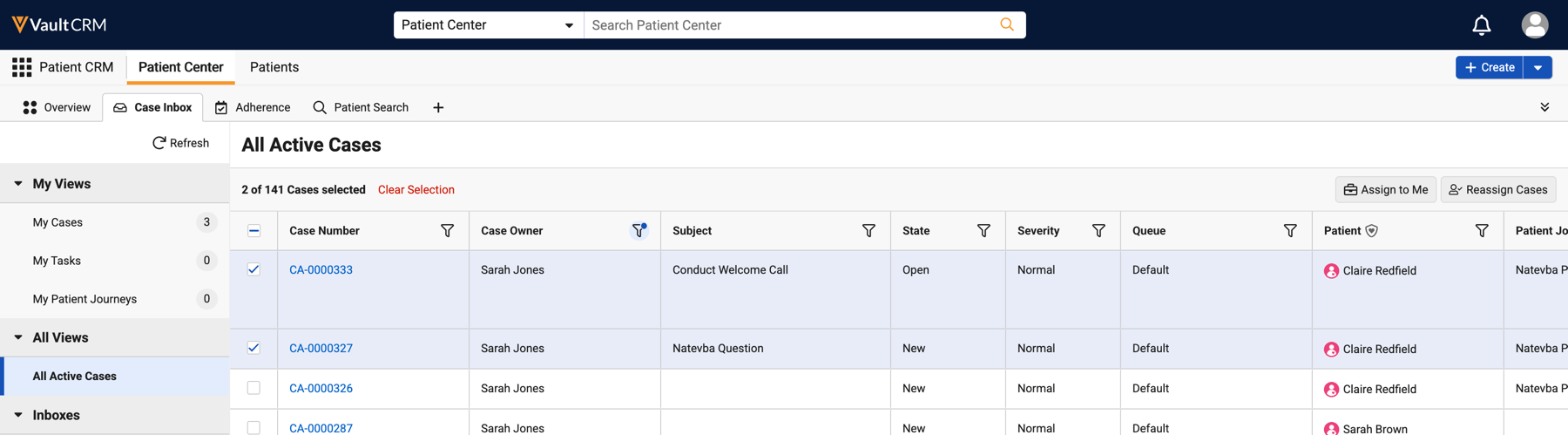
If users are granted Edit permissions for the Case Owner field, Patient Center users can update the Case Owner for cases individually or in bulk to help with work redistribution to ensure cases receive the attention required.
Updating a Case Owner to Another User
To update a Case Owner to another user:
- Navigate to the Case Inbox tab > All Views > All Active Cases.
- Select the checkbox for each case.
- Select Reassign Cases.
- Select the new Case Owner in the Search User modal.
- Confirm the reassignment.
Assigning Yourself as the Case Owner
To assign yourself as Case Owner:
- Navigate to the Case Inbox tab > All Views > All Active Cases.
- Select the checkbox for each case.
- Select Assign to Me.
- Confirm the reassignment.

