Managing All Active Patient Journeys
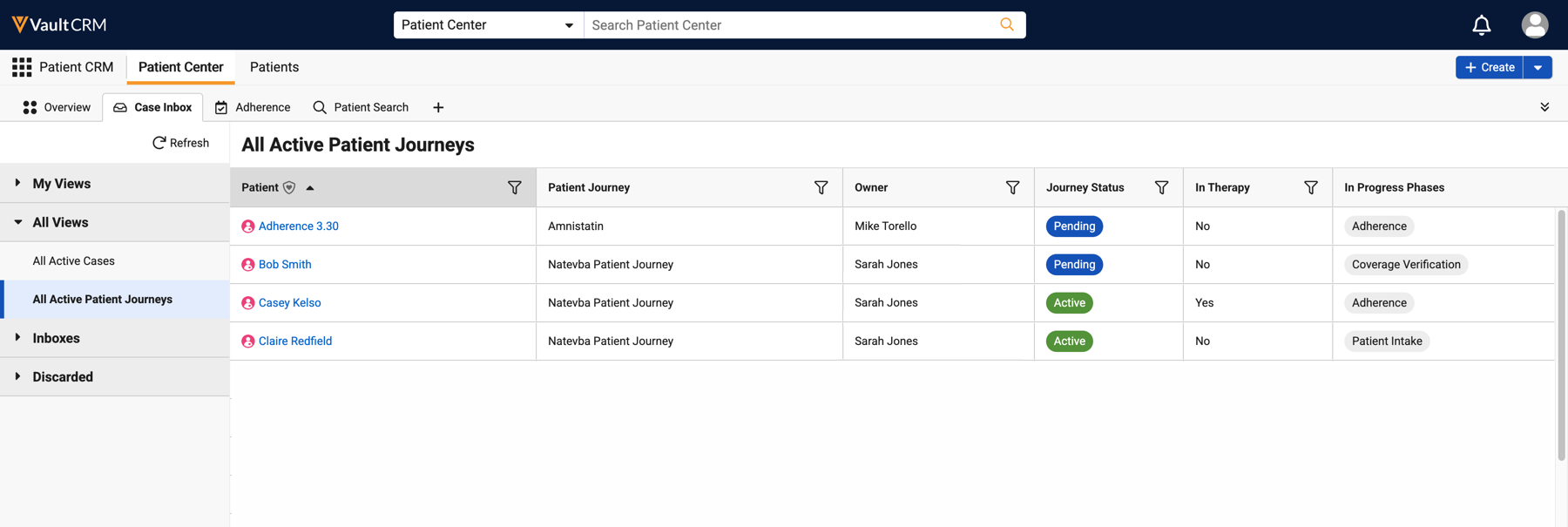
The All Active Patient Journeys view allows users to monitor Patient Journey progress across owners from a single shared grid view. Patient support teams can use this visibility to identify Patient Journeys, understand their status, and coordinate care more effectively without requiring Patient Journey ownership.
Who can use this feature?
- End Users - Browser
- Navigating the All Active Patient Journeys View
- Users require a Patient CRM License
Configuring All Active Patient Journeys for
 End Users
To configure this feature, ensure Configuring Patient CRM is complete.
Configuring Columns (Optional)
The displayed columns and their order for the All Patient Journeys grid view can be customized with up to 50 columns supported and 10,000 records. The Patient, Patient Journey, Journey Owner, and Journey Status columns are displayed by default as the first columns.
To configure the columns displayed in the All Active Patient Journeys grid view:
- Navigate to Business Admin > Objects > Console Application Settings.
- Select the appropriate Patient CRM record.
- Enter the patient_journey_association__v field API names in the All Active Patient Journeys Columns field in the order they should display, separated by double semicolons. For example, patient_journey_association__v.fieldname1;;patient_journey_association__v.fieldname2__v;;patient_journey_association__v.fieldname3.
- Select Save.
Columns and their order can be customized, with the exception of Patient, Patient Journey, Journey Owner, and Journey Status which always display first regardless of customization. If the columns are not customized, the All Active Patient Journeys grid view displays the following columns by default:
- Patient
- Patient Journey
- Journey Owner
- Journey Status
- In Therapy
- In Progress Phases
- Last Updated
Navigating the All Active Patient Journeys View as
End Users
The All Active Patient Journeys view displays every Patient Journey the user has access to, across all owners and active lifecycle states. The view excludes Patient Journeys in a terminal lifecycle state, for example, Completed, Canceled, or Discontinued.
To navigate the All Active Patient Journeys view:
- Navigate to the Case Inbox in Patient Center.
- Expand All Views in the left-hand pane.
- Select All Active Patient Journeys.
Viewing, Sorting, and Filtering Patient Journeys
By default, Patient Journeys are sorted in descending order by Last Updated By, displaying the most recently updated Patient Journeys first.
- Select the Patient Name to open the corresponding Patient Journey in a new tab
- Select the Filter icon corresponding to each column to apply a filter to the displayed Patient Journey records cases. Multiple columns can have an active filter at a time.
The In Progress Phases column can not be sorted.
If concurrent Patient Journey Phases are enabled, the In Progress Phases column displays all active phases at a given time.

