Receiving Inbound Faxes in Patient CRM
To enable Fax as an inbound channel, users can receive faxes and store them as Vault Documents. This allows users to view fax documents and associated transactional information within a Patient CRM instance without manual upload.
Who can use this feature?
- End Users – Browser
- Viewing Inbound Faxes
- Users require a Patient CRM License
Configuring Receiving Inbound Faxes for
 End Users
To configure this feature:
-
Ensure the following features are configured:
- Navigate to Business Admin > Objects > Channel Assignments.
- Select Create.
-
Select Fax for the object type.
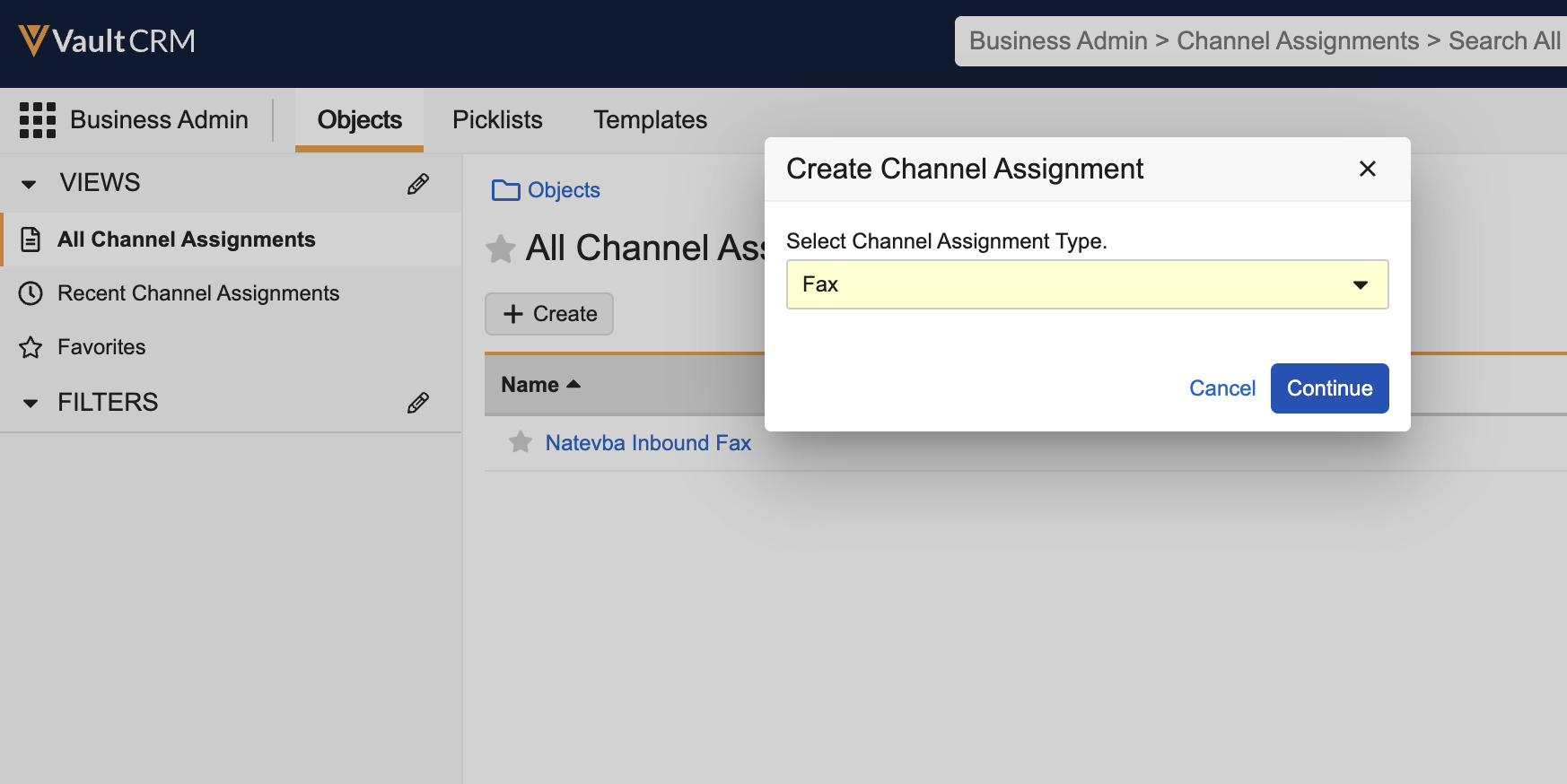
- Select Continue.
-
Populate the following fields:
- Name – Enter the appropriate name to display for this channel in the Case Inbox tab
- Queue – Select the appropriate queue
- Inbound Fax Number – Select the appropriate inbound fax number
- Select Save.
Viewing Inbound Faxes as
End Users
End Users can view faxes that have been received through a configured inbound fax number. When a fax is received, the system automatically creates a new Vault Document in the Document Library.
A limit of 100,000 pages can be received by a Vault CRM instance in a calendar year. Each fax document received via inbound fax increments this number.
The document is automatically named based on the sender's fax number. It contains the fax contents and is associated with the appropriate inbox within the Case Inbox tab based on the associated Channel Assignment.
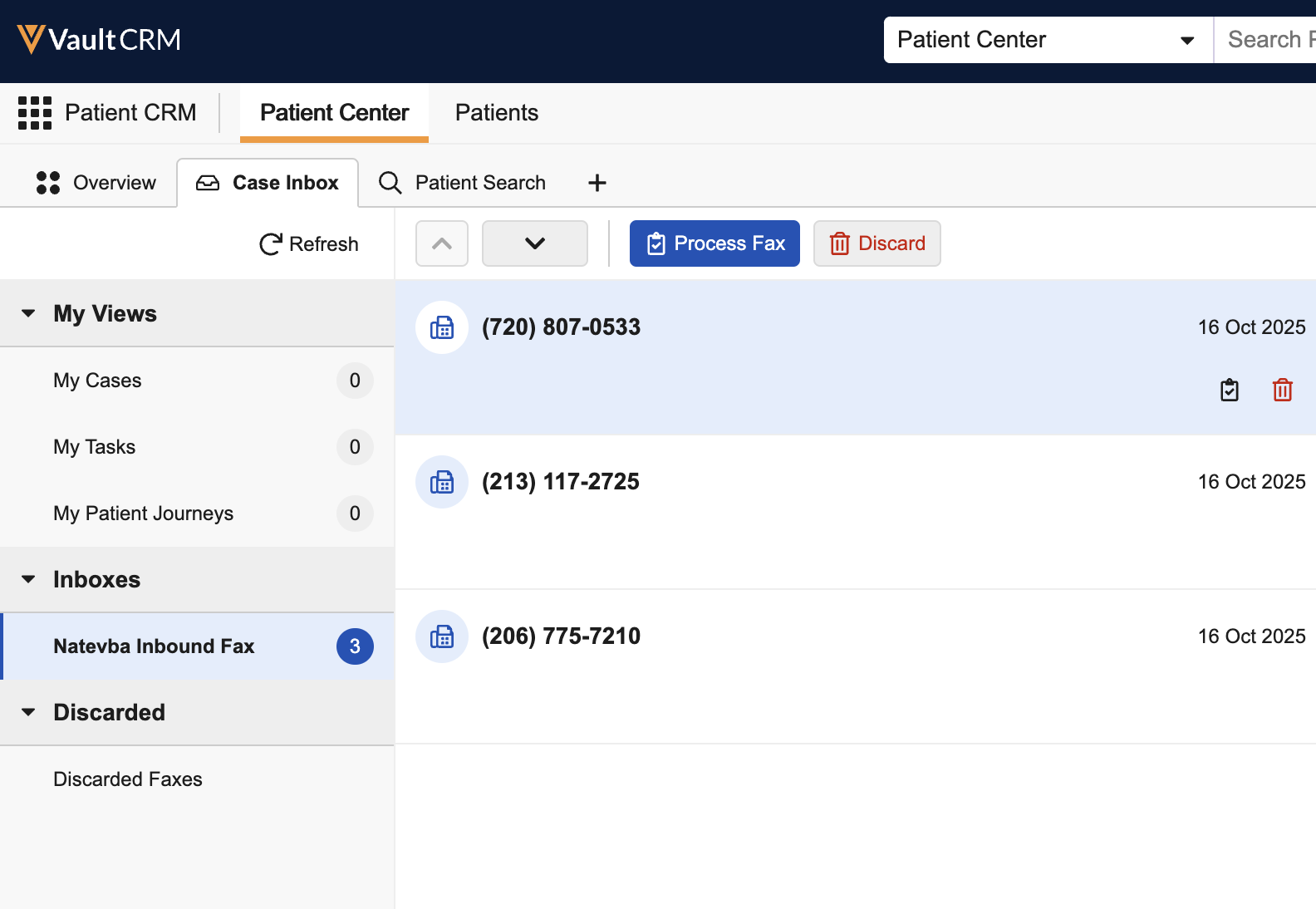
To view inbound faxes:
- Navigate to the Document Library.
- Select the appropriate Fax document.
-
Review the Transactional Information fields, including the following:
- Source Document
- Name
- To Fax Number
- External Fax ID
- External Payload

