Viewing Patient Details
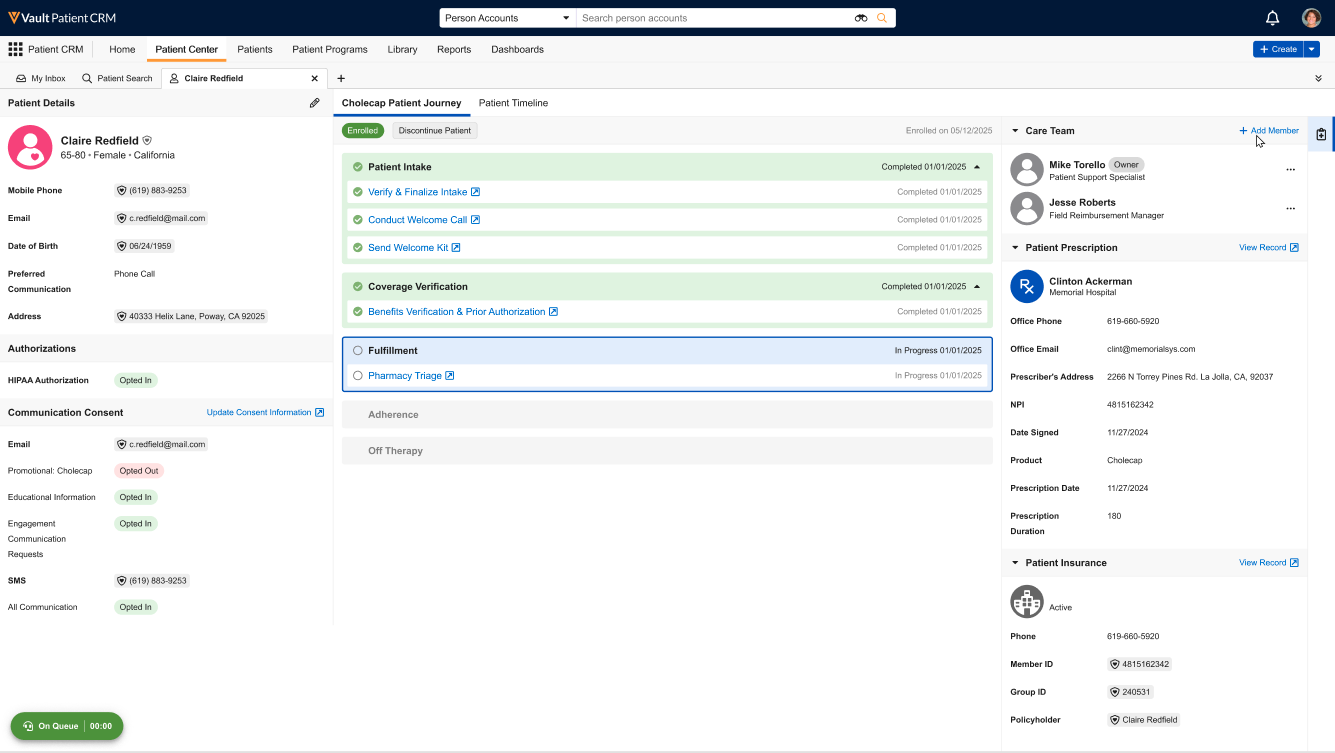
End users can view a patient’s information via the Patient Details tab. This tab serves as a comprehensive view of the patient’s information, their progress on the Patient Journeys they may be involved in, as well as prescription and insurance details. Centralizing this information enables end users to efficiently access all relevant information about a patient's journey, resolve access barriers, and manage related tasks without navigating to multiple pages.
Who can use this feature?
- End Users – Browser
- Using the Patient Details Tab
- Adding Patient Journey Details
- Users require a Patient CRM License
Configuring Viewing Patient Details for
 End Users
To configure this feature, ensure the following features are configured:
Using the Patient Details Tab as
End User
End users can access and manage all information related to a patient from the Patient Details tab, which is organized into three panes for ease of access of information:
-
Patient & Consent Details
-
Patient Journeys
-
Care Team, Prescription, and Insurance Information
Viewing Patient and Consent Details
The left-hand pane displays key patient and consent information for the patient.
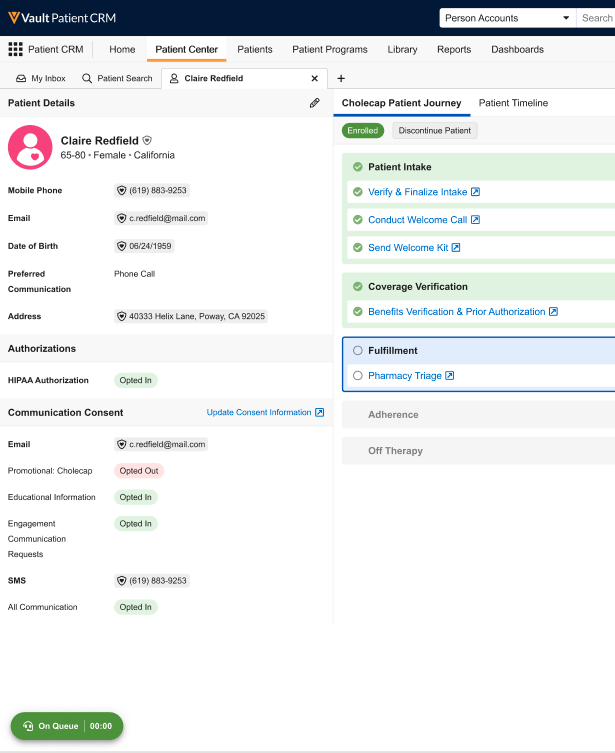
Select the Pencil icon in the Patient Details section header to edit the patient’s details.
If Managing Patient HIPAA and Program Authorizations is configured, the Authorizations section also displays in this pane.
Viewing and Managing Patient Journeys
The center pane displays the patient's active Patient Journey.
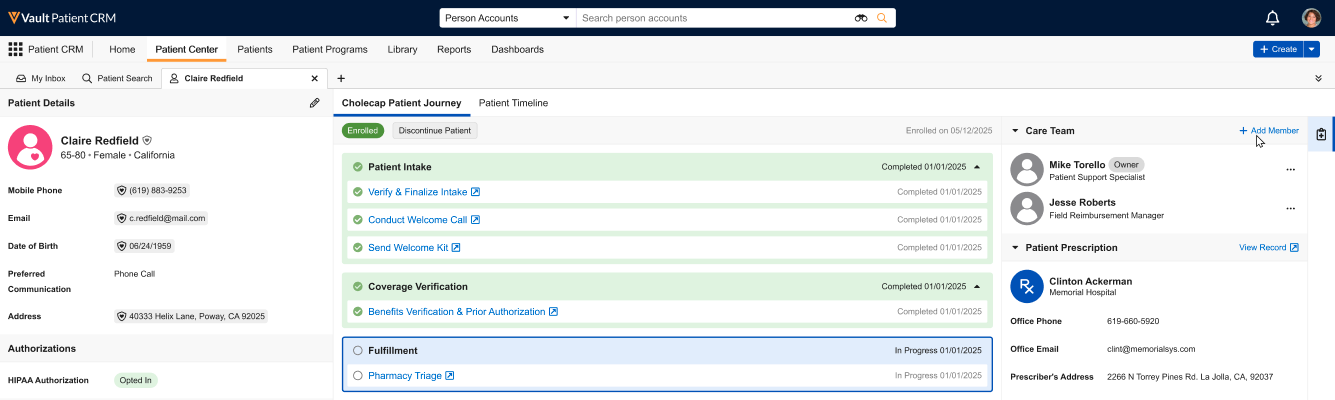
Each configured Journey Phase displays in a journey sub-tab, indicating which phases have been completed, which phase is in progress, and which phases are upcoming.
See Managing Patient Journeys for more information.
Viewing Care Team, Prescription, and Insurance Information
The right-hand pane displays the patient’s associated care team in Patient CRM, as well as prescription and insurance information.
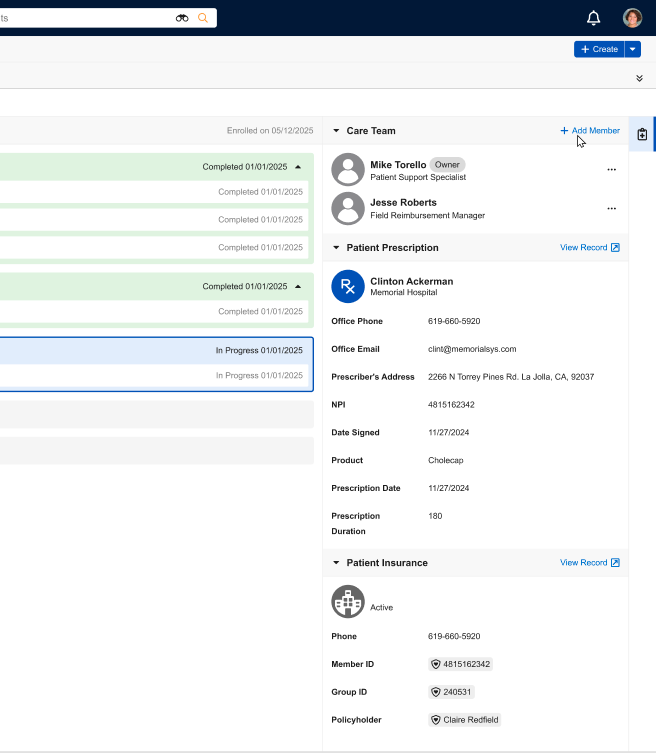
To add additional members to the patient’s care team:
- Select + Add Member in the Care Team section.
-
Populate the following fields:
- Role – Select the appropriate role
- User – Select the appropriate user
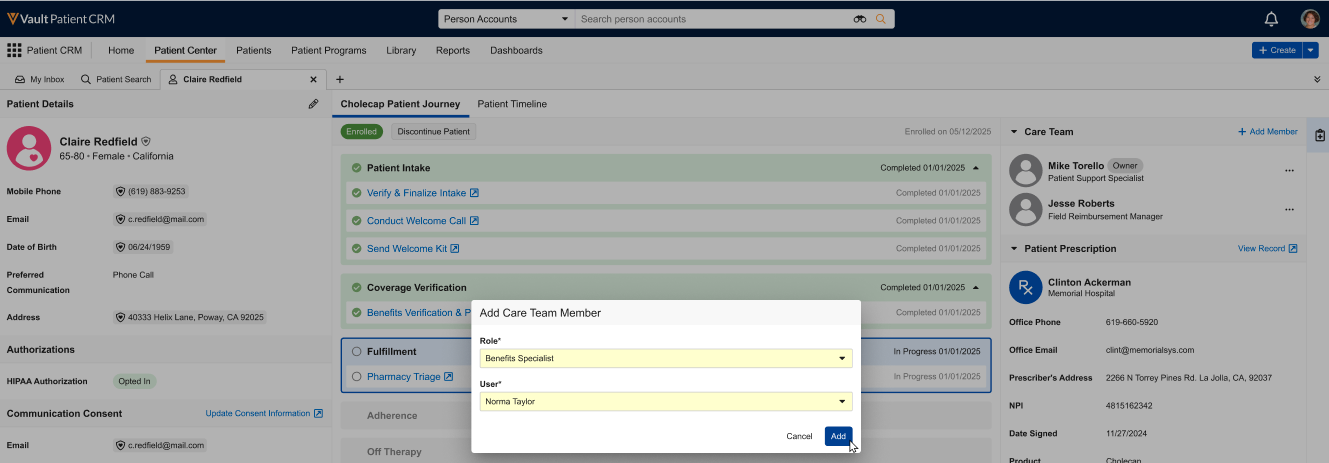
- Select Add.
Adding Patient Journey Details as
End Users
Users can use the following helper tabs when viewing Patient Details to streamline entering key information about the Patient Journey.
Helper tab visibility is determined by the specific Patient Journey. Fields in each of these tabs are controlled by corresponding Console Application Settings.
Managing Key Journey Details
Users can edit a patient’s Journey Details information, for example, requested services.
To manage high-level Journey Details information:
-
Select the Key Journey Details (
 ) tab.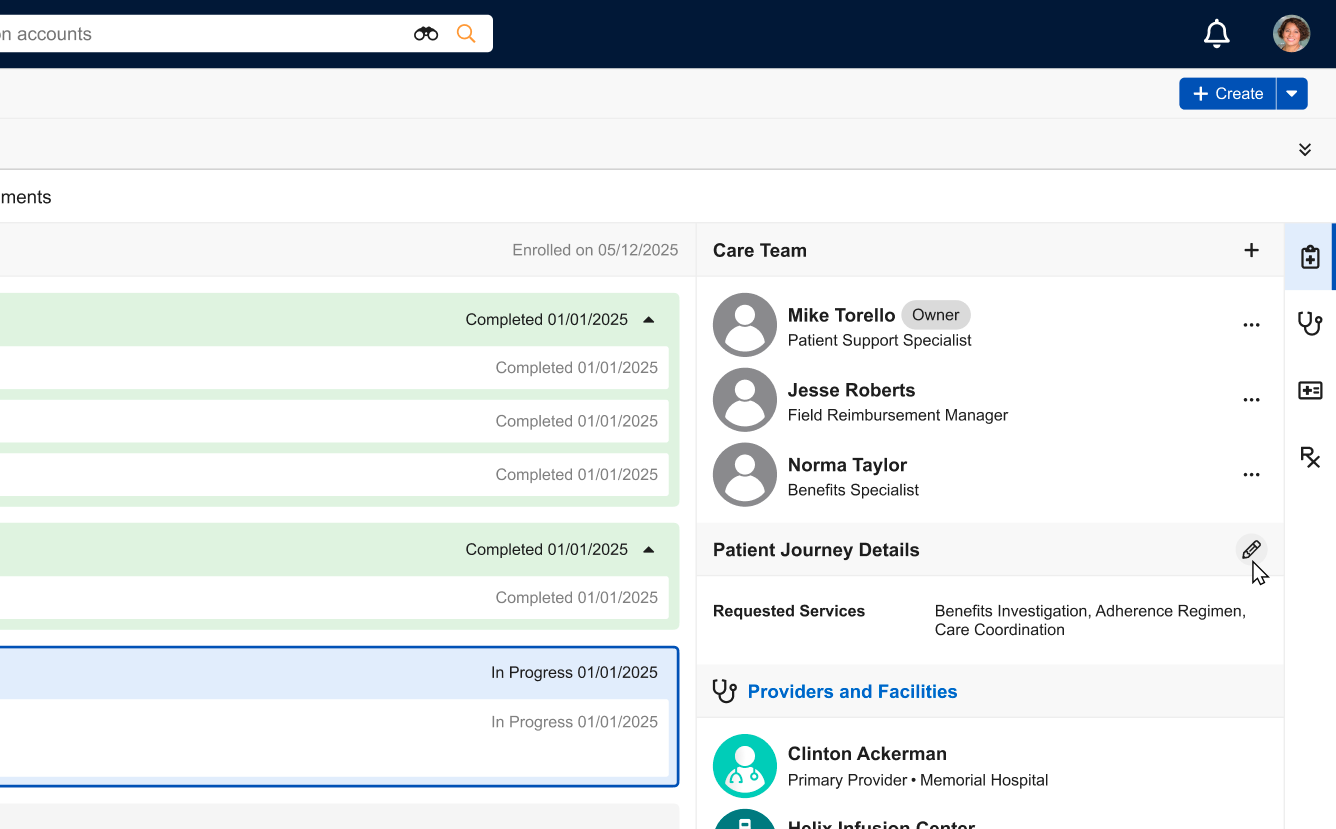
-
Select Edit in the Patient Journey Details section.
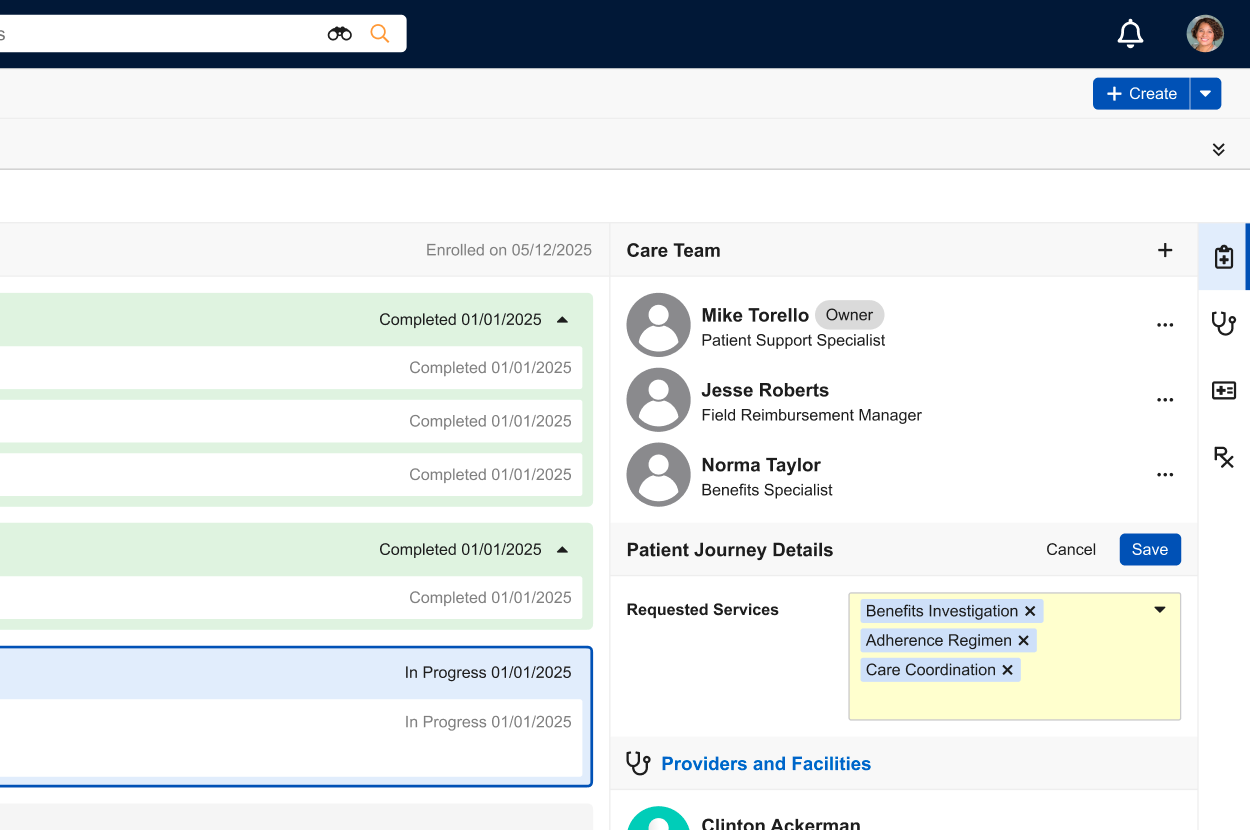
- Enter the appropriate information in the displayed fields.
- Select Save.
Managing Providers and Facilities
Users can add the providers and facilities associated with the Patient Journey, designate primary providers or facilities, or remove a primary designation.
To manage providers or facilities with a journey:
-
Select the Providers and Facilities (
 ) tab.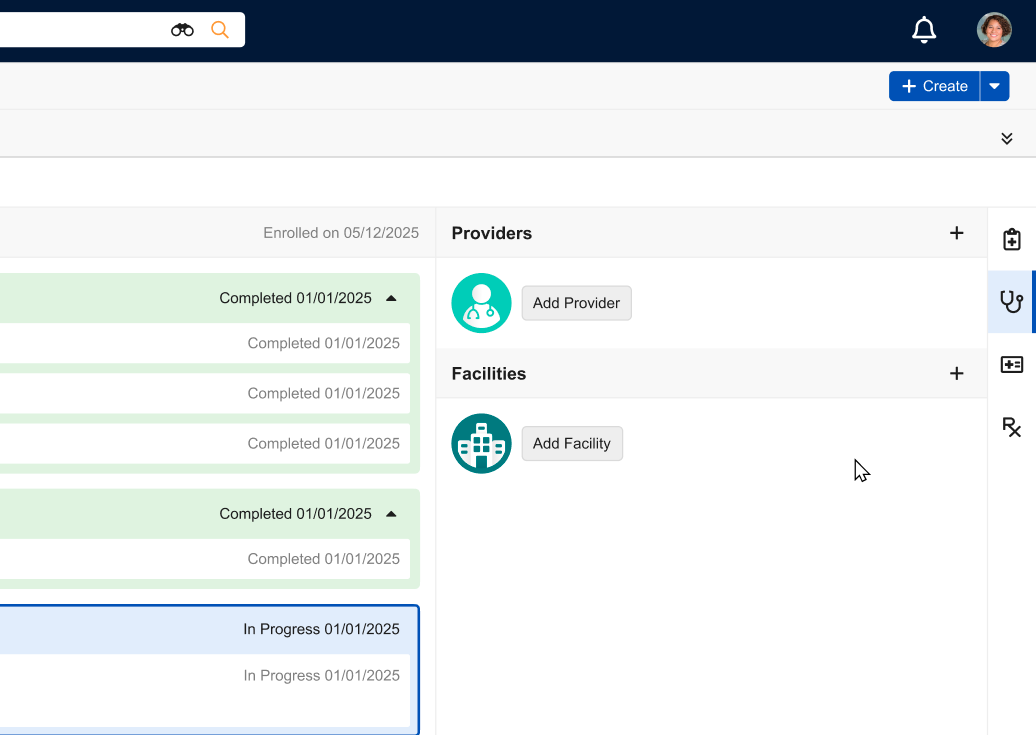
-
Select either Add Provider or Add Facility.
-
Populate the appropriate provider or facility name.
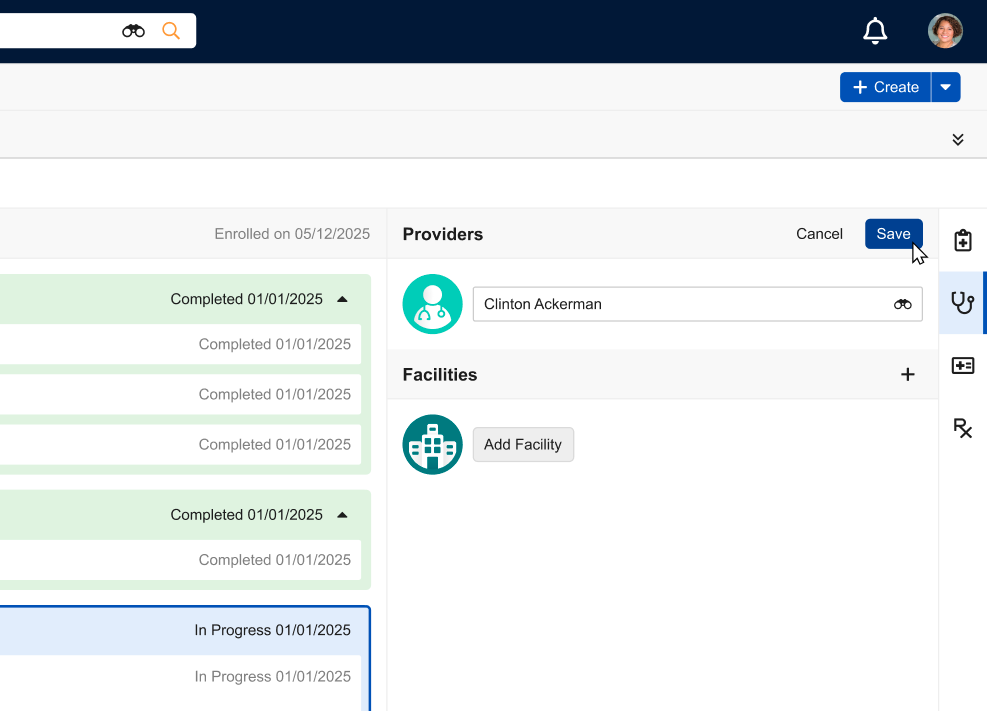
- Select Save.
By default, the primary provider or facility is the one added during the Patient Intake process. Users can designate a different primary provider by selecting Make Primary from the All Actions menu for the appropriate provider or facility.
Managing Insurance
To manage primary, secondary, and tertiary insurance:
-
Select the Insurance (
 ) helper tab.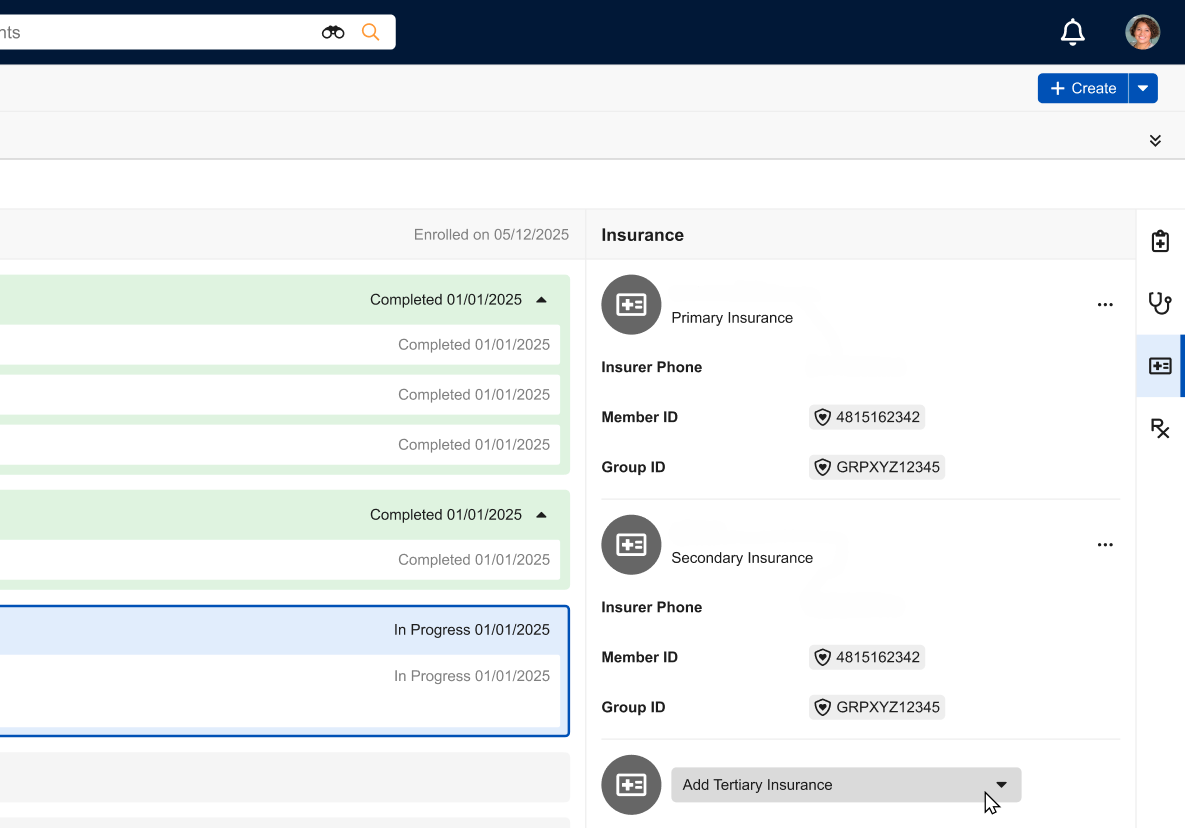
-
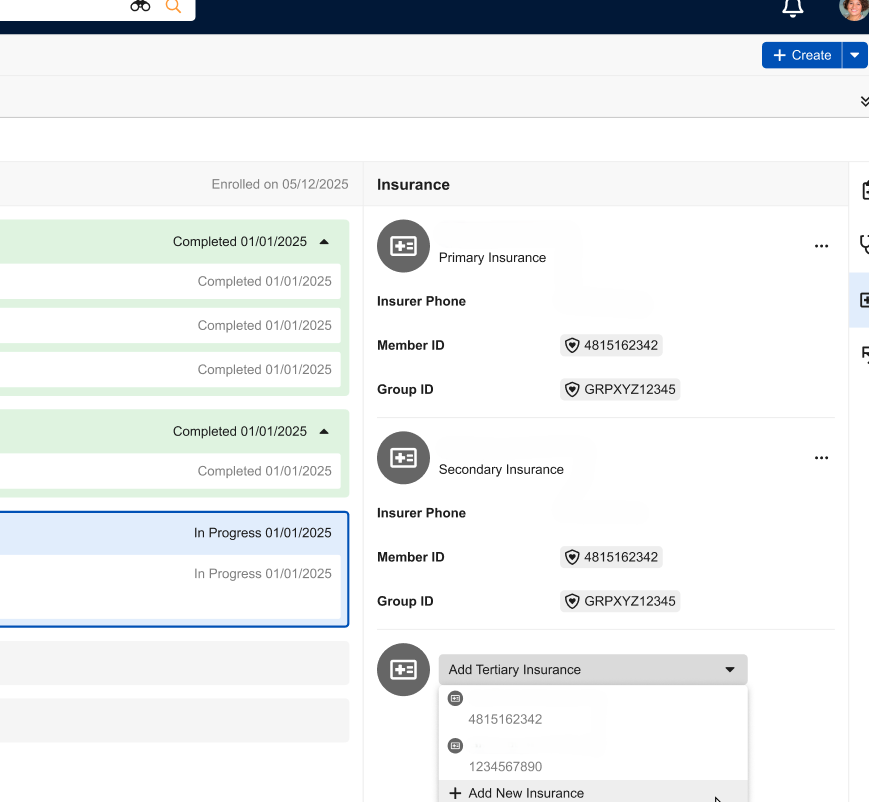
Select Add Primary Insurance, Add Secondary Insurance, or Add Tertiary Insurance, based on how many insurances are already added to the patient.
-
Select an existing insurance from the list or select Add New Insurance.
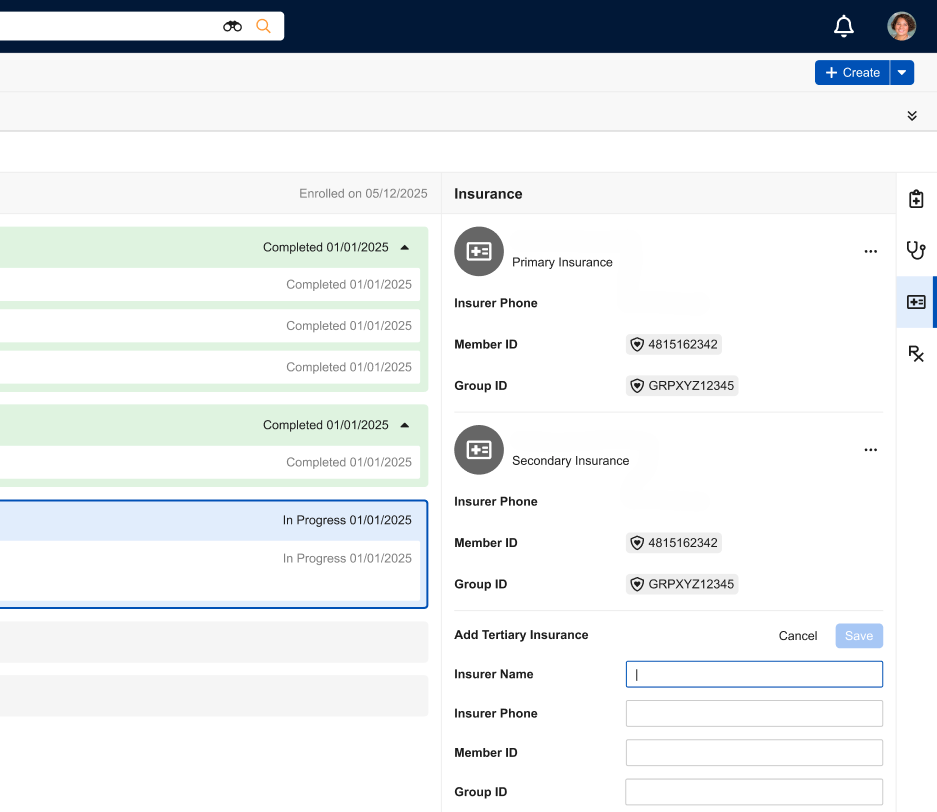
- Enter the insurance details, if entering new insurance information.
- Select Save.
Users can also remove or change the insurance priority by selecting one of the following actions from the All Actions menu:
- Make Primary
- Make Secondary
- Make Tertiary
- Remove
Managing Prescriptions
To manage patient prescriptions:
-
Select the Prescriptions (
 ) helper tab.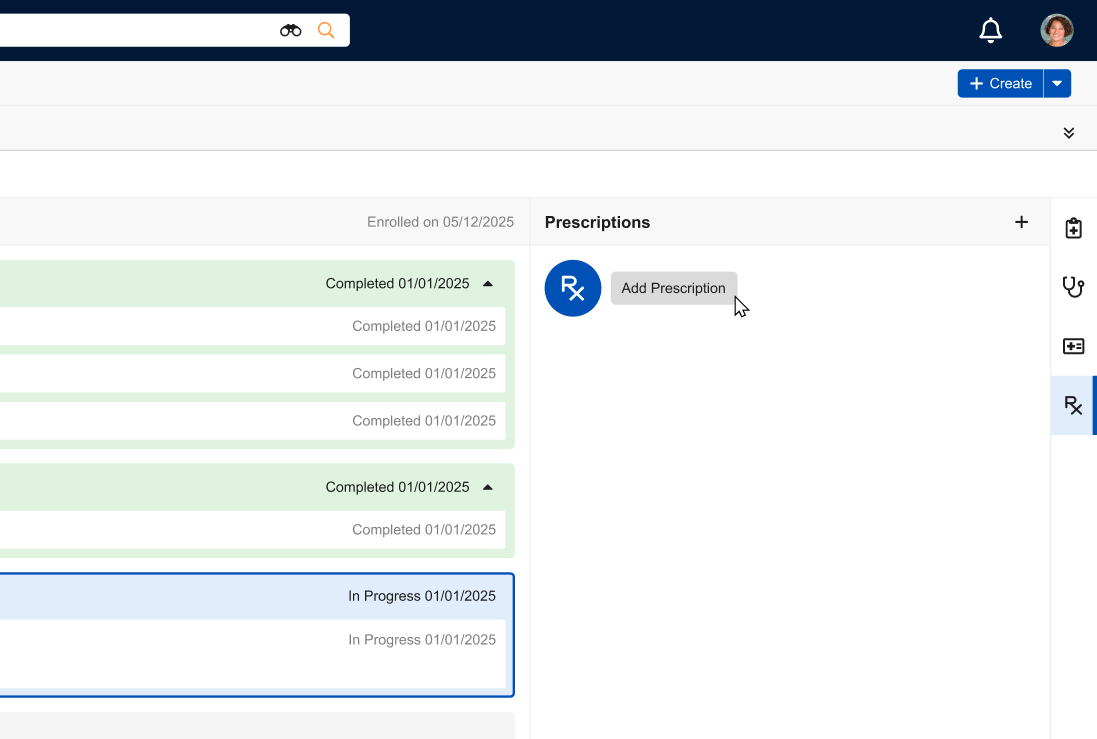
- Select Add Prescription.
-
Enter the prescription details.
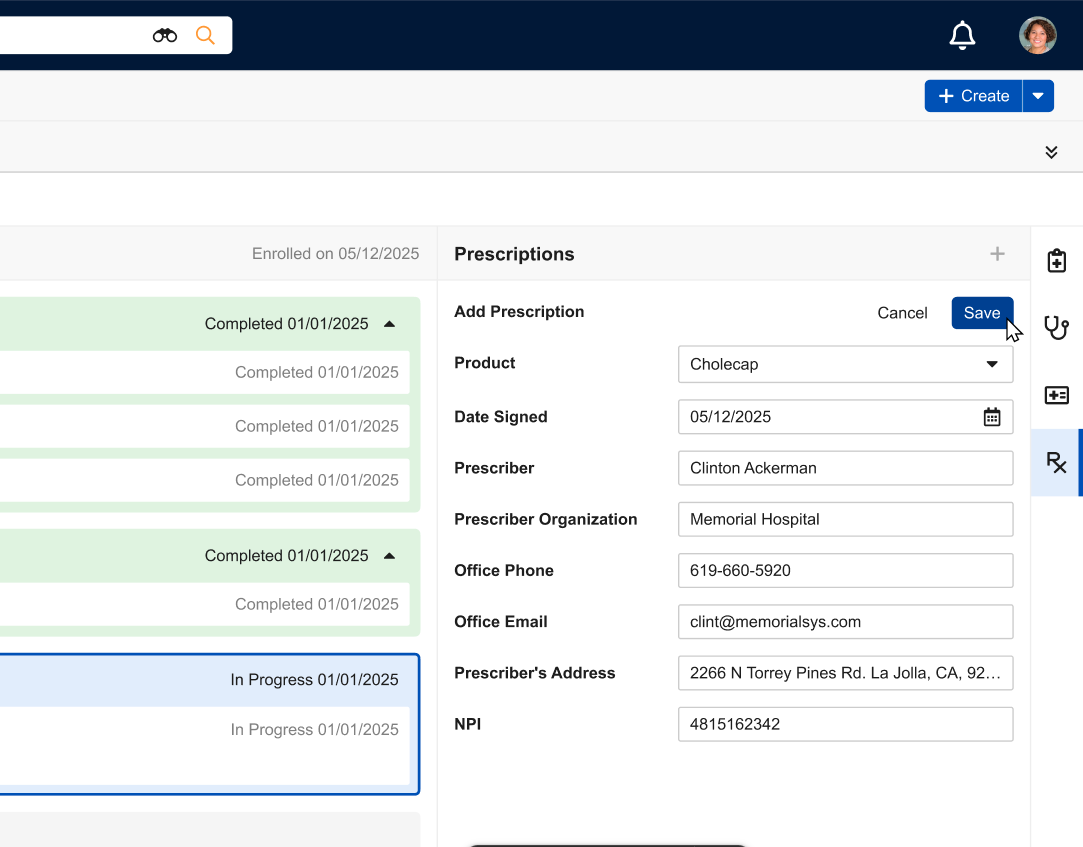
- Select Save.
Users can deactivate a prescription by selecting Archive from the All Actions menu for the appropriate prescription. This also removes the prescription from the helper tab view.

