Sending Outbound Faxes in Patient CRM
Outbound Fax allows Patient Support Specialists and other users in patient-related roles to send HIPAA-compliant faxes to HCPs and HCOs associated with a Patient Journey. Users can select custom approved fax templates, attach patient documents, and send documents directly to account fax numbers. Patient CRM treats all outbound faxes as containing PHI or PII by default.
Who can use this feature?
- Content Creators – Browser
- Creating Outbound Fax Templates
- Managing Outbound Fax Templates
- End Users – Browser
- Sending Outbound Faxes
- Viewing Sent Faxes
- Users require a Patient CRM License
Configuring Outbound Fax for
 All Users
To configure this feature:
- Ensure the following configuration is complete:
-
Navigate to Admin > Users & Groups > Permission Sets.
-
Select the appropriate permission set.
-
Select the Objects tab.
-
Grant the following object permissions:
-
fax_cda__v
-
fax_2__v
-
Select the Actions tab.
-
Grant Execute permission for the send_fax_action__v action on the case__v object, for the patient_center_case__v object type.
-
Navigate to Admin > Configuration > Objects > case__v > Object Types > patient_center_case__v.
-
Enable the send_fax_action__v action.
-
Enable outbound faxes from a Case:
- Navigate to Business Admin > Objects > Console Application Settings
- Select the appropriate Console Application Settings record
- Select Edit
- Select Fax in the Allow Outbound Communications field
- Select Save
|
Object |
Object Permission |
Object Types |
Fields |
Field Permission |
|---|---|---|---|---|
|
account__v |
R |
All applicable object types |
fax_cda__v |
Read |
| address__v | R | All applicable object types |
|
Read |
|
case__v |
CRED |
patient_center_case__v |
All editable fields |
Edit |
| sent_fax__v | CRE | patient_crm__v | All editable fields | Edit |
| case_conversation__v | CRE | fax__v | All editable fields | Edit |
Enabling Faxes to Unverified Numbers
By default, users can only send faxes to numbers already on file for a provider or facility in the Patient Journey. However, admins can additionally enable users to enter a fax number if a known fax number is not associated with the provider or facility’s Account or Address record.
- Navigate to Business Admin > Objects > Console Application Settings.
- Select the appropriate Console Application Settings record.
- Select Edit.
- Select Fax in the Allow Unverified Outbound Communications field.
- Select Save.
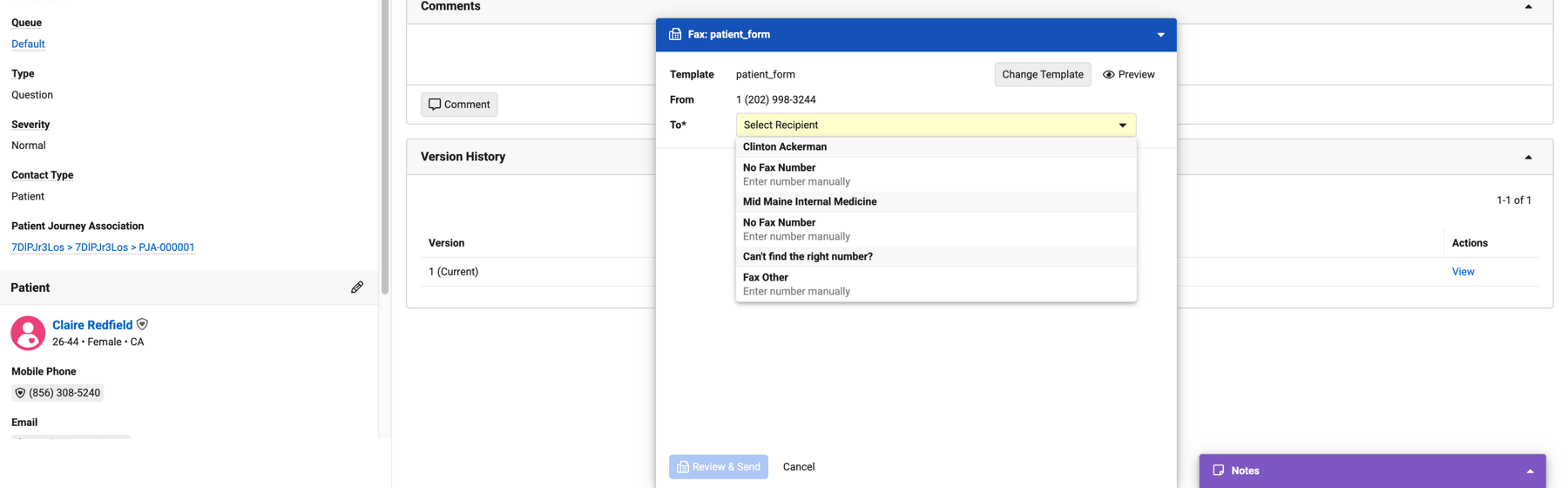
When enabled, two additional entry points are available for providers or facilities without a verified fax number on file:
-
The Enter Number Manually option displays below the account name
-
The Can’t Find the Right Number and Fax Other option display at the bottom of the To drop-down, allowing users to enter a different number manually.
If this setting is not enabled, users cannot send faxes until a valid number is available.
If sending to unverified numbers is not enabled, Veeva recommends the organization define a process for requesting updates when a fax number needs to be modified or added.
Creating a Patient Document Subtype
To differentiate Patient CRM Outbound Fax templates from other fax templates, organizations can create a Patient document subtype for the Dynamic Word Template document type. This is useful for restricting end user access to specific templates and for keeping Patient CRM templates visually distinct in the template library. Feature functionality does not depend on this configuration.
Creating Outbound Fax Templates as
Content Creators
Outbound fax templates are Dynamic Word Templates that define the content of a fax sent from a Patient CRM Case. Templates support tokens that pull in patient and account specific data, and can optionally allow users to attach existing patient documents. For information on formatting fax templates, including formatting guidelines and token syntax, see Creating and Managing Fax Templates.
A template must be published to display as an option for outbound faxes.
To create an outbound fax template for Patient CRM:
-
Create a .zip file containing the .docx template file and, if applicable, the token-mapping.txt file. Place both files at the root level of the .zip file.
Patient CRM outbound fax templates support up to three pages of fax content. Non-UTF8 characters are not supported in the .zip filename.
-
Create the template’s document record:
-
Navigate to All > Library
-
Select Create > Upload
-
Upload the .zip file containing the .docx file and the token mapping text file
-
Select Classify Documents Now > Dynamic Word Template as the document type
-
Select Next
-
Select Fax for the Dynamic Word Template Type field
-
-
Populate the Patient CRM outbound fax template:
-
Expand the Product Information section in the Information pane
-
Select a Detail Product. This step is optional. Templates assigned to a product are available to users who have that product assigned in My Setup. Templates with no product assigned are available to all users.
-
Expand the Content Library Details section in the Information pane
-
Select a Content Group. This step is optional.
-
Expand the Channel Details section in the Information pane
-
Select No for Consent Required for Sending. Patient CRM has implied consent to send outbound faxes to providers and facilities with Patient Journey Association records.
-
Select the Display Fax Header Page Numbers option to display page numbers in the header of the fax. This step is optional.
-
Enter Fax Header Text. This text displays at the top of each page of the fax. The text is limited to 50 characters and does not support tokens. This step is optional.
-
Enter a From Fax Number. This number displays as the sender's number.
-
Select Yes for Publish for Veeva CRM (Fax)
-
To allow users to attach existing patient documents to faxes sent using this template, select Yes for Allow Attachments in Patient CRM. Attachments are limited to ten pages. This step is optional.
-
-
Expand the More Options menu.
-
Select the Process Content document action to validate the content of the .zip file and make it available for sending faxes.
-
Select Save.
-
Update the document status to Approved to grant end users access to the fax template.
Supported Outbound Fax Tokens
Outbound fax templates support the reference and user input tokens available to fax templates in the existing Approved Email token library, as well as fax template-specific tokens. The following additional tokens are available for Patient CRM outbound fax templates. Patient CRM fax templates support two token syntaxes:
-
{{objectAPI.FieldAPIName}} - References a field directly on a supported object
-
{{objectAPI.RelationshipName.FieldAPIName}} - References fields on a related object, for example, pulling primary, secondary, and tertiary patient insurance data based on the Patient Journey Association record
If a token references multiple active records and the system can not determine which to use, the token returns a null value and displays as blank in the fax. Faxes with a null token value can still be sent, unless the token is marked as required by appending, :Required, to the token. See Creating and Managing Fax Templates for more information on fax formatting and token mapping.
The following additional tokens are available for Patient CRM outbound fax templates:
|
Token |
Description |
|---|---|
|
{{adherence__v.FieldAPIName}} |
Retrieves a field value from the Adherence (adherence__v) record associated with the Patient Journey Association record that matches the current case. If multiple active Adherence records are associated with the patient journey, the token returns a null value . |
| {{coverage_verification__v.FieldAPIName}} | Retrieves a field value from the Coverage Verification (coverage_verification__v) record associated with the Patient Journey Association record that matches the current case. If multiple active Coverage Verification records are associated with the patient journey, the token returns a null value. |
| {{fulfillment__v.FieldAPIName}} | Retrieves a field value from the Fulfillment (fulfillment__v) record associated with the Patient Journey Association record that matches the current case. If multiple active Fulfillment records are associated with the patient journey, the token returns a null value. |
| {{patient_attribute__v.FieldAPIName}} | Retrieves a field value from the Patient Attribute (patient_attribute__v) record associated with the case. A case cannot be associated with multiple Patient Attribute records. |
| {{patient_insurance__v.RelationshipName.FieldAPIName}} | Retrieves a field value from the primary, secondary, or tertiary Patient Insurance (patient_insurance__v) record based on the Patient Journey Association record. Use the {{ObjectAPIName.RelationshipName.FieldAPIName}} syntax to specify the insurance tier. |
| {{patient_journey__v.FieldAPIName}} | Retrieves a field value from the Patient Journey (patient_journey__v) record associated with the case. A case cannot be associated with multiple Patient Journey records. |
| {{patient_journey_affiliation__v.FieldAPIName}} | Retrieves a field value from the Patient Journey Affiliation (patient_journey_affiliation__v) record associated with the Patient Journey Association record that matches the current case. If multiple active Patient Journey Affiliation records are associated with the patient journey, the token returns a null value. |
| {{patient_journey_association__v.FieldAPIName}} | Retrieves a field value from the Patient Journey Association (patient_journey_association__v) record associated with the patient journey and case. A patient journey cannot be associated with multiple Patient Journey Association records for the same patient. |
| {{patient_prescription__v.FieldAPIName}} | Retrieves a field value from the Patient Prescription (patient_prescription__v) record associated with the Patient Journey Association record that matches the current case. If multiple active Patient Prescription records are associated with the patient journey, the token references the active record with the most recent Created Date (created_date__v). |
| {{case__v.FieldAPIName}} | Retrieves a field value from the Case (case__v) record associated with the current case. |
See Send to Fax to learn more about fax tokens and supported field types.
Managing Outbound Fax Templates as
Content Creators
To update an existing fax template:
-
Navigate to All > Library.
-
Select the appropriate template record.
-
Ensure the record is in the Draft or Staged status.
-
Upload a revised .zip file to the existing document record:
-
Expand the More Options menu
-
Select Upload New Version
-
-
Expand the More Options menu.
-
Select Process Content to validate the content and regenerate rendered output.
-
Update the record to the Approved state.
If multiple versions of a template exist, the most recently modified version is used, based on the Last Modified Date.
Sending Outbound Faxes as
End Users
From the Case tab, end users can send outbound faxes to Providers and Facilities associated with a Patient Journey. Sending outbound faxes is only available for open Cases.
Cases created automatically as part of a Patient Journey or from Adherence are already linked to a Patient Journey Associated record and support outbound fax immediately. Cases created adhoc, for example, via the Create button, from the Patient Search tab, or directly in Business Admin, require a user to link the case to a Patient Journey Association to send outbound faxes.
To send an outbound fax:
-
Navigate to the Patient CRM tab.
-
Open the appropriate Case.
-
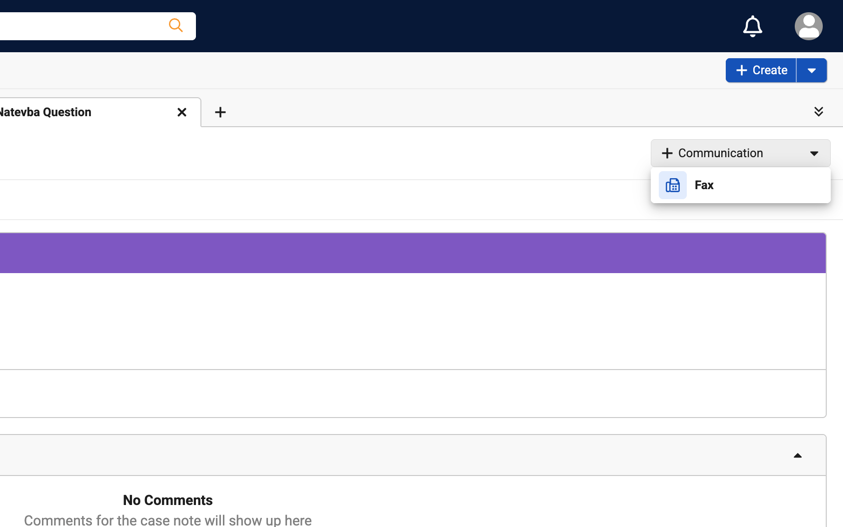
Expand the Communication drop-down.
-
Select Fax.
-
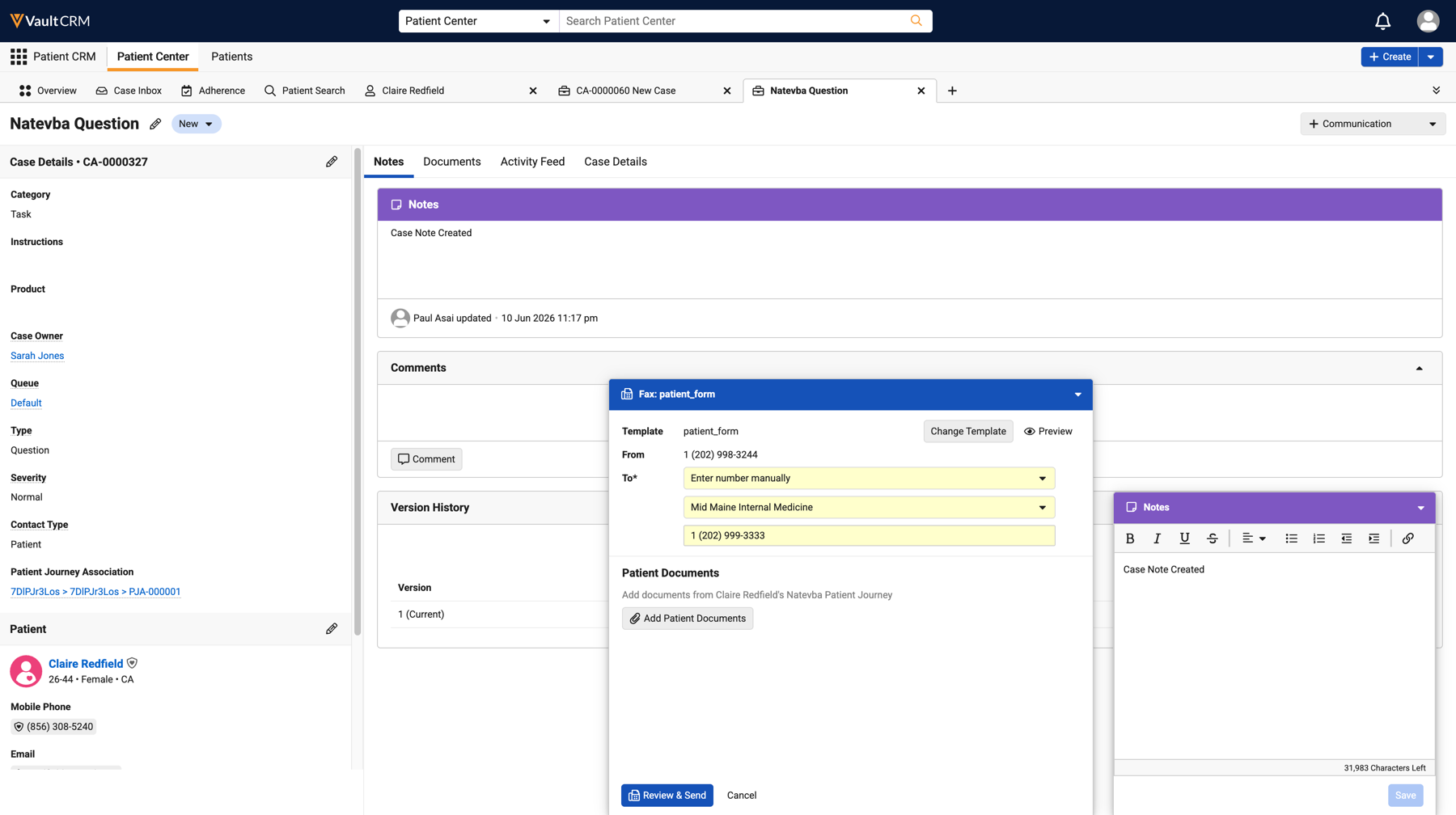
Select the appropriate template. Users can search and preview approved templates before selecting a template to fax. Populate the outbound fax fields:
-
Select the To drop-down to specify the Provider or Facility to receive the fax. Only Providers or Facilities associated with the Patient Journey Affiliation record display.
-
Select Add Patient Documents to attach relevant patient documents. Documents already uploaded to the patient’s journey are included, with the most recently uploaded documents first.
-
Populate required fields, if the template includes User Input tokens
-
-
Select Review & Send.
-
Select Send Fax.
Up to ten pages of patient documents can be attached to an email, in addition to the three pages of fax template content.
The fax’s status updates to Queued for Sending as Patient CRM attempts to deliver the outbound fax. Users are not prevented from changing the Case status to Solved while the fax is in Queued status. If the fax fails to send, a reason for the failure is recorded on the Failure Message field on the Sent Fax record. See Viewing Sent Faxes to learn how Patient CRM provides status updates on the fax’s delivery and how to resend the fax.
The following fax number fields are supported on the Account and Address objects. When selecting the fax recipient, the To drop-down displays fax numbers in the following order:
-
The fax_cda__v field via the account__v object
-
The fax_cda__v field via the address__v object
-
The fax_2__v field via the address__v object
If none of these fields are populated for a Provider or Facility, No Fax Number displays below the account name.
Information sent through Patient CRM and all versions of Patient CRM outbound faxes are stored, accessed, and displayed in a HIPAA-compliant manner.
Sending Outbound Faxes to Unverified Numbers
If enabled, users can send an outbound fax to an unverified fax number. This is useful when the correct number is not on file for a Provider or Facility. These unverified numbers are stored on the To Fax Number field of the Sent Fax record.
To send an outbound fax to an unverified number:
-
Select the To drop-down menu.
-
Select Fax Other to display two additional fields:
-
Select Provider or Facility - Specify the Provider/Facility if not already populated
-
Enter Fax Number - Enter the fax number
-
Select Add Patient Documents to attach relevant patient documents. Documents already uploaded to the patient’s journey [link on patient’s journey] are included, with the most recently uploaded documents first.
-
Populate required fields, if the template includes User Input tokens
-
-
Select Review & Send.
-
Select Send Fax.
Up to ten pages of patient documents can be attached to an email, in addition to the three pages of fax template content.
Viewing Sent Faxes as
End Users
After sending a fax, users can track delivery status via the Activity Feed and access the sent fax records from three locations in Patient CRM:
-
The Activity Feed displays an activity card with delivery status updates and, on failure, the option to start a new fax via the Start Another Fax button. Selecting this opens a new outbound fax tray where the user can repopulate the fax. A Send to Fax record is generated for each attempt.
-
The Case Documents and Patient Documents tabs display the sent fax as a document record once delivered
-
Latest Activity via My Cases display the sent fax as a document record once delivered

