Installing CRM Desktop (Mac)
Users can install the app, sign in, and sync content.
Installing the App
End users can download the app installer directly, after ensuring software requirements are satisfied, or perform the following steps:
To install the app:
- Ensure software requirements are satisfied.
- Launch the media library from a call report.
- Select download & run Vault CRM Desktop.
- Launch the downloaded PKG file. The Install Vault CRM Desktop modal displays.
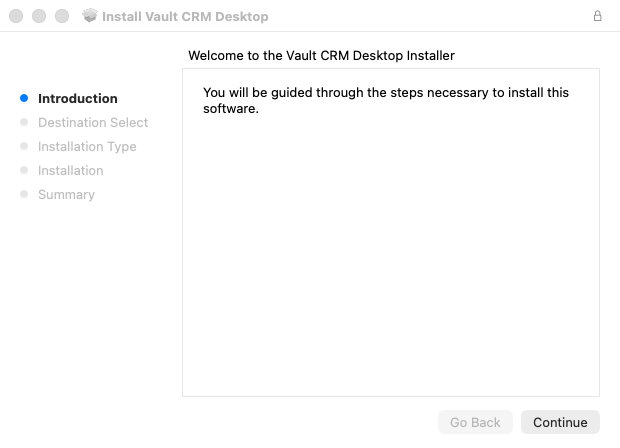
- Select Continue.
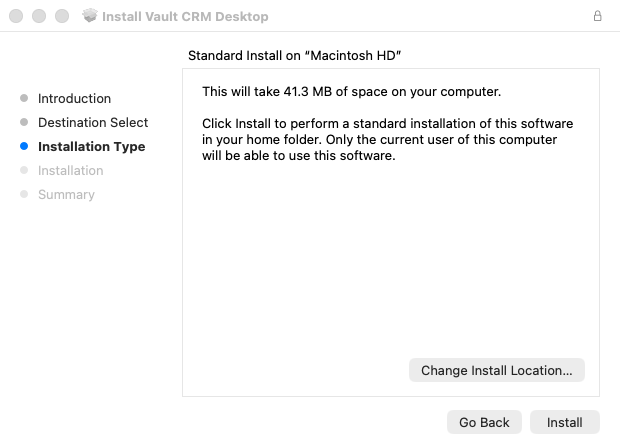
- Select Install. The Vault CRM Desktop app installs in your user-specific Applications folder.
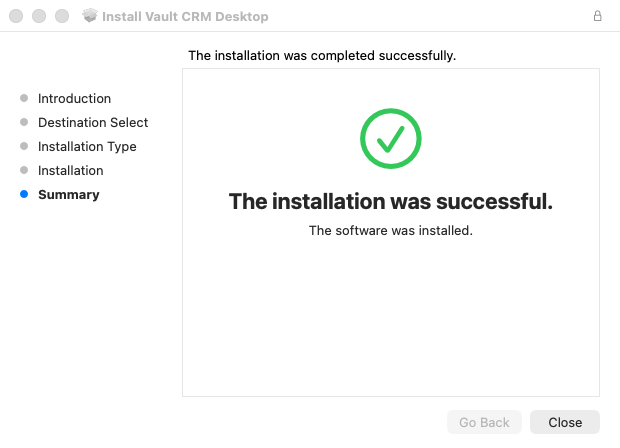
- Select Close when the installation completes.
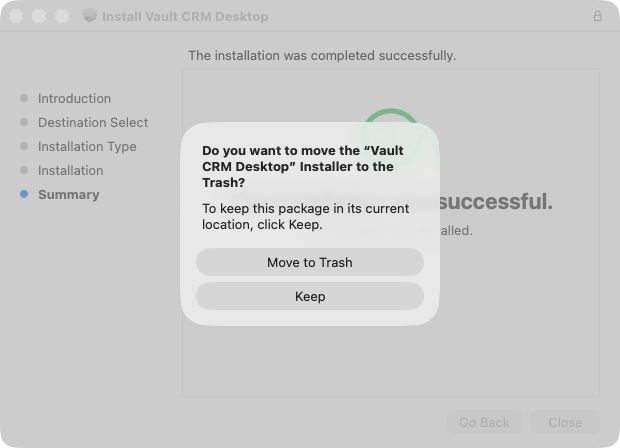
- Select Move to Trash to remove the PKG file after the app is installed.
Alternatively, customers who use Mobile Device Management (MDM) can use their existing MDM to deliver the Vault CRM Desktop app for Mac to their end users.
Signing In
To sign in to the Vault CRM Desktop app for Mac:
- Open your Mac's Apps folder.
- Select the application icon. The sign in screen displays, which includes the username field.
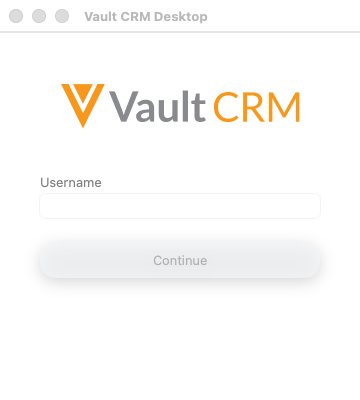
- Enter your username.
- Select Continue.
- Enter your password in the browser overlay. If you have single sign-on (SSO) configured, the third-party sign-in screen displays in the overlay. See Configuring Single Sign-on for more information about configuring SSO in Vault.
- Complete the sign in process in the browser.
- Select the Vault CRM Desktop app for Mac. An embedded browser window displays.
- Follow the prompts to authenticate using your Vault credentials (OAuth).
The first time a user signs in, the username field is blank and a sync session begins once the user is authenticated. For subsequent sign-ins, the username field automatically populates with the previously used username. Vault CRM does not store passwords.
The browser window closes once you are authenticated. If you have access to multiple Vaults, you are prompted to select which Vault to sync.
You can also launch the Vault CRM Desktop app for Mac directly from Vault CRM in your web browser:
- Sign in to Vault CRM.
- Navigate to a Call record and select Start Media.
The browser automatically opens the Vault CRM Desktop app for Mac. If you recently cleared your browser cookies, the system briefly runs a check, restores your connection, and then opens the app automatically.
Downloading Presentations
To download all available presentations, select Download All from the app menu.
Alternatively, select one or multiple presentations in the Media Library List View and select the download icon.
Syncing Content
Incremental Sync occurs automatically every time you log in or open the app after fully quitting. Full Sync occurs automatically every 24 hours. You can also manually trigger a full sync from the app menu. For more information on syncing, see Sync Overview.
App Settings
The following setting and status information applies to users' media and hardware when using Vault CRM Desktop app for Mac.
Media
- Users can select to display a slideshow In Full Screen or In Window by default. This setting applies to all CLM presentations launched from the app
- Users can toggle Always Start Presenter View on or off

