Account Search for Service Center
The Account Search feature is designed to help users efficiently locate and access specific account information within the Vault CRM platform. By entering a search query, users can quickly filter through accounts, identifying the exact information they need.
Who can use this feature?
- All Users - Browser
- Using Account Search
- Users do not require an additional license
Configuring Account Search for
 All Users
To configure this feature, ensure Configuring Service Center is complete.
Configuring Account Search Permissions
Grant users Read permission to the following fields:
- ispersonaccount__v
- last_name_cda__v
- name__v
- formatted_name__v
To display the Address field and the Result Card fields, users must have permission to view these fields
Using Account Search as
Service Center Reps
Initiating an Account Search While on a Call
When a Representative answers a phone call within Vault CRM, the display switches to an Account Search field auto-populated with the caller’s phone number, along with a list of accounts in Vault CRM associated with that phone number.
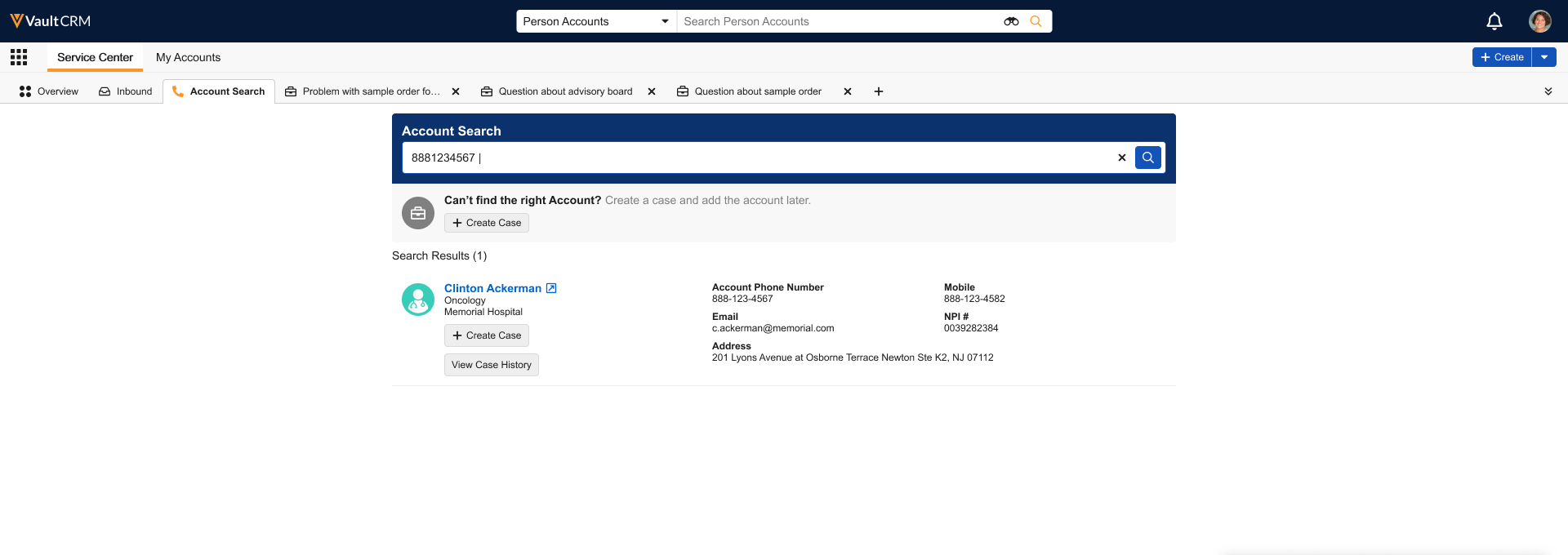
Select the account to navigate directly to the record. The account page opens in a new window.
Initiating an Account Search While Not on a Call
-
Select the Account Search tab.
-
Enter at least two characters in the search bar to search for the account to associate with the case.
Viewing the Search Results
The search results display as follows:
- HCOs are listed first, sorted by name
- HCPs are listed after HCOs, sorted by last name
To narrow the search results, enter additional information in the search bar.
- If the search does not produce any results, a No Results Found message indicates results were not found.
- If the user does not have Read permission to the fields listed above, an Unable to Display Search Results message displays.
- If the search field is cleared, a Search Accounts message indicates no active search is in progress. Enter at least two characters in the field to start a new search.
Creating a Case from the Account Search Results
Locate the account record in the search results, then select the + Create Case button for the account to initiate a case.
A tab created for the new case displays. The Case Details fields are populated but editable. The Queue field is populated with the default queue.
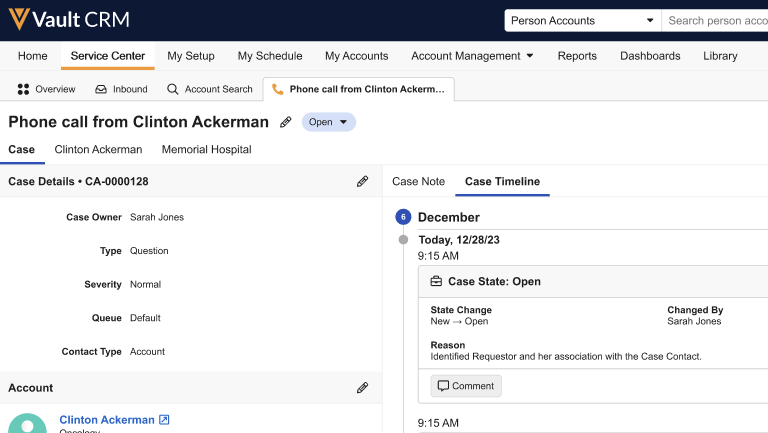
For Cases Created While on a Phone Call:
The case status is set as Open.
The case subject is automatically set as follows:
- If the account is known, the case subject is “Phone call from <account name>”
- If the account is not known:
- If the phone number is known, the case subject is “Phone call from <phone number>”
- If the phone number is not known, the case subject is “Phone call from Unknown Number”
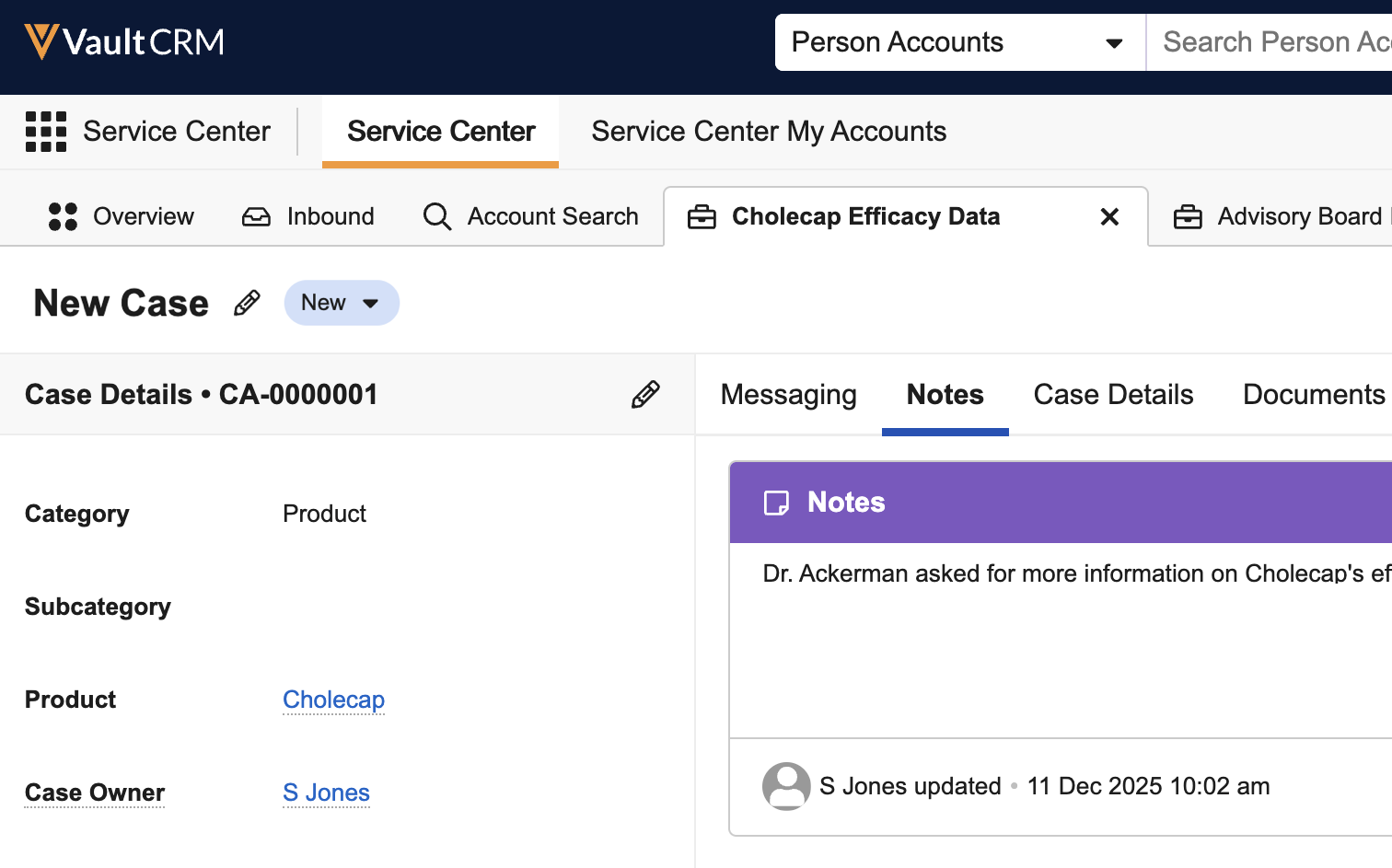
For Cases Created While Not on a Phone Call:
The case tab displays with a generic note. The case status is set as New.
If you cannot find the account in the search results, select the + Create Case button under Can’t find the right Account?
Refer to Using Service Center for more information on managing cases.

