Knowledge Base for Service Center
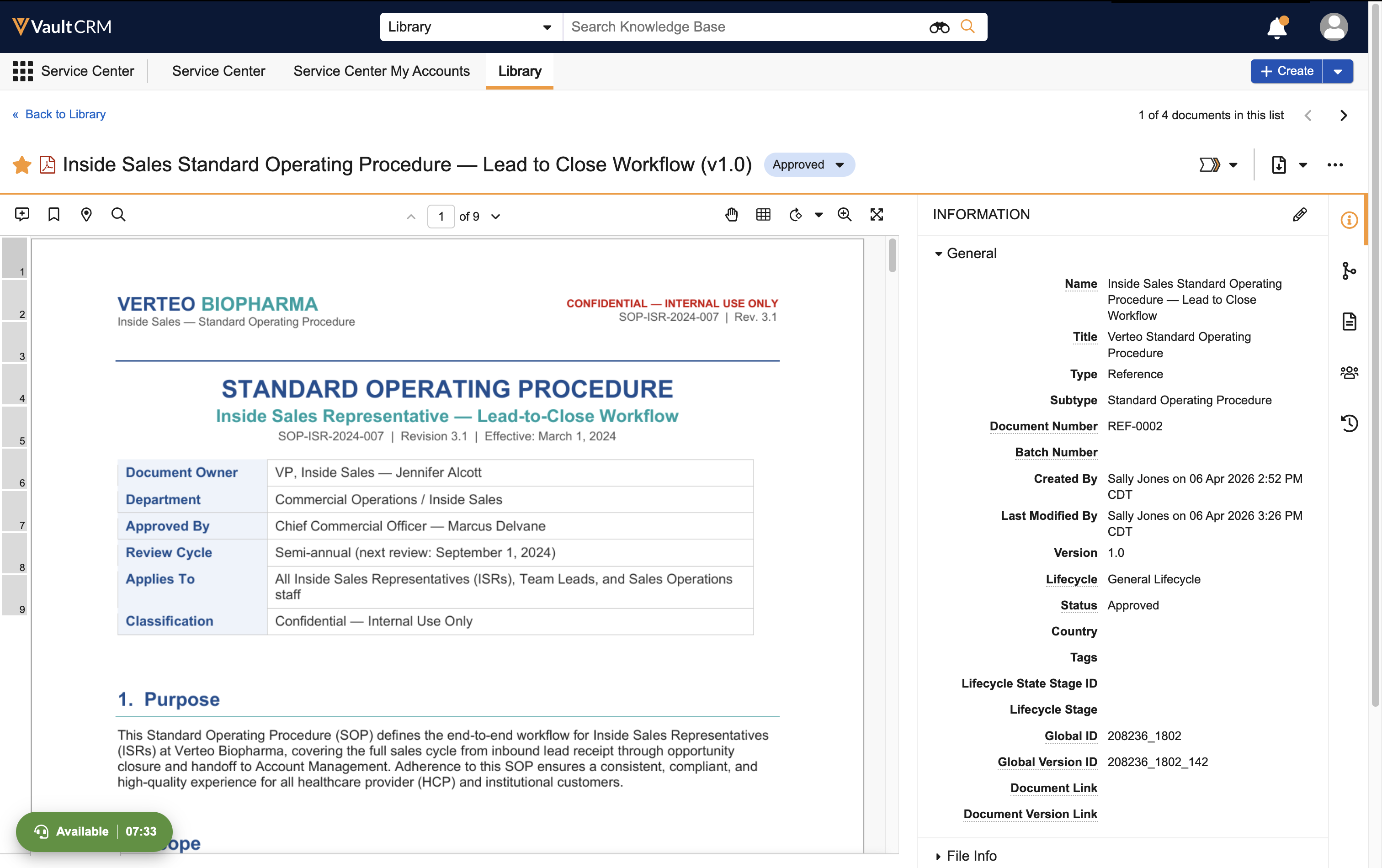
Knowledge Base acts as a repository to manage approved documents directly within Service Center, providing inbound Service Center reps with easily accessible reference materials during customer interactions. This helps minimize the risk of outdated information and reduce case handling time.
Who can use this feature?
- Business Admins — Browser
- Creating Knowledge Base Documents
- Service Center Reps — Browser
- Accessing Knowledge Base Documents
- Users do not require an additional license
Configuring Service Center for Knowledge Base for
 Business Admins
- Ensure Configuring Service Center is complete.
- Navigate to Admin > Users & Groups > Permission Sets.
- Select the appropriate permission set.
- Select Tabs.
- Grant View permission to the Knowledge Base tab.
- Navigate to Admin > Configuration > Views > Knowledge Base.
- Select the edit icon.
- Add the All Internal Users group to the Visible To field.
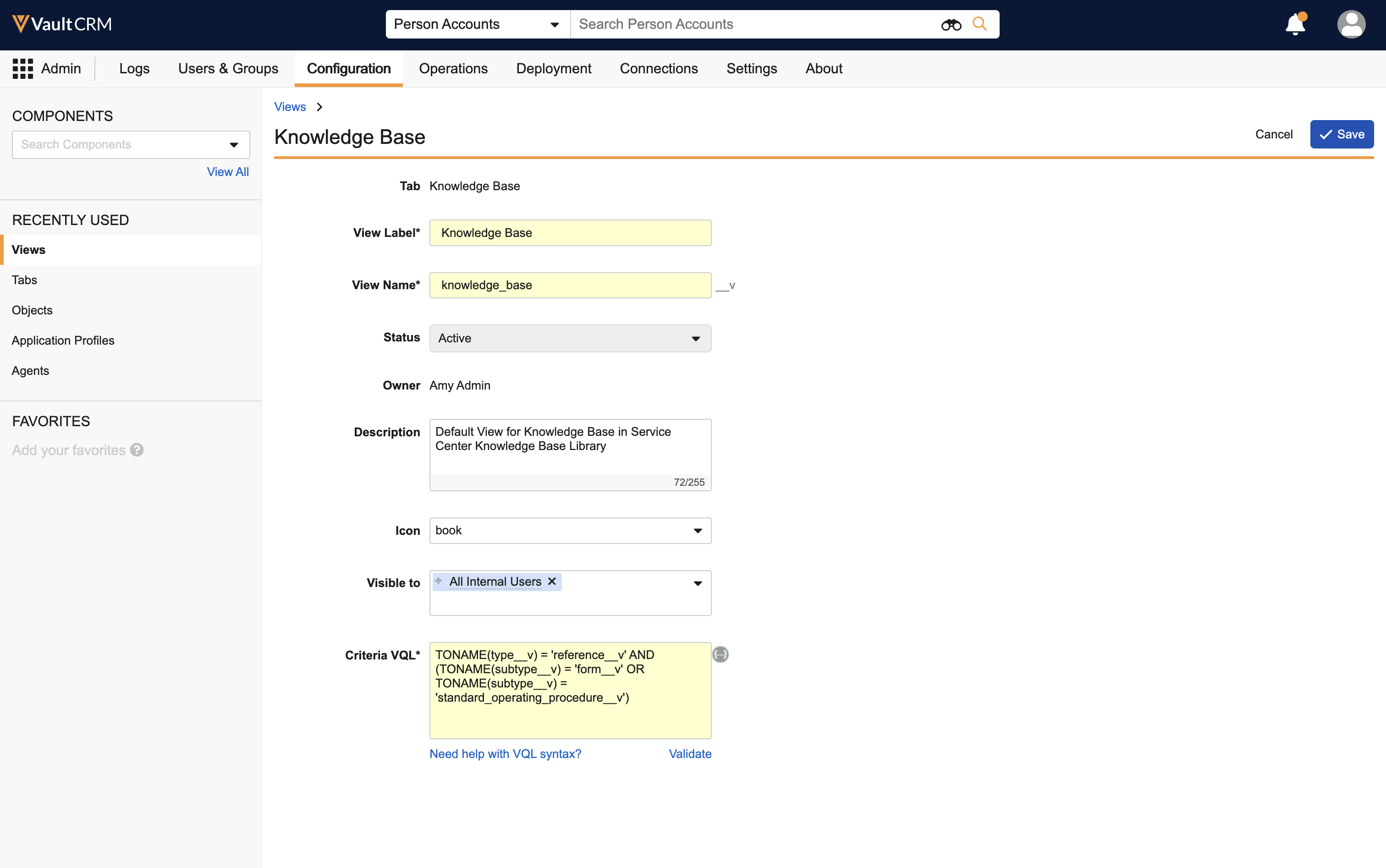
- Select Save.
Service Center Reps
- Ensure Configuring Service Center is complete.
- Navigate to Admin > Users & Groups > Permission Sets.
- Select the appropriate permission set.
- Select Tabs.
- Grant View permission to the Knowledge Base tab.
- Navigate to Admin > Users & Groups > Groups.
- Select the All Internal Users group.
- Select the Members tab.
- Add Service Center users, if not already included.
- Navigate to Admin > Configuration > Document Types.
- Confirm the system-granted Create and View access to All Internal Users at the document subtype level for Forms and Standard Operating Procedures.
Managing Knowledge Base Documents as
Business Admins and Service Center Reps
- Navigate to the Knowledge Base tab.
- Select Create.
- Upload the new Knowledge Base document’s source file.
- Select the Reference type and the appropriate subtype.
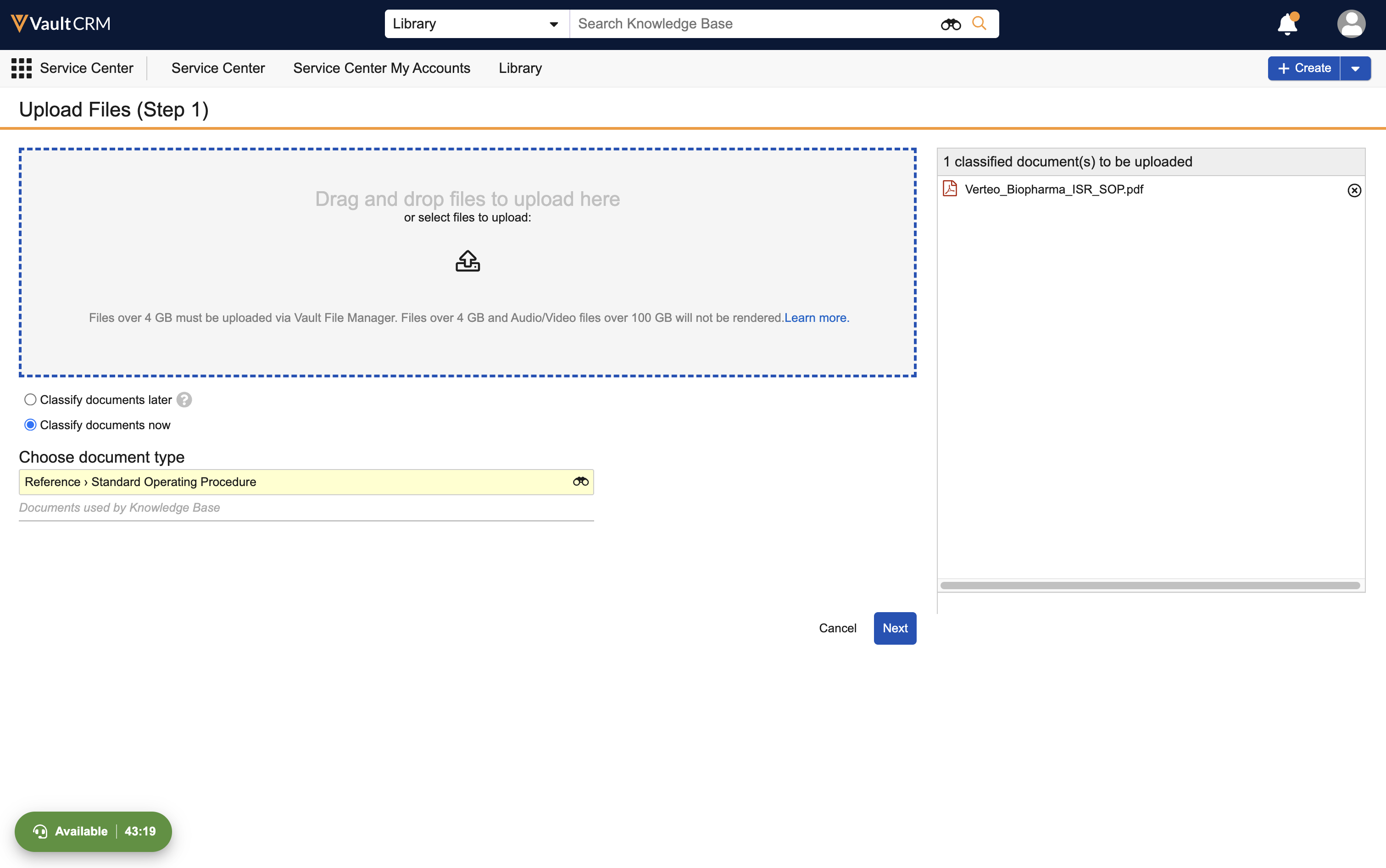
- Select Next.
- Populate the required fields.
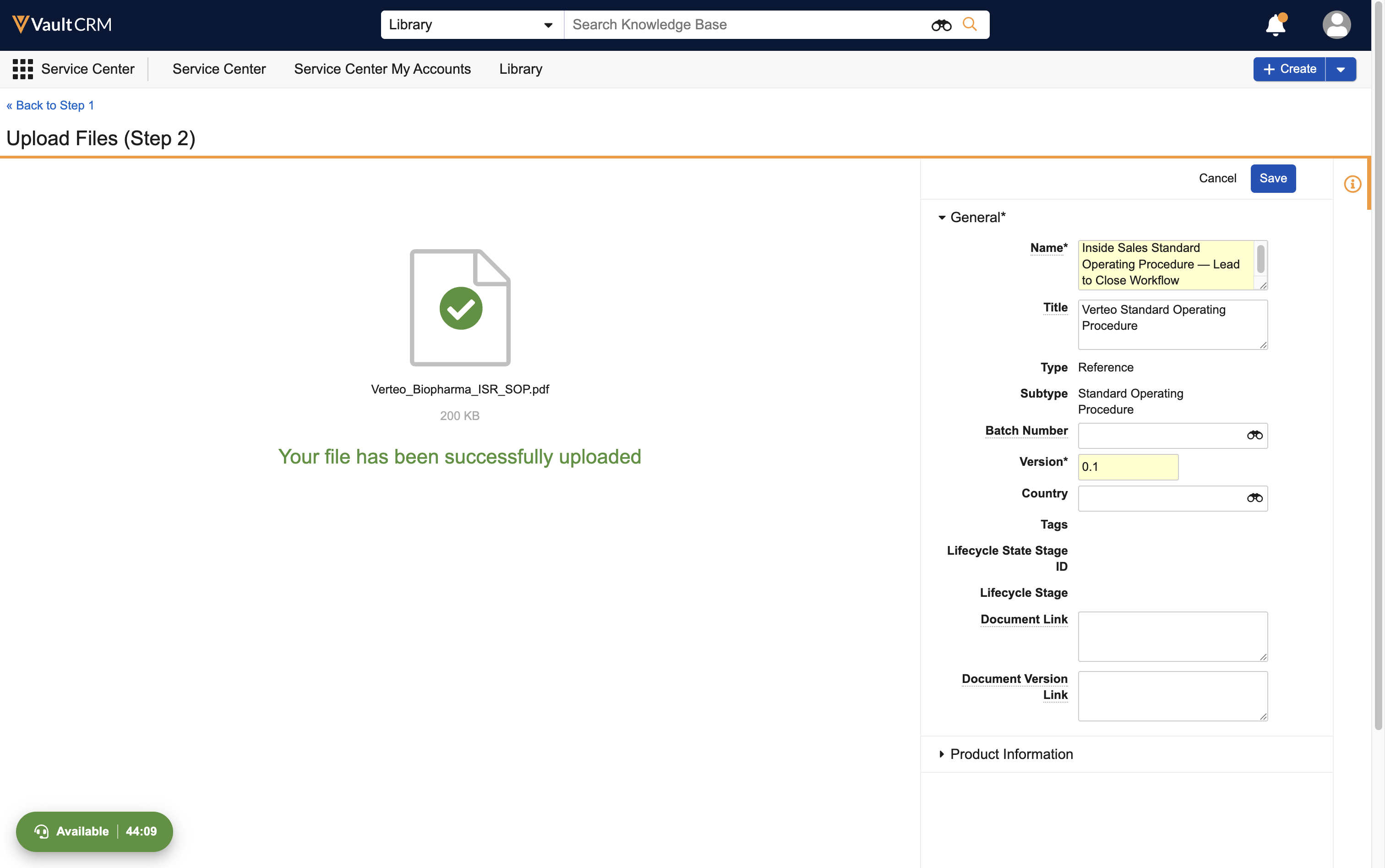
- Select Save.
The following Vault document lifecycles and workflows apply:
- Approval - To approve a Knowledge Base document, set the document workflow state to Approved
- Expiration - To expire a Knowledge Base document, set the document workflow state to Obsolete
For more information, see Lifecycles and Workflows on the Vault platform help site.
Service Center reps have visibility to Knowledge Base documents regardless of their lifecycle state.
Creating Custom Document Subtypes
Admins can create additional custom document subtypes using the Reference document type. Custom document subtypes must be added to the Knowledge Base View’s filter’s VQL criteria to be displayed in the Knowledge Base.
Business admins and reps can view all documents in the Knowledge Base tab regardless of their lifecycle state, for example, approved or expired.
Accessing the Knowledge Base as
Service Center Reps
Service Center reps can access the Knowledge Base tab to search and preview reference documents during customer interactions, for example, Standard Operating Procedure documents and forms to consult.
To access the Knowledge Base:
- Navigate to Service Center.
- Select the Knowledge Base tab.
If you are actively in an in-progress call, ensure you save your notes before navigating to the Knowledge Base tab. If you attempt to navigate away with unsaved changes, a warning prompt displays. You must manually navigate back to the Case tab to end your call and finalize case details.
- Select the Knowledge Base view in the left-hand panel.
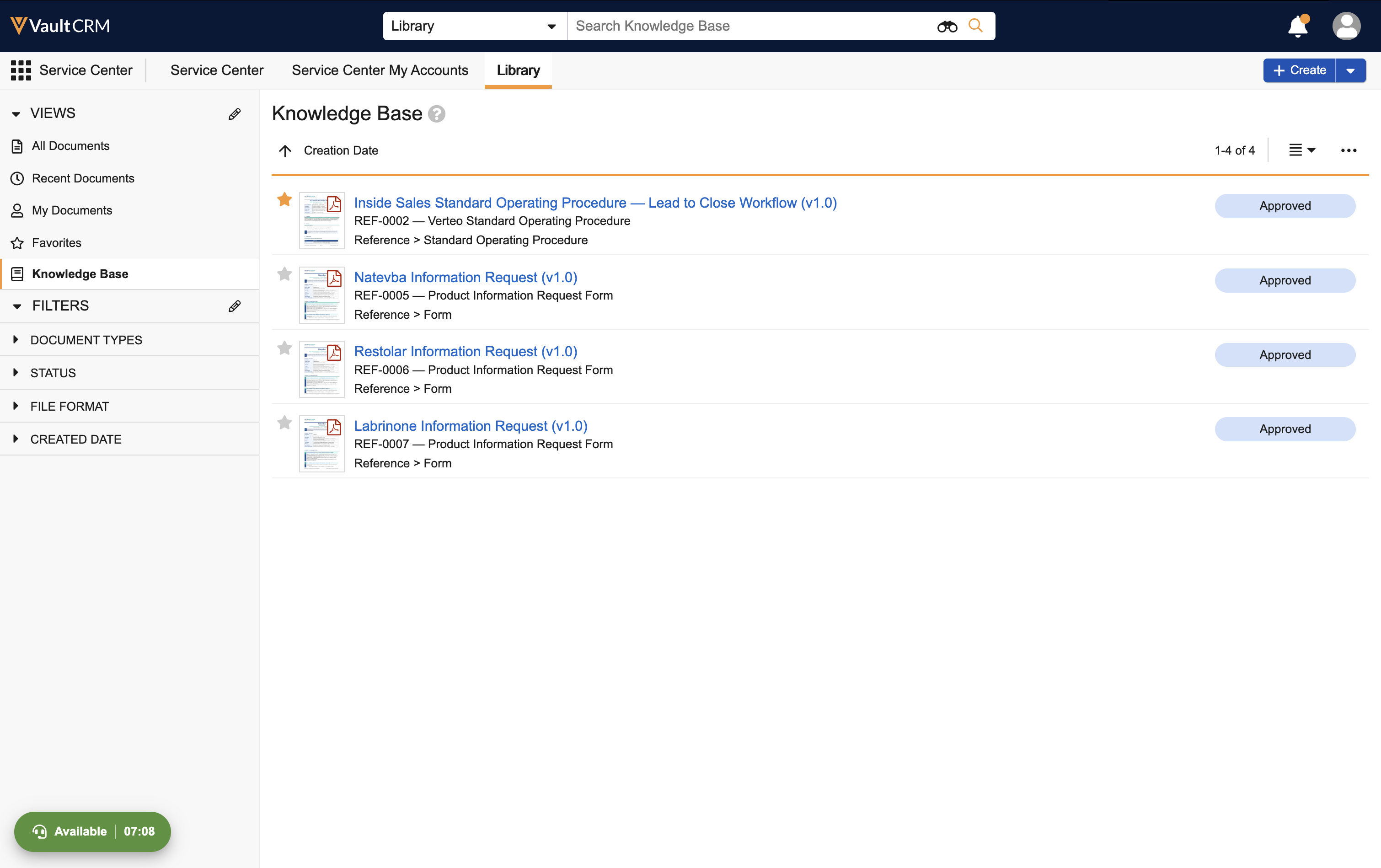
- Use the available filters and columns as needed, for example, Document Type, Subtype, and Product. The Knowledge Base view retains the user’ active filters and columns for future sessions.
- Select a Knowledge Base document to view the document, and optionally, download the document.