Microsoft Teams Channels for Service Center
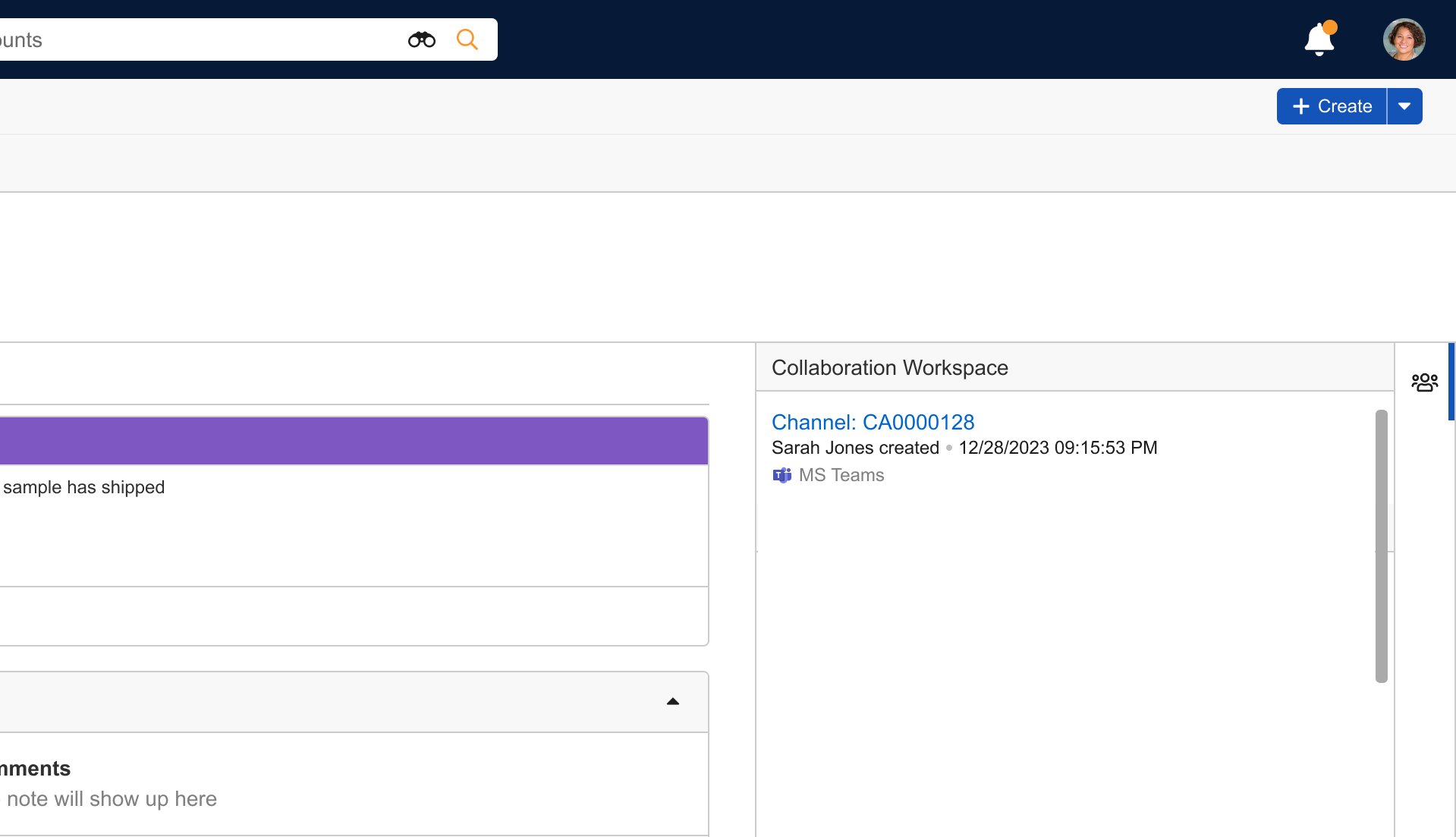
For enhanced agent productivity and faster case resolution times, Service Center can be integrated with Microsoft Teams. This integration streamlines collaboration on customer cases by connecting Vault CRM directly with Microsoft's productivity suite. Service Center reps can create and access dedicated Microsoft Teams channels directly from a case record, ensuring that case-related discussions, files, and notes are centralized and easily accessible to the relevant team members.
Who can use this feature?
- Business Admin Users - Browser
- Creating an Owners Group
- Creating a Collaboration Space for Microsoft Teams
- Service Center Reps - Browser
- Signing in to Microsoft
- Using Microsoft Teams Channels
- Users do not require an additional license
Granting App Consent for
 All Users
Before Vault CRM admins configure this functionality, Microsoft Global Administrators must grant tenant wide consent to the Vault CRM App in the Azure tenant from the Vault CRM-hosted webpage.
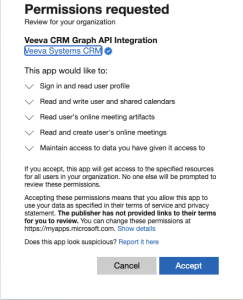
This allows the app to do the following:
- Create, read, update and delete events in all calendars the user has permission to access. This includes delegate and shared calendars. Required for Integrating My Schedule and Microsoft Outlook Calendars.
- Read users’ primary email addresses
- Read and create online meetings on behalf of the signed-in user. Required for Microsoft Teams Channels for Service Center.
- Read online meeting artifacts on behalf of the signed-in user. Required for Microsoft Teams Channels for Service Center.
- Send Channel Messages on behalf of the signed-in user. Required for Microsoft Teams Channels for Service Center.
- Create and read Teams members. Required for Microsoft Teams Channels for Service Center.
- Create groups and read all group properties and memberships on behalf of the signed-in user. Required for Microsoft Teams Channels for Service Center and Microsoft OneNote for Service Center.
- Read, share, and modify OneNote notebooks the signed-in user has access to in the organization. Required for Microsoft OneNote for Service Center.
- Create, read, update, and delete mail a user has permission to access, including their own and shared mail
- See and update the data you gave it access to, even when users are not currently using the app
- See basic user profile information when the user signs in with their work or another account
- Read the full set of profile properties, reports, and managers of other users in the organization, on behalf of the signed-in user
Ensure the Vault CRM Graph API integration is granted the following permissions:
- User.Read
- Calendars.ReadWrite
- Calendars.ReadWrite.Shared
- ChannelMessage.Send
- OnlineMeetingArtifact.Read.All
- OnlineMeetings.ReadWrite
- Group.ReadWrite.All
- Notes.ReadWrite.All
- Mail.ReadWrite.Shared
- TeamMember.ReadWrite.All
- offline_access
- openid
- profile
Multiple Vault CRM Vaults can connect to the same Microsoft tenant.
Granting tenant wide consent enables Vault CRM to request information through the Microsoft Graph API, but it does not provide access to Microsoft Office 365 information. The Vault CRM Microsoft Integration uses Microsoft's best practices for authorization (authZ), authentication (OpenId Connect over OAuth 2), data in transit (HTTPS and TLS 1.2+ encryption) and data at rest. Only Microsoft has access to user credentials.
For more control over the integration from the Microsoft side, admins can assign the application to specific users or groups of users, instead of granting access to all users. For more information on assigning applications to Microsoft groups, see Microsoft's Manage users and groups assignment documentation.
Configuring the Microsoft Teams Channels Integration for
Business Admin Users
To configure this feature:
- Ensure Configuring Service Center is complete.
- Navigate to Admin > Users & Groups > Permission Sets.
- Select the appropriate permission set.
- Select the Objects tab.
-
Grant the following permissions:
Object Object Permission Object Types Fields Field Permissions collaboration_space_configuration__v
CRED
case__v
- connection_status__v
- country__v
- default__v
- name__v
- object_type__v
- owner_group__v
- owner_id__v
- space_name__v
Edit
collaboration_space_resource__v
CRED
- channel__v
- team__v
All Fields
Read
collaboration_resource_member__v
CRED
n/a
All Fields
Edit
console_application_settings__v CRED service_center__v microsoft_integration__v Edit crm_group__v CRED crm_group__v - name__v
- description__v
- external_id__v
Edit crm_group_member__v CRED crm_group_member__v - crm_group__v
- external_id__v
- user__v
Edit - Grant Execute access to the create_team__v action on the collaboration_space_configuration__v object.
- Select the Tabs tab in the permission set.
- Grant View access to the Collaboration Space Configurations tab
- Navigate to Admin > Configuration > Objects > collaboration_space_configuration__v.
- Select the Object Types tab
- Select Actions
- Enable the create_team__v action for all appropriate object types
- Navigate to Admin > Configuration > Objects > collaboration_space_configuration__v > Layouts.
- Add the owner_group__v field to the layout
- Navigate to Business Admin > Objects > console_application_settings__v.
- Select the Default object record.
- Select the Edit icon.
- Select the type of Microsoft Integration:
- None - Uses Service Center's standard Notes capabilities
- Microsoft integrations are not available in this option
- MS Teams - Adds Microsoft Teams integration
- Enables integrated collaboration through MS Teams
- Standard application Notes
- MS OneNote - Enables Notes to be stored in Microsoft OneNote
- Changes the Notes experience
- Administrators should determine the desired note experience before deploying the Service Center application
- Toggling the Service Center application between Microsoft OneNote and Notes is not recommended
- MS Teams and OneNote - Enables both Microsoft Teams and Microsoft OneNote
- None - Uses Service Center's standard Notes capabilities
- Select Save.
Service Center Reps
To configure this feature:
- Ensure Configuring Service Center is complete.
- Navigate to Admin > Users & Groups > Permission Sets.
- Select the appropriate permission set.
- Select the Objects tab.
-
Grant the following permissions:
Object Object Permission Object Types Fields Field Permissions collaboration_space_configuration__v
R
case__v
All Fields Read
collaboration_space_resource__v
CRE
- channel__v
- team__v
All Fields
Edit
collaboration_resource_member__v
CRE
n/a
All Fields
Read
Edit required for channel owner management.
console_application_settings__v R service_center__v microsoft_authorization__v Read crm_group__v R crm_group__v - name__v
- description__v
Read crm_group_member__v R crm_group_member__v - crm_group__v
- user__v
Read - Navigate to Business Admin > Objects > console_application_settings__v.
- Select the Default object record.
- Select the Edit icon.
-
Select the type of Microsoft Integration.
Settings for Microsoft integrations apply globally to all cases in the Vault.
- None - Uses Service Center's standard Notes capabilities
- Microsoft integrations are not available in this option
- MS Teams - Adds Microsoft Teams integration
- Enables integrated collaboration through MS Teams
- Standard application Notes
- MS OneNote - Enables Notes to be stored in Microsoft OneNote
- Changes the Notes experience
- Administrators should determine the desired note experience before deploying the Service Center application
- Toggling the Service Center application between Microsoft OneNote and Notes is not recommended
- MS Teams and OneNote - Enables both Microsoft Teams and Microsoft OneNote
- Select Save.
Creating an Owners Group as
Business Admin Users
Before creating a Collaboration Space, business admins must create an Owners Group containing at least two active Vault CRM users. These users are designated as owners of the Microsoft Team. At least two active owners are required to prevent the integration from becoming orphaned if a single owner is deactivated.
To create an Owners Group:
- Navigate to Business Admin > Objects > crm_group__v.
- Select Create.
- Enter a Name. For example, sc_owners_grp.
- Enter a Description.
- Select Save.
- Select the Group Members section.
- Select Create.
- Select a Vault CRM user.
- Select Save.
Users must use the email address they used to authenticate the Microsoft integration as their primary email address. Adding users with an email that doesn’t match the primary email field can cause integration errors. Correcting their email in Vault CRM does not automatically fix the mapping error. A Business Admin must manually delete and recreate the CRM Group Member record.
Adding or Removing Owners Group Members
Business admins can add or remove members from the Owners Group by creating or deleting a CRM Group Member record where the CRM Group field references the appropriate Collaboration Space Configuration record. When a business admin adds a user to an Owners Group referenced by at least one Collaboration Space Configuration record, the user is added as an owner to the Microsoft Team, and is added to all channels within the Team.
Admins can use Vault Loader to data load groups and group members. For best practices on data loading, see Vault Loader Overview.
If the process of adding a user to the Microsoft Team(s) associated with the Owners Group fails for any reason the application logs the errors on the Collaboration Resource Member record and sends a notification to the Owners Group if there are less than two active owners. If the user cannot be added because there are no valid credentials for the Microsoft Team, the collaboration space is disconnected.
When a business admin removes a group member from a group referenced by at least one Collaboration Space Configuration, and the user is not the owner of the Collaboration Space Configuration record, the user is removed from the Microsoft Team(s) in Microsoft. The corresponding Collaboration Resource Member record(s) for the user are deleted in Vault CRM.
If removing the group member results in less than two group member records referencing active users, a notification is sent to the Owners Group.
If removing the group member results in zero group member records referencing active users, the collaboration space is disconnected, and a notification is sent to the Vault Owners Group.
Creating a Collaboration Space for Microsoft Teams as
Business Admin Users
To enable channel creation for Service Center reps, business admin users must create a Collaboration Space and an initial Microsoft Team. All future case channels are created within this Collaboration Space and Team.
To create the Collaboration Space and initial team:
- Navigate to the Collaboration Space Configurations tab.
- Create a new record.
- Select Case (case__v) as the object type.
- Populate the fields as follows:
- Name - Enter a descriptive name for the record
- Teams Space Name - Enter the desired name for the Microsoft Teams space. For example, Service Center Case Collaboration. This name is the prefix for any Teams created in the Microsoft Collaboration Space.
- Default - Select the checkbox
- Select an Owners Group. The users defined in the Vault group are added as Team owners. The group must include at least two users.
- Save the record.
-
Select the All Actions menu from the newly created Collaboration Space Configuration record.
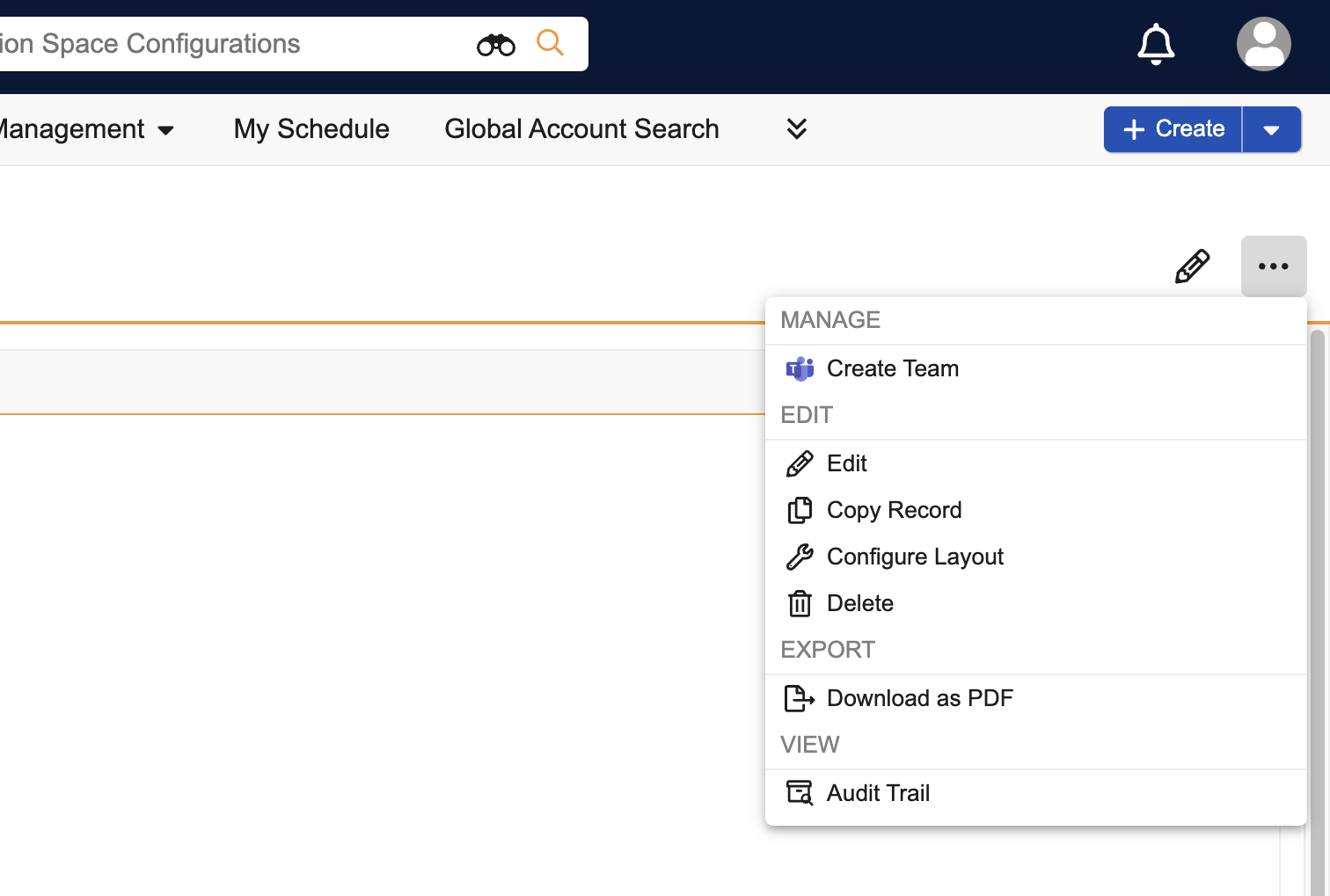
- Select Create Team. The Microsoft authentication page displays.
- Sign in to Microsoft using the appropriate credentials. The Collaboration Space Configuration record owner’s Microsoft credentials are used to create and manage the new Microsoft Teams space.
Only one case-type Collaboration Space Configuration record is supported. The record must be marked as default.
Each time a channel is created in the new space, the record owner’s Microsoft credentials are used to create the channel on their behalf. Channels are created by Service Center reps, as needed for each case.
If Team creation is successful, a Collaboration Space Resource record is automatically created for the Team. The Connection Status on the Collaboration Space Configuration record updates to Connected and admins receive an email confirmation. If the creation is not successful, the status updates to Errors Encountered and admins are alerted via email.
If the Owners Group contains fewer than two group members, the Team creation fails, and a notification is sent to the initiating user. The Collaboration Space Configuration record in Vault CRM is updated to include information on any successful or failed owner records from the attempt.
When the business admin selects the Create Team action on a Collaboration Space Configuration record that has previously failed due to the minimum owners requirement specified above, the Team is unarchived in Microsoft Teams. The Collaboration Space Configuration record is updated, including information on any previously failed or successful owner records.
Re-authenticating a Disconnected Space
If credentials used for the Microsoft authentication expire, the Connection Status on the Collaboration Space Configuration record updates to Disconnected. Users in the vault_owners__v user group also receive an email notification indicating credentials for the space need to be updated.
To re-authenticate:
- Navigate to the disconnected Collaboration Space Configuration record. A message indicating the need to update credentials displays.
- Select the Sign in link.
- Complete the Microsoft sign in process.
Signing in to Microsoft as
Service Center Reps
The first time you sign in to Vault CRM after the Microsoft integration is enabled for Service Center, you are prompted to sign in to Microsoft. Users must log in to Microsoft using the email address that matches their primary email address (email__sys).
To sign in to Microsoft:
- Navigate to Service Center with an active Microsoft integration.
- Select Sign In to open a Microsoft sign-in page.
- Enter your Microsoft credentials or select Sign-in options if using Single Sign-On.
- If successful, a confirmation message displays
- If unsuccessful, try again or contact your internal help desk for assistance
Re-authenticating Microsoft Credentials
When Microsoft requires users to reauthenticate their credentials, they are notified in Vault CRM. For example, users may need to reauthenticate their credentials when Microsoft's security policies change, or when their Microsoft password or email address changes.
The links to update credentials or Sign in with Microsoft 365 display only if the user is the owner of the collaboration configuration space record or a member of the Owners Group associated with the collaboration space configuration record.
When users with invalid credentials navigate to Service Center, a Sign In to Microsoft pop-up displays.
To reauthenticate, select Sign In and complete the Microsoft sign in process. After successful authentication, the user's Microsoft integrations resume. To defer the action, select Later. The pop-up closes and users can continue with Service Center tasks not related to Microsoft integrations. If a user defers re-authentication from the main Service Center page, they are prompted again when trying to use integrated features.
When users select Create Channel from the Microsoft Teams side panel in Service Center, the Microsoft sign in page displays automatically. Complete the Microsoft sign in process to reauthenticate.
Using Microsoft Teams Channels as
Service Center Reps
The Microsoft Teams integration allows you to create a Teams Channel to collaborate with colleagues to address a case. You can create a channel for every case if needed, but Service Center does not automatically create a channel for you.
The Service Center rep creating a Teams channel is automatically added as an Owner for the created channel.
To create a Teams Channel:
- Navigate to the appropriate Service Center Case.
- Select the Create Channel button in the Collaboration Workspace in the right panel.
- Select the created channel to navigate to the new Teams channel.