Viewing and Exporting Survey Results
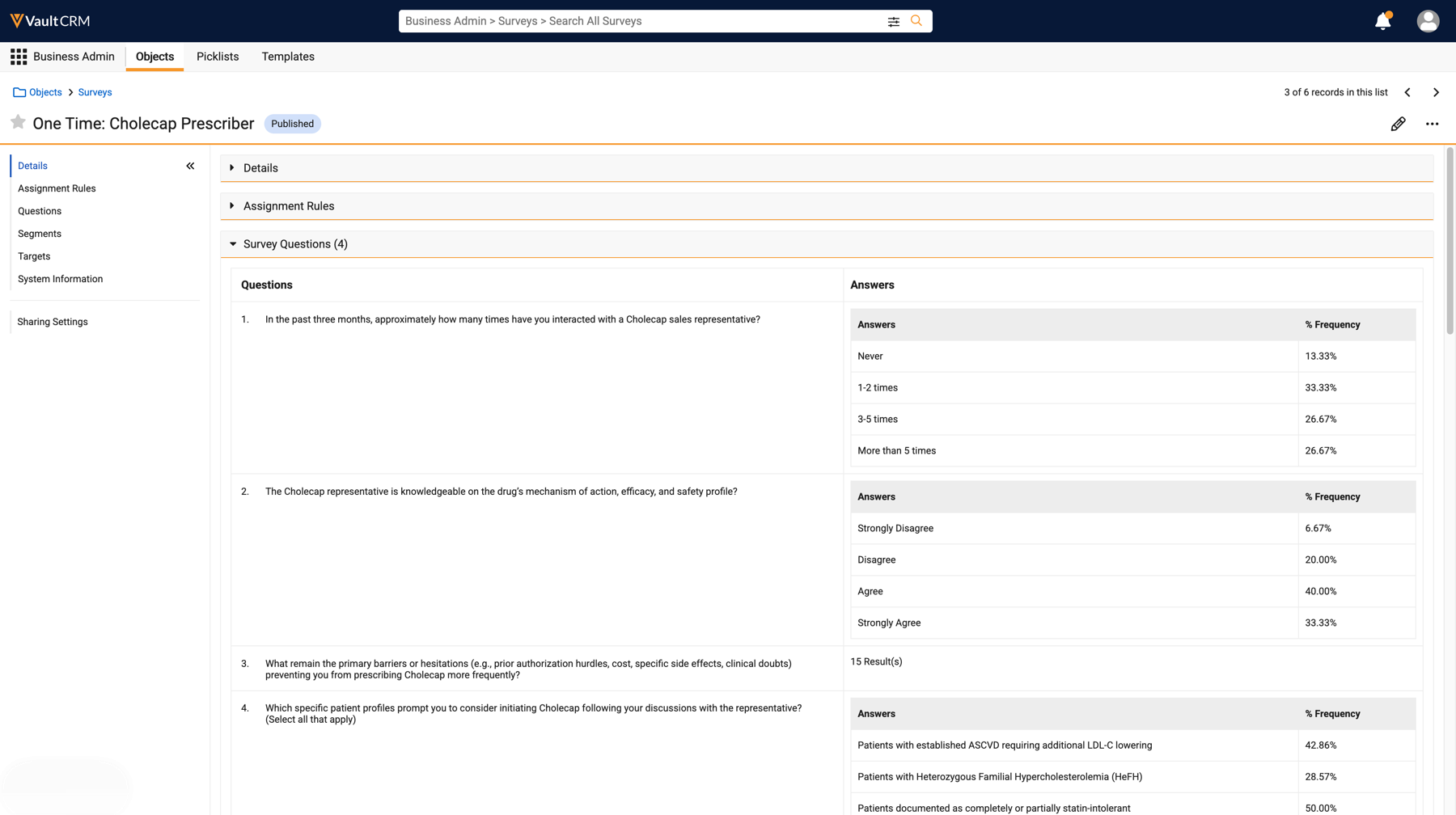
After a survey is published and answers are collected, results display on the Surveys page. This includes both answers to individual questions, and high-level segment breakdowns if segments are used. Survey results help users better understand their accounts, and help organizations with account planning.
Survey results can be exported as CSV files for additional analysis using external business intelligence tools.
Who can use this feature?
- Survey Designers — Browser
- Viewing Survey Results
- Exporting Survey Results
- Users do not require an additional license
Configuring Viewing and Exporting Survey Results for
 Survey Designers
To configure this feature, ensure Configuring Surveys is complete.
Viewing Survey Results as
Survey Designers
Select the Surveys page to view survey results. Picklist, radio, and multi-select questions display in tables displaying the percentage of responses for each answer choice. Other question types display a count of the number of responses collected.
Exporting Survey Results as
Survey Designers
Survey result exports presents the data in a wide format not available in Vault that can be used to create analytical reports. The export includes one row per Survey Target and each question as separate columns, which is otherwise not an available view within Vault CRM.
The Most Recent column is included in the survey export for Recurring surveys to isolate and highlight the latest feedback per account.
Up to 1,000,000 Survey Targets are supported for each export.
To export survey results:
- Navigate to the Surveys tab.
- Select the appropriate published survey record.
- Expand the All Actions menu.
- Select Export Results to initiate the export.
- Select Download Survey Results from the Vault Notification or Vault Email when the export is complete.
Export File Conventions
Vault CRM formats the export according to the survey name and date of export:
- Survey Name - [survey name]_[export date in YYYY-MM-DD]
- If the survey name consists entirely of non-Latin characters, the Survey ID replaces the survey name
- Spaces - Replaced with underscores (_)
- Special Characters - Periods, underscores, and hyphens are supported. All other special characters are deleted.

