AI Rewrite Token for Approved Emails
Instead of having to manually create static custom picklists, Agentic Email can be used to dynamically tailor the style of each message to best suit the recipient. Agentic Email only modifies the writing style of content creator-defined text within the template while preserving its MLR-approved core message.
Who can use this feature?
- Content Creators - Browser
- Enabling AI Variations in Approved Email Content
- End Users - iPad
- Generating Style Variations
- A Vault AI license is required. Users also require an Approved Email license.
Configuring AI Rewrite for
 Content Creators
To configure this feature:
- Ensure Configuring Approved Email is complete.
- Navigate to Admin > Users & Groups > Permission Sets.
- Select the appropriate permission set.
- Select the Objects tab.
-
Grant the following permissions:
Object
Object Permission
Object Types
Fields
Field Permission
approved_document__v
CRED
All applicable object types
ai_enabled_template__v
Edit
sent_email__v
CRE
All applicable object types
ai_assisted_email__v
Edit
End Users
To configure this feature:
-
Ensure the following features are configured:
- Navigate to Admin > Users & Groups > Permission Sets.
- Select the appropriate permission set.
- Select the Objects tab.
-
Grant the following permissions:
Object
Object Permission
Object Types
Fields
Field Permission
approved_document__v
R
All applicable object types
ai_enabled_template__v
Read
sent_email__v
CRE
All applicable object types
ai_assisted_email__v
Edit
Enabling AI Variations in Approved Email Content as
Content Creators
Content creators determine which areas of an email template are eligible for AI Rewrite.
Text marked for the AI Rewrite token should only include salutations, opening remarks and other generic text within the email.
To enable AI variations for specific text:
- Edit the appropriate email template, for example, via the BEE Editor.
- Place the cursor at the beginning of the target text.
- Add the {{aiRewriteStart}} token before the target text.
-
Add the {{aiRewriteEnd}} token at the end of the target text.
Only text and the following supported HTML tags can be enclosed by the two tokens:
- <p>
- <i>
- <strong>
- <em>
- <b>
- <u>
- <sub>
- <sup>
- <div>
- <br>
- <span>
- <a>
Other Approved Email tokens are not supported within the text.
Only one instance of {{aiRewriteStart}} and {{aiRewriteEnd}} tokens can be added per email template.
- Select Save.
Generating Style Variations as
End Users
Users can generate Direct or Warm style variations for eligible text within an email template.
To generate style variations when composing an Approved Email from any entry point:
-
Navigate to the list of email templates. Templates with the {{aiRewriteStart}} and {{aiRewriteEnd}} tokens display with an AI () icon, indicating style variations are enabled for the template.
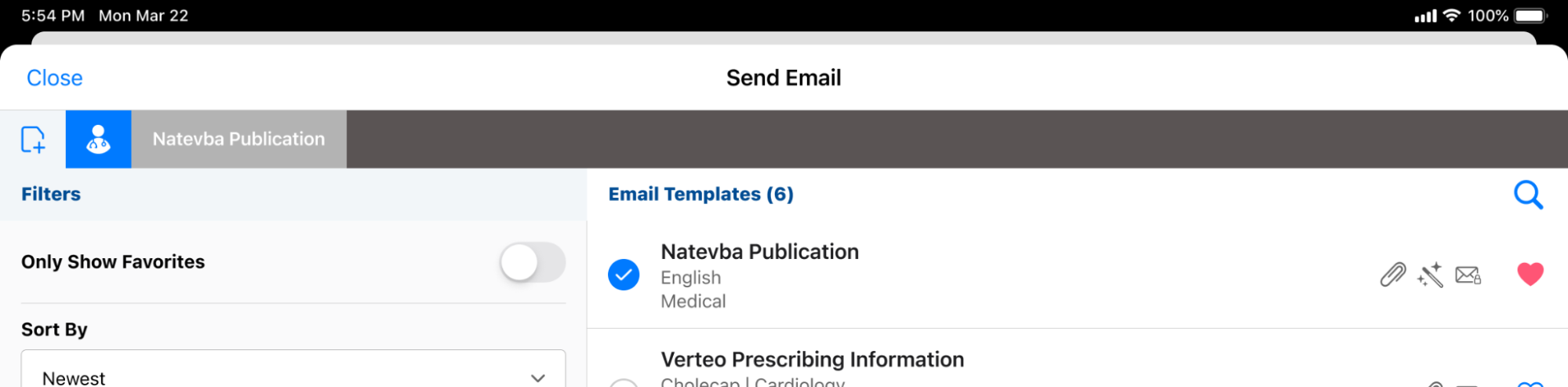
These templates are only available for selection on platforms supported by this feature, currently iPad.
-
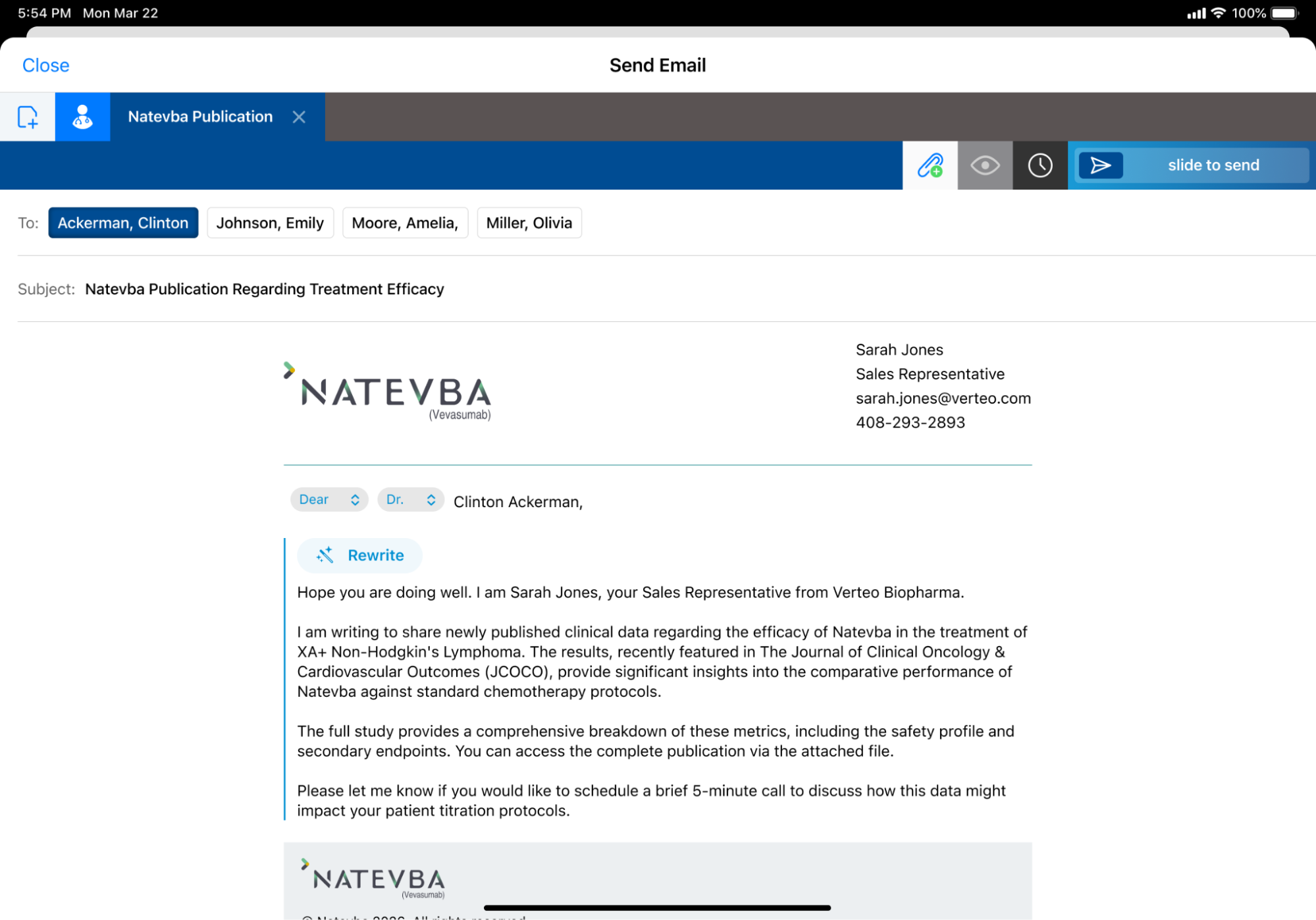
Select the appropriate email template. Text eligible for a rewrite is highlighted with a blue border.
-
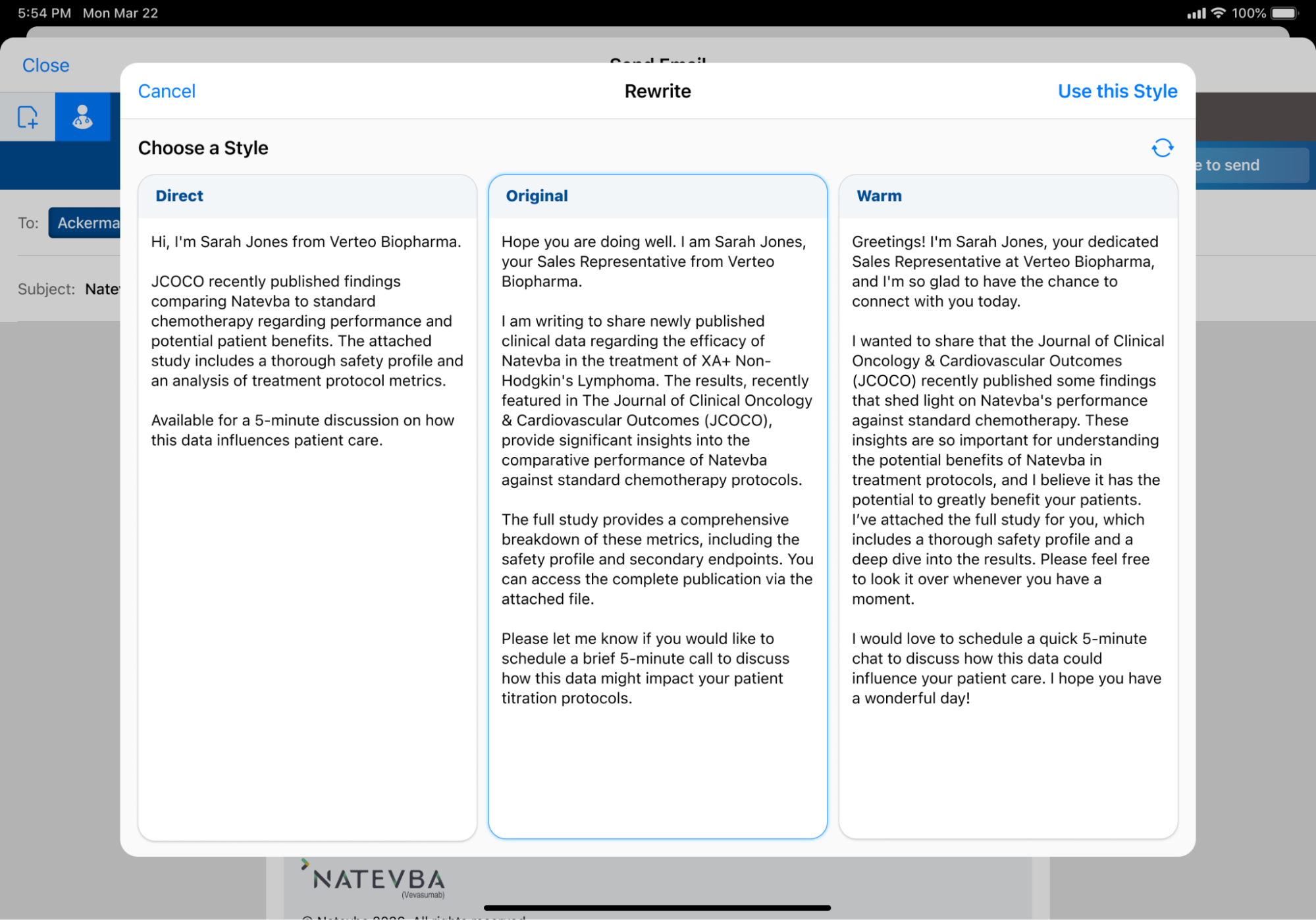
Select the Rewrite button to open the Rewrite modal. Three variations of the target text display:
- Direct – A shorter, more succinct version of the original text
- Original – The original text as entered in the email template
- Warm – A friendlier, more conversational version of the original text
-
Select the Regenerate (
 ) button to generate more Direct and Warm variations. This button can be selected up to three times.
Previously generated variations are lost when a new generation is initiated.
- Select the appropriate variation to use.
-
Select Use this Style.
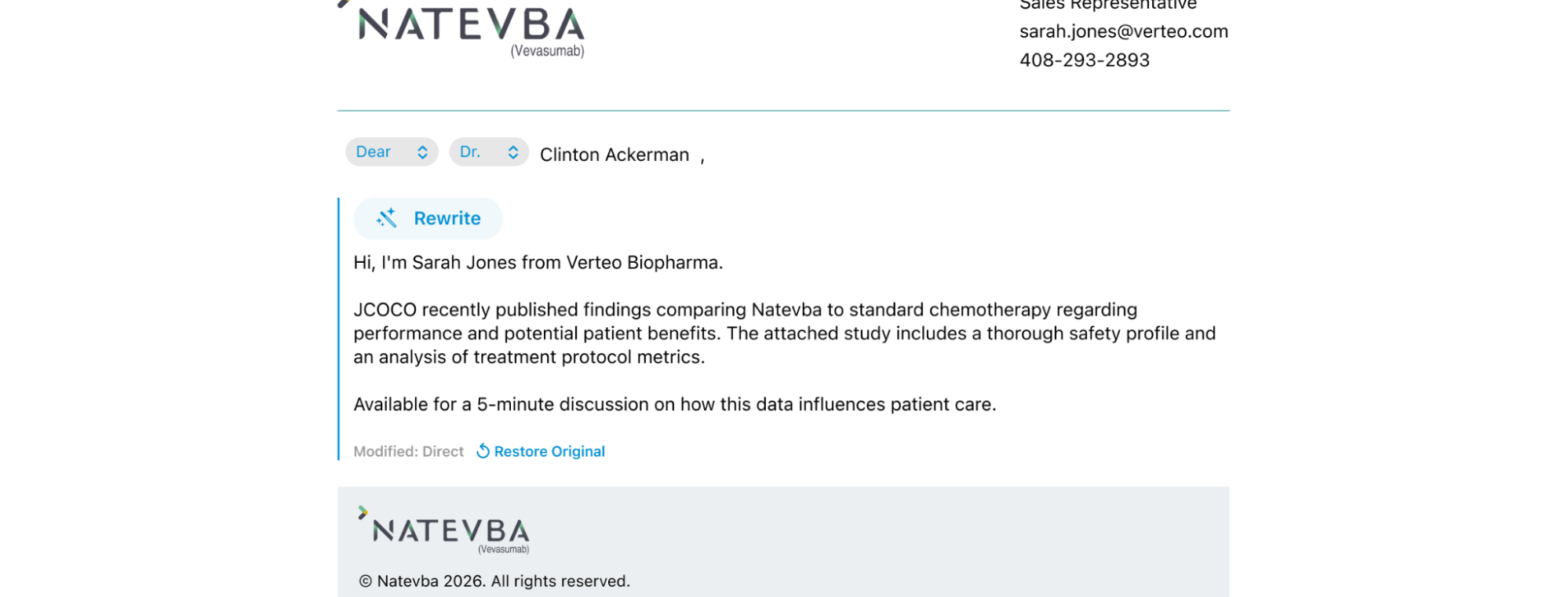
To revert the modified text back to the original version for all recipients, select the Restore Original link at the bottom of the modified text block.
The text and selected variations reset if the user tries to save the email as a draft after selecting a style variation.

