Creating Medical Insights with Agentic Voice
Field users and Medical Science Liaisons (MSLs) can capture important medical information by recording Voice Notes that are automatically transcribed, then saved for later or converted to a Medical Insight. This ensures detailed information is captured while it is fresh in the user's memory, improving the accuracy of field intelligence while reducing the administrative burden of manual data entry.
Who can use this feature?
- All Users — iPad, iPhone
- Dictating a Medical Insight Voice Note
- Converting Saved Voice Notes to Medical Insights
- Creating Medical Insights from Voice Notes
- Reviewing and Submitting Medical Insights
- A Vault AI license is required
Configuring Agentic Voice for Medical Insights for
 All Users
To configure this feature:
-
Ensure the following configuration is complete:
-
Ensure users have Execute permission to the Voice Agent:
- Navigate to Admin > Users & Groups > Permission Sets
- Select the appropriate permission set
- Select the Agents tab
- Select the Execute checkbox for the Voice Agent (voice_agent__v)
- Select the Objects tab.
- Grant users Edit permission to the ai_source__v field on the medical_insight__v object.
- Ensure terms are defined in the Voice Dictionary Entry object if using custom pronunciations for complex medical terms. This step is optional.
To start dictation with Siri® , iPadOS/iOS version 26 or later and Apple Intelligence are required. If prompted, allow Vault CRM to access Siri and Search.
Apple Intelligence is required for starting dictation with Siri, though it is not currently required for recording Voice Notes from other entry points or for transposing the Voice Note text. As Apple Intelligence capabilities expand, it may become required for other aspects of dictation.
Using Agentic Voice for Medical Insights as
All Users
Dictating Medical Insight Voice Notes
Users can dictate Medical Insight Voice Notes via Siri, by long-pressing the AI Button on a supported page (for example, the Account Detail, Home page, or the Medical Insights or My Notes tabs), or from the My Notes tab header. If the Voice Note is initiated from an account-specific page, the account is automatically added to the Voice Note. Otherwise, users can add the appropriate account.
Dictated text is transcribed exactly as spoken.
To dictate a Medical Insight using Siri, trigger Siri and speak the phrase Create a Medical Insight.
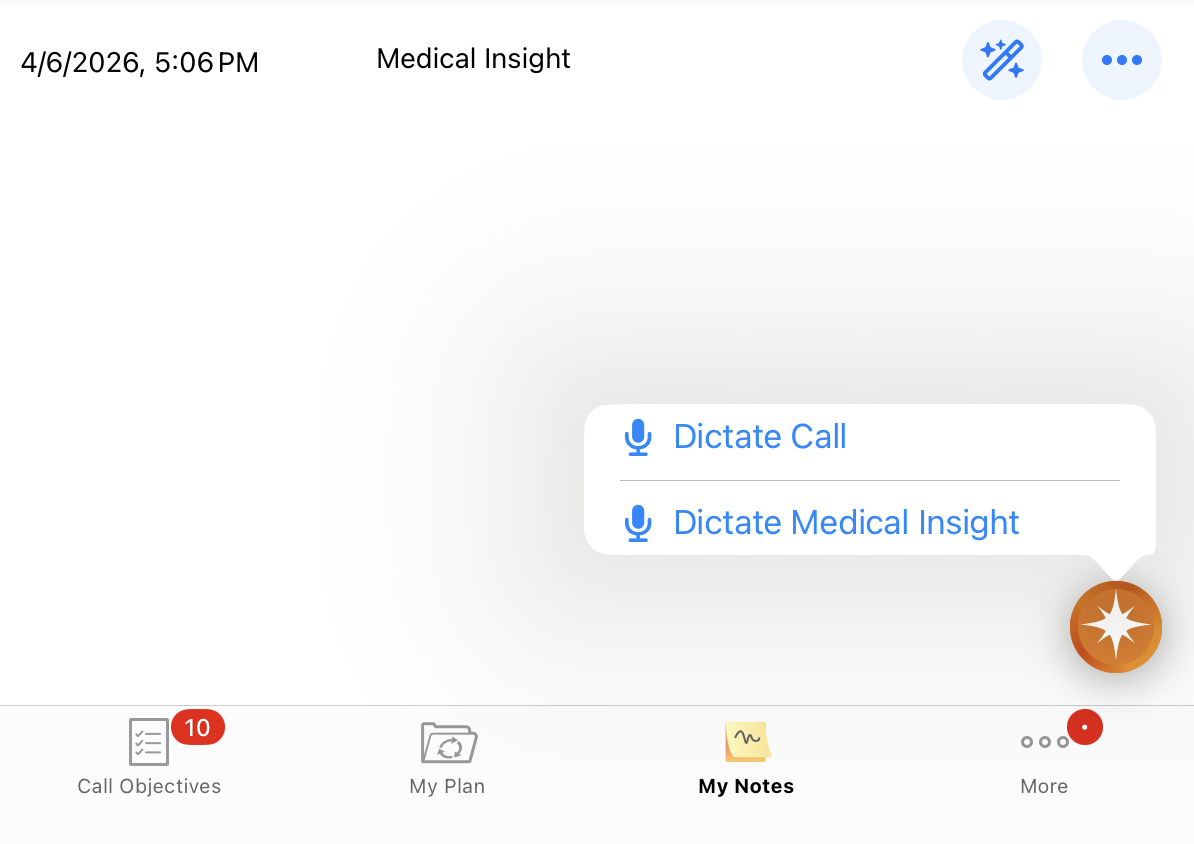
To dictate a Medical Insight from the AI Button:
-
Long-press the AI Button.
-
Select the Dictate Medical Insight option.
To dictate a Medical Insight from the My Notes tab header:
- Select the My Notes tab.
-
Select the Plus (+) icon.
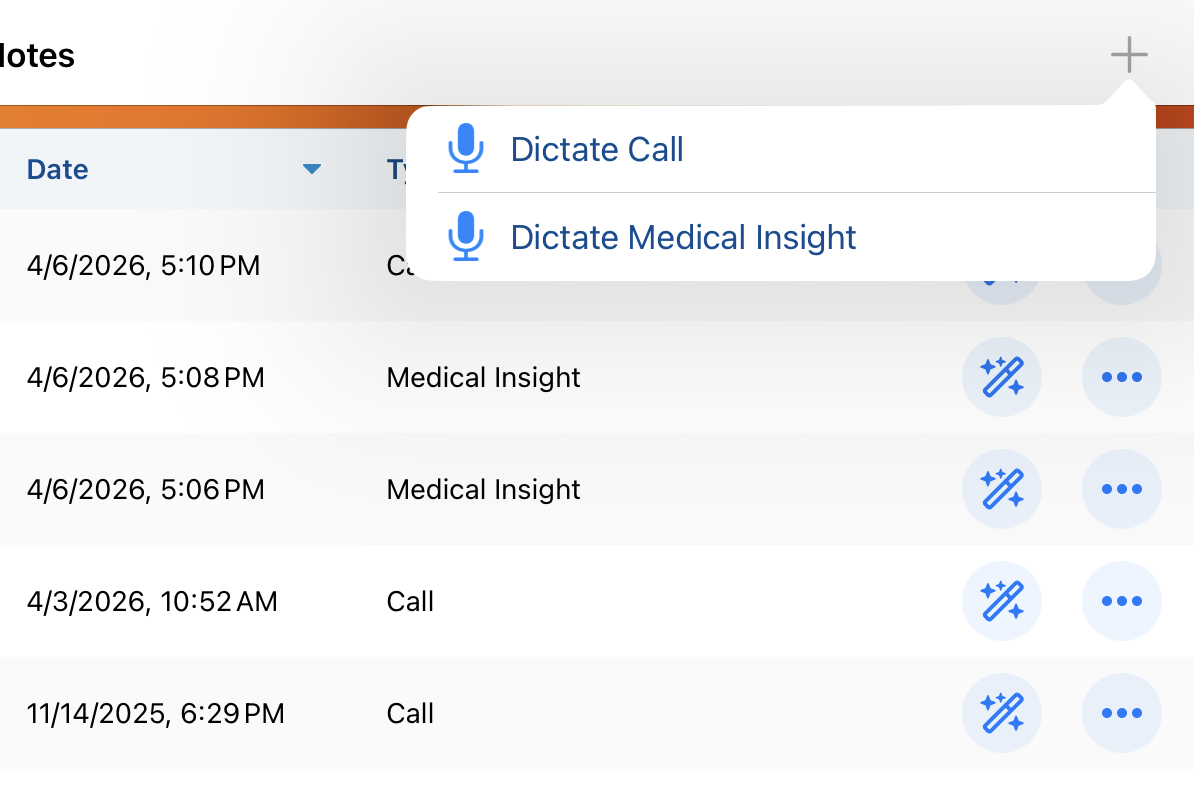
- Select Dictate Medical Insight.
After starting dictation using any of these methods, the Medical Insight Voice Note page displays and recording begins automatically. Speak the details of the insight. The user’s device records audio and generates a transcript in real-time. Users can select Pause to stop recording temporarily; select Resume to continue.
While users cannot edit a transcript, they can edit the Description field once the Voice Note is converted to a Medical Insight and before submitting it.
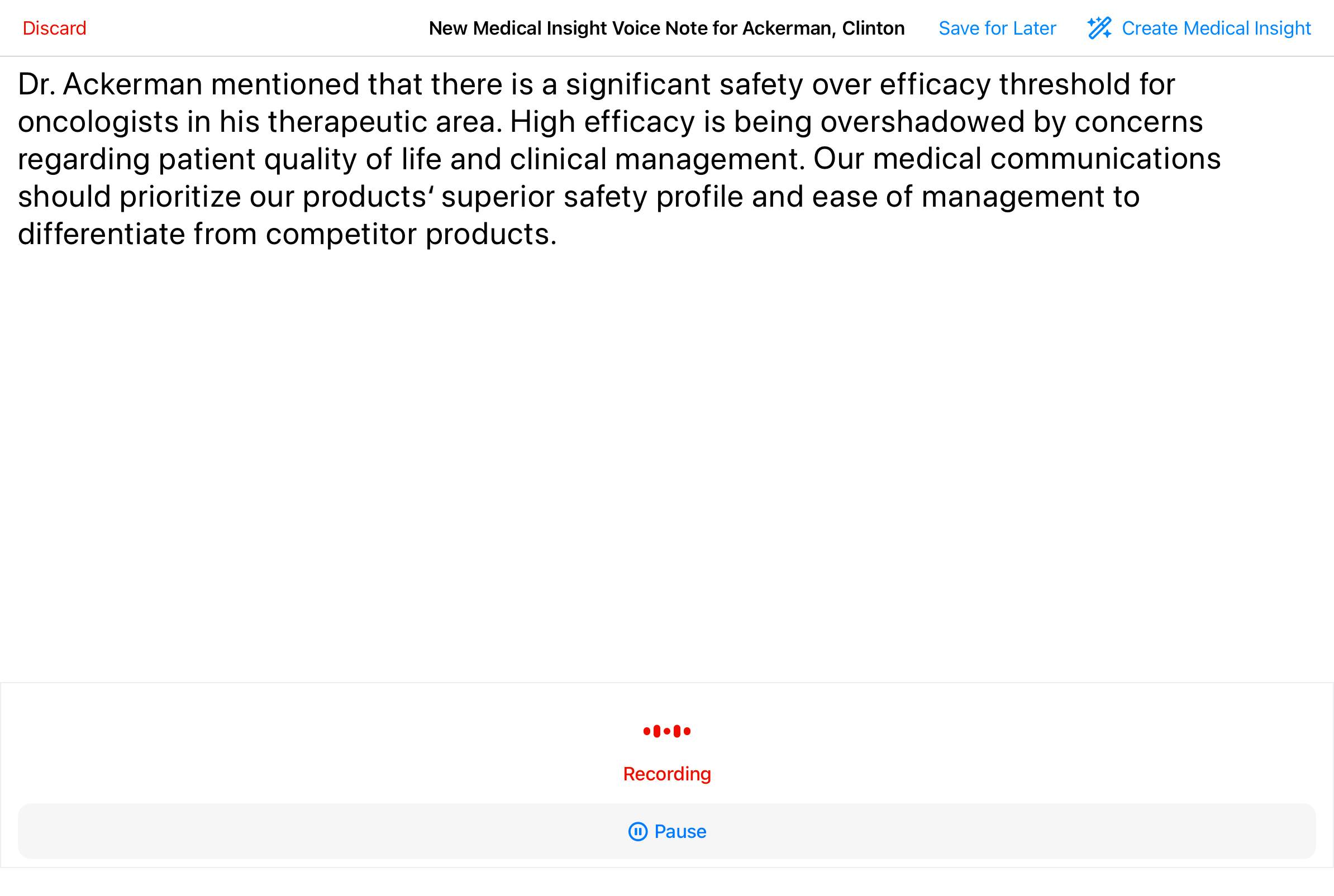
When you are finished recording, select Create Medical Insight to process the transcript into a record or select Save for Later to save the transcript in My Notes without converting it to a Medical Insight.
Voice Notes are strictly device-bound; they do not sync to the Browser or other devices and remain only on the device where they were captured. These notes persist through database refreshes but are permanently deleted once the final record is submitted or the note is manually discarded.
Converting Saved Voice Notes to Medical Insights
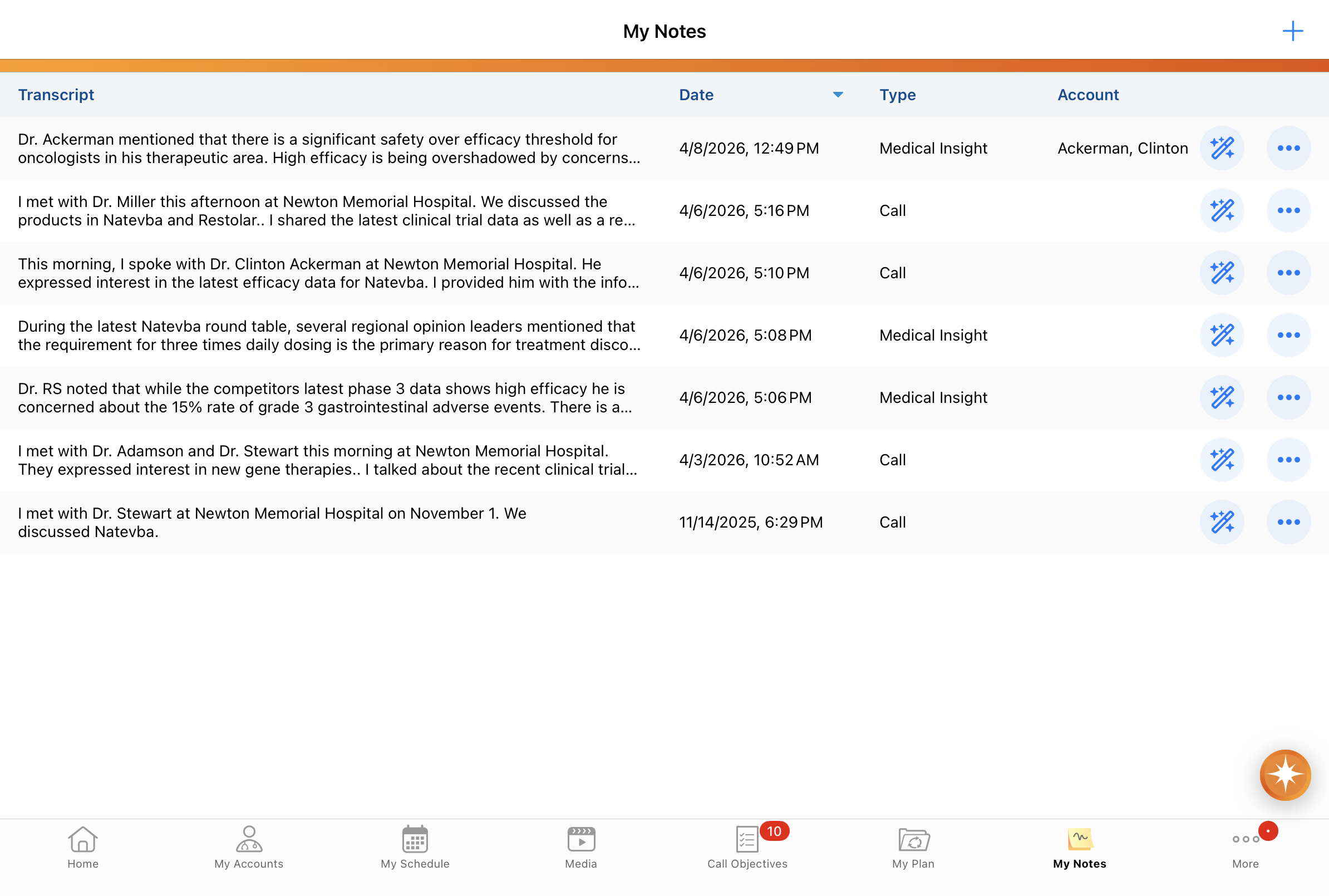
To convert a saved Voice Note to a Medical Insight:
-
Select the My Notes tab.
-
Select the Wand icon next to the voice note you want to convert.
Once a Voice Note is converted to a Medical Insight, the note is no longer displayed on the My Notes tab.
Creating Medical Insights from Voice Notes
When users create a Medical Insight from a Voice Note recording (either new or saved), the following fields are pre-populated:
- Date - Date the Voice Note was created
- Description - Captures the full Voice Note text
- Account - If the Voice Note recording was launched from an account-specific entry point
To edit the transcribed voice note text, select the Description field.
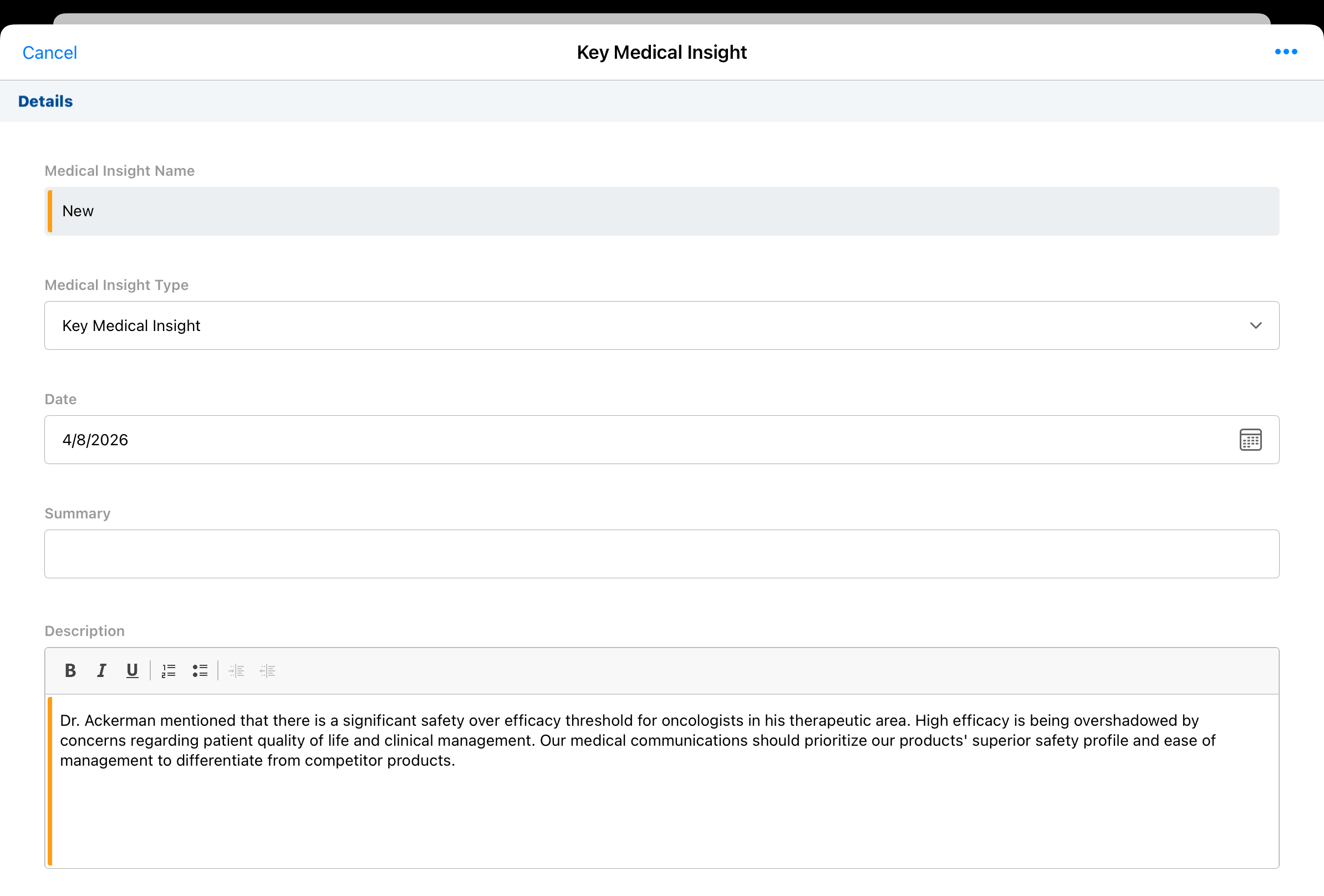
If Agentic Insight Quality for Medical Insights is enabled, users can run quality checks to receive feedback on the quality and completeness of their insight . This helps ensure the insight is valuable to their organization.
Error Messaging
Error messages display when users encounter the following issues:
- Connection issues which prevent the LLM from responding
- LLM response time exceeds 120 seconds
- User’s request exceeds the maximum token usage
- User’s request contains words or phrases rejected by the LLM’s usage policies
Reviewing and Submitting Medical Insights
Users can listen to the Voice Note and read the dictated text before submitting the Medical Insight:
- Select the All Actions menu.
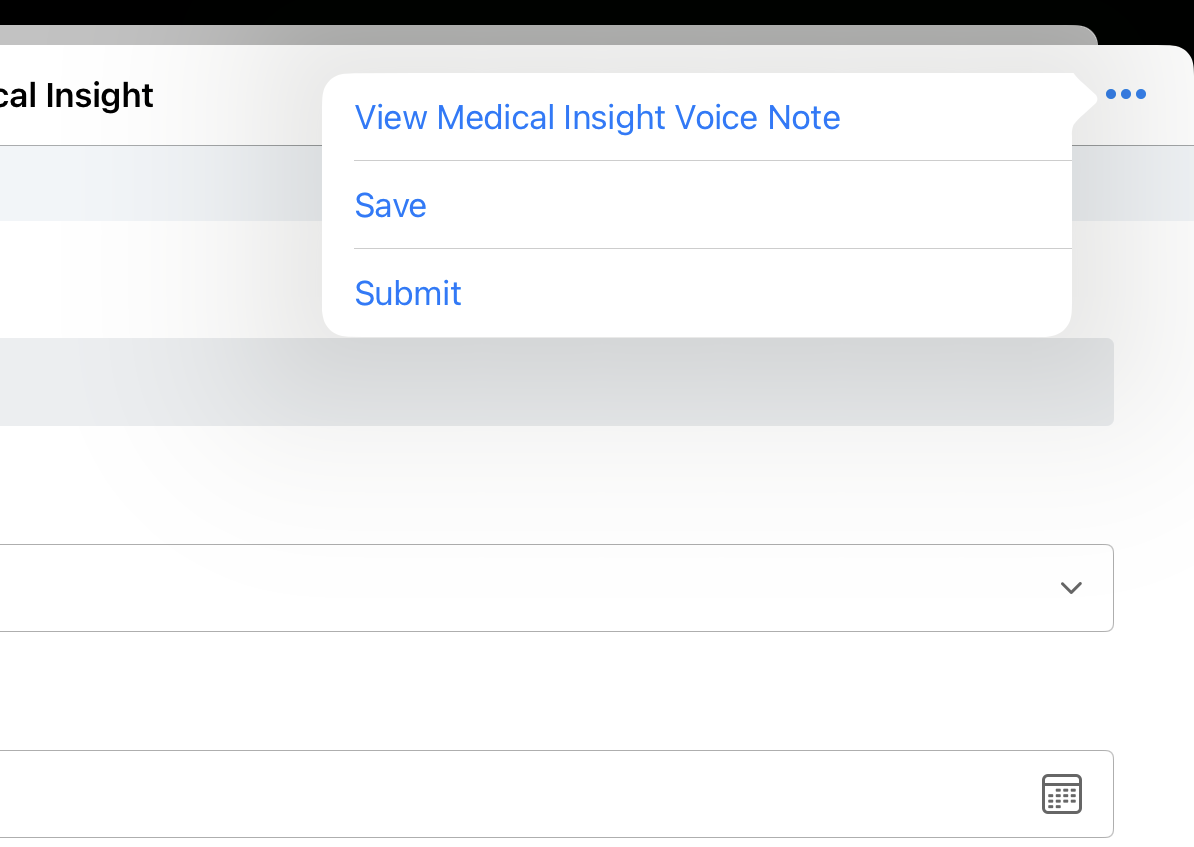
- Select View Medical Insight Voice Note.
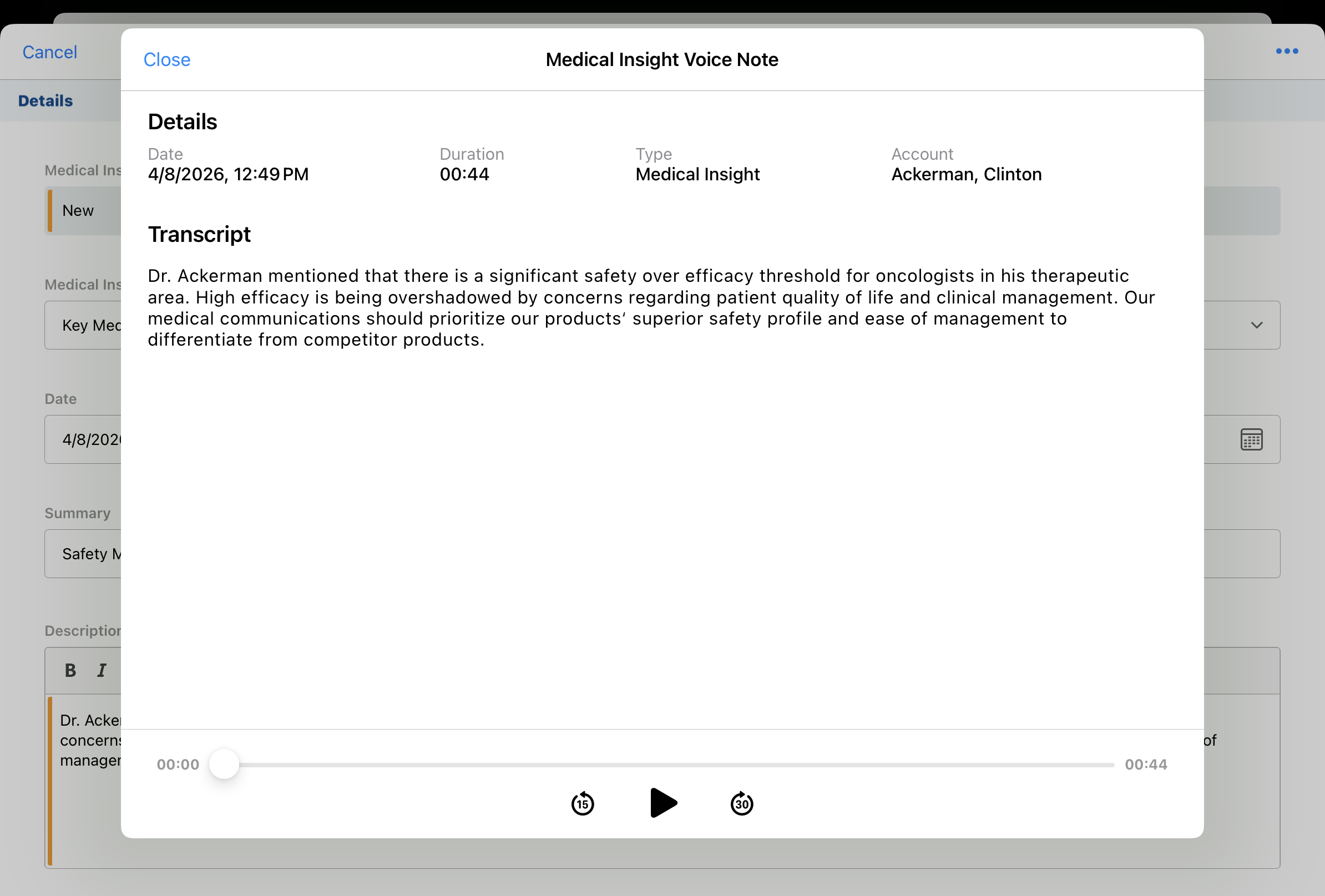
- Select the Play button to listen to the Voice Note.
- Select Close when finished.
Select Save or Submit from the All Actions menu to save or submit the Medical Insight. Once the record is submitted, the associated audio and transcript files are deleted.

