Agentic Insight Quality for Medical Insights
The AI-powered Agentic Insight Quality provides real-time feedback to help users submit complete, actionable Medical Insights—turning field observations into reliable data for stronger business intelligence. The agent intelligently checks users' entries in the Description field on Medical Insights against configurable quality and completeness rules, and suggests specific improvements before submission.
Who can use this feature?
- End Users — iPad
- Using Agentic Insight Quality
- A Veeva AI license is required
Configuring Agentic Insight Quality for Medical Insights for
 End Users
To configure this feature:
-
Ensure the following configuration is complete:
- Navigate to Admin > Users & Groups > Permission Sets.
- Select the appropriate Permission Set.
- Select Objects.
-
Grant the following permissions:
Object
Object Permission
Object Types
Fields
Field Permission
medical_insight__v CRE Edit All applicable object types insight_quality_agent_ran__v Edit - Navigate to Admin > Configuration > Objects > Medical Insights > Layouts.
- Add the description__v field in a one-column detail form section on the layout. This should be the only field in the section.
Using Agentic Insight Quality for Medical Insights as
End Users
End Users can view quality guidelines and run quality checks on insights directly within a Medical Insights record.
To access Agentic Insight Quality, navigate to a Medical Insight record. A panel displays on the right side of the screen with two tabs:
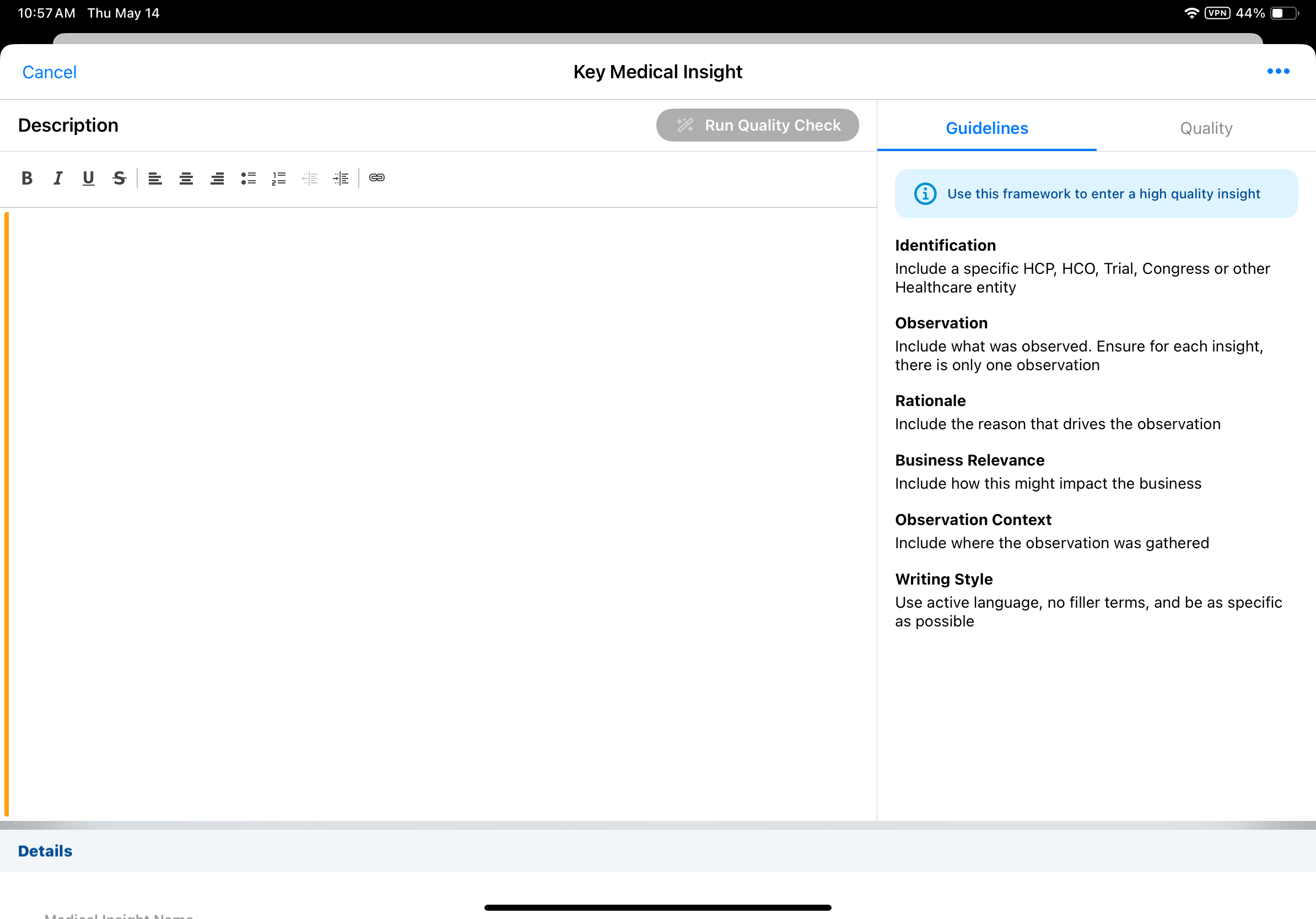
- Guidelines - Displays rule name and guideline descriptions, based on Veeva-provided or custom Agent Rules
- Quality - Displays the results of a quality check
Reviewing Guidelines
Select the Guidelines tab to review rule names and guideline descriptions ordered by display order. These guidelines are based on the Veeva-provided or custom quality rules defined for Agentic Insight Quality.
The Quality tab displays the results of a quality check. If the user selects the Quality tab prior to running a quality check, the tab displays a button to run the quality check.
Running a Quality Check
The Quality tab displays the results of a quality check. If the user selects the Quality tab prior to running a quality check, the tab displays a button to run the quality check.
To run a quality check:
-
Enter text in the Insight field manually or using the Voice Agent.
-
Select Run Quality Check below the Insight field or from the Quality tab. A No Internet message displays if the user attempts to run the quality check while disconnected from the internet.
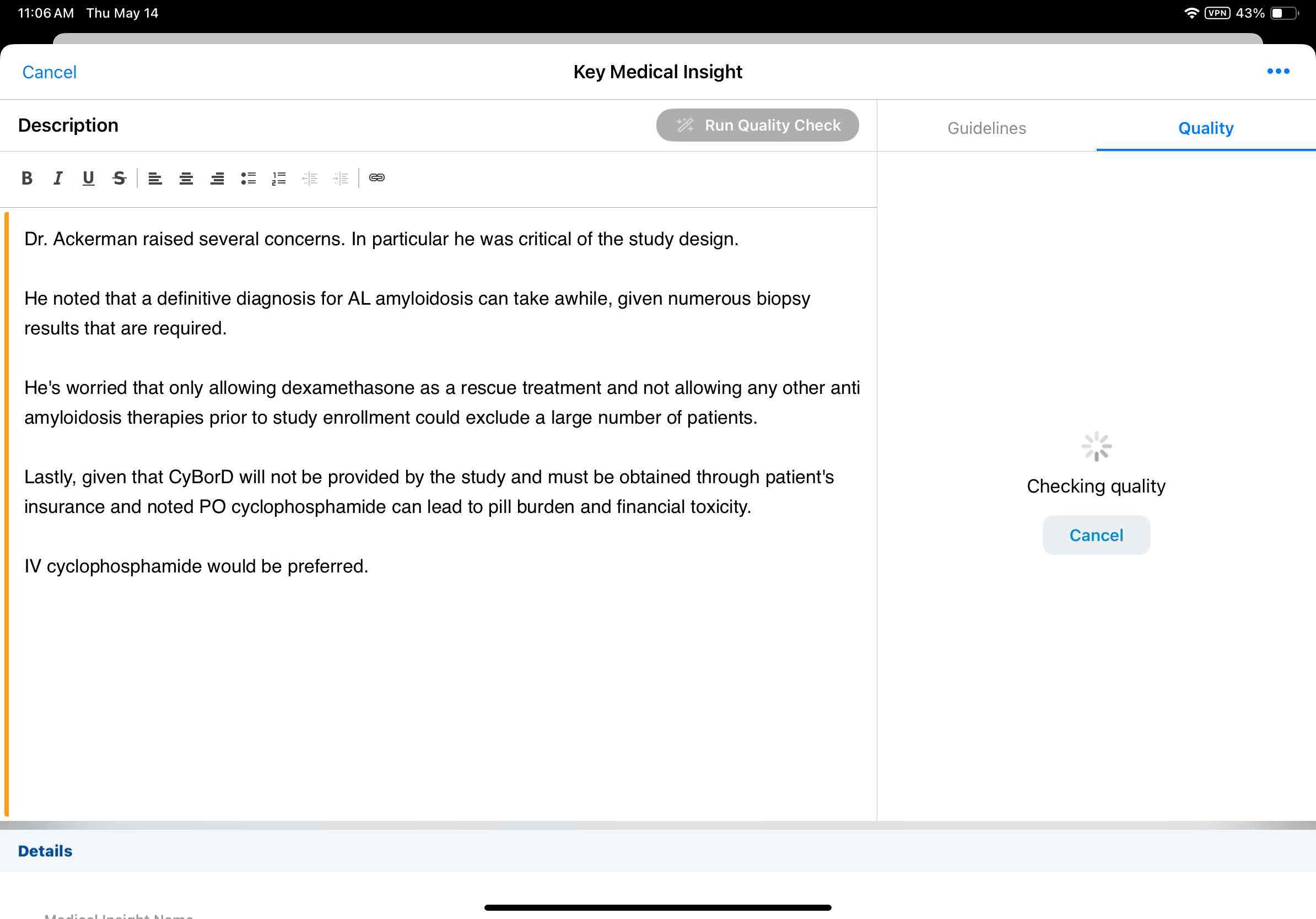
Modifying text while the quality check runs will cancel the quality check. Users can also cancel a quality check by selecting the Cancel button.
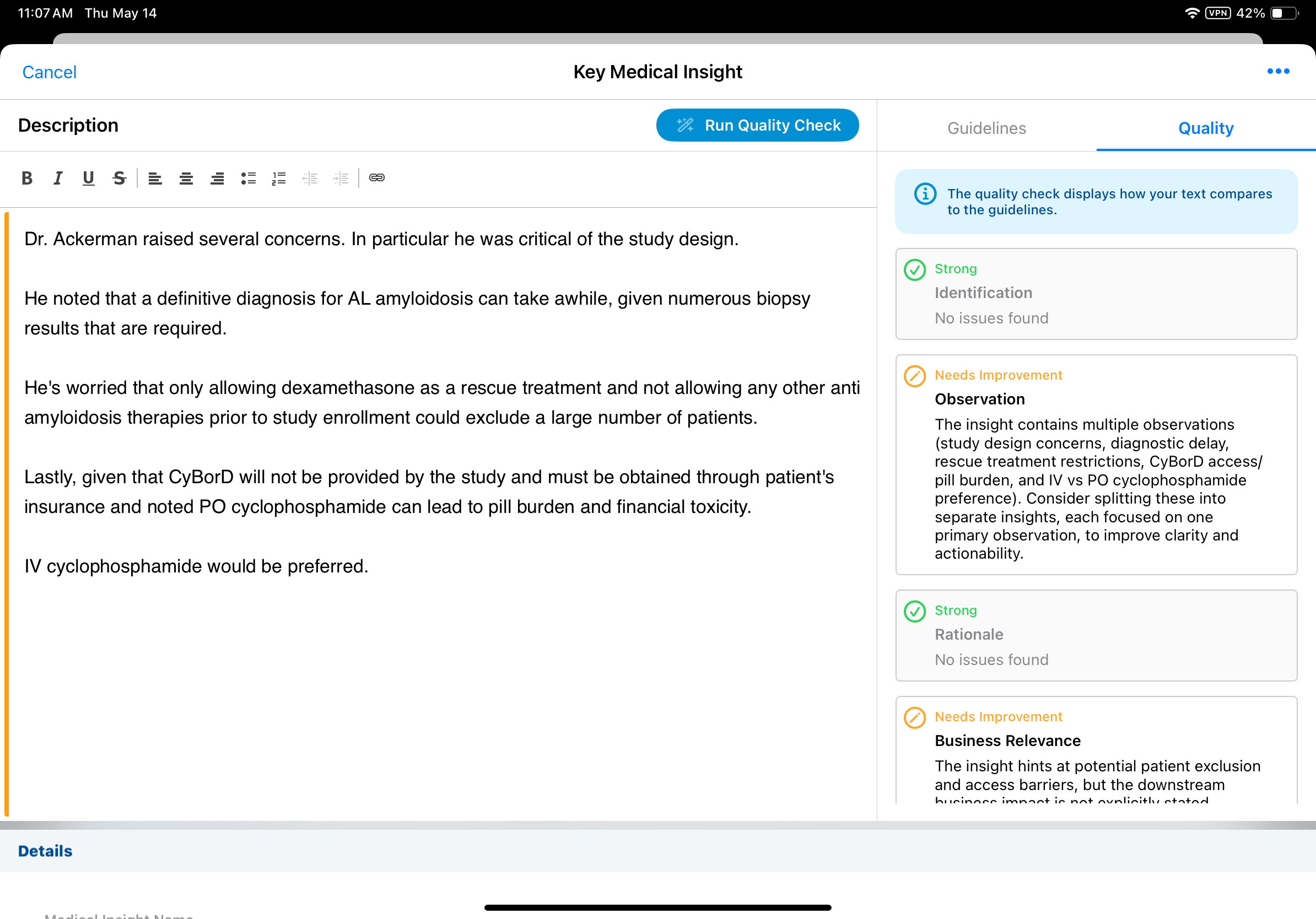
When the agent’s quality check is complete, the Quality tab displays the results.
-
Review feedback categorized into three levels:
- Strong (green check icon): Confirmed rules met successfully.
- Needs Improvement (yellow pencil icon): Suggestions provided for enhancement.
- Missing (red X icon): Required elements absent from the text.
-
Modify the text and select Run Quality Check again to perform a fresh, standalone evaluation. The entire insight is re-evaluated.
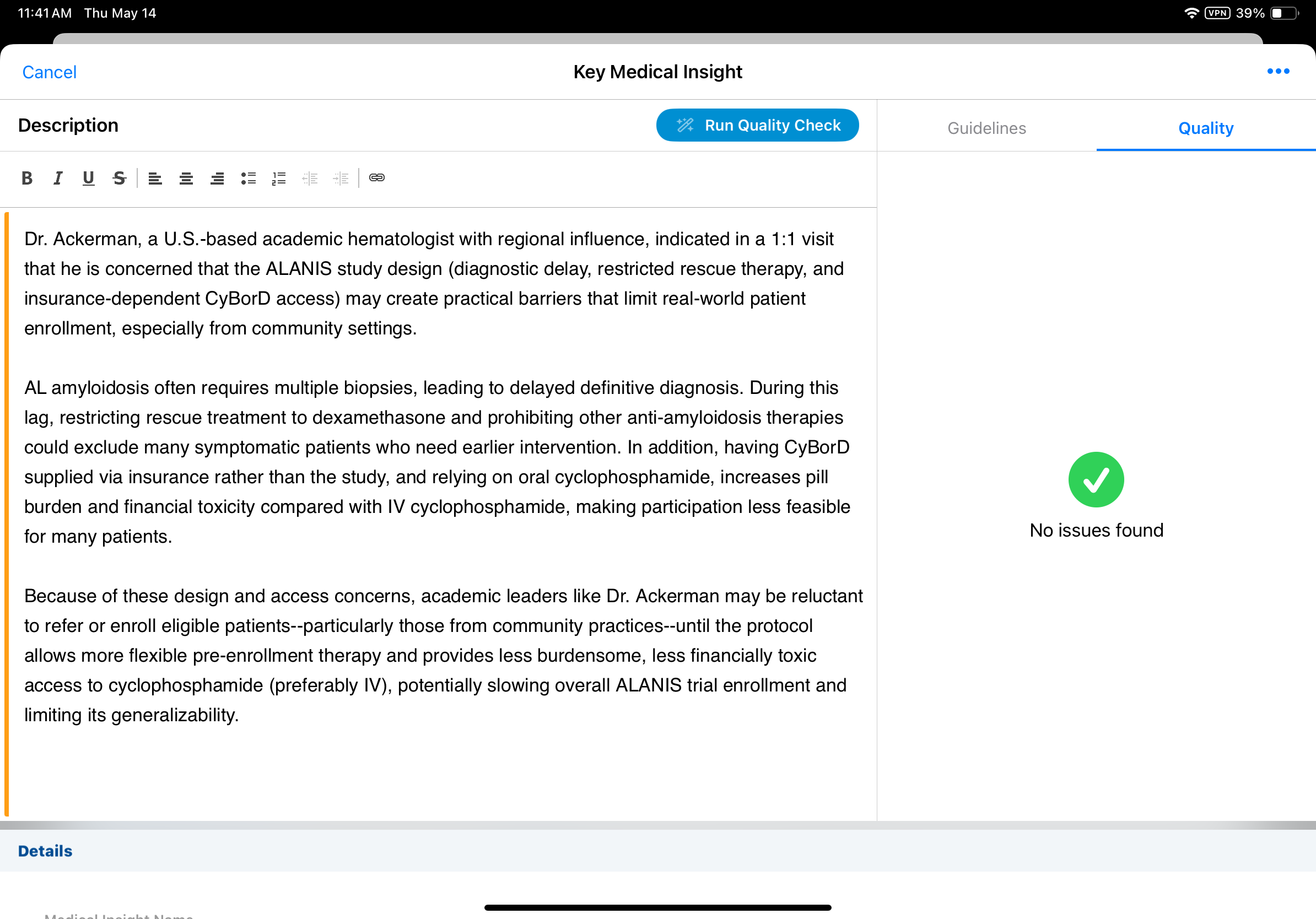
If all rules result in a response of strong, a No quality issues found message displays in the tab, along with a green checkmark.
Saving or Submitting the Insight
Regardless of the outcome of the quality check, users can continue to save or submit the Medical Insight as usual.
If users select Save, Submit, or Cancel while the quality check is running, a confirmation message displays. Select Cancel Quality Check to stop evaluation and complete the record action, or select Close to allow processing to continue.

