Custom Rules for Agentic Insight Quality
Business Admins can create custom agent rules to tailor Agentic Insight Quality’s feedback to their organization's specific strategic needs. These rules can be translated into any of Vault CRM’s supported languages. Business admins can also edit or delete existing custom rules.
Customers are responsible for testing and validating the responses for any custom rules that are configured.
Who can use this feature?
- Business Admins — Browser
- Creating Custom Rules
- Admins — Browser
- Translating Custom Rules
- A Veeva AI license is required
Configuring Custom Rules for
 Business Admins
To configure this feature:
- Ensure Configuring Agentic Insight Quality is complete.
- Navigate to Admin > Users & Groups > Permission Sets.
- Select the appropriate permission set.
- Select the Objects tab.
- Grant the following permissions:
Object
Object Permission
Object Types
Fields
Field Permission
agent_rule__v
CRED
insight_quality_rule__v
- display_order__v
- guideline__v
- insight_type__v
- instruction__v
- name__v
- status__v
- translated_guideline__v
- translated_rule_name__v
Edit
Creating Custom Rules as
Business Admins
Business admins can create their own custom agent rules for use with Agentic Insight Quality. As a best practice, Veeva recommends no more than ten Agent Rules for Insight Quality are active at a time, per Insight Type available to the user.
Agentic Insight Quality checks insights against the following Veeva-provided rules by default:
- Identification
- Observation
- Rationale
- Business Relevance
- Observation Context
- Writing Style
Business admins can activate or deactivate any of these default rules. However, the Veeva-provided default rules cannot be edited or deleted.
Business admins only need to create the rules in English. By default, all rules are translated into the user's language, and responses from the AI in the quality tab are displayed in the language in which the insight was entered.
To create a custom rule for Agentic Insight Quality:
- Navigate to Business Admin > Objects > Agent Rules.
- Select Create.
- Select the Insight Quality object type.
- Enter a Rule Name (for example, Competitive Intelligence Check).
- Enter detailed instructions for the LLM in the Instruction field. This defines how the agent should evaluate the text. For example: Flag insights that mention a competitor product but fail to mention the specific clinical trial associated with it.
- Select the appropriate value from the Insight Type field:
- Medical Insights
- Populate the Guideline field with the text to be displayed in Agentic Insight Quality UI, to help the end user understand the requirement.
- Assign a number (for example, 7) in the Display Order field to specify where this rule displays in the user's Guidelines tab. Guidelines display in ascending order based on the Display Order field for each rule.
- Set the Status to Active.
- Save the record.
To delete a custom rule, navigate to Business Admin > Objects > Agent Rules and delete the record for the custom rule. Veeva-provided rules cannot be deleted, and only the Status and Display Order can be edited.
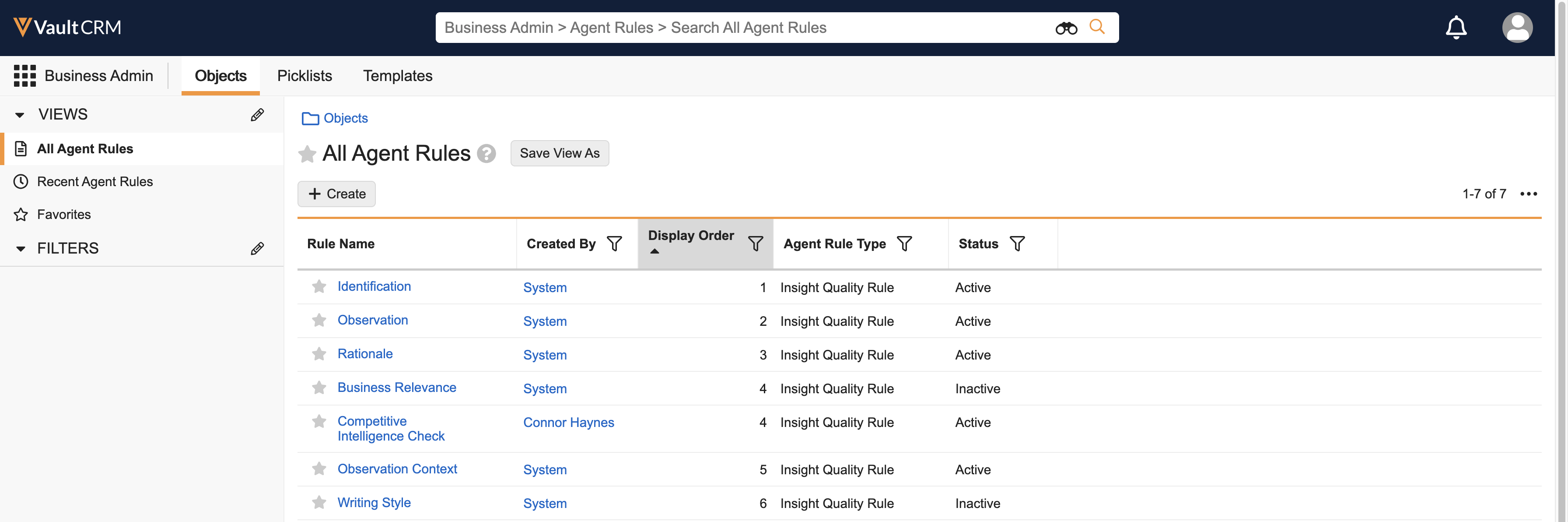
Example: A customer decides to use 4 of the 6 Veeva-provided rules, and one custom rule. The image below depicts the two Veeva-provided rules in Inactive status, and the custom rule with a Display Order set to 4.
Translating Custom Rules as
Admins
To provide a localized experience, admins can designate Vault Messages that are updated by the automated Vault CRM translation process. After creating a custom rule, follow the process below to ensure users see translated values for the Rule Name and Guideline.
Before creating individual translations, admins must designate a message group in the Message Catalog for custom rules:
- Navigate to Admin > Configuration > Message Catalog.
- Verify whether the message group vaultcrm_custom_messages__c already exists.
- Select Create if it does not exist.
- Enter vaultcrm_custom_messages__c in the Name field.
- Select Save.
To create the specific entries for your Rule Name and Guideline:
- Navigate to Admin > Configuration > Message Catalog > vaultcrm_custom_messages__c.
- Select Create.
- Enter a Name for the message, for example competitor_check_name__c.
- Enter a Default Value in your primary language (usually English).
- Select Save.
- Navigate to Business Admin > Objects > Agentic Insight Quality Rule.
- Select the appropriate record.
-
Populate the Translated Rule (translated_rule__v) and Translated Guideline (translated_guideline__v) fields with the appropriate messages, using the following syntax: message_name__c;;vaultcrm_custom_messages__c.
For example:
Translated Rule Name: competitor_check_name__c;;vaultcrm_custom_messages__c
Translated Guideline: competitor_check_guideline__c;;vaultcrm_custom_messages__c
- Select Save.
The Vault Message to Veeva Message Copy job process runs on a scheduled basis to update the Rule and Guideline text with translated values. For more information, see Managing Vault Messages and Veeva Messages and Using the Message Catalog.

