Configuring Agentic Insight Quality
Configuring Agentic Insight Quality for
 End Users
To configure this agent:
-
Ensure Configuring Vault AI in CRM is complete.
-
Ensure users have Execute permission to the Insight Quality Agent.
- Navigate to Admin > Users & Groups > Permission Sets
- Select the appropriate permission set
- Select the Agents tab
- Select the Execute checkbox for Insight Quality Agent
- Select the Objects tab.
- Grant the following permissions:
Object
Object Permission
Object Types
Fields
Field Permission
agent_rule__v
R
insight_quality_rule__v
- created_by__v
- created_date__v
- display_order__v
- guideline__v
- insight_type__v
- instruction__v
- modified_by__v
- modified_date__v
- name__v
- status__v
- translated_guideline__v
- translated_rule_name__v
Read
- Navigate to Admin > Configuration > Vault AI Setup > Agents.
- Select the Insight Quality Agent.
- Select Edit.
- Select Active in the Status picklist.
- Select Save.
- Expand the Actions section.
-
Verify the following agent action is Active:
- Analyze Insight - Analyzing the insight and provides the user feedback
- Navigate to Business Admin > Objects > Agent Rules.
-
Set the status of each rule with a type of Insight Quality Rule to Active.
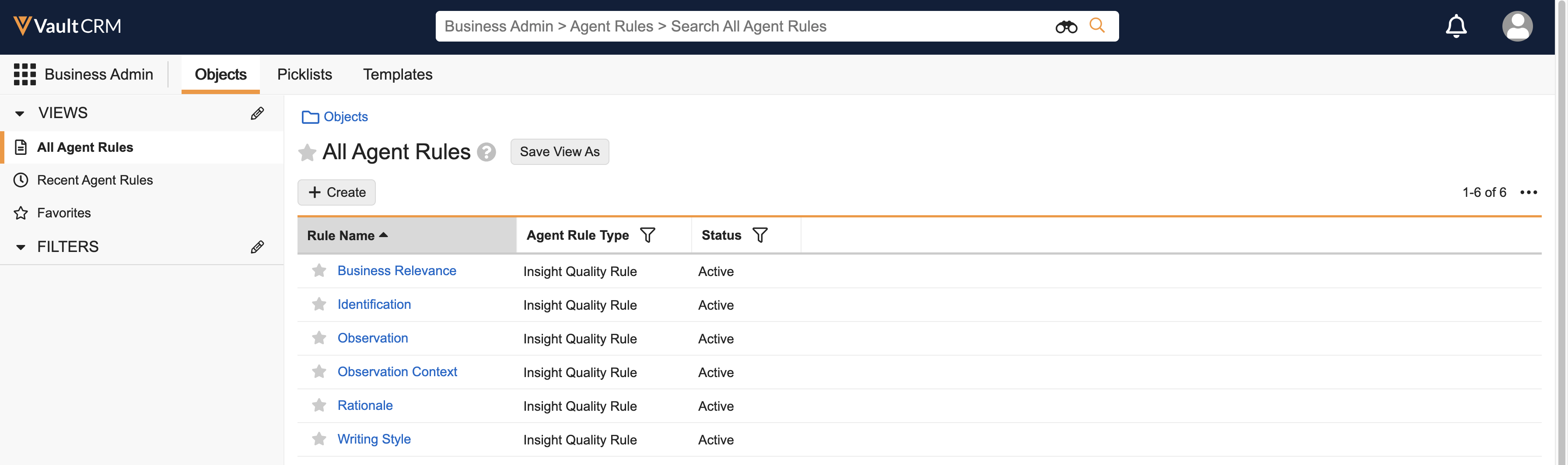
On Veeva-provided rules, admins can only update the Status and Display Order.
- Navigate to Business Admin > Objects > vmobile_object_configuration__v.
- Ensure agent_rule__v VMOCs are active for the iPad platform.

