My Notes
The My Notes tab provides users with a central place to manage Voice Notes that are not yet transposed into a record. This feature streamlines the record creation process by providing a single place to review audio captured in the field and convert it into actionable data, using Vault CRM's intelligent AI capabilities.
Who can use this feature?
- End Users — iPad, iPhone
- Using My Notes
- Opening Voice Notes
- Creating Records from Voice Notes
- Deleting Voice Notes
- A Vault AI license is required
Configuring My Notes for
 End Users
To configure this feature:
- Navigate to Business Admin > Objects > Veeva Messages.
- Add MyNotes to the TAB_NAV_DISPLAY Veeva Message, if Managing Tab Visibility and Display Order is enabled.
Using My Notes as
End Users
End users can access their Voice Note recordings and manage them directly from My Notes. Only Voice Notes not yet associated with a record display in My Notes. From My Notes, users can review these unassociated recordings and transpose them into Vault CRM records, for example, call reports, Commercial Insights, and Medical Insights.
To view Voice Notes, select the My Notes icon in the navigation bar. Key information displays for each Voice Note: the first two lines of the Voice Note transcript, the type, any associated accounts, and the creation date. Users can sort the list by selecting a column header, for example, the Date column. By default, the list is sorted from most recent to earliest Voice Note.
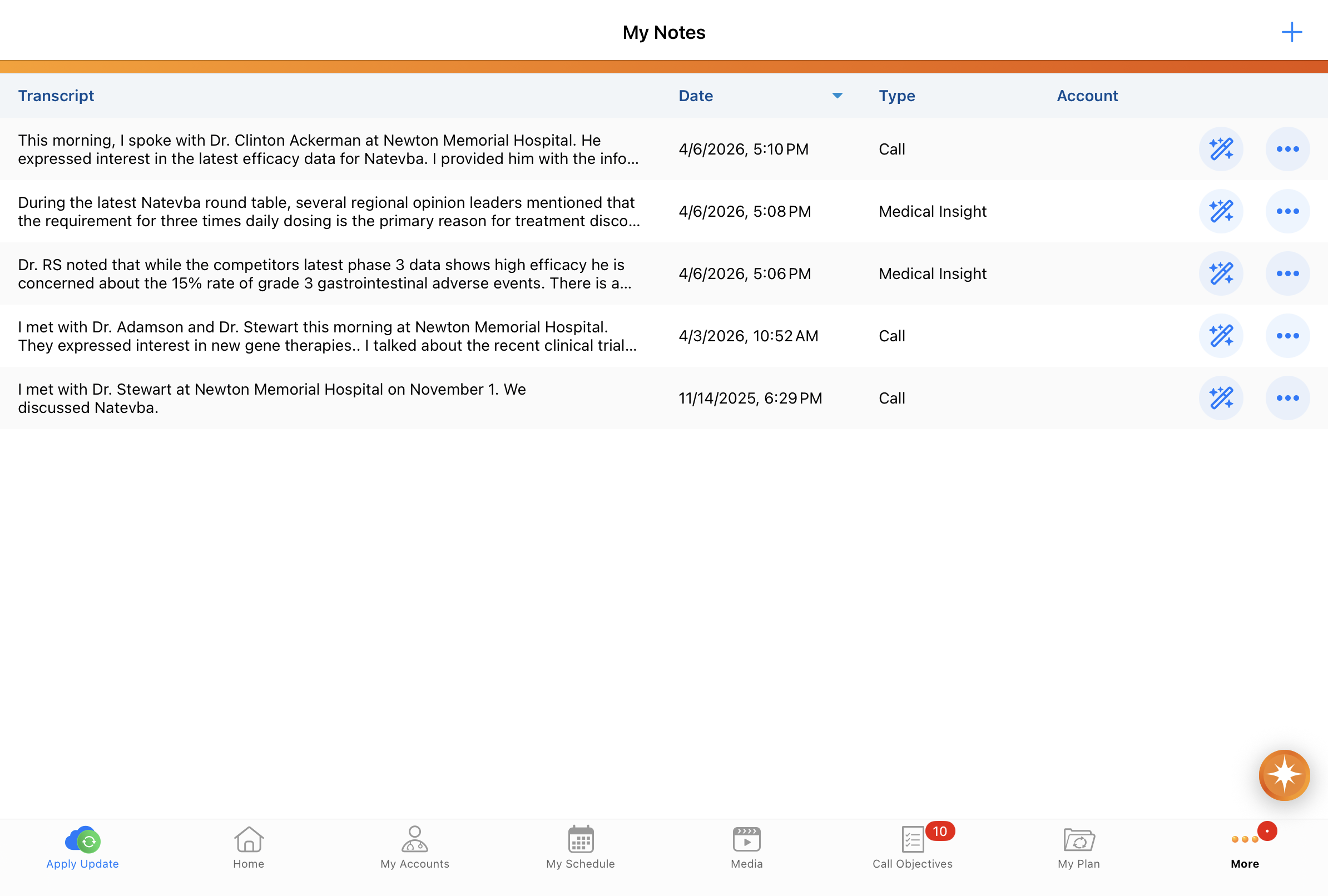
Voice Notes are strictly device-bound; they do not sync to the Browser or other devices and remain only on the device where they were captured. These notes persist through database refreshes but are permanently deleted once the final record is submitted or the note is manually discarded.
Dictating from My Notes
To start dictating a Voice Note from My Notes:
- Select the My Notes tab.
-
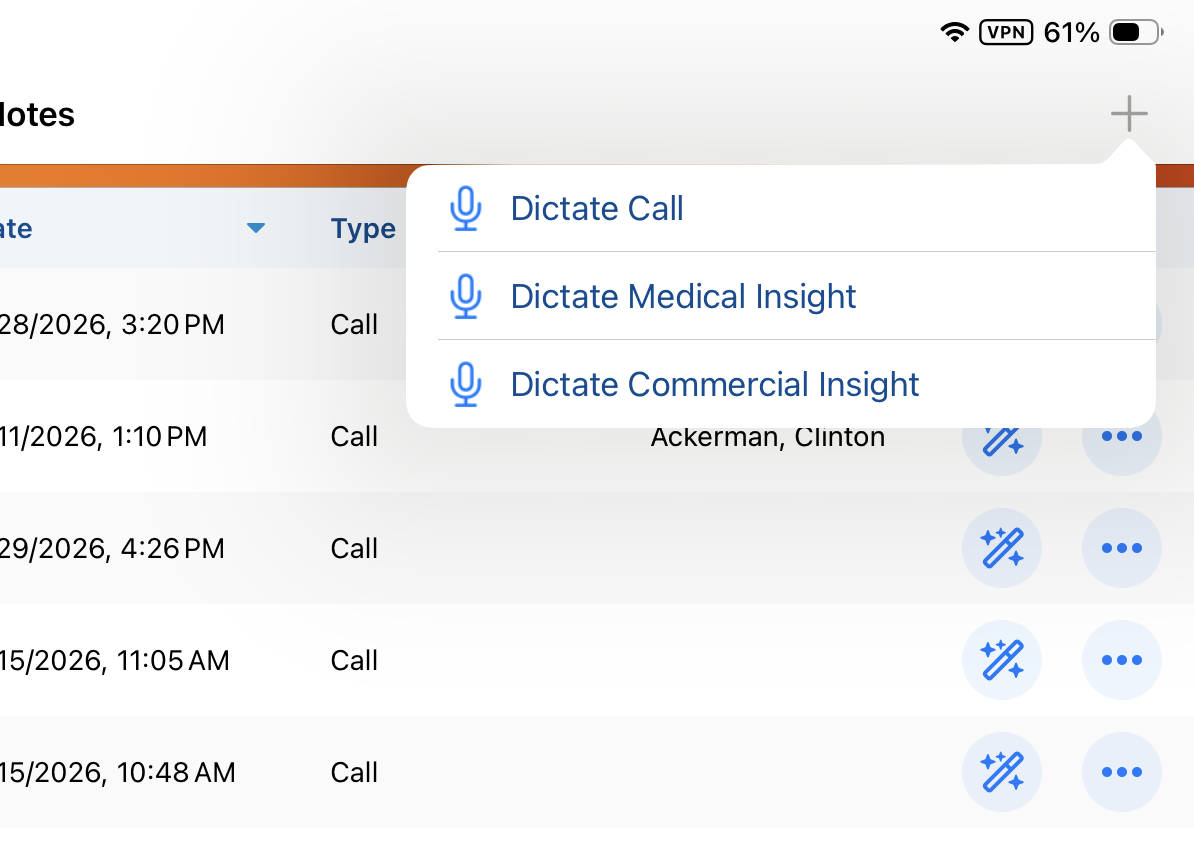
Select the Plus (+) icon. Alternatively, long-press the AI button.
-
Select the appropriate dictation option. The Voice Note page displays. Speak the details to be captured in the Voice Note.
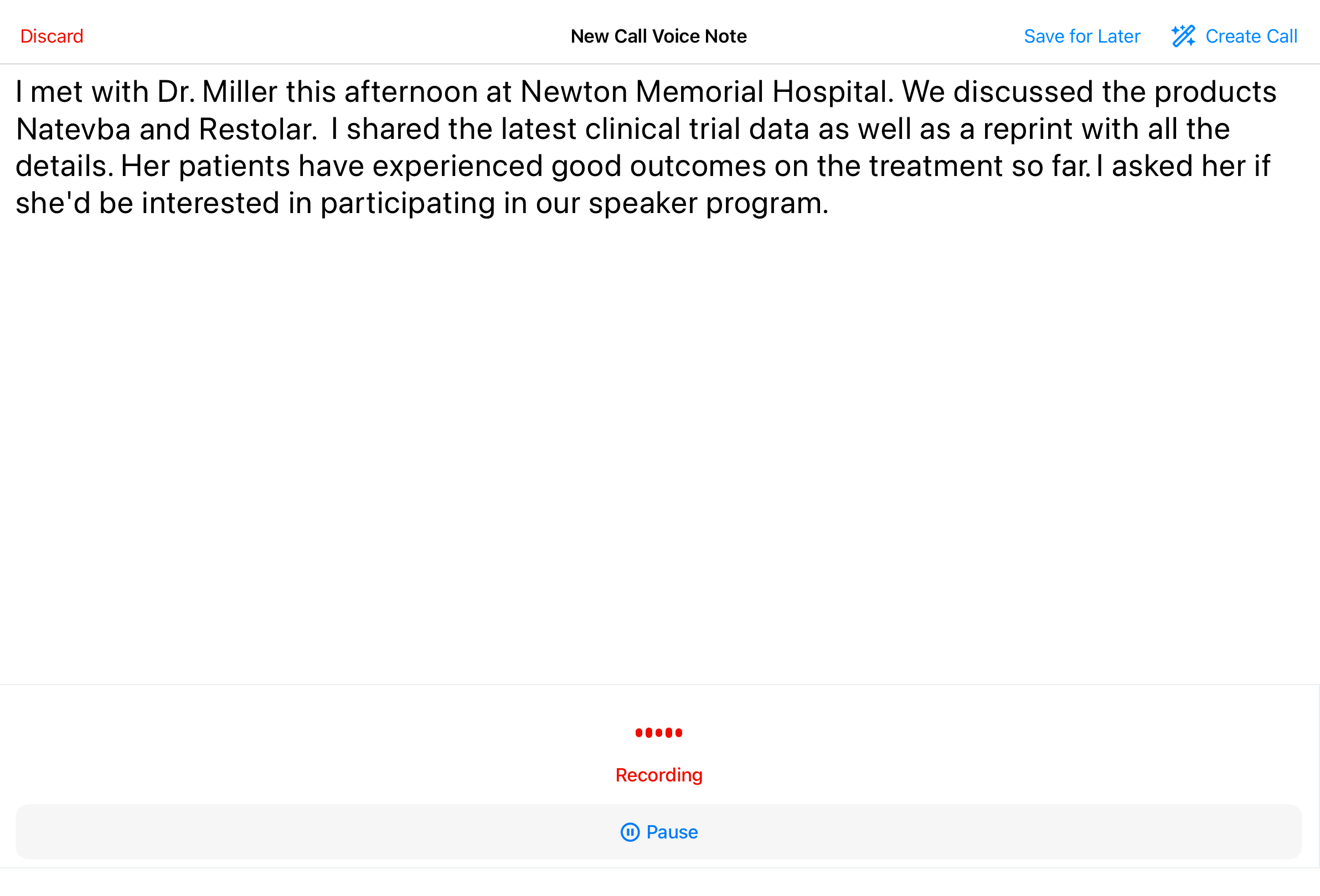
For more information on dictating Voice Notes, see Agentic Call Report™ and Creating Medical Insights with Agentic Voice.
Opening Voice Notes
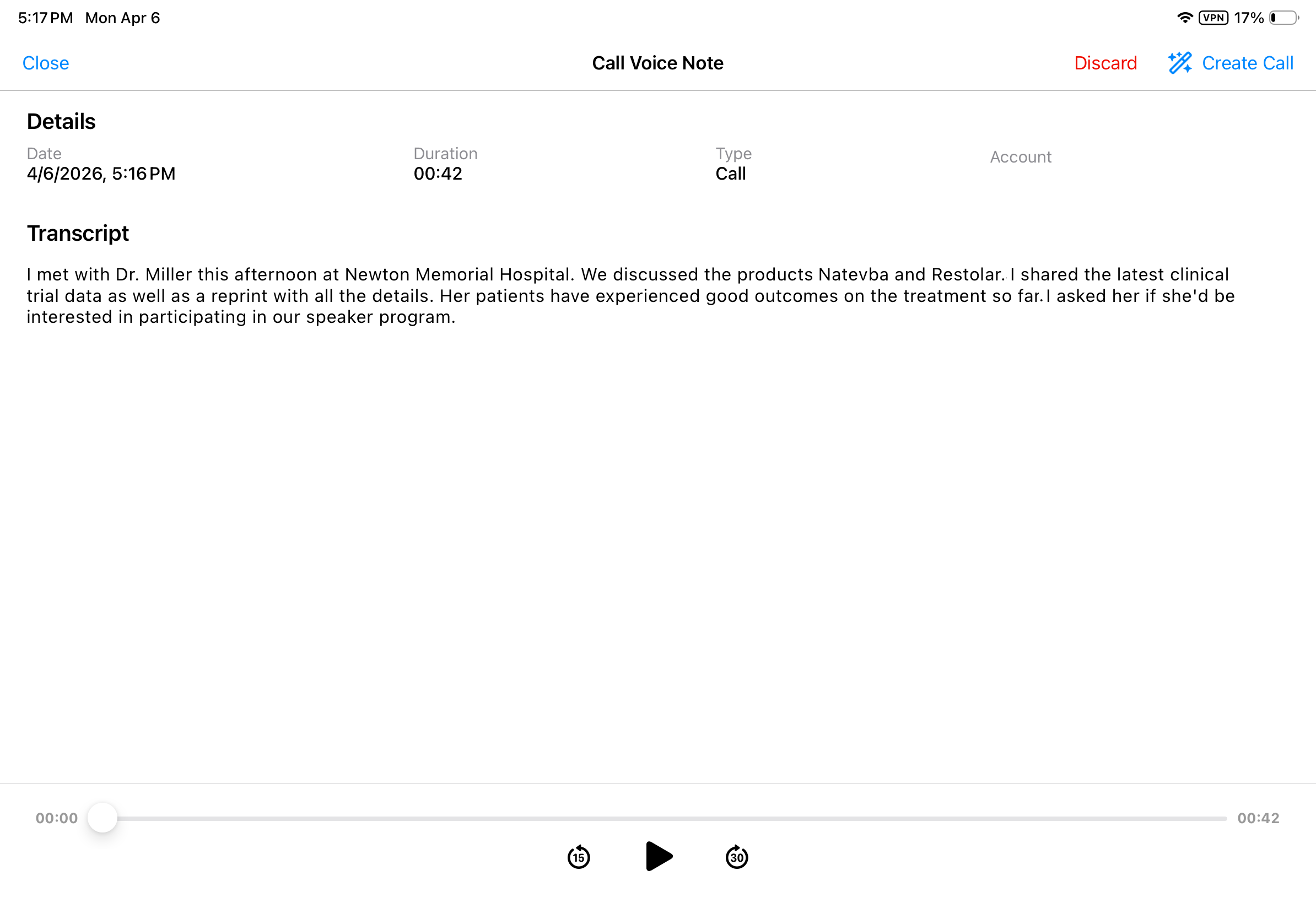
To open a Voice Note and view the full details, select the Voice Note from the list. The full transcript and additional Voice Note details display. For example, Voice Note date and duration.
Creating Records from Voice Notes
To create a record from a Voice Note recording in My Notes, users can select one of the following:
- Select the Wand icon from the appropriate Voice Note row on the My Notes tab
- Select the Create option from the individual Voice Note detail page
Agentic Voice transposes the user’s dictated text into a record. For more information on using Agentic Voice to create records, see Agentic Call Report™ and Creating Medical Insights with Agentic Voice.
Once a Voice Note is associated with a record, it no longer displays in the My Notes tab.
Deleting Voice Notes
To delete a Voice Note:
- Select the All Actions menu for the appropriate row.
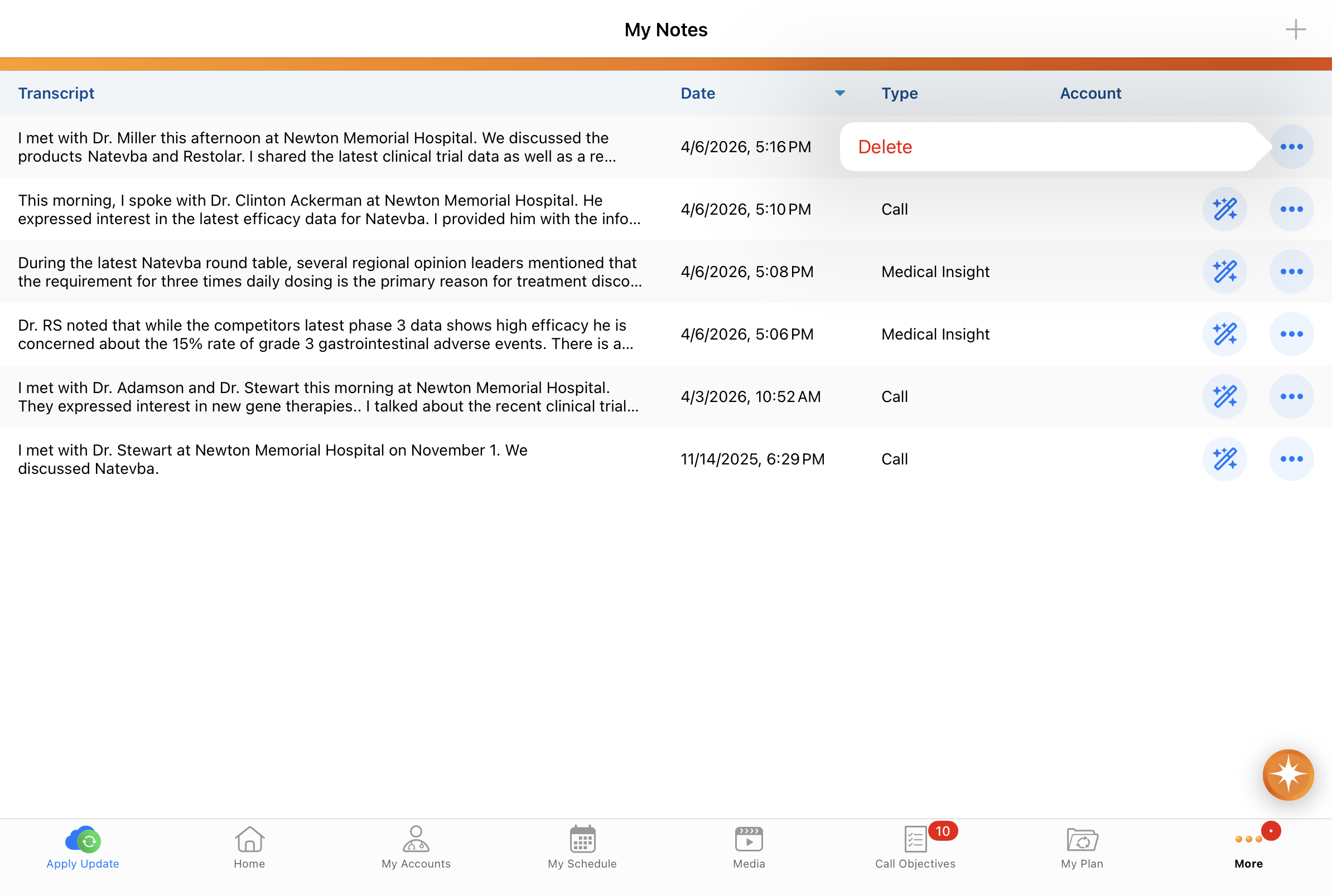
- Select Delete.
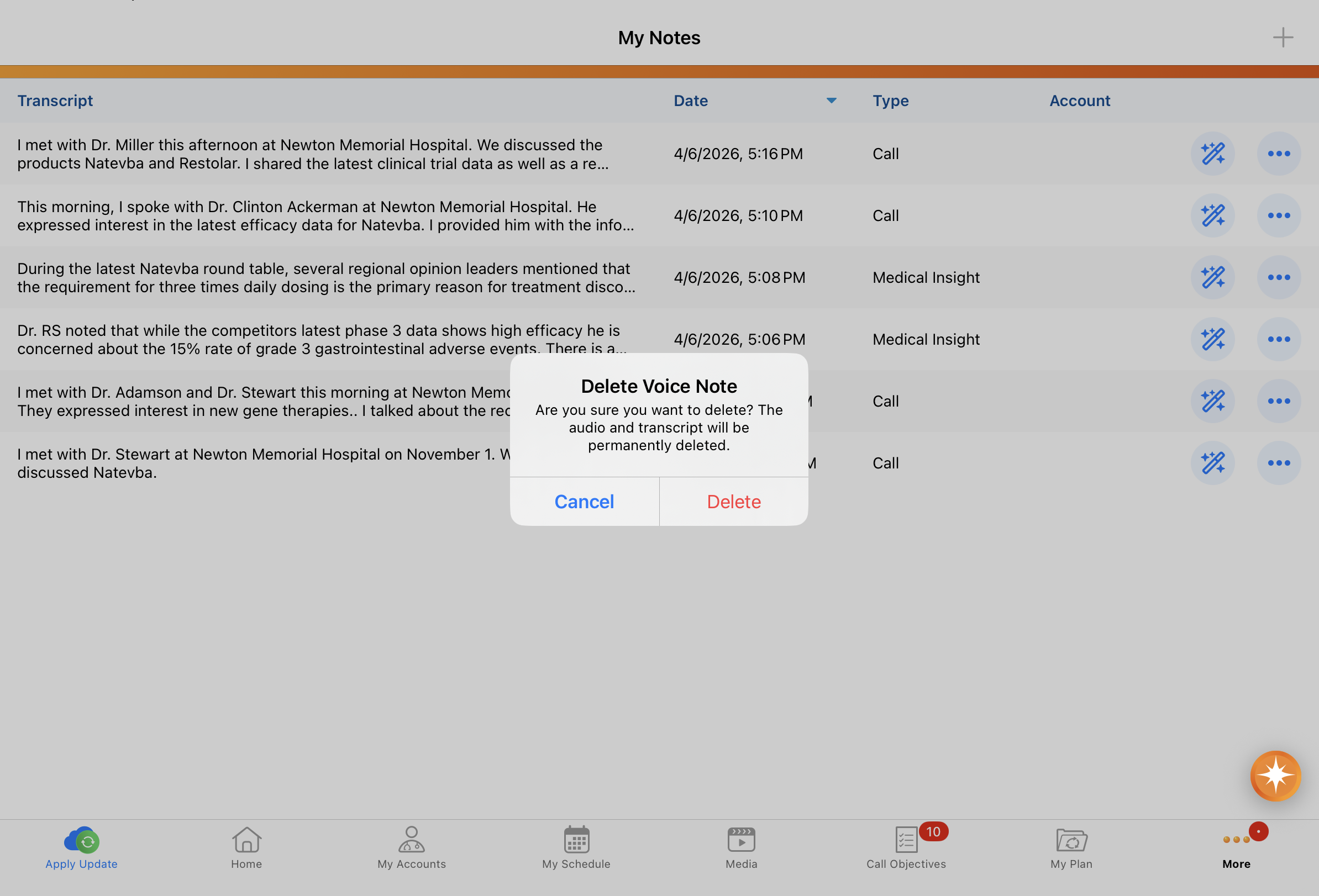
- Confirm the deletion.

