Agentic Call Report™
Agentic Call Report™ uses AI to transform natural language into structured call reports, replacing field-by-field data entry with a superior user experience and the ability to capture valuable Commercial Evidence™ at scale. After meeting with an HCP, the end user describes the interaction in their own words. Vault AI interprets the language, translates it into a structured record, and checks free text fields, for example Call Text, for compliance. The end user then reviews, edits, and confirms the captured information.
Two AI agents work together across the workflow: Agentic Voice turns the end user's dictation into a structured call report, and Agentic Text Monitoring checks the free text content for compliance and safety. Together, the two agents help end users capture accurate, timely information while ensuring call reports meet compliance and regulatory standards.
Because end users record interactions while the details are still fresh, call reports are more accurate, complete, and valuable to the business. Agentic Call Report's text monitoring functionality breaks through the compliance barrier that has long discouraged free text capture. In place of fragmentary structured data, the business gains a richer, more complete record of field activity. This is the Commercial Evidence™ the business depends on — captured at scale and ready for the analytics and insight that guide commercial strategy.
See Best Practices for Agentic Call Report™ for a full list of recommendations for optimizing user experience and business value.
Who can use this feature?
- End Users
- Using Agentic Call Report™ - iPad, iPhone
- Dictating Call Information - iPad, iPhone
- Accessing Saved Call Voice Notes - iPad, iPhone
- Creating an Agentic Call Report™ - iPad, iPhone (with Browser support for Agentic Text Monitoring)
- Reviewing Agentic Call Report™ View - Browser, iPad, iPhone, Windows
- Adding to an Existing Agentic Call Report™ with Voice - iPad, iPhone
- Saving and Submitting an Agentic Call Report™ - iPad, iPhone
- A Veeva AI license is required
Configuring Agentic Call Report for
 End Users
To configure Agentic Call Report:
-
Ensure the following configuration is complete:
To start dictation with Siri® , iPadOS/iOS version 26 or later and Apple Intelligence are required. If prompted, allow Vault CRM to access Siri and Search.
Apple Intelligence is required for starting dictation with Siri, though it is not currently required for recording Voice Notes from other entry points or for transposing the Voice Note text. As Apple Intelligence capabilities expand, it may become required for other aspects of dictation. - Navigate to Admin > Users & Groups > Permission Sets.
- Select the appropriate permission set.
- Select the Objects tab.
- Grant end users the following permissions:
Object
Object Permission
Object Types
Fields
Field Permission
call2__v
CRE
All applicable object types
- ai_source__v
- call_notes__v
- submitted_with_text_monitor_issues__v
Edit
- Navigate to Admin > Configuration > Objects > call2__v > Layouts.
- Create a new call2__v layout for Agentic Call Report, following the Recommended Layout Sections below.
- Navigate to Business Admin > AI Settings.
- Select the checkbox for Enable Agentic Call (enable_agentic_call__v) to enable the setting. Enabling this setting is required to use Agentic Voice and Agentic Text Monitoring for call reporting.
Recommended Layout Sections
Veeva recommends configuring a dedicated layout for Agentic Call Report. A dedicated layout focuses the end user on the most relevant sections of the call report and ensures an optimal experience.
The following are the only sections recommended for use on the Agentic Call Report layout:
Core Sections
- Buttons (buttons__c) — Provides the primary call report actions:
- save__v
- submit__v
- delete__v (optional; enables the Delete button)
- more_actions__v (optional; enables the All Actions button)
- Call Header (for example, details__c) — Captures the core call details. Include only the following fields:
- account__v
- address__v
- call_channel__v
- call_datetime__v
- check_in__v (field control)
- object_type__v
- territory__v
- status__v
- Attendees (call_attendees_section__v) — Captures the accounts present for the interaction
- Call Details (call_details_section__v) — Captures the products discussed
- Call Text (for example, call_text__c) — Displays the dictated Voice Note content. Include only the Call Text (call_notes__v) field.
- CLM Details (clmdetails_section__v) — Captures CLM content presented during the call
Optional Sections
- Attendee-Specific Fields (attendee_specific_fields__c) — Captures per-attendee details. Include only the following fields:
- incurred_expense__v
- expense_attendee_type__v
- Commercial Insights (commercial_insights_section__v) — Captures Commercial Insights related to the account or call
- Key Messages (key_messages__v) — Captures the Key Messages delivered, the account's reactions, and any vehicles mentioned
- Samples (samples_section__v) — Captures samples or other promotional products disbursed. Using Barcodes to Record Call Samples is supported for this section on the Agentic Call Report.
- Follow-up Activities (followup_section__v) — Captures follow-up activities identified during the call
- Expenses (expense_section__v) — Captures expenses associated with the call
- Expense Receipt (add_expense_receipt_section__v) — Enables users to attach receipts for expenses
In addition to placing layout sections, ensure any section-specific configuration is complete.
Setting a Parent Call Account Type Preference
To define how Agentic Voice handles multiple matching accounts, admins can set a Parent Call Account Type Preference in AI Settings:
- Navigate to Business Admin > Objects > ai_settings__v.
- Set the Parent Call Account Type Preference setting to one of the following values, to define how Agentic Voice handles multiple matching accounts:
- Prefer Business Account Parent Calls – Only displays matching Business Accounts as Suggested Accounts; Person Accounts are still available for selection
- Prefer Person Account Parent Calls – Only displays matching Person Accounts as Suggested Accounts; Business Accounts are still available for selection
- Enforce Business Account Parent Calls – Restricts call account selection to Business Accounts only. Agentic Voice does not consider other types of accounts when selecting a primary account for the call, and users can only search for and select Business Accounts as the call account.
- Enforce Person Account Parent Calls – Restricts call account selection to Person Accounts only. Agentic Voice does not consider other types of accounts when setting a primary account for the call, and users can only search for and select Person Accounts as the call account.
If a value is not selected, all matching accounts display as Suggested Accounts. Users can search and select any in-territory account for which they have access.
Providing Key Message Context for Agentic Voice
To provide additional Key Message context, admins can populate AI Description and AI Synonym fields on Key Message records. This is optional, especially in cases where the Name field on the Key Message clearly relates to Key Message content.
For example, if a Key Message name contains an organization-specific acronym, this should be explained in the AI Description field. Industry-wide acronyms and abbreviations do not need to be explained.
To provide additional context:
- Navigate to Admin > Configuration > Objects > key_message__v > Layouts.
- Place the ai_description__v and ai_synonyms__v fields on the appropriate key_message__v layouts.
- Navigate to Business Admin > Objects > key_message__v.
- Populate the following fields on the appropriate key_message__v records:
- ai_description__v – A plain-language description that provides Agentic Voice with context to interpret Key Messages
- ai_synonyms__v – A comma-delimited list of alternate terms or phrases that help Agentic Voice match the user’s spoken words to the correct Key Message record
Using Agentic Call Report™ as
End Users
To create an Agentic Call Report, the end user dictates a description of the interaction and reviews the structured report generated from their dictation.
The workflow moves through four stages:
- End users record interaction details — End users describe the interaction in plain language, including all details relevant to the call report, for example the HCP name, date and time, call channel, products discussed, and any follow-up activities. Agentic Voice captures the dictation in real time via a Call Voice Note.
- Agentic Voice transposes the dictated text into a call report — Agentic Voice transposes the description into a structured call report, automatically populating key information mentioned in the dictation. End users review, edit, and confirm the captured information. By default, Agentic Call Report View is used to present commercially relevant call content in a deterministic, read-only layout for fast review.
- Agentic Text Monitoring checks free text fields — Agentic Text Monitoring checks free text fields, for example Call Text, for potential compliance and safety issues. If the agent identifies a potential issue based on the organization's PI and compliance guidelines, it flags the text for the end user to review and resolve.
- End users save or submit the call report — After reviewing the call report and resolving any potential compliance or safety issues, end users save the call report to finish later or submit the completed record. The original Call Voice Note remains available from the report until the record is submitted. For compliance and data privacy, Call Voice Note audio and text are permanently deleted when end users submit the call report.
Dictating Call Information as
End Users
End users dictate the details of an interaction using Call Voice Notes, which capture the user’s speech and transcribe it into text. Agentic Voice analyzes and transposes Call Voice Note text into a call report. Agentic Voice supports any of Vault CRM's Supported Languages.
Users can access Agentic Voice using multiple methods: hands-free access with Siri, long-pressing the AI icon in Vault CRM, or selecting a dictation option from the My Notes tab header.
Using Siri to Start Dictation
To start dictating using Siri, activate Agentic Voice using one of the following methods:
- Say, ‘Hey Siri ‘, followed by a Vault CRM-specific command
- Long press the iPhone's power button, then speak or type a specific Vault CRM command
- Select a Vault CRM-specific prompt from iOS Shortcuts or iOS Suggestions
Once activated, clearly speak one of the following commands, using the label of the call2__v object in Vault CRM:
- Create a Call in Vault CRM
- Add a Call in Vault CRM
- New Call in Vault CRM
- Record a Call in Vault CRM
Siri recognizes these phrases in any of Vault CRM's Supported Languages.
Accessing Agentic Voice with Siri is not supported when the user has unsaved changes. For example, when creating or editing a record, or when collecting a signature. If users attempt to start dictation from an unsupported page, Siri alerts the user with the following message: 'There are unsaved changes in Vault CRM. Save your work and try again.'
Using the AI Icon to Start Dictation
To start dictating using the AI icon:
-
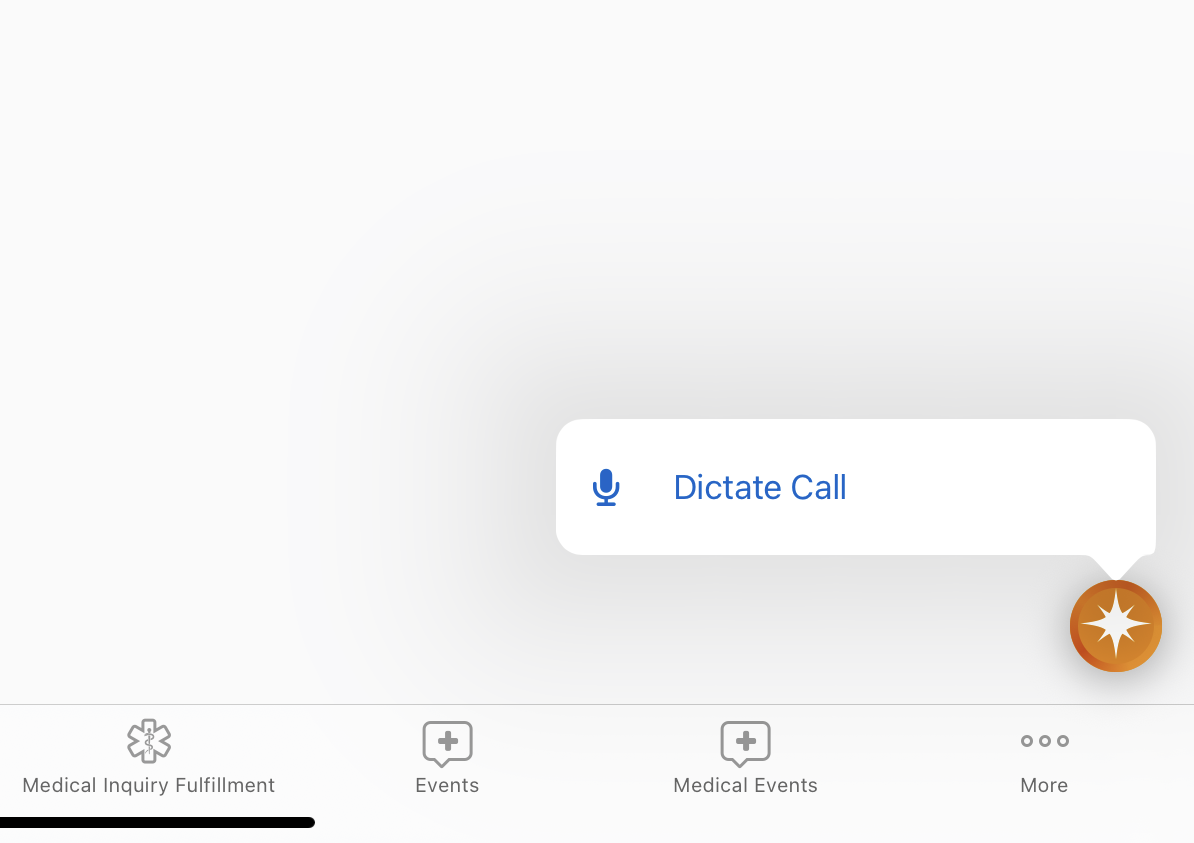
Long-press the AI icon from one of the Agentic Voice entry points:
- Vault CRM Home Page
- Account Detail
- Address Detail
- Call Reports, when viewing a submitted call
- CLM Media tab
- Medical Insights Detail
- Medical Insights tab
- My Notes tab
-
Select the Dictate Call option.
Dictating from the My Notes Tab
To start dictating from the My Notes tab:
- Navigate to My Notes.
- Select the Plus (+) icon.
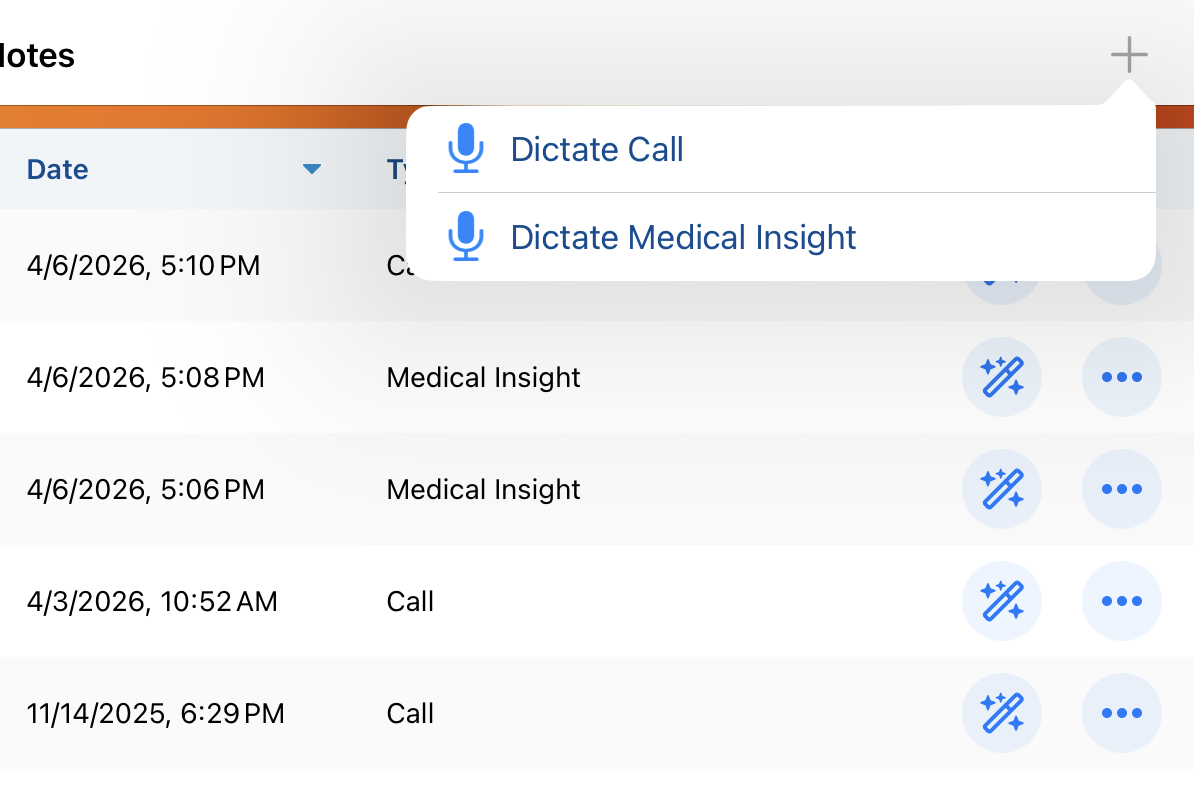
- Select the Dictate Call option.
After users start dictation, a Call Voice Note opens to capture the user’s speech. Recording and transcription begin automatically. Users describe the interaction and include any information relevant for the call report. For example, the HCP name, the date and time, call channel, relevant products, and any follow-up activities. For best results, it is recommended to speak at a clear, moderate pace in an environment with minimal background noise.
To pause the recording, select the Pause icon from the Call Voice Note. To resume the recording, select the Resume icon.
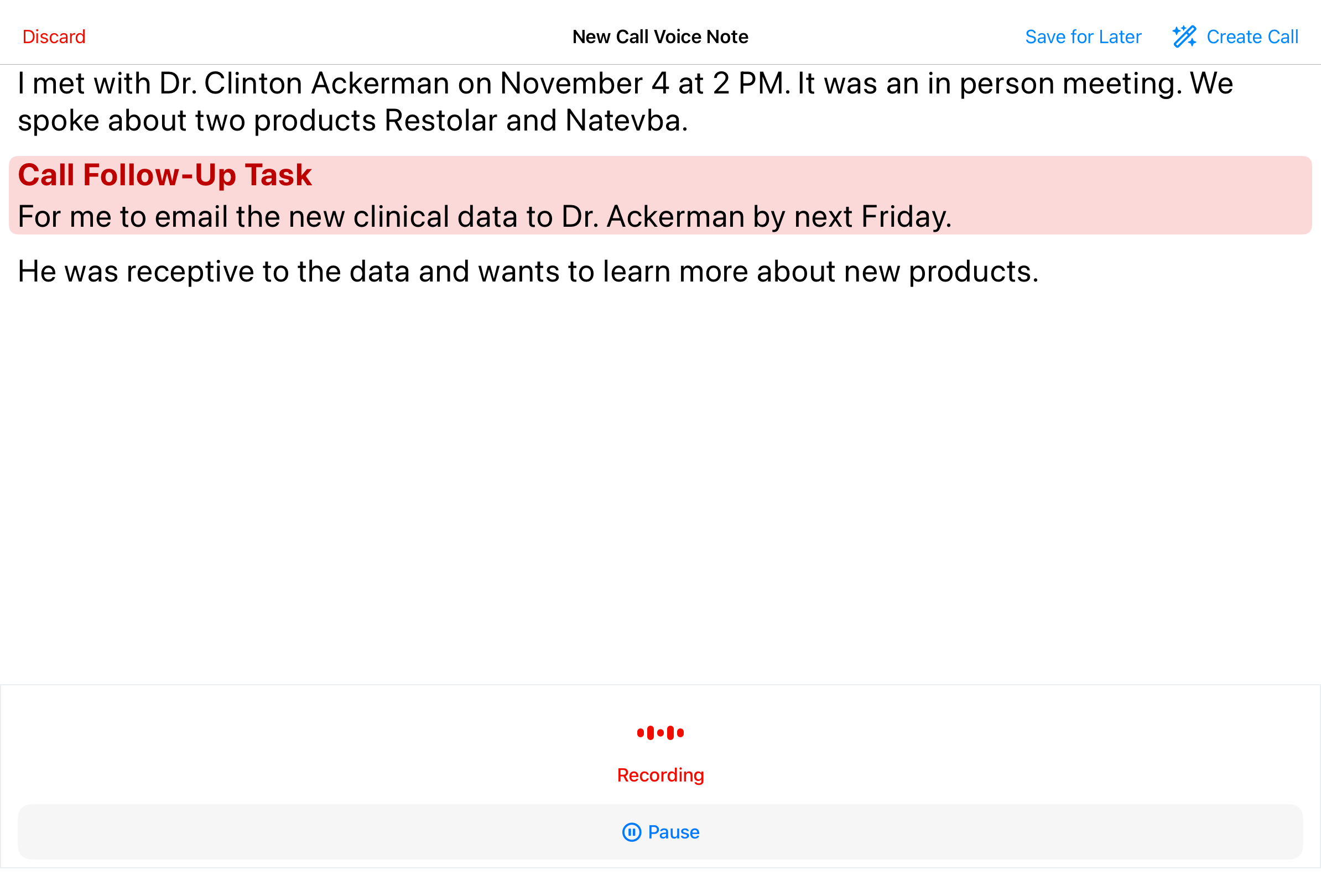
To complete the Call Voice Note, select one of the following options from the Call Voice Note header:
- Create Call - Immediately sends the Call Voice Note to Agentic Voice for processing. Agentic Voice analyzes the text, identifies relevant call report information, and populates the call report. The new call report automatically opens in Agentic Call Report View for the user’s review.
- Save for Later - Saves the Call Voice Note for later review, without creating a call report. Users can access the saved Call Voice Note from My Schedule and create a call report at a later time. The Call Voice Note only exists on the user’s device and is not synced to the Vault CRM database.
- If users select Cancel on an unsaved call report created from a Call Voice Note, the call report is discarded and the Call Voice Note is saved for later
- Discard - Permanently deletes the recording and Call Voice Note without creating a call report. Users are prompted to confirm the Discard action before the Call Voice Note is deleted.
Working Offline with Agentic Voice
Although recording and transcription occur locally on the user's device using native iOS capabilities, an internet connection is required to generate a call report from a Call Voice Note. If an internet connection is not available when a user selects Create Call, a Connection Issue alert displays. In these instances, users can instead select Save for Later to store the audio and transcript on the device.
Saved Call Voice Notes awaiting AI processing display in My Schedule as red-striped entries. Once a connection is restored, users can open the entry and select Create Call to initiate the AI conversion, which sends the transcribed text to the cloud-based AI Orchestration Layer for processing. For more information, see Accessing Saved Call Voice Notes.
Voice Notes are strictly device-bound; they do not sync to the Browser or other devices and remain only on the device where they were captured. These notes persist through database refreshes but are permanently deleted once the final record is submitted or the note is manually discarded.
Accessing Saved Call Voice Notes as
End Users
Users can access saved Call Voice Notes from My Notes, or from My Schedule's Agenda View or Week View. Saved Call Voice Notes display as 30-minute entries.
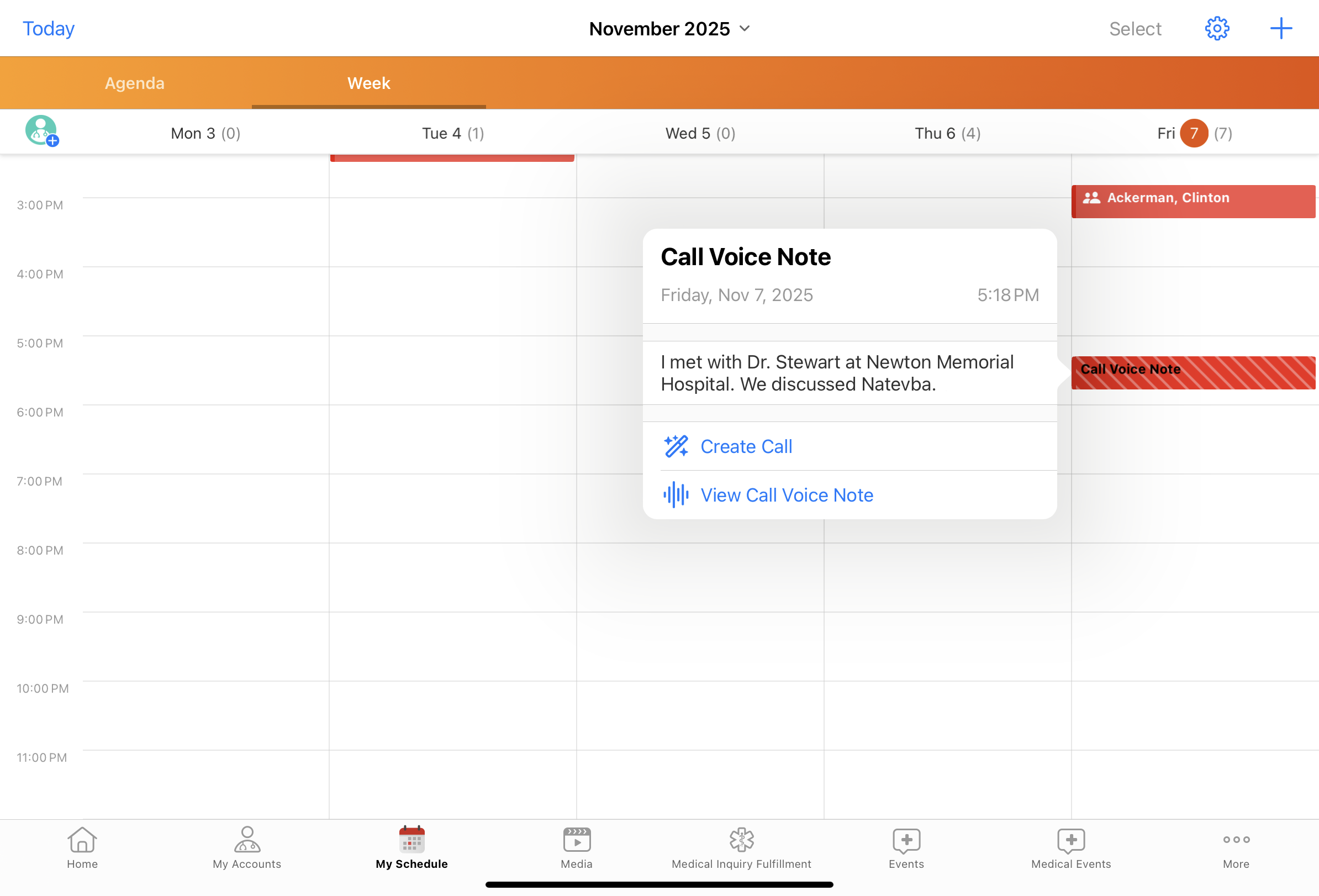
Select the Call Voice Note entry to access the following options:
- View Call Voice Note - View the full Call Voice Note transcript and access audio playback. Users can also choose to discard a Call Voice Note from the transcript screen, which permanently deletes the recording and the Call Voice Note.
- Create Call - Create a call report from the saved Call Voice Note. After creating a call, the Call Voice Note entry is removed from My Schedule or from the My Notes list, and the call report entry displays.
Users cannot change the Call Voice Note time or date, unlike other calendar entries.
Creating an Agentic Call Report™ as
End Users
When users convert a Call Voice Note into an Agentic Call Report™, existing calls are automatically reviewed for potential matches. Agentic Voice identifies potential matching calls by date, time, and accounts mentioned, and categorizes them as Suggested Calls or Available Calls. If only one Suggested Call matches the information in the Call Voice Note, the user’s dictated information is automatically added to the existing call report.
If there are multiple potential matches, a Select Call dialog displays matching calls sorted from latest to earliest by call date and time.
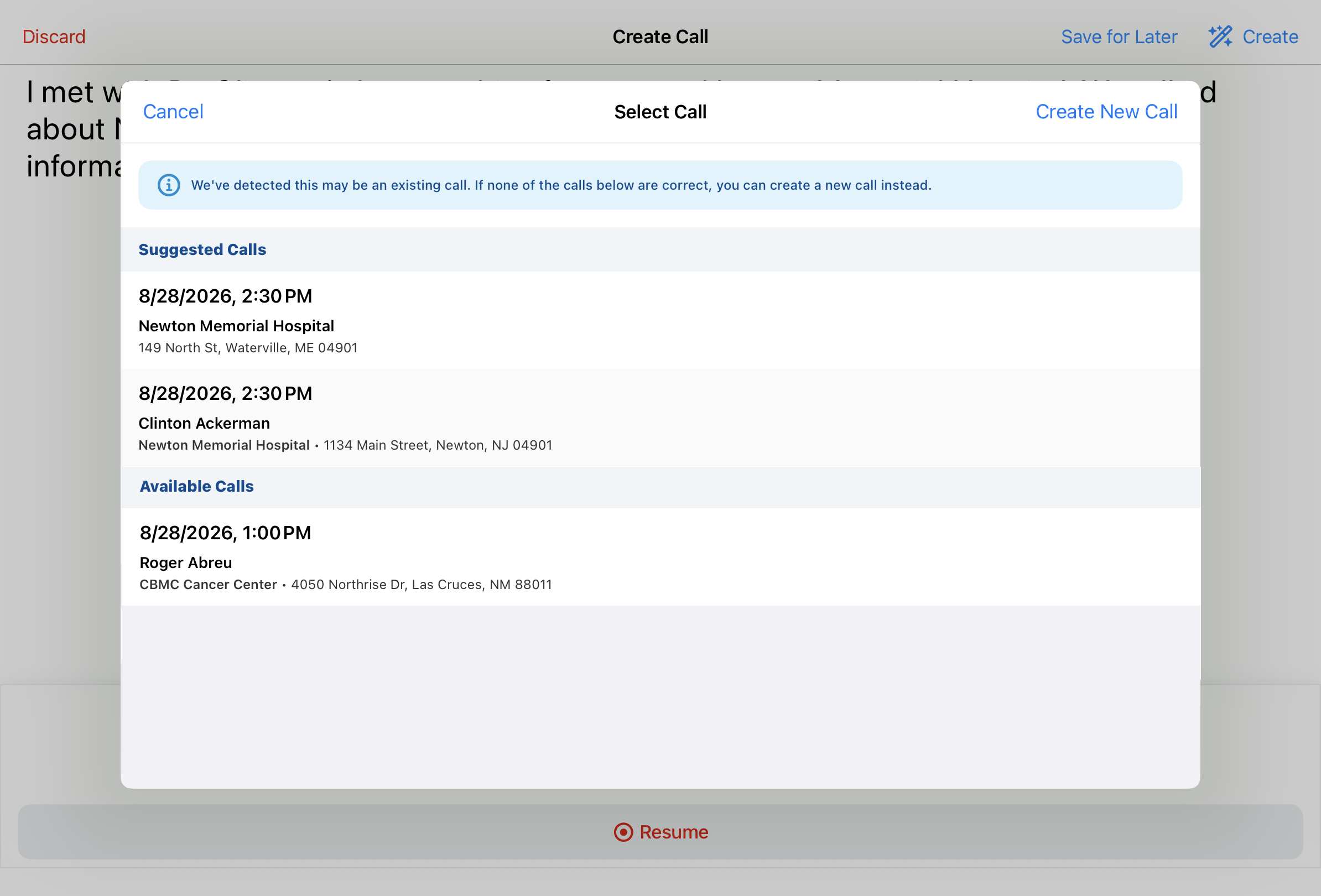
When selecting an existing call, accounts on that call are reconciled with accounts mentioned in the Call Voice Note. If an ambiguous attendee remains, the Attendee Selector opens to confirm attendee selection.
If none of the Suggested or Available Calls are applicable, users can select Create New Call to generate a new call report based on the dictated information.
Creating a New Call
When users create a call from a Call Voice Note, Agentic Voice intelligently processes the transcribed text and populates the new call report based on the information in the Call Voice Note. The new call opens in Agentic Call Report View, by default. Key information is automatically populated, if specified in the Call Voice Note:
- Account
- Call Attendees
- Call Datetime
- Call Channel
- Call Location
- Product Details
- Key Messages
- Follow-up Activities
- Call Notes
The listed sections and fields must be placed on the call2__v layout in order to be populated.
The following types of call reports are not currently supported when creating calls with Agentic Voice:
- Child account calls
- Event calls
Capturing the Account
Agentic Voice identifies the primary account for the call report based on where the user initiates the process and the content of the Call Voice Note. The following call information is defaulted based on the account:
- Address
- Call Object Type
- Location, if a Business Account is not already identified from the Call Voice Note
- Pre-Call Notes, if applicable
- Territory
The appropriate account is automatically populated on the call report when users initiate Agentic Voice from one of the following account-specific entry points:
- Account Detail pages
- Address Detail pages
- Call Reports, in View mode
When users initiate Agentic Voice from one of the other entry points, not specific to an account, Agentic Voice attempts to identify account names from the Call Voice Note text:
- Single Match - If only one account matches the name mentioned, it is automatically populated
- No Match - If a matching account is not found, the account search modal displays, allowing the user to search and select an account
- Multiple Matches - If there are multiple potential matches, Agentic Voice suggests accounts
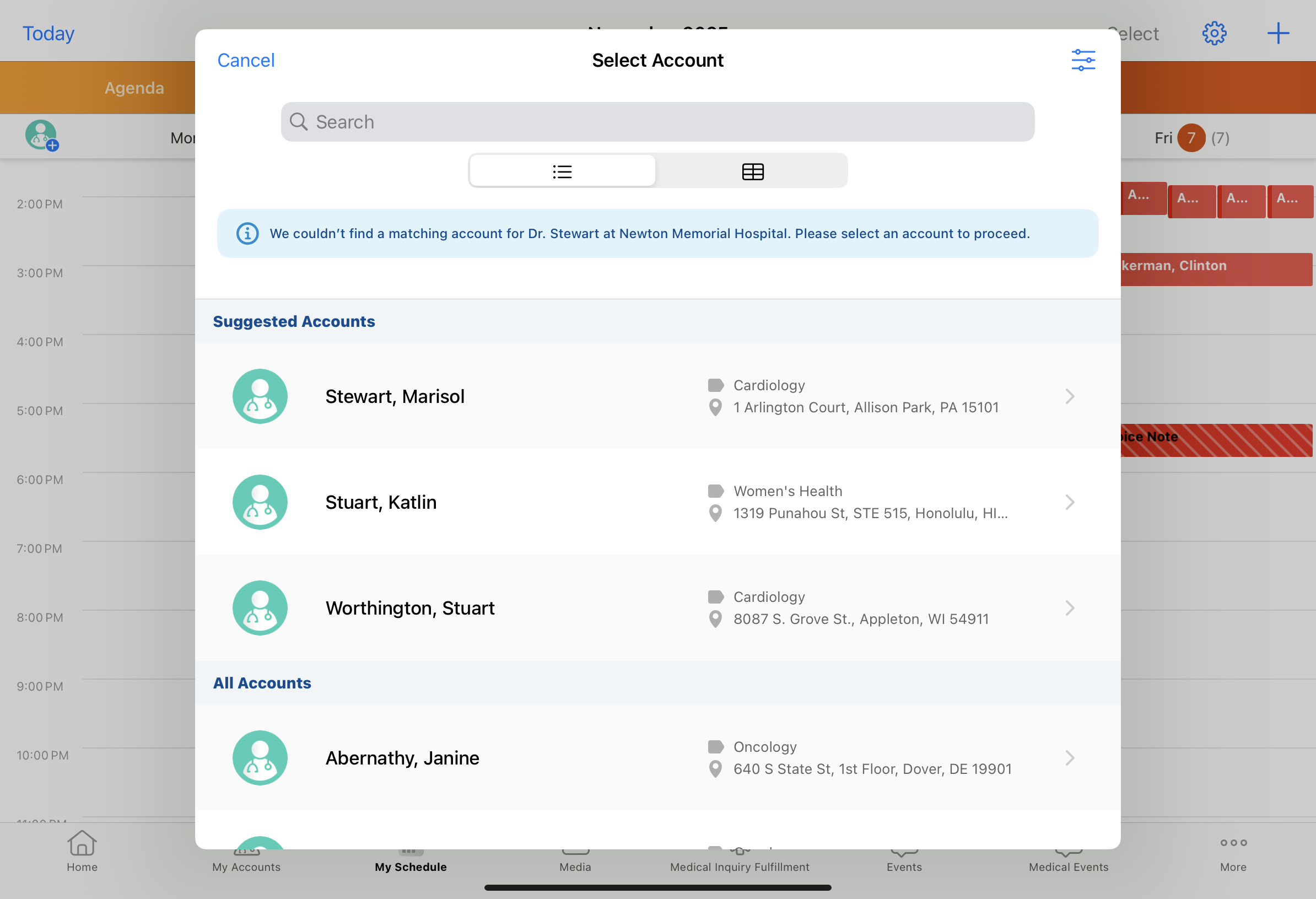
Parent Call Account Type Preference
When Agentic Voice identifies multiple accounts from the Call Voice Note, the value selected for the Parent Call Account Type Preference setting can help determine which accounts are selected:
- Default (No Preference) - If multiple matches are found, all matching accounts display as Suggested Accounts. Users can search and select any in-territory account for which they have access.
- Prefer Business Account or Prefer Person Account - When the Parent Call Account Type setting is populated with either of these values, the preferred account type is prioritized without blocking others. If both a Business Account and a Person Account match the account named in the Call Voice Note, the type preferred based on the setting is automatically selected.
- Enforce Business Account or Enforce Person Account - These settings strictly limit selection to one type:
- Only accounts of the enforced type are considered
- If Agentic Voice identifies a non-enforced type (for example, a Person Account when the setting value is Enforce Business Account), it is not considered
- Only accounts matching the enforced type can be selected, or displayed as suggestions for available accounts
Accounts are not pre-filtered based on Restricting Calls by Account or Restricting Calls by Account Object Type. If a restricted account is selected (either automatically or by the user), an error message displays and users are returned to the account selector to choose a valid, non-restricted account.
Capturing Call Attendees
If Agentic Voice identifies multiple matching Person Account names in a Call Voice Note, those Person Accounts are automatically added as call attendees. This applies to calls against Business Accounts or Person Account calls where the Person Account Attendees attribute is enabled. Automatically adding attendees is most successful when Parent Call Account Type Preference is enabled, and when users initiate the Call Voice Note from an account-specific entry point.
When Agentic Voice identifies potential attendees but cannot confirm a unique match, users are prompted to reconcile them via the Attendees modal. Attendees identified by Agentic Voice or selected by the user display in the lower half of the modal.
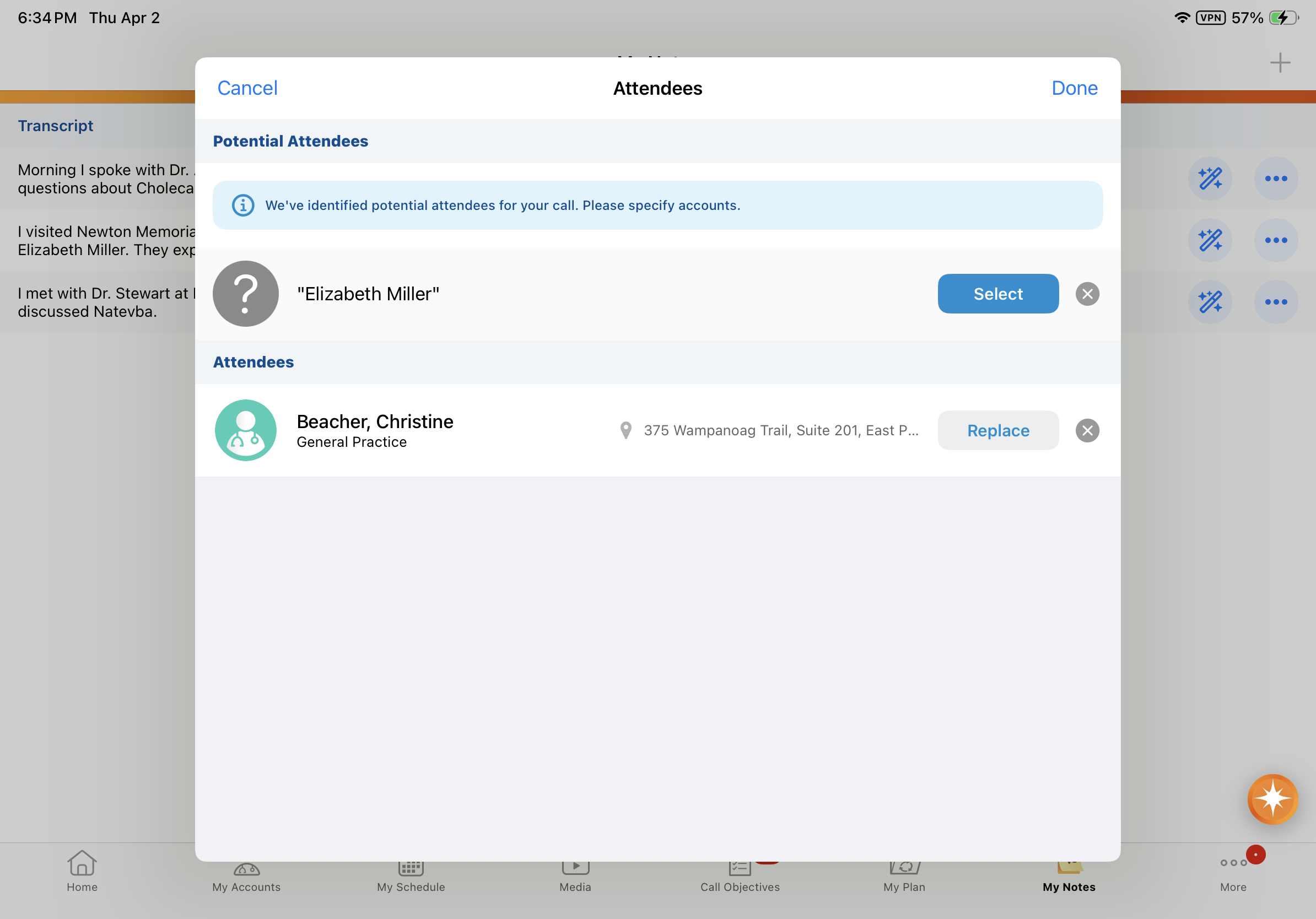
Within the modal, users can perform the following actions:
- Match a potential attendee - Select the Select button to open the account search modal and choose a specific attendee. Suggested Attendees display first, followed by a list of all possible attendees.
- Replace an attendee - Select Replace to open the account search modal and swap an identified attendee for a different account
- Remove an attendee - Select the Remove icon from the attendee’s row. Note that removed attendee information is not retained; if users want to re-add the attendee, they must do so manually after call creation.
Once the list is accurate, select Done to continue transposing the Call Voice Note into a call report.
Selecting Cancel discards all attendee selections and primary account selections.
Capturing the Call Date
Agentic Voice attempts to identify a call datetime from the Call Voice Note. When a datetime is not specified, the call report is created with the Call Voice Note’s datetime. If the datetime specified in the Call Voice Note exceeds a call backdate limit, the call creation datetime is used instead.
Capturing the Call Channel
Call channels are matched based on the translated labels and names for call_channel__v picklist values:
- In-Person
- Video
- Phone
- Text/Message
- Other
The call channel remains unpopulated when:
- A call channel is not specified in the Call Voice Note
- A matching call channel value is not found
- A restricted call channel is identified from the Call Voice Note
- Auto-Populating the Call Channel is enabled
Capturing the Call Location
For calls against a Person Account where Call Location is enabled, Agentic Voice scans the Call Voice Note for mentions of a Business Account. If the agent identifies a Business Account that is a valid affiliation or a parent account of the primary Person Account on the call, that Business Account is automatically set as the Call Location.
If Agentic Voice does not identify a matching Business Account in the Call Voice Note, the Location is populated based on the primary account's default address information. If a defaulted location is not available or changes are needed, users can update the Location field on the call report as usual.
Capturing Detail Products
Detail Products are automatically added to the call report for each product name in the Call Voice Note matching the detail products available to the user. Detail priority is automatically assigned for each Detail Product, corresponding to the sequence in which products are mentioned in the Call Voice Note.
Agentic Voice only captures detail products clearly named in the Voice Note, or product name near-matches as identified by the LLM. It does not infer product names from context.
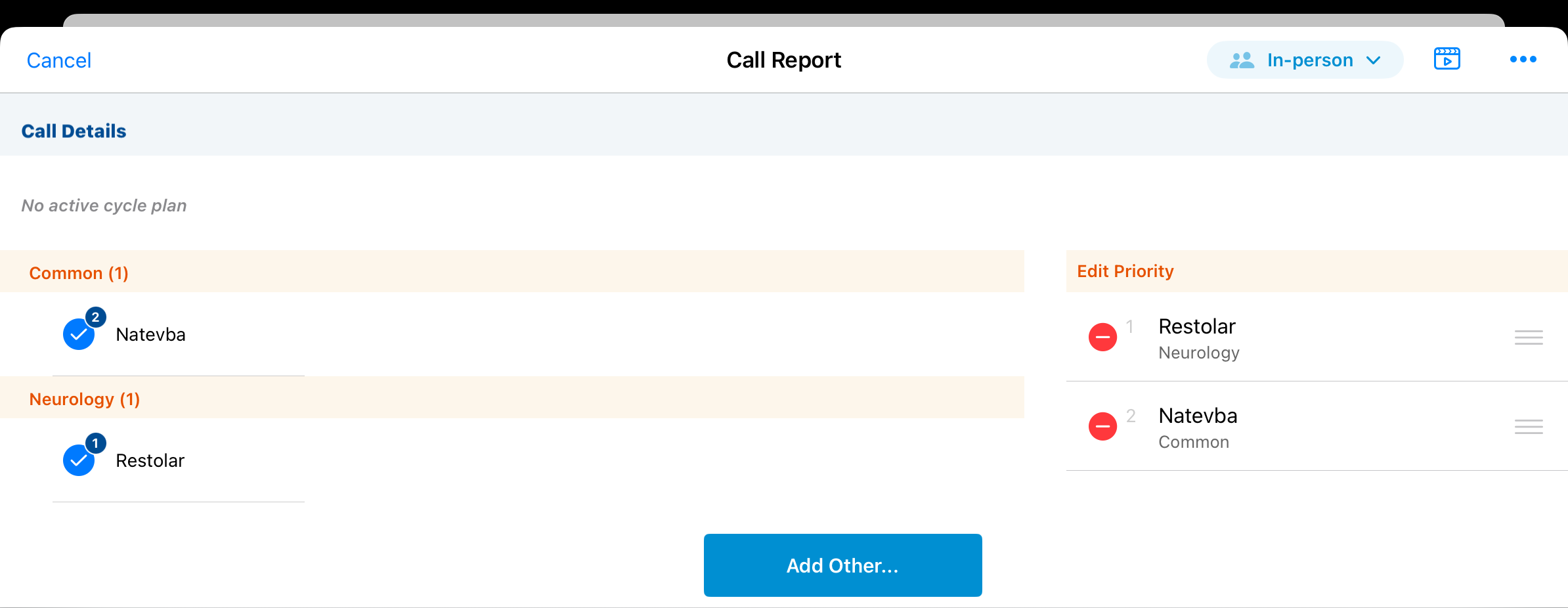
When Detail Groups are configured, the appropriate Detail Product-Detail Group combination is identified and captured on the call report:
- If a product belongs to only one Detail Group, the Detail Product-Detail Group combination is captured on the call report regardless of whether the user mentioned the product’s Detail Group
- If a product belongs to multiple Detail Groups and the user mentions a specific group, the Detail Product-Detail Group combination is captured on the call report as specified
When there are multiple Detail Groups for a product, the user must specify a group. If a product belongs to multiple Detail Groups and the user does not specify a group, the product is not added to the call report.
Agentic Voice intelligently identifies Detail Groups, using semantic recognition to map natural language phrases to specific Detail Groups. For example, a user can say 'Cholecap for heart health' or 'Cholecap for Cardiology' and Agentic Voice correctly identifies and records the same Detail Product-Detail Group combination, ensuring data consistency.
Restricted products are not added to the call report, as defined by Restricting Products by Account or Defining Allowed Products.
Capturing Key Messages
Key Messages are automatically populated on the call report, if identified in the Call Voice Note. Agentic Voice uses a multi-layered approach to ensure only relevant Key Messages are added:
- Product Context – Agentic Voice first identifies the Products and Detail Groups discussed. It then searches for Key Messages associated with those specific Products and Detail Groups. General Key Messages (those not tied to a specific product) are also considered.
- If a product is blocked due to Restricted or Allowed Product settings, neither the product nor its related Key Messages are added to the call report
- Language Matching and Sharing – Agentic Voice only considers Key Messages that match the user’s language setting and that the user has at least Read access for
- Segmentation - If a Key Message is targeted to specific account segments, Agentic Voice only adds Key Messages where the account on the call report belongs to a matching segment
- AI Fields - Agentic Voice leverages two admin-populated, AI-specific fields on the Key Message (key_message__v) object for additional context:
- AI Description (ai_description__v) - Provides plain-language context for Key Messages
- AI Synonyms (ai_synonyms__v) - Help match the user’s spoken words to the correct Key Message
Key Message Reactions
Agentic Voice identifies the account’s reaction to Key Messages based on information captured in the Call Voice Note:
- If the agent finds a confident match to the active Reaction values for the Key Message, the Reaction is automatically populated
- When Custom Reactions are enabled, Agentic Voice captures any identifiable Custom Reactions for the Key Message. If a Custom Reaction is not identified, a matching standard Reaction may be used.
- If a clear Reaction or Custom Reaction is not identified, the Reaction field remains blank
Key Message Vehicles
Agentic Voice identifies the Vehicle (delivery method) used to convey the Key Message if specified in the Call Voice Note:
- If the agent finds a confident match to the active Vehicle picklist values for the Key Message, the Vehicle is automatically populated
- When Custom Vehicles are enabled, Agentic Voice captures any identifiable Custom Vehicles for the Key Message. If a Custom Vehicle is not identified, a matching standard Vehicle may be used.
- If a clear Vehicle or Custom Vehicle is not identified, the Vehicle field remains blank (it does not default to Other)
Key Message vehicles are not supported on the iPhone platform.
Capturing Follow-Up Activities
When Creating Follow-Up Activities on the Call Report is enabled, Agentic Voice identifies potential follow-up activities from the user’s Call Voice Note and adds them to the call report.
Users can indicate the beginning and end of a follow-up activity while dictating. To signal the beginning of a follow-up activity, say one of the following phrases:
- Add Call Follow-Up Task
- New Call Follow-Up Task
- Create Call Follow-Up Task
To signal the end of the follow-up activity, say one of the following phrases:
- End Call Follow-Up Task
- Stop Call Follow-Up Task
To add additional Agentic Voice-recognized terms for follow-up activities, update the double-semicolon delimited list in the Text field of the CALL_FOLLOWUP_TASK_ALT_NAMES;;crm_ai__v Veeva Message.
Follow-up activities are highlighted in the Call Voice Note.
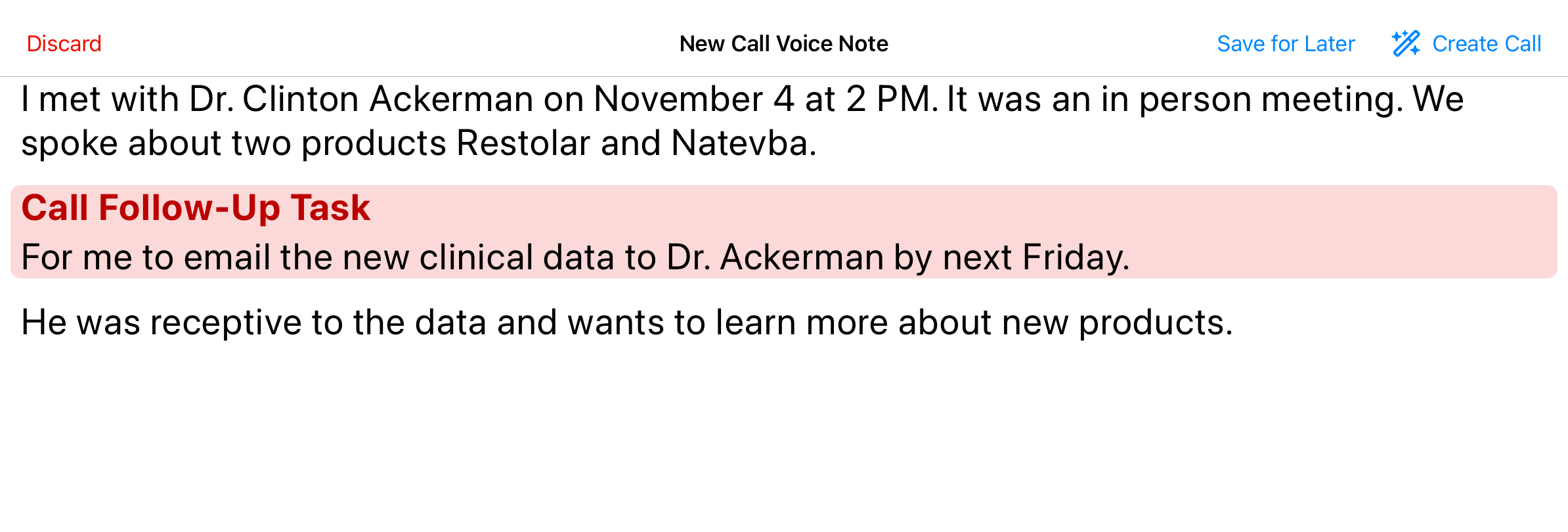
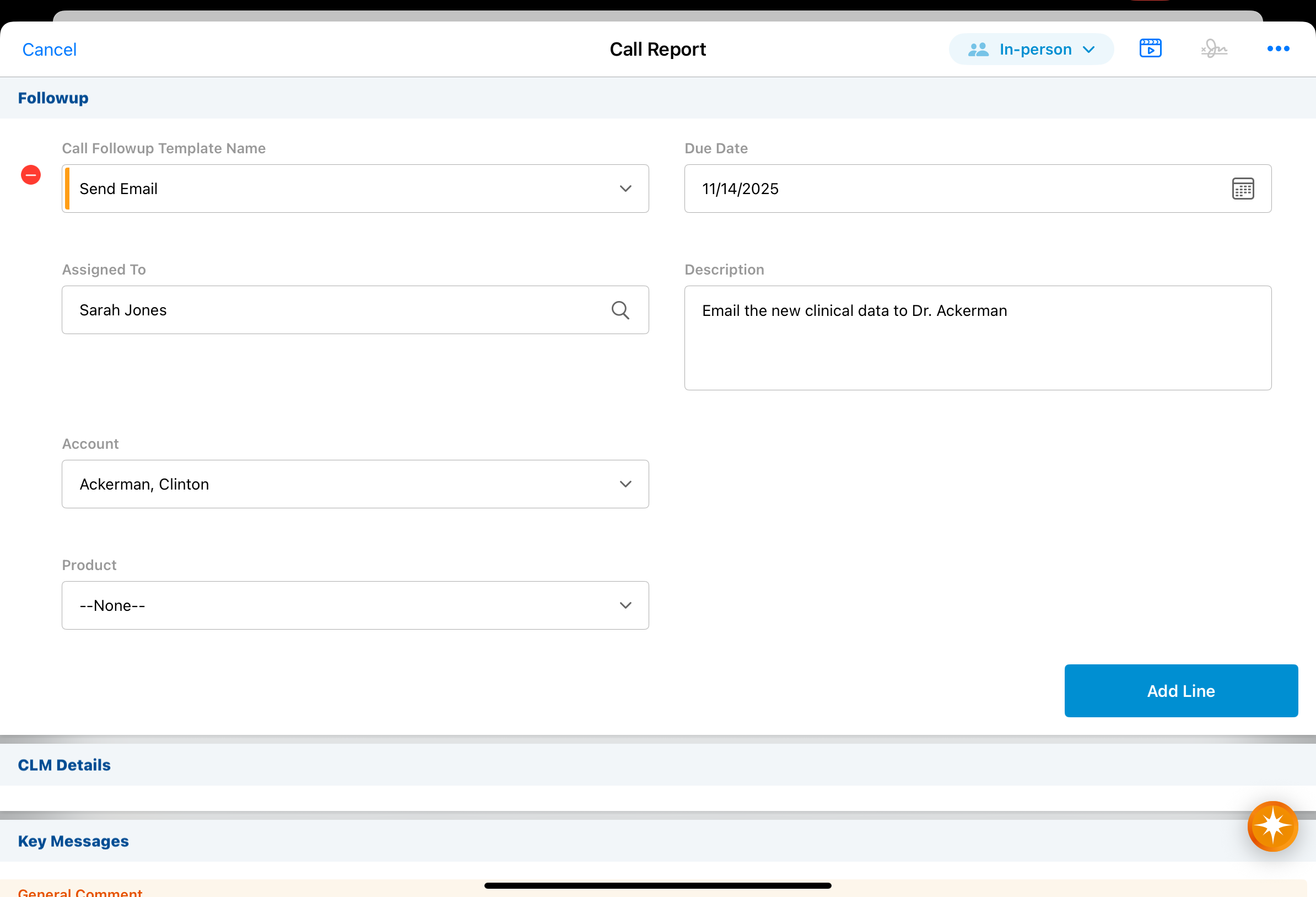
On the call report, Agentic Voice pre-populates the following call follow-up activity fields:
- Account - The account for the activity is automatically set to the account selected on the call report
- Assignee - If a user is specified as the Assignee in the Call Voice Note, the follow-up activity is assigned to the specified user. If no Assignee was identified, the current user is selected. The Assign to Creator value on the call follow-up template is disregarded when using Agentic Voice to create call reports.
- Due Date - If a due date is specified in the Call Voice Note, that due date is used. If a due date is not identified, the Days Before Due value on the call follow-up template is used.
- Description - The description is populated with any task information specified in the Call Voice Note
- Template - The template is identified based on the information the user provides. For example, saying “send an email” in the context of a follow-up activity indicates the Email template should be used. If a call follow-up template type is not specified in the Call Voice Note, the default template is used.
Capturing Call Text
The full content of the Call Voice Note is captured in the Call Text field. Agentic Text Monitoring monitors Call Text for potential compliance issues and alerts users before they save or submit the record.
When users exit the field after entering text, save the record, or submit the record, Agentic Text Monitoring automatically begins to analyze the text. The AI icon indicates which fields are monitored, and a Verifying tag displays while the text is analyzed.

While the agent analyzes the text, users can continue working on the current page, but they cannot navigate away from the current page. When the analysis is complete, the tag updates to one of the following statuses:
- Verified - Compliance issues were not detected
- Problem Detected - One or more potential compliance issues were detected
- Not Verified - The agent is unable to verify the text. Verification is reattempted if the user edits the field again, or when the user attempts to save or submit the record.
If an internet connection is not available when users open the record, a Not Connected tag displays and the Call Text field is not editable.
Resolving Potential Issues
When a potential issue is detected, the text is highlighted. Text related to Safety Vigilance issues (for example, adverse events or product quality complaints) is highlighted in purple, and text related to all of the following issues is highlighted in red:
- Inappropriate Content Screening
- Data Protection
- Corporate Compliance
- Promotional Compliance
- Product Restrictions
Customers can provide additional information to add a company-specific definition of compliance. This includes compliance policies, for example, standard operating procedures, work instructions, handbooks, and more. For more information, see Providing Compliance Documents.

Select the field to view the Agentic Text Monitoring popover. The popover displays buttons for each string of highlighted text. Issues related to safety have a Safety label, and all others have an Error label.
Agentic Text Monitoring behavior on the Browser platform matches the behavior on the iPad and iPhone platforms. However, information on potential issues displays below the text box rather than as a popup over the text box.

If a safety reporting link is defined for safety messages, users can select the provided link to access safety reporting systems.

To address all issues at once, select the Remove All button. This action deletes all highlighted text from the field. Alternatively, users can manually edit the text to resolve issues.
After revising the text, exit the field or select Save or Submit to initiate another compliance check. The field status changes to Not Verified during the edit and then updates to Verifying once the new check begins.

By default, users must resolve all detected issues before they can save the record. If users are allowed to save records with unresolved issues, a warning displays with options to continue saving the record or return to editing.
Identifying Records Submitted with Potential Issues
When users submit call reports without resolving all potential issues identified by Agentic Text Monitoring, the datetime they submitted the call is stamped to the submitted_with_text_monitor_issues__v field on the call2__v record. This enables admins and compliance teams to easily identify calls submitted with potential compliance issues. If the call report is later unlocked and resubmitted with all issues resolved, the field value is cleared.
This functionality only applies when the Text Monitoring Block Save (text_monitoring_block_save__v) AI Setting is deselected, allowing users to submit records without addressing all issues found by Agentic Text Monitoring.
Capturing Agentic Text Monitoring Findings
Agentic Text Monitoring findings can be captured on Monitored Text records in Vault CRM, providing compliance teams with direct visibility to potential issues. For more information, see Capturing Agentic Text Monitoring Findings.
Unique Activity Group Calls
When unique activity group calls are enabled, Agentic Voice processes calls against a business account as unique activity group calls. For each attendee identified in the Voice Note, attendee child calls are created and populated according to the user’s dictation. If there is not a single, clear match for the names mentioned in the Voice Note, users are prompted with an account selector and potential attendees selector—the same as for standard call reports.
Attendee Child Call Information
The following information is captured on attendee child call reports, if mentioned in the user’s dictation:
- Detail Products - Detail Products are populated on attendee child calls, if a product is mentioned in association with an attendee. If users do not indicate the product is related to a specific account, the Detail Product is captured for all attendees on the call.
- Key Messages - Key Messages and any reactions or vehicles mentioned are populated on attendee child calls, if a message is mentioned in association with an attendee. If users do not indicate the Key Message is related to a specific account, the message and any applicable reactions or vehicles are captured for all attendees on the call.
Business Account (Parent) Call Information
The following are automatically set on the business account (parent) call report and inherited by all attendee child calls:
- Call Date or Datetime
- Call Channel
Reviewing Agentic Call Report™ View as
End Users
Agentic Call Report View presents commercially relevant call content in a narrative, read-only format to enable fast review of the Agentic Call Report. End users and other reviewers (for example, managers) can confirm transcribed interaction details after voice dictation or recall commercial content from previous calls without navigating through entry-mode fields.
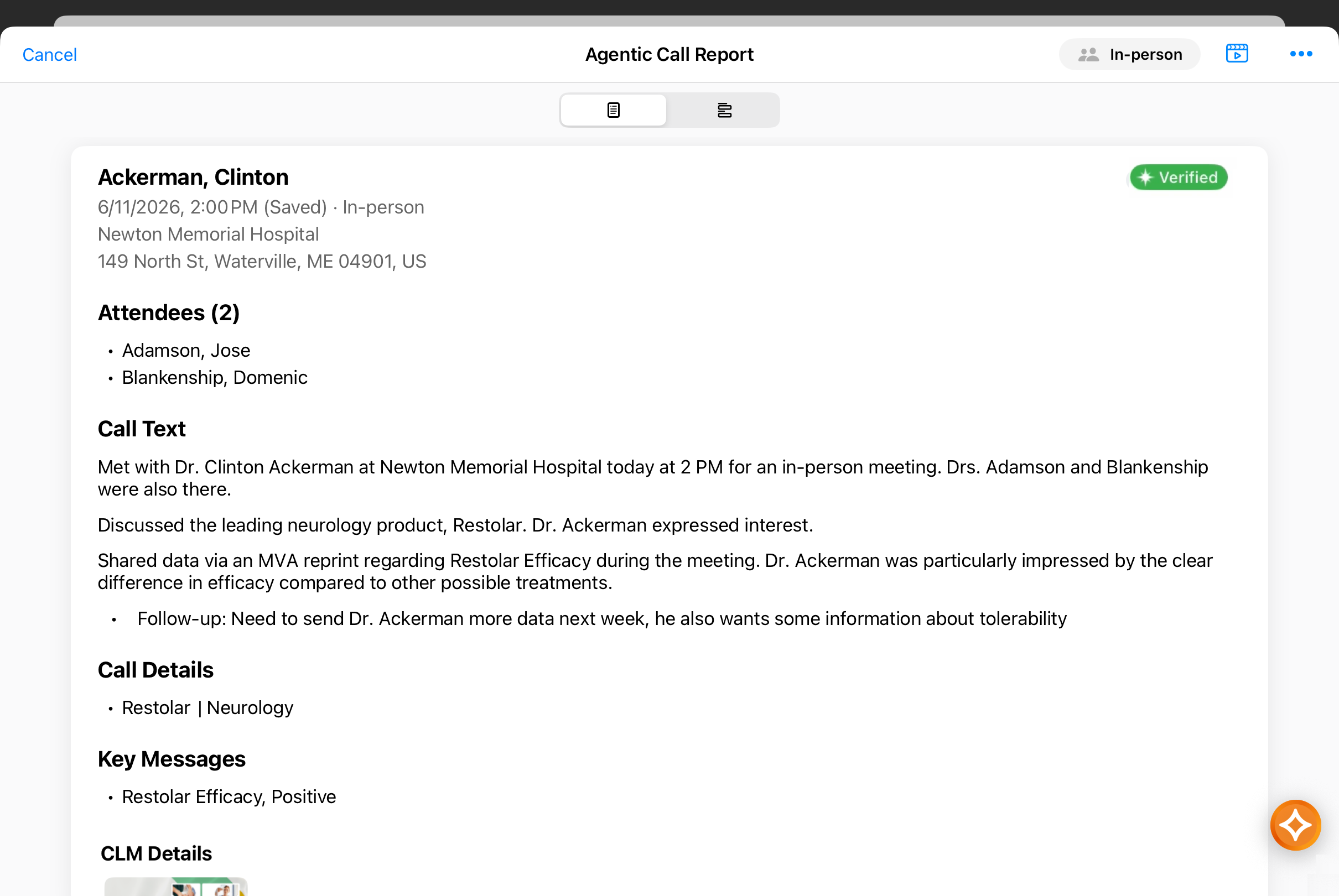
Agentic Call Report View displays by default in any of the following conditions:
- Users create a call report from voice dictation, or create a call report from a saved Call Voice Note
- The call report is in a read-only mode
- The call report is in a Submitted state
Review the rendered sections, including Call Header, Attendees, Products, Call Text, Commercial Insights, Key Messages, Samples and Promotional Items, Expenses, and Media. Sections display only when data exists and the section is present on the call layout. When Agentic Text Monitoring is enabled, the verification indicator displays in the upper right of the view to enable users to easily see whether any potential issues were detected in their Call Text.
- Unique Activity group calls - For Unique Activity group calls, parent call information displays first, followed by attendee child call information organized by attendee.
- Event Calls - For Events Management or Medical Event calls without accounts, the name of the event displays at the top of the page in place of the Account name
To ensure accuracy, content is not abridged or otherwise summarized.
The sections and information displayed in Agentic Call Report View are not configurable.
Switching View Modes
To toggle between Agentic Call Report View and the standard call report view, select the toggle from the call report header.
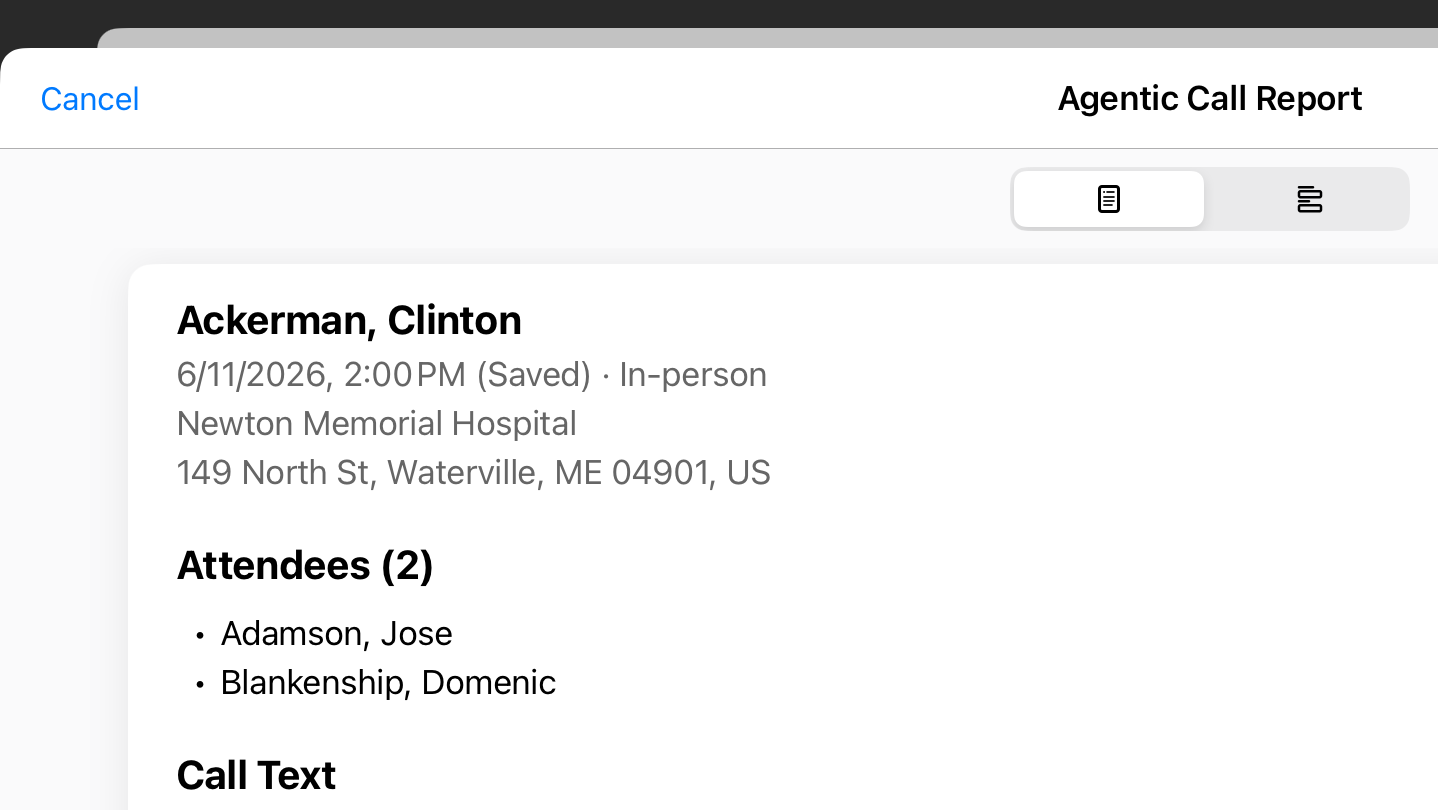
Toggling does not modify call data or trigger an implicit save.
Adding to an Existing Agentic Call Report™ with Voice as
End Users
End users can append or update information on an existing Agentic Call Report using voice dictation. Agentic Voice processes the Call Voice Note to add specific details while leaving previously entered information intact.
To preserve previous inputs, Agentic Voice does not update the Call Channel, Datetime, or Location fields on an existing call report.
Agentic Voice applies the following rules when updating an existing call:
- Call Text — Appends the generated summary to the existing value after two line breaks. It does not overwrite or clear the existing Call Text.
- Call Details and Key Messages — Adds new products and key messages if identified.
- Attendees — Adds new attendees if they are identified and do not already exist as an account, location, or attendee on the call. Existing attendees remain on the call report.
- Follow-Up Activities — Creates new follow-up activities. Existing activities are not updated or deleted.
For Unique Activity group calls, information is attributed to all attendees if an account is not specified; if an account is specified, then the information is only applied to the specified attendee’s child call.
Adding a Call Voice Note to an Existing Call
To add a Call Voice Note to an existing call:
- Navigate to the appropriate call report. For Unique Activity group calls, use the parent call report.
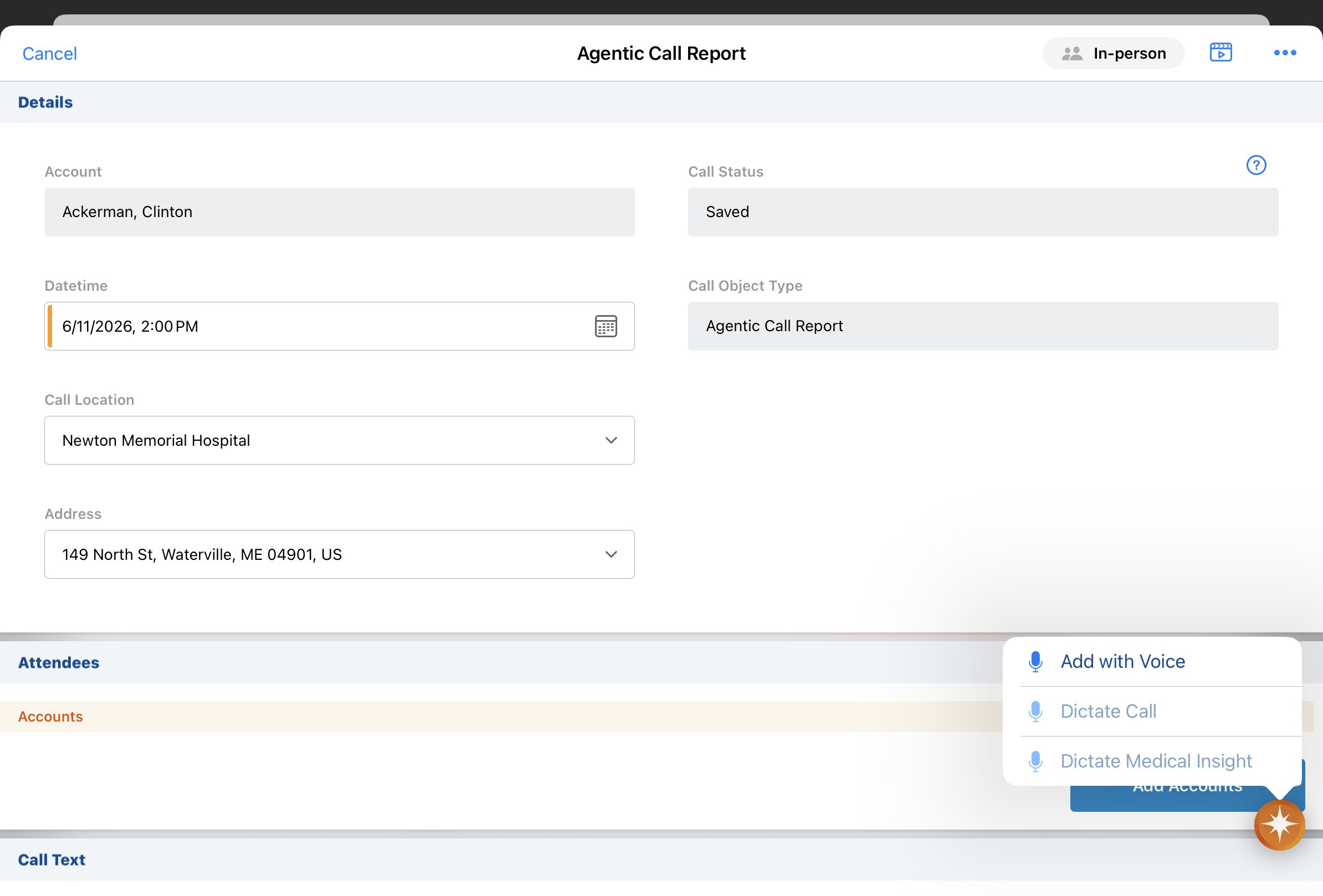
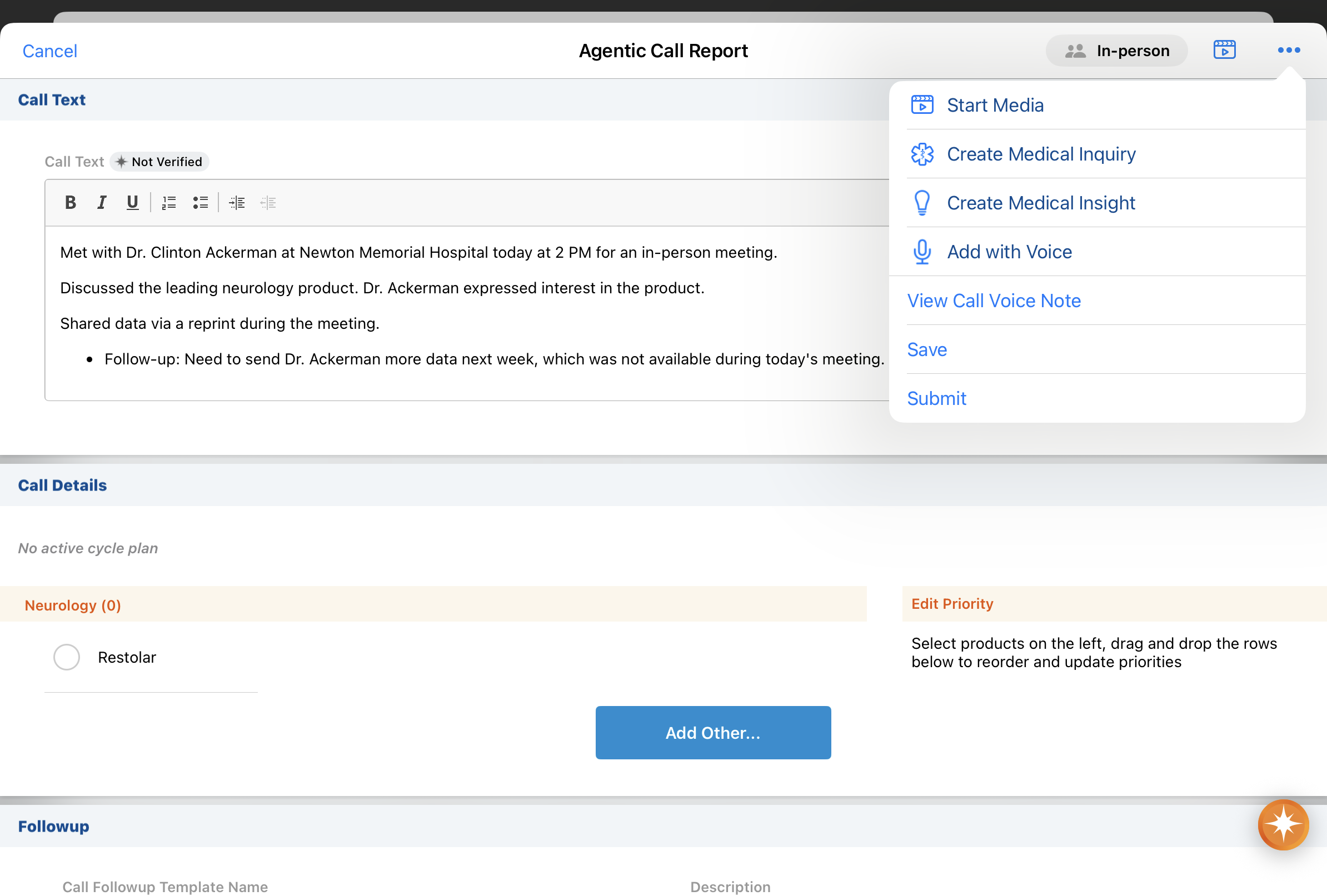
- Long press the AI Icon when in Create or Edit mode on the call report, or open the All Actions menu and select Add with Voice. The call report saves automatically at this point.
- Record your dictation as a Call Voice Note.
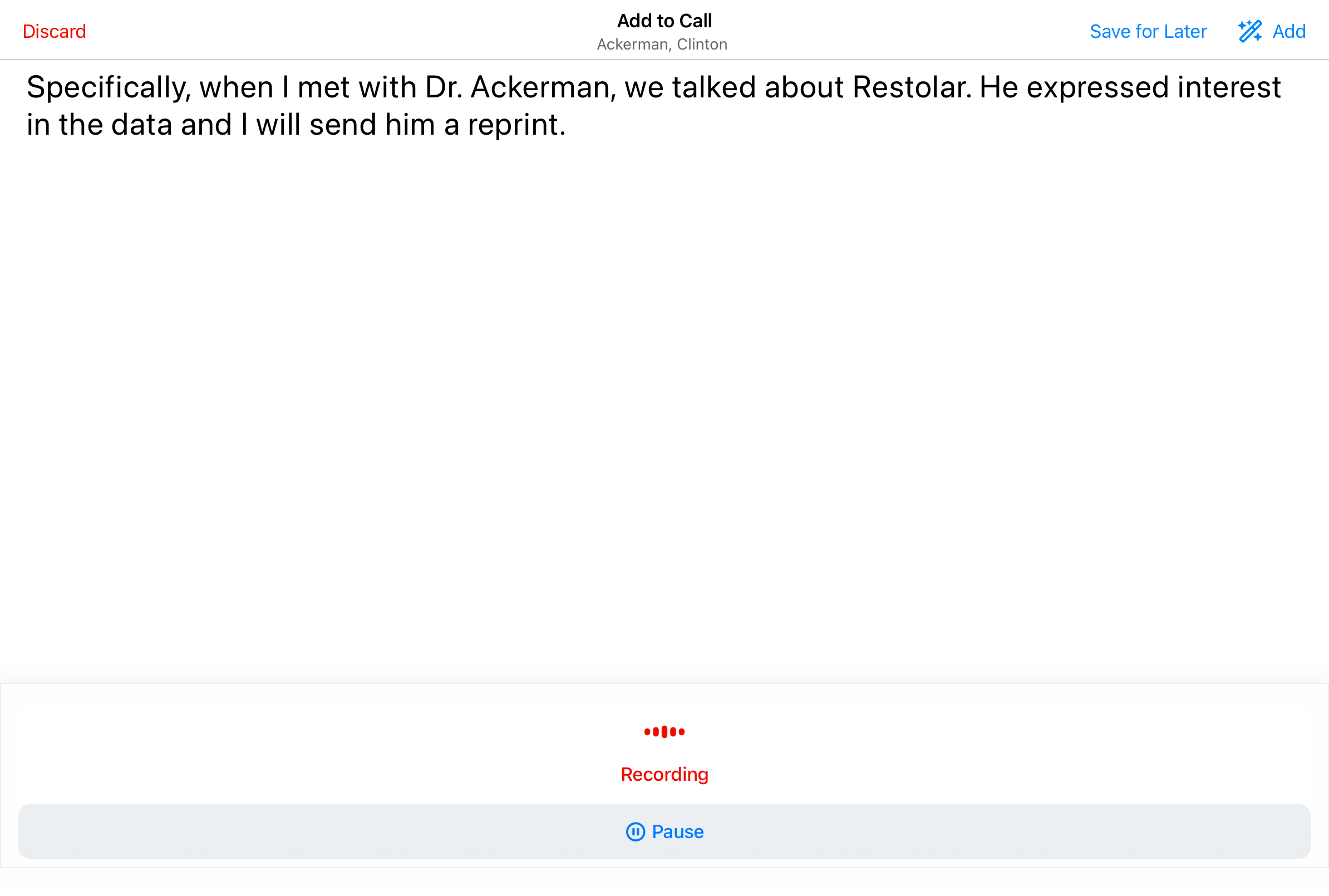
- Complete the Call Voice Note with one of the following actions:
- Select Add to process the Call Voice Note and update the call
- Select Save for Later to store the Call Voice Note as a pending item on the call report without triggering Agentic Voice
- Select Cancel to discard the Call Voice Note
When users add to an existing call report with Agentic Voice, validations only run for Allowed Products, Restricted Products, and Call Backdate Limit. This prevents extraneous errors from showing before the call report is complete. All validations run when users save or submit the call report.
Managing Pending Call Voice Notes
To manage pending Call Voice Notes:
- Open the call report. A notification banner displays if an unreconciled Call Voice Note is available for the call.
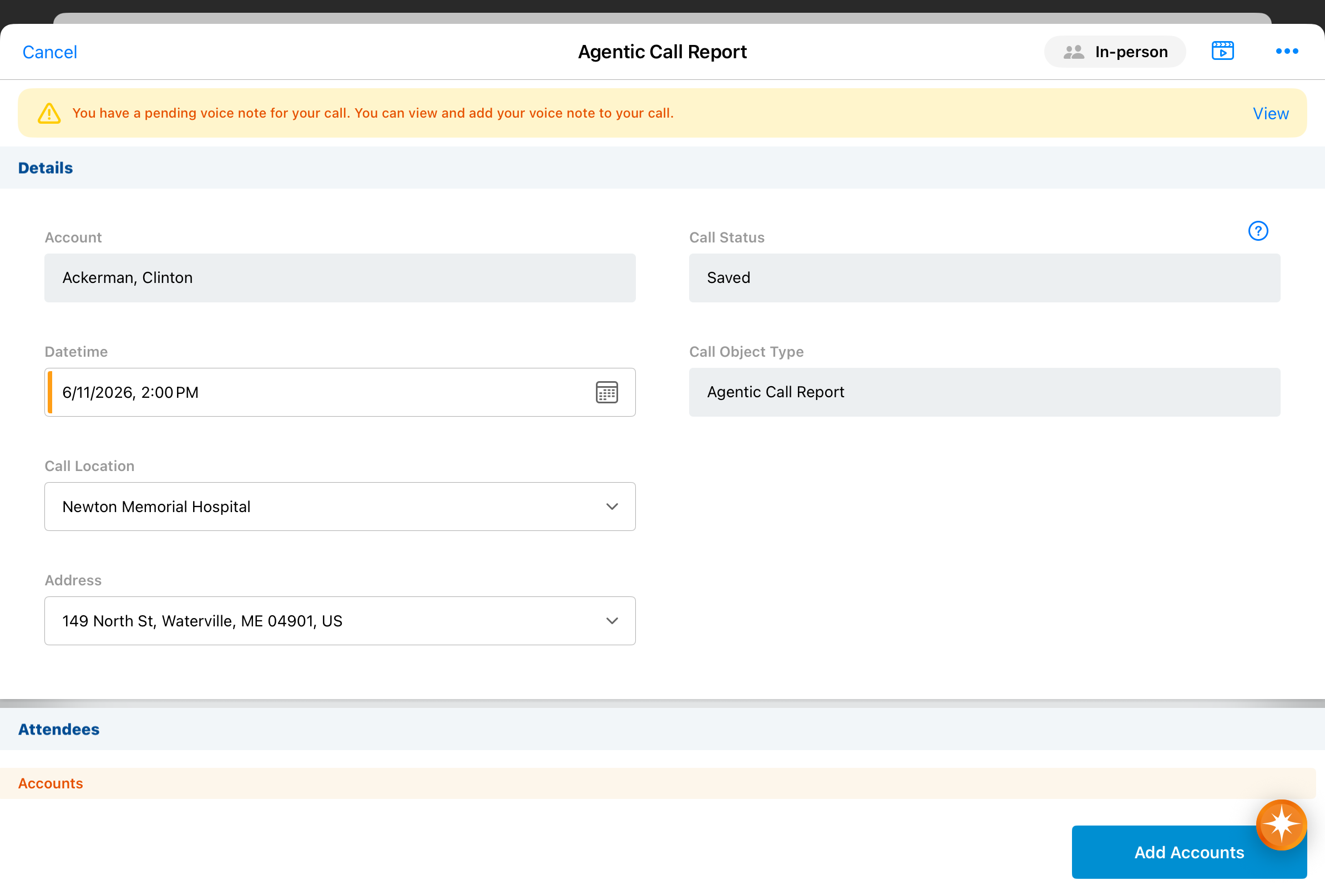
- Select View on the banner to open the Call Voice Note dialog.
- If one pending Call Voice Note exists, the note opens directly
- If multiple Call Voice Notes exist for the call, a list view displays up to five notes with columns for Transcript, Date, and Actions. Select a row to view Call Voice Note contents.
- Select Add to apply the updates to the call, or select Delete to remove the pending note.
When users attempt to submit a call with pending Call Voice Notes, a warning dialog displays to confirm the action. 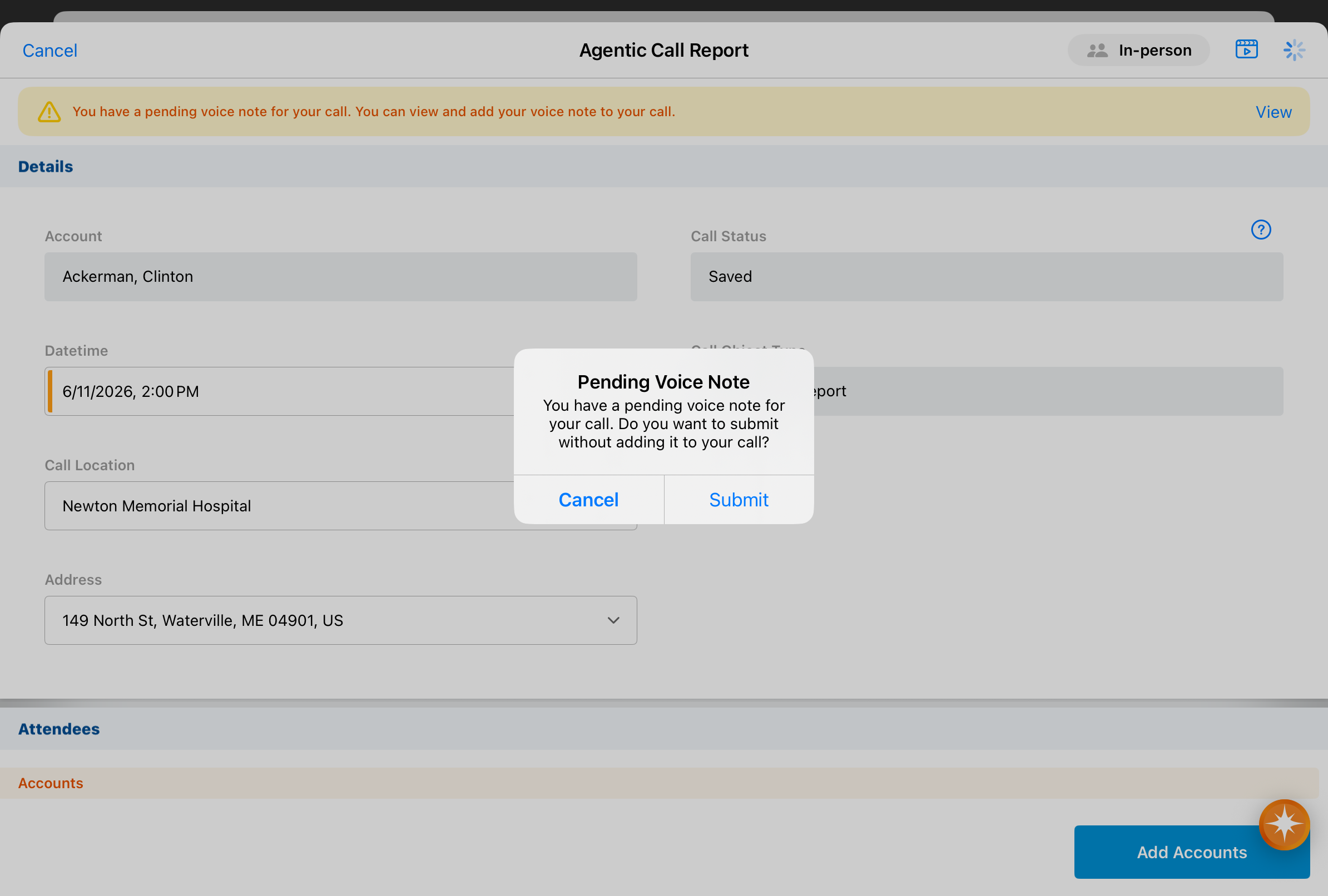
Select Submit to finalize the record without applying the Call Voice Note, or select Cancel to return to the call report.
Saving and Submitting an Agentic Call Report™ as
End Users
To ensure accuracy, users can review and manually save the call report before submitting it. Select Save after reviewing the generated call report and making any necessary edits or additions.
Until the call report is submitted, users can access the original Call Voice Note from the call report’s All Actions menu.
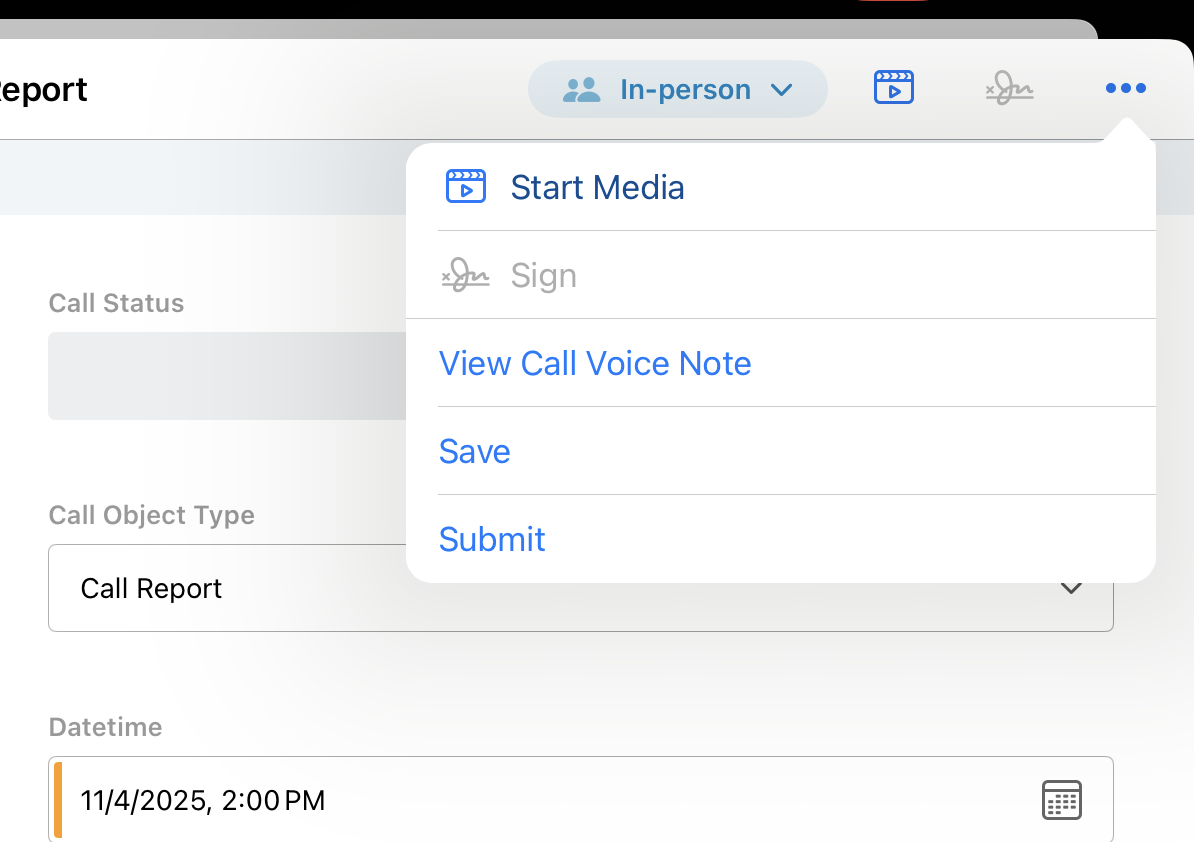
Select the View Call Voice Note option to access the original Call Voice Note audio and text.
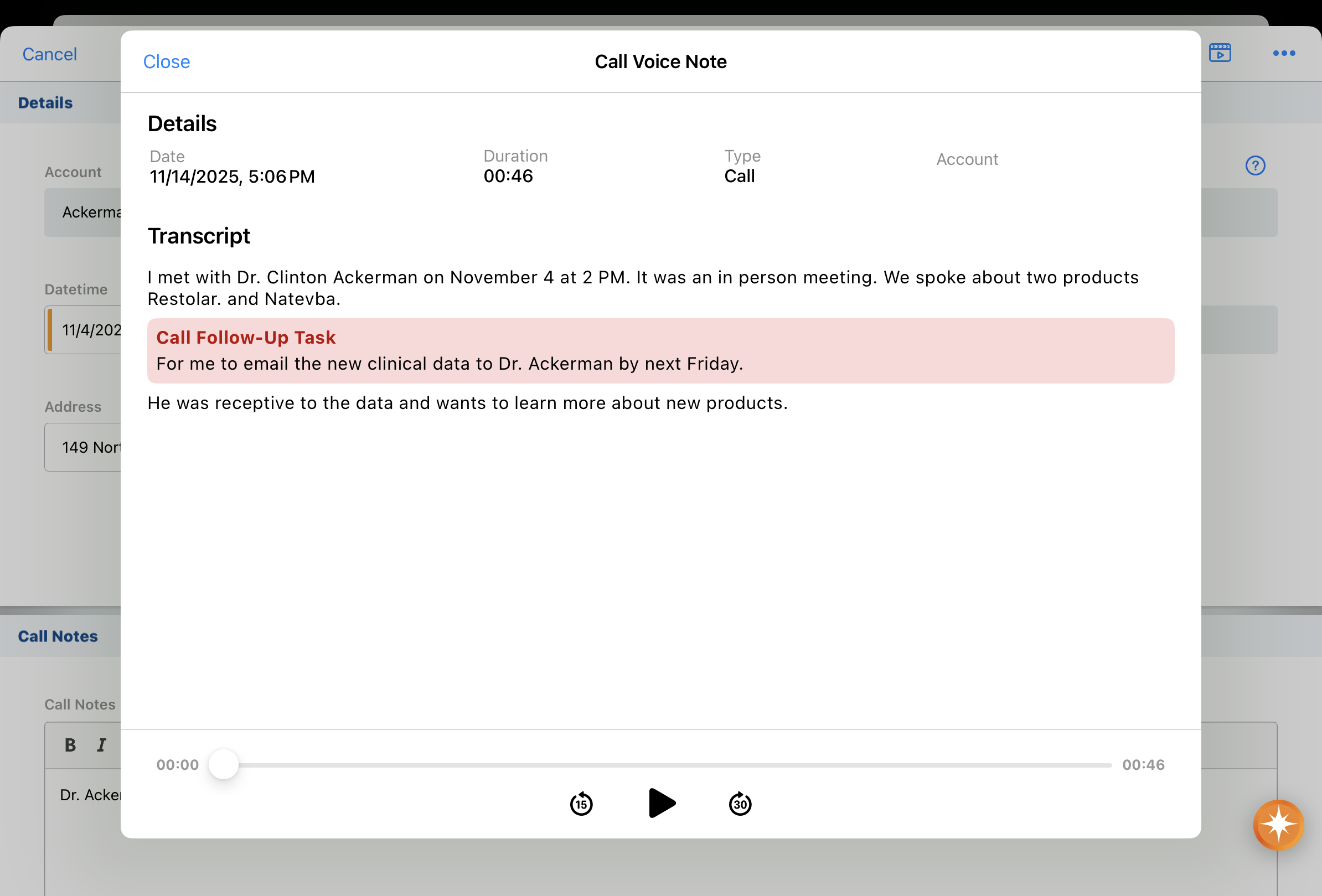
For compliance and data privacy, Call Voice Note audio and text are permanently deleted when users submit the call report. If the call report is deleted, Call Voice Note audio and text are also permanently deleted.
Error Messaging
Error messages display when users encounter the following issues:
- Connection issues which prevent the LLM from responding
- LLM response time exceeds 120 seconds
- User’s request exceeds the maximum token usage
- User’s request contains words or phrases rejected by the LLM’s usage policies

