Formulary Matrix from Account Plans
Users can view the Formulary Matrix from a dedicated tab directly on account plans. This enables users to quickly identify advantages or disadvantages in competitor products across various benefit plans and provide relevant product information to the account targeted by the plan. Customers can also replace the default visualization with a custom account plan formulary X-Page, without impacting the formulary X-Page available from the accounts entry point.
Who can use this feature?
- Key Account Managers — Browser
- Viewing the Formulary Matrix from an Account Plan
- Editing an Existing Benefit Design Line
- Creating a New Benefit Design Line
- Users do not require an additional license
Configuring Formulary Matrix from Account Plans for
 Key Account Managers
To configure this feature:
-
Ensure the following are complete:
- Navigate to Admin > Users & Groups > Permission Sets.
- Select the appropriate Permission Set.
- Select the Objects tab.
- Grant the following permissions:
Object Object Permission Object Type Fields Field Permission account_plan__v R All applicable object types - account__v
- name__v
- parent_design__v
- type__v
Read benefit_design__v
R
n/a
- account__v
- name__v
- parent_design__v
- type__v
Read
benefit_design_line__v R n/a - benefit_design__v
- benefit_design_line_status__v
- modified_date__v
- name__v
- notes__v
- notes_source__v
- restrictions__v
- restrictions_source__v
- status_source__v
- type__v
Read formulary_products__v R n/a - competitor__v
- market__v
- name__v
Read preferences__v CRE n/a formulary_view__v (optional) Edit - Grant access to the account_plan_formulary_xpages_section__v object control.
- Navigate to Admin > Configuration > Objects > account_plan__v.
- Ensure the account_plan_formulary_xpages_section__v object control is added to the appropriate account plan layouts.
If a custom Formulary Matrix X-Page is not in use, the section displays the standard formulary visualization.
- Navigate to the benefit_design_line__v object.
- Place the following fields on the appropriate layouts:
- Details section
- Benefit Design (benefit_design__v)
- Type (type__v)
- Status and Restrictions section
- Benefit Design Line Status (benefit_design_line_status__v)
- Restrictions (restrictions__v)
- Notes (notes__v)
- Status and Restrictions (Source) section
- Status (Source) (status_source__v)
- Restrictions (Source) (restrictions_source__v)
- Notes (Source) (notes_source__v)
- Navigate to Business Admin > Picklists > formulary_products_market__v.
- Activate, inactivate, or add the desired values in the formulary_products_market__v picklist.
Customizing the Formulary Matrix
A default Formulary Matrix visualization is delivered out-of-the-box. Content creators can build their own Formulary Matrix X-Page in X-Pages Studio or with a custom-coded X-Page to replace the default Formulary Matrix visualization. For more information, see Defining X-Pages Layouts.
Using Formulary Matrix from Account Plans as
Key Account Managers
Key Account Managers (KAMs) can manage and update benefit design details directly within the context of the account plan.
Viewing the Formulary Matrix from the Account Plan
Users can view product coverage across multiple benefit designs and markets to prepare for customer meetings.
The account plan formulary displays as a tab on the account plan immediately before the other account_plan__v X-Pages tabs.
The visualization uses the same native X-Page that is displayed from the account entry point, with the account targeted by the plan as the root account.
Customers can customize the X-Page for the account plan formulary without impacting the page available from the accounts entry point. For information, see Customizing the Formulary Matrix.
To view the formulary matrix:
- Navigate to the account plan.
- Select the Formulary Matrix tab. The matrix loads automatically based on saved preferences or default All selections.
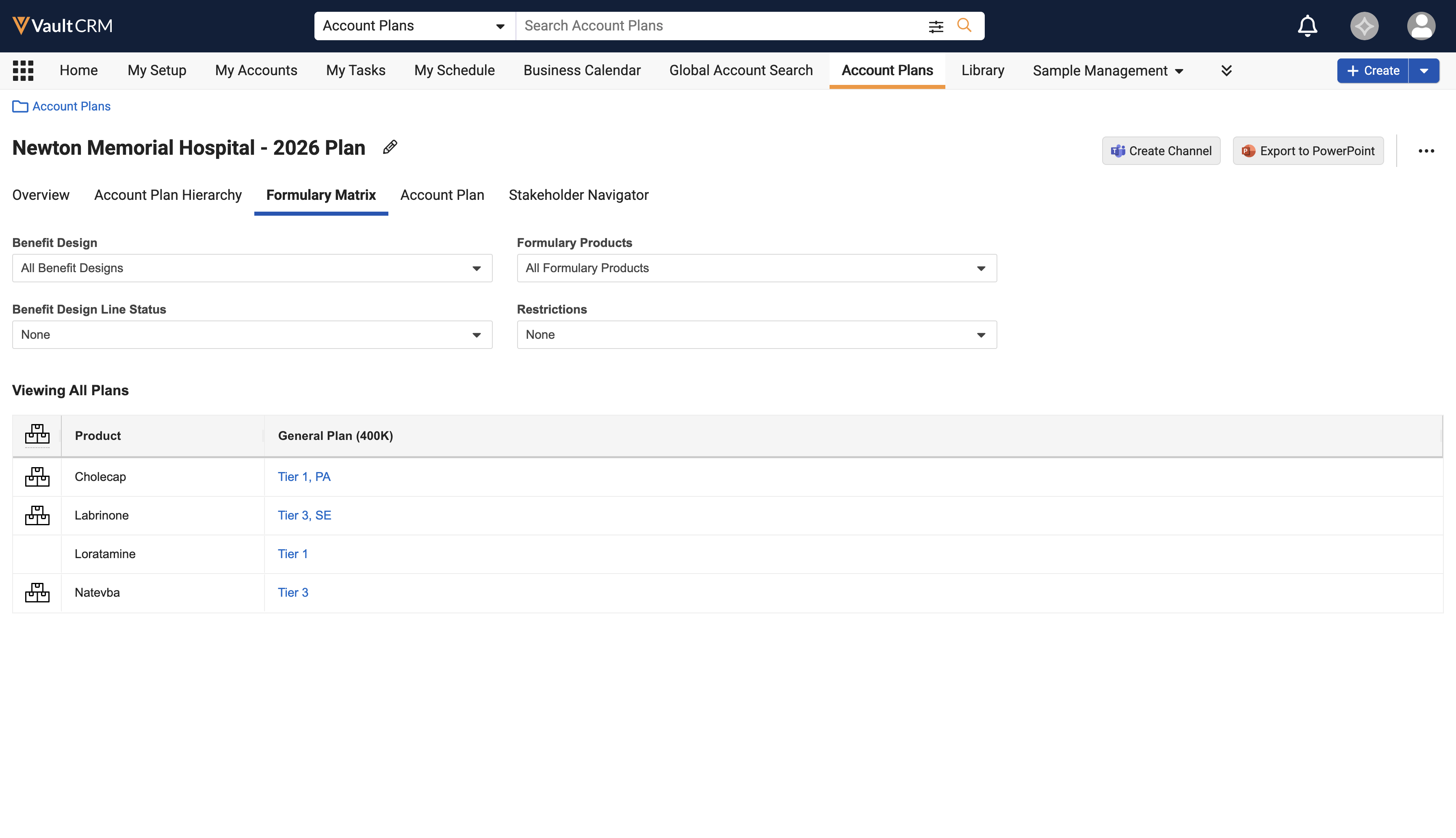
- Select a specific plan from the Benefit Design dropdown to view details for a single plan, or select All to view a comparison of all plans related to the target account.
- Select a value from the Formulary Products dropdown to filter the rows by a specific therapeutic area or market, or select All Formulary Products to display only products where the competitor field is not selected.
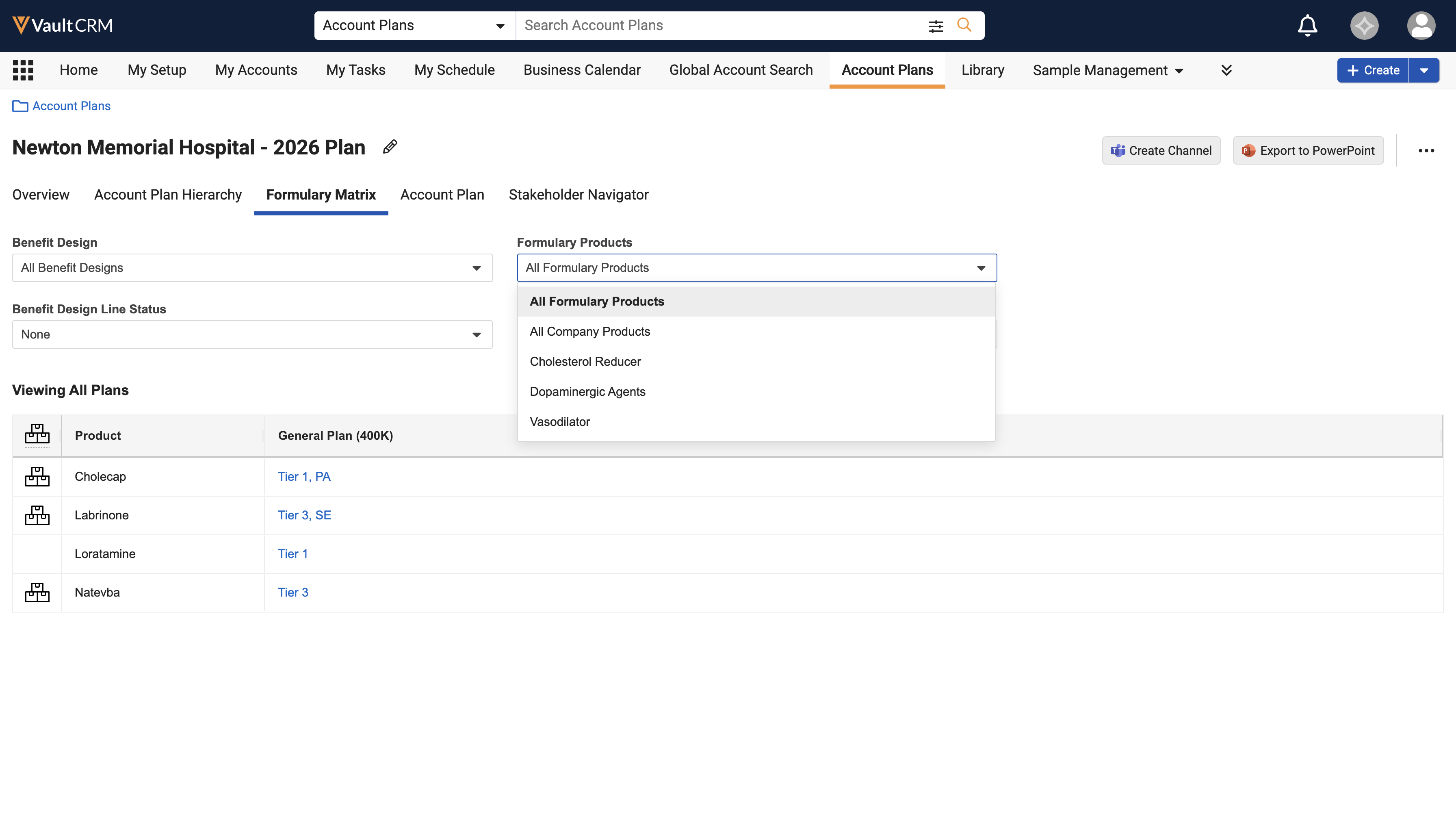
- Use the Status or Restrictions dropdowns to further filter the matrix. The table displays records that meet any of the selected criteria when multiple filters are applied.
The matrix distinguishes between company products and competitor products by displaying a checkbox in the Company Product column for competitor items.
Selecting the hyperlink for a product navigates to the existing benefit_design_line__v record. If the user has Edit permission to the record, the page displays in edit mode.
Editing an Existing Benefit Design Line
To edit an existing benefit design line:
- Navigate to the account plan.
- Select the Formulary Matrix tab.
- Select an individual plan from the Benefit Design dropdown.
- Select the product name hyperlink in the matrix. The user is directed to an edit page where they can edit the record details based on the configured layout.
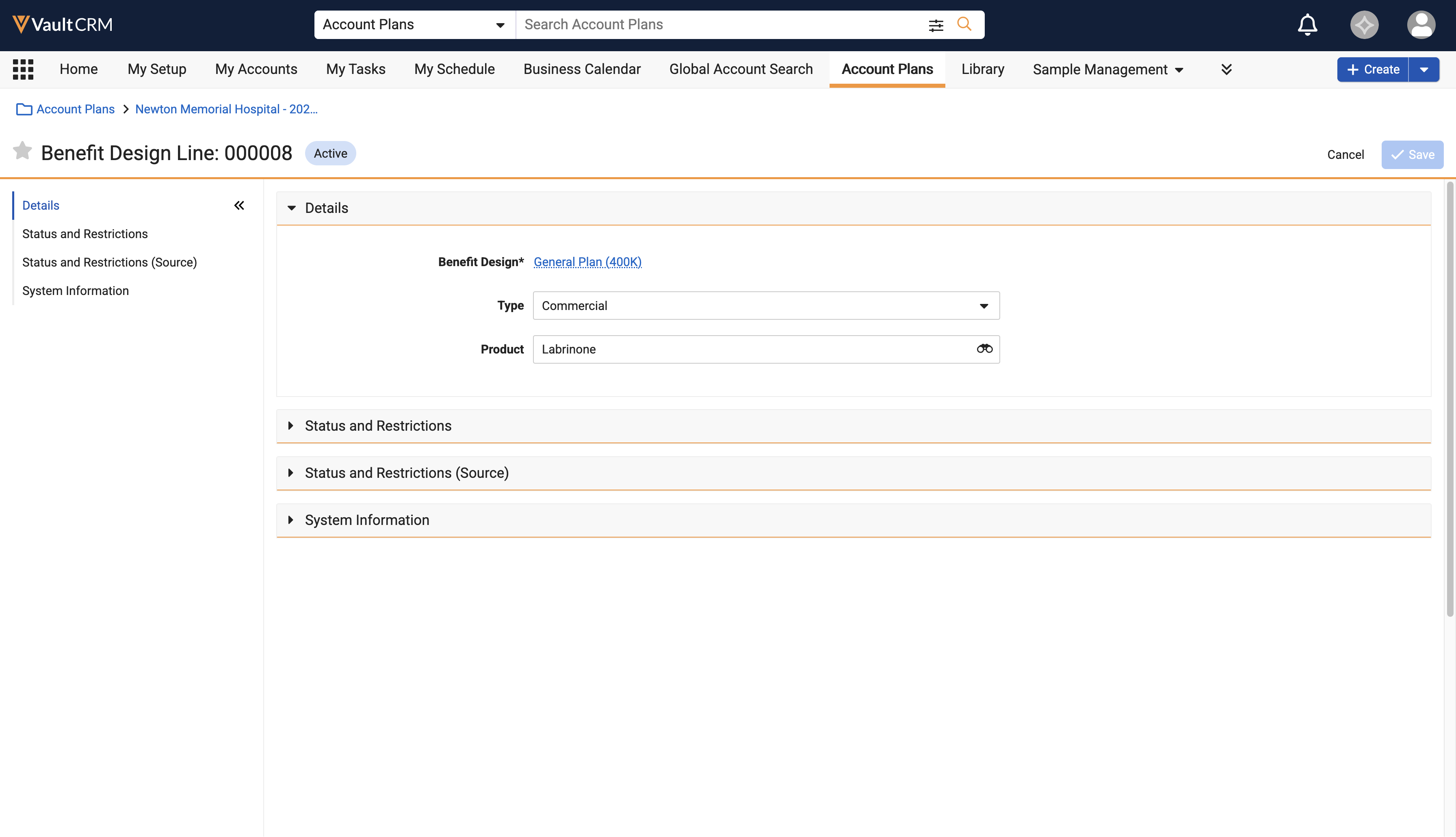
- Modify the necessary fields.
- Select Save and navigate back to the account using the breadcrumb. The matrix refreshes to display the updated data.
Creating a New Benefit Design Line
To create a new benefit design line:
- Navigate to the account plan.
- Select the Formulary Matrix tab.
- Select an individual plan from the Benefit Design dropdown.
- Select the hyperlink for a product that does not have an existing benefit design line.
- Select the appropriate object type if prompted.
- Enter the record details in the create page.
- Select Save.

