Visualizing Territories on Maps
To enable Align operational users to identify and analyze account distribution in their territories, users can visualize territories, accounts, and roster members on an interactive map. This feature provides integrated modeling and production views, allowing for immediate geography transfers and high-performance rendering of complex territory shapes.
Who can use this feature?
- Align Operational Users – Browser
- Viewing the Territory Map
- Users require an Align License
Configuring Territory Visualization for
 Align Operational Users
To configure this feature:
-
Ensure the following features are configured:
- Configuring Align
- Using the Territory Information Panel – The map component must be added to the Territory Information Panel
- Navigate to Admin > Users & Groups > Permission Sets.
- Select the appropriate permission set.
- Select the Objects tab.
-
Grant the following permissions:
Object Object Permission Object Types Fields Field Permission aln_roster_member__v
R
All
-
latitude__v
-
longitude__v
Read
-
Viewing the Territory Map as
Align Operational Users
Users can visualize territory hierarchies, identify account distribution, and transfer geographies directly from the map interface.
The map view can be accessed via the following ways:
- Selecting the map component in the appropriate territory’s Territory Information Panel
-
Selecting Map Territory from the territory’s All Actions menu when viewing the territory hierarchy
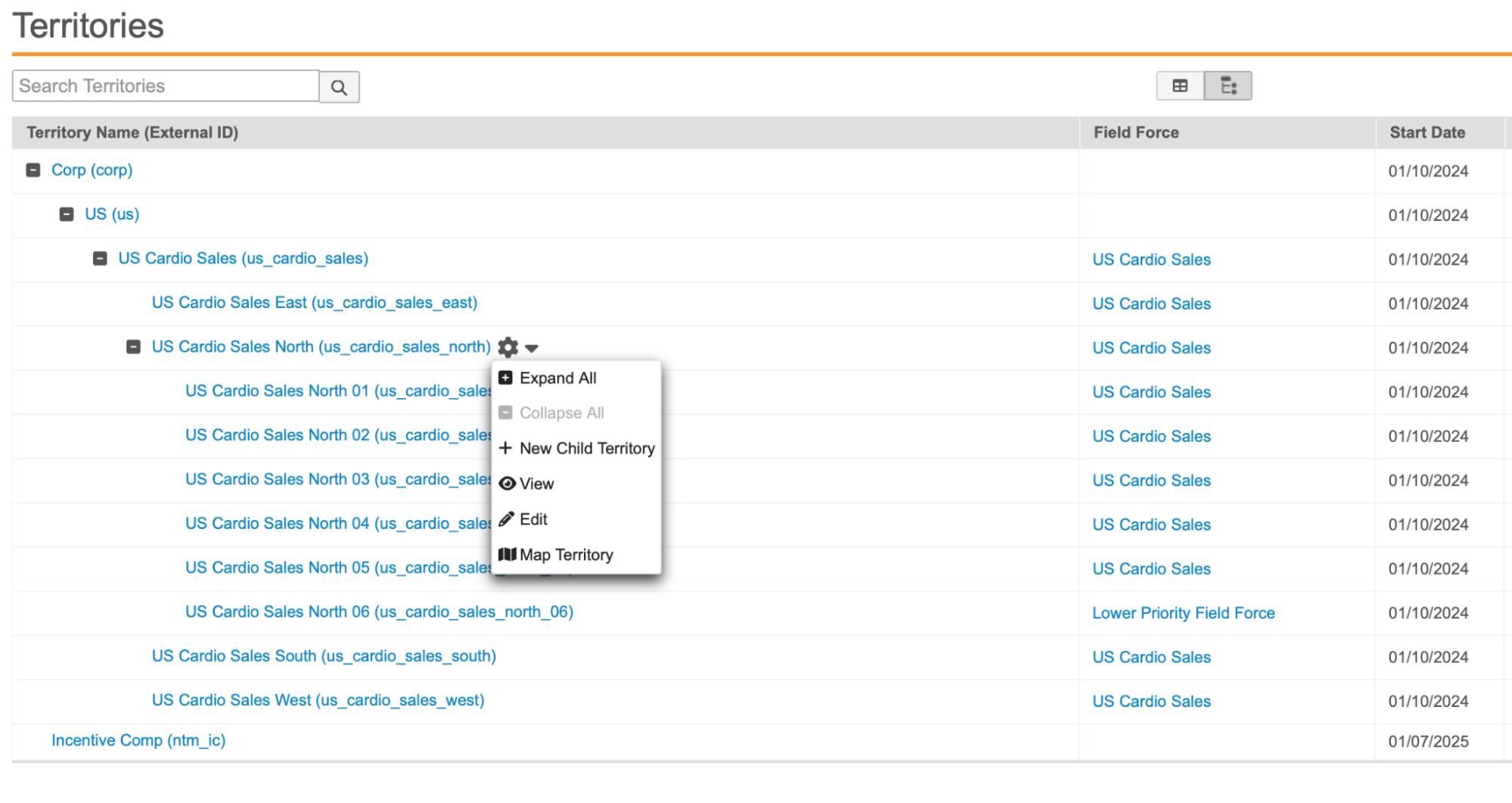
Filtering and Viewing Territories
To select specific territories for analysis:
-
Select the Territories tray at the bottom of the screen.
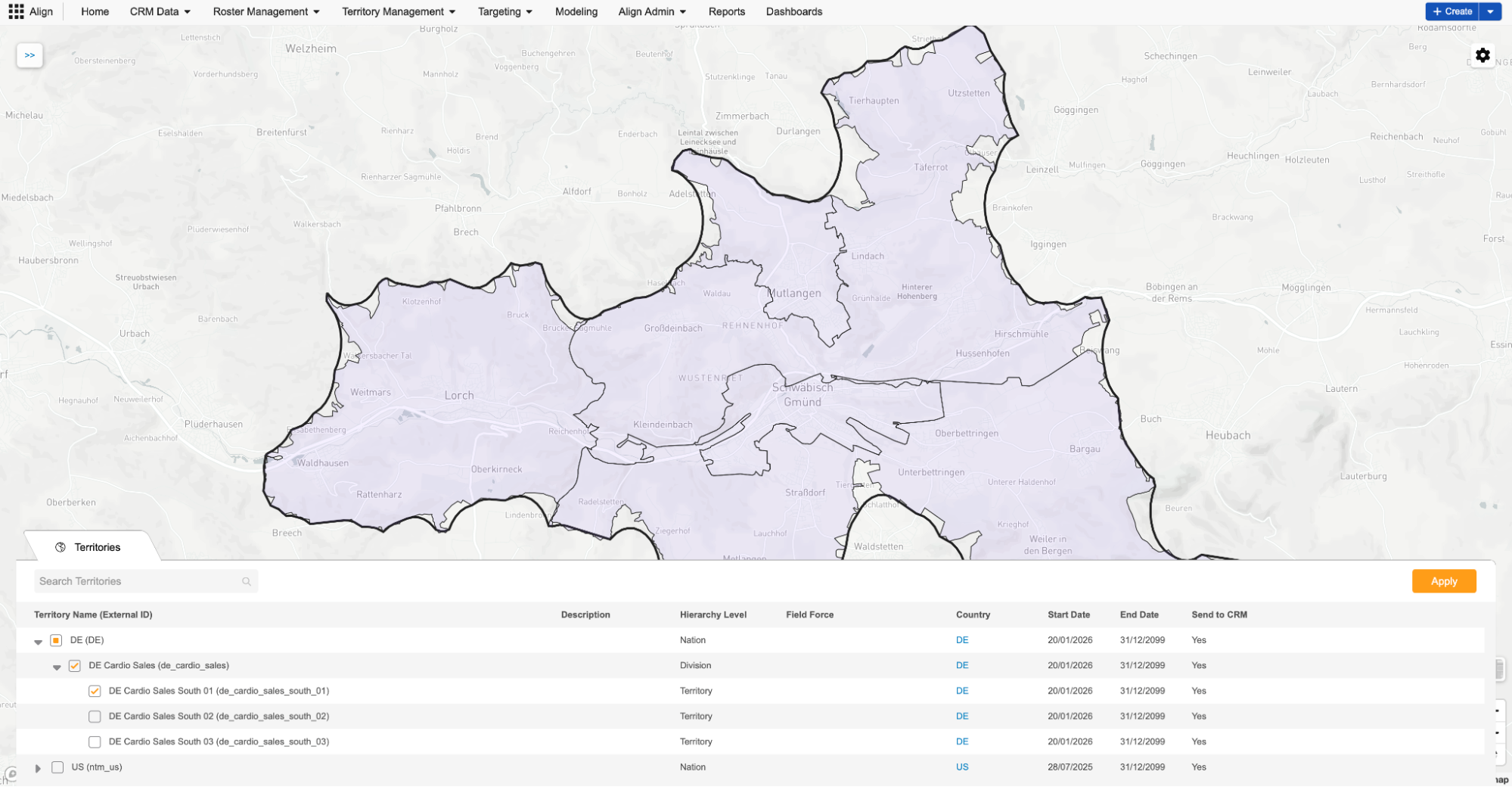
- Use the search box to locate specific territories.
- Select the check boxes next to the desired territory branches.
- Select Apply to render the selected territories on the map.
Filtering Accounts and Roster Members
From the Map page, users can also filter accounts and roster members in highlighted territories to display on the map.
-
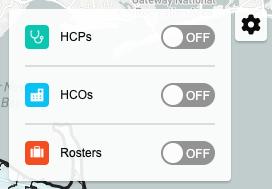
Select the Gear icon on the map.
-
Use the toggle controls to display or hide HCPs, HCOs, and Roster Members.
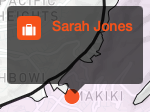
Each category displays on the map as a colored pin. If multiple items on the map are geographically close together, they are grouped together. Select the appropriate pin to display information about the item.
Transferring Geographies
Users can also use the map view to transfer a geography to a new territory:
- Zoom in on the map until individual geography shapes are visible.
- Select the appropriate geography shape.
- Select the Transfer.
-
Populate the following fields:
- New Territory
- Effective Date
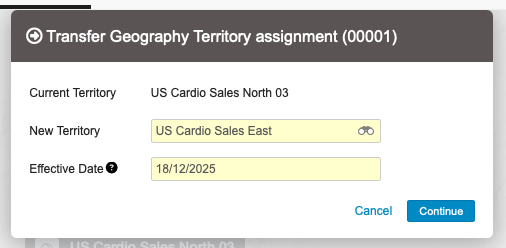
- Select Continue to initiate the transfer.

